Slide 2 of 3 from Spiral Diagram for PowerPoint
1134-spiral-diagram-wide-2
Spiral Diagram - Different Colors for Presentations
- Diagram
- Other
- Process Slide
- 16:9
- 100% Editable
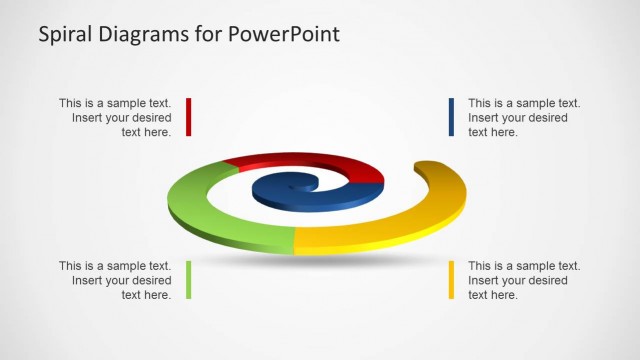
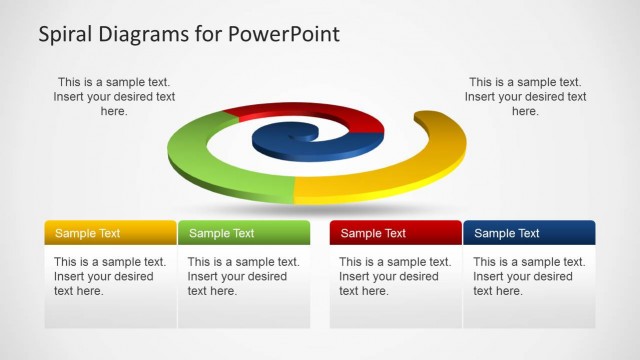
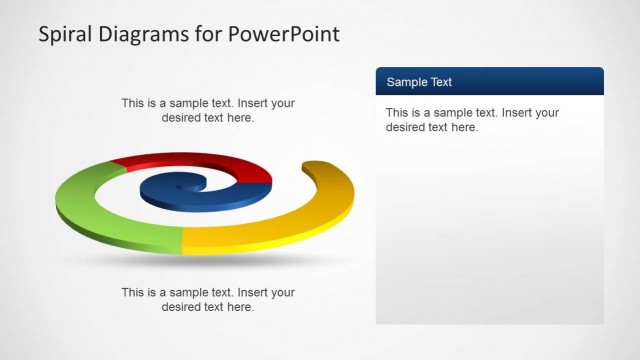
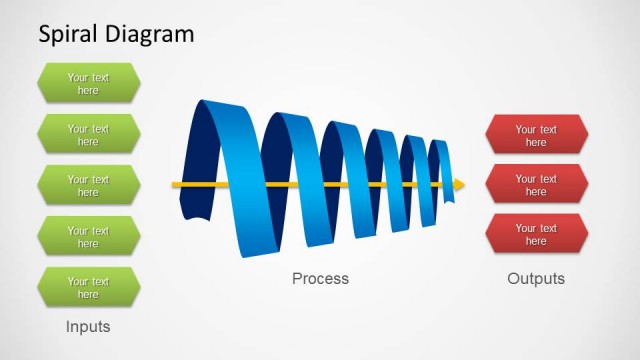
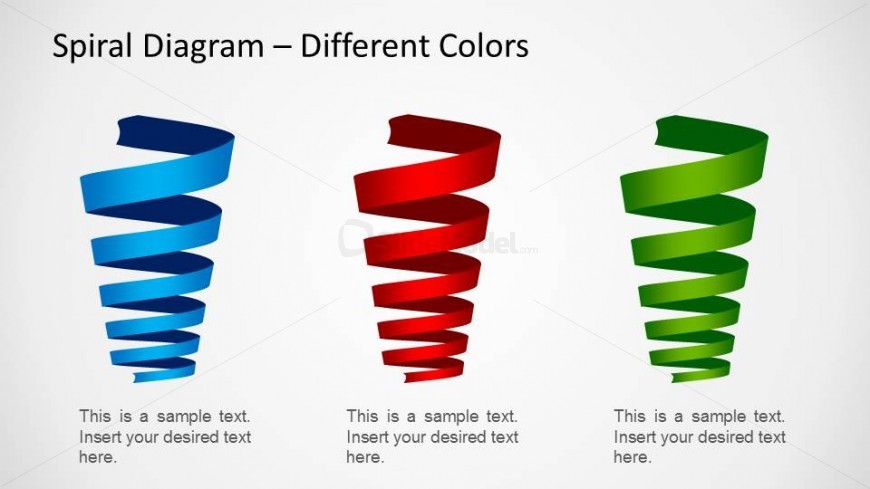
The Spiral Diagram - Different Colors slide from the Spiral Diagram for PowerPoint template offers a clear visual tool for comparing process stages or strategic options. This slide layout uses distinct colored spirals with editable shapes and text placeholders, ideal for business presentations or pitch decks requiring precise illustration of product features or project phases. Its design supports effective communication within corporate presentations using professional slide templates.
What’s on This Slide
The layout features three spirals arranged horizontally across the center of the slide. Each spiral is a different color: blue on the left, red in the middle, and green on the right. Below each spiral, there are text placeholders aligned centrally, indicating where to insert desired text. The background is light, enhancing the visibility of the spirals. The title is positioned at the top, centered, and uses a bold font. The overall composition emphasizes the spirals as the main visual elements, with clear separation between them.
How to Use It
This layout serves as a visual representation of processes or concepts that can be compared or contrasted. It fits well in a presentation sequence after an introductory slide, providing a clear visual of different stages or options. Suitable for business scenarios like product features, project phases, or strategic options, this layout can effectively communicate variations in a process while maintaining clarity and focus on each element.
Text Placeholders & Capacity
Keep your copy within these limits so it fits without resizing. Node body slots can hold about 6-8 words each.
| Placeholder | Count | Max characters (approx.) |
|---|---|---|
| Slide title | 1 | 30 |
| Item body | 3 | 40 |
Slide Keywords
Download unlimited PowerPoint templates, charts and graphics for your presentations with our annual plan.
DOWNLOADReturn to Spiral Diagram for PowerPoint.