Slide 2 of 4 from Checklist Tables for PowerPoint
6075-01-checklist-table-2
Checklist - Two Tables for PowerPoint
- Table
- Comparison Table
- Comparison Slide
- 16:9
- 100% Editable
The Checklist - Two Tables slide from the Checklist Tables for PowerPoint template offers a clear comparison layout ideal for project tracking and decision making. This slide template features editable tables with vector icons to visually distinguish completed and pending tasks, supporting effective business presentations and slide decks focused on task management.
What’s on This Slide
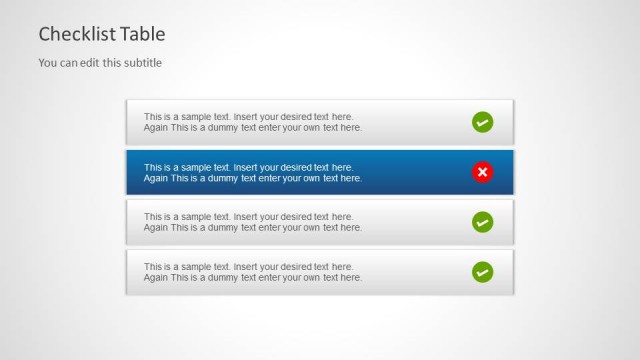
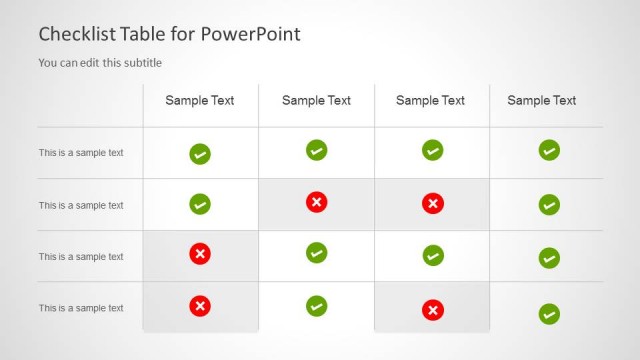
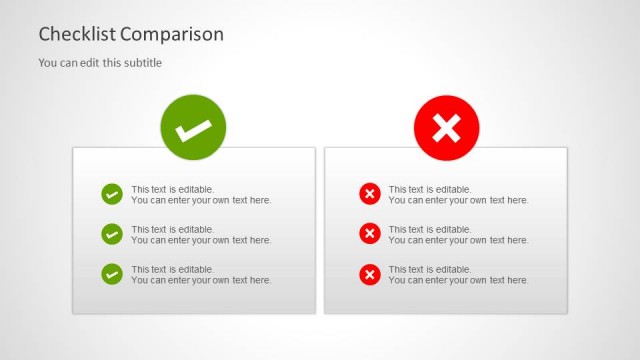
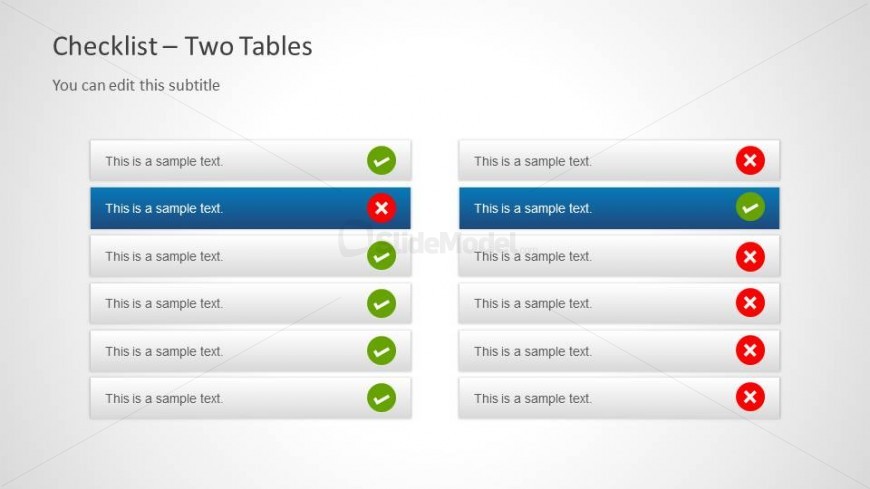
The layout features two side-by-side tables, each containing rows with sample text. The left table has a green checkmark icon in most rows, indicating completion, while one row has a red cross icon. The right table mirrors this structure, with a blue-highlighted row showing a green checkmark and other rows with red crosses. The title is positioned at the top left, with a subtitle directly below it. Each table has a consistent format, with icons aligned to the right of the text. The background is light, enhancing readability.
How to Use It
This layout serves as a comparison tool, allowing users to present two sets of checklist items side by side. It is effective in scenarios such as task management, project tracking, or decision-making processes. The structure facilitates quick visual assessments of completed versus incomplete tasks. It fits well in a presentation sequence after a problem-framing slide, helping to clarify options or progress. This layout can be used in team meetings, project updates, or performance reviews to highlight achievements and areas needing attention.
Text Placeholders & Capacity
Keep your copy within these limits so it fits without resizing. Node slots can accommodate multiple checklist items, roughly 30 characters each.
| Placeholder | Count | Max characters (approx.) |
|---|---|---|
| Slide title | 1 | 30 |
| Subtitle | 1 | 50 |
| Item body | 12 | 30 |
| Item heading | 12 | 30 |
Slide Keywords
Download unlimited PowerPoint templates, charts and graphics for your presentations with our annual plan.
DOWNLOADReturn to Checklist Tables for PowerPoint.