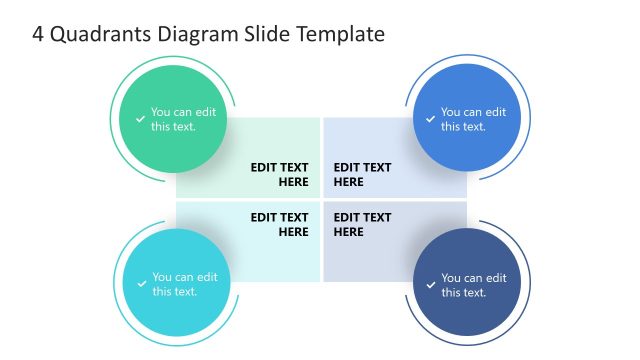
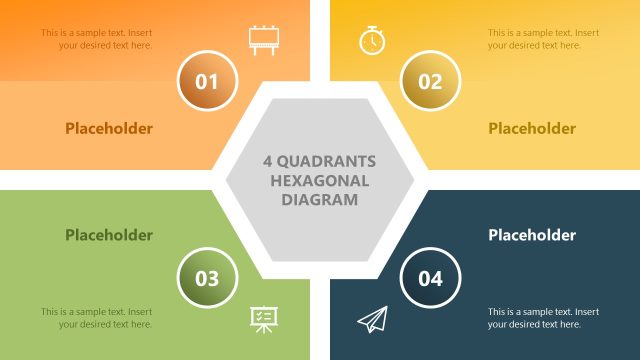
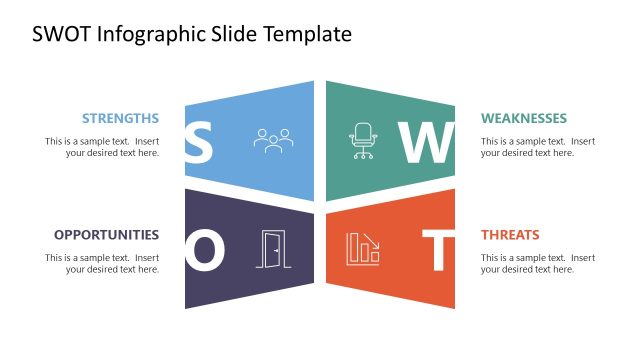
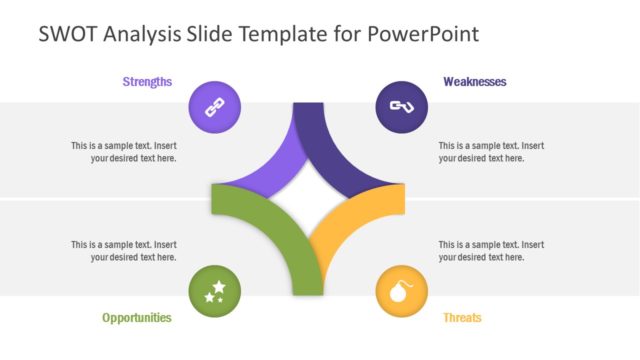
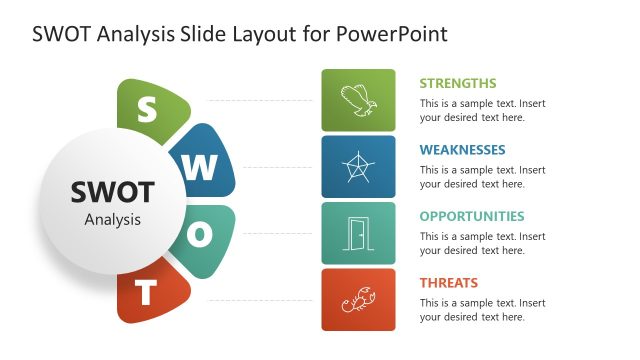
To make a simple yet professional SWOT analysis, use the 4 Quadrants Diagram Template for PowerPoint. Present in the design are 4 quadrants with different colors for easy identification. Some slides highlight every quadrant. This makes the audience drawn to every topic.
Analyzing the strengths, weaknesses, opportunities and threats of a business is one way to ensure good profit. The SWOT analysis has many uses. It is generally used on business planning but is not limited to that. Improvement is what a company achieves after identifying the factors that affect the business. This brings forth more productivity. Awareness also motivates a company to chase more innovations. It is also necessary to know the limitations of a business. This will help the user to direct the report more on what the business can do.
The first slide shows the overall look of the diagram. It also serves as a summary of all the aspects the presenter is discussing. The following 4 slides show each quadrant and its details. This gives emphasis to all the topics. It also makes the message easier to remember. The last slide is decorated with arrows in between the quadrants. These arrows can signify infinite possibilities or moving forward. The user can incorporate one factor to every quadrant as follows:
Red- Strength
Yellow- Weaknesses
Blue- Opportunities
Green- Threats
This design is ideal for 4-factor analysis. The template can also be used on a wide range of science or other business concepts. The diagram is drawn in flat triangles. Colors are 100% customizable, as well as the location of text placeholders. The shades of the gradient in the arrows for the last slide can be changed. Fonts can also be personalized to suit the mood of the user.
Excite your audience with 4 Quadrants Diagram Template for PowerPoint. Impress them and keep them connected throughout the presentation. You can download more SWOT analysis templates from the SlideModel gallery.
What’s inside this template
Example presentation scenarios
- A consultant can use the four-quadrant overview to introduce a SWOT analysis, then move through the red, yellow, blue, and green focus slides to discuss each factor in more detail.
- A strategy manager can present competing priorities in a planning meeting by assigning one priority group to each colored quadrant and using the focused panels for notes, risks, or recommendations.
- A project manager can map blockers, dependencies, opportunities, and next actions with the quadrant chart and use the final arrow slide to show directional movement between categories.
- A training facilitator can teach a four-part decision framework by presenting the overview first, then using each single-quadrant slide as a guided discussion prompt.
Features
- 100% editable presentation template
- Compatible with Microsoft PowerPoint and Google Slides
- Scalable vector shapes, icons and illustrations
- AI-Ready for Microsoft Copilot and Claude
- Instant access and download
Frequently asked questions
Q: How should a presenter organize a SWOT-style message with this quadrant template?
A: Start with the overview slide to define what each colored quadrant means before adding detail. Then use the four focus slides to discuss one category at a time, keeping text short and parallel across quadrants. Close with the arrow slide if the story needs to show movement, balance, or how one factor influences another.
Q: Who is this template best suited for in a business presentation?
A: This template fits consultants, strategy teams, project managers, and facilitators who need to explain four related categories without building a dense matrix. It works well for planning sessions, SWOT reviews, risk and opportunity discussions, and workshops where the audience must compare categories and remember the main distinctions.
Q: Why does the design isolate one quadrant on separate slides?
A: The separate focus slides reduce cognitive load by turning a four-part diagram into four short discussion beats. The gray inactive quadrants keep the overall framework visible, while the colored panel signals where attention belongs. The final arrows add a movement metaphor, useful when categories interact rather than stand alone.


4 Quadrants Diagram Template for PowerPoint
6-slide PowerPoint diagram template for 4 quadrants, SWOT analysis, and directional arrow mapping
This 6-slide PowerPoint diagram template presents a four-quadrant framework for SWOT-style analysis, factor comparison, or category mapping. Visible layouts include a full quadrant overview, single-quadrant focus slides for red, yellow, green, and blue segments, and a final quadrant chart with directional arrows. It is built for business presenters and planners.


 Loading...
 Microsoft PowerPoint
 Microsoft Copilot
 Claude for PowerPoint
Other formats supported
Subscribe today and get immediate
access to download our PowerPoint templates.