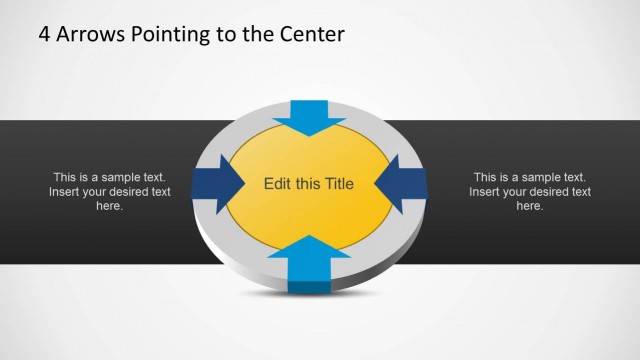
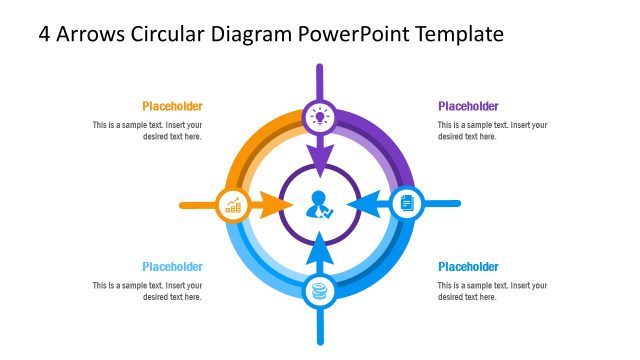
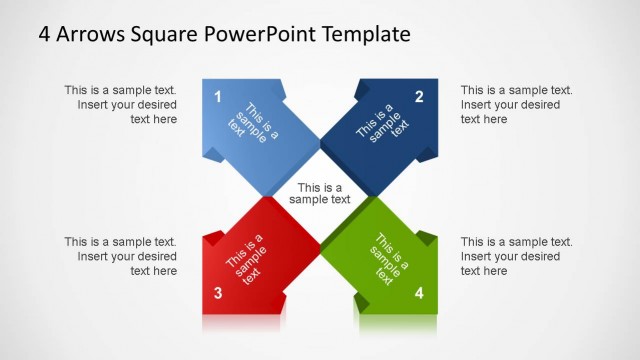
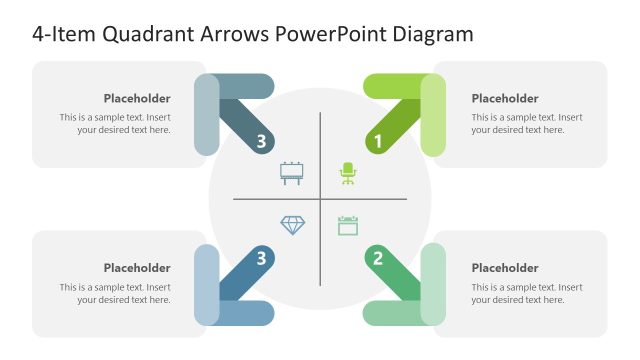
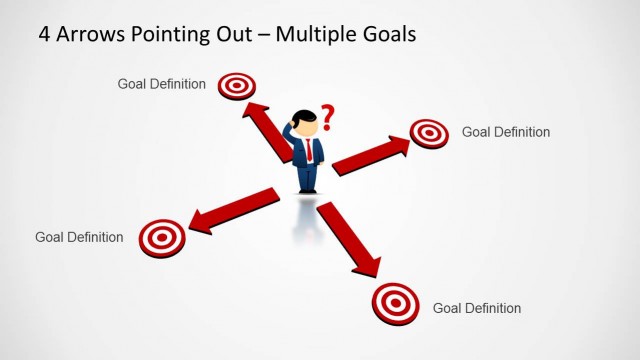
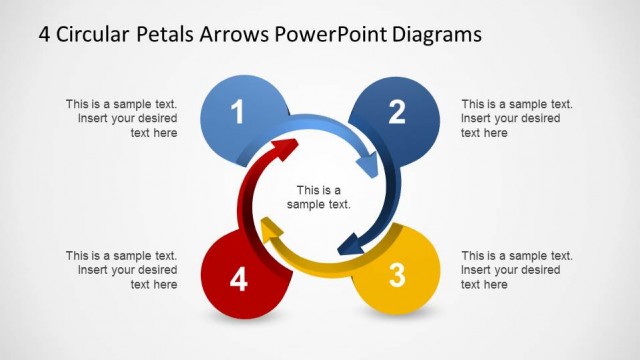
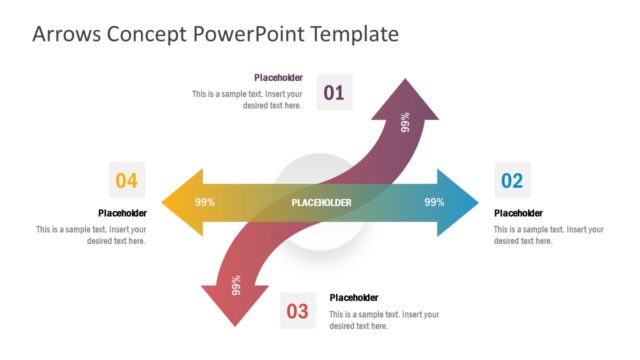
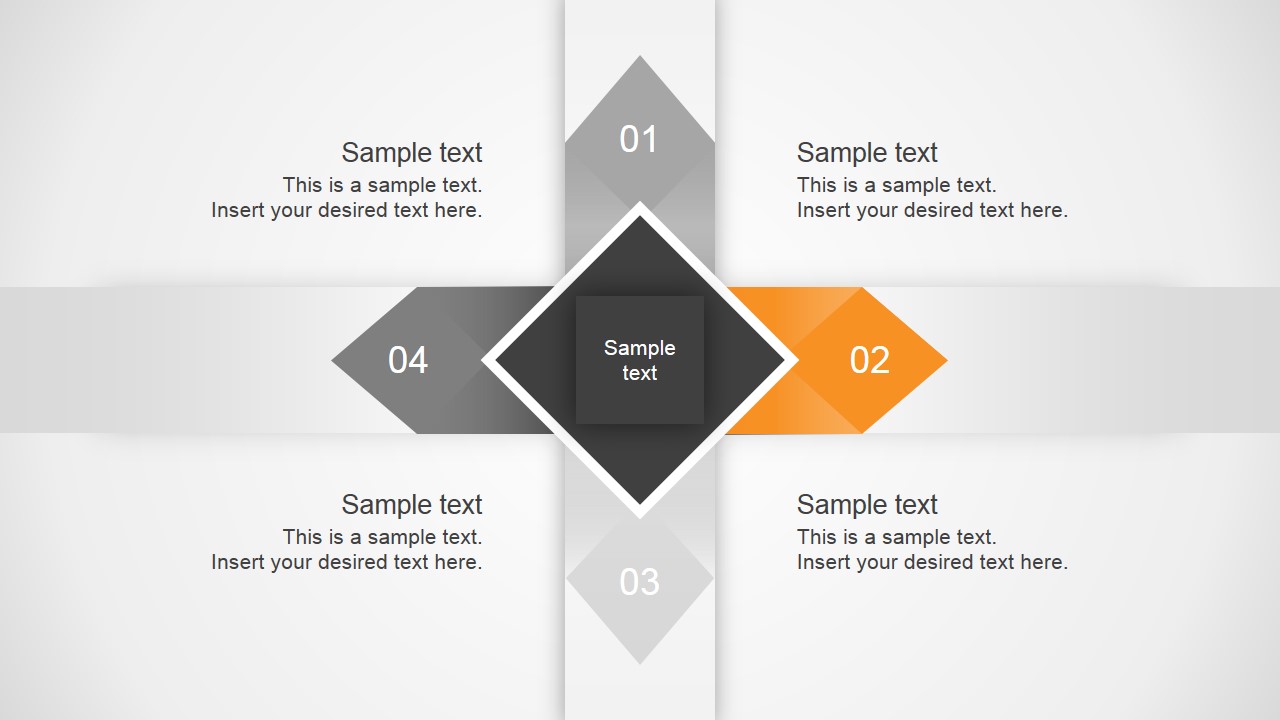
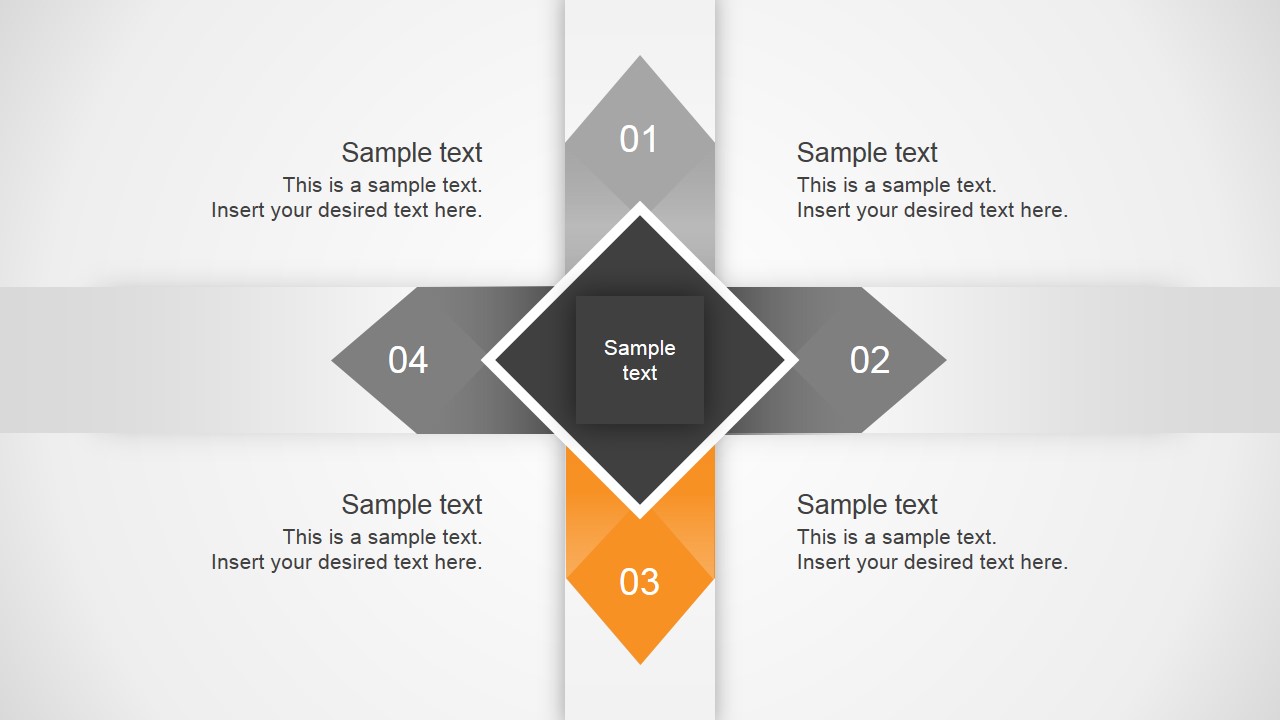
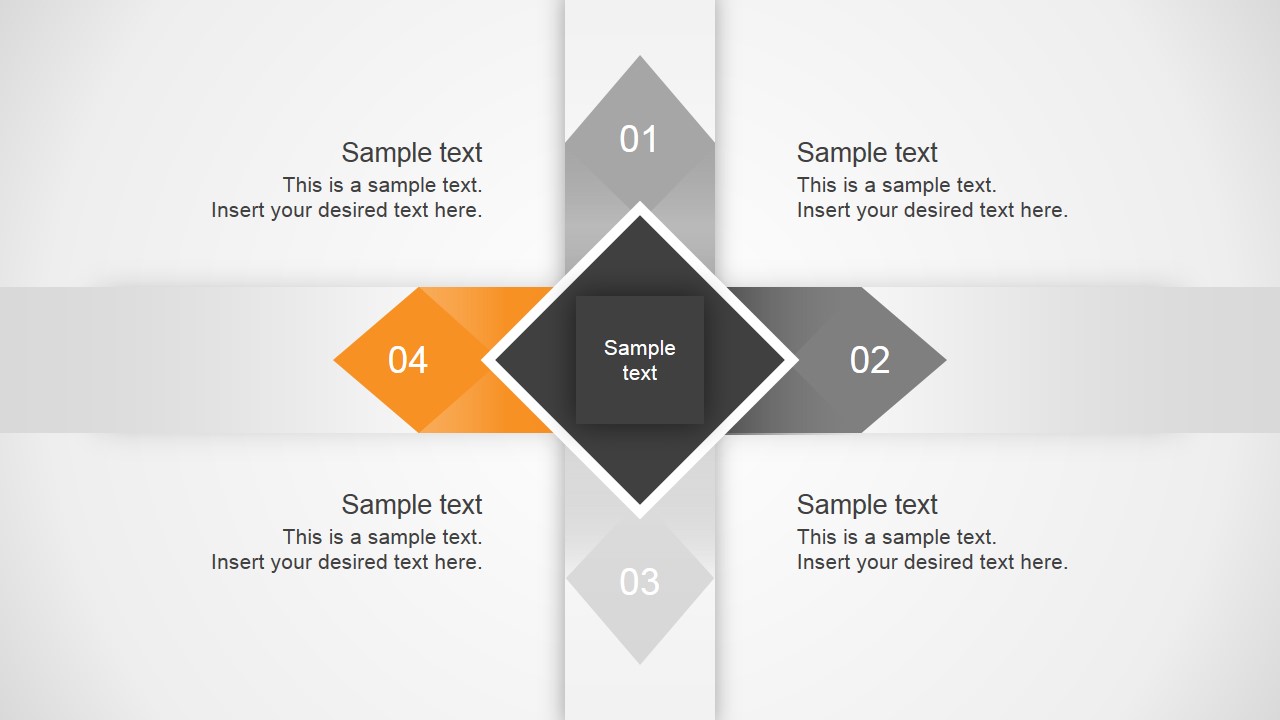
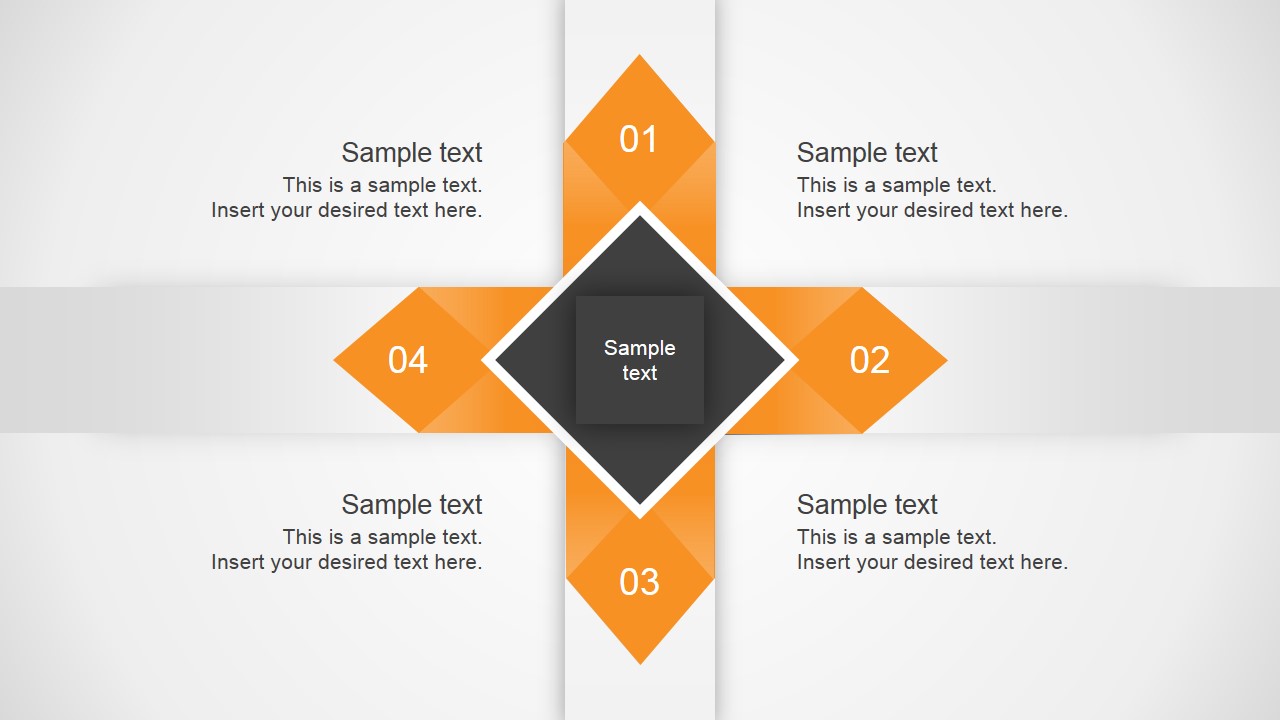
4 Angular Arrows Diagram Template for PowerPoint is a presentation diagram and infographic that can be used to represent four diverging ideas or concepts. The main diagram in this presentation template contains four opposing arrows from the center of the slide.
Four arrows can be used to represent an idea or concept coming out of a central idea in different directions. It can also be used to represent four opposing ideas or concepts.
Alternatively, other presentation templates with 4 opposing ideas can be used, like the four arrows core concept diagram for PowerPoint.
What’s inside this template
Example presentation scenarios
- A strategy consultant can use the central diamond and four opposing arrows to compare four market choices that originate from one business decision.
- A project manager can use the single-direction highlight slides to walk stakeholders through four competing priorities one at a time.
- An educator can use the four-way arrow layout to explain how one concept produces four interpretations, outcomes, or opposing viewpoints.
- A product manager can use the all-arrows-highlighted slide to summarize four roadmap directions after reviewing each direction separately.
Features
- 100% editable presentation template
- Compatible with Microsoft PowerPoint and Google Slides
- 16:9 aspect ratio slides
- Scalable vector shapes, icons and illustrations
- AI-Ready for Microsoft Copilot and Claude
- Instant access and download
Frequently asked questions
Q: How should a presenter explain four ideas without making the diagram feel repetitive?
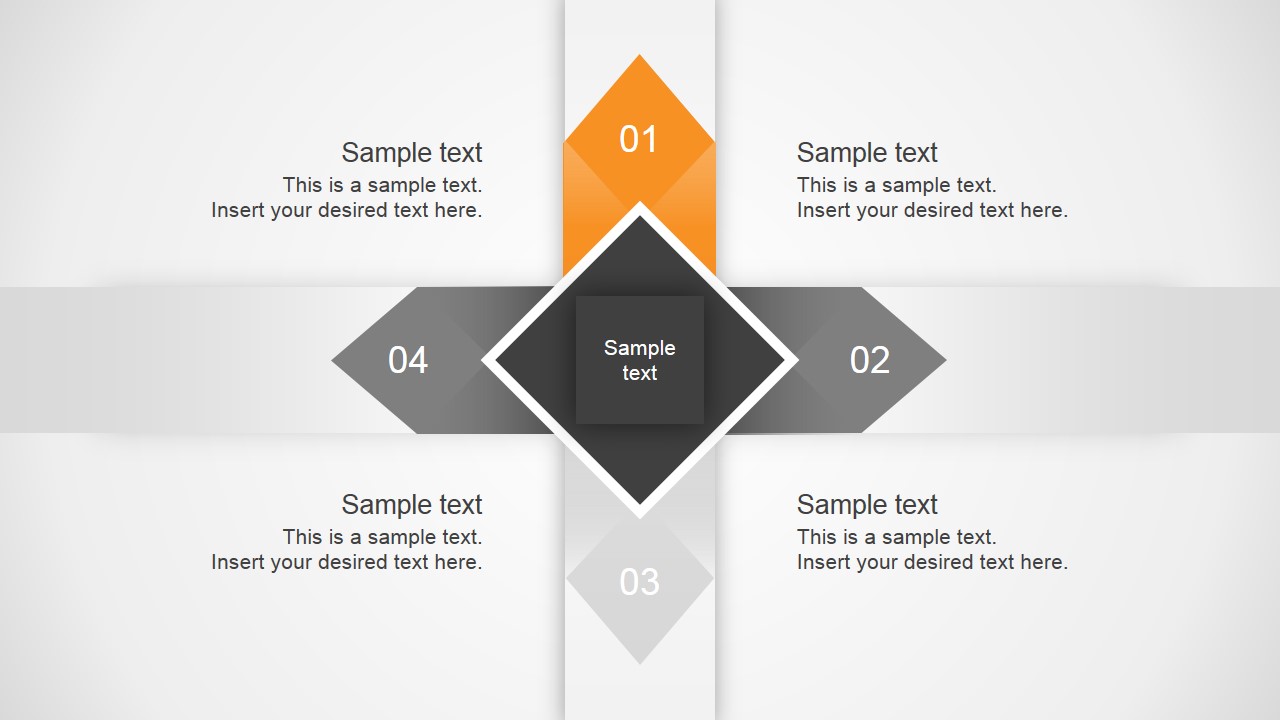
A: Start with the center diamond as the shared premise, then introduce one arrow per talking point using the highlighted slide that matches the direction. Keep each surrounding text callout to a short label and one supporting phrase. Finish with the all-orange version to reconnect the four ideas into a single conclusion.
Q: Who is this four-arrow diagram best suited for?
A: This template fits presenters who need to compare four equal but different directions, such as consultants explaining strategic options, managers discussing competing priorities, or trainers teaching opposing views. It is strongest when the audience must understand how each direction relates to the same central concept.
Q: Why does the opposing arrow structure help communicate the message?
A: The arrow metaphor makes direction and tension visible. Because all four arrows meet at the central diamond, the audience sees that each idea is connected to the same core issue. The orange highlight creates focus, while the gray arrows preserve the full context during each step of the explanation.




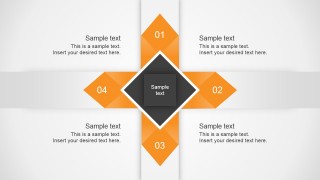
4 Angular Arrows Diagram Template for PowerPoint
5-slide PowerPoint and Google Slides diagram template for four opposing arrows and central concept mapping
The 4 Angular Arrows Diagram Template for PowerPoint is a 5-slide diagram template with a central diamond, four opposing angular arrows, single-arrow highlight variations, and a full four-direction emphasis slide. It helps presenters compare divergent ideas, opposing forces, strategic options, or concept branches in Microsoft PowerPoint and Google Slides.
- Category
- Diagrams
- Rating


 Loading...
- Aspect ratio
- 16:9
- Item ID
- 7025-01
- Colors
 Microsoft PowerPoint
  Microsoft Copilot
  Claude for PowerPoint
 Other formats supported
Subscribe today and get immediate
access to download our PowerPoint templates.