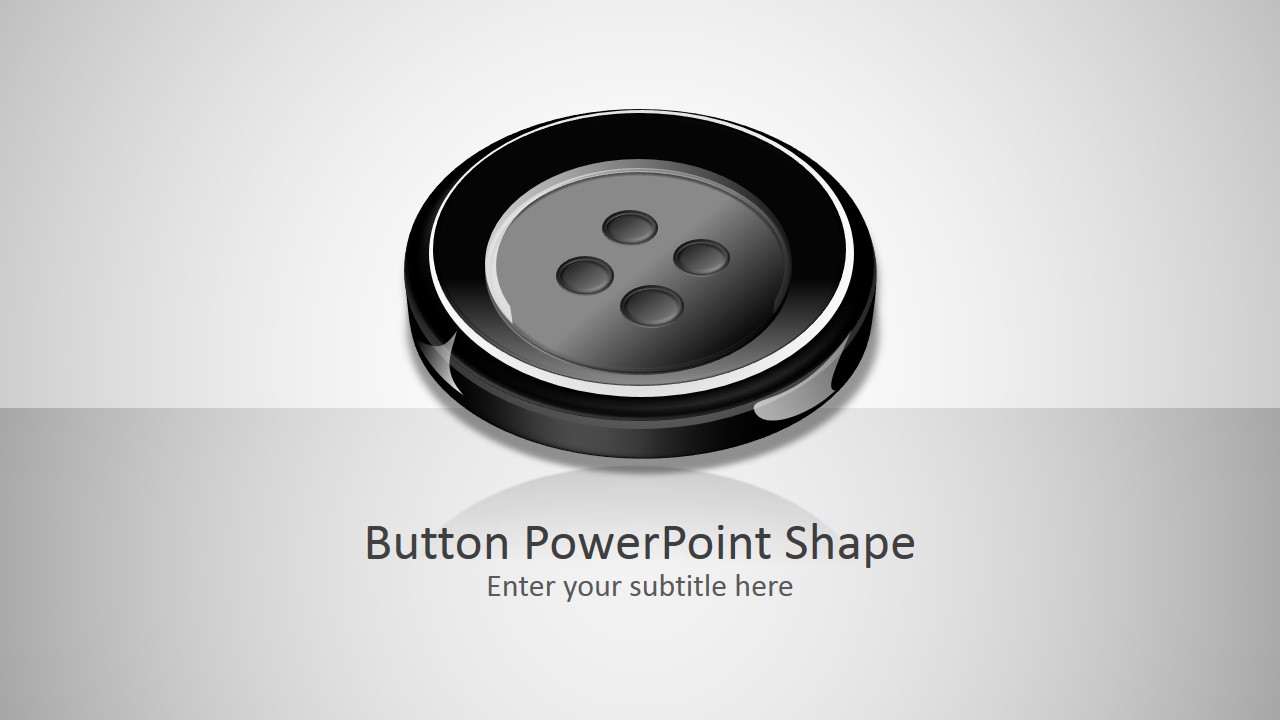
3D Button PowerPoint Shape – Decorate your presentation with a 3D clothing button shape. The PowerPoint shapes are created with powerpoint effects and combination of individual shapes. The template provides three different scenes, combining colors and layouts.
What’s inside this template
Example presentation scenarios
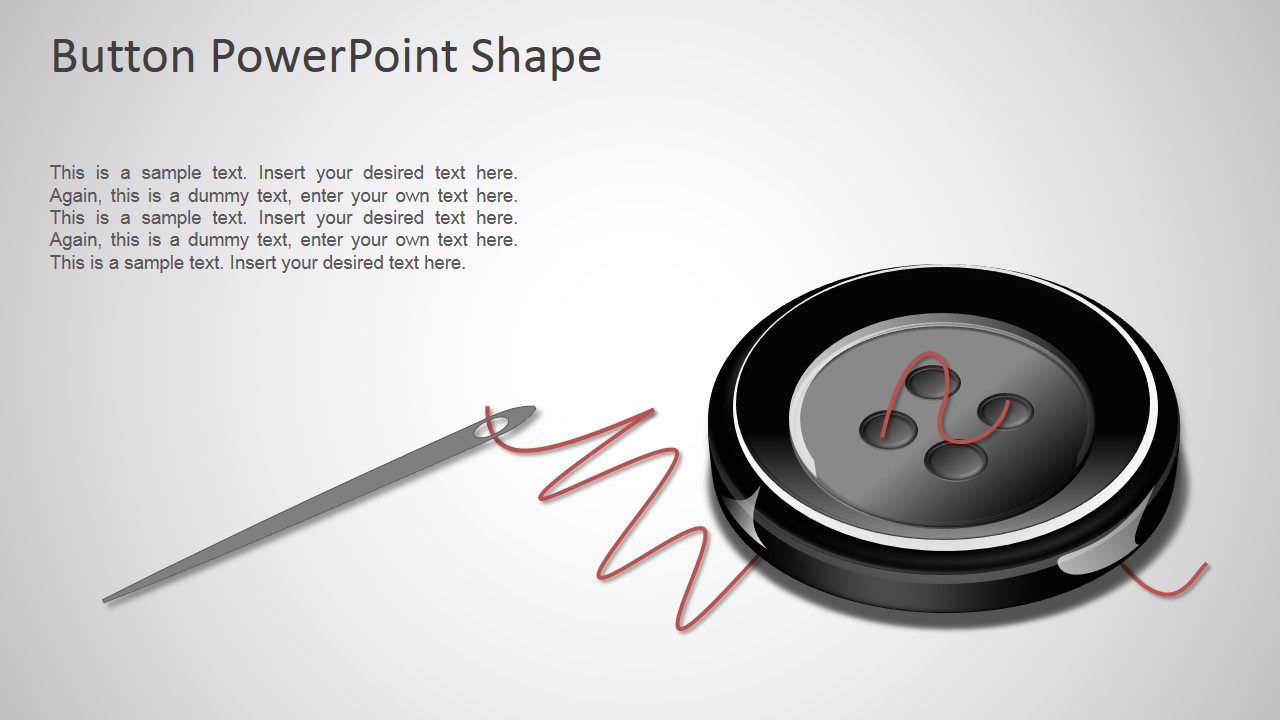
- A fashion or apparel presenter can introduce a sewing-related concept with the needle, thread, and 3D button scene before moving into process details.
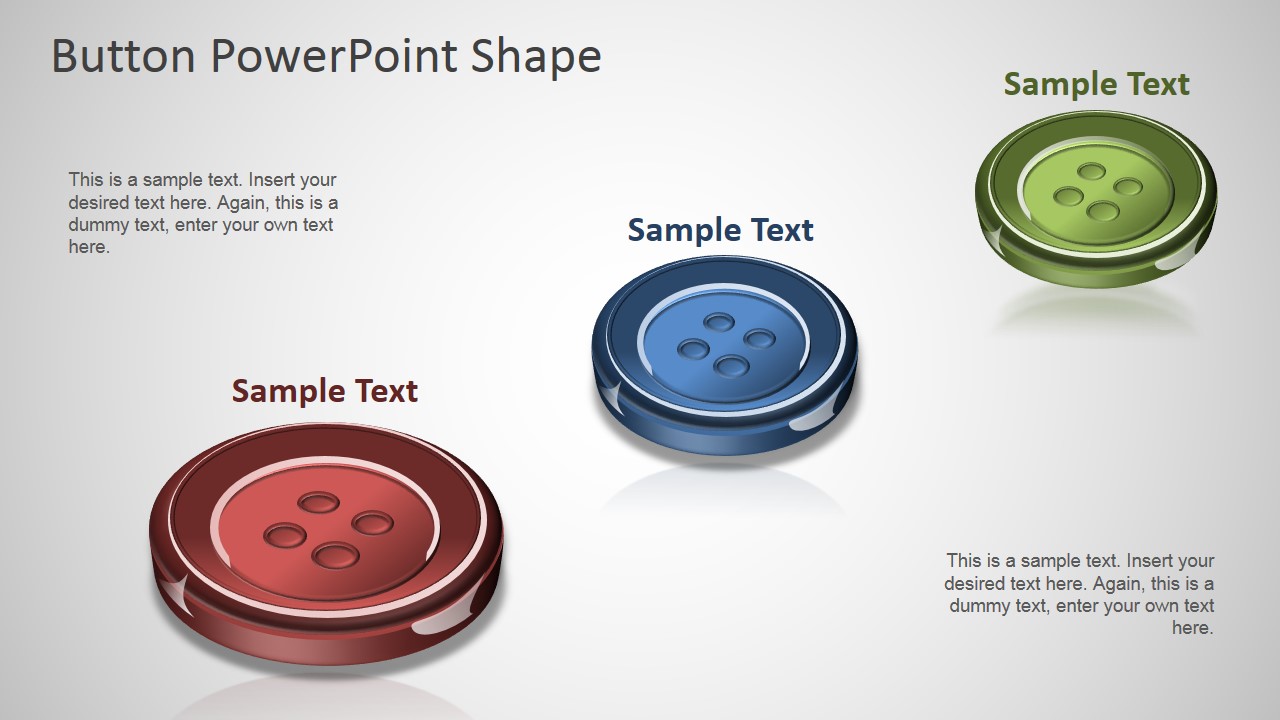
- A product marketer can use the three-button callout layout to compare selectable options, feature groups, or product variants with color-coded labels.
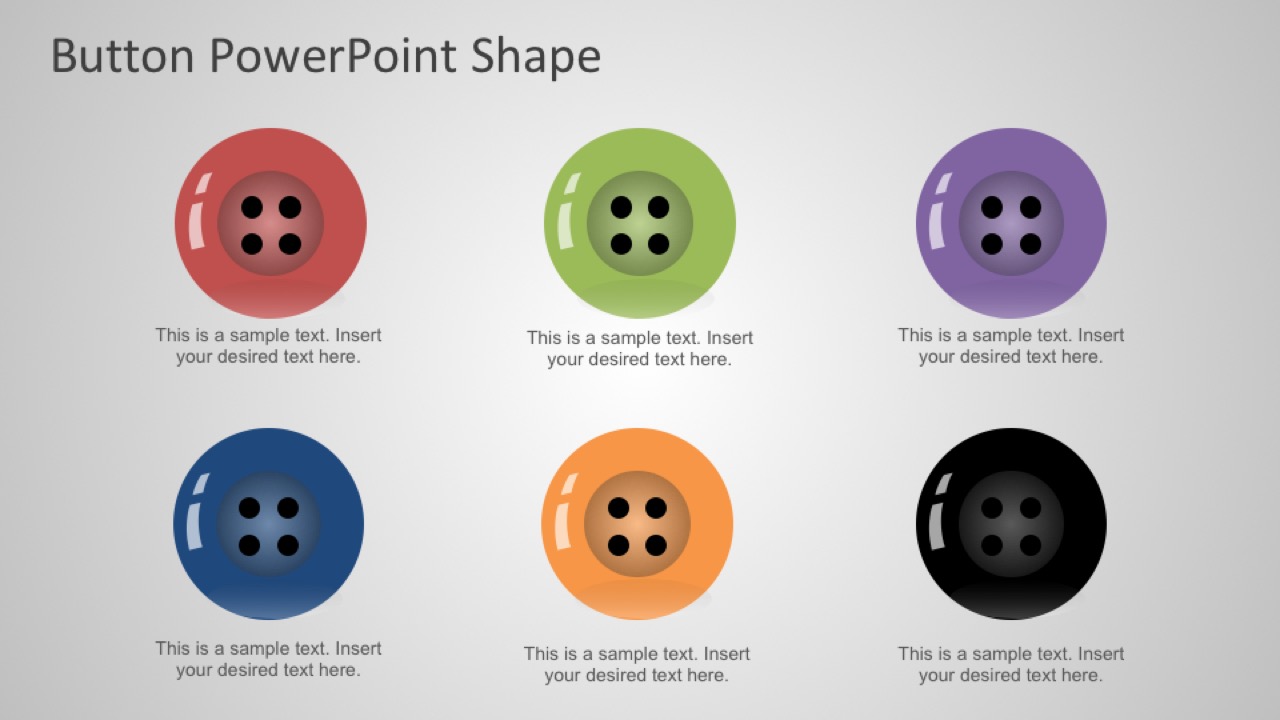
- A trainer can use the six-button grid to assign categories, lesson steps, or activity groups while keeping each item visually distinct.
- A business presenter can use the cover slide as a themed opener for a section about details, finishing touches, customization, or small design choices.
Features
- 100% editable presentation template
- Compatible with Microsoft PowerPoint and Google Slides
- 16:9 aspect ratio slides
- Scalable vector shapes, icons and illustrations
- AI-Ready for Microsoft Copilot and Claude
- Instant access and download
Frequently asked questions
Q: How should a presenter communicate clearly with the button metaphor?
A: Use one button shape as the main visual anchor, then tie its meaning to a simple idea such as choice, detail, connection, or craft. Avoid filling every slide with button graphics. The needle and thread slide works best for process or making concepts, while the color grid works best for category labels.
Q: Who is this template best suited for?
A: It is best for presenters who need a recognizable object rather than a standard business diagram. Apparel teams, training facilitators, craft educators, product designers, and marketers can use the button scenes to introduce sewing topics, frame small product details, or present a set of visual options without building illustrations from scratch.
Q: Why use 3D buttons instead of flat bullet icons?
A: The 3D button creates a tactile cue that makes the slide feel more concrete. Its circular shape naturally groups short labels, while highlights and shadows make each object stand out from the gray background. This helps the audience read the buttons as intentional markers, not as generic decoration.
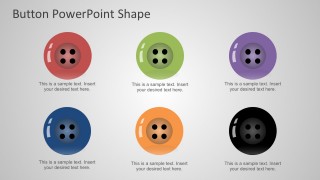
3D Button PowerPoint Shape
4-slide presentation template with editable 3D button shapes, sewing motif, and color icon options
3D Button PowerPoint Shape is a 4-slide presentation template of editable button graphics for Microsoft PowerPoint and Google Slides. It includes a cover button visual, a needle and thread scene, a three-button callout layout, and a six-button color grid. Presenters can use it as a sewing, selection, status, or product-detail metaphor.
- Category
- Shapes
- Rating


 Loading...
- Aspect ratio
- 16:9
- Item ID
- 8356-02
- Colors
 Microsoft PowerPoint
  Microsoft Copilot
  Claude for PowerPoint
 Other formats supported
Subscribe today and get immediate
access to download our PowerPoint templates.