Sometimes, a single slide can have more value than a presentation. Other than slide decks, slides are now used as social media graphics, website illustrations, report visuals, and even a part of marketing campaigns. If you work with Canva presentations, saving individual slides as images is an easy way to repurpose content across different platforms without having to recreate the design from scratch.
When you need a high-quality PNG for reporting, a JPG for quick sharing, a GIF for simple animations, or an SVG for scalable graphics, Canva can be a great asset. This includes saving PowerPoint slides in Canva as images and converting slides originally designed in Canva into static images.
How to Save a PowerPoint Slide in Canva as an Image
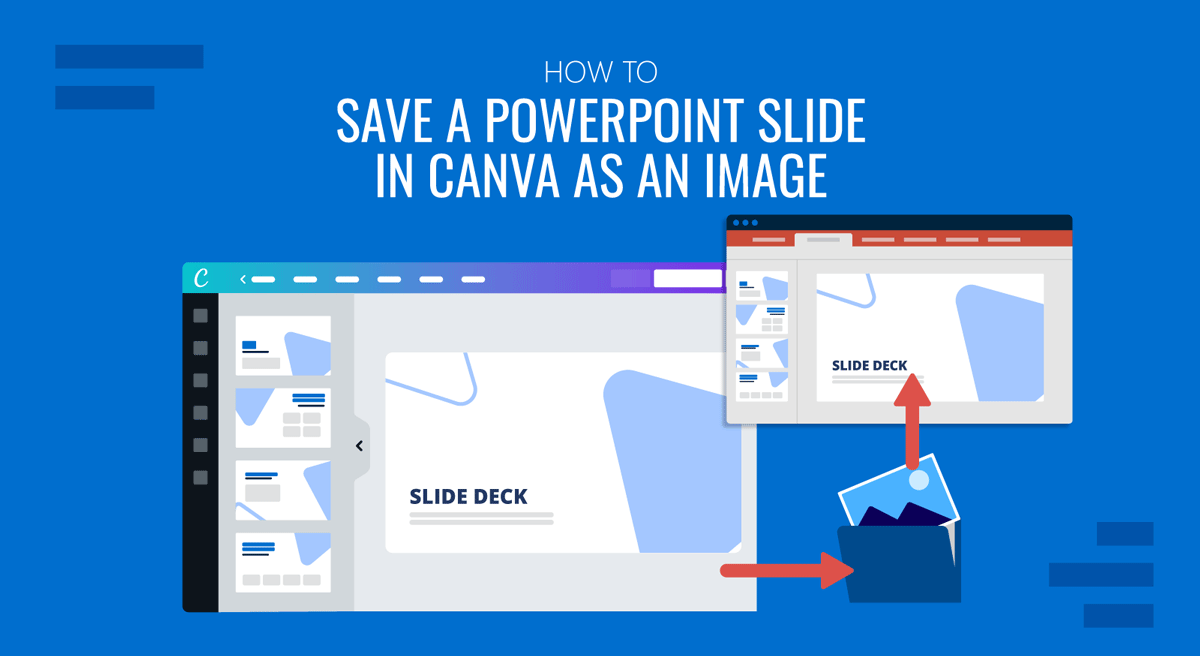
You can convert uploaded PowerPoint slides into static images or GIFs by exporting them in formats supported by Canva. To demonstrate this process, we will use a slide illustration created using the 6-Step Head Diagram Morph Template for PowerPoint.
Step 1: Open Canva and upload your PowerPoint presentation (.PPTX file). Canva will automatically convert the presentation into editable slides. Depending on the complexity of the original presentation, the conversion process may take a few moments.
Step 2: After the import is complete, review each slide to verify that the text formatting remains consistent, images are positioned correctly, shapes, fonts, and icons display properly, and branding elements appear as expected. For example, you might need to adjust the font, since Canva does not support many fonts used in PowerPoint.
Step 3: Once your presentation is ready, click Share -> Download. This opens Canva’s export panel, where you can select the desired file format and download options.
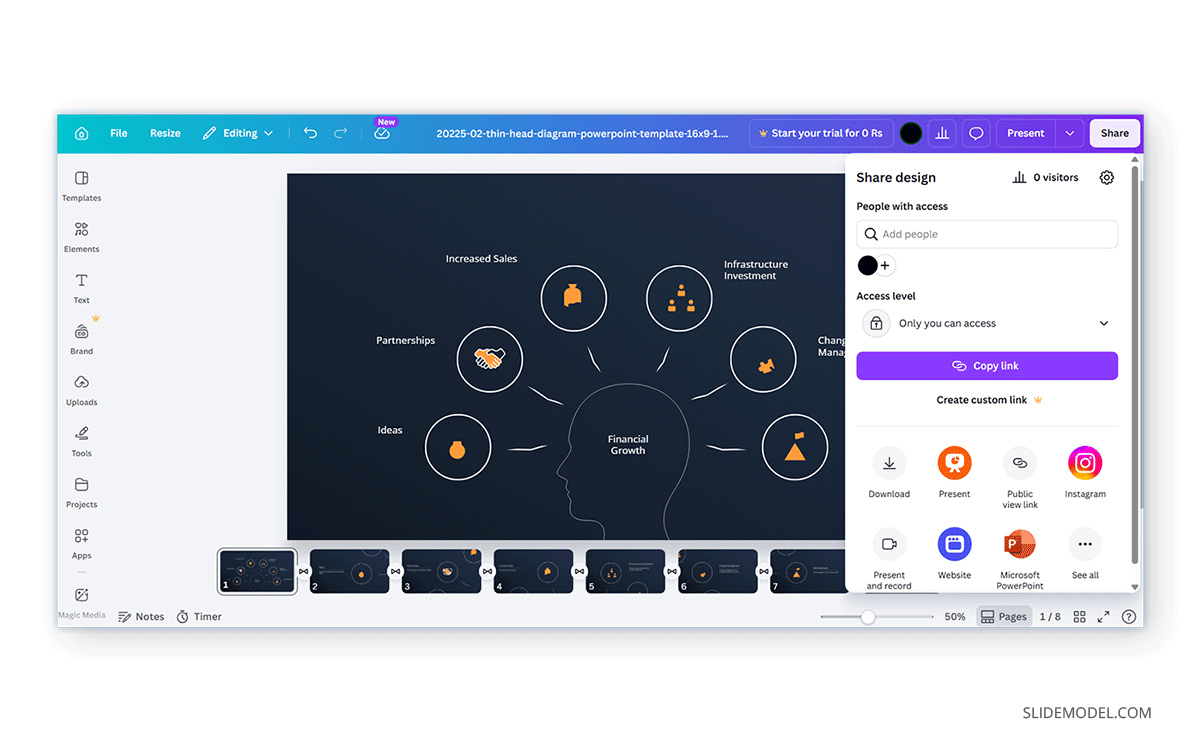
Step 4: Canva supports several image export formats. The best choice depends on how the image will be used.
- PNG: PNG is often the preferred format for presentation graphics because it preserves image quality and sharp text. Since PNG uses lossless compression, exported slides typically remain crisp and readable. This makes it ideal for reports, website visuals, and marketing material.
- JPG: JPG files are optimized for smaller file sizes. While JPG compression can slightly reduce image quality, it is often sufficient for everyday use, such as emails, reports, and shareable static images.
- GIF: GIF exports can preserve many Canva-supported animations and are useful for creating lightweight animated graphics. GIFs are commonly used for social media, websites, and short animations. Unlike PNG and JPG files, GIFs can display movement, making them suitable for simple animated slides.
- SVG: SVG (Scalable Vector Graphics) creates vector-based images that can be resized without losing quality. SVG files are especially useful for logos, icons, diagrams, and similar graphics. Availability of SVG export may depend on your Canva plan and the content being exported.
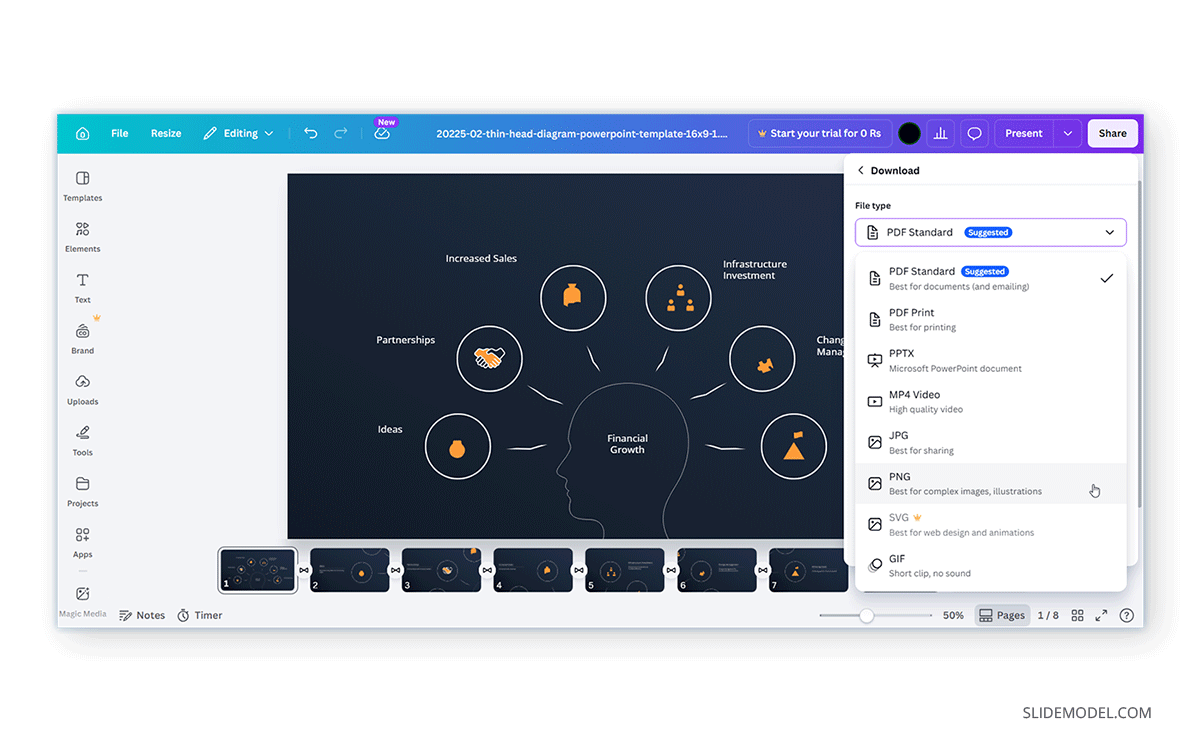
Step 5: After choosing a file format, select the slide or slides you want to export. Canva allows you to download the current slide, export multiple selected slides, and export the entire presentation. Using Select Pages, you can choose exactly which slides to include in the export.
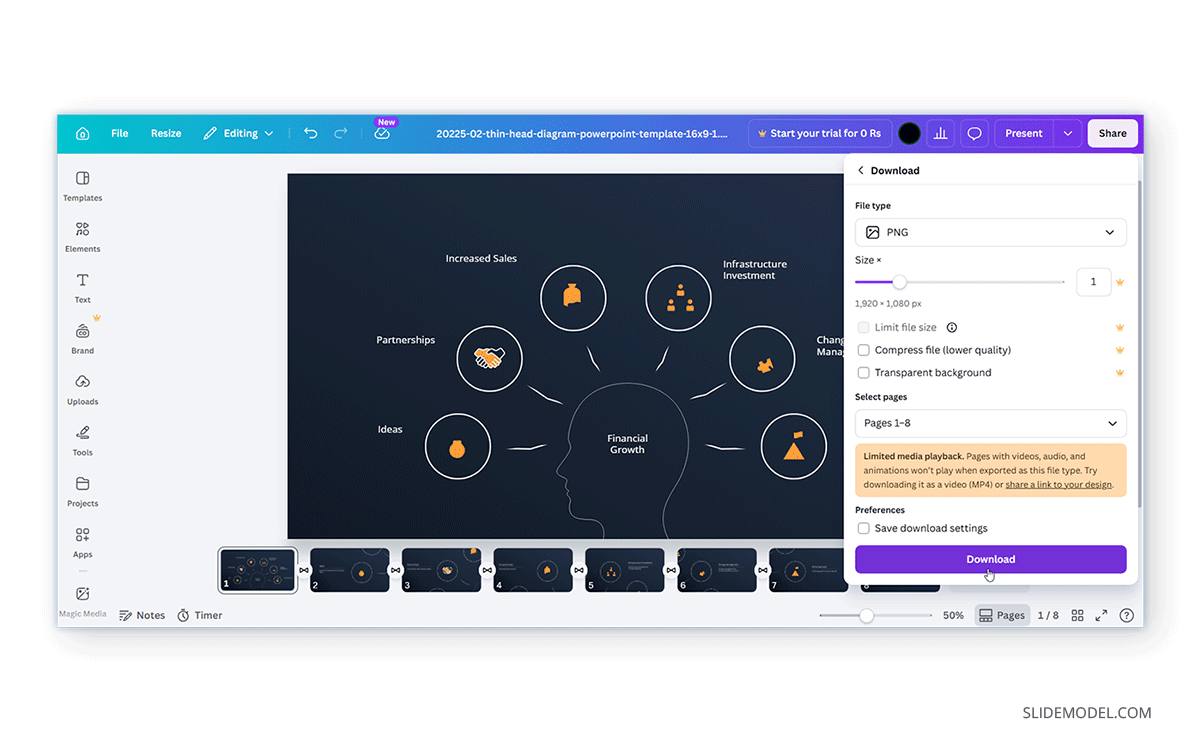
Step 6: Click Download, and Canva will generate the image file based on your selected settings and save it to your device. If multiple slides are exported simultaneously, Canva may package them into a compressed ZIP file for convenience.
What Happens to Animations When Exporting Slides in Canva
Many PowerPoint presentations include transitions, entrance effects, or animated elements. However, image exports handle animations differently depending on the format selected.
PNG and JPG Exports: PNG and JPG are static image formats. When exporting a slide as PNG or JPG, animations and transitions are removed. The slide is captured as a single still image. The exported file reflects only the slide’s visual state.
SVG Exports: SVG files are also static exports. Although SVG graphics remain scalable, presentation animations and transitions are not included in the exported file.
GIF Exports: GIFs are the exception because they support animation. If your Canva slide contains supported animated elements, exporting as a GIF can preserve simple motion effects. This makes GIF a useful option when you want to share animated presentation content without distributing the entire presentation.
Alternative Method: Convert Images in PowerPoint and Export to Canva
If you only need static slide images and do not intend to edit presentation elements in Canva, you can export the slides directly from PowerPoint before uploading them. This approach can be useful when you want to preserve the exact appearance of a slide without relying on PowerPoint-to-Canva conversion.
Step 1: In PowerPoint, go to File -> Save As.
Step 2: Choose an image format, such as PNG, JPG, SVG, or GIF, and save either the current slide or the entire presentation as an image file. PowerPoint will generate separate image files for each slide, which can then be uploaded to Canva like any other graphic.
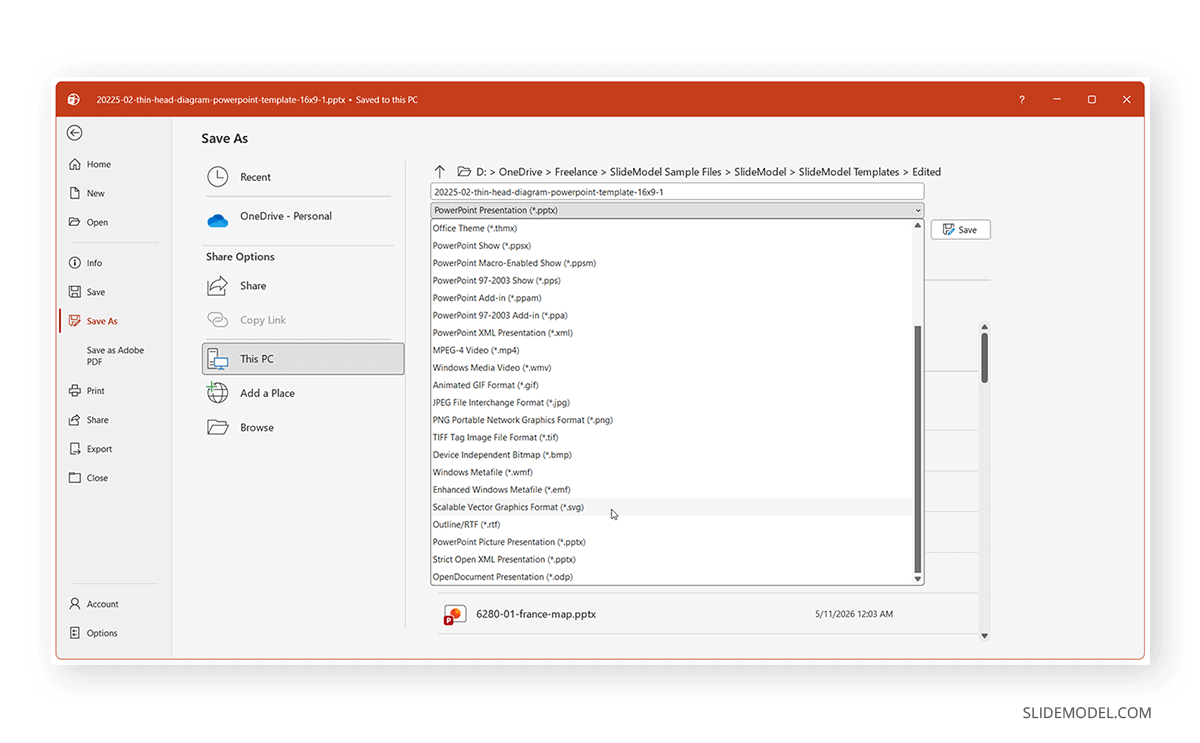
Step 3: Open Canva and upload the image to a slide.
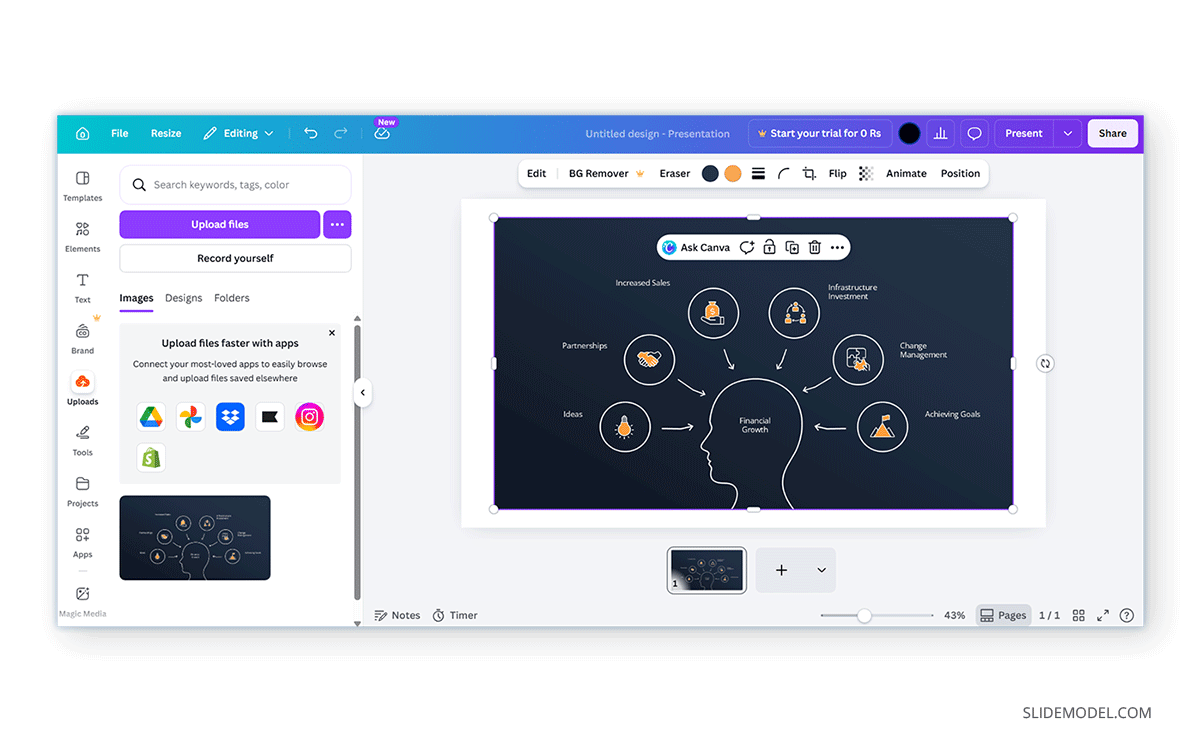
Step 4: Scale and adjust the uploaded image file as needed.
Benefits: This method offers a few advantages. Because the images are generated directly by PowerPoint, fonts, layouts, and slide positioning remain exactly as designed. It can also reduce the likelihood of formatting adjustments that sometimes occur when importing editable PowerPoint files into Canva.
Limitations: Once uploaded, the slide becomes an image rather than an editable presentation page. Individual elements such as text boxes, icons, charts, and shapes cannot be modified separately inside Canva unless they are recreated manually. For that reason, this workflow is best suited for finalized slides that only require minor additions, annotations, branding elements, or placement within a larger Canva design.
Best Practices for Exporting PowerPoint Slides as Images
A few simple practices can help improve the quality of exported images. Below are considerations to ensure exported PowerPoint slides are properly saved as images.
Choose the Right Format
Different image formats serve different purposes. As a general rule, you can use PNG for quality, JPG for smaller file sizes, GIF for simple animations, and SVG for scalable graphics.
Review Slides Before Exporting
Imported PowerPoint presentations can occasionally display minor formatting differences. Before downloading, review text alignment, font consistency, image placement, object spacing, and branding elements.
Keep Text Readable
Slides that look clear during a presentation may become difficult to read when viewed as standalone images. Ensure that the font sizes are large enough and the text contrast is sufficient. So that important information remains visible on smaller screens.
Use High-Quality Visual Assets
Low-resolution images can become more noticeable after export. Whenever possible, use high-resolution photos, replace blurry graphics, and avoid excessive image compression. This helps maintain a professional appearance in the final image.
Common Issues and Fixes
While saving PowerPoint slides in Canva as image files is usually straightforward, you may occasionally encounter formatting, quality, or compatibility issues. Understanding these common problems can help you avoid unnecessary rework and ensure your exported images look professional and ready to use.
Images Look Blurry
Blurry or pixelated exports are often caused by low-resolution source graphics used in the original PowerPoint presentation. Compressed elements may also become more noticeable when slides contain screenshots or heavily resized images.
Fix: Replace low-quality graphics with higher-resolution versions before exporting. When image quality is a priority, choose PNG or SVG (where available) instead of JPG to maintain sharper text and graphics.
Fonts Appear Different After Import
Not all fonts available in PowerPoint are supported by Canva. When an unsupported font is encountered, Canva may automatically substitute it with a similar alternative, which can slightly change the appearance of the slide.
Fix: Review all text after importing the presentation. If font substitutions occur, manually select a similar Canva font and adjust text size or spacing as needed to preserve the original design.
Layout Changes After Conversion
Complex presentations containing layered elements, grouped objects, SmartArt, or advanced PowerPoint features may not import perfectly into Canva. As a result, some objects can shift position or become misaligned.
Fix: Carefully review each slide before exporting. Adjust spacing, alignment, and object placement where necessary to restore the intended layout and maintain visual consistency.
Missing Animations
Animations and slide transitions behave differently in PowerPoint and Canva. Additionally, most image formats are inherently static and cannot display animated effects.
Fix: PNG, JPG, and SVG exports do not preserve animations. If you need an animated image output, export the slide as a GIF, provided the animation is supported by Canva.
Exported Images Appear Cropped, or Elements Are Cut Off
Occasionally, text boxes, images, or design elements positioned very close to slide edges may appear partially cropped after export. This is more common when presentations have been resized or converted between different slide dimensions.
Fix: Leave sufficient margins around important content and review the slide at full size before exporting. If necessary, slightly reposition elements away from the edges and verify the slide dimensions to ensure everything remains visible in the final image.
Final Words
By saving PowerPoint slides in Canva as images, you can make them much easier to reuse across different platforms. Be it a PNG for a report, a JPG for online sharing, a GIF for simple animations, or an SVG for scalable graphics, Canva provides flexible export options that require only a few steps to get the job done. Before downloading, take time to review imported slides, choose the appropriate file format, and verify that layouts and text remain clear to avoid any issues with the output file.