Most people use emojis every day in messages, emails, and social media posts, but they can also be surprisingly useful in PowerPoint presentations. A well-placed emoji can help draw attention to important information or add emphasis without cluttering a slide. In this tutorial, we will explain how to insert emojis in PowerPoint slides, discuss different methods for adding them, and address a common emoji-rendering issue some users encounter.
Why Use Emojis in PowerPoint
Emojis can serve as simple visual cues that make information easier to understand at a glance. For example, a green checkmark emoji can highlight completed tasks, a warning emoji can call attention to risks, and a thumbs-up emoji can emphasize positive results. In business presentations, emojis can help make dashboards, status reports, and infographic slides more visually engaging. In educational slide decks, they can simplify concepts, encourage participation, or make content more approachable for learners. However, use emojis thoughtfully. Overusing them can make a presentation appear cluttered or too casual.
How to Insert Emoji in PowerPoint
The simple answer to how to add emojis to a PowerPoint slide is to use your operating system’s built-in emoji picker or copy them from third-party sources.
Method 1: Using the Emoji Panel (Windows)
Windows includes a built-in emoji keyboard that works within PowerPoint.
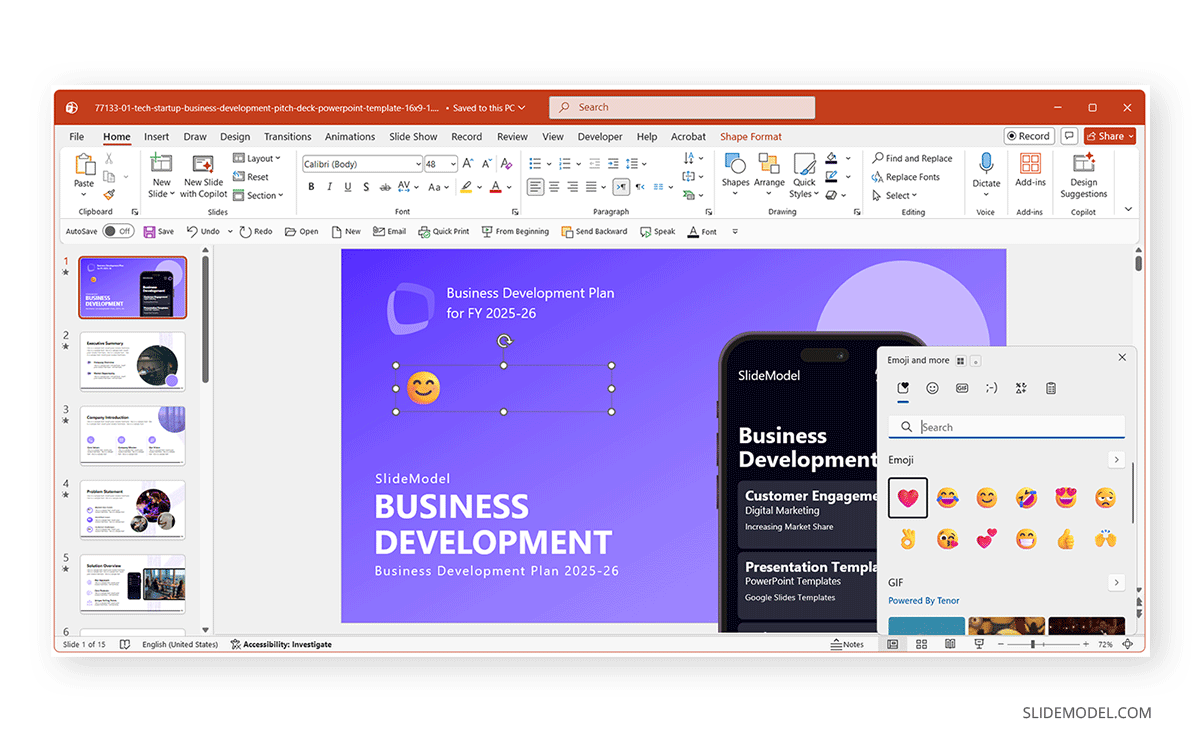
Step 1: Open your PowerPoint presentation, select the slide where you want to insert an emoji, and click inside a text box or placeholder.
Step 2: Press Windows Key and . (period) or Windows Key and ; (semicolon). This opens the Windows emoji panel.
Step 3: Browse available emojis or use the search box to find a specific emoji and select to insert it into the text box. The emoji will appear like any other text character and can be resized by changing the font size.
Method 2: Using the Character Viewer (Mac)
Mac users can access emojis through the built-in Character Viewer.
Step 1: Click inside a PowerPoint text box and press Control+Command+Space.
Step 2: Select an emoji from the Character Viewer.
Step 3: Click the emoji to insert it into the slide. Like standard text, inserted emojis can be resized and formatted within PowerPoint.
Method 3: Add Emoji to a PowerPoint Slide Using External Sources
Another simple method is to copy an emoji from an external source and paste it into PowerPoint. For example, you can copy emojis from websites, messaging apps, email clients, and social media platforms. After copying the emoji, simply paste it into a PowerPoint text box.

Formatting Emojis in PowerPoint
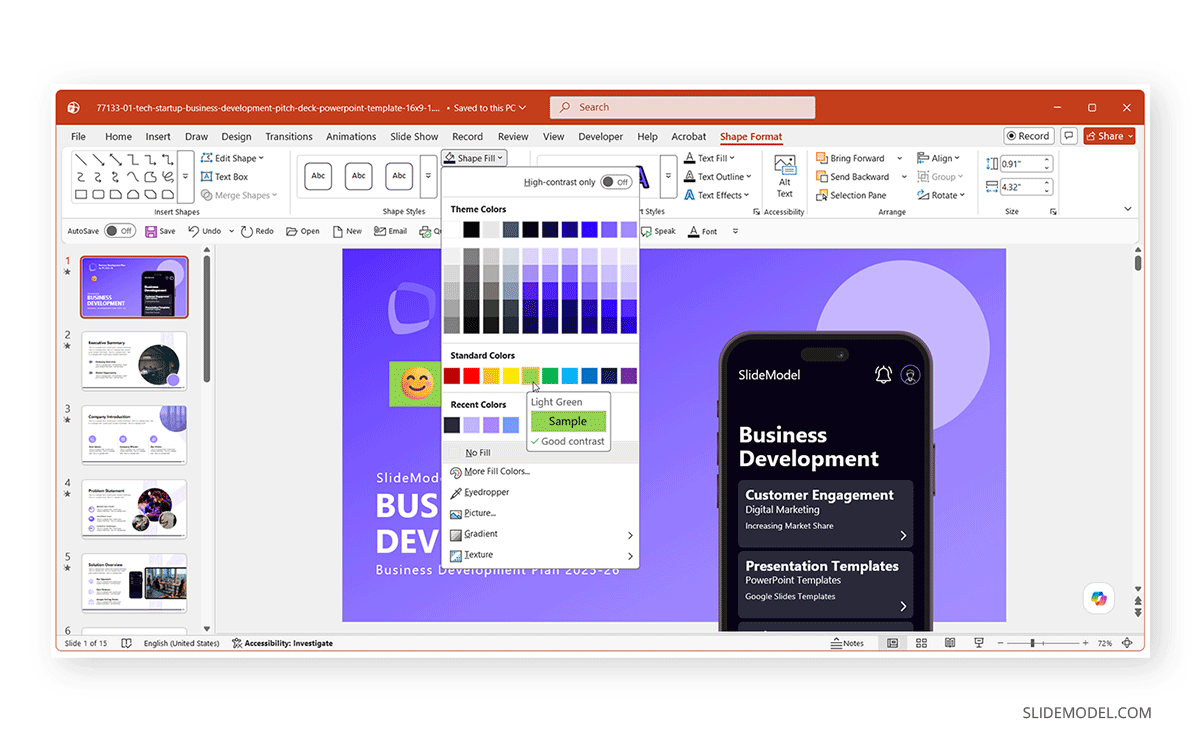
Once inserted, emojis behave similarly to text characters. You can increase or decrease their size, adjust their alignment and position, set bullet points, apply background fill (Shape Fill), and combine them with icons and graphics. Many users add emojis to headings, timelines, dashboards, and comparison slides to create visual emphasis without adding additional graphics. These small visual elements can help audiences process information more quickly.
Why Emojis Sometimes Look Different in PowerPoint
One issue that occasionally confuses PowerPoint users is that emojis do not always appear the same way across different devices or applications. PowerPoint can sometimes switch between colorful emoji rendering and monochrome text-style rendering, depending on the font being used. For example, an emoji may appear as a colorful icon on one slide but as a simple black-and-white symbol after a font change or when viewed on another device. This happens because some fonts render emojis differently than others.
Switching Between Emoji and Text Rendering
In certain situations, PowerPoint may display an emoji as text rather than as a colorful graphic. The appearance of an emoji can be influenced by the font, operating system support, the PowerPoint version being used, and device-specific rendering settings.
If an emoji does not appear as expected, try changing the font to one that supports modern emoji rendering. For example, fonts such as Segoe UI Emoji on Windows often provide better emoji compatibility. It is also good practice to review the presentation on the device you’ll use to present, since appearance can vary across devices.
Emojis vs Icons in PowerPoint
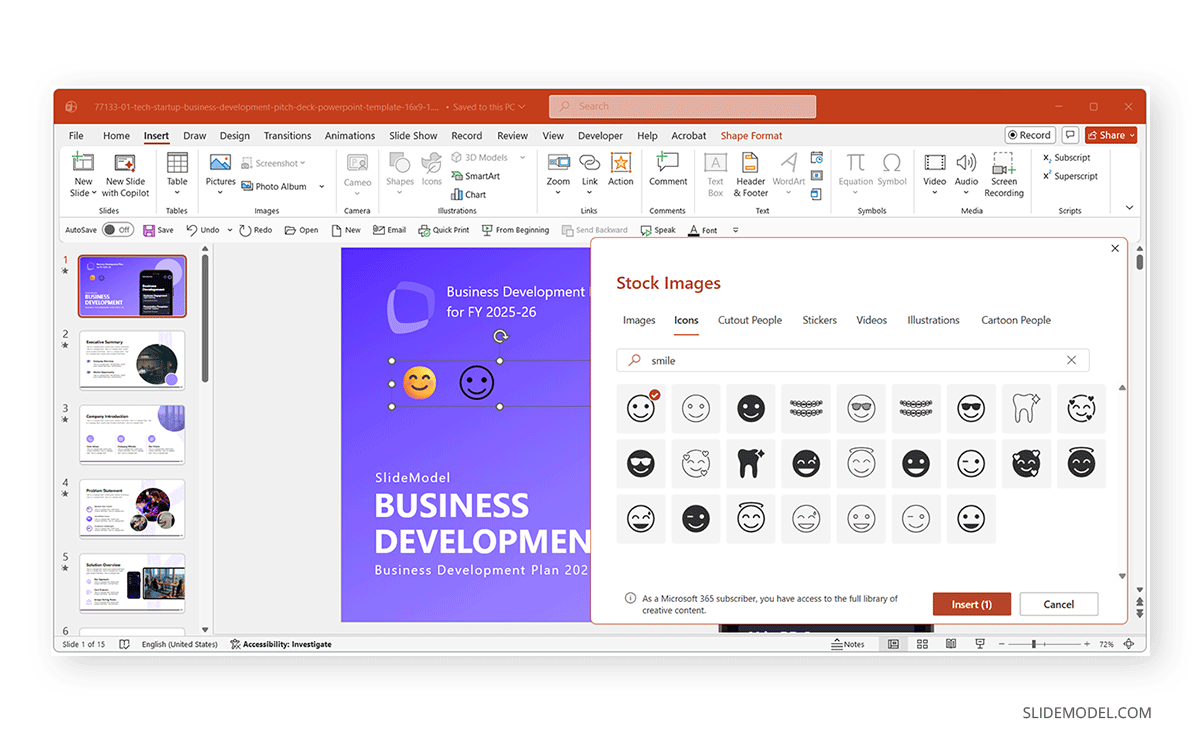
At a glance, emojis and PowerPoint icons may seem interchangeable, but they work quite differently. Icons, on the other hand, are graphical elements available in PowerPoint’s icon library. Icons generally offer more customization because you can resize, recolor, and edit them independently of text. On the contrary, emojis are often faster to insert and work well for simple visual cues.
If you use Google Slides and wish to add emojis, see our guide on how to insert emojis in Google Slides.
Final Words
Now that you know how to add emojis to a presentation, you can use PowerPoint emoji designs to make engaging slide decks. By using the Windows emoji panel, the Mac Character Viewer, or copying emojis from online sources such as social media platforms, you can create slides with more expressive layouts.
Emoji appearance may also vary depending on fonts, PowerPoint versions, and operating systems. Review slides before presenting to ensure emojis display correctly.