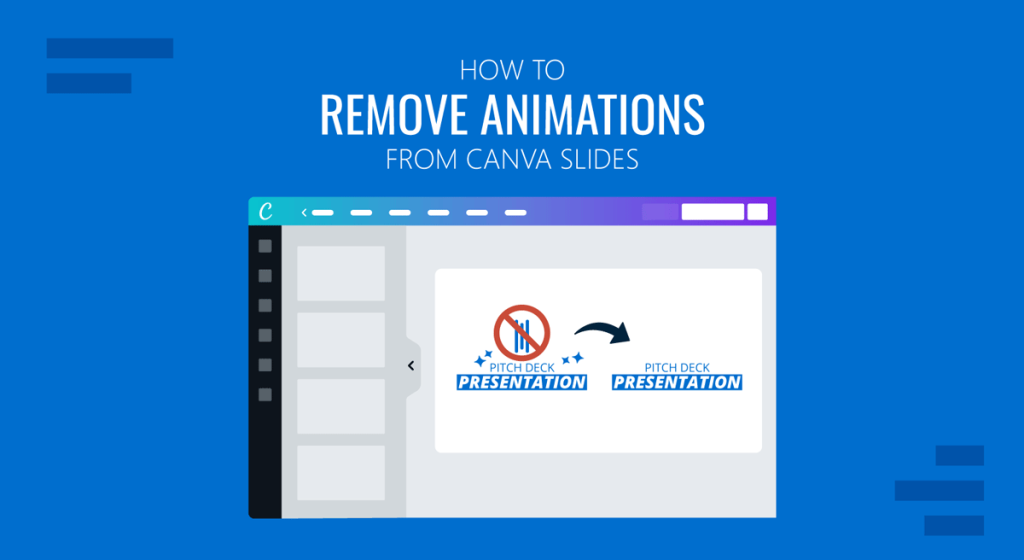
Animations can make presentations more engaging. However, there are many situations where removing animations becomes necessary. Excessive use of animations can distract audiences, slow down presentations, or create compatibility issues when exporting slides to other formats. If you’re working with presentations in Canva, understanding how to remove animations can help you simplify slide design and make the slideshow run more smoothly.
Canva provides several ways to manage animated elements, including removing a single animation or all animations from a Design. Let’s take a look at how Canva animations work and how to remove them.
Why Remove Animations from Canva Presentations
Animations are useful in moderation, but removing them sometimes becomes necessary. Simplifying animations can improve presentation performance, particularly on legacy devices or unstable internet connections where animated effects may lag or play inconsistently. This is especially useful when presenting remotely or sharing slides across multiple systems.
Another reason to remove animations is compatibility. When exporting presentations to formats such as PDF or converting slides between Canva and PowerPoint, animations may not transfer correctly. Removing unnecessary effects can help preserve formatting and reduce editing issues during collaboration. In such collaborative environments, static slides are often easier to review, edit, and maintain because team members do not need to manage multiple animation settings across different elements. In many professional scenarios, reducing unnecessary motion can result in presentations that feel more polished, organized, and easier for the audience to follow.
Understanding Canva Animations
Canva animations generally fall into three types: page, element, and text animations. Each type is managed separately, so you may need to remove animations individually, depending on how the presentation was designed. If you imported a PowerPoint presentation into Canva, note that native PowerPoint animations usually do not transfer properly.
Note: Canva uses its own animation engine, so animations in imported PowerPoint files may be lost or replaced with simplified Canva effects. As a result, PowerPoint animations often need to be recreated manually inside Canva if animation support is required.
How to Remove Animations in Canva
Below are several methods for removing animations in Canva. When working with Canva, to remove animation options, you will need to consider which animation types you intend to remove and from which slide elements.
How to Remove a Page Animation in Canva
This method is intended to remove the effects of Page animations from the entire page or slide.
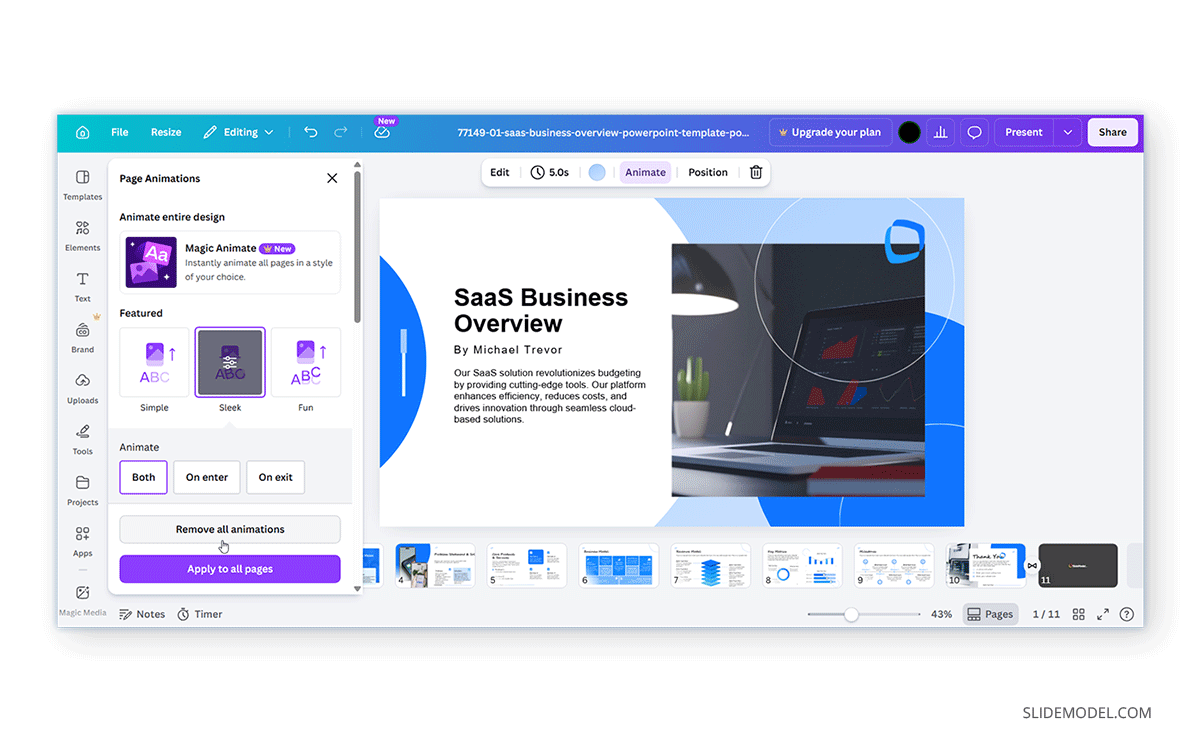
Step 1: Open the Canva presentation with animated slides, then select the slide whose animation you want to remove.
Step 2: Open the Animation Panel and click Animate. This opens Canva’s animation settings for the selected slide via Page Animations settings.
Step 3: If a page animation is applied, Canva will display the active animation style. Click on Remove all animations.
How to Remove Element Animations in Canva
Individual objects, such as images, icons, shapes, text, or charts, may also have animations applied separately. You can select and remove individual animations from them.
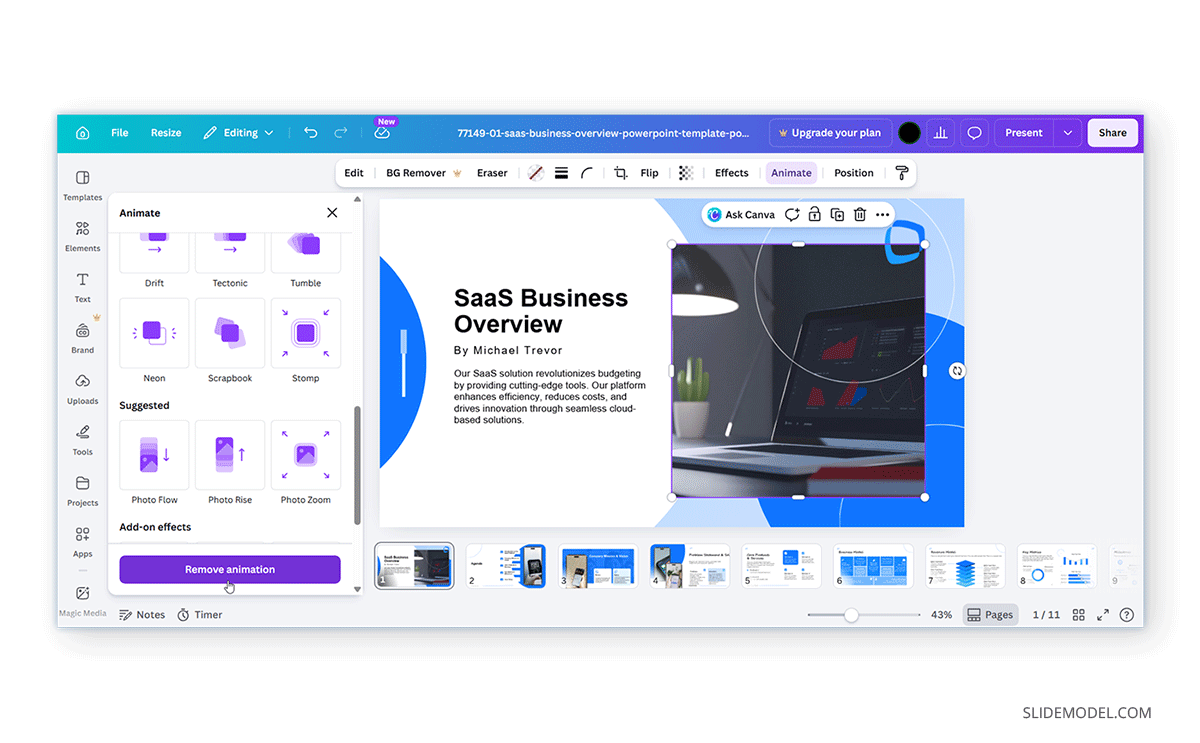
Step 1: Select the animated element and select the object you want to edit. This might include a text box, shape, image, or icon.
Step 2: Open Animation settings and select Animate. Canva will display animation options specific to the selected object (e.g., from the Photo or Text animation settings).
Step 3: Select Remove animation. This removes animation only from the selected element.
Remove All Animations from Canva
Canva also provides a simple way to remove all types of animations from slides, whether the animated content is on a single slide or across multiple slides.
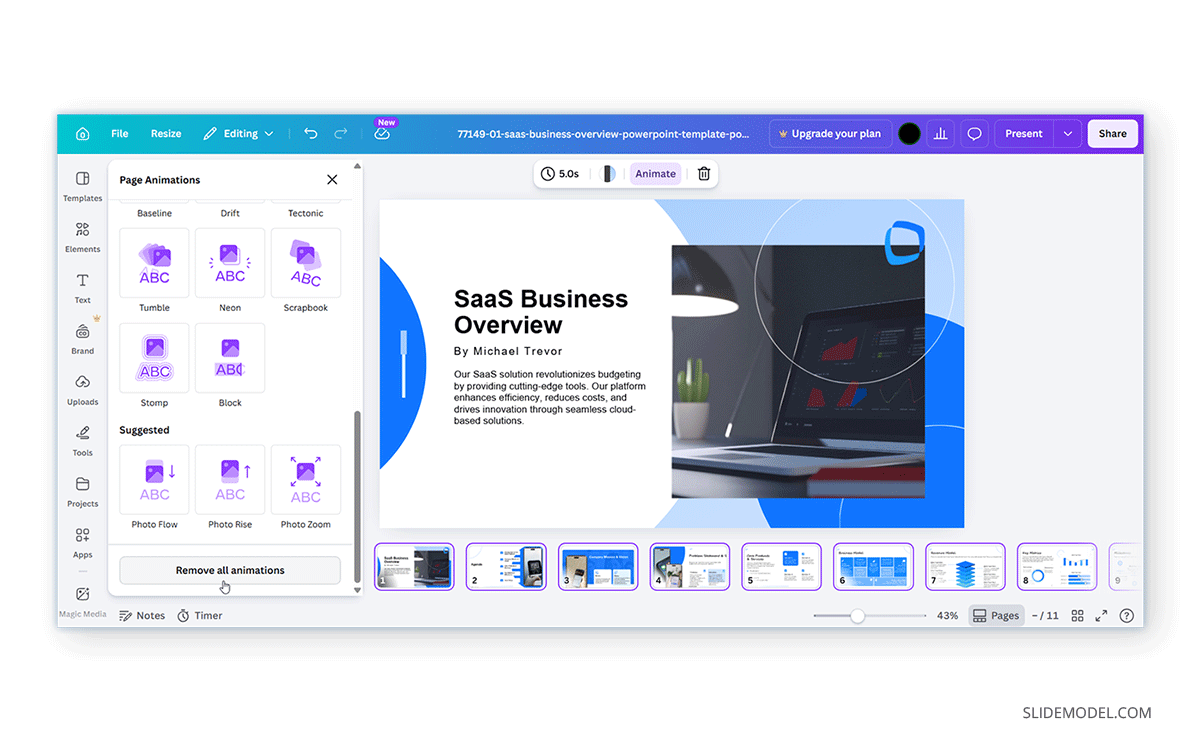
Step 1: Select all slides by holding the Shift key and clicking each slide in Canva. You can also press CTRL/Command+A to select all slides in Canva.
Step 2: Go to Animate and select Remove All Animations to clear your slides of all page- or element-related animations.
Alternative Methods to Remove Animations in Canva
If, for some reason, you are unable to clear all animations in Canva or want to review content and remove animations gradually and thoroughly, you can use the alternative methods given below.
Remove Animations Slide by Slide
This is the safest alternative method for maintaining slide formatting. Select each slide, open the Animate panel, select each animated element individually, and remove its animation.
Duplicate Content into a New Presentation
If animations are heavily used, create a new blank presentation, copy only the static content, and paste it into the new presentation. This removes most animation settings automatically.
Use Static Export Formats
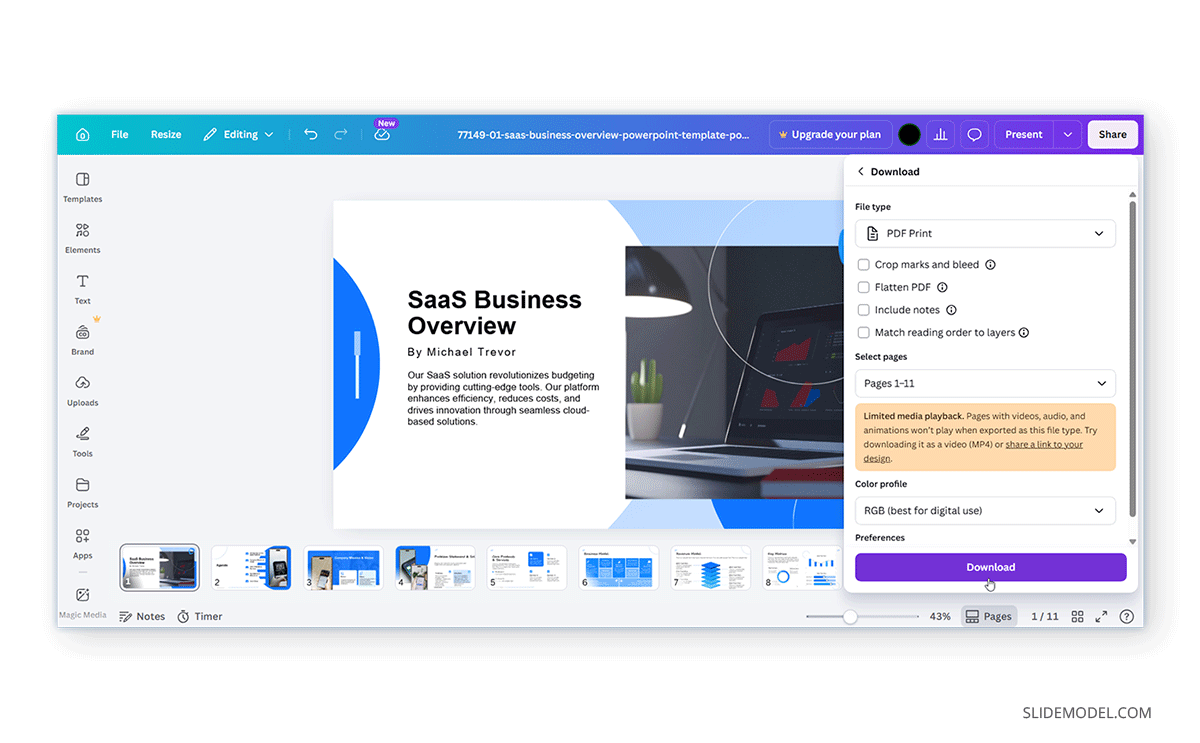
Exporting Canva slides as PDFs, PNGs, or JPGs can automatically remove animations, since these formats are static.
How to Check Whether Animations Were Removed in Canva
After removing animations, preview the presentation to verify whether any remaining effects need to be removed.
Step 1: Enter Presentation Mode via Present.
Step 2: Review each slide and check for Motion effects, Delayed entrances, Animated text, or Page transitions.
Step 3: Once the slide content is reviewed, rerun the slideshow and ensure animations are removed by testing the slide navigation. This is because subtle slide navigation animations and transitions are often overlooked at a glance and can be harder to identify.
Best Practices for Managing Canva Animations
Animations can improve a presentation when used thoughtfully, but excessive or inconsistent motion can quickly become distracting. Instead of adding animations purely for visual appeal, it is better to use them strategically to guide attention, improve slide flow, and support the presentation’s overall message.
Use Animations According to Need
Not every slide element needs movement. Applying animations to every text box, image, or icon can make slides feel crowded and difficult to follow. Instead, reserve animations for moments where they add value, such as introducing key points, emphasizing important information, or guiding viewers through a process. Subtle animation is often more effective than excessive motion, particularly in business presentations.
Maintain a Consistent Animation Style
Using multiple animation styles throughout a presentation can create an inconsistent viewing experience. For example, combining dramatic zoom effects with slow fades and rotating elements may make slides feel uncoordinated. To maintain a cleaner design, use a limited set of animation styles and keep transition speeds relatively consistent. This creates smoother visual flow and helps the presentation feel more professional.
Match Animation Style to the Presentation Context
Different presentation topics require different levels of visual energy. A corporate report or investor presentation usually benefits from simple transitions, while creative portfolios or marketing presentations may allow for more dynamic animation effects. The key is ensuring that animations complement the tone of the presentation rather than overpower the content itself.
Pay Attention to Timing and Pacing
Animation timing can significantly affect how a presentation feels. Fast animations may seem abrupt or distracting, while overly slow transitions can interrupt the flow of information. Try to maintain balanced timing so viewers have enough time to naturally absorb the content. If multiple elements appear on the same slide, staggered animations can help guide audience attention more effectively than revealing everything simultaneously.
Preview and Test the Presentation
Before presenting or sharing your slides, always preview the full presentation to ensure animations behave as expected. Check that animations trigger correctly, slide transitions are smooth, timing is consistent, and any leftover effects have been removed. Testing slides beforehand is especially important when presenting on another device, exporting the presentation, or collaborating with a team.
Common Issues and Fixes
Even simple animation settings can create problems during editing or exporting. Here are some common issues users encounter when removing animations in Canva.
Animation Option Not Appearing
Sometimes the Animate button does not appear because no object is selected.
Fix: Select the slide or element first before attempting to open animation settings.
Animation Still Appears During Presentation
An element may still contain its own animation even after the page animation was removed.
Fix: Check both page animations and element-level animations separately.
Imported PowerPoint Animations Missing
This is common when uploading PowerPoint templates into Canva.
Fix: Recreate animations using Canva’s built-in animation tools if needed. You will need to use animations other than PowerPoint’s, as Canva does not natively support them.
Text Animations Getting Removed
Grouped text elements in Canva can sometimes respond unpredictably when editing or removing animations. In some cases, animations may remain applied to certain text layers while disappearing from others.
Fix: Ungroup text elements first, then remove animations from each text box individually to ensure all effects are cleared properly.
Presentation Feels Too Static After Removing Animations
Removing all motion can sometimes make slides feel flat.
Fix: Keep transitions subtle or use simple fade effects where appropriate.
Final Words
Knowing how to remove animations from Canva can make a big difference when refining a presentation. While animations can drive audience engagement, too many effects can sometimes make presentations feel distracting or harder to follow. Simplifying animations often results in slides that look cleaner, load more smoothly, and are easier to present. It’s also worth keeping in mind that Canva and PowerPoint handle animations very differently. If you frequently move presentations between the two platforms, some effects may not transfer correctly or may disappear entirely after import. Reviewing and adjusting animations after conversion can help avoid unexpected formatting issues later.
In most cases, a presentation doesn’t need constant motion to feel engaging. Well-structured content, consistent design, and carefully used transitions are often more effective than excessive animation.