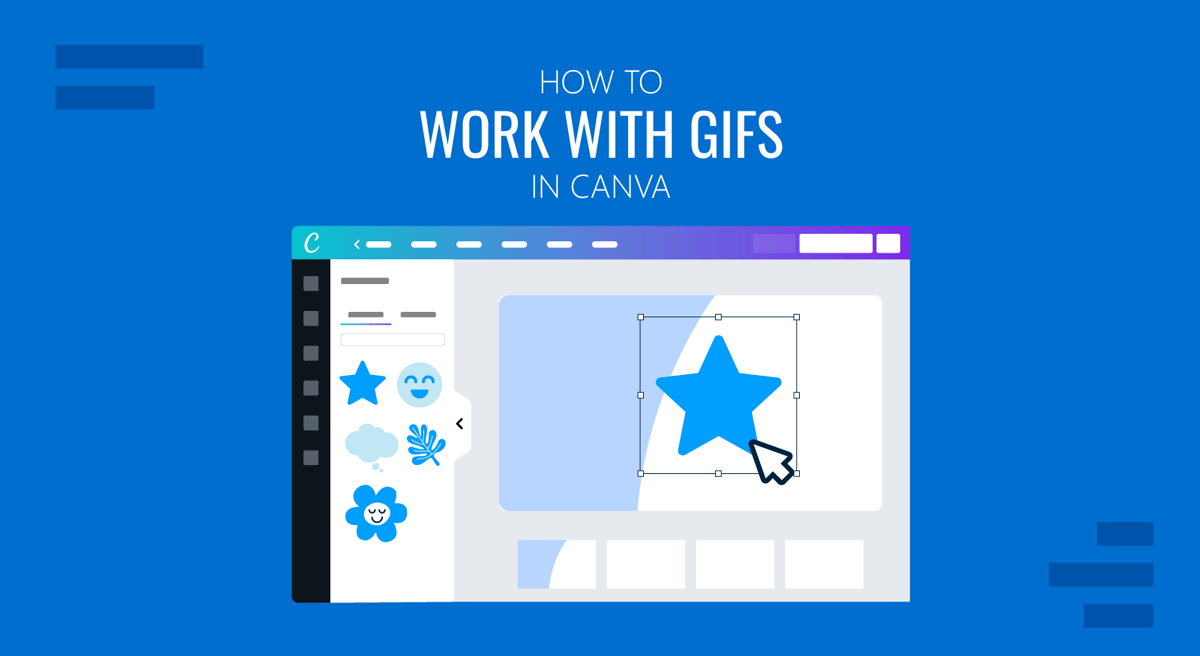
GIF animations have gained a lot of traction in recent years as meme material and have also become a popular option among presenters. Unlike static images, GIFs can display short, looping animations that help attract the audience’s attention and communicate ideas quickly. Canva supports several ways to work with GIFs. Users can import existing GIFs, use animated assets from Canva’s library, incorporate GIFs into presentations, and even create GIFs from Canva designs. Understanding how GIFs behave within Canva can help you choose the right workflow and avoid issues when exporting your presentation in a specific format.
What Are GIFs in Canva
A GIF (Graphics Interchange Format) is an image file that contains multiple frames displayed in sequence to create animation. GIFs are commonly used for short animations, reactions, demonstrations, and visual highlights. Within Canva, GIFs can be used much like regular images. They can be added to presentations, resized, repositioned, layered with other design elements, and combined with text, icons, and graphics. When viewed in presentation mode or exported using a supported format, the animation remains intact.
GIF images in Canva are particularly useful for product demonstrations, training presentations, social media content, educational materials, process explanations, and marketing presentations.
Using Animated Images in Canva Presentations
Animated images in Canva presentations can help maintain audience attention and improve engagement. A GIF can demonstrate a process, highlight a product feature, show a user interaction, or emphasize an important message. And since GIFs automatically loop, they can help illustrate a concept without requiring viewers to start or stop a video. However, excessive animation can distract viewers and make slides appear cluttered. GIFs are often most effective when used selectively to support the content rather than dominate it. When designing presentations, consider whether a GIF adds useful context or simply introduces unnecessary distraction.
How to Work with GIF images in Canva
You can use the Canva library, import GIF animations from your device, and edit and create them in Canva.
How to Find GIFs in Canva’s Library
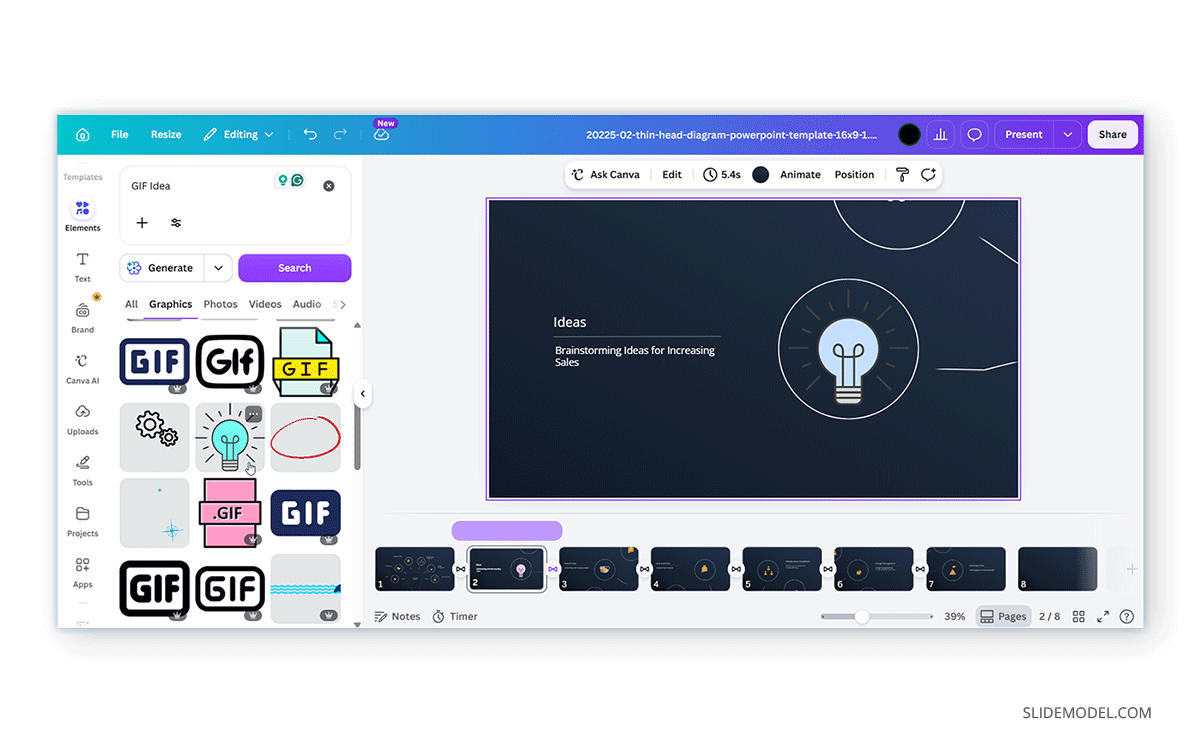
One of the easiest ways to use GIFs in Canva is through the built-in content library. By opening the Elements panel and searching for terms such as “GIF”, “animated,” or a specific topic, users can access a wide variety of animated assets. These include animated illustrations, stickers, icons, and decorative graphics that can be added directly to a design. When searching in Elements, look for the Graphics menu to view GIFs, or use the All menu, which includes GIFs and other content based on your search terms.
Some GIF assets are available to all Canva users, while others may require a premium subscription. Once added to a slide or design, these animated elements can be resized and positioned like other Canva objects. The built-in library can save time compared to searching for GIFs on external websites, particularly when creating presentations that require a consistent visual style.
How to Use GIPHY in Canva
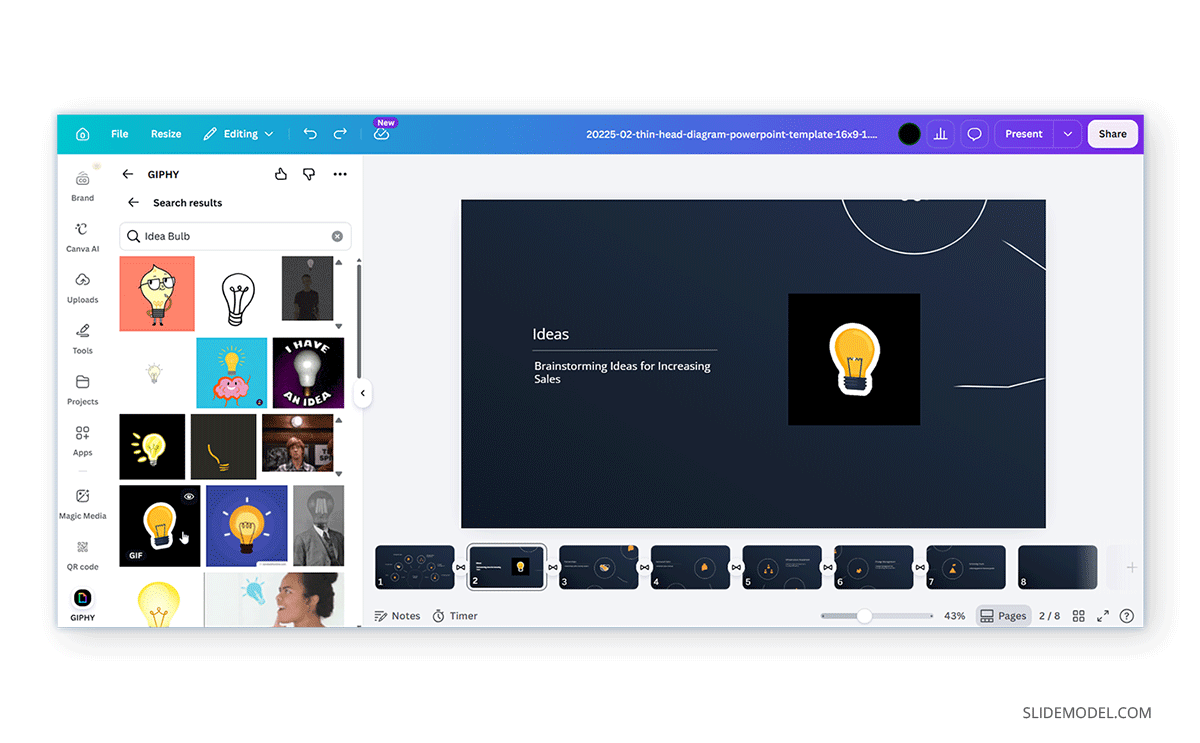
GIPHY is one of the most popular platforms for downloading GIFs. Like many other platforms, Canva integrates GIPHY, allowing users to insert GIFs from its vast library. Simply go to Elements, select GIPHY, search, and select GIFs to add in Canva.
How to Import GIF Images into Canva
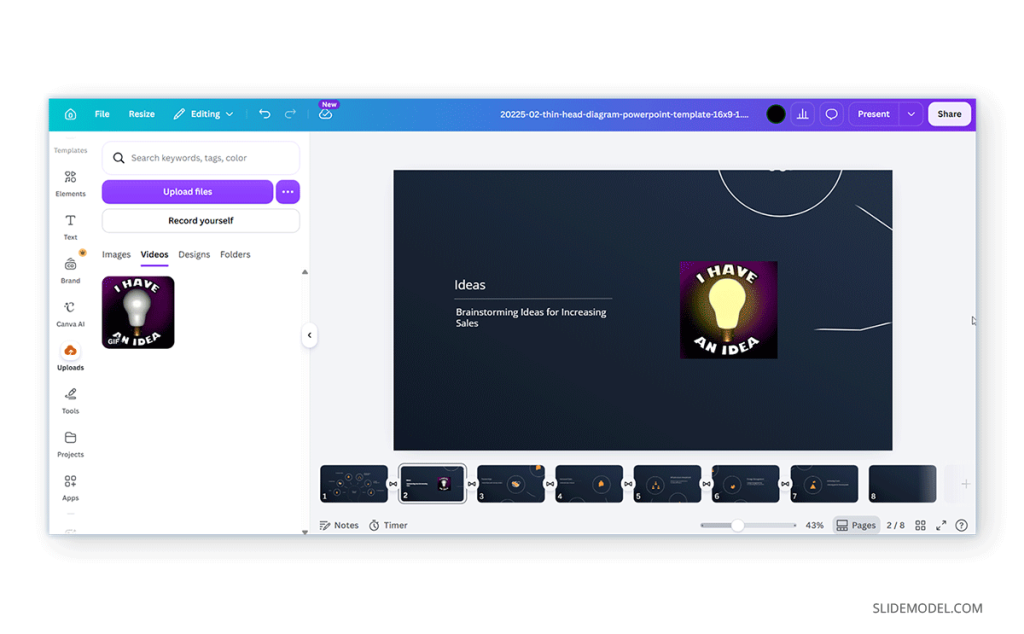
Canva also allows users to upload GIFs from their device. To import a GIF, open the Uploads panel and select the desired file. Once uploaded, the GIF can be dragged onto a presentation slide, document, or design canvas. You can also choose to fetch a file from cloud storage, social media, or other supported accounts, including Dropbox, Google Drive, Google Photos, Instagram, and Shopify.
In most cases, Canva automatically preserves the animation. The uploaded GIF behaves similarly to other image assets and can be moved, resized, cropped, and arranged alongside other design elements. This makes it easy to incorporate branded animations, product demonstrations, or custom GIFs created in third-party applications.
How to Create GIFs in Canva
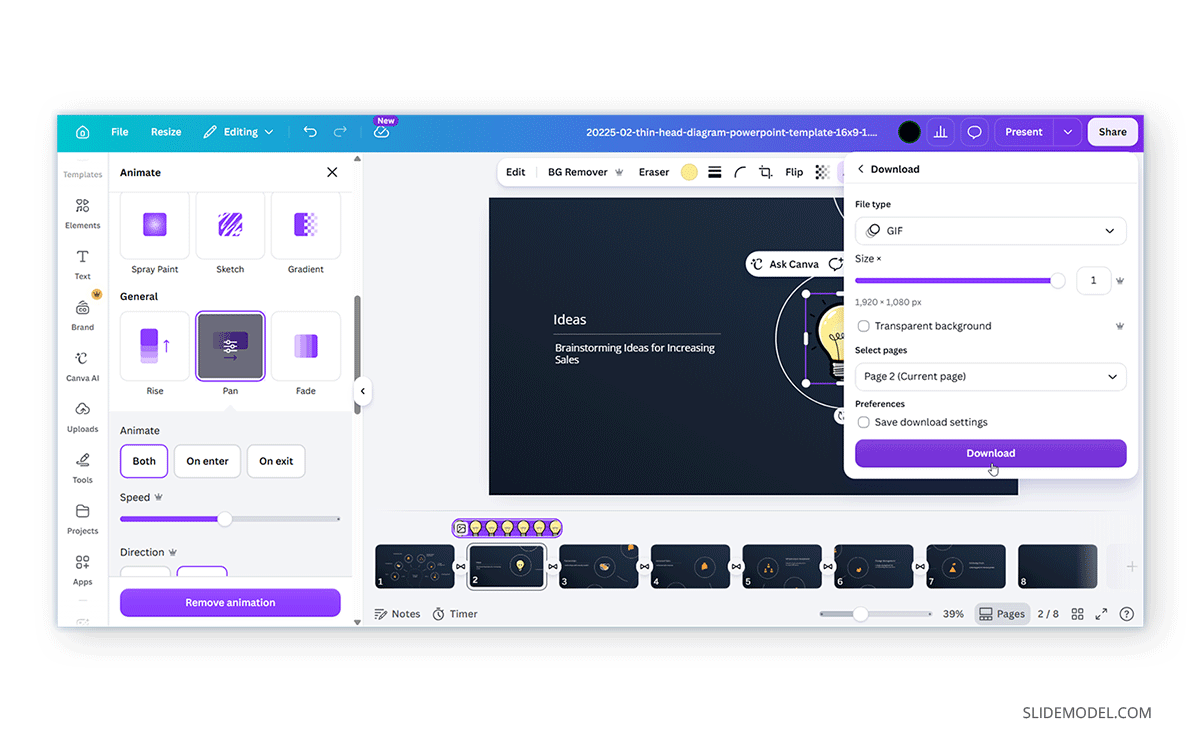
In addition to importing GIFs, Canva can also be used to create them. One approach is to design a slide or graphic using text, images, icons, and animated elements. Canva provides a variety of built-in animations that can be applied to individual objects or entire pages.
After adding the desired animations, the design can be exported as a GIF. Canva automatically converts the animation sequence into a looping GIF file. For short animations, GIF export can be an effective alternative to videos
In the example below, we designed a GIF animation by adding the Pan animation to a lightbulb image in a slide from the 6-Step Head Diagram Morph Template for PowerPoint. The slide was exported as a GIF animation in Canva.
How to Edit GIFs in Canva
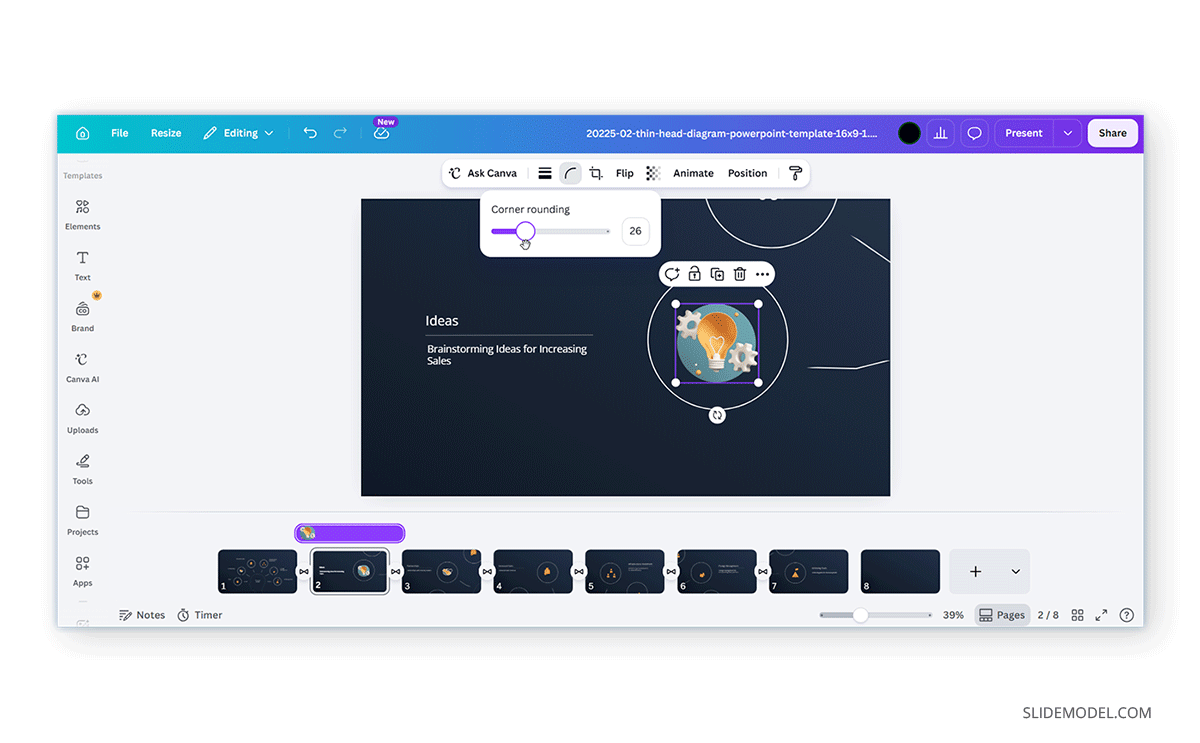
While Canva supports many editing options for GIF assets, it is important to understand the platform’s limitations. Users can resize, crop, reposition, adjust transparency and corners, flip, and combine GIFs with other visual elements. GIFs can also be placed inside frames and layouts to fit specific design requirements. However, Canva is not designed as a frame-by-frame GIF editor. Unlike specialized animation software, it does not provide detailed controls to edit individual frames in an imported GIF.
For most presentation and design projects, Canva’s available editing tools are sufficient. However, users requiring advanced animation editing may need to modify the GIF before importing it into Canva.
How Resizing and Effects Change GIFs in Canva
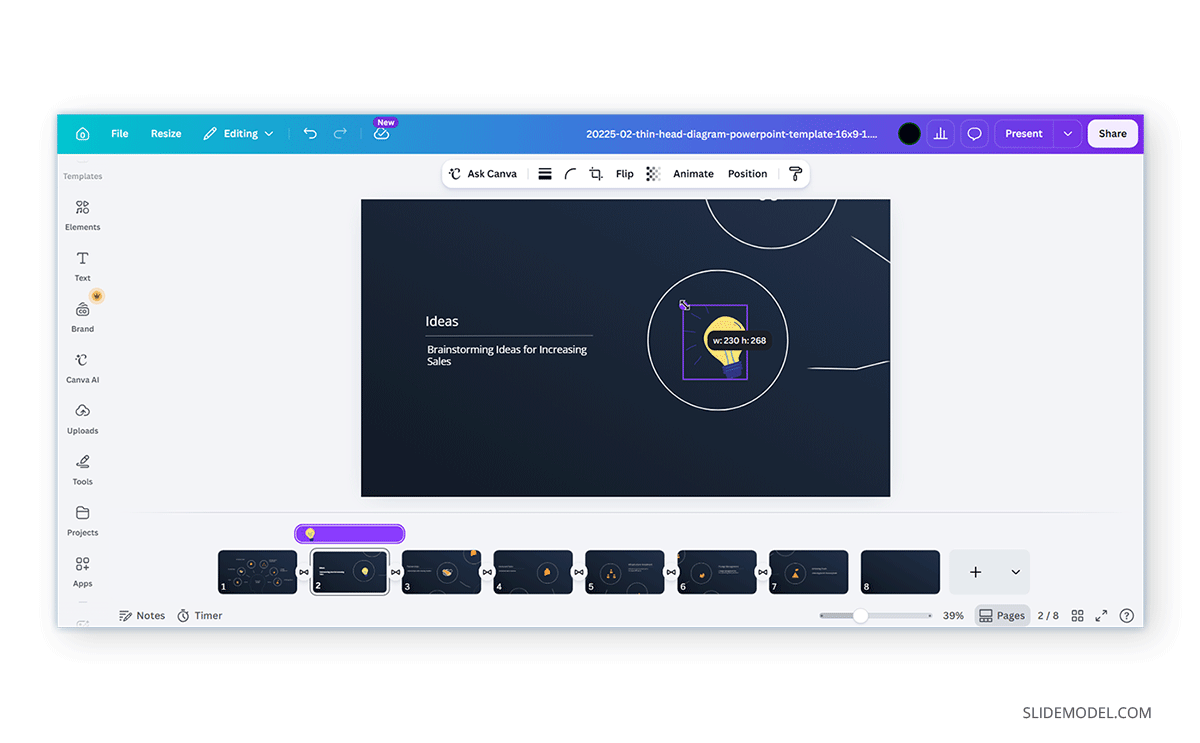
One of the most common questions about animated images in Canva concerns how editing actions affect GIF playback. In general, resizing a GIF does not remove its animation. The GIF continues to animate as it adjusts to its new dimensions. Cropping a GIF changes the visible portion of the animation but does not alter the animation itself.
Transparency adjustments also apply to the GIF as a whole, enabling the blending of animated content with slide backgrounds and other visual elements. Certain styling options and effects may be available depending on the source of the GIF and the type of asset being used. Some imported GIFs may support fewer editing options than Canva’s native animated elements.
It is also worth noting that significantly enlarging a low-resolution GIF can reduce image quality and make the animation appear blurry.
Best Export Formats for Presentations Containing GIFs
Choosing the right export format is important when working with GIFs in Canva.
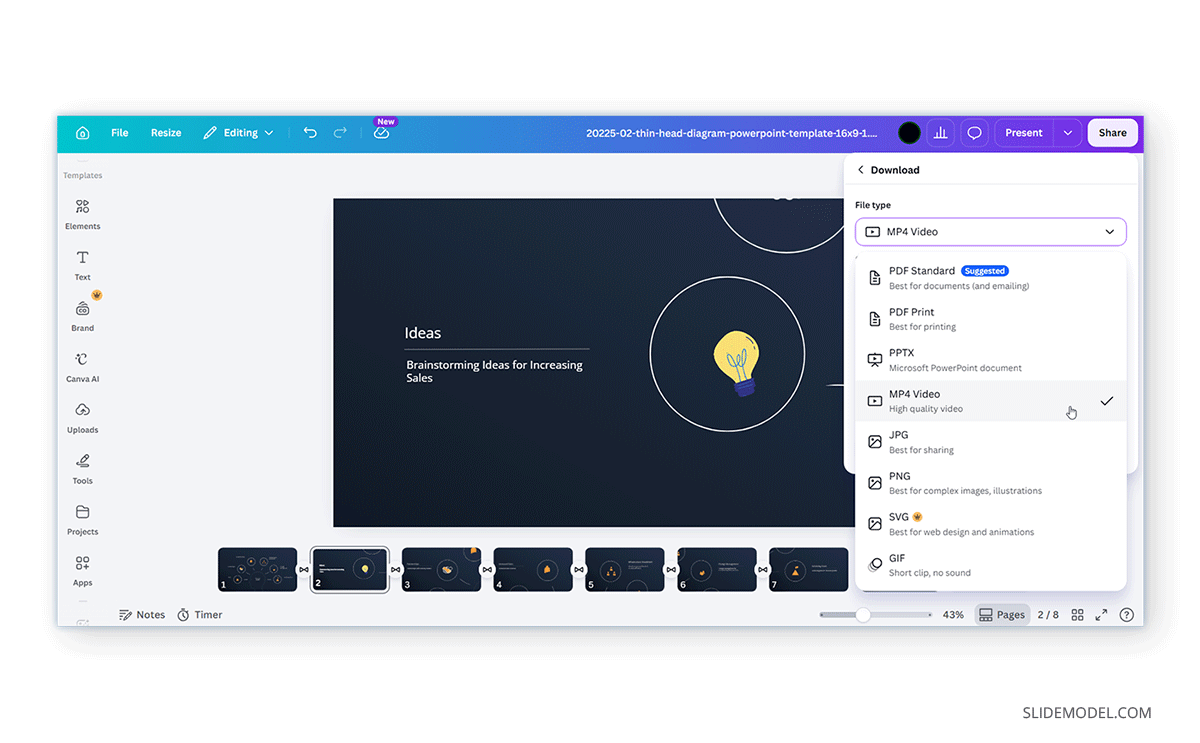
GIF: Exporting as GIF is suitable for short looping animations that will be shared on websites, social media platforms, or messaging applications. This is particularly useful when you have designed a slide with animations and want to export it as an animated file.
MP4: If the presentation contains animated content and you want the animations to remain active, exporting to MP4 is often the best option. MP4 files generally provide better quality, smoother playback, and smaller file sizes for longer animations.
PPTX: For PowerPoint files, animation support may vary depending on how Canva converts the presentation and how PowerPoint handles imported animated content. If preserving animation is critical, exporting as MP4 is generally the more reliable option.
Common Issues and Fixes
While Canva generally handles GIFs well, users may occasionally encounter issues when editing, previewing, or exporting animated content.
GIF Appears Static in the Editor
Some GIFs may not appear animated while you are editing a design, leading users to believe the animation has been lost.
Fix: Preview the design using Present mode or export it in a format that supports animation to verify that the GIF is functioning correctly.
GIF Looks Blurry After Resizing
Enlarging a low-resolution GIF can make it appear pixelated or blurry, particularly when displayed on large presentation slides.
Fix: Use a higher-resolution GIF whenever possible and avoid scaling the image significantly beyond its original size.
Animation Is Lost After Export
Users sometimes export a design and discover that the GIF no longer moves.
Fix: Check the export format being used. Formats such as PDF, PNG, and JPG convert animated content into static images. To preserve animation, export the design as a GIF or MP4 file.
Large GIF Files Affect Performance
High-resolution or lengthy GIFs can increase file size and may slow down editing, loading times, or playback performance.
Fix: Compress the GIF before uploading it to Canva or replace it with a smaller version that delivers a similar visual effect.
Limited Editing Options for Imported GIFs
Some uploaded GIF files may not support the same editing features available for Canva’s native animated elements.
Fix: If additional customization is required, consider using Canva’s built-in animated assets or editing the GIF in dedicated animation software before importing it into Canva.
Final Words
You can choose between a variety of options when working with GIFs in Canva, including using GIFs from your device or online account, using animated assets from Canva’s library, or creating your own animated graphics. Understanding how GIF images in Canva behave during editing, resizing, and exporting can help prevent unexpected results and ensure animations appear as intended. For presentations that rely on animation, selecting the appropriate export format is especially important, since formats such as PDF, PNG, and JPG flatten animated content, whereas GIF, PPTX, and MP4 exports preserve animated GIFs.