When designing a presentation, marketing graphic, product catalog, or social media post, separating the subject from its background makes it easier to place images into different layouts without distracting visual elements. If you’re wondering how to remove the background from images in Canva, the platform includes a built-in Canva Background Remover tool that can automatically isolate the main subject in just a few clicks. After removing the background, you can further refine the result using Canva’s Erase and Restore brushes to clean up edges or recover accidentally removed details.
This guide explains how to remove a background in Canva, improve the cutout using the editing tools, explore alternatives for free users, and compare Canva’s background removal capabilities with Microsoft PowerPoint.
Why Remove Backgrounds from Images
Background removal has become a common part of presentation and graphic design because it allows images to blend naturally into different layouts. Some common examples include product presentations, company profiles, marketing materials, educational presentations, infographics, social media graphics, profile photos, and promotional posters. For example, instead of placing a product photo with a distracting office background in a presentation slide, removing the background allows the product to stand out against a clean design. The same approach can be used for employee headshots, company logos, or illustrations that need to be placed over custom backgrounds.
How to Remove Background from Images in Canva
You can use Canva’s built-in Background Remover tool to erase backgrounds. This is a premium feature that automatically detects the main subject and removes the surrounding background, producing a transparent cutout that can be used in other designs.
If you want to learn how to cut out an image in Canva, this method is exactly what you need. This method also answers many other common Canva questions for users looking to remove background, including how to make background transparent in Canva, how to remove white background in Canva, or how to remove image background in Canva Pro. Essentially, all these functions can be performed with a click using the Canva BG Remover tool.
Step 1: Open an existing Canva project or create a new design and select an image.
Step 2: With the image selected, open the image editing options and choose BG Remover via Edit or the top toolbar in Canva.
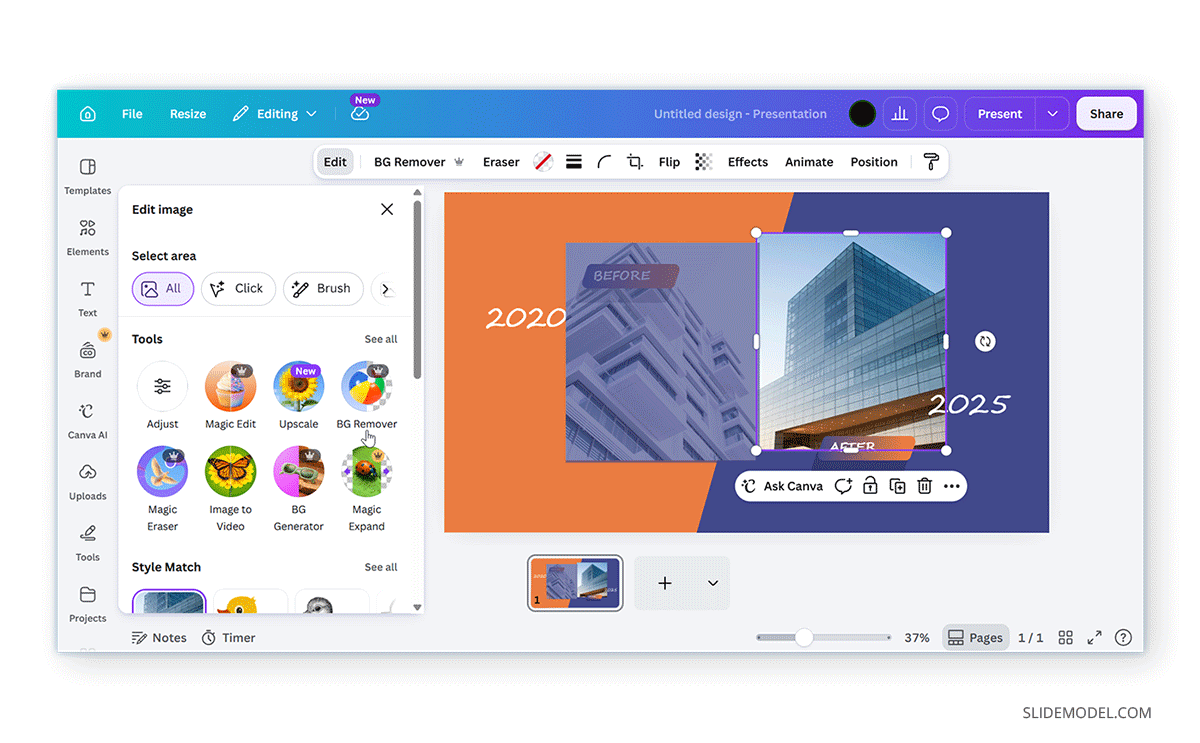
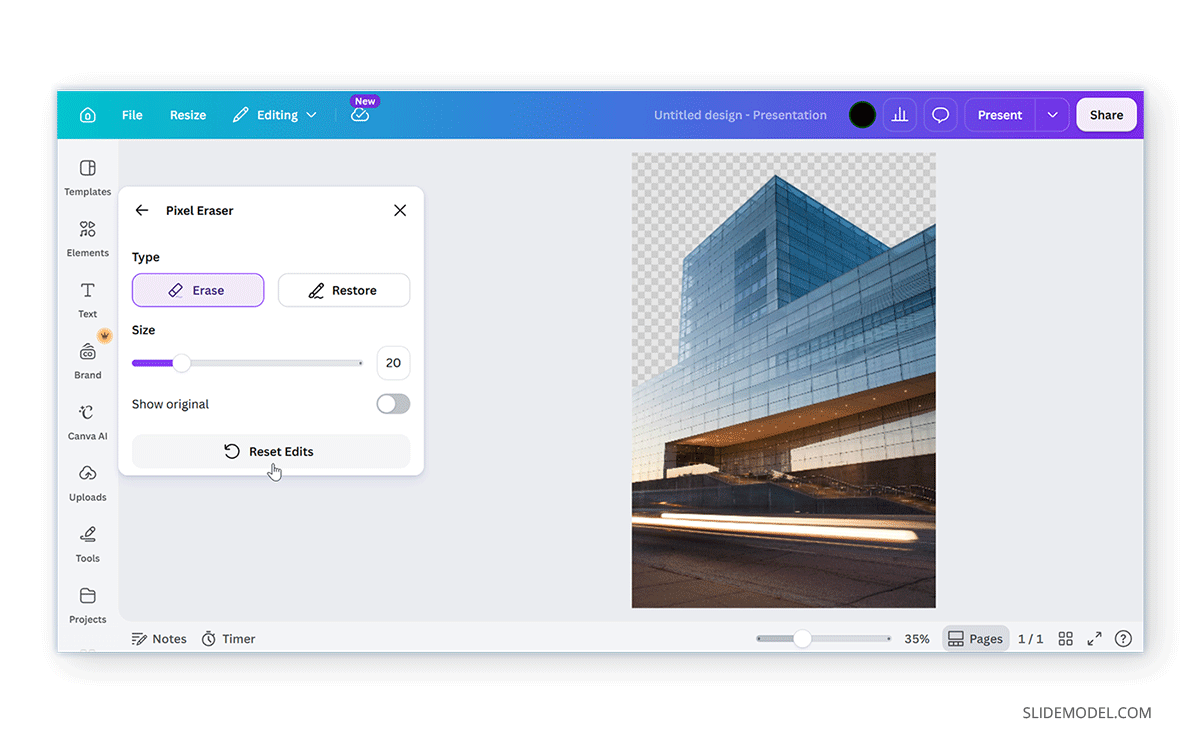
Step 3: Once the BG Remover tool is selected, Canva analyzes the image and automatically separates the foreground subject from the background. The process usually takes only a few seconds, depending on the image and its complexity. If everything looks correct, you can continue designing. Otherwise, Canva provides tools to manually refine the selection. You can also click Reset Edits to undo the changes.
Refining the Cutout with Erase and Restore
Automatic background removal isn’t always perfect. Images containing detailed edges, overlapping objects, or busy backgrounds may require additional adjustments. Canva includes two editing brushes that help improve the final result.
Using the Erase Brush
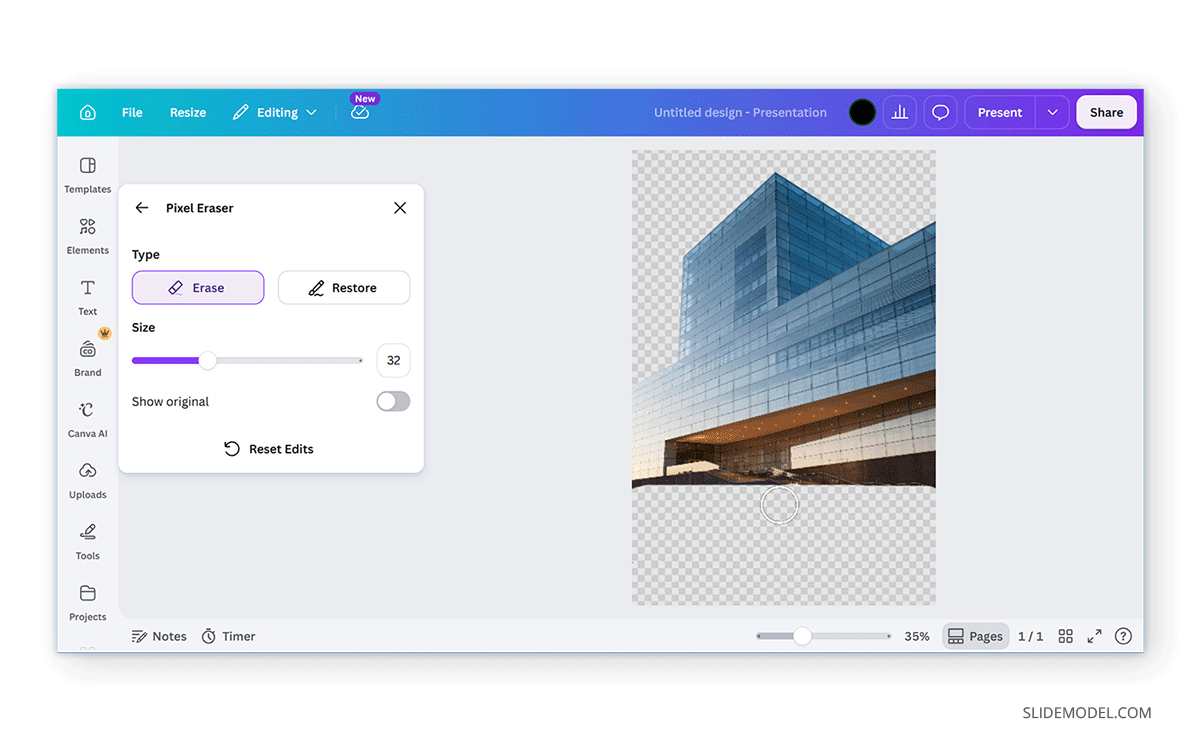
The Erase brush removes portions of the image that the automatic tool fails to delete. This is useful when small pieces of the original background remain around the subject. Adjust the brush size as needed and carefully paint over the areas you want to remove. Using a smaller brush often produces more accurate results around detailed edges.
For example, you can use the Erase tool to remove background fragments between strands, shadows around objects, unwanted sections near the edges, and small background areas inside transparent objects.
Using the Restore Brush
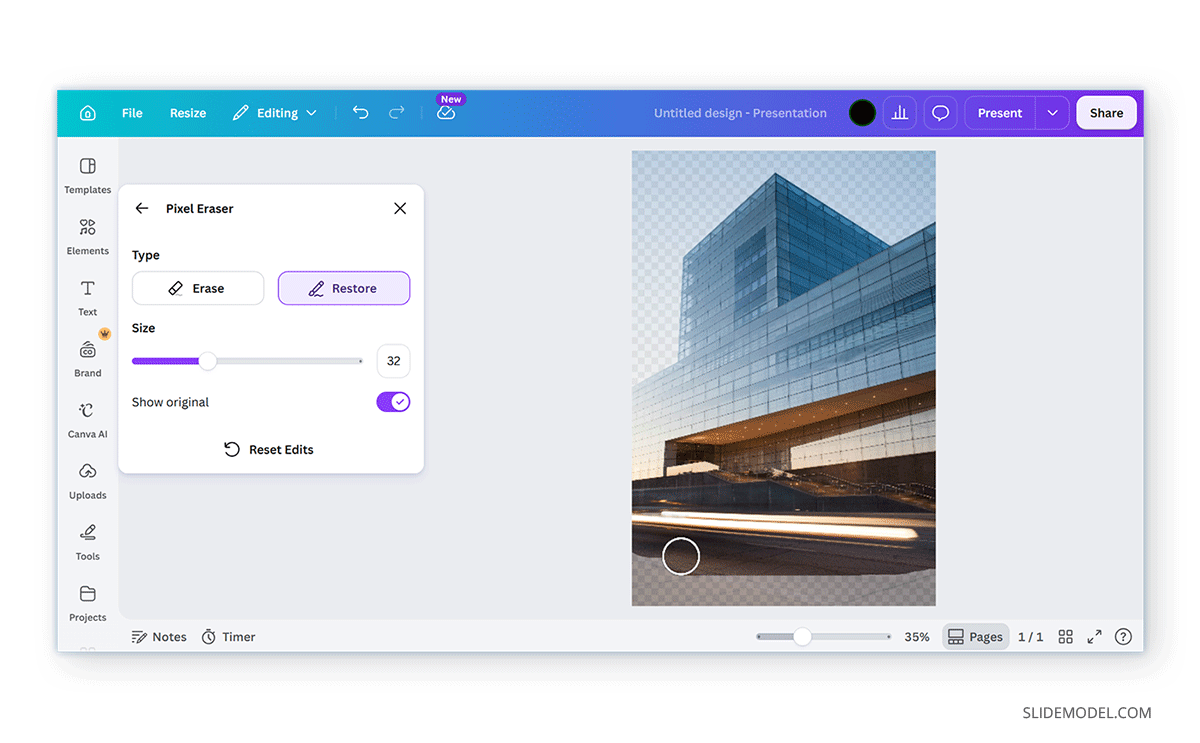
The Restore brush performs the opposite task. Instead of removing parts of the image, it restores areas that were accidentally erased during automatic background removal. This is particularly helpful when Canva removes parts of the actual subject.
Common examples include restoring hair, fingers, clothing edges, jewelry, etc. Like the Erase brush, reducing the brush size allows for more precise editing around small details.
Tips for Cleaner Background Removal
Even with AI-assisted editing, the quality of the original image significantly affects the final result.
Use High-Resolution Images
Higher-resolution photos contain more detail, making it easier for Canva to distinguish the subject from the background. Low-quality or heavily compressed images often produce rough edges.
Choose Images with Good Contrast
Background removal works best when the subject clearly stands out from the background. For example, a person wearing dark clothing against a light background is generally easier to isolate than someone standing in front of a similarly colored wall.
Zoom In While Editing
When using the Canva background eraser tools, zoom in to inspect the edges closely. Small imperfections may not be visible at normal zoom levels but can become noticeable in the final presentation or printed design.
Avoid Excessive Editing
It can be tempting to continue refining every edge, but over-editing may remove natural shadows or important details. Aim for a clean, realistic cutout rather than perfect pixel-level precision.
Remove Background in Canva Free: Alternatives for Free Users
The built-in Canva Background Remover tool is available as a Canva Pro feature. If you’re using the free version of Canva, you won’t have access to the automatic background removal tool. Fortunately, there are still practical ways to remove an image background before bringing it into Canva. One of the most popular alternatives is to use a third-party background removal service, download the edited image as a transparent PNG, and then upload it to Canva.
Remove BG
One widely used option is remove.bg, an online tool that automatically removes image backgrounds using AI. The general workflow is straightforward. You can upload your image to a background removal service, wait for the AI to remove the background, and download it as a transparent PNG. You can also add effects, backgrounds, and designs to customize your image. You can use such images with Canva by uploading them to your projects.
Adobe Express
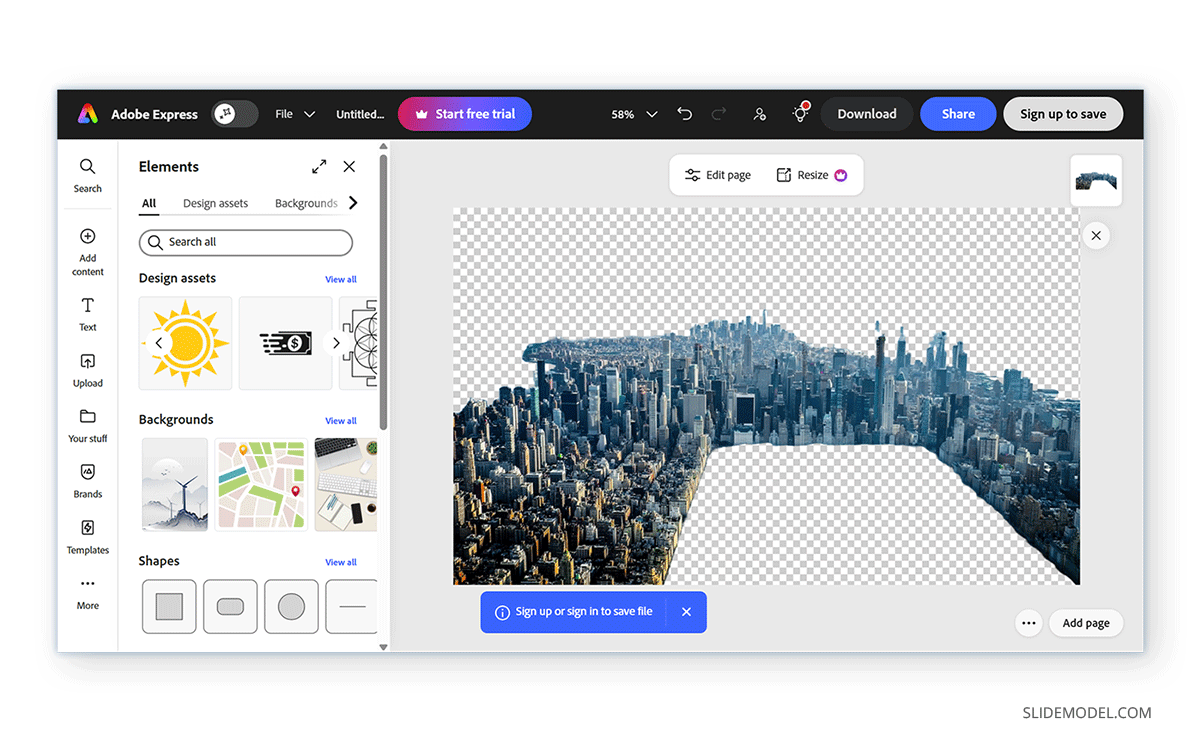
Adobe Express is another free tool for removing image backgrounds. You can upload an image, remove its background, and download it as a PNG. You can also enhance the image with effects, add objects, and animate it. Adobe Express offers more comprehensive features than BG Remover, helping you customize images for use in Canva.
Common Limitations of Canva Background Removal
Although Canva’s AI-powered background remover performs well for most images, there may be certain imperfections left behind during the removal process.
Complex Backgrounds
Images containing multiple overlapping objects or highly detailed backgrounds can make it more difficult for AI to accurately identify the main subject.
For example, a person standing in front of a crowded street scene may require additional cleanup using the Erase and Restore brushes.
Hair and Fur
Loose strands, curly hair, and animal fur often contain hundreds of fine edges that are difficult to separate perfectly from the background. While Canva usually produces good results, close inspection may reveal areas that benefit from manual refinement.
Transparent and Reflective Objects
Glass, water, transparent packaging, and reflective surfaces can confuse automatic background detection tools because the subject partially blends with the surrounding environment. These images may require additional editing or a different source photograph with better contrast.
Image Quality
Low-resolution or heavily compressed images contain fewer details, making it harder for Canva to distinguish the subject from the background. Whenever possible, begin with the highest-quality image available to improve background removal accuracy.
Canva vs. PowerPoint: Removing Image Backgrounds
Both Canva and Microsoft PowerPoint include tools for removing image backgrounds, but they are designed for slightly different workflows.
When Canva Is the Better Choice
Canva focuses on quick visual editing and works particularly well for presentation graphics, marketing materials, social media posts, and educational content. Its AI-powered background remover can automatically isolate subjects with minimal effort, while the Erase and Restore brushes make it easy to refine the result without leaving the design editor. For users creating visually rich content, Canva provides a fast and intuitive workflow.
When PowerPoint is the Better Choice
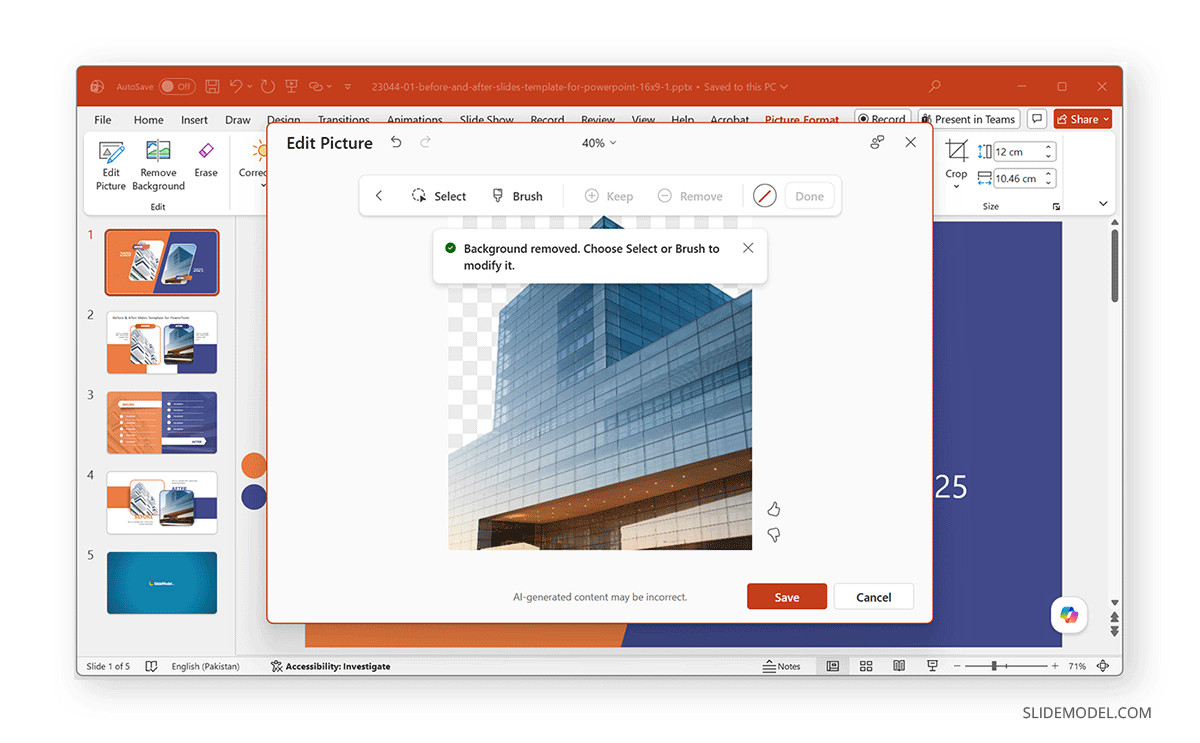
Recent versions of PowerPoint also include a built-in AI-powered background removal feature that automatically isolates subjects within a presentation. Furthermore, the Keep and Remove feature in PowerPoint can help customize background removal by restoring or erasing content within the image. For users who already build presentations primarily in PowerPoint, its integrated editing tools may provide a more convenient workflow, including the ability not only to remove the background but also to add content to images. While Canva offers similar features, the desktop version of PowerPoint arguably provides greater precision and more refined options for image editing and background removal.
Final Words
The built-in Canva Background Remover quickly isolates the main subject, while the Erase and Restore brushes provide additional control to refine difficult edges and recover small details.
Although Remove image background Canva Pro offers the most convenient workflow, free users can achieve similar results by using third-party background removal tools and uploading transparent PNG files into Canva. For projects that require occasional image editing, Canva provides a fast and user-friendly solution. When more manual control is needed within a presentation, PowerPoint’s Remove Background feature offers an effective alternative.