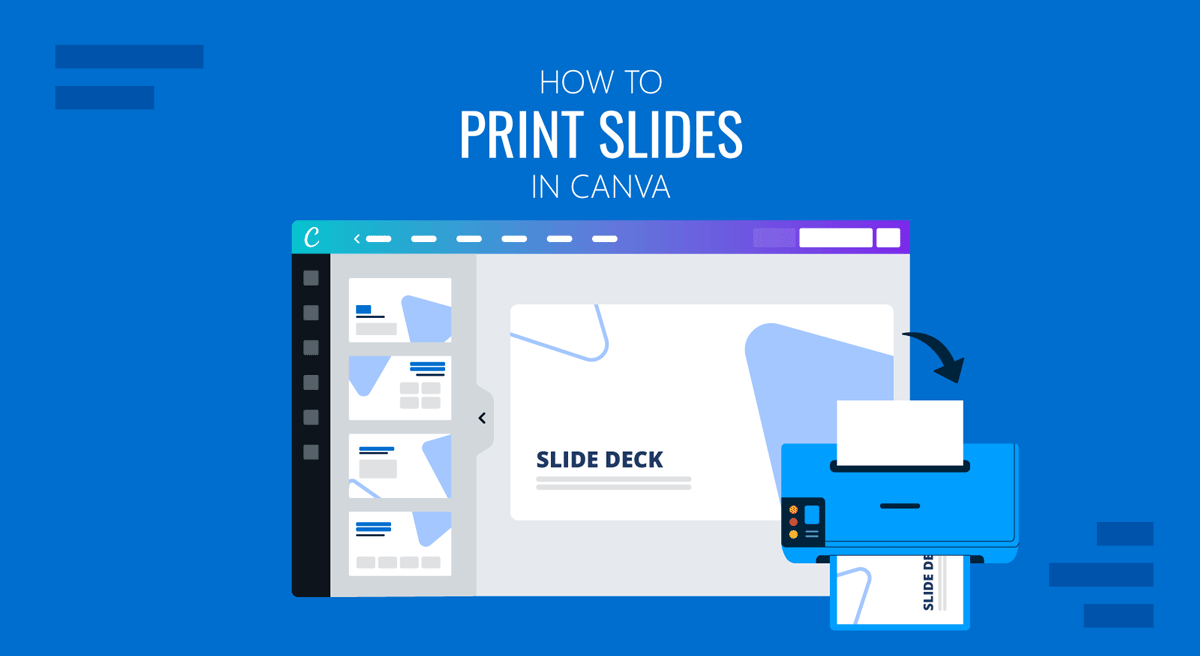
Canva presentations are designed primarily for digital viewing, but you can also print them for meetings, handouts, classroom materials, or professional distribution. The best printing method depends on whether you need a quick paper copy, a high-quality file for a print job, or professional printing.
If you’re learning how to print a Canva presentation, there are several ways to prepare your slides. You can print directly from Canva through your browser, download the presentation as a print-ready PDF, or use Canva’s printing service where available. Each option provides a different level of control over the final output. This guide explains how to print Canva slides on paper, prepare a presentation for professional printing, and choose the method that best fits your project.
How to Print Canva Slides
You can print Canva slides on paper, create a PDF for handouts or better printing control, and use Canva’s professional print service to order prints.
How to Print Canva Slides on Paper in Canva
For a quick physical copy, you can print your Canva presentation directly from the browser.
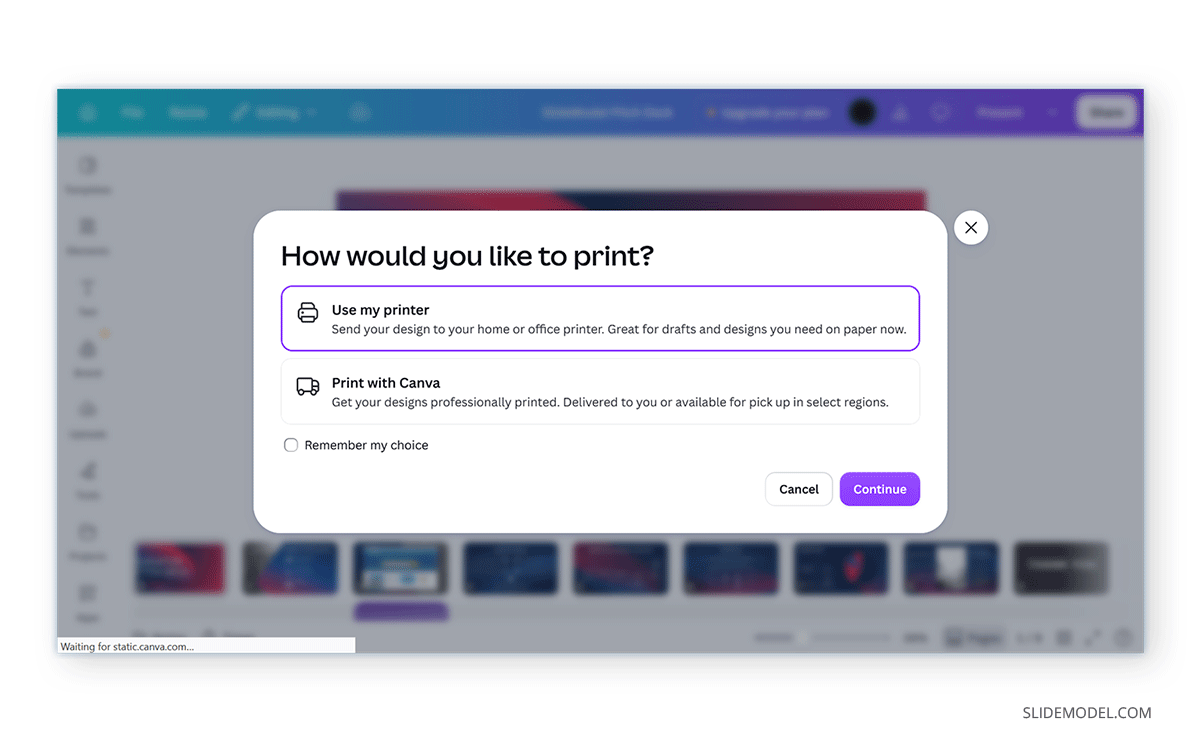
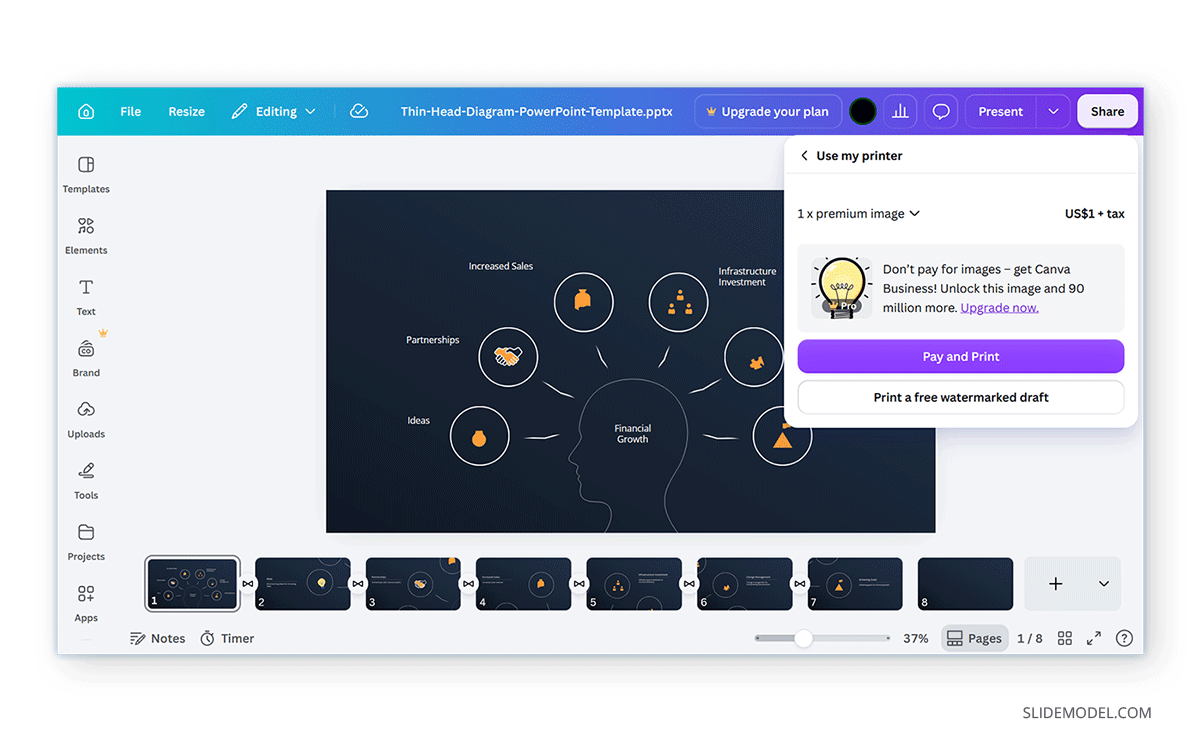
Step 1: Open the Canva presentation you want to print, then select Print from the File menu. Selecting Use my printer allows you to send the presentation to the printer connected to your computer.
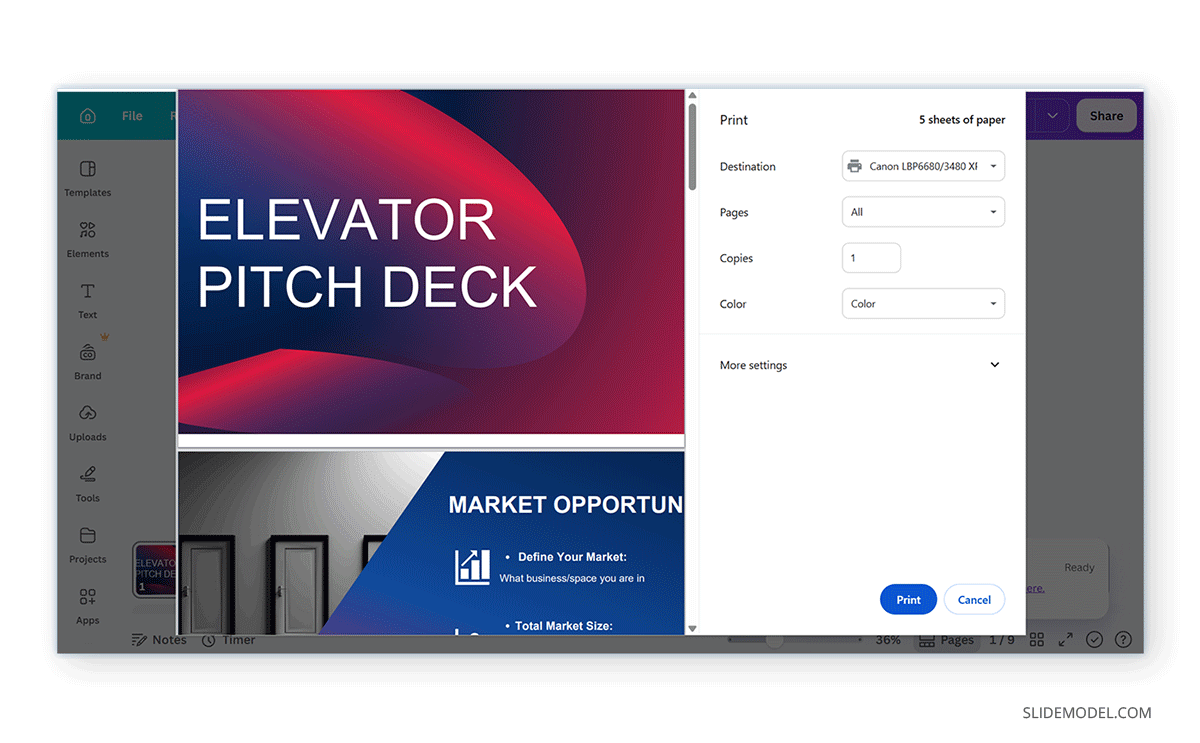
You can also use your browser’s standard print command. On Windows, press CTRL+P; on Mac, press Command+P. This opens the system or browser print dialog, where you can select the printer and adjust available print settings before confirming the job.
Step 2: Before printing, check the preview carefully. Presentation slides are usually designed in landscape, so make sure the selected paper orientation matches the layout. Also check the paper size, scaling, number of copies, and color settings available through your printer.
Step 3: After you apply your settings, click Print to send the command to your selected printer.
When to Print Directly in Canva
Printing directly from Canva is a practical choice when you need a small number of physical copies and don’t require extensive control over the final print file. It works well for internal meetings, quick presentation reviews, classroom use, or situations where you need a paper copy immediately. This approach can also save time when the presentation is already finalized, and you’re printing it on a standard office or home printer.
How to Export Canva Presentation for Printing as a PDF
Direct printing is convenient, but it may not offer the same control as preparing a dedicated PDF for printing. If you’re producing many copies or sending the presentation to a professional printer, exporting the design first is usually a better approach. Therefore, downloading your presentation as a print-ready PDF gives you more control over the file before it reaches the printer. Canva provides a PDF print export option designed for high-quality printed output.
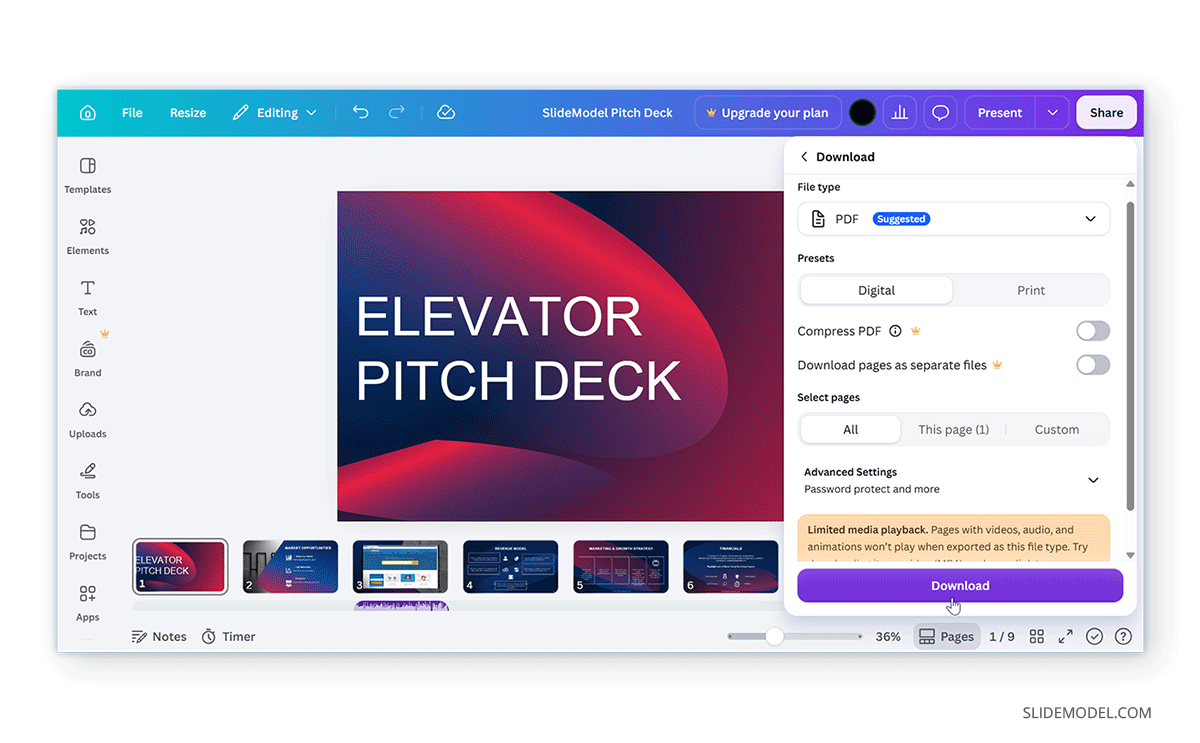
Step 1: To print Canva slides as a PDF, go to Share -> Download in Canva, and select PDF Print as the file type.
Step 2: Adjust any relevant settings before downloading the file. This includes options to make it ready for digital or print versions. For example, you can compress the PDF for digital distribution and select a CMYK or RGB profile for print. You can also select pages to print and download them separately.
Step 3: After selecting the required settings, click Download.
When to use PDF Print
Once downloaded, you can open the PDF to review every page before printing. This lets you check whether text, images, graphics, and page layouts appear as expected, rather than discovering a problem after printing. The PDF Print option is particularly useful when print quality matters. For example, a presentation may look clear on screen while revealing issues such as small text, poor image quality, or unexpected spacing when transferred to paper. Reviewing the exported PDF before printing can help identify these problems.
You can print the PDF using a connected printer or share it via email, Zoom, Microsoft Teams, or through other means with your audience. For example, you can share PDF files with remote participants and use printed copies for those attending in person. Alternatively, you can share PDF files with both participants via a formal email.
A PDF is also convenient when you’re working with a professional printing company. Instead of sending the editable Canva design, you can provide the printer with the finished file and retain control over the final version of your presentation.
How to Order Professional Prints Through Canva
In addition to direct printing and the Canva PDF print download option, you can also order prints directly from Canva through its printing service. If you need professionally produced copies rather than printing them yourself, Canva also provides printing services for supported designs and locations. This can be useful for users who want to move from designing to physical production without managing the printing process separately.
When to Use Canva’s Professional Printing Service
The available print products, specifications, and delivery options depend on the design and location. If you’re considering Canva’s print service for a presentation or other professional material, review the available options before placing the order and make sure the selected format matches your intended use. To order prints, look for the Print with Canva option via File -> Print.
Professional printing can be particularly useful when you need a polished result, larger quantities, or a finish that’s difficult to achieve with a standard office printer. You can also select and customize designs from Canva to print, such as calendars, albums, mugs, etc. However, Canva’s printing service is limited by region and country. Check the availability of printed materials in your country and the associated price estimates before using this service.
How to Print Speaker Notes in Canva
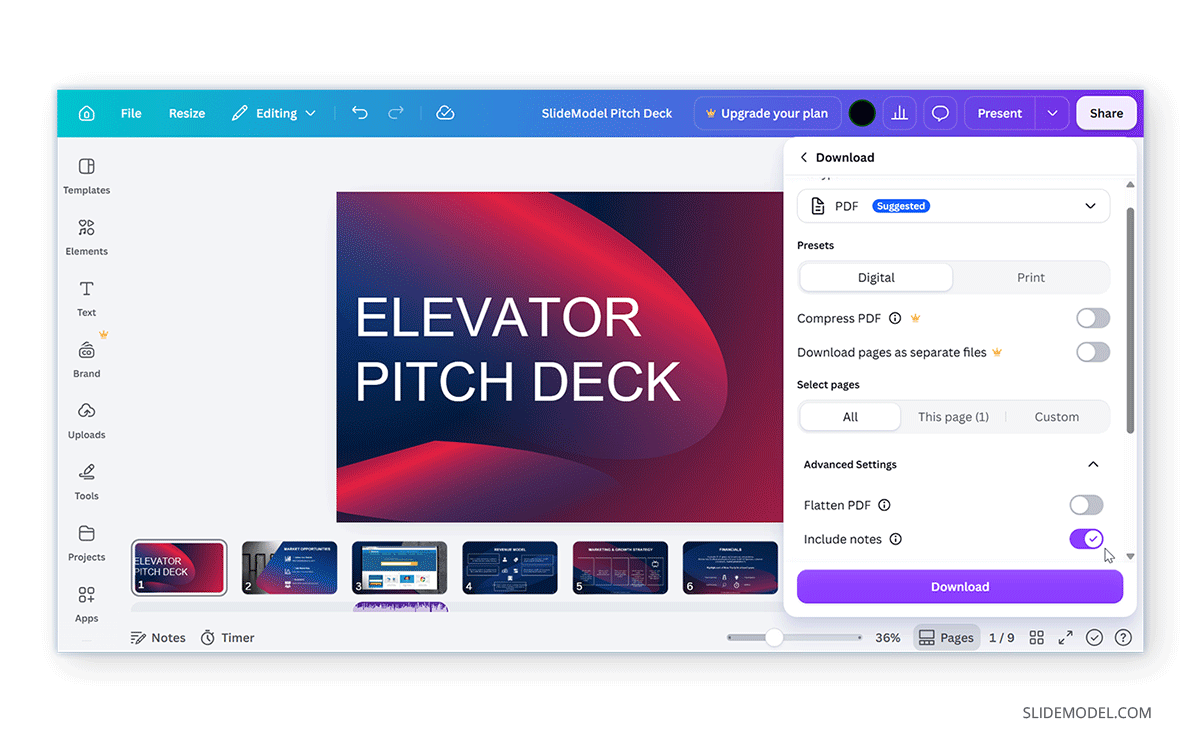
If you’re wondering how to print Canva slides with notes, you will need to use a separate document or PDF workflow to prepare the notes for printing. For this purpose, go to Share -> Download, select PDF, and expand Advanced Settings to select Include notes. Once downloaded, you can print the PDF with notes.
How to Print Multiple Canva Slides on One Page
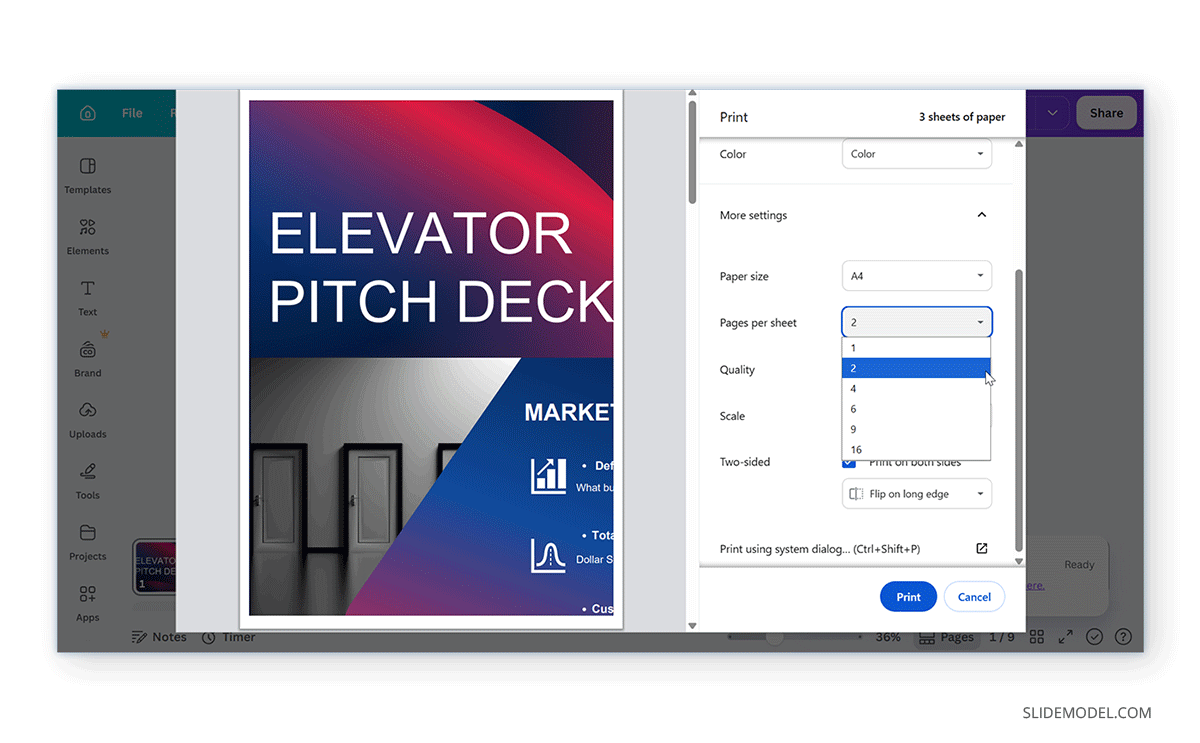
Printing each presentation slide on a separate sheet can use a lot of paper. If you’re distributing the slides as handouts or using them for reference rather than a presentation, printing multiple slides per page can be a more practical option. You can do this by selecting the number of pages to print per sheet from More Settings in the print menu of your browser.
Depending on the printing workflow you’re using, you can select a multiple-pages-per-sheet layout from the print dialog. Common options include 2, 4, or 6 slides per page. The exact choices may depend on your printer, operating system, PDF viewer, or other application handling the print job. For example, a four-slides-per-page layout can place four presentation pages on a single sheet, while a six-slides-per-page layout creates a more compact handout. Keep in mind that reducing the number of sheets also reduces each slide’s size, so text and detailed graphics may become harder to read.
Before printing a large batch, check the print preview to make sure the selected layout preserves the slide orientation and leaves enough space for the content to remain legible.
Checking Your Design Before Printing
Before sending your presentation to a printer, review the design at the intended print size. Elements that look balanced on a computer screen can appear differently when reproduced on paper.
Text Size
When printing in Canva, pay close attention to text size. Small fonts can become hard to read when you print a presentation slide, especially if several slides will eventually appear on a single sheet.
Page Size
The presentation’s dimensions should correspond to the intended printed format. If you’re printing standard presentation pages, make sure the selected design and paper size are compatible. Professional print jobs may require a specific finished size supplied by the printer.
Orientation
Most presentation slides use a landscape layout, but the printer may offer both portrait and landscape options. Make sure the paper orientation matches the slide dimensions to avoid unnecessary cropping or empty space.
Color
Colors displayed on a monitor can look different when reproduced on paper. For important corporate or branded materials, review the PDF and, if necessary, confirm the expected color requirements with your printer before proceeding with a large print run.
Bleed
If a background, image, or other artwork extends to the edge of the printed page, you may need bleed for professional printing. Bleed adds artwork beyond the final trim area so the finished piece doesn’t end up with unwanted white edges after trimming.
For professional jobs, follow the printer’s specifications for bleed and document size rather than relying on standard home-printing settings.
Canva vs. PowerPoint for Printing
Both Canva and PowerPoint can prepare presentations for printing, but their workflows have different strengths.
Canva is particularly convenient when you design a presentation in Canva and want to move from the editor to a printable file. Other than direct printing, its PDF Print export provides a practical way to prepare a high-quality file for personal or professional printing. In contrast, direct printing can be useful for quick paper copies. Furthermore, some Canva designs may include premium elements that restrict printing for users on a free plan. For example, if your presentation includes premium stock icons or other Pro content, Canva may require you to upgrade before letting you print the design. Check the elements in your presentation before starting a print job to avoid unexpected restrictions.
PowerPoint provides more presentation-specific printing controls. In particular, its Handouts layouts let users place multiple slides on a page, while Notes Pages can print a slide with its speaker notes. These options can make PowerPoint more suitable when printed presentation materials are an important part of the workflow. You can also save slides as PDF files and in a range of other formats in PowerPoint, such as OpenOffice formats, to make it more feature-rich for printing and conversion.
Final Words
There are several ways to turn a Canva presentation into a printed document. Direct browser printing is convenient when you need a quick paper copy, while PDF Print provides a more controlled option for high-quality output or professional printing. Canva’s print service can also simplify the process when you want physical copies produced. However, if you’re not a premium user and have used premium material in your slides, Canva might restrict printing options until you upgrade to a premium plan or pay additional costs to print premium elements. This is especially true if you downgraded from a premium to a free plan and used those elements in your slides. Similarly, saving files to PDF in such a case also requires a premium plan, which limits many printing options.