When creating a PowerPoint presentation, your efficiency and consistency depend on one key factor: the use of placeholders. However, many users still overlook placeholders entirely or confuse them with text boxes. Knowing how to work with placeholders can dramatically improve your workflow. In this guide, we will discuss the functions and utility of placeholders, how to use them, and common mistakes to avoid.
What is a Placeholder in PowerPoint
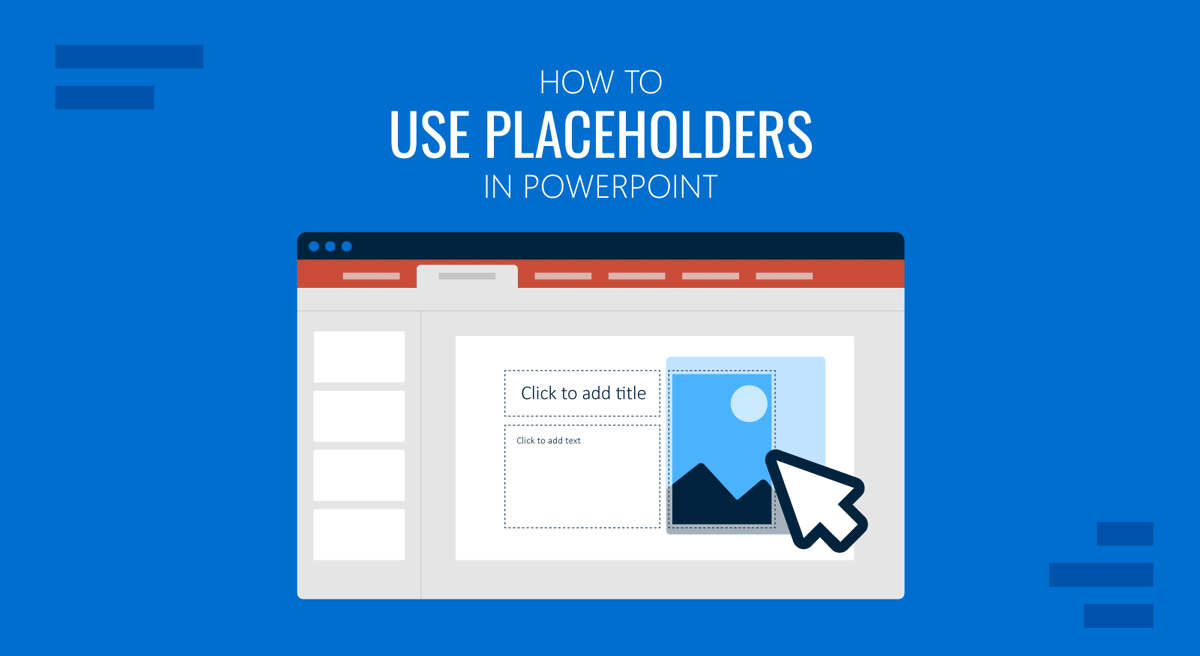
A placeholder in PowerPoint is a predefined area on a slide or slide layout that holds specific types of content. Think of it as a container that tells PowerPoint what kind of content goes in it, how it should behave, where it should sit on the slide, and how it should automatically format. These containers maintain your presentation’s consistency, structure, and ease of editing.
Unlike a text box you insert manually, a PPT placeholder is part of the slide or Slide Master layout. It automatically formats your text, aligns elements, and maintains the design integrity of your slide deck.
Why Placeholders are Important in PowerPoint
If you’ve ever wanted to replace text easily without breaking the layout, a placeholder on PowerPoint is what makes that possible. The placeholder PowerPoint layouts can be used effectively to maintain consistency, improve editing efficiency, enforce branding, streamline collaboration, and standardize layouts.
1. Maintain Consistency Across Slides
Placeholders ensure every title, bullet list, image, or chart sits exactly where it should. This avoids floating elements and design inconsistencies.
2. Improve Editing Efficiency
When you click a placeholder, PowerPoint automatically knows what content you want to insert. For example, selecting a content placeholder gives you icons for adding pictures, tables, charts, and more. Similarly, clicking a picture placeholder would open the image import dialog. This is much faster than manually inserting and formatting items.
3. Enforce Brand and Template Standards
Organizations rely heavily on placeholders to maintain brand consistency. A properly structured template locks design elements, controls font styles, ensures alignment, and prevents slide layout drift.
4. Streamline Collaboration
When multiple team members edit slides, placeholders ensure that everyone’s content is placed in the correct location without requiring manual adjustments. If you’re building templates or customizing slide layouts, adding placeholders is essential.
5. Give a Standard Layout to Slides
Sometimes it is necessary to follow corporate guidelines, where making slides according to a set pattern may be required by company policy. Some organizations also prefer guiding their employees with standard templates to prevent lengthy presentations that might go off track.
Common Types of Placeholders in PowerPoint
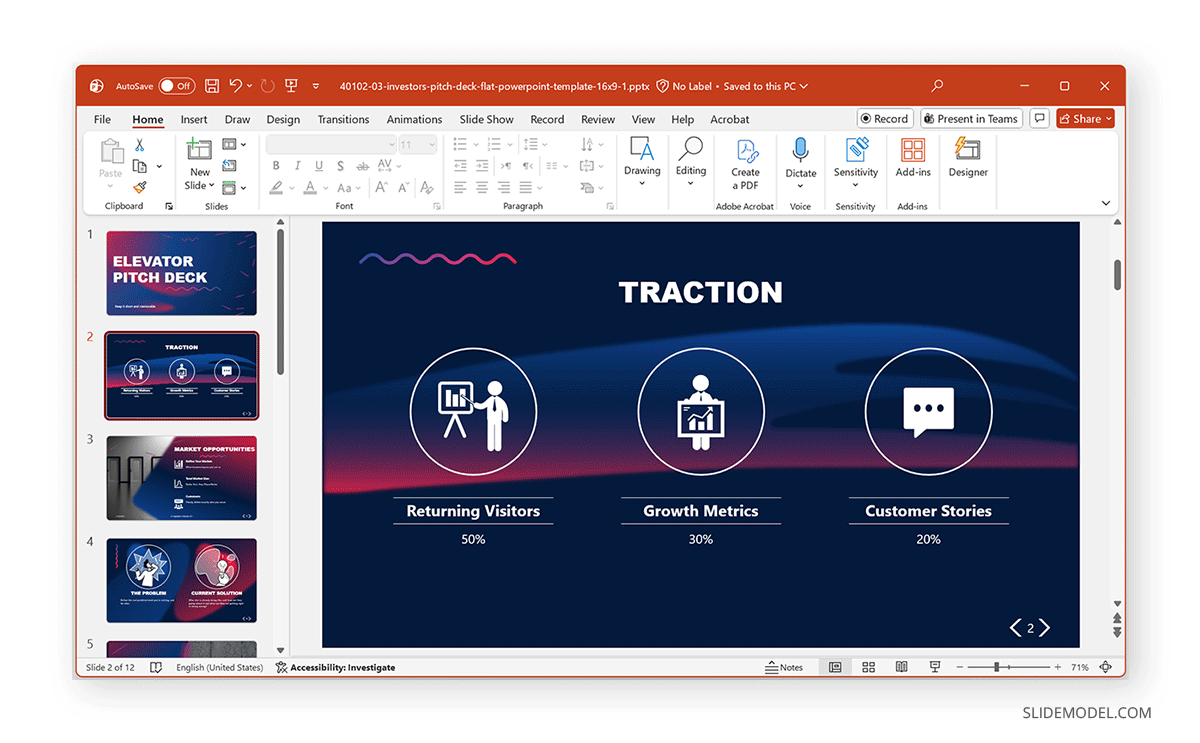
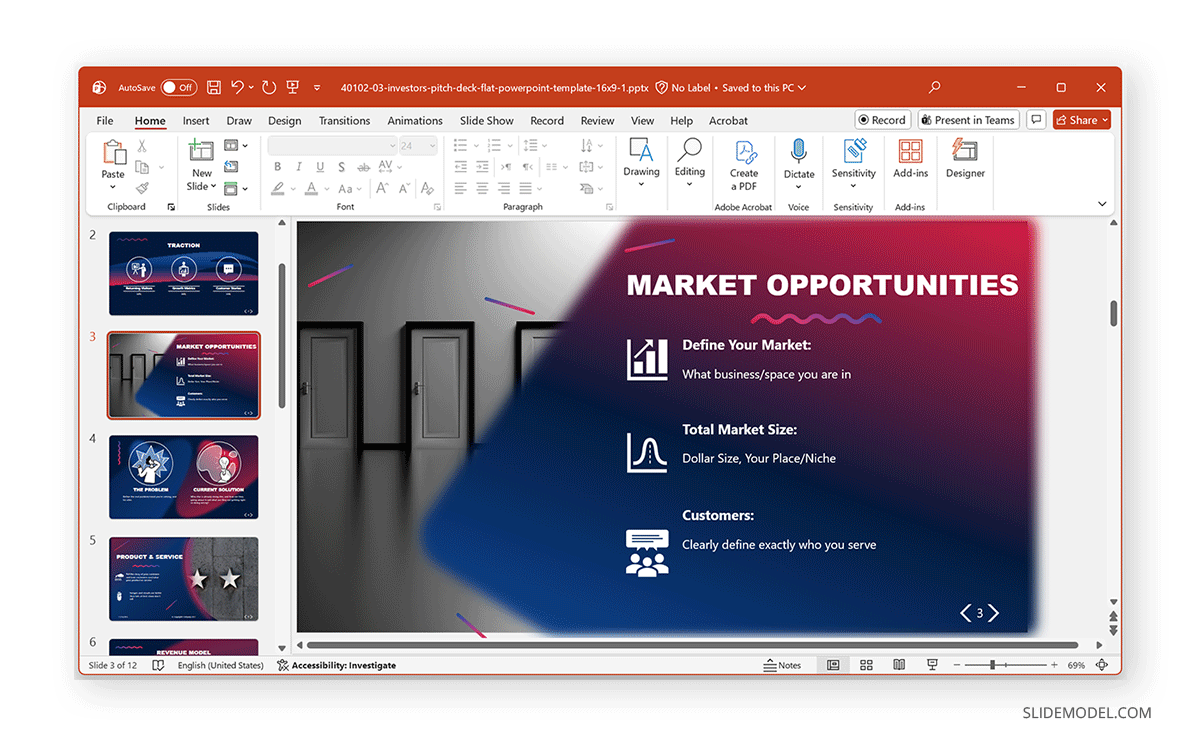
A few common examples include the following placeholder types. These elements aren’t just visual guides, as PowerPoint recognizes them and applies behavior rules accordingly. For this post, we will use the Elevator Pitch Deck PowerPoint Template to demonstrate the use of placeholders in PowerPoint.
1. Title Placeholder
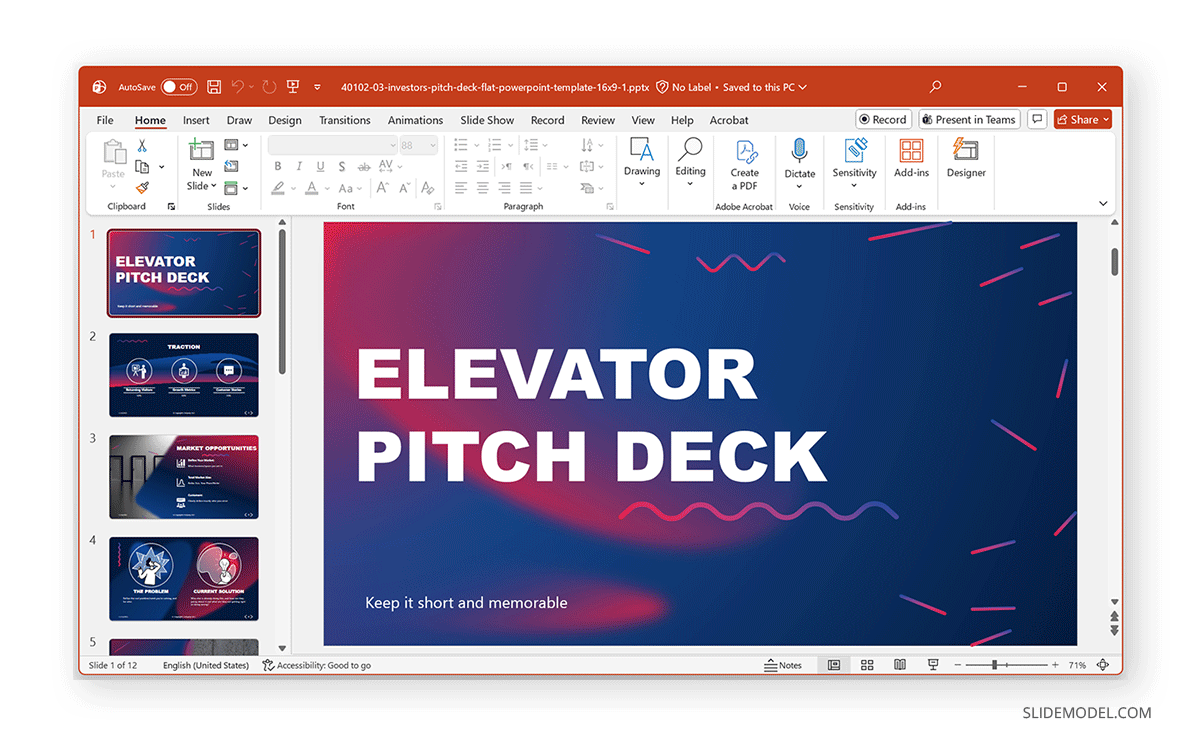
This is commonly used for slide titles. It controls the font style and size, alignment, spacing, and position on the slide. Using this placeholder ensures titles are uniform throughout the presentation. Even when you start with a blank new slide in an empty slide deck, you get a title placeholder by default.
2. Subtitle Placeholder
Often found on title slides, the subtitle placeholder is designed for introductory text or secondary information. It maintains the preset formatting for the secondary or subtitle, aligns with the main title, and maintains consistent spacing.
3. Content Placeholder
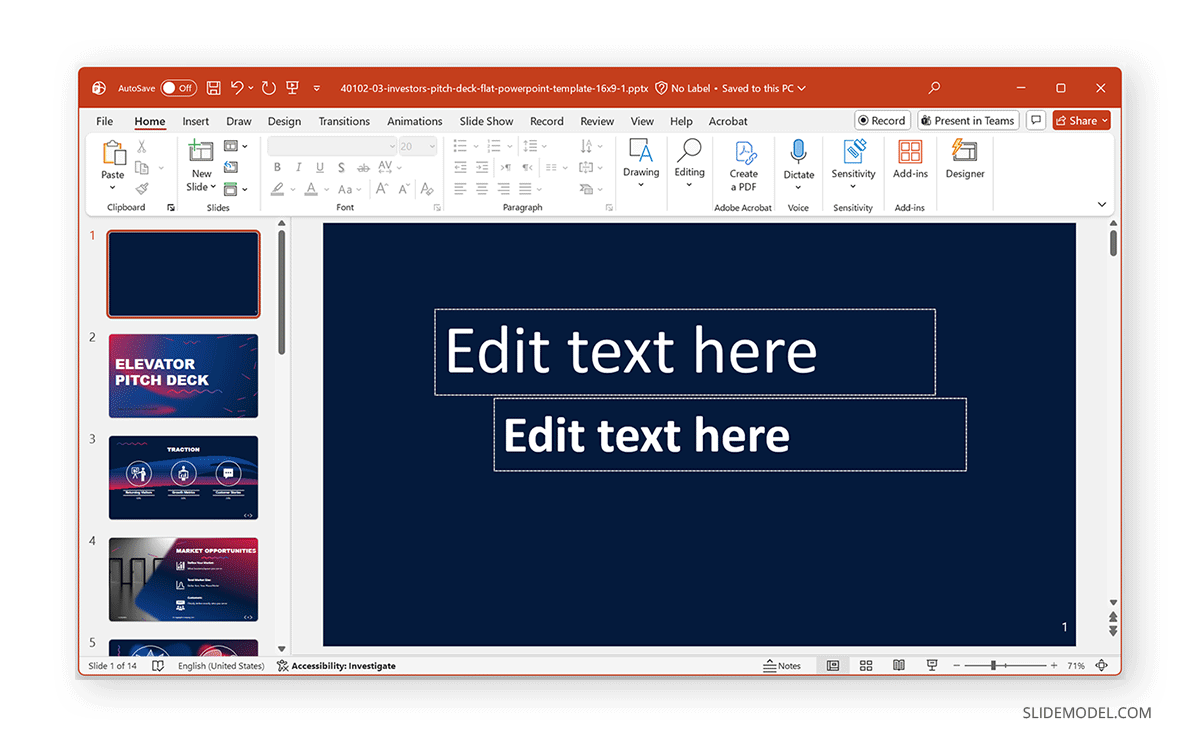
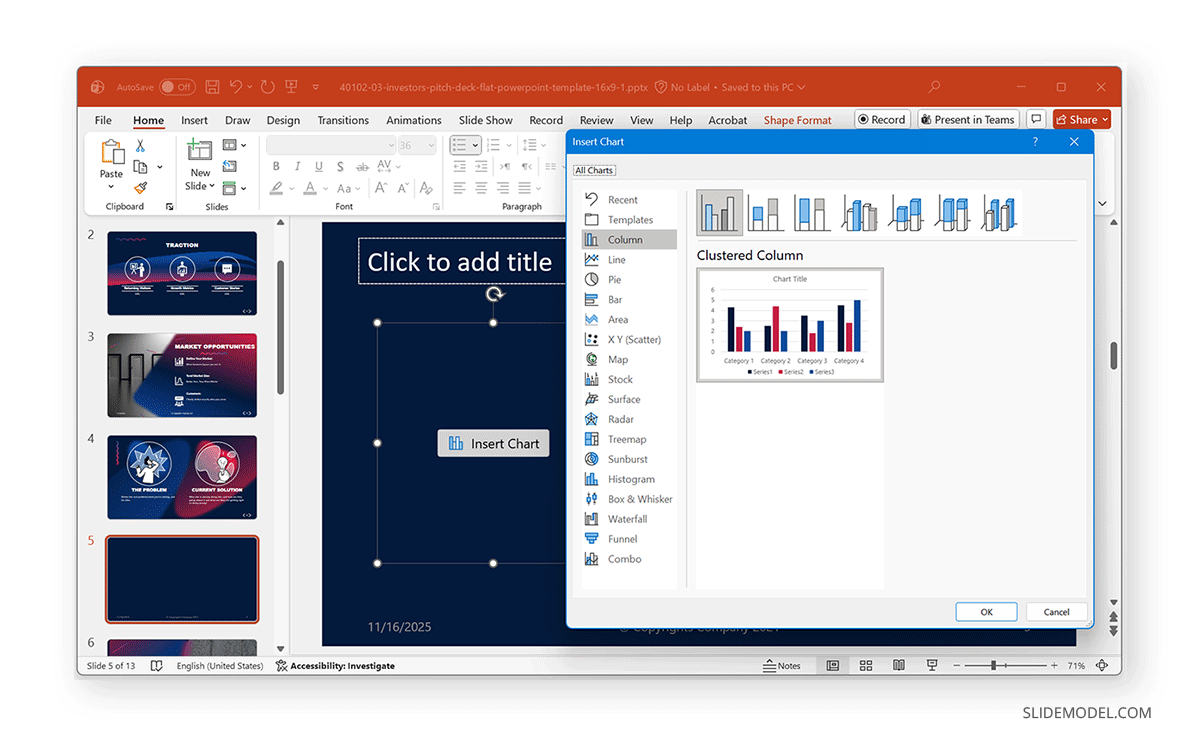
A content placeholder in PowerPoint is the most versatile type. It allows users to insert not just plain text but also pictures, charts, tables, SmartArt Graphics, and media. This makes it ideal for flexible layouts, team templates, and general content slides.
4. Picture Placeholder
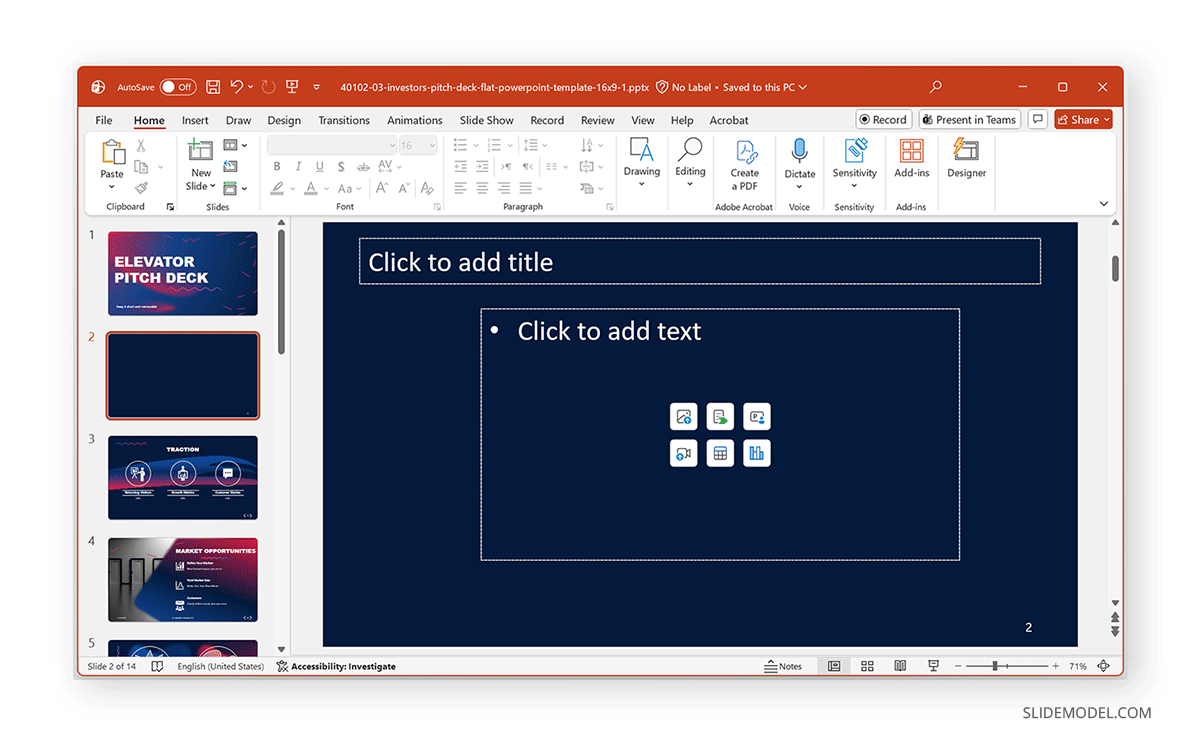
A picture placeholder is explicitly designed for images. It ensures that the image fits perfectly, that proportions are maintained, that cropping is consistent, and that alignment remains intact. Picture placeholders are commonly used in business presentations for introducing the team with photos, product images, picture slideshows, and case studies.
5. Media Placeholder
This placeholder type is used for adding videos, audio clips, voiceovers, and screen recordings. It’s helpful for training decks, product demos, and learning modules.
6. Cameo
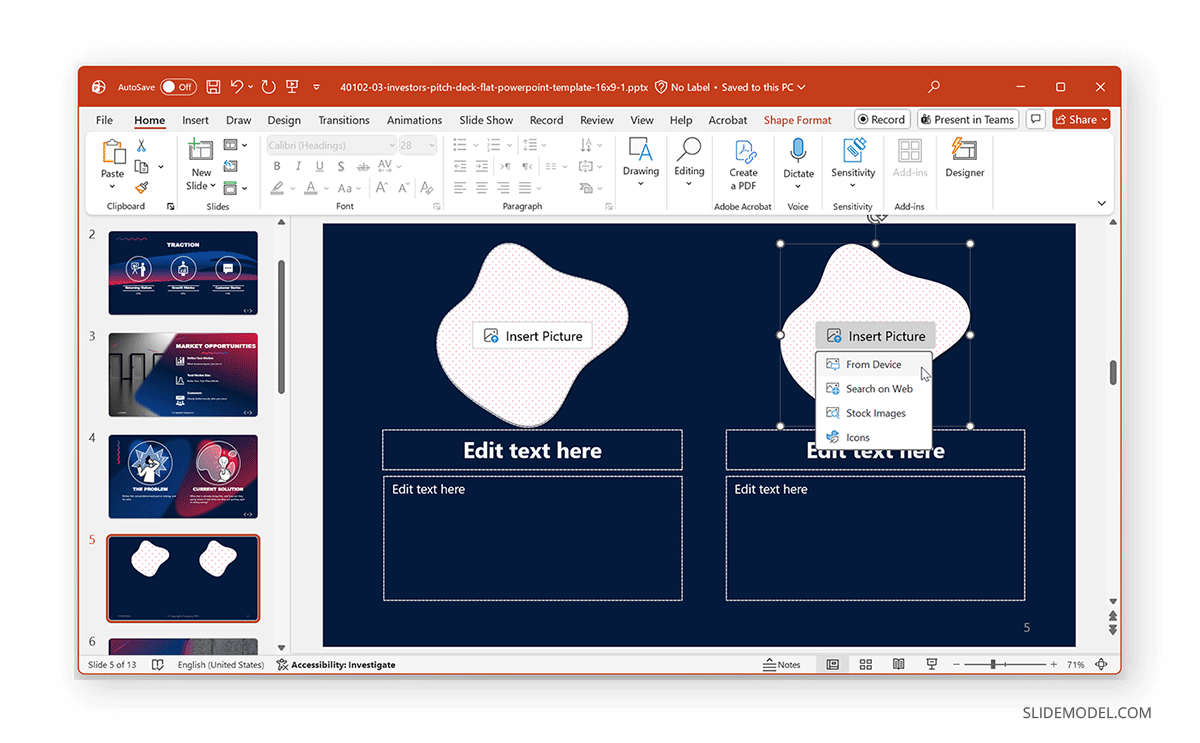
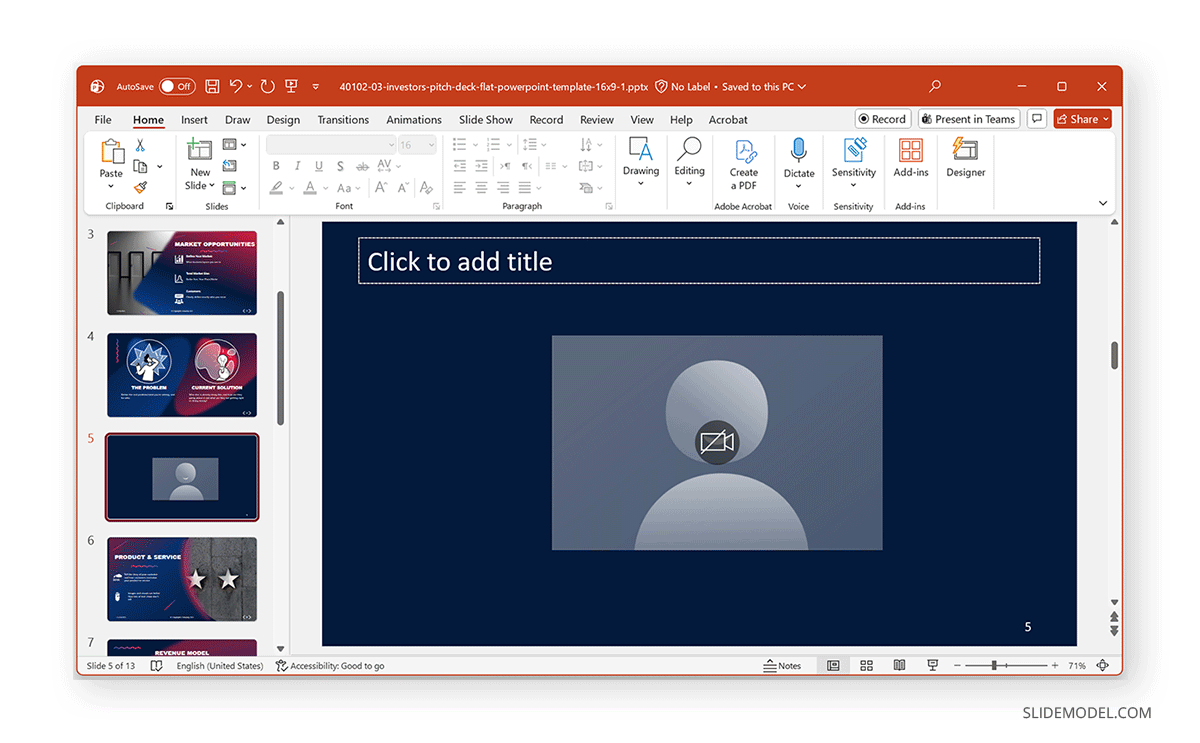
Cameo is a PowerPoint feature that lets you embed a live camera feed directly on a slide. The feature was first announced in March 2022, with rollout beginning in early September 2022 and general availability for Microsoft 365 subscribers occurring in January 2023. A Cameo placeholder can be inserted into your slide (or slide layout) and behaves like any other object. You can move, resize, crop, format, and apply transitions to it.
7. Chart Placeholder
A chart placeholder helps users insert graphs while ensuring the formatting matches the template’s style. This is useful for reports, KPIs, dashboards, quarterly business reviews (QBRs), and other purposes. Charts are beneficial for visually presenting data to aid decision-making, track progress, and forecast.
8. Table Placeholder
Similar to chart placeholders but dedicated to tables, this type of placeholder provides uniform column widths, consistent table colors, and clean alignment. Tables can be used to present information such as data, comparisons, contact details, lists, etc.
9. SmartArt Placeholder
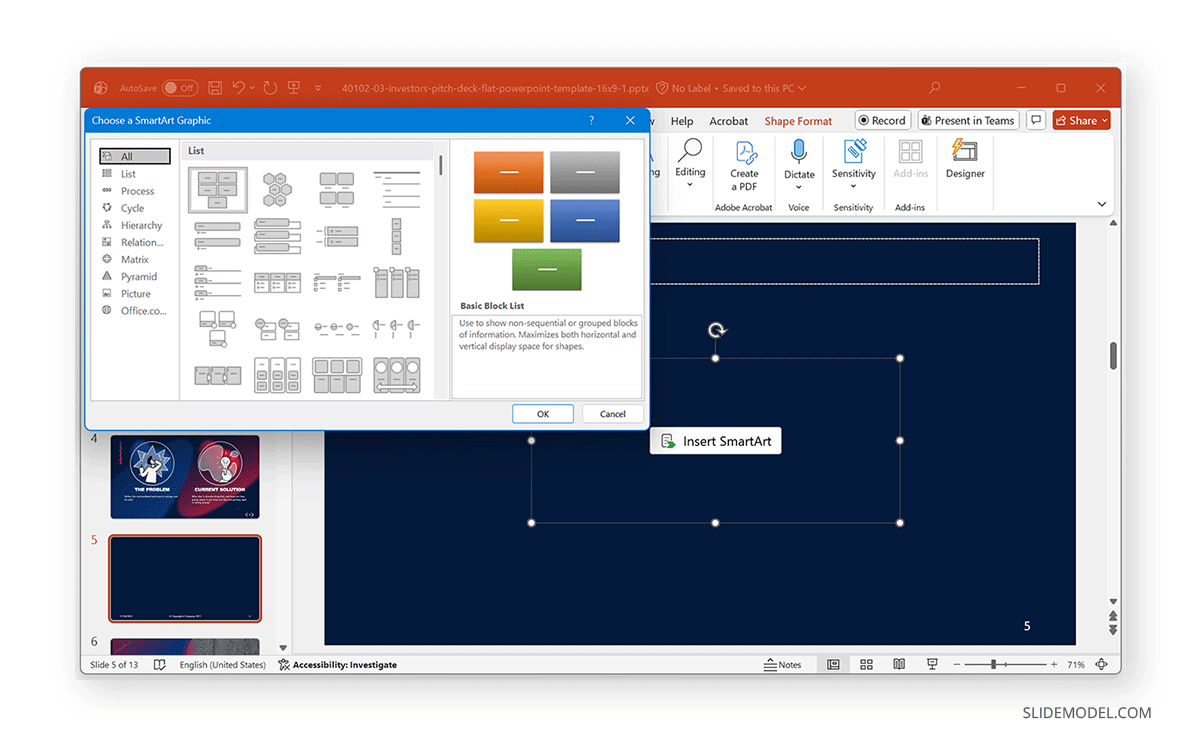
SmartArt graphics are commonly used to create simple to complex diagrams in PowerPoint. They are used when slides require presenting processes, cycles, hierarchies, relationship diagrams, and matrices. A SmartArt placeholder automatically formats diagrams for consistency and clarity.
Understanding Slide Master and Placeholders
To understand placeholders fully, you need to know where they are controlled. Placeholders are defined and arranged inside the Slide Master, the central blueprint for your presentation. From here, you can add new placeholders, remove unnecessary ones, lock design elements, and create layouts.
Each slide layout (Title Slide, Title and Content, Two Content, Comparison, etc.) contains its own placeholders. This allows PowerPoint to standardize slide structure.
Note: Never delete placeholders directly from a slide. Whenever possible, adjust the layout instead. Otherwise, your design becomes inconsistent.
Adding Placeholders in the Slide Master
You can access the Slide Master via the View tab in PowerPoint, make edits to the template, save, and Close Master View to create consistent layouts.
Step 1: Open Slide Master View via View -> Slide Master. This opens the Master Template and Layouts pane.
Step 2: Choose or create a layout for the slide.
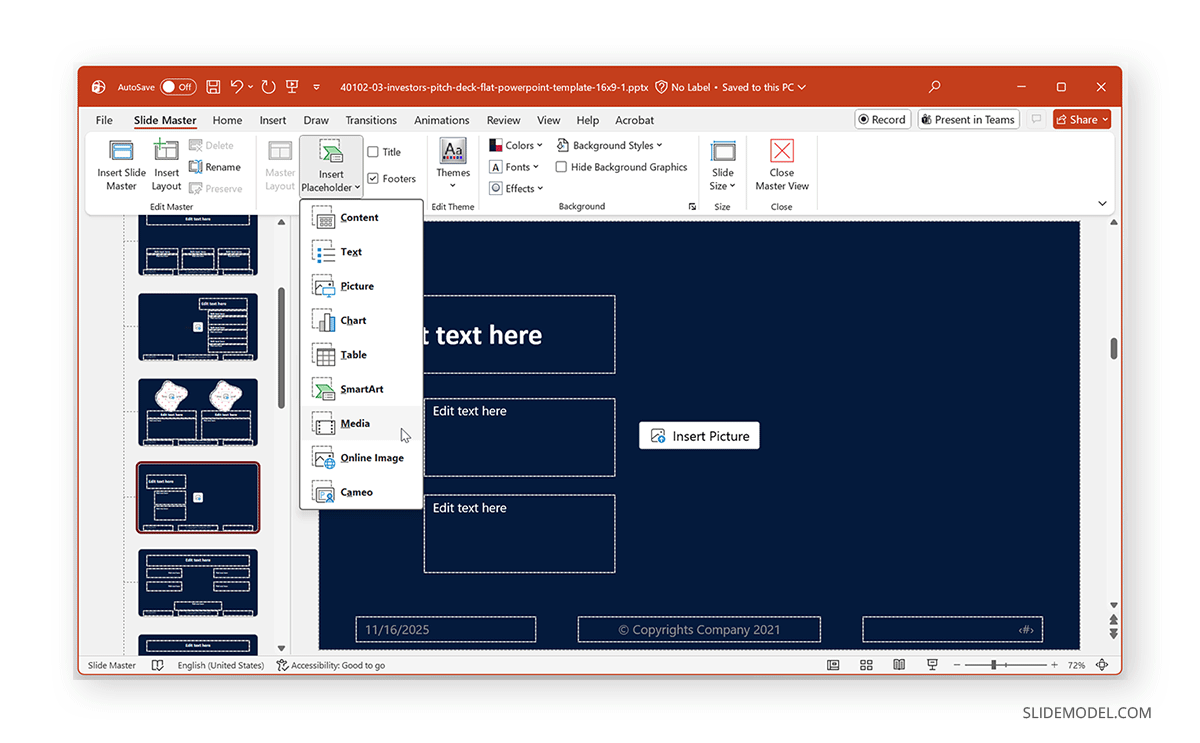
Step 3: Insert Placeholder via Slide Master -> Insert Placeholder, and choose your placeholder type. The available placeholder types you will find in this menu include the following:
- Content
- Text
- Picture
- Chart
- Table
- SmartArt
- Media
- Online Image
- Cameo
Step 4: Drag the placeholder into the correct location. Align it using Smart Guides or alignment tools for precision.
Step 5: Once you are satisfied with the changes to the layouts, close the Master view by selecting Slide Master -> Close Master View. Your placeholders are now ready to use on any slide based on that layout.
How to Use Placeholders in Everyday Slide Building
Even if you’re not designing templates, knowing how to use placeholders properly will streamline your presentation workflow. Use the tips below to edit slides and work with ready-made PowerPoint templates.
1. Select a layout
When adding new slides, choose a layout that contains the placeholders you need. To do this, go to Home -> New Slide > Choose Layout. Layouts ensure your elements are placed correctly and consistently.
2. Type Text into Text or Content Placeholders
Click the placeholder and type text. PowerPoint applies preset formatting, including bullet styles, fonts, sizes, and text spacing.
3. Inserting Images
If you need to add images, select the image icon inside a content or picture placeholder. PowerPoint will import and auto-size your image according to its built-in crop settings. You can also add images by selecting Insert -> Pictures, then choosing images from your device or online sources, including Microsoft’s stock images.
4. Inserting Media and Cameo
A generic placeholder comes with an Insert Video icon. You can also add audio and screen recordings via Insert -> Media, as well as search for online and stock videos in the Microsoft archive. The Insert tab also provides the Cameo option to insert your Cameo within one or all slides. If the slide already has a defined Cameo placeholder via the Slide Master, you can also select that to add your Cameo.
5. Inserting Charts, Tables, and SmartArt
Use the respective icons inside a content placeholder to select charts, tables, or SmartArt to insert in a slide. Alternatively, you can use the Insert tab to find and add them.
6. Replacing Existing Content
Placeholders let you replace content while preserving its formatting. For example, updating a picture automatically keeps the same size and shape. Similarly, changing text keeps the font and alignment.
Common Mistakes to Avoid When Using Placeholders
Even experienced users make various mistakes when working with placeholders. Here’s what to watch out for when trying to use placeholders in slides:
Mistake 1: Using Text Boxes Instead of Text Placeholders: Text boxes don’t inherit template formatting. This leads to inconsistent fonts. Many users can fail to understand the difference between the two, which can affect formatting.
Mistake 2: Moving Placeholders Manually: Dragging placeholders outside their intended alignment compromises layout integrity. Ensure your placeholders are neatly aligned and use the Slide Master to set them correctly. You can also make your job easy by using a PowerPoint template designed for your specific topic.
Mistake 3: Editing Slide Designs Instead of Slide Master Designs: Always fix layouts in the Slide Master, not individual slides. This is because the latter can cause formatting issues and inconsistency across slides.
Mistake 4: Using Too Many Content Placeholders: It confuses users and creates cluttered slides. It goes without saying that placeholders should be used in moderation, in line with your topic’s specific needs.
Mistake 5: Forgetting to Update All Layouts: Changes in the Master slide don’t constantly update all child layouts unless you manually adjust them. Double-check layouts to ensure everything is aligned correctly.
Final Words
Understanding placeholders in PowerPoint is one of the most effective ways to improve your presentation workflow. From the simple title and text placeholders to highly specialized pictures, Cameo, media, and SmartArt placeholders, these elements enable PowerPoint to format content automatically. They also help your team maintain a consistent brand, avoid layout drift, and collaborate more effectively.
You can either add placeholders via the Slide Master or use the default layouts provided by PowerPoint. Alternatively, you can use readymade PowerPoint templates with handy layouts and placeholders tailored to specific needs.