Sometimes when working with Canva, you might need to include mathematical equations, scientific formulas, or engineering expressions in your projects. If you’re wondering how to insert an equation in Canva, you have several options. Canva offers a native Equations (Beta) app to create mathematical expressions directly in the editor, while third-party apps such as LaTeX Math provide additional support for more advanced formulas. For simple expressions, you can also type equations manually using Canva’s text tools and symbol characters. This guide explains each approach, discusses the benefits and limitations of each method, and compares Canva’s equation capabilities with Microsoft PowerPoint’s built-in equation editor.
When Should You Add Equations in Canva
Although Canva is primarily known as a graphic design platform, it is increasingly used for a variety of presentation and design projects. Common examples include classroom presentations, STEM education materials, research posters, scientific infographics, and financial reports. For example, a mathematics teacher might include algebraic equations in lesson slides, while a financial analyst could display formulas for calculating return on investment (ROI) or compound growth. Instead of inserting screenshots from another application, Canva’s equation tools let you keep everything within a single design workflow.
How to Add an Equation in Canva
Method 1: How to Add an Equation in Canva Using the Equations (Beta) App
The easiest way to insert a math equation in Canva is to use the built-in Equations (Beta) app in Canva’s Apps panel.
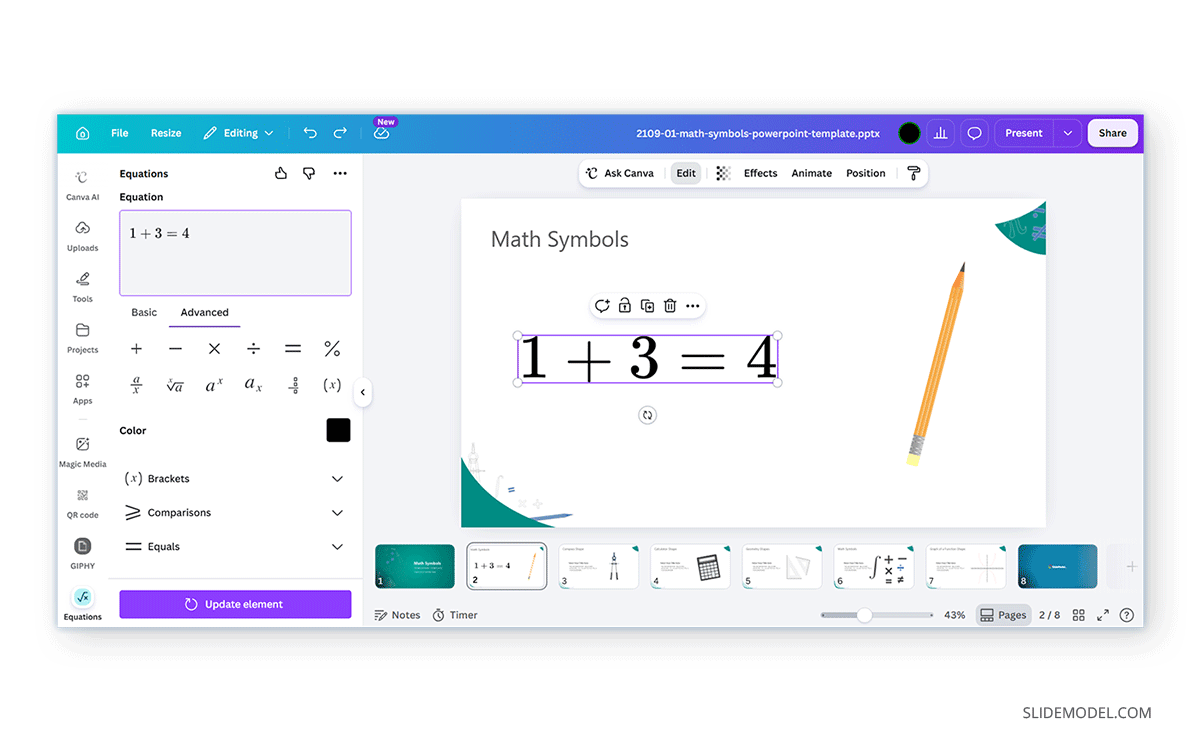
Step 1: From the left-side toolbar, select Apps and search for Equations in the Apps search box. Select the Equations (Beta) app to open it. Once opened, the app provides a workspace where you can enter mathematical expressions before inserting them into your Canva design.
Step 2: Type the equation using the options provided by the app. Depending on the equation, you can insert common mathematical notation such as Fractions, Exponents, Square roots, Greek letters, Summation symbols, Integrals, and Mathematical operators.
As you edit the expression, the equation is rendered into a formatted mathematical object rather than plain text. This makes formulas significantly easier to read than manually typing symbols into a standard text box. You can switch between the Basic and Advanced tabs to create simple to complex equations according to need.
Step 3: Once you’re satisfied with the equation, insert it into your Canva project. Like other Canva elements, you can resize, reposition, rotate, and combine the equation with other design elements. This allows equations to fit naturally into presentations, infographics, worksheets, and reports.
Benefits: The native Canva equation editor is intended for general mathematical notation rather than highly specialized scientific publishing. It works well for many common expressions, including algebra, geometry, basic calculus, statistics, and financial and scientific formulas. For classroom presentations and most business documents, these capabilities are often sufficient.
Limitations: Users working with advanced mathematical notation may find the available formatting options more limited than those offered by dedicated equation editors. Some equations may not render exactly as intended, with certain symbols displayed incorrectly or replaced with unintended characters.
Method 2: How to Use the LaTeX Math App in Canva
For more advanced mathematical notation, many users prefer the LaTeX Math app available through the Canva Apps marketplace. LaTeX is widely used in academic publishing because it produces professional-quality mathematical formatting and supports complex equations that would be difficult to create manually.
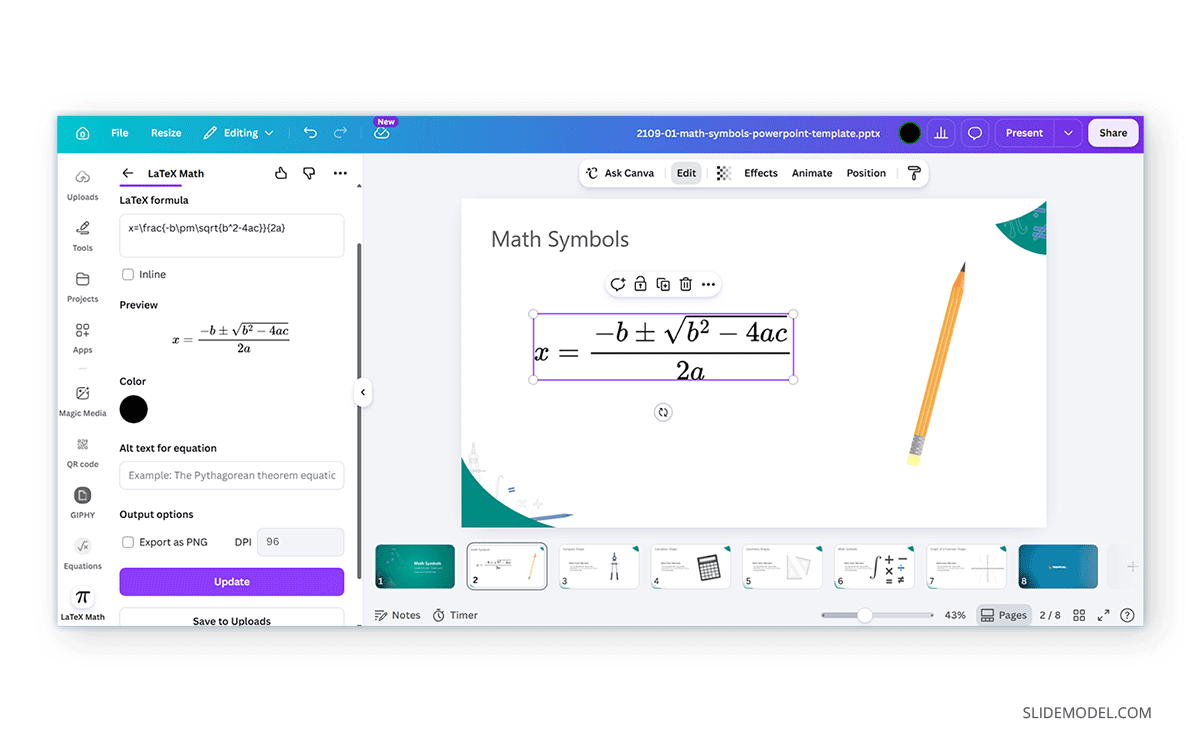
Step 1: Open Apps from the Canva editor and search for LaTeX Math. Select the app to launch its interface. Unlike the native Equations app, this method relies on LaTeX commands to generate formatted equations.
Step 2: Instead of clicking mathematical symbols individually, type the equation using LaTeX syntax. The app converts the code you enter into a formatted equation that you can add directly to your design.
Step 3: After generating the equation, insert it into the Canva design. You can then position and resize it like other design elements. This lets you combine advanced mathematical notation with Canva’s presentation templates, diagrams, illustrations, and charts, all within the editor.
Benefits: If you’re already familiar with LaTeX syntax, this approach offers considerably more flexibility than using standard mathematical symbols. LaTeX in Canva is generally the better choice for technical or academic content. It is particularly useful for university lectures, scientific presentations, engineering diagrams, mathematical research, physics formulas, chemistry equations, or advanced statistics. As LaTeX supports a much wider range of mathematical notation, it can produce expressions that would be difficult or impossible to build using simpler equation tools.
Limitations: Users need at least a basic understanding of LaTeX commands to use this method. Those unfamiliar with the syntax may find the native Equations app easier for everyday mathematical expressions.
Method 3: How to Write Math Formulas in Canva Using Text and Symbols
Not every project requires a dedicated equation editor. If you only need to add formula to Canva presentation, Canva’s text tools can often get the job done.
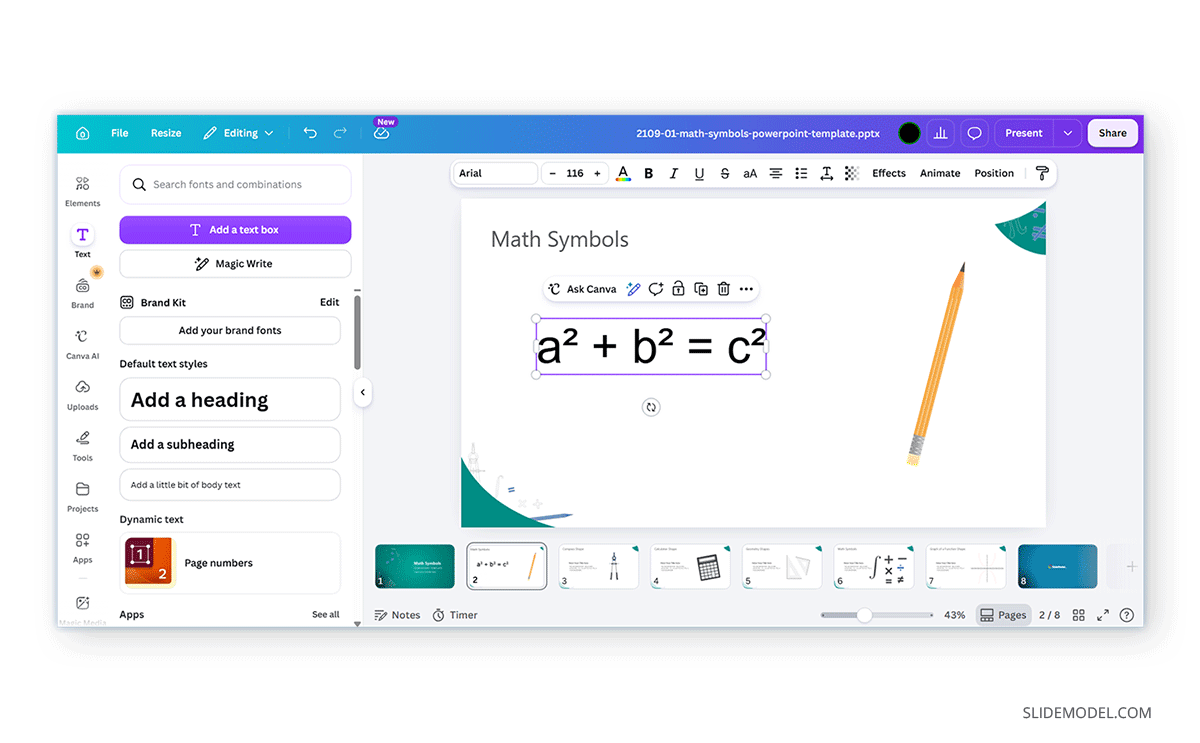
Step 1: Insert a text box.
Step 2: You can then add Canva math symbols by typing your equation as you would any other text, or copying and pasting Unicode characters, or using your operating system’s character picker.
Benefits: This method works well for expressions such as E=mc² or 5×8=40. Simple equations are generally easy to create this way because they don’t require complex formatting such as stacked fractions or matrices.
Limitations: Manually typed equations have limitations, as they cannot reproduce professional mathematical layouts such as fractions, integrals, summations, or multi-line equations, making them less suitable for technical or academic presentations. However, for presentations containing only a few basic formulas, this workaround is often the quickest solution.
Choosing the Right Method for Adding Equations
Canva offers multiple ways to add mathematical expressions, and the best choice depends on the equation’s complexity and how you’ll use it in your presentation.
Equations (Beta)
The native Equations (Beta) app is the simplest way to create common mathematical expressions directly in Canva. It is well suited for algebra, fractions, exponents, square roots, and other everyday formulas used in classroom presentations, reports, and business documents. Since it provides a visual interface, most users can create equations without learning mathematical markup languages.
LaTeX Math
The LaTeX Math app is designed for users who need more advanced mathematical notation. It supports complex formulas commonly found in engineering, physics, mathematics, and scientific research. While it offers greater flexibility than the native Equations app, it requires familiarity with LaTeX syntax, making it better suited to users who already work with technical or academic documents.
Typing or Copying Equations
For simple expressions, typing or copying and pasting Unicode mathematical symbols and equations into a Canva text box is often the quickest solution. This approach works well for basic equations, percentages, inequalities, superscripts, and symbols. However, it is not suitable for complex mathematical layouts such as fractions, matrices, or integrals, which require proper equation formatting.
For most business presentations and educational content, the native Equations (Beta) app provides the best balance between ease of use and functionality. Users preparing advanced technical or scientific presentations will generally benefit from the additional capabilities of the LaTeX Math app, while Unicode symbols remain a practical option for simple formulas that don’t require specialized formatting.
Canva vs. PowerPoint Equation Editor
Both Canva and Microsoft PowerPoint allow users to include mathematical equations in presentations, but they take different approaches.
When Canva Is the Better Choice
Canva is well suited for presentations where visual design is the priority and only a limited number of equations are needed. It works particularly well for educational presentations, classroom handouts, STEM infographics, marketing materials featuring simple formulas, and business presentations that explain calculations.
When PowerPoint Is the Better Choice
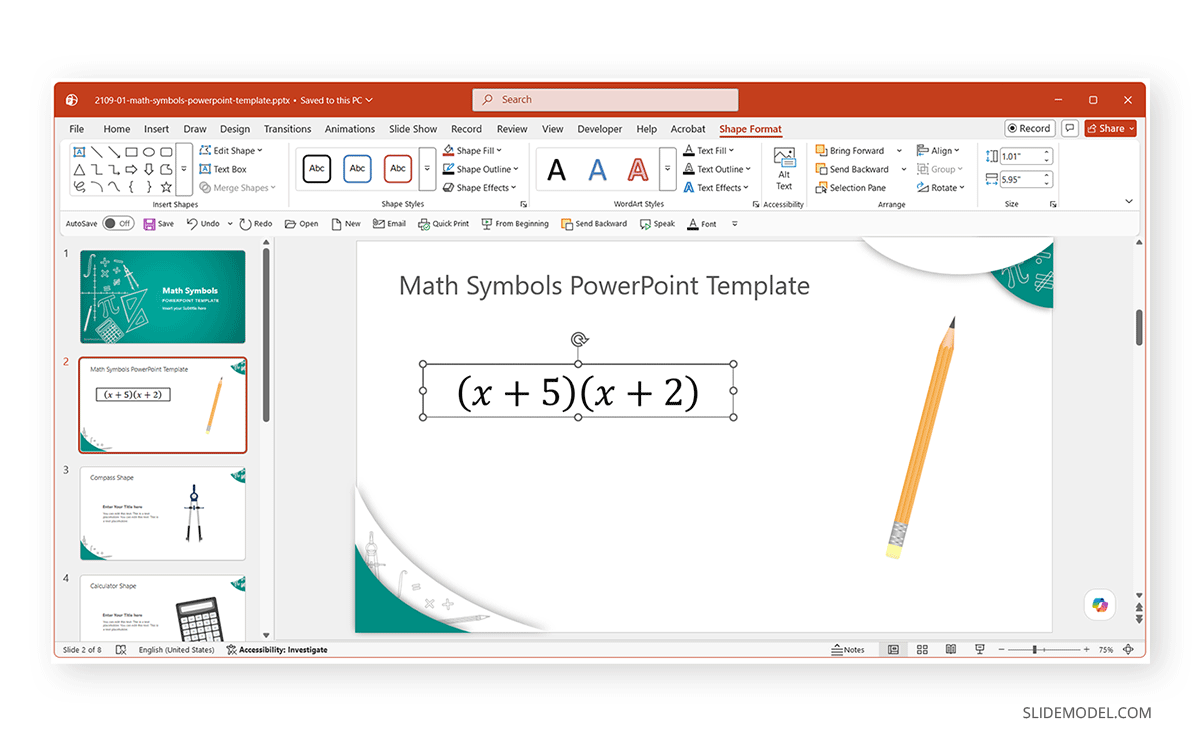
PowerPoint includes a built-in equation editor that integrates tightly with Microsoft Office. It supports professional mathematical formatting directly within the presentation and works seamlessly with other Office applications. PowerPoint is often the better choice when preparing engineering, scientific, research, mathematical, or technical training presentations.
For users who frequently work with complex mathematical notation, PowerPoint’s built-in editor provides greater flexibility and a smoother editing experience than Canva’s app-based approach.
Final Words
Canva provides several ways to add mathematical expressions, each suited to different needs. The native Equations (Beta) app is a convenient option for creating common formulas, while the LaTeX Math app offers greater flexibility for advanced mathematical notation used in scientific and technical fields. For simple calculations, manually typing equations with Canva’s text and symbol tools can also be an effective solution. Depending on the complexity of the formula, one method may be more suitable than another, especially since the native Equations app is still in beta and manual text entry is best suited to simpler expressions.
The best approach ultimately depends on your content. Canva’s equation tools are well suited to presentations, educational materials, and visual designs that include occasional formulas. For projects involving extensive mathematical notation or more advanced technical content, PowerPoint’s built-in equation editor remains the more capable solution.