Fonts play a major role in how your presentation looks. When working on a business deck, marketing slides, or a financial presentation, consistent typography improves the readability of your message. Canva provides many handy options for creating presentations; however, imported slide decks can often result in a sudden change in fonts. This requires adjusting fonts for one or more slides.
If you’re wondering how to change font in Canva fonts for individual text, specific words, or even your entire presentation, the method to do this is quite simple. In this guide, we will show you different methods to change font style, color, and formatting in Canva for presentation slides.
Why Fonts Matter in Canva Presentations
Fonts are more than just a design choice, as they affect how your audience interprets your content. Using the right fonts helps you improve readability, maintain a consistent visual identity, highlight key information, and create a professional appearance. Changing fonts in Canva allows you to adapt your presentation for different audiences or branding requirements.
How to Change Font Style in Canva
You can change fonts in Canva using the editing toolbar. You can change and format fonts to give your slides a clean look. Since slides imported from PowerPoint often result in changed fonts, knowing how to adjust the font can enable you to better edit your slides after importing them, as well as for new presentations made directly in Canva.
Method 1: How to Change Text Font in Canva
This is the most basic and commonly used method in Canva to change font. This method is useful for updating headings or body text, applying a new font to an entire text block, and making quick design adjustments.
Step 1: Open your Canva presentation and navigate to the slide containing the text you want to edit.
Step 2: Select the text box, then click it to activate the editing toolbar at the top.Step 3: In the top toolbar, click the font dropdown menu. Browse or search for a font and select it. The selected font will be applied immediately to the entire text box.

Method 2: How to Change the Font of One Word in Canva
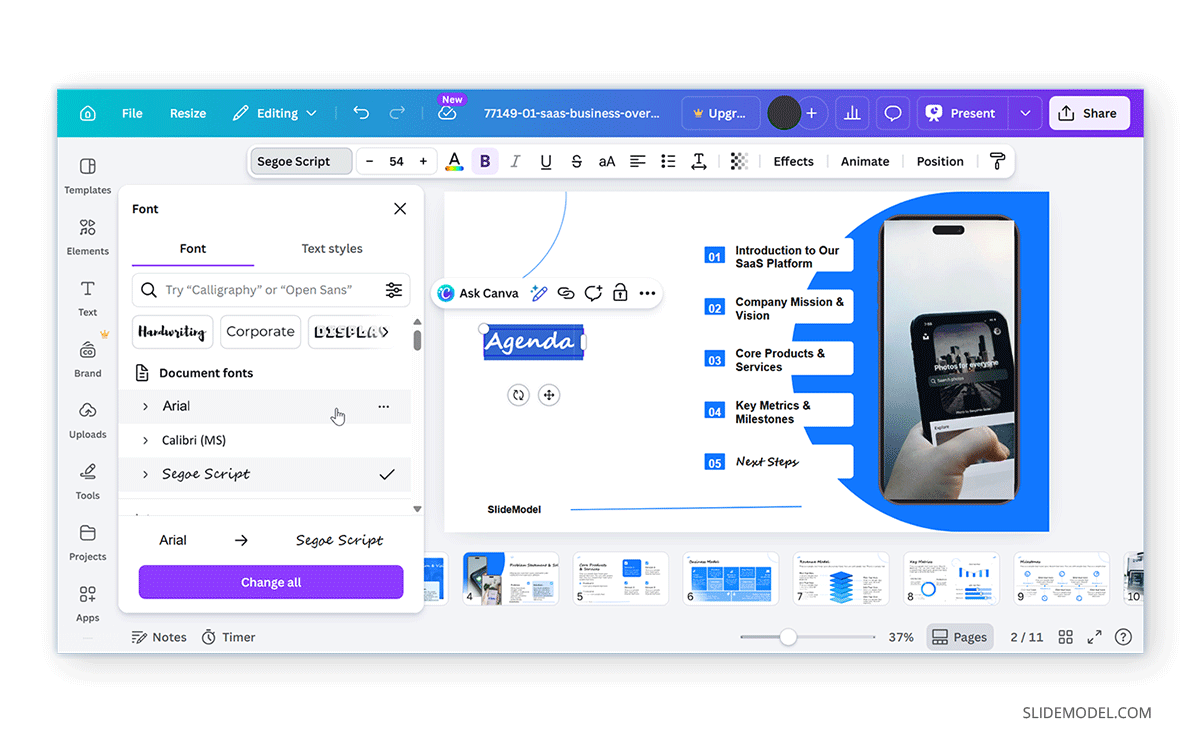
Sometimes you may want to highlight a specific word or phrase within a sentence. You might even want to change the font for that one word, such as a slide title like ‘Agenda’.
Step 1: Double-click the text box. This allows you to edit individual text.
Step 2: Highlight the word and click to drag over the word you want to change.
Step 3: Use the font dropdown in the toolbar to apply a new font to the selected text.
Tip: Use this method sparingly. Mixing too many fonts can make your slide look inconsistent or cluttered.
Method 3: How to Change Font Color in Canva
Changing font color can help match your branding or improve contrast. You can pick a custom color to change the Canva font color using the Text Color toolbar.
Step 1: Select the text and click the Text Color icon (A) in the toolbar.
Step 2: Choose a color from the palette or enter a custom color code.
Tip: Use high contrast between text and background, stick to your brand colors, and avoid overly bright or hard-to-read combinations.

Method 4: Change Fonts Across Multiple Slides
Unlike PowerPoint, Canva does not have a traditional “theme fonts” feature. However, you can still update fonts across slides.
Option 1 – Manual Update: Select text boxes on each slide and apply the new font.
Option 2 – Use the Text Styles Panel: The Text Styles option in Canva allows you to apply a font combination to your text. This option becomes available once you select text and open the Font dropdown menu.
Option 3 – Replace Fonts: Click a text box, select a font, then select Change All to apply the same font across all slides, replacing the existing font.

Best Practices for Fonts in Canva Presentations
Choosing the right fonts in Canva is not just about designing slides; it directly impacts how your audience reads and understands your content. Applying a few practical guidelines can help you create slides that are easy to follow.
Limit the Number of Fonts
Using too many fonts can make your presentation feel cluttered and inconsistent. A good approach is to stick to no more than two or three fonts. Typically, one for headings and another for body text. This keeps your design clean while still allowing enough variation to create visual clarity.
Establish a Clear Visual Hierarchy
Fonts play a key role in guiding your audience through the content. Use different font sizes, weights (bold, regular), and styles to distinguish headings, subheadings, and body text. This helps viewers quickly scan your slides and understand the structure of your information.
Prioritize Readability
While decorative fonts can look appealing, they are often harder to read—especially in longer text blocks. For body content, choose simple and legible fonts that remain clear even from a distance. Reserve stylized fonts for titles or short highlights where readability is less of a concern.
Maintain Consistency Across Slides
Consistency is essential for a polished presentation. Use the same font combinations, sizes, and styles throughout your slides to create a cohesive look. This not only improves visual appeal but also helps your audience stay focused on the message.
Follow Your Brand Toolkit and Guidelines
If you’re creating presentations for a business or organization, stick to approved brand fonts and color schemes. This ensures your slides align with the company’s identity and maintain a professional standard across all materials.
Using Templates for Consistent Fonts
Using presentation templates is one of the easiest ways to maintain consistent typography in Canva presentations from the start. Templates, especially SlideModel’s layouts, can be easily adapted for Canva. These come with predefined font pairings, clear hierarchy, and balanced spacing. By relying on structured templates, you not only ensure visual consistency across slides but also save time, reduce formatting errors, and improve the overall quality of your presentation.

Final Words
Once you learn how to change fonts in Canva, it becomes easier to create clean, professional presentations. Whether you’re updating a single word, changing font color, or applying consistent styles across slides, Canva provides flexible tools to manage typography.
While Canva doesn’t offer the same theme font controls as PowerPoint, features like font replacement and templates make it easy to maintain design consistency.