Presenting with confidence often comes down to preparation. Be it a business pitch, training session, or internal report, having notes to guide you can make a big difference. If you’re working in Canva, you might be wondering how to manage those notes effectively.
As in PowerPoint, you can use speaker notes to guide your presentation by adding notes hidden from the audience. Previously, we showed you how to add speaker notes in PowerPoint. In this guide, we will explain everything you need to know about Canva speaker notes, including how to add speaker notes to Canva, use them during presentations, and how to print speaker notes in Canva for offline use.
What Are Speaker Notes in Canva
If you’re new to speaker notes, you might be wondering what they are and how to use them in Canva. Speaker notes are private notes attached to individual slides that help guide the presenter during a presentation. Unlike slide content, these notes are not visible to the audience. In Canva, speaker notes on Canva slides function similarly to other presentation tools. They allow you to add talking points for each slide, include reminders or prompts, expand on bullet points without cluttering slides, and stay organized during presentations.
Why Use Speaker Notes in Canva Presentations
Using speaker notes is especially helpful when you want to keep slides clean while still delivering detailed information. Speaker notes can help you maintain a natural flow while presenting and avoid reading directly from slides. Consider them as cues to help maintain the flow of the presentation. They can be helpful for remembering key data points or transitions and for delivering more structured, confident presentations.
How to Add Speaker Notes to Canva
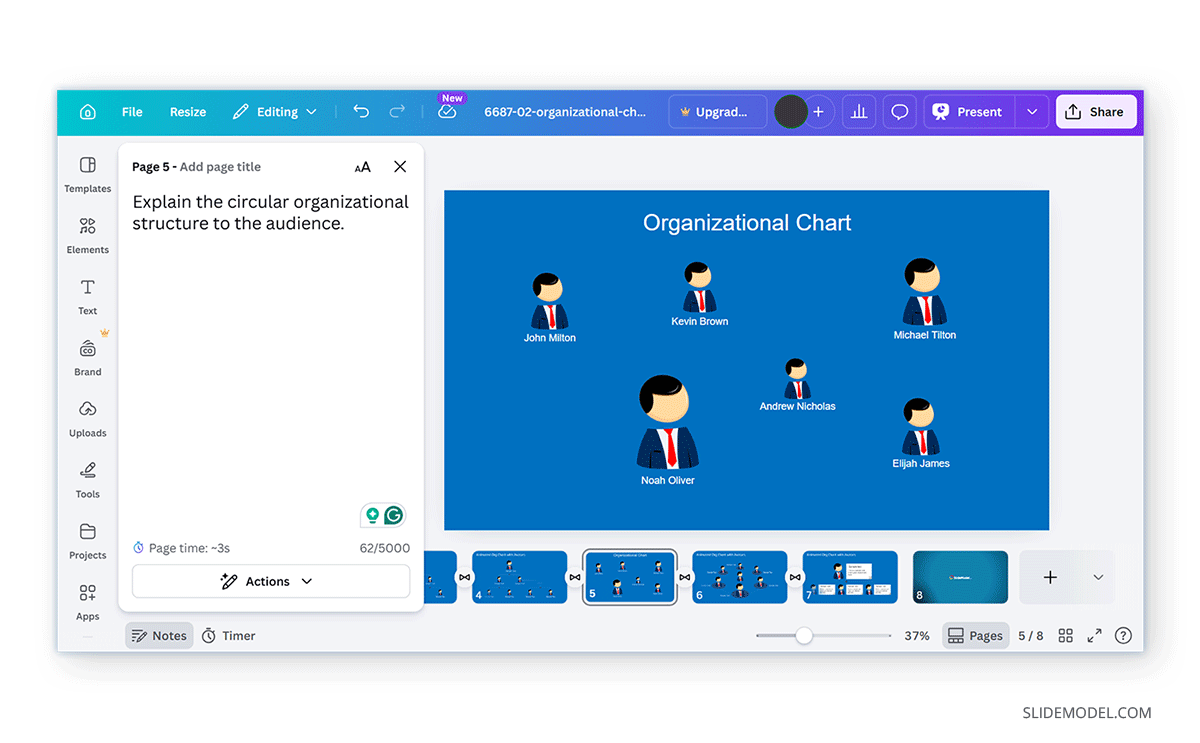
Adding speaker notes in Canva is straightforward, though the feature is not always immediately visible. If you’re new to Canva, finding the notes section can be a bit confusing. The notes panel appears below the slide editor. It may be collapsed by default, so click Notes to show or hide it.
Step 1: Open your presentation in Canva and click the slide where you want to add notes.
Step 2: At the bottom of the screen, look for the Notes section. If you don’t see it, click Notes to expand the panel.
Step 3: Type your notes in the panel below the slide. You can include bullet points, short reminders, and full sentences or scripts.
Step 4: Add speaker notes for each slide; repeat the process for each. Adjust the note size (small, medium, large, or extra large) to ensure comfortable readability. You can select the size by clicking the text size icon in the top right corner of the Notes pop-up window.
How to Automatically Add Speaker Notes to Canva
Canva provides an AI-powered option to automatically generate speaker notes. This feature can help generate notes based on a custom prompt or by using the content of your presentation.
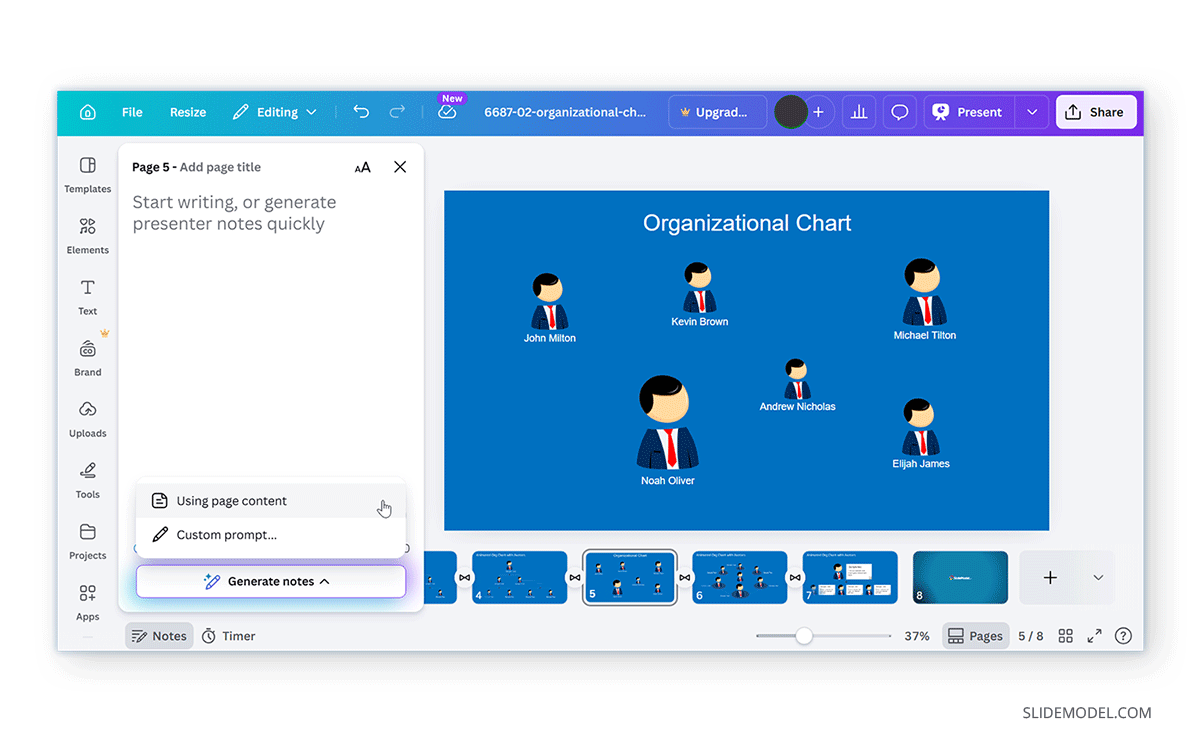
Step 1: Open your presentation in Canva, select a slide, and from the bottom of the screen, select the Notes section.
Step 2: A pop-up will open where you can add notes. At the bottom, select Generate notes.
Step 3: Select one of the two available options to proceed further. You can either use Custom prompt or pick Using page content option to generate notes.
- Using Page Content: This option automatically analyzes your page content and generates notes for you.
- Custom Prompt: If you’re using a custom prompt, enter the prompt regarding the type of information you need for your note and click Generate Notes (arrow button).
How to Automatically Rewrite Notes in Canva
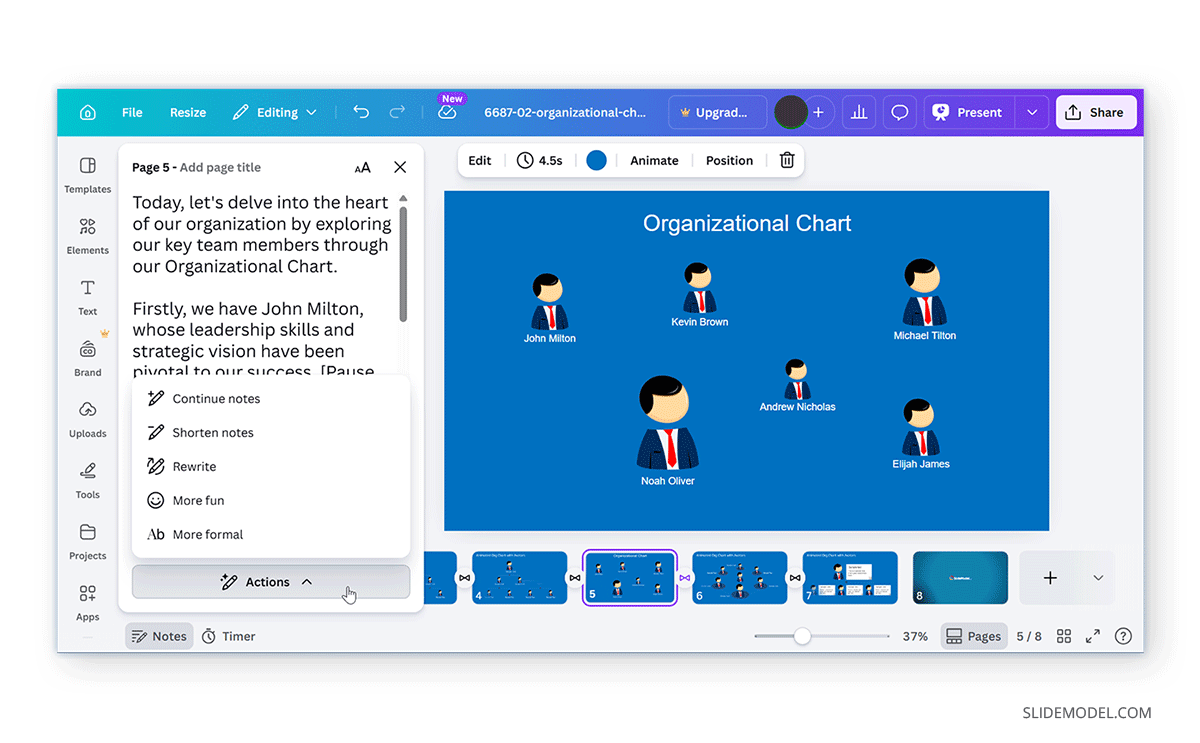
Once notes are added, either automatically or manually, you can select Actions to further refine them by making them formal, more fun, shortening notes, or asking Canva to rewrite them.
How to Use Speaker Notes During a Canva Presentation
Once your notes are added, the next step is using them while presenting.
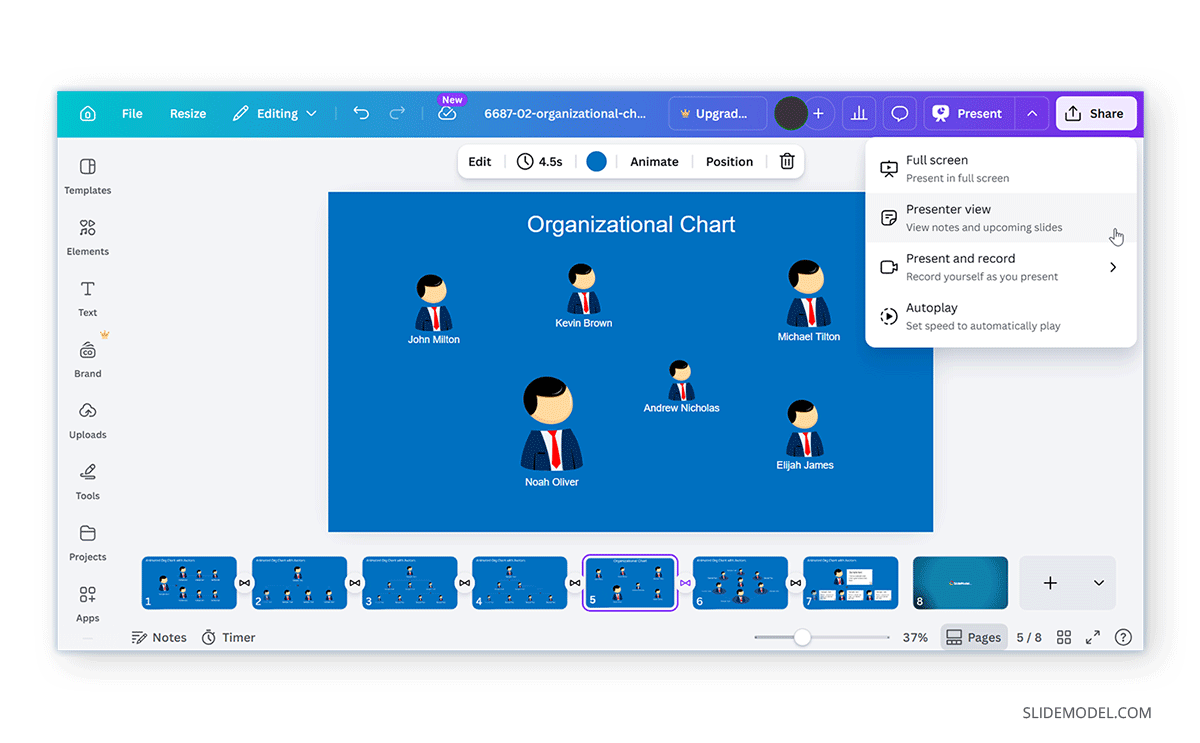
- Presenting with Notes: To present with notes in Canva, click Present (top-right corner) and choose Presenter View as your presentation mode.
- Alternative Method: If Presenter View is limited, you can use a second screen, open notes on another device, or print notes for reference.
How to Print Speaker Notes in Canva
Printing speaker notes in Canva isn’t as straightforward as in PowerPoint, but there are workarounds.
Method 1: Print with Notes
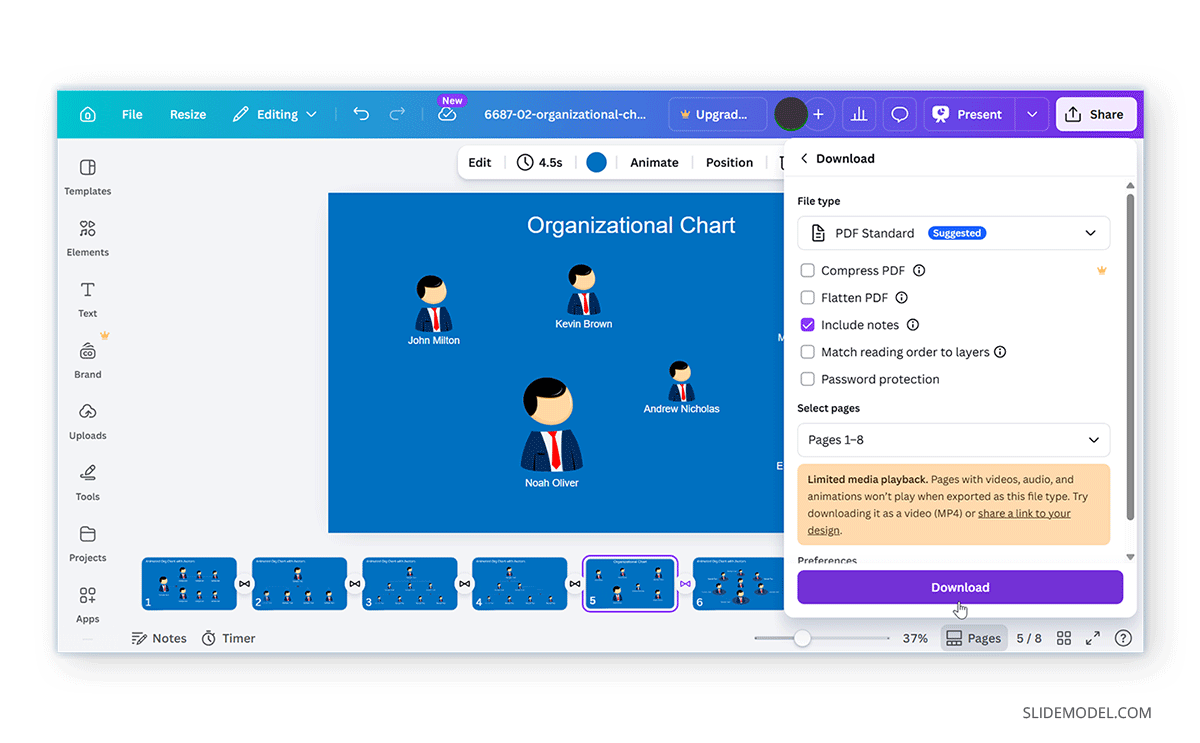
Step 1: Click Share -> Download.
Step 2: Select PDF Print for optimized print settings.
Step 3: Select Include Notes and click Download.
Step 4: Open the PDF file and print notes.
Method 2: Copy Notes Manually
Step 1: Copy notes from each slide using the right-click menu to Copy or via CTRL/Command+C.
Step 2: Paste into a document (Word or Google Docs) using the right-click menu to Paste or via CTRL/Command+V.
Step 3: Print the document using the default print option (e.g., File -> Print).
Method 3: Use Presenter View Screenshots
Open a presentation with notes, capture screenshots, and print as a reference. You can use the default screenshot utility on your device, third-party tools, or browser extensions, depending on your needs. Some examples include Greenshot (Windows and Mac), Shotty (Windows and Mac), Shutter (Linux), Awesome Screen Recorder & Screenshot (Chrome), and GoFullPage (Chrome and Edge).
Limitations of Speaker Notes in Canva
While Canva includes speaker notes functionality, it is still lighter than traditional presentation tools. Understanding these limitations can help you plan and avoid issues during your presentation.
No Dedicated Notes Print Layout
Unlike PowerPoint, Canva does not provide a built-in “Notes Page” view that pairs each slide with its corresponding speaker notes in a printable format. This means you cannot directly export slides with neatly formatted notes beneath them. If you need printed notes, you’ll likely have to copy them manually into a separate document or create your own custom layout. This extra step can be time-consuming, especially for longer presentations.
Limited Presenter View Options
Canva’s presenter tools are improving, but they are still not as advanced or consistent as those in PowerPoint. Depending on your version or presentation mode, speaker notes may not always be visible during delivery. In some cases, you may see only the current slide, with no access to notes or upcoming slides. This can make it harder to rely on notes in real time, particularly during live presentations or when using a single screen.
Manual Workarounds Required
Because of these limitations, presenters often need to rely on workarounds. For example, printing notes may require copying them into Word or Google Docs, and presenting with notes might involve using a second device or screen. While these solutions work, they require extra preparation. Planning, especially for important presentations, can help ensure you still benefit from your notes without disruption.
Tips for Writing Effective Speaker Notes in Canva
Adding speaker notes is only part of the process; writing them effectively is what truly improves your presentation delivery. Well-structured notes can help you stay on track, sound natural, and engage your audience without relying too heavily on your slides.
Keep Notes Concise
It’s tempting to write full paragraphs, but long blocks of text can slow you down during a presentation. Instead, aim for short, clear points that are easy to scan at a glance. Concise notes can help you maintain eye contact with your audience and avoid sounding like you’re reading from a script.
Use Keywords and Prompts
Rather than writing everything word-for-word, focus on key phrases or prompts that trigger your memory. For example, instead of writing a full explanation, include a few keywords that remind you of the main idea. This approach encourages a more natural and conversational delivery.
Add Timing and Delivery Cues
Speaker notes can also include reminders that improve how you present, not just what you say. Adding cues such as “pause here”, “ask a question”, or “transition to next slide” can help you control pacing and keep your audience engaged. These small prompts act as a guide for your delivery style.
Align Notes with Slide Content
Your notes should complement your slides, not repeat them. If your slide contains bullet points, use your notes to expand on those ideas with additional context, examples, or explanations. This keeps your slides clean while ensuring you still communicate detailed information.
Practice with Your Notes
Even well-written notes won’t be effective if you don’t rehearse with them. Practice presenting while referring to your notes to get comfortable with the flow. This helps you identify areas where your notes might be too long, unclear, or unnecessary. Over time, you may even rely on them less as you become more familiar with your content.
Final Words
Understanding how to manage Canva speaker notes can significantly improve your presentation delivery. While Canva doesn’t offer all the advanced features of PowerPoint, it still provides enough functionality to support organized and effective presentations.
By learning how to add speaker notes to Canva, using them during presentations, and applying simple workarounds to print speaker notes in Canva, you can confidently present without cluttering your slides. With a bit of planning and practice, speaker notes can become one of the most valuable tools in your presentation workflow.