When following brand guidelines or building a slide deck around a set theme, maintaining consistent formatting can be a major challenge. Text boxes, shapes, callouts, and other elements may need to follow the same visual style throughout a deck, but recreating formatting manually can be time-consuming. PowerPoint’s Format Painter offers a quicker way to copy one element’s appearance and apply it to another.
If you’re learning how to use Format Painter in PowerPoint, the tool can replicate formatting without copying the original content. This makes it useful when you want a new text box to match an existing one, reproduce a shape’s appearance, or quickly standardize several elements across a presentation.
What is Format Painter in PowerPoint
For PowerPoint users looking for answers to how to copy text formatting in PowerPoint, the answer is Format Painter. It is a PowerPoint tool that copies formatting from one element and applies it to another. Instead of manually selecting the same font, color, size, border, fill, or effects, you can use an existing element as the formatting source. For example, suppose one text box uses a specific font (e.g., 24-point text), a particular color, and bold formatting. Rather than reproducing those settings manually in another text box, you can use Format Painter to transfer the formatting to the new text.
You can also use the tool with shapes and other objects. If you’ve created a callout with a particular fill, outline, shadow, and other visual effects, Format Painter can help you apply a matching appearance to another shape. Format Painter copies formatting, not content. The words, images, or other information in the destination element remain unchanged.
How to Copy and Paste Formatting in PowerPoint with Format Painter
The basic Format Painter workflow applies formatting from one element to another. This is useful when you only need to match one destination element.
Step 1: Select the Formatting Source
Select the text, shape, or object that already has the formatting you want to copy. PowerPoint uses this element as the formatting source.
Step 2: Select Format Painter
Go to the Home tab and select Format Painter. The pointer changes to show that it has picked up the formatting and is ready to apply it elsewhere.
Step 3: Apply the Formatting
Select or drag over the destination text or object where you want to apply the formatting. PowerPoint transfers the applicable formatting while leaving the destination’s actual content intact. After you apply the formatting once, Format Painter deactivates. This single-click approach works well when you only need to format one element.

How to Use Format Painter Repeatedly
If you need to apply the same formatting to several elements, repeatedly activating Format Painter can become inefficient. PowerPoint provides a simple solution: double-click Format Painter to keep it active. This double-click Format Painter technique is especially useful when standardizing several elements on a slide. For example, you might have multiple callout boxes that need to use the same fill, outline, font, and visual effects. Instead of formatting each one separately, you can copy the desired appearance once and apply it repeatedly.
Step 1: Double-click to Select the Formatting Source
First, select the element with the formatting you want to copy. Then double-click Format Painter on the Home tab.
Step 2: Apply the Formatting
You can now apply the copied formatting to multiple text boxes, shapes, or other compatible objects without returning to the source each time.
Step 3: Deactivate Format Painter
When you’re finished, press Esc to deactivate Format Painter.

How to Use Format Painter with Keyboard Shortcuts
If you prefer keyboard commands, PowerPoint offers a shortcut-based alternative to selecting Format Painter from the ribbon. This can speed up repetitive formatting tasks, especially when you’re already working primarily from the keyboard. This approach is useful when you need to copy and paste formatting in PowerPoint without repeatedly navigating to the Format Painter button.
Step 1: Copy Source Formatting using Keyboard Shortcut
Select the text, shape, or object with the formatting you want to copy. Press Alt+CTRL/Command+C or, in recent editions of PowerPoint, CTRL+Shift+C to copy the formatting. Then select the destination element.
Step 2: Paste Formatting using Format Painter PowerPoint shortcut
Once copied, press Alt+CTRL/Command+V or CTRL+Shift+V in recent editions of PowerPoint to apply the copied formatting using this PowerPoint paste formatting keyboard shortcut.

Can You Apply Format Painter to Multiple Slides
Format Painter is useful for transferring formatting between individual elements, but it isn’t designed as a deck-wide formatting tool. It doesn’t let you select a formatting source and apply it to corresponding elements across multiple slides in a single stroke.
Use Slide Master to Copy Formatting in PowerPoint Across Slides
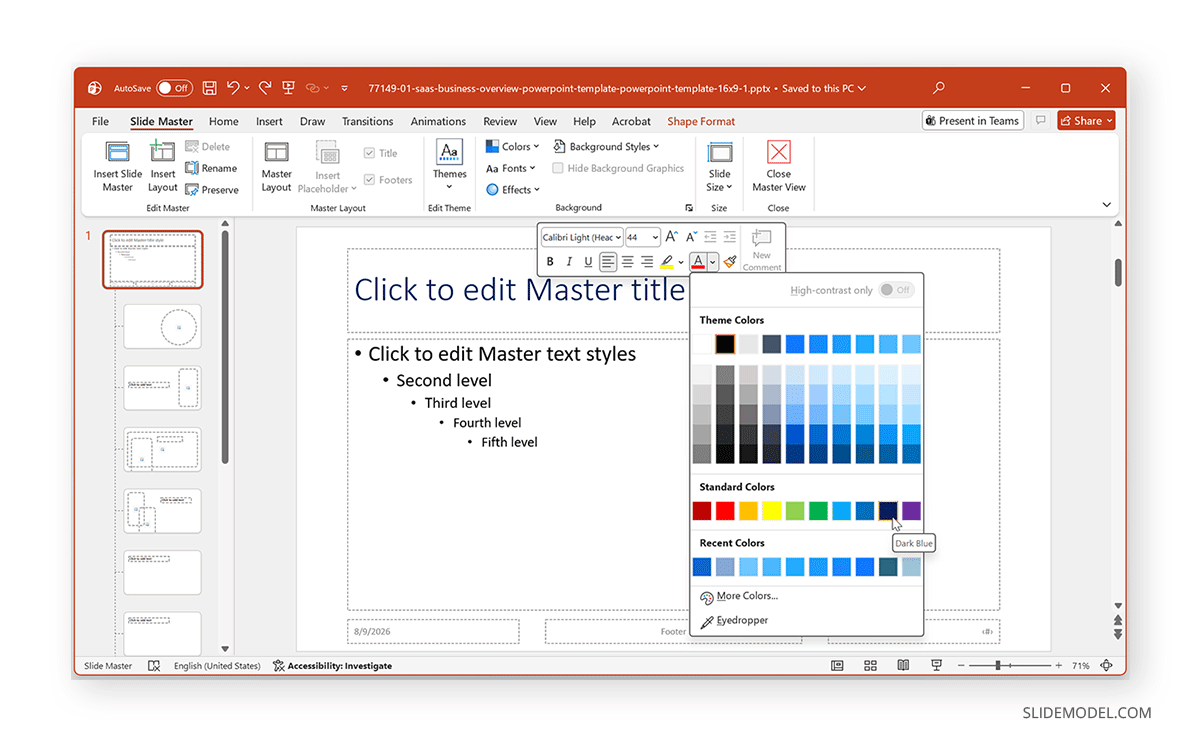
If you need the same formatting throughout a presentation, consider using the Slide Master instead. Changes made to the master or its associated layouts can establish consistent fonts, colors, placeholders, and other design elements across slides that use those layouts. For example, if every slide title should use the same font, size, and color, modifying the appropriate title placeholder in the Slide Master can be more efficient than applying Format Painter to every title individually.
Use Paste Special when Appropriate
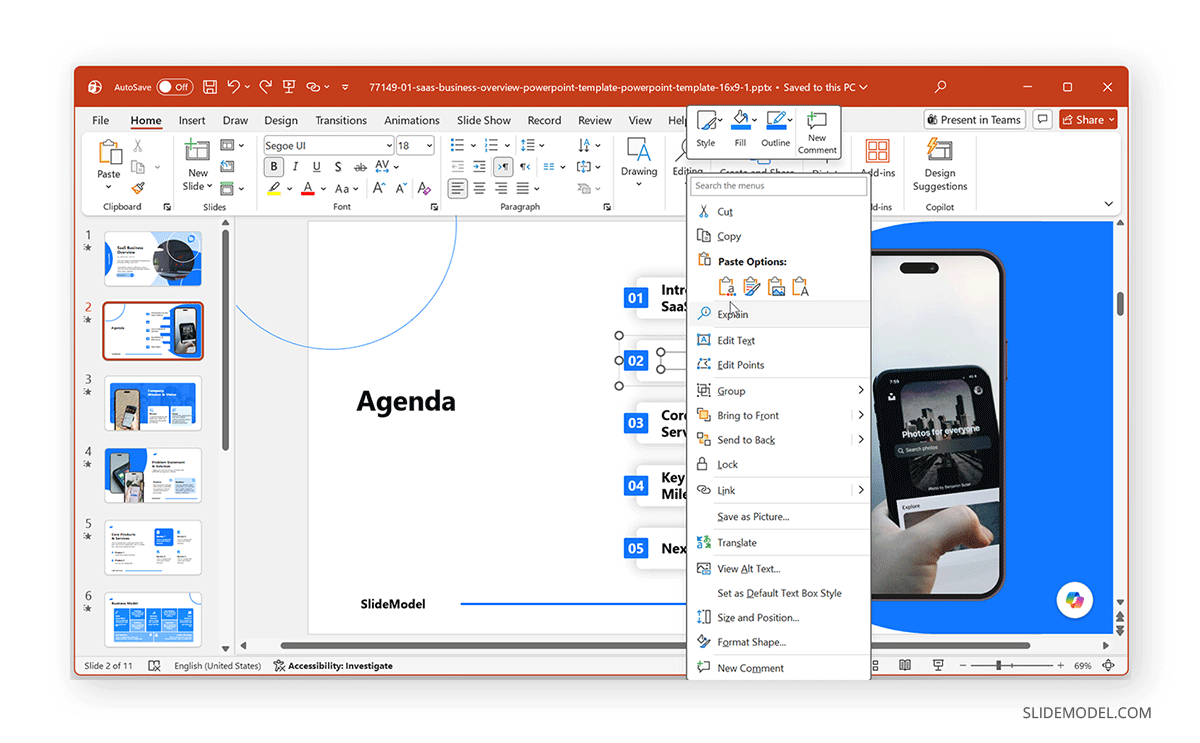
Paste Special provides another way to transfer formatting when you need more control over what you copy. Depending on the content type and the PowerPoint version you’re using, Paste Special can offer options for transferring content in different formats. However, Paste Special and Format Painter serve different purposes. Format Painter is generally more convenient when you simply want to copy the appearance of an existing element and apply it to another object without changing its content. If you want to use Paste Special to apply the same formatting to multiple slides, PowerPoint doesn’t offer an option as broad as Slide Master or Format Painter. This will require a lot of manual work to change formatting in different sections using Paste Special.
Practical Uses for Format Painter
Format Painter is most useful when you already have a correctly formatted element that you want to reproduce elsewhere in a presentation.
Standardize Text Boxes
When a presentation contains several text boxes created at different stages, their fonts, sizes, colors, or spacing may not match. Instead of adjusting each setting manually, use one correctly formatted text box as the source and apply its formatting to the others. Format Painter can also transfer text attributes such as bold and italic styling, plus applicable character and paragraph spacing.
Match Callout Styles
Callouts often use a combination of fill colors, outlines, shadows, and text formatting. Once you’ve created one callout with the desired appearance, Format Painter can quickly transfer that style to additional callouts.
Match a New Element to an Existing Design
If you’ve added a new shape, label, or other element that doesn’t match the surrounding content’s visual style, Format Painter can quickly align it with the existing design.
This is particularly useful when editing an established presentation, and you need to add new content without disrupting the original design’s visual consistency.
Copy Formatting for Shapes and Objects
Format Painter can also transfer visual formatting applied to shapes and other objects. Depending on the object, this can include its fill, border or outline, shadow, and other applicable effects. For example, if one callout shape has the exact appearance you want, you can use it as the source and apply its formatting to another callout. The destination shape retains its own content while adopting the copied visual treatment. This is especially helpful when creating diagrams, process flows, callouts, or other presentation elements that need to follow a consistent visual style.
Format Painter Not Working in PowerPoint
Check the Formatting Source
If Format Painter doesn’t produce the expected result, first check that you’ve selected the correct source element. The formatting is copied from the element selected before activating Format Painter, so choosing the wrong source will transfer the wrong appearance.
Select the Text You Want to Format
If only part of a text box needs to change, select the relevant text before applying the formatting. Similarly, when working with shapes or objects, make sure the destination is compatible with the formatting you’re attempting to transfer.
Make Sure You’re Copying Formatting, Not Content
Format Painter transfers formatting, not content. If you’re expecting text, images, or other content to be copied, you’ll need to use the appropriate copy and paste commands instead.
Check the Slide Master or Layout
If the formatting still doesn’t match, check whether a layout or Slide Master controls the destination element. Theme and master-level formatting can affect how elements appear, and changing the master may be a better solution when you need consistent formatting throughout the deck.
Final Words
Format Painter provides a quick way to keep PowerPoint presentations visually consistent without manually recreating formatting. A single click works when you need to match one element, while double-clicking keeps it active so you can apply the same formatting repeatedly.
For users who work extensively with keyboard shortcuts, this provides another way to copy and apply formatting. However, when the goal is to maintain consistent formatting across an entire presentation, Slide Master is often more efficient than applying Format Painter slide by slide.