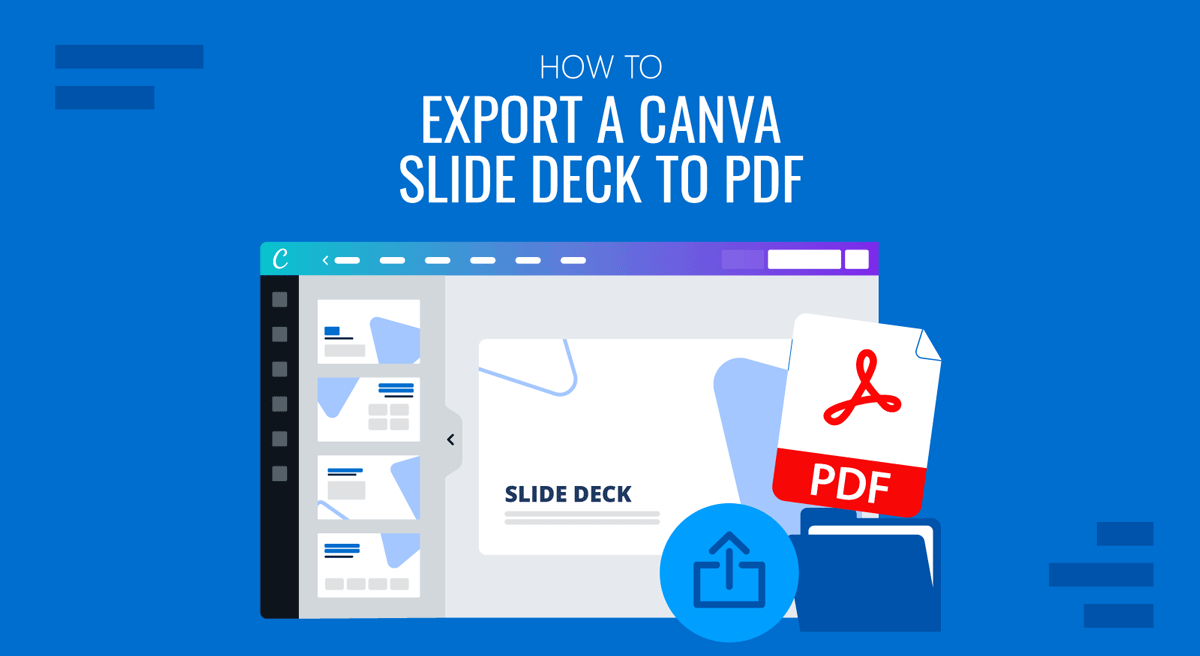
A Canva presentation is easy to share online, but a PDF is better in many situations. You may need to email a deck to a client, upload it to a document portal, archive a final version, or send presentation material for printing. In those cases, exporting the presentation as a PDF gives you a version you can open without Canva access. This guide explains how to export a Canva deck to PDF, what the Digital and Print presets actually change, what happens to animations and media, and how editable the resulting PDF remains after export.
How to Export Canva Presentation to PDF
Canva currently treats PDF as a single file type with different presets rather than presenting separate PDF Standard and PDF Print formats.
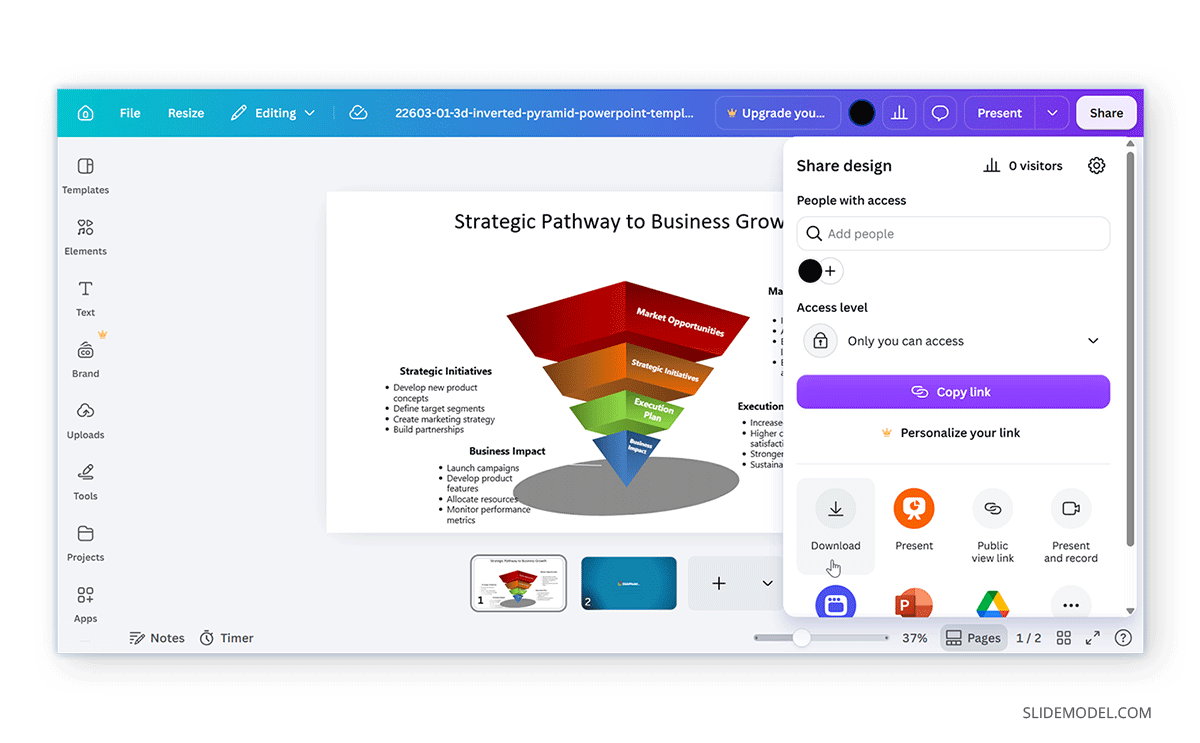
Step 1: Open the Download Menu
Open your presentation and go to Share -> Download. Under File type, select PDF. Canva may suggest PDF automatically for presentation content, but the file type menu also includes formats such as PPTX, MP4 Video, JPG, PNG, GIF, and SVG.
Step 2: Choose Between Digital and Print
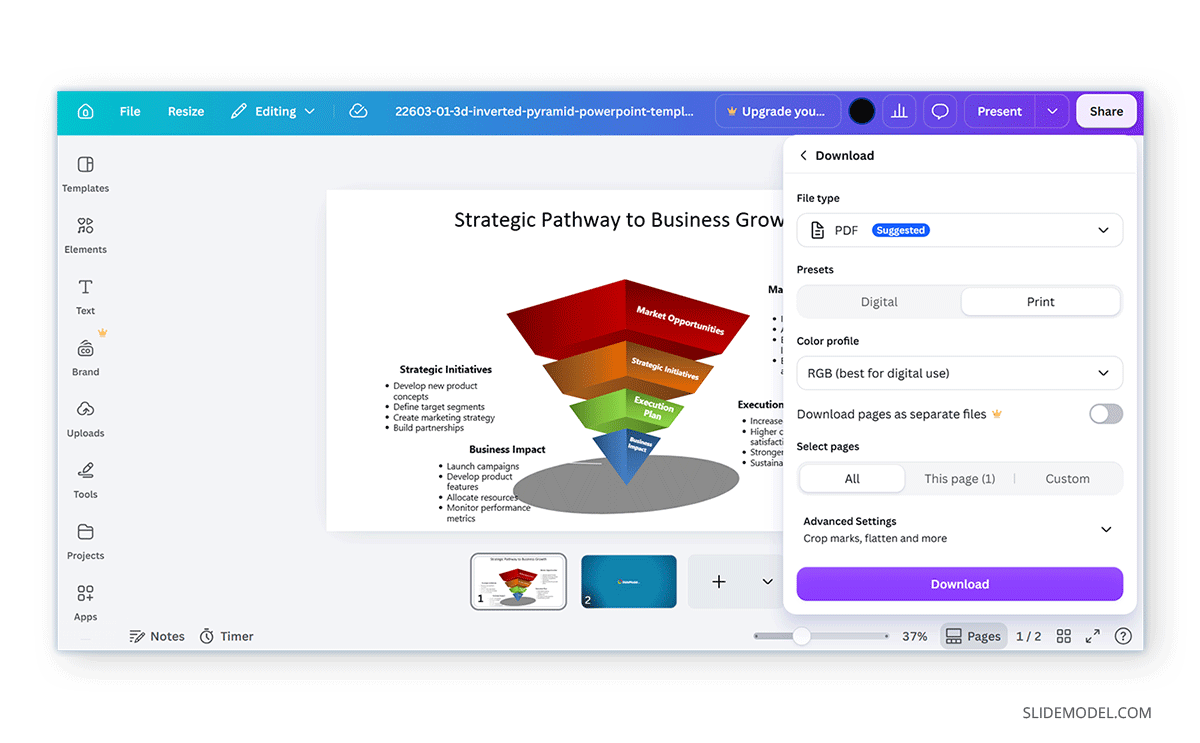
Once you select the PDF option, Canva provides two presets: Digital and Print. This distinction matters more than it may seem at first. If the deck will never leave a screen, print-specific settings usually provide little practical benefit. If it is headed to a commercial printer, however, those settings can become important. In both cases, you can also choose which specific pages to download as PDF instead of the complete slide deck.
Digital: For a presentation intended for digital circulation, select the Digital preset. Then choose whether to export all pages, the current page, or a custom selection.
Canva also provides a Compress PDF option on supported plans. Compression can make a large presentation easier to email or upload, but reducing file size can affect image quality depending on the deck’s content. For most internal presentations, reports, handouts, and review copies, Digital is the more practical choice.
Print: Select the Print preset when preparing presentation slides for physical output. One key difference is the Color profile option. Canva currently offers RGB, which is best for digital use, and CMYK, which is intended for professional printing and may require a premium plan.
If you’re sending the deck to a commercial printer, CMYK may be the better option because professional print workflows commonly use that color model. For ordinary office printing, however, RGB may still be sufficient depending on the printer and output requirements. Choose Print when output quality and print preparation matter more than file size. The Print preset exposes additional controls, including color profile, crop marks and bleed, and PDF flattening.
Step 3: Select Advanced Settings (Optional)
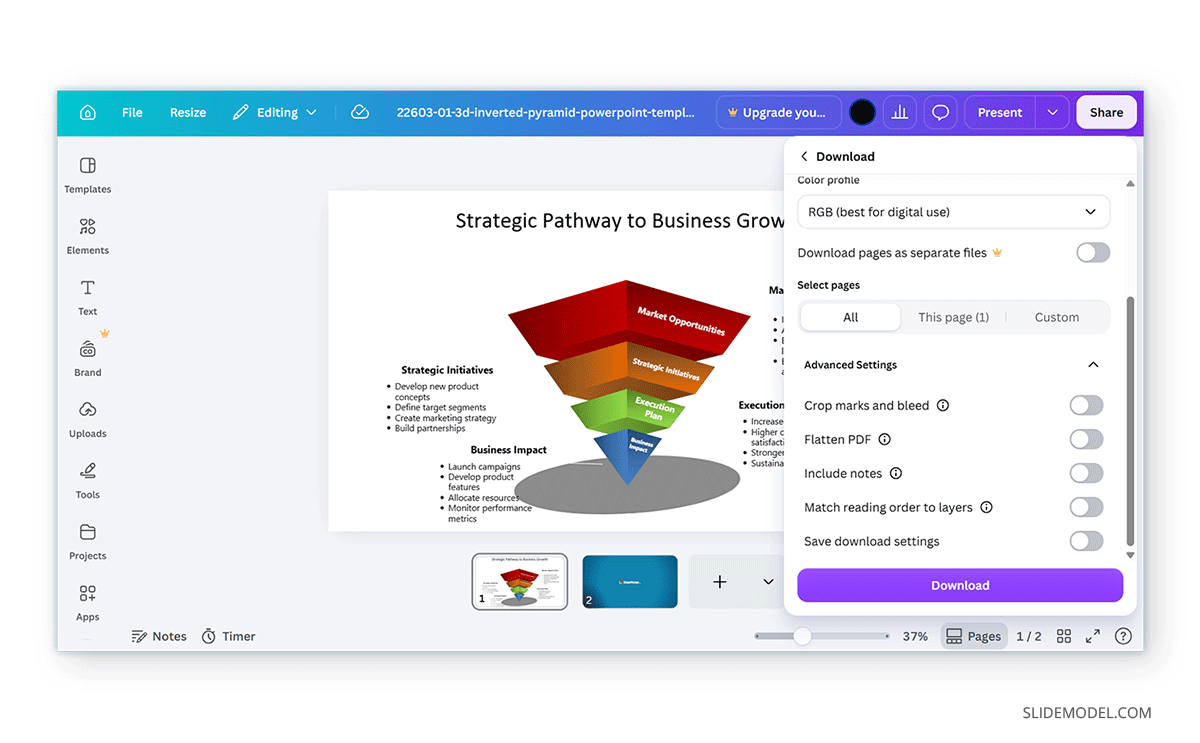
Depending on your needs, you may configure advanced features to customize the presentation file before conversion and download. Under these settings, you can include notes, flatten the PDF (which may increase file size), add crop marks and bleed, match reading order to layers, and password-protect the PDF.
Common Questions About Exporting Canva Slide Deck to PDF
How to Export Canva to PDF Without Losing Quality?
Choosing the Print preset can help preserve visual quality, but the export setting is only part of the equation. If an image was already low resolution before you placed it in Canva, exporting the deck as a high-quality PDF will not restore the missing detail. The same applies to heavily compressed screenshots and other raster graphics.
Before exporting, check important images at the size they appear on the slide. A photograph that looks fine as a thumbnail may look soft once enlarged across half the page. For a deck intended mainly for screen viewing, the Digital preset is usually adequate. For high-resolution output or professional printing, use Print and review the color profile and print settings before downloading.
What Happens to Animations When You Export Canva to PDF?
This is where PDF reaches its main limitation as a presentation format. Canva warns that videos, audio, and animations will not play when you export a presentation as a PDF. The slide converts to a static page, so visual effects that depend on movement, timing, or playback are lost. In practical terms, PDF preserves what the slide looks like, not how it behaves during a presentation.
A heading with a static shadow, outline, glow, or other visual treatment can remain visible in the exported slide. However, an animated entrance, transition, video clip, or audio track will not continue functioning as it does inside Canva. If motion is part of the message, PDF is probably the wrong output format. Canva suggests downloading the presentation as an MP4 Video or sharing a link to the design instead. Decide this before exporting, not afterward. A deck built around animated reveals or timed sequences can lose much of its intended pacing once converted to static pages.
Can You Edit a Canva PDF in Adobe Acrobat?
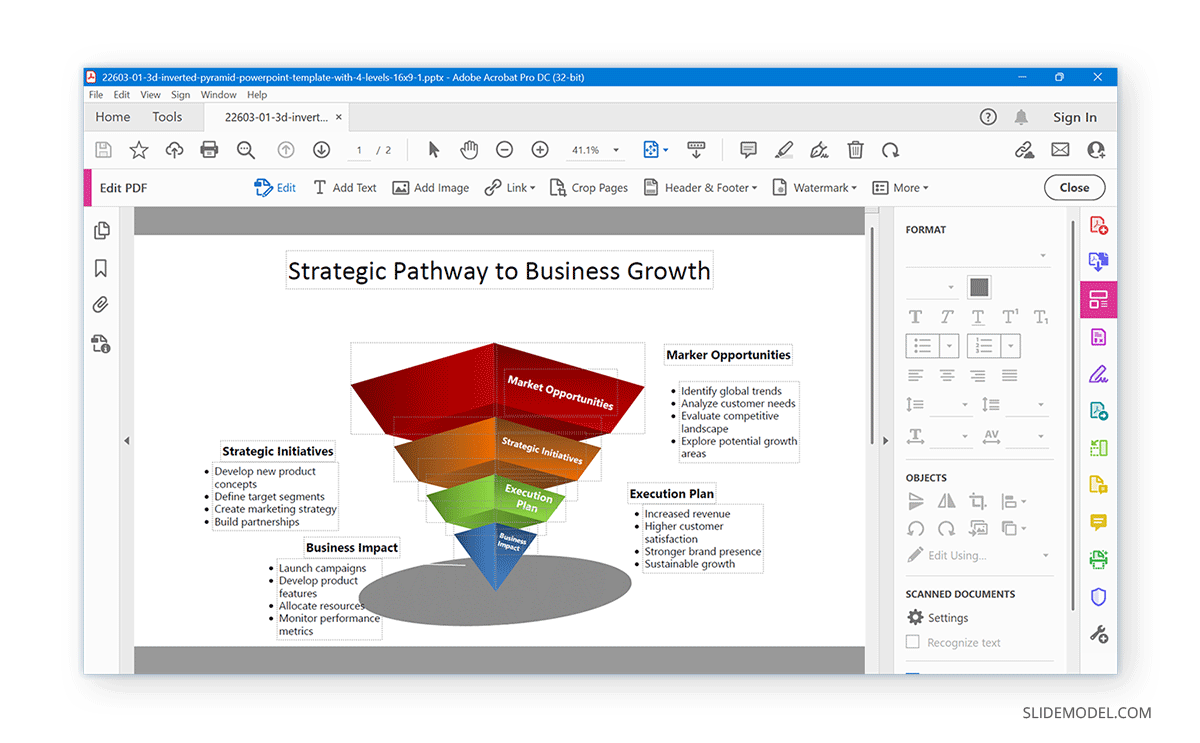
You can open a PDF exported from Canva in software such as Adobe Acrobat and other PDF editors, but it should not be expected to behave like the original Canva presentation. PDF editing software may allow you to modify text, replace images, add comments, rearrange pages, or make other changes depending on how the file was generated. It does not preserve Canva’s original editing environment, including its animation controls, design structure, and presentation-specific behavior.
If you enable Flatten PDF in Canva before download, the resulting document is intended to behave more like a finished output than a design file with independently editable elements. This can be useful when the goal is distribution rather than continued design work.
If the recipient needs to make substantial changes to the presentation, sending the original Canva design or exporting to PPTX may be more appropriate than relying on PDF editing.
Final Words
Learning how to export a Canva presentation to PDF is less about finding the Download button and more about choosing the right output for the job. Use the Digital preset when the deck will primarily be shared or viewed on screen. Use Print when output quality, print color, bleed, or other production settings matter. Static design effects can carry into the PDF, but animations, video, and audio will not play after export.
For a finished presentation you need to share as a stable document, PDF is often the safest option. If the deck still needs editing or depends on animated content and media, another export format may work better.