An explainer video is a short video that makes a product, service, process, or idea easier for an audience to understand. Instead of asking an audience to work through a long description, an explainer video combines elements like visuals, narration, and text to communicate the main message quickly. Businesses commonly use explainer videos on landing pages, during sales pitches, in onboarding, and for internal communication. They are useful when the subject is unfamiliar, technical, or difficult to explain with static content alone. This guide explains what an explainer video is, the main types of explainer videos, and how you can create one directly in PowerPoint.
What Are Explainer Videos and How Are They Used?
The main purpose of an explainer video is to simplify complex information and make it easier for the intended audience to understand. For example, a software company may use an explainer video to show how its platform solves a specific problem. A consulting firm might use one to explain a process or methodology, while an HR team could create one to introduce a new internal policy or onboarding procedure.
Most explainer videos follow a simple structure. They introduce the problem, explain the solution or idea, show how it works, and finish with a clear takeaway or next step. Because they are usually short and focused, explainer videos work well when the audience needs enough information to understand the subject without a full presentation or detailed document. Think of an explainer video as a focused video presentation that explains a concept briefly, without the length or complexity of a full slide deck.
Different Types of Explainer Video Styles
No single explainer video format works for every subject. The right approach depends on what you are explaining and how much visual detail the audience needs. For example, a startup explaining a new service might use animation because there is no physical product to demonstrate, or a software company could use a screencast to show its interface. Similarly, a manufacturer may prefer live action when the audience needs to see the product being used. For internal training, a combination of slides, icons, narration, and simple animation may be enough.
The goal isn’t to use the most elaborate production style, but to choose the format that makes the subject easiest to understand. Below are examples of common explainer video types, along with a few examples.
Slide-Based Explainer Video
A slide-based explainer video uses presentation slides, narration, webcam input, and other visual elements to explain a concept in a structured sequence. You can create this type of explainer video in PowerPoint or another presentation application for corporate communication, training, product demos, catalogs, process explanations, etc.
Animated Explainer Video
An animated explainer video uses illustrations, icons, text, characters, shapes, or motion graphics instead of filmed footage. Animation works particularly well for abstract ideas, services, workflows, and concepts that are difficult to demonstrate physically. It also gives the creator more control over visual style and helps maintain consistent branding throughout the video.
Whiteboard or Hand-Drawn Explainer Video
Whiteboard-style videos present information as if it is being drawn or written while the audience watches. This format works well for educational topics, step-by-step reasoning, and concepts that benefit from gradual development. The hand-drawn appearance can also make complicated information feel less formal and easier to follow.
Screencast or Product Demo
A screencast records what is happening on a computer or device screen. It’s useful for software demos, digital product explanations, dashboards, and online services because the audience can see the actual interface while the presenter explains how it works. Instead of describing where a feature is located, the video can show the viewer the exact workflow.
Live-Action Explainer Video
A live-action explainer uses real people, locations, or products. This type is useful when trust, personality, or a physical demonstration is important. A company may use employees or customers on camera to explain a service, demonstrate a product, or introduce an organization. Live action usually requires more production planning than a slide-based or animated approach.
Mixed-Media Explainer Video
Mixed-media explainers combine several techniques, such as animation, photographs, video clips, screen recordings, and text. This approach is useful when one format cannot explain the entire subject effectively. For example, a product explainer might begin with animation to introduce the problem, switch to a screencast for the demonstration, and finish with a presenter or branded call to action.
How to Make an Explainer Video in PowerPoint
PowerPoint can create a simple explainer video without moving the entire project into dedicated animation software. The basic idea is to treat each slide as a scene.
Step 1: Write the Script
Start with the message, not the animation. Decide what the audience needs to understand by the end. Keep the script focused on one main problem, idea, product, or service. A simple explainer structure might include an opening problem, the proposed solution, a short explanation of how it works, and a final takeaway.
Step 2: Build a Storyboard Using Slides
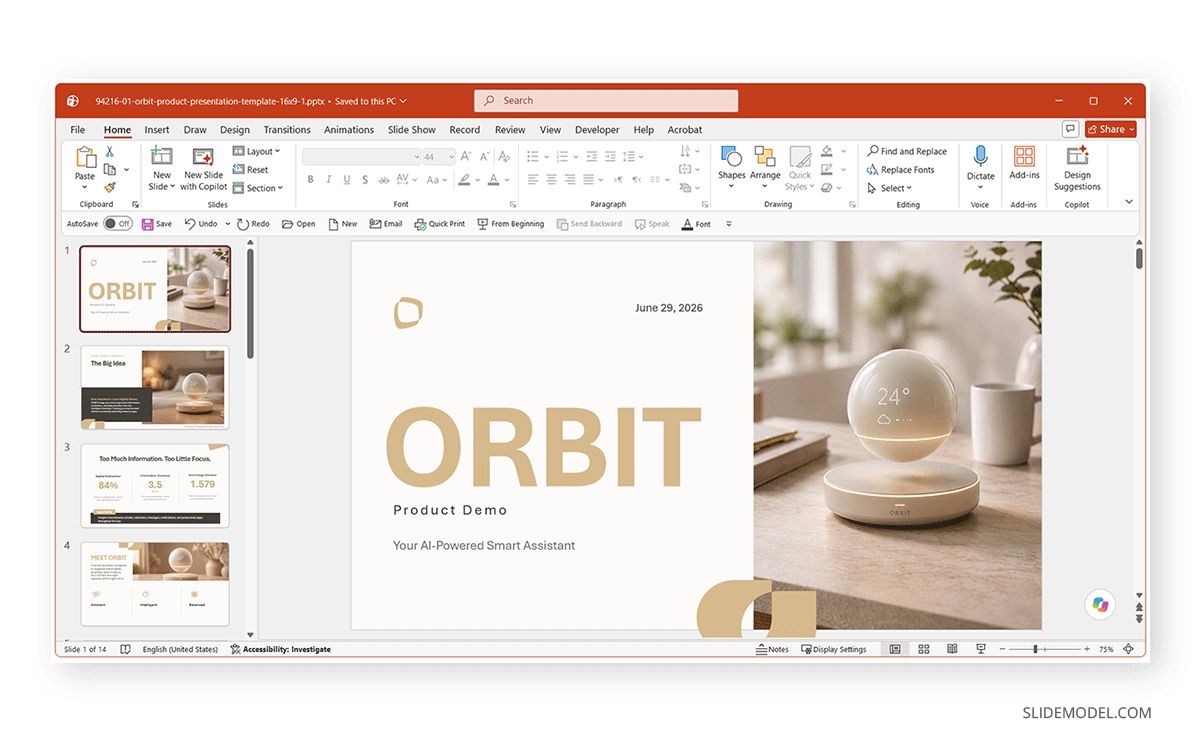
Turn the script into a sequence of slides, with each slide representing a scene or key moment. For example, one slide may establish the problem, the next may introduce the solution, and later slides can explain the process or benefits. This slide-by-slide approach makes PowerPoint a useful storyboard and production tool. It also helps prevent too much information from appearing on screen at once.
Step 3: Add Visual Elements
Use shapes, icons, illustrations, screenshots, charts, and short text to support the script.
Keep the visuals focused on what the audience should understand at that moment. An explainer video should simplify the message rather than turn each scene into a dense presentation slide.
Where possible, keep colors, typography, illustration styles, and object placement consistent across scenes.
Step 4: Use Morph for Scene-to-Scene Motion
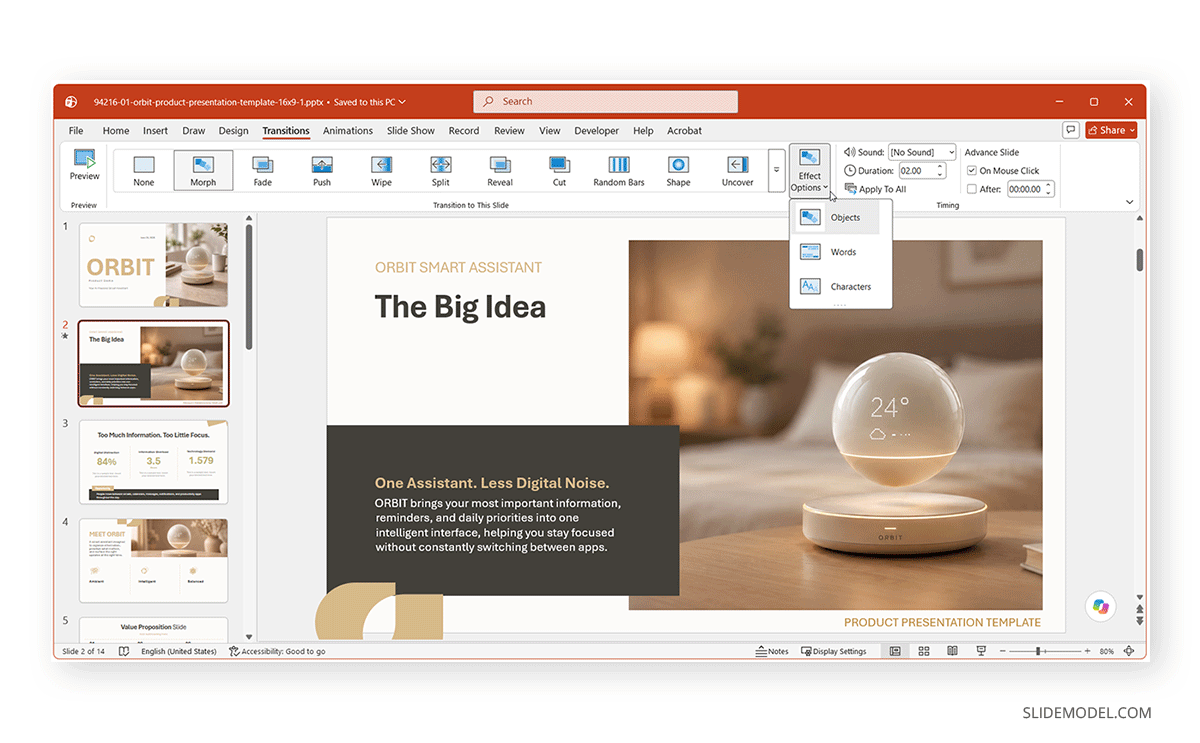
PowerPoint’s Morph transition can help create smoother movement between scenes. For example, an object can move from one position to another, grow, or transition between layouts as the presentation advances. By duplicating a slide and repositioning the same elements, Morph can create motion without requiring complex animations. You might find it useful for slides that come with process explanations, diagrams, product journeys, and animated visual storytelling.
You can access Morph from the Transitions tab. From there, use Effect Options to control whether Morph works with objects, words, or characters. You can also adjust the transition duration, add sound, and choose whether the slide advances on mouse click or automatically after a set time.
Step 5: Add Narration or Presenter Video
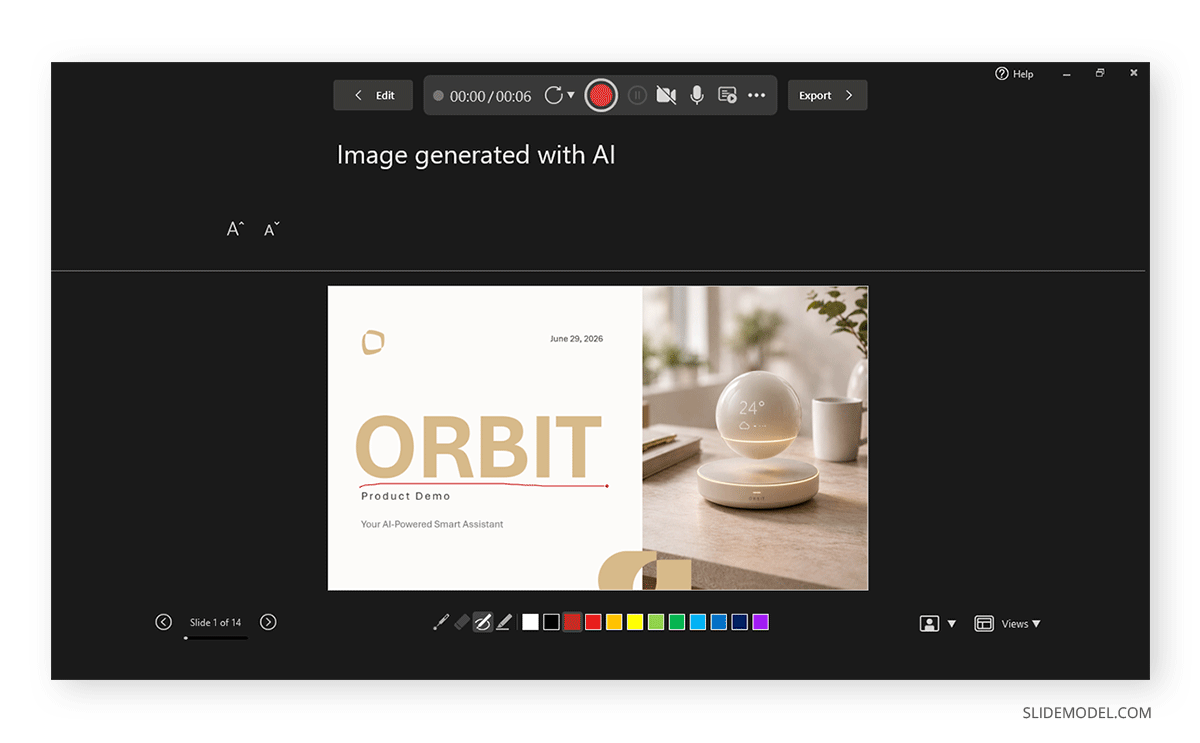
Once the visual sequence is complete, you can record narration directly in PowerPoint. If the presenter should appear on screen, you can also incorporate webcam video into the presentation workflow. The narration should follow the script while the slides provide the supporting visual explanation. For a broader look at recording, presenting, and producing presentation-based video content, see our guide on video presentations.
Step 6: Export the Presentation as a Video
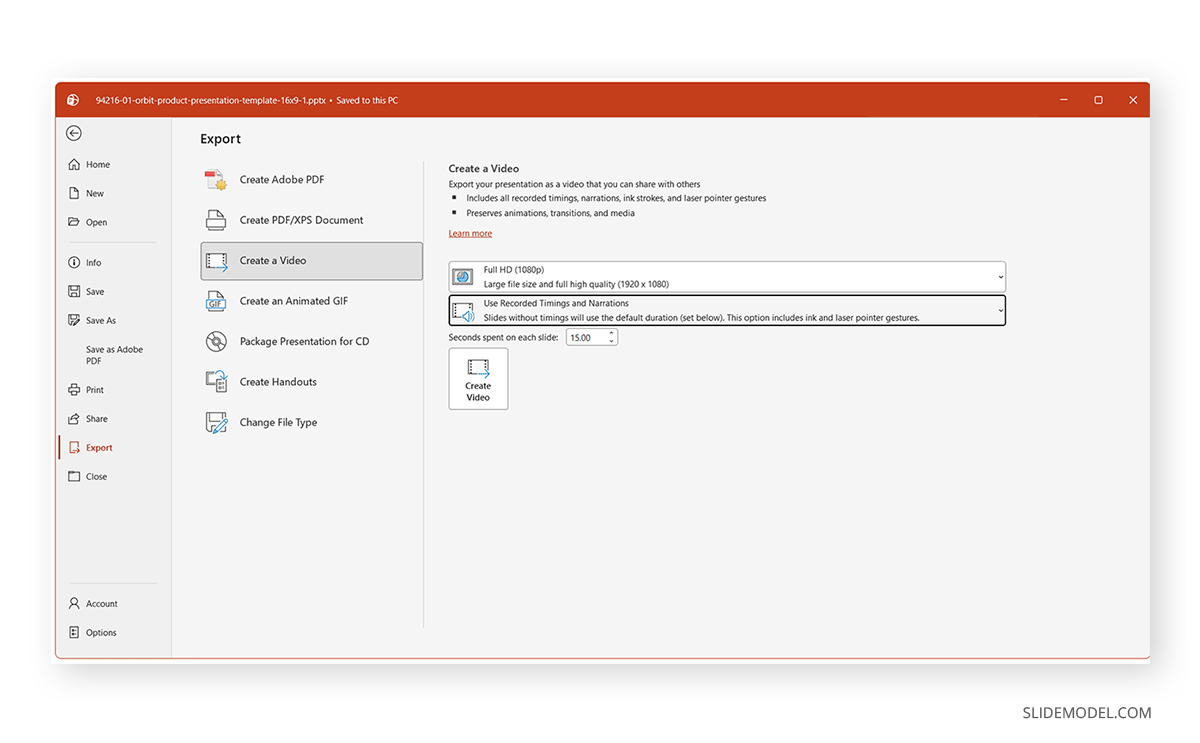
After reviewing the slide sequence, transitions, and recorded content, export the presentation as a video. PowerPoint can convert the slide deck into a video file, preserving slide timings, transitions, animations, and recorded narration. You can then use the result on a website, share it internally, include it in a sales process, or incorporate it into other digital content.
PowerPoint vs. Dedicated Explainer Video Software
When PowerPoint is the Better Option
PowerPoint is a good choice when the explainer relies mainly on text, icons, diagrams, charts, screenshots, and other presentation-style visuals. It works particularly well for corporate explainers, internal communications, process overviews, product introductions, and training content. As PowerPoint already supports transitions, animations, narration, and video export, it can take a project from storyboard to finished explainer without requiring a separate production workflow. This is especially useful when the creator is already familiar with PowerPoint and the video does not require complex visual effects.
When Dedicated Video Software is the Better Option
Dedicated animation or video-editing software is more suitable when the explainer requires advanced motion graphics, character animation, detailed video editing, multiple camera sources, or highly customized effects. For example, Adobe After Effects suits complex motion graphics and animation, while Adobe Premiere Pro and DaVinci Resolve offer more advanced video-editing control. Likewise, tools such as Camtasia are useful for combining screen recordings, narration, annotations, and edited presentation footage, while Vyond is designed specifically for animated explainer and character-based videos. For simpler explainer videos using screencasts, tools like Screencast-O-Matic or Flashback Express can help, whether you use them with PowerPoint slides or separately to record the screen.
Final Words
As explained in this tutorial, an explainer video is a short, focused video that makes a product, service, process, or idea easier for the audience to understand. The format you use can range from an animated explainer video or whiteboard sequence to live action, screencasts, and mixed media. The right choice depends on what you need to explain and how the audience can understand it most quickly.
PowerPoint provides a practical way to create simpler explainer videos by turning a script into a sequence of slides, using Morph to create a smooth scene-to-scene motion, adding narration or webcam content, and exporting the finished presentation as a video. However, more elaborate video editing software and suites can provide better options for creating a high-end explainer video. Similarly, easier-to-use software like screencast applications can make it easier to develop explainer videos with or without PowerPoint.