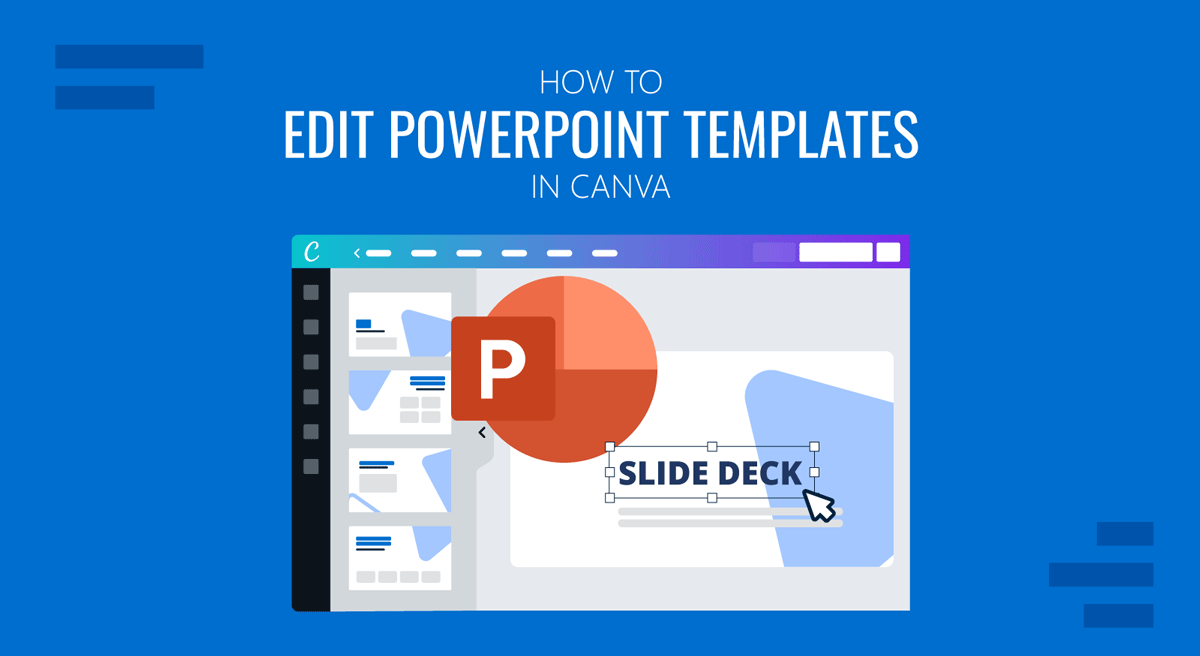
While PowerPoint remains a popular choice for building complex slide decks and presentation templates, Canva has gained significant popularity in recent years. Emerging as a popular alternative for editing and collaboration, leading many users to import PowerPoint presentations into Canva to make updates, apply branding changes, and streamline team workflows.
Canva can provide a convenient environment for customizing presentation content without requiring advanced PowerPoint skills. However, editing a PowerPoint file in Canva is not always the same as editing it in PowerPoint. In this guide, we will explain how to edit a PowerPoint template in Canva, what changes can be made after importing it, and which compatibility considerations to keep in mind.
Common Reasons for Editing PowerPoint Templates in Canva
Unlike PowerPoint, Canva is a design platform, not specifically made for presentations. This is why PowerPoint templates can provide better design and depth for presentation needs. Canva allows users to upload PowerPoint files and edit many presentation elements directly from the Canva editor. Once imported, slides can be modified much like a native Canva presentation. However, both applications use different design engines, formatting systems, and animation frameworks, so some presentation elements may behave differently after conversion.
For many users, Canva serves as an alternative editing tool rather than a complete replacement for PowerPoint. While most standard presentation components remain editable, some advanced PowerPoint features may not transfer perfectly during conversion. Understanding these limitations beforehand can save considerable time when adapting imported templates.
Many users also use other platforms with Canva and look to learn how to edit presentation templates in Canva. This includes not only PowerPoint but also Google Slides templates, PDF files, and Word documents that can be converted into presentation slides. However, using templates designed for cross-platform compatibility, such as SlideModel’s PowerPoint templates, can save you a lot of hassle, since they can be customized without much effort.
Things to Consider Before Uploading a PowerPoint Template to Canva
Before importing a PowerPoint template, it is worth reviewing the presentation to identify elements that may require adjustment after conversion.
Compatible Fonts
Fonts are one of the first things to check. If a presentation uses fonts that are unavailable in Canva, replacement fonts may be applied automatically during import. While the text itself usually remains editable, font substitution can affect spacing, alignment, and slide layouts. This is particularly important for presentations that rely on carefully positioned text placeholders.
Review Images and Graphics
Images and graphics should also be reviewed. Most pictures import successfully, but presentations that rely on complex visual elements may require additional adjustments. The same applies to diagrams, charts, and illustrations created using advanced PowerPoint tools.
Compatibility for Animations
Another important consideration is animation. PowerPoint animations and transitions do not transfer directly into Canva because the two platforms use different animation systems. If a presentation relies heavily on motion effects, some of those visual behaviors may need to be recreated using Canva’s native animation features.
Use of Slideshow
Are you looking to use Canva for presenting files or as a design tool? This is an important consideration, as many users might prefer to edit files in Canva and present them offline in PowerPoint or another format after exporting. Depending on which platform you use for the slideshow, the slides should be reviewed to ensure that no compatibility issues, missing fonts, or skewed graphics don’t botch the slide deck.
Backup Original File
It is a good practice to keep a copy of the original PowerPoint file. This provides a fallback version in case certain elements do not convert as expected.
How to Upload and Edit a PowerPoint Template in Canva
Editing a PowerPoint presentation in Canva is as simple as uploading and editing slides. You can get started by uploading a slide deck and then customizing it using native Canva tools.
Step 1: Upload the PowerPoint File to Canva
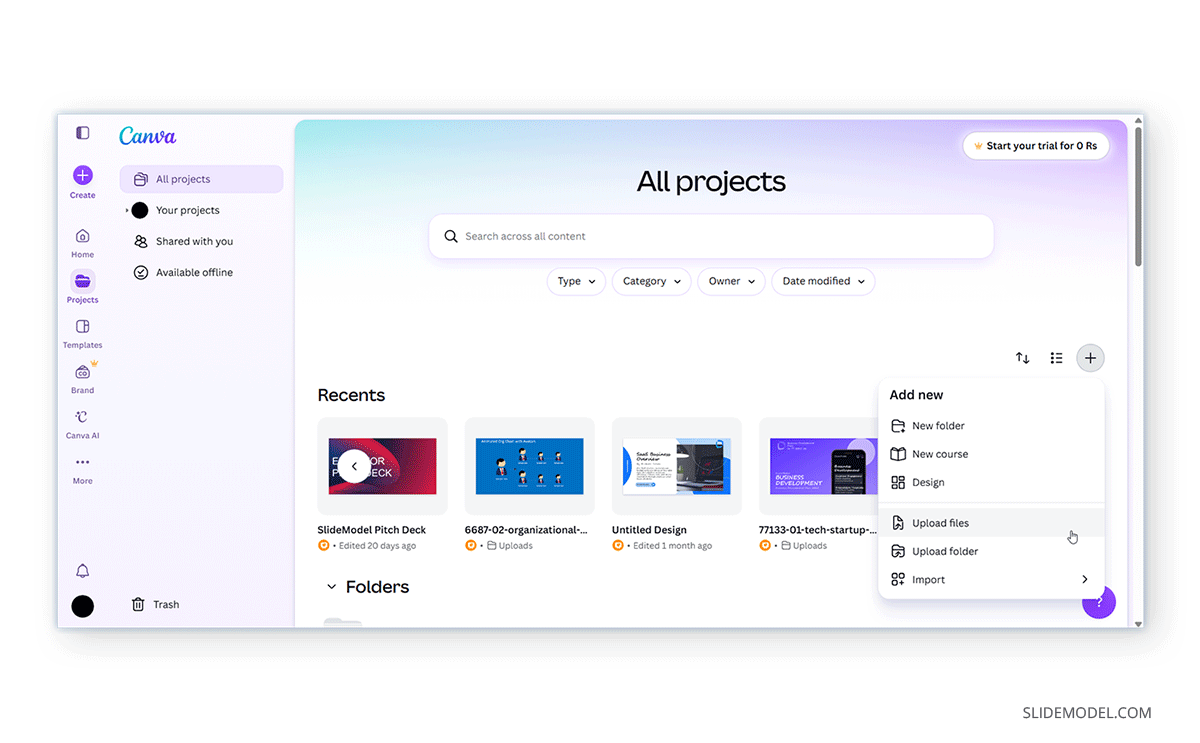
Open Canva and navigate to the home screen. Upload your PowerPoint file by dragging and dropping it into Canva or by selecting the upload option from the dashboard. Canva supports PowerPoint files in PPT and PPTX formats.
Once uploaded, Canva automatically converts the presentation into an editable Canva design. The conversion process may take a few moments, depending on the size and complexity of the presentation. After conversion is complete, the presentation opens inside the Canva editor.
Step 2: Edit Text and Fonts
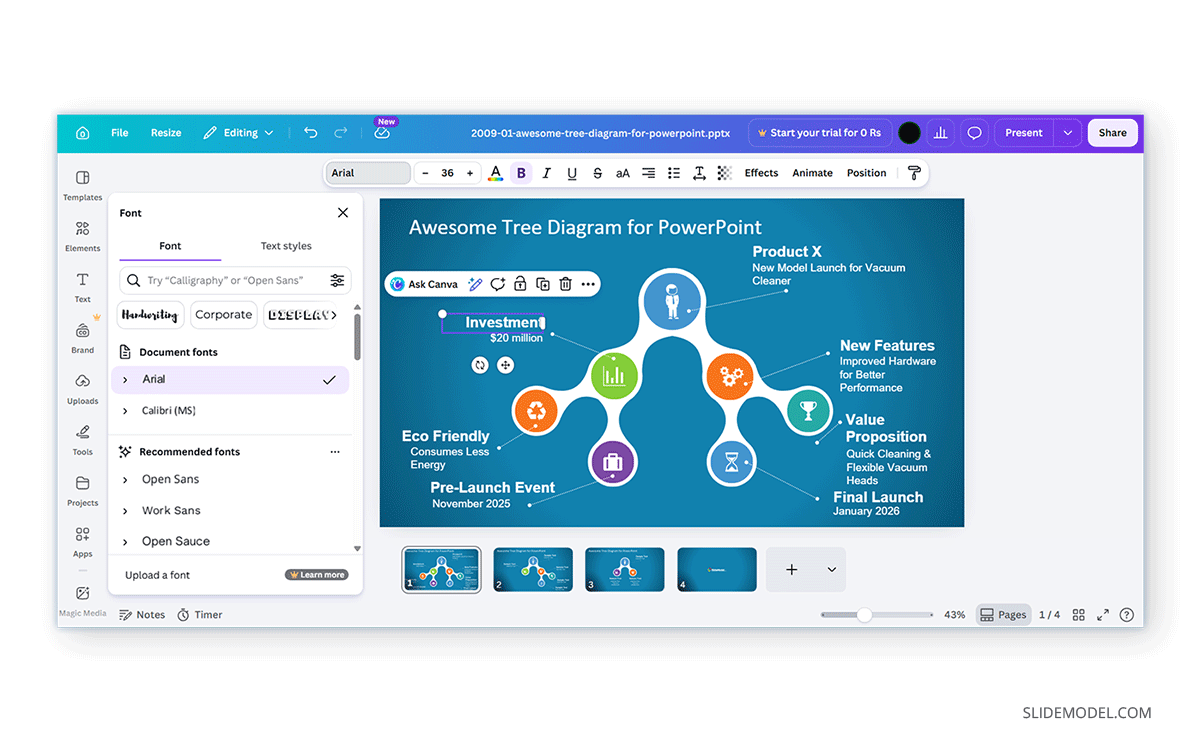
Text is usually among the easiest elements to modify after import. Simply click a text box and begin editing. You can update titles, modify body text, adjust font sizes, change colors, and apply different fonts from the top toolbar. If the original PowerPoint font is unavailable, Canva may automatically substitute a similar font.
Step 3: Replace Images and Graphics
Imported images can typically be replaced with Canva assets or uploaded images. This makes it easy to adapt an existing template for a different project, client, department, or audience without rebuilding the slide from scratch.
Step 4: Modify Colors and Layouts
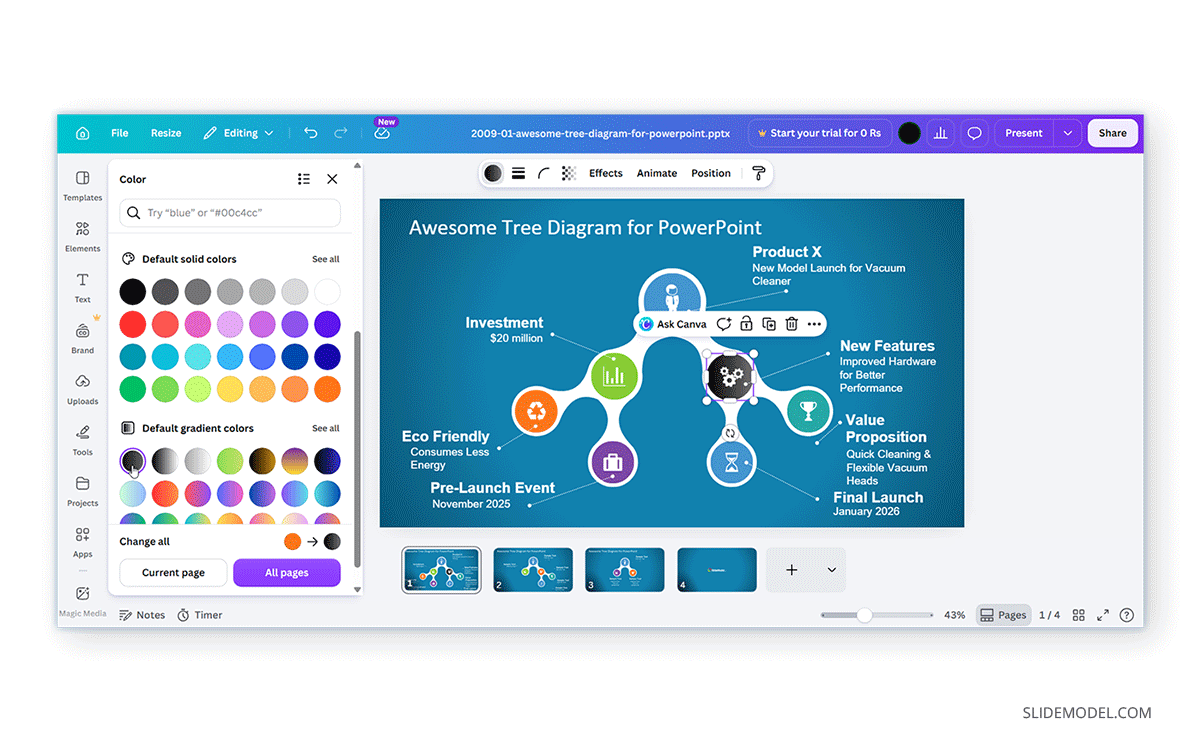
Many imported presentation elements remain editable after conversion. Shapes, icons, and design elements can often be recolored to match corporate branding or presentation themes. Canva also allows you to reposition elements, resize graphics, and reorganize slide layouts using drag-and-drop editing functionality.
PowerPoint Editing in Canva
When editing PowerPoint templates in Canva, some elements and settings are likely to remain intact, whereas others can cause compatibility issues.
What Can Usually Be Edited Easily After Import
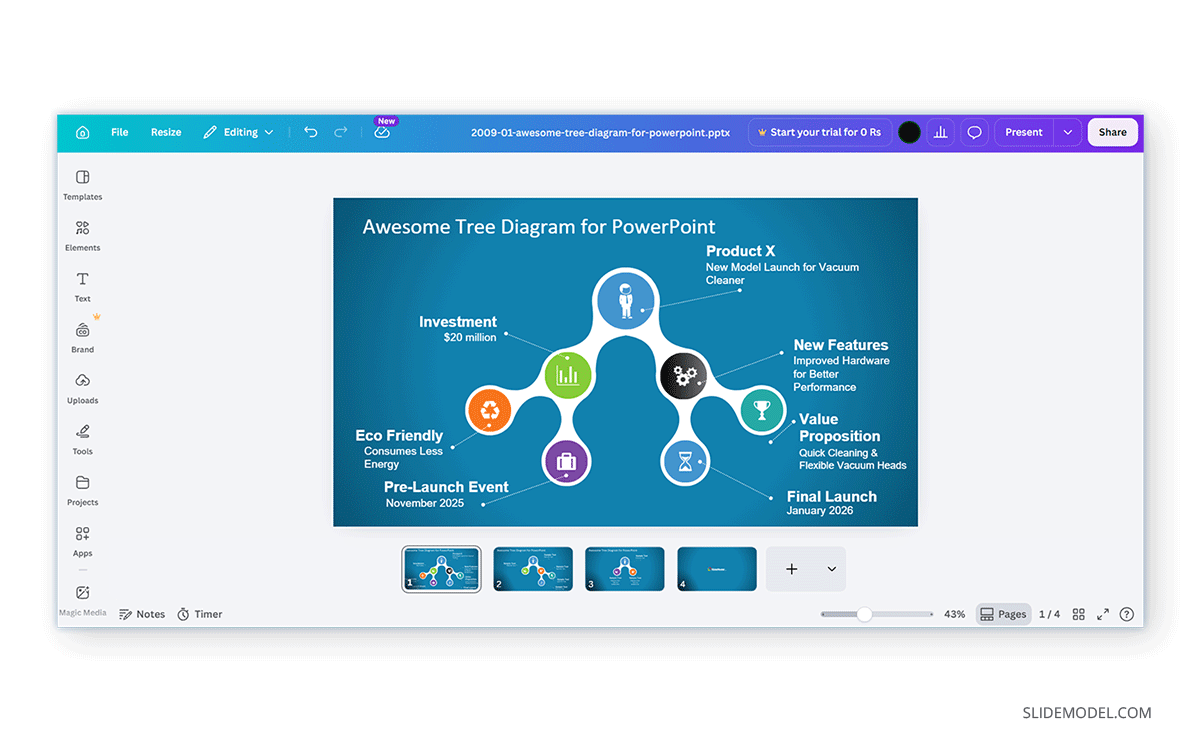
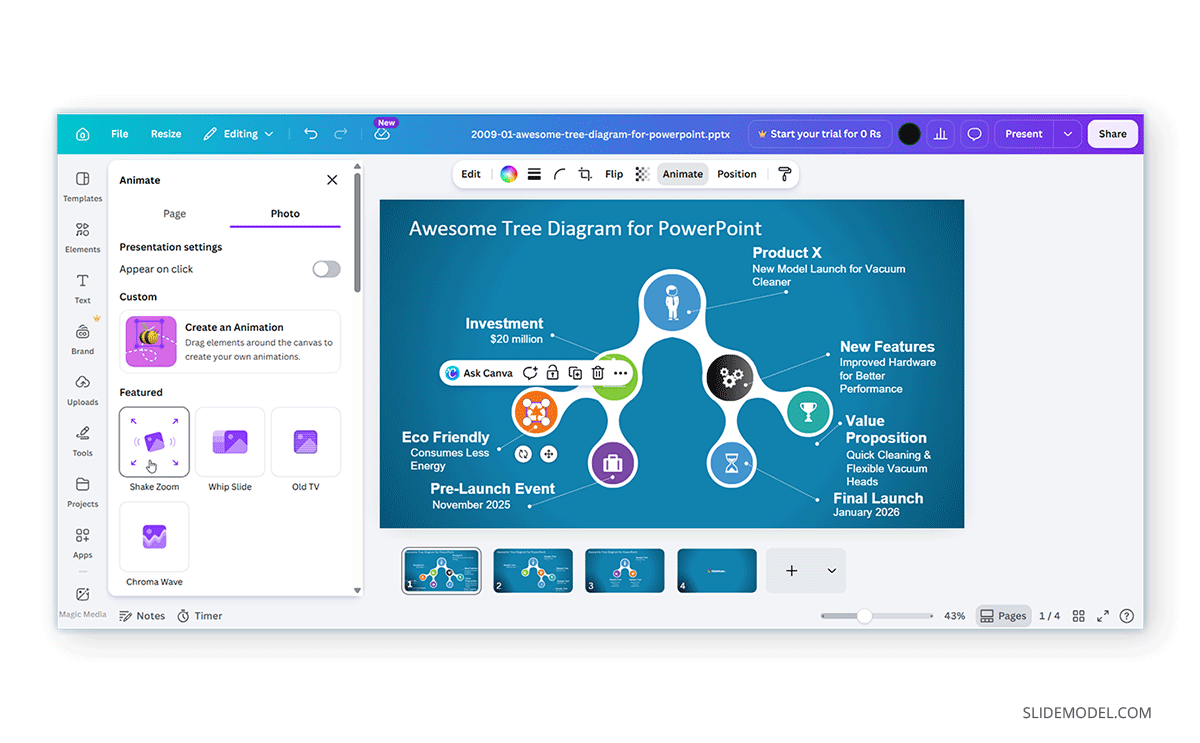
One reason many users choose Canva for PowerPoint editing is that a large portion of a typical presentation remains editable after conversion. We converted the Awesome Tree Diagram Template for PowerPoint in Canva and made minor edits to customize it.
Text: Text boxes generally retain their editing capabilities, allowing content to be updated quickly. Images can usually be replaced, resized, or repositioned.
Basic Shapes: Basic shapes such as rectangles, circles, and arrows often remain editable, including their colors and dimensions.
Backgrounds: In many cases, slide backgrounds and design elements can be customized easily. However, sometimes you might replace it with a plain white background.
PowerPoint Features Likely to Cause Compatibility Issues
Although Canva handles many presentation elements well, some PowerPoint-specific features can create challenges after import.
Animations and Transitions: One of the most common compatibility issues involves animations and transitions. Effects such as Morph, motion paths, trigger animations, and advanced transition effects are built using PowerPoint’s proprietary animation engine. Since Canva uses its own animation system, these effects are generally not preserved. If a slide relies heavily on animation-driven storytelling, those effects will usually need to be recreated manually in Canva.
SmartArt: Another feature that may behave differently in Canva is SmartArt. While SmartArt graphics are editable objects in PowerPoint, Canva may convert them into static graphics or grouped elements. This can make editing individual components more difficult than in the original presentation.
Master Layouts: Slide Master layouts also function differently in Canva. In PowerPoint, the Slide Master controls themes, placeholders, fonts, and layout relationships across the presentation. After importing a presentation into Canva, these master-level relationships are not maintained in the same way. Changes made to one slide will not automatically update related layouts as they might in PowerPoint.
Custom Shapes: Custom PowerPoint shapes, merged shapes, and advanced vector graphics can also present challenges. While these elements often retain their visual appearance, they may be converted into flat graphics or images during import. If significant editing is required, recreating them using Canva shapes may be the most practical solution.
Best Practices for PowerPoint Editing in Canva
One advantage of editing presentation templates in Canva is the ability to combine imported PowerPoint content with Canva’s design ecosystem. Successful PowerPoint editing in Canva often depends on managing expectations and carefully reviewing imported content. Below is a list of best practices to ensure your Canva slide decks made from PowerPoint templates work as intended.
Add Elements After Import
After importing a presentation, you can add Canva elements such as icons, illustrations, stickers, shapes, and graphics to enhance the slides.
Use Canva Brand Kits
Organizations using Canva Brand Kits can further streamline the editing process by applying approved fonts, colors, and logos throughout the presentation. This can be particularly useful when adapting third-party PowerPoint templates to meet internal branding standards.
Review Slides
Rather than assuming every slide will convert perfectly, it is advisable to review each slide individually after import. Pay particular attention to fonts, alignment, spacing, diagrams, and complex graphics. Making small adjustments immediately after conversion can prevent larger formatting issues later.
Simplify Slides
When working with highly customized presentations, simplifying complex PowerPoint elements before import can also improve results. Presentations with extensive SmartArt, advanced animations, or heavily customized shapes are more likely to require manual editing after conversion.
Use Native Canva Features
Whenever an imported object becomes difficult to modify, replacing it with a native Canva element is often faster and easier than preserving the original PowerPoint formatting. Canva’s animation tools can also be used to introduce visual emphasis where PowerPoint animations are lost during conversion.
Final Words
Once you learn how to edit PowerPoint in Canva, it can provide a flexible way to update presentation templates, collaborate online, and customize slide decks without relying exclusively on PowerPoint. Canva supports many common presentation elements, allowing you to edit text, images, colors, and layouts after importing a PowerPoint file. However, PowerPoint and Canva are built on different technologies, so some features will not transfer seamlessly. By understanding compatibility limitations before uploading a presentation and carefully reviewing imported slides, you can streamline the slide deck editing process.