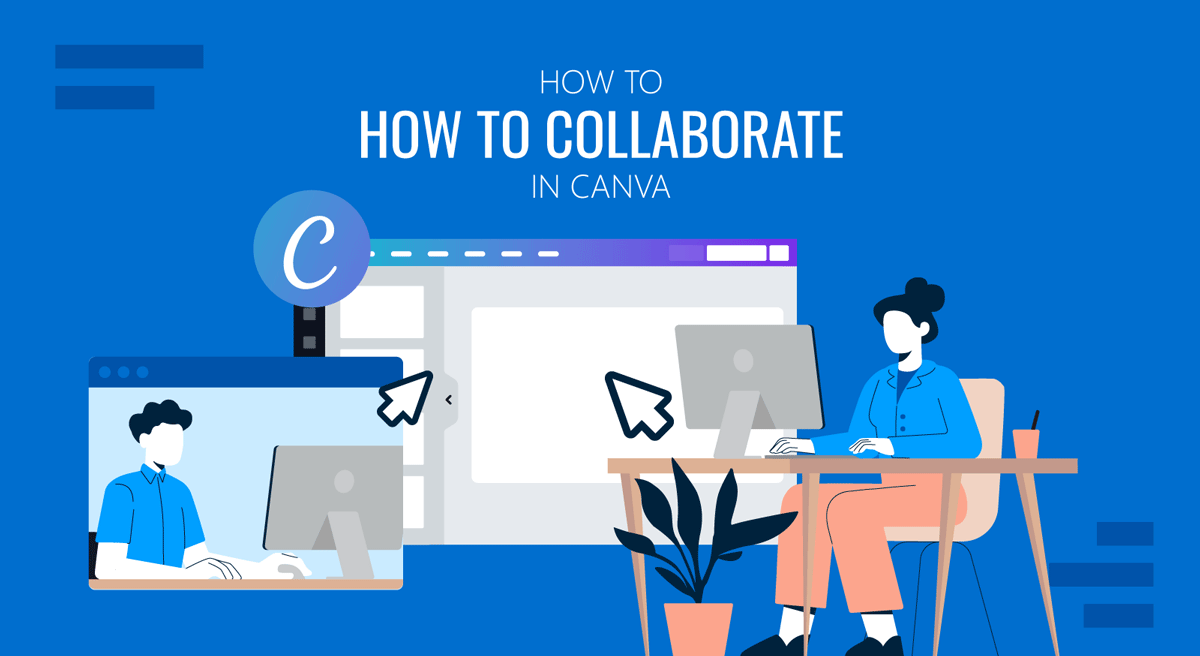
A marketing campaign might involve designers and copywriters, while a business proposal may require input from multiple departments. Similarly, classroom projects frequently involve several contributors working together. Instead of emailing different versions of the same presentation back and forth, Canva, like other similar platforms, lets multiple people work on a single presentation at the same time.
If you’re looking to collaborate in Canva, the platform includes built-in sharing and collaboration features that let you invite others to view, comment on, or edit your presentation. Changes save automatically, so team members can work on the same design without manually combining edits later. This guide explains how to share a presentation in Canva, invite collaborators, manage editing permissions, and track changes using Canva’s version history.
Why Collaborate in Canva
Canva is a cloud-based design platform, making it suitable for collaborative projects. If you’re using Canva as a presentation app, its collaboration features work as well as those of other platforms like PowerPoint and Google Slides. Instead of maintaining multiple copies of a presentation, everyone works from the same design, ensuring team members always have access to the latest version. This helps users collaborate on business presentations, training materials, marketing campaigns, educational projects, and other types of client presentations.
How to Share a Presentation in Canva
The first step in collaborating is sharing your presentation with other people. Here is how you can start sharing the deck in Canva for collaboration:
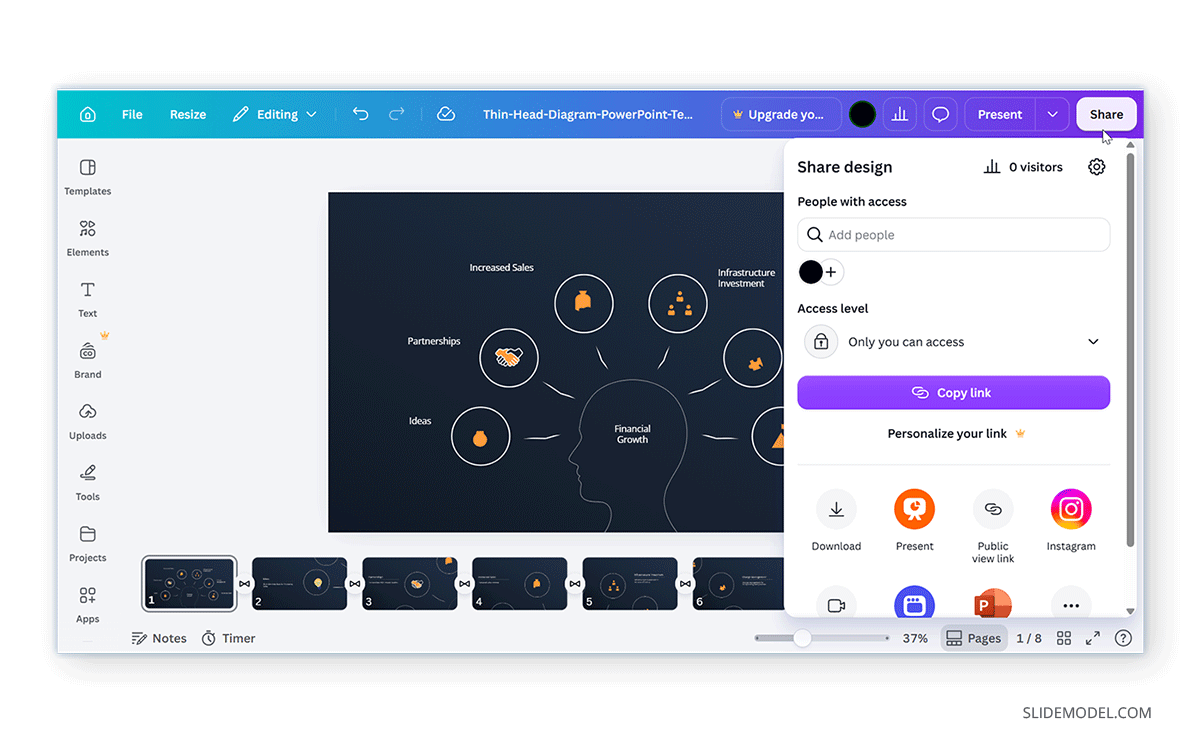
Step 1: Open the presentation you want to share and select the Share option.
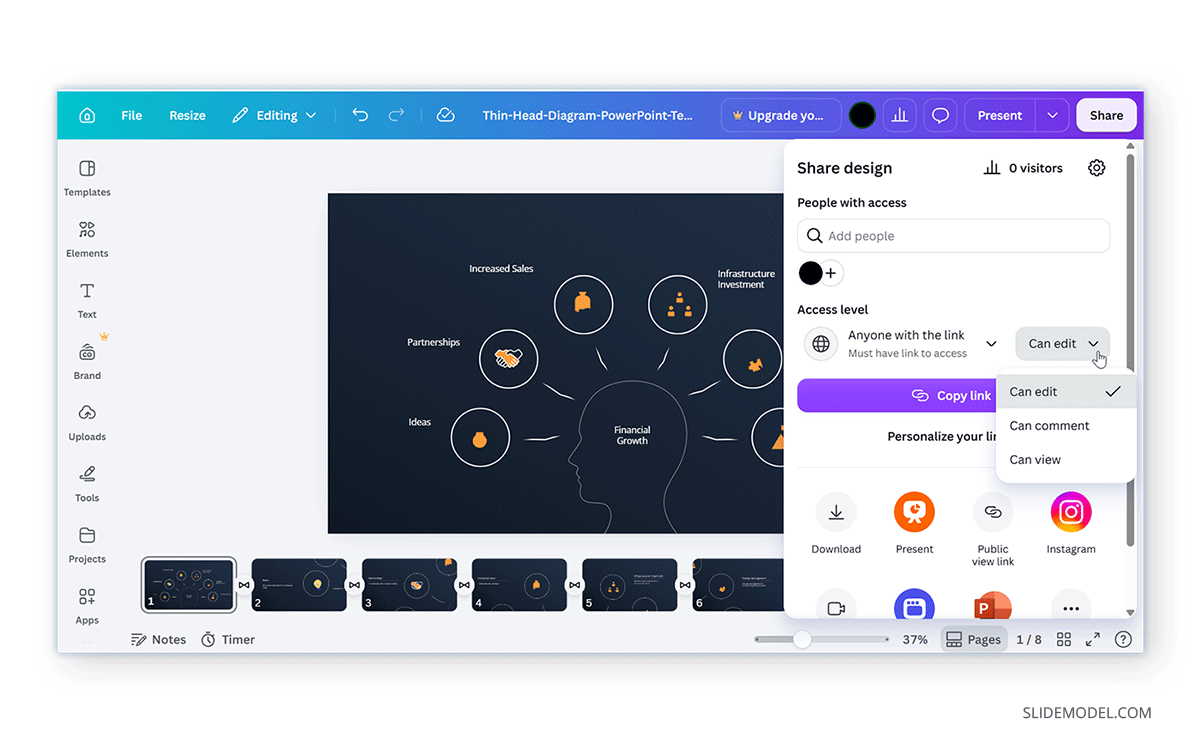
Step 2: Choose the access level for each collaborator. By selecting the appropriate permission, you can ensure that team members can contribute without making unintended changes to the presentation.
Step 3: Canva lets you invite collaborators directly or generate a shareable link to send via email, messaging platforms, or project management tools. Once you grant access and share the deck, collaborators can open the same presentation and begin working on it according to the permissions you’ve assigned.
Understanding Permissions for Sharing a Presentation in Canva
Not everyone who receives a presentation link needs the same level of access. Canva provides different permission settings that let you control how others interact with your design.
Can Edit
The Can edit permission allows collaborators to make changes to the presentation. Users with editing access can add or remove slides, modify text, replace images, edit layouts, and contribute new content. This option is best for team members actively creating or revising the presentation who need to collaborate and edit in Canva decks.
Can Comment
If you only need feedback, Can Comment is often the better choice. Collaborators can review the presentation and leave comments or suggestions without directly modifying the slides. This permission is useful when gathering client feedback, conducting internal reviews, or requesting approval before publishing a presentation.
Can View
The Can View permission allows recipients to open and read the presentation without making changes or leaving comments. This option is appropriate when sharing completed presentations with stakeholders, clients, or audiences who only need access to the finished content.
Public View Link
Similar to the Can View option, you can generate a public view link that you can delete at any time. Use this link to share the Canva presentation in its current form as a view-only link.
How to Efficiently Collaborate on a Canva Presentation in Real Time
One of Canva’s biggest advantages is that multiple people can work on the same presentation at the same time.
Choose the Right Permission Level
Before sharing your presentation, decide whether collaborators need editing, commenting, or viewing access. The right permission level helps protect important content while allowing team members to contribute appropriately.
Know That Changes Are Saved Automatically
As collaborators make edits, changes are saved automatically and become available to everyone with access to the design. This eliminates the need to merge different versions of the same presentation or manually incorporate edits received through email.
Everyone With Editing Privileges Can Edit Presentation Simultaneously
Real-time collaboration is particularly useful during presentation development, where one team member might refine the design while another updates charts, reviews text, or adds speaker notes. Working in a single shared presentation also helps ensure everyone edits the latest version rather than an outdated copy.
Use Comments for Feedback
Rather than making direct edits during the review stage, encourage collaborators to leave comments or suggestions. This allows presentation owners to review feedback before deciding which changes to implement.
Use Track Changes with Version History
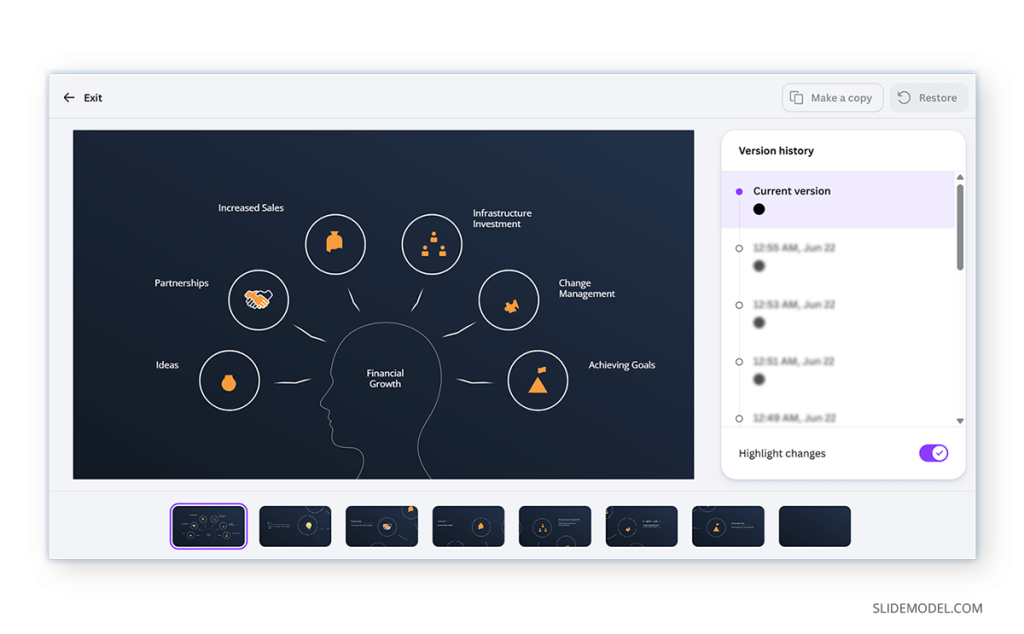
When several people collaborate on the same presentation, it helps to know what changed and when. Canva includes a Version History option, allowing you to review previous versions of a design and restore an earlier version if necessary. Depending on your workspace and editing history, Version History may also identify which collaborator made specific revisions, helping teams review contributions more effectively.
To access Version History, open your presentation and navigate to the Version History option via the File menu in Canva. The history shows saved versions of the presentation, along with when changes were made. If required, you can restore an earlier version without recreating deleted or modified content.
While the feature doesn’t work exactly like track changes in Microsoft Word, Version History is particularly useful for experimenting with new layouts, reviewing major edits, or recovering from accidental changes during a collaborative project.
Collaboration Features: Canva vs. PowerPoint
Both Canva and Microsoft PowerPoint support collaborative presentation editing, but they take slightly different approaches.
When Canva Is the Better Choice
Canva is built for browser-based collaboration, making it easy for multiple users to edit the same presentation from almost any device. Sharing a presentation requires only a link, and collaborators can begin working immediately, depending on the permissions the presentation owner assigns. This streamlined workflow makes Canva particularly well suited to marketing teams, educational projects, client reviews, and organizations that frequently collaborate online.
When PowerPoint Is the Better Choice
PowerPoint also supports real-time collaboration when presentations are stored in Microsoft OneDrive or SharePoint. For organizations already using the Microsoft 365 ecosystem, this integration provides a familiar environment for collaborative editing alongside applications such as Word, Excel, and Teams. PowerPoint may also be the preferred choice for presentations that rely on advanced desktop features, complex animations, or workflows that need to support both online and offline editing.
Final Words
Canva makes it easy for multiple people to create and refine presentations together without exchanging multiple versions of the same file. By sharing a presentation with the appropriate permissions, using comments for feedback, and reviewing Version History when needed, teams can collaborate more efficiently while keeping presentations organized and up to date.
Choosing the right access level is just as important as sharing the presentation itself. Whether you’re working with colleagues, clients, or classmates, Canva’s collaboration features offer a simple, effective way to build presentations together while maintaining control over how the design is reviewed, edited, and shared.