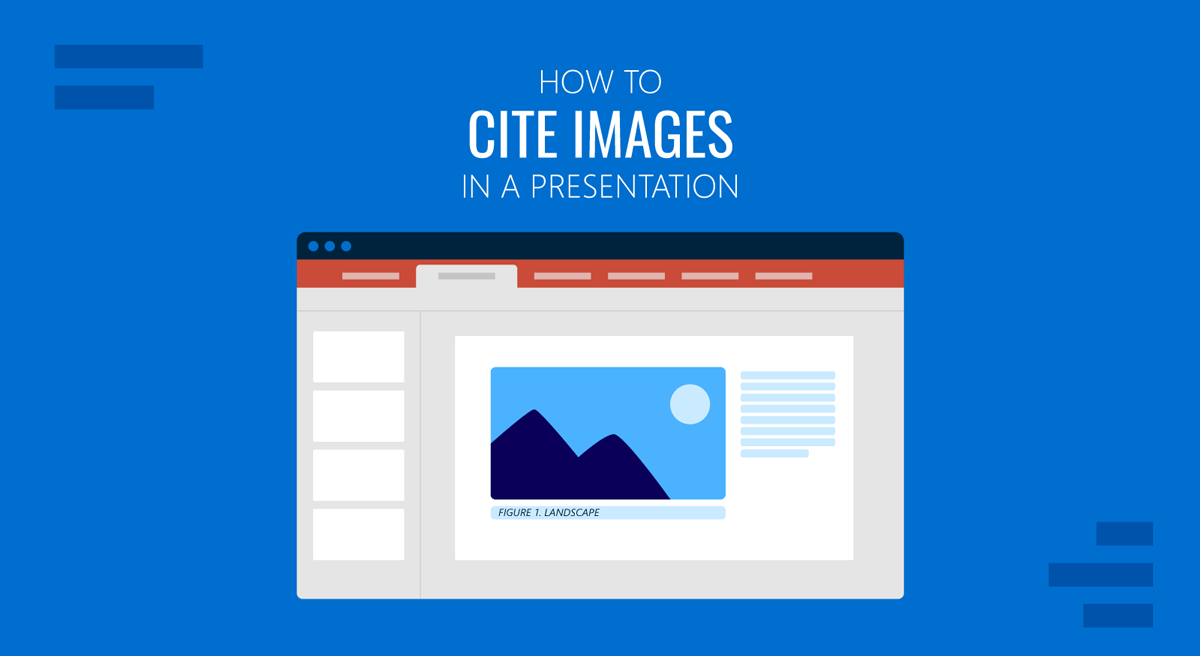
Images can make a presentation easier to understand, but using third-party pictures also raises a basic question: how do you attribute them? In professional and academic presentations, citing image sources is even more essential. Whether you use PowerPoint, Google Slides, Keynote, Canva, a PDF, or a printed handout, a citation ensures you comply with image-attribution procedures.
A useful image citation normally identifies the creator, image title or description, source, usage rights or license, and access date where relevant. The citation can appear directly below the image, in a slide footer, in speaker notes, or on a reference slide depending on the presentation context. Let’s take a look at the various citation methods that you can use for different types of images in presentations. For instructions specifically focused on Microsoft PowerPoint, you can see our guide to citing pictures in PowerPoint.
What Information Should an Image Citation Include
There is no single citation format that works for every image source. A photograph from a stock library does not have the same metadata as a museum painting, a screenshot, or an image you generated using AI. However, most image citation guidelines for presentations can be reduced to a few core elements:
Creator: Include the photographer, artist, designer, organization, or other identifiable creator in the citation.
Title or Description: Use the formal title when one exists. If the image is untitled, provide a short description that identifies it.
Source: State where the image came from, such as a website, museum collection, stock library, report, database, or generative AI platform.
License or Usage Rights: Include the license when relevant, particularly for Creative Commons (CC), stock imagery, open-access collections, or other images distributed under defined reuse conditions. Most Creative Commons licenses require attribution, although works released under CC0 can generally be used without attribution. Images in the public domain can usually be reused without seeking permission, although acknowledging the creator or holding institution may still be good practice. Stock-image requirements vary by provider and license. Many paid stock licenses do not require visible attribution, but presenters should check the specific licensing terms before use.
Date: Include the publication or creation date when available.
Access date: This can be useful for online collections or pages that may change over time.
URL or reference: For digital sources, retain the source location even if the complete URL is placed on a reference slide rather than underneath the image.
Your organization, university, publisher, or client may require a particular citation style, such as APA, Chicago, or Harvard. In that case, you must use the format according to the required style.
Where Should You Put Image Citations in a Presentation
A citation should identify the image without competing with the slide’s main message. For a formal presentation, a short attribution can usually be placed beneath the image or in a small footer. You can then include the complete source information on a reference slide at the end of the presentation.
Example:
Photo: Jane Smith / Example Photo Library
The references slide can contain the complete creator, image title, source, license, date, and source location. This is useful for professional presentations to make the citation unobtrusive compared to the main slide content. For academic presentations, follow the citation style required by the institution or instructor. In some cases, a figure caption or full citation may be expected directly on the slide.
Note: Citation and permission are not the same thing. Identifying the creator does not automatically give you the right to reproduce an image. Always check the relevant license, usage terms, or permission requirements before using restricted material.
How to Cite Images from Stock Photo Sites
Stock photography is commonly used to add relevant images to slides, but the appropriate attribution depends on the platform and license. When the photographer is identified, record the photographer or creator, image title or description, stock platform, license or usage terms, and source.
Example:
Photo by Alex Morgan, “Business team meeting,” Example Stock Library, licensed image.
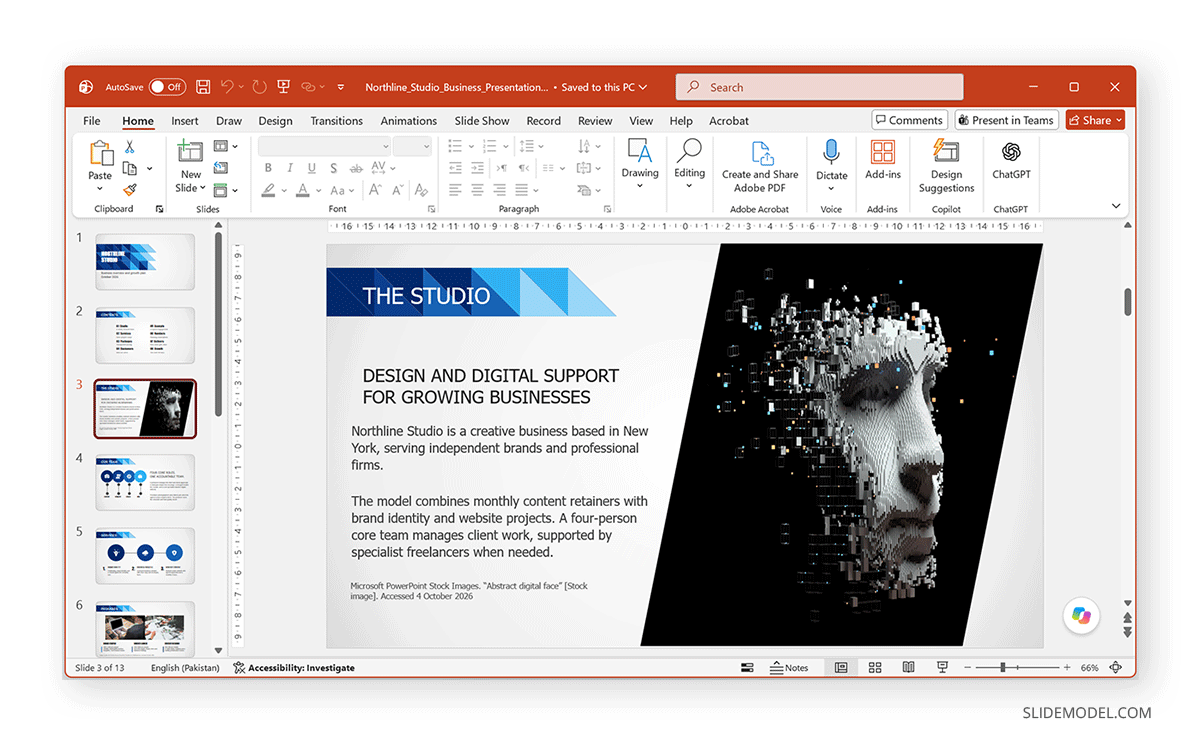
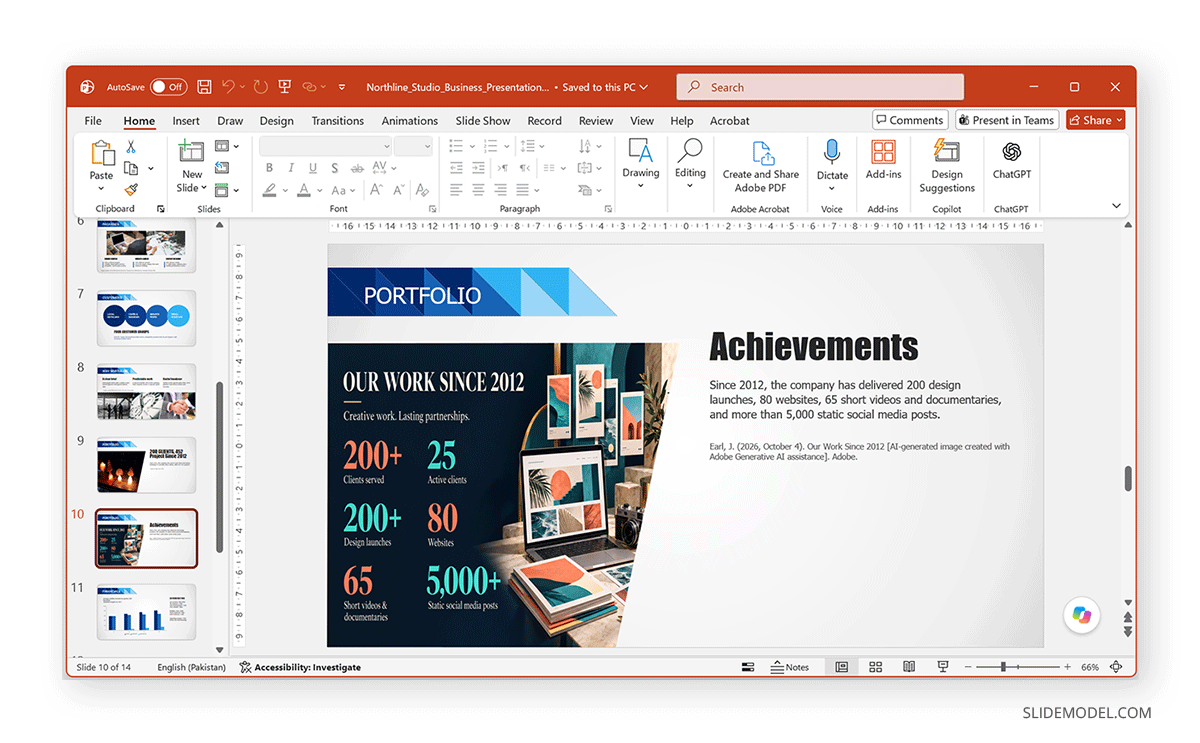
Some stock platforms do not require visible attribution under their standard paid licenses. Even then, keeping the source information internally can be useful. It lets you verify later where an image came from, what license applies, and whether you can reuse it in another publication. When learning how to cite a picture from a stock site, therefore, check both the citation information and the license conditions. In the example below, we edited the Blue Business PowerPoint Template, inserted a stock image, and cited it on the slide.
How to Cite Images from Museums and Archives
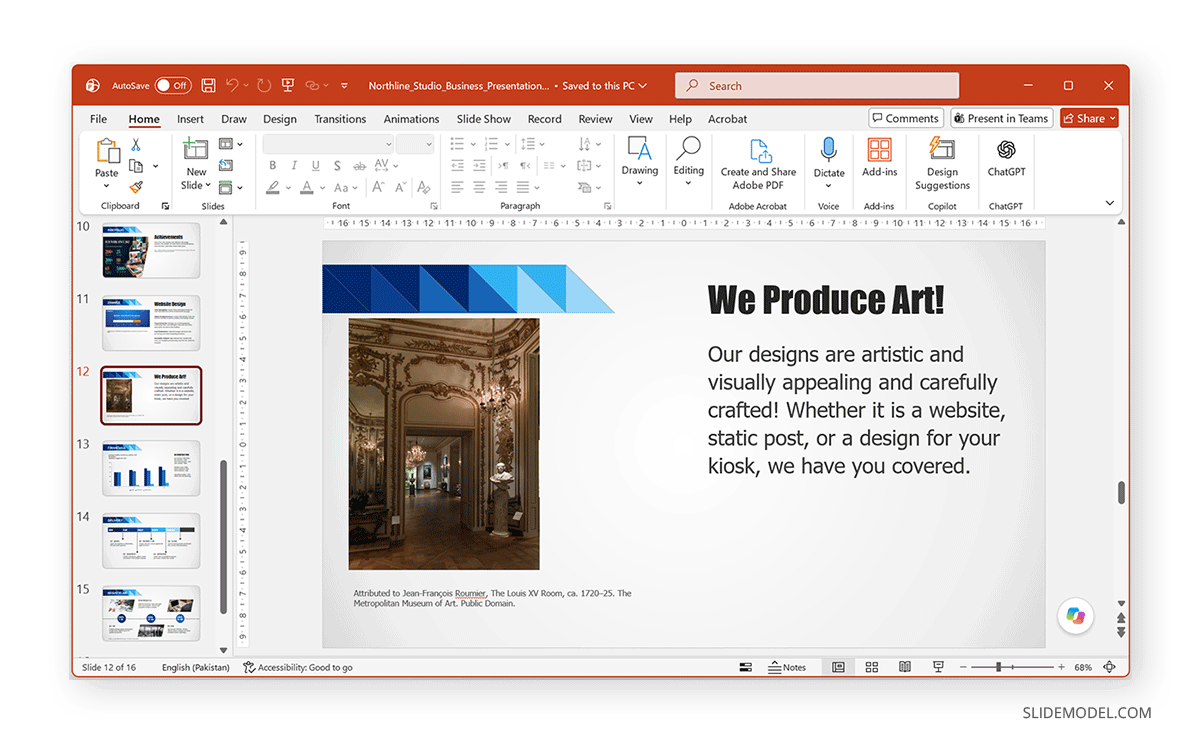
Museum and archival collections often provide much richer metadata than stock libraries. Where available, include: Artist or creator, title, date, collection or institution, source, and rights statement.
Example:
Artist Name, Title of Work, Year, Example Museum Collection, public domain.
Museums may provide high-resolution images under specific open-access policies, Creative Commons licenses, or rights statements. Preserve that information with the citation. If the work is in the public domain, citing it is still valuable because it tells your audience what they are looking at and where they found the digital reproduction. For historical images, photographs, maps, manuscripts, and archival materials, the holding institution or collection name can be especially important because it helps another researcher trace the original item.
How to Cite Screenshots in a Presentation
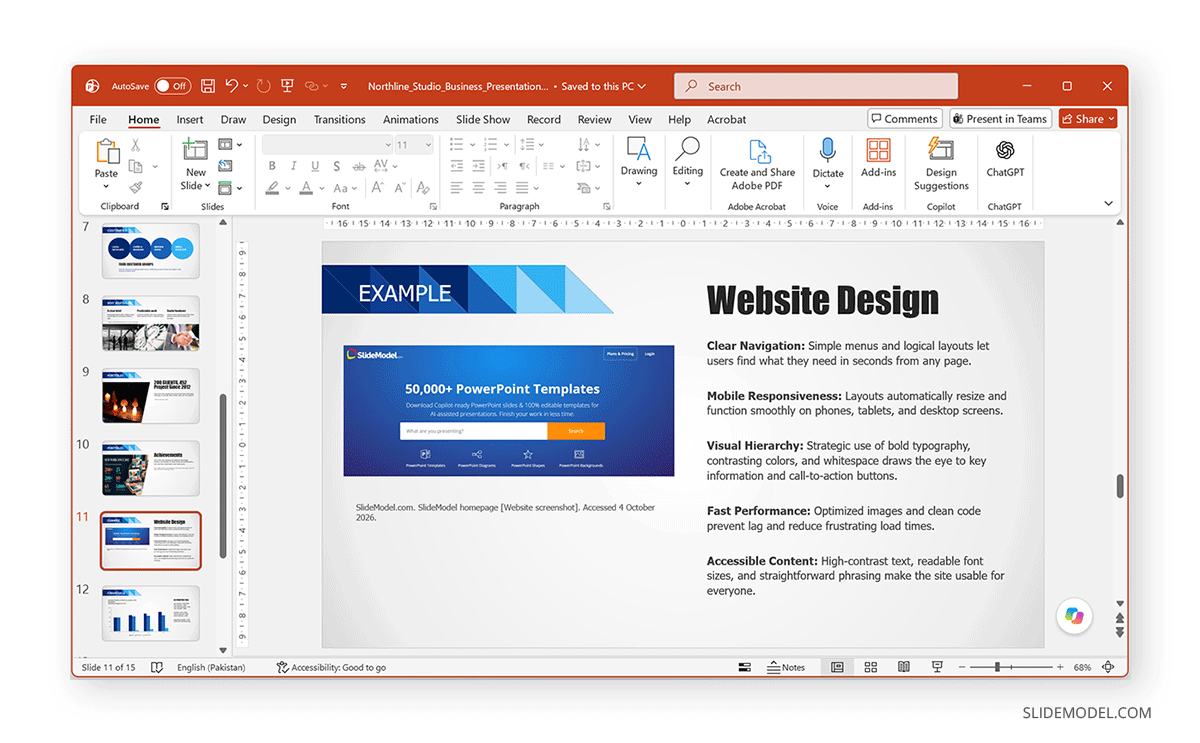
Screenshots require a slightly different approach because you are usually documenting an interface, web page, social media post, application, chart, or other digital content rather than reproducing a standalone photograph. A practical citation can include the Name of the website, application, or organization; a description of what was captured; the date of the screenshot; and the source.
Example:
Screenshot of Example Analytics dashboard, Example Company, captured on Date.
If the screenshot comes from a public webpage, retain the page URL in your source notes or references. For software tutorials, it may also be useful to identify the product or version if the interface is likely to change. This makes the visual easier to interpret later. Screenshots can contain third-party photographs, trademarks, personal information, or other protected material, so citing the webpage or application does not necessarily resolve every usage-rights issue.
How to Cite Your Own Photographs
Personal photography is one of the simplest cases because there is no external source to trace. For a presentation where authorship matters, you can use the below-mentioned format:
Example:
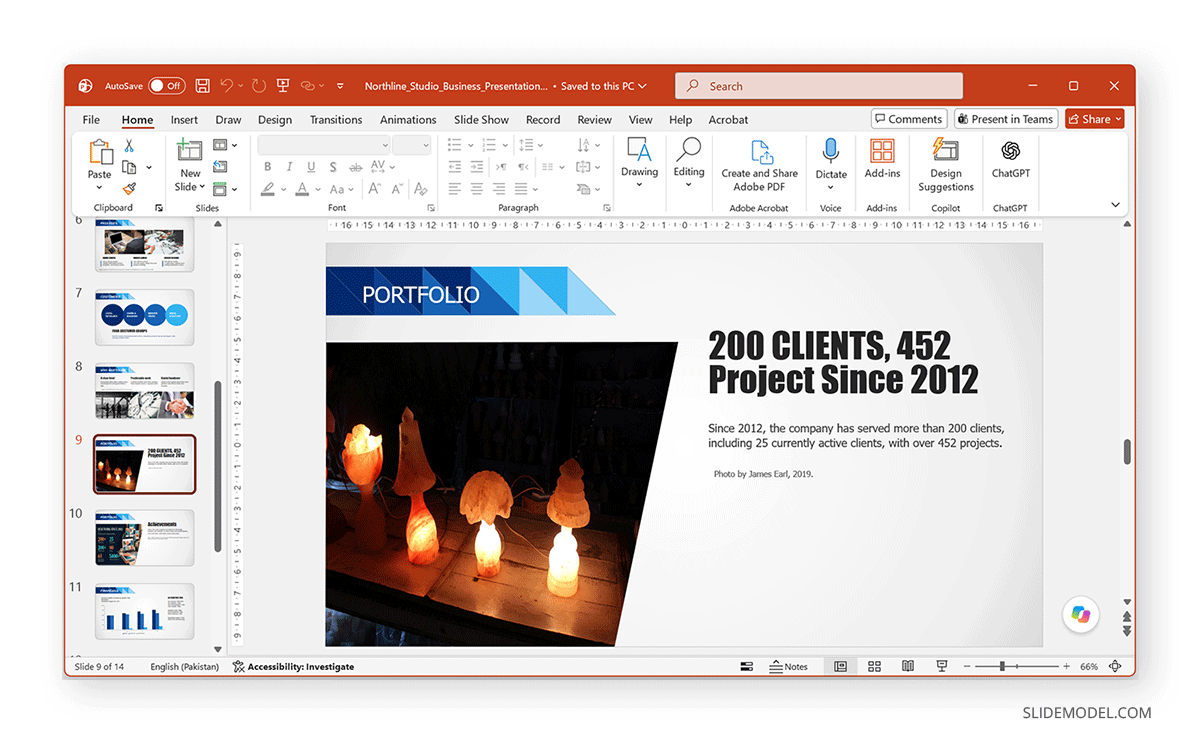
Photo by [Your Name], Year.
or
Source: Author’s photograph.
In an informal presentation, a citation may not be necessary if it is already clear that the image belongs to the presenter. For academic, published, or externally distributed work, however, identifying an image as your own can help distinguish it from sourced material. Use this when a presentation mixes original photography with stock or archival images.
How to Cite AI-Generated Images
Citing AI-generated images follows a similar format, with a few exceptions. Unlike a conventional photograph, an AI-generated image may not have a human photographer or a conventional publication source. Citation practices are also still developing, and institutions do not all prescribe the same format.
Guidelines on AI-Generated Content
Current university guidance generally emphasizes transparency about the tool used and the circumstances under which the output was created. For example, Wayne State University Libraries’ guidance on citing AI-generated images emphasizes identifying the AI tool, version (where possible), publisher or creator, generation date, and prompt-related information in styles such as MLA, APA, or Chicago/Turabian. Similarly, the University of Maryland Libraries also guides major citation styles and treats generative AI citation as an area where writers should follow the requirements of the relevant style and institutional context. For more details, you can see these university guidelines explaining how to cite AI correctly. RMIT’s current guidance is particularly explicit for images. Its updated referencing guidance recommends disclosing that an image was AI-generated and including the AI tool and prompt in the image caption. Its broader AI guidance also records the tool creator, date or year of generation, and source or shareable location where appropriate in a section on citing and referencing guidelines for AI tools.
Keep a Source Record While Building the Presentation
Keep source details when you download or create an image rather than reconstructing them at the end. Record the creator, title or description, source, license, and relevant dates. For AI-generated images, also save the tool, model, prompt, and generation date.
Below are general details you should record as a rule of thumb to ensure you have the information needed to cite AI-generated images in presentations:
AI Tool or Model: Identify the system used to generate the image, such as Adobe Firefly, DALL-E, FLUX, Google’s Nano Banana, ChatGPT (OpenAI), Canva (Magic Media), or another image-generation platform.
Creator or Platform: Identify the company or organization responsible for the tool, where required.
Prompt: Record the prompt used to produce the image when feasible.
Generation Date: Note when the image was created.
Platform or Source Location: Identify where the image was generated, especially when the tool or output can be linked (e.g., during a competition or job-related test where AI assistance is allowed).
Model or Version: Include this when it is known and relevant.
How to Cite Images at the End of the Presentation
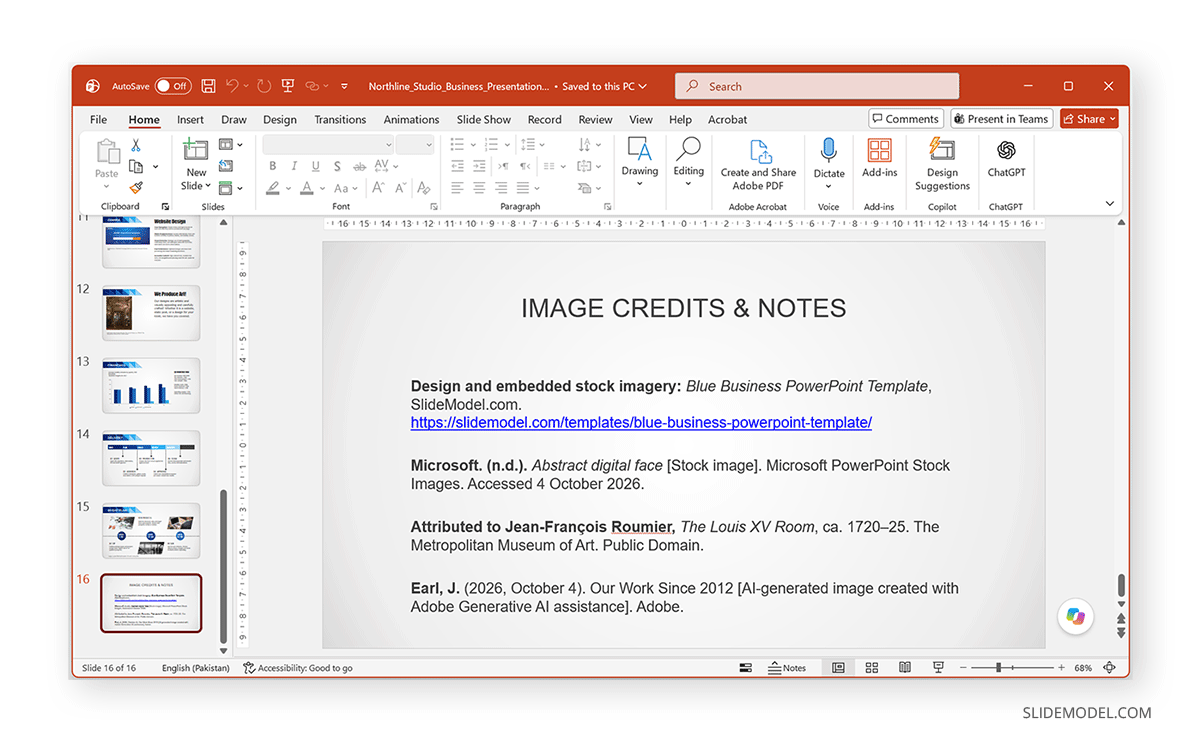
For presentations with many visuals, a dedicated Image References or Image Credits slide can keep individual slides clean while preserving full source details. Add a short credit beneath each image where needed, then list the complete citation at the end of the presentation.
For each image, include the creator, title or description, source, date, and license or usage information where relevant. Numbering the images can help connect each reference to the correct slide.
Example:
Design and embedded stock imagery: Blue Business PowerPoint Template, SlideModel.com.
https://slidemodel.com/templates/blue-business-powerpoint-template/
Microsoft. (n.d.). Abstract digital face [Stock image]. Microsoft PowerPoint Stock Images. Accessed 4 October 2026.
Earl, J. (2026, October 4). Our Work Since 2012 [AI-generated image created with Adobe Generative AI assistance]. Adobe.
Final Words
Learning how to cite images in a presentation is less about memorizing one universal format and more about preserving enough information for an audience to identify the visual and its source. Stock photography, museum collections, screenshots, personal photographs, and AI-generated images each require slightly different details, but the basic principle remains consistent: identify the creator or tool, describe the image, record the source, note relevant usage rights, and preserve the date or access information where necessary.