Shapes in Canva presentations can help create elements and illustrations to organize information in slides. Shapes in Canva and from imported content, such as PowerPoint presentations, can be customized by adjusting their color and style. In this guide, we will show you how to change the shape color in Canva slides, add textures, and discuss what limitations you may encounter when importing PowerPoint templates with shapes to Canva.
Why Use Shapes in Canva
Canva offers a wide range of shapes, including rectangles, circles, triangles, arrows, lines, polygons, etc. These shapes serve as versatile building blocks for presentation design, helping users create clear and visually engaging slides. As with PowerPoint, Canva shapes can be used to create diagrams, timelines, process flows, roadmaps, comparison layouts, callout boxes, and infographics. They can also be used to highlight important information and separate content into sections. Since shapes can be quickly customized with different colors, textures, and effects, they are an effective way to explain slide content.
How to Change Canva Shape Color
Unlike images, shapes can usually be recolored instantly, making them useful for maintaining a consistent presentation theme. However, it is important to note that imported PowerPoint shapes may behave differently depending on how the original slide was created.
Step 1: Open your Canva presentation and click on the shape you want to modify. Once selected, Canva displays editing options in the toolbar at the top of the screen. If the shape supports color customization, one or more color tiles will appear in the toolbar.
Step 2: Click the color tile shown in the toolbar. This opens Canva’s color panel, where you can access various color options, including theme, brand, document, recently used, and custom colors. Some shapes and graphic elements may contain multiple editable colors. In such cases, Canva displays multiple color tiles that can be edited independently.
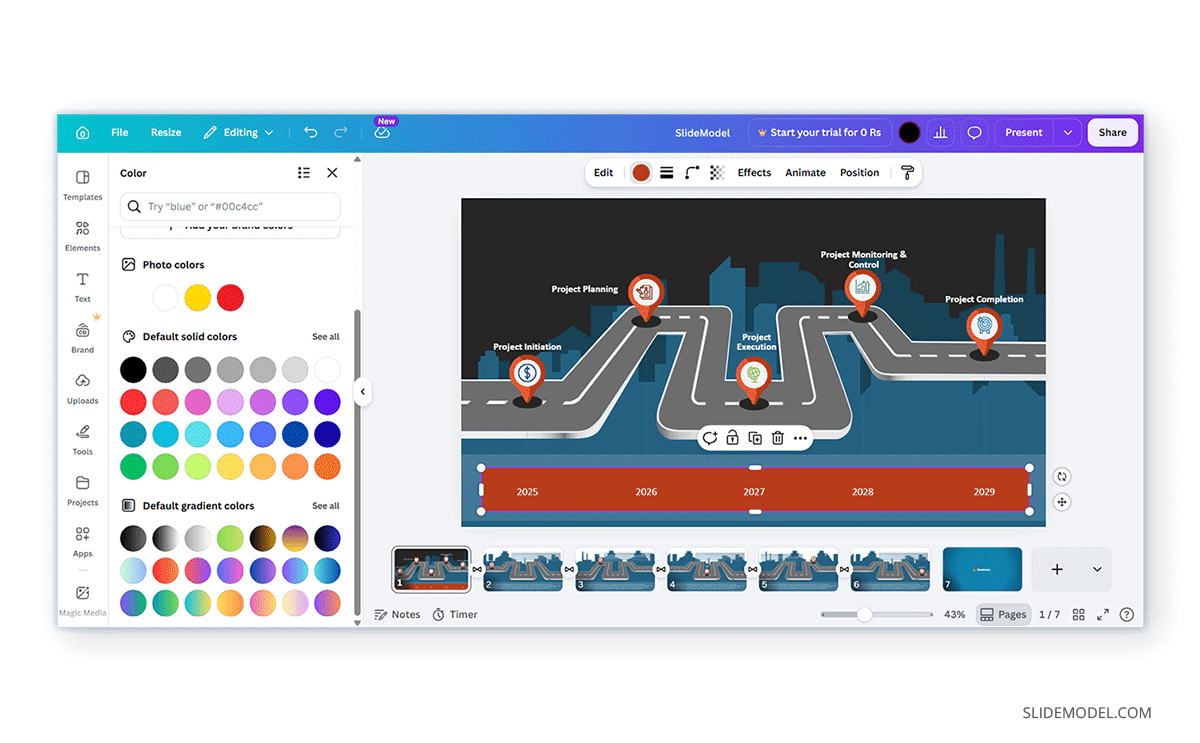
Step 3: Select a color from the available palette or create a custom color. As soon as you click a color, the selected shape updates automatically. This allows you to experiment with different color combinations and instantly preview how the changes affect your slide design.
Step 4: After selecting a color, simply click outside the shape to continue editing your presentation. The new Canva shape color will remain applied until you modify it again.
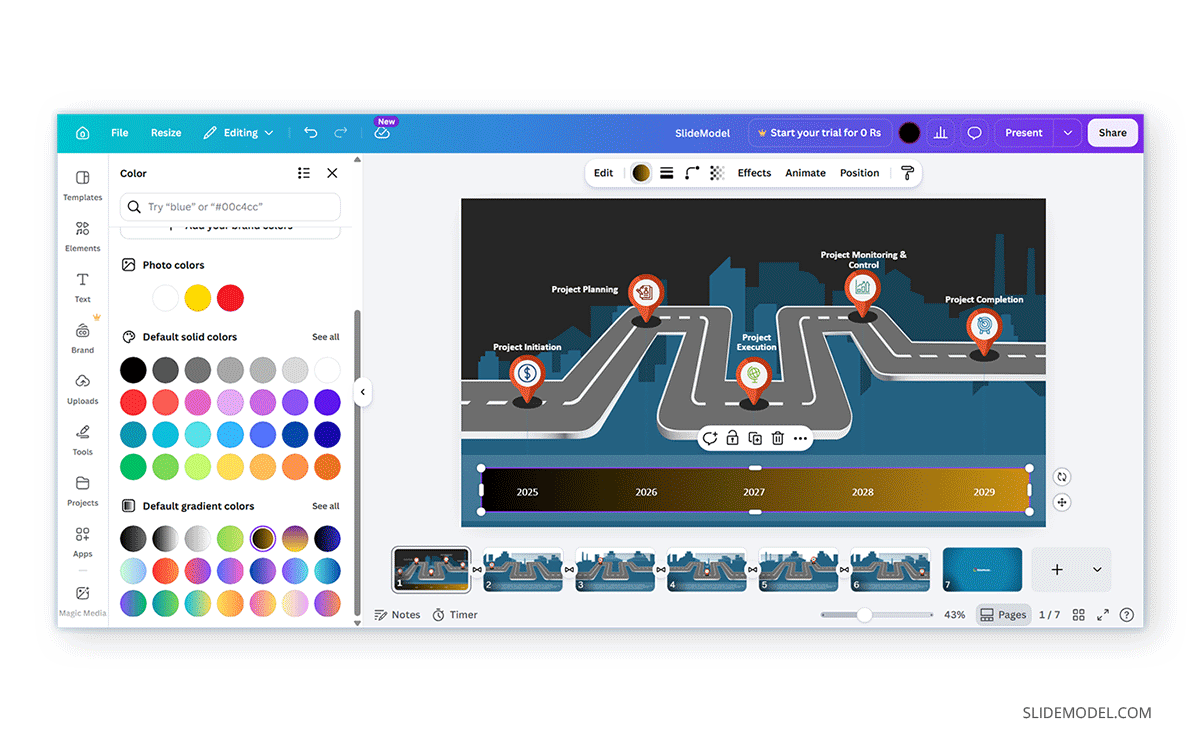
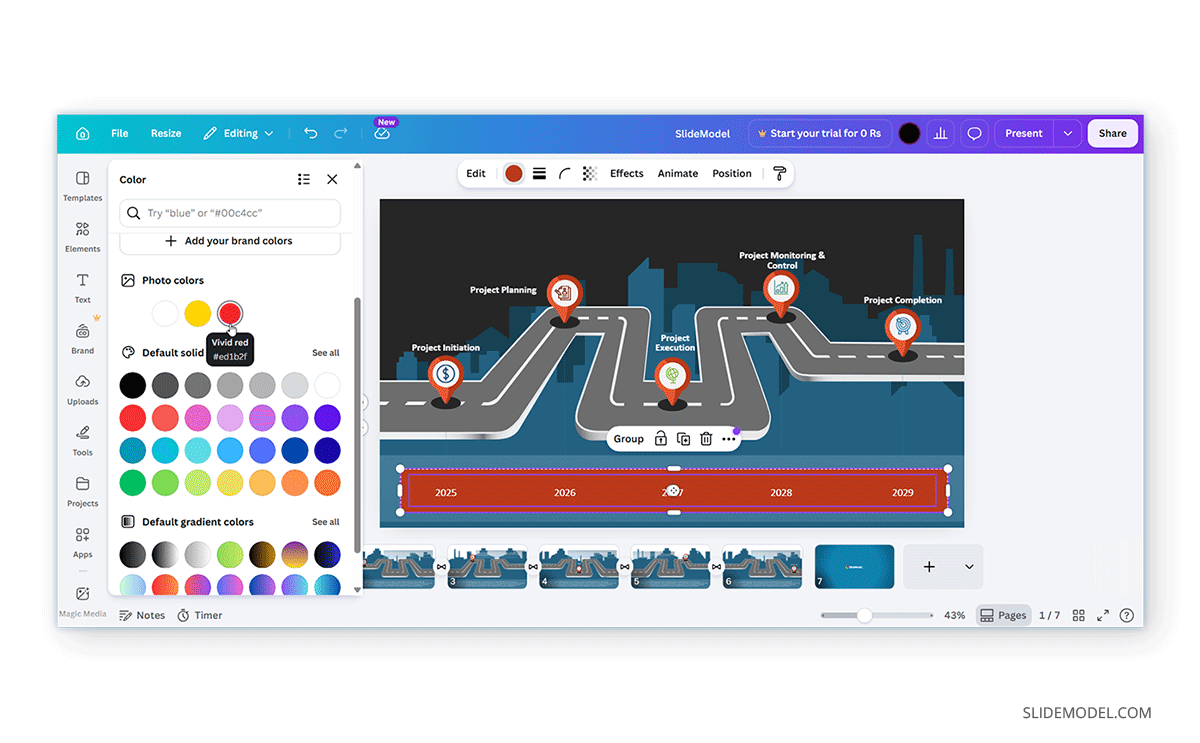
In the example below, we added a rectangular shape to the Animated Isometric Roadmap PowerPoint Timeline Template and changed the color using a gradient.
Color Options in Canva
With Canva, you can use different color types, including custom colors with HEX codes and saved company color sets. Furthermore, it comes with an eyedropper tool that lets you pick specific colors on click.
Using Custom Colors in Canva
While Canva provides predefined color palettes, many presentations require more precise color control. If you have a specific brand color, you can enter a HEX color code directly into Canva or use the color wheel.
Using Brand Kit Colors
If you have access to Canva’s Brand Kit feature, you can save company colors and apply them throughout your presentation. This reduces the need to manually enter color values each time you create a new design.
Using the Eyedropper Tool in Canva
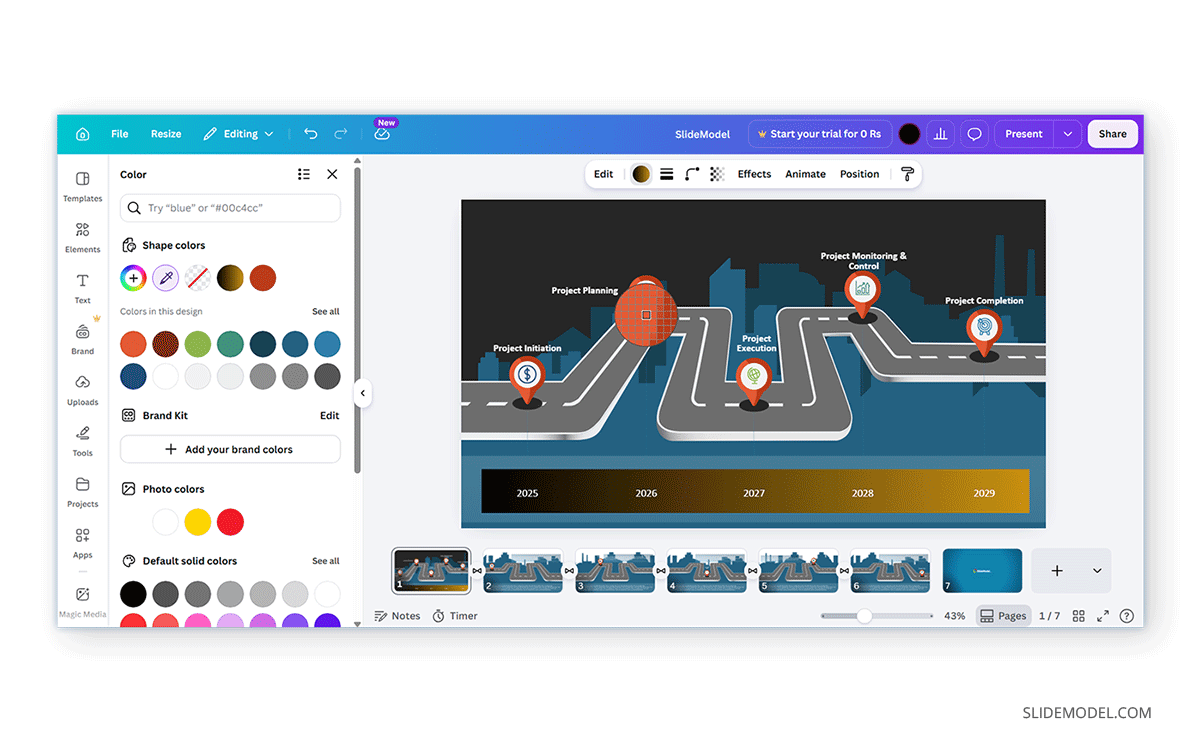
One of the easiest ways to match colors in a presentation is to use the eyedropper tool in Canva’s color picker. The eyedropper tool lets you sample colors from existing elements in your design. To use the eyedropper tool, select the shape you want to recolor, open the color panel, and click the eyedropper icon. Move the cursor over the desired color, then click it to apply it. Canva automatically applies the sampled color to the selected shape.
How to Change the Color of Multiple Shapes
Presentations often contain diagrams with multiple shapes that need the same color. Instead of editing each shape individually, you can update several shapes at once. This approach can save considerable time when working with flowcharts, organizational charts, or infographic layouts.
Step 1: Hold the Shift key while selecting multiple shapes in Canva.
Step 2: Click the color tile in the toolbar, then select a color option.
Step 3: Choose a new color, and the selected shapes will update simultaneously. You can pick a default solid color, gradient, enter a HEX code, or use the color wheel to select colors. To pick a specific color from the slide, use the eyedropper tool.
How to Add Texture to a Shape in Canva
Many users searching for how to add texture to a shape in Canva expect functionality similar to PowerPoint’s texture fill options. However, Canva handles textures differently. Below are three easy methods to add texture to a shape in Canva.
Method 1: Use a Texture Image
One of the simplest approaches is to use an image containing a texture. Examples include wood, paper, fabric, stone, and metal textures. Upload the texture image and position it over the shape. You can then resize, crop, and align the image to create the appearance of a textured shape.
Method 2: Use Transparency and Layering
Another method involves combining a solid shape color with a partially transparent texture overlay. By adjusting transparency levels, you can create subtle texture effects while maintaining readability. This technique is particularly useful for presentation backgrounds and infographic components.
Method 3: Use Canva Elements
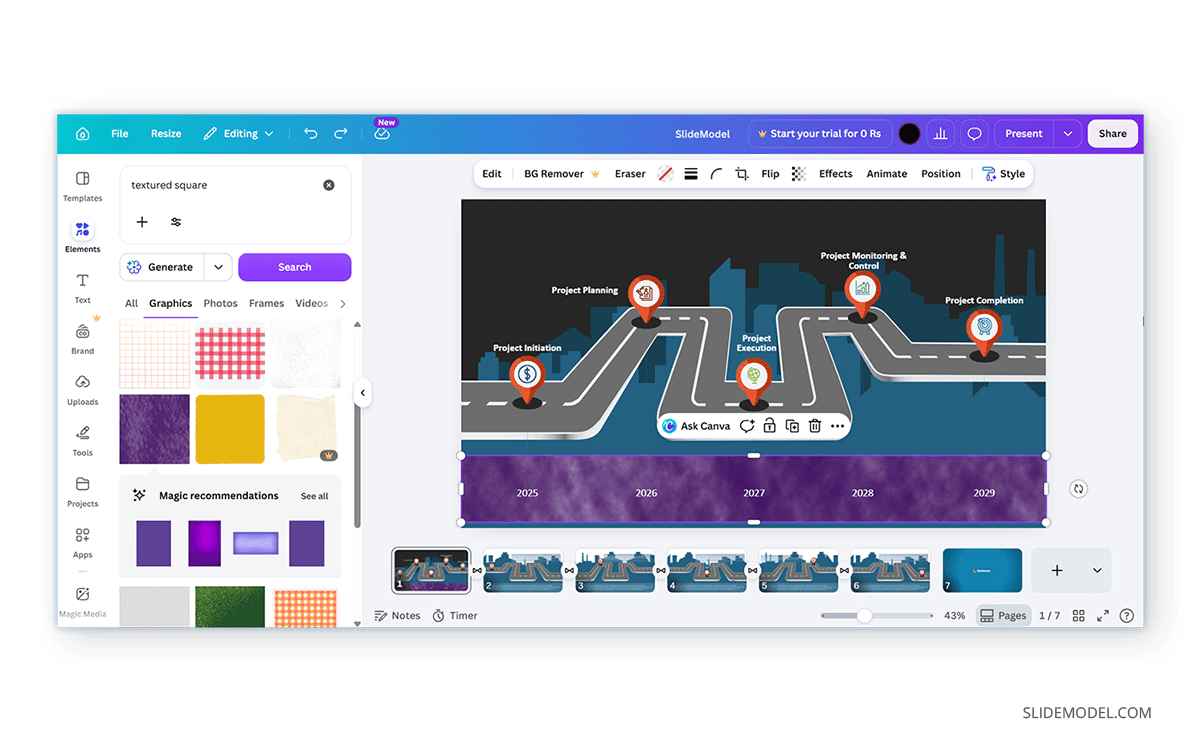
Canva contains numerous built-in texture elements. You can search for terms such as paper, grain, or fabric texture. These elements can be layered over shapes to create a more detailed visual appearance. In the example below, we used a rectangular textured shape to create a background for the timeline text.
Shape Color Limitations When Importing PowerPoint Templates
When importing PowerPoint presentations into Canva, shape editing capabilities can vary depending on how the original slide was designed.
Basic Shapes Usually Remain Editable
Simple PowerPoint shapes such as rectangles, circles, and arrows often retain their editable properties after import. In many cases, you can modify their colors directly in Canva.
Complex Shapes May Not Remain Editable
Custom PowerPoint shapes, merged shapes, advanced vector graphics, and certain SmartArt elements may be converted into images during import. When this happens, the shape can no longer be recolored using Canva’s standard shape color control options.
Imported Graphics May Behave Differently
Some icons, diagrams, and illustrations created in PowerPoint may appear as flat images after conversion. While the overall design remains visible, individual components may no longer be editable after import.
Gradient and Multi-Color Shapes May Not Import Correctly
PowerPoint supports advanced formatting options such as gradients, multi-color fills, transparency effects, and artistic shape styles. During import, Canva may simplify some of these effects or convert them into static graphics. As a result, imported shapes from templates may look different from their original PowerPoint versions, and some color components may no longer be editable separately.
Common Issues and Fixes
While changing shape colors in Canva is generally straightforward, you may occasionally encounter limitations depending on the type of element you’re editing or the template’s design. Below are some common issues and practical solutions.
Shape Color Options Do Not Appear
Sometimes the color controls do not appear after selecting an object. This usually happens because the selected element is an image, a flattened graphic, or a design element that does not support color editing.
Fix: Verify that the selected object is an editable Canva shape or graphic. If the object was imported from another application or a third-party presentation template, it may no longer be recognized as a shape. In such cases, replacing it with a native Canva shape or recreating the element using Canva’s built-in tools may restore color-editing functionality.
Missing Eyedropper Tool
The eyedropper tool may not appear for every element in Canva. Some graphics, photos, and imported objects do not support direct color customization.
Fix: Select a color-editable shape, icon, or graphic and reopen the color panel. If the eyedropper tool is available for that element, it should appear within the color picker options.
Imported PowerPoint Shape Cannot Be Recolored
When importing PowerPoint presentations into Canva, some shapes may lose their editable properties. This is particularly common with SmartArt, merged shapes, advanced vector graphics, and custom PowerPoint objects.
Fix: If the imported object behaves like an image rather than a shape, Canva may not allow color changes. Replacing the object with a similar Canva element or recreating the shape manually is often the easiest solution.
Colors Look Different After Export
A design may appear slightly different after downloading due to transparency settings, overlays, screen calibration, or the selected export format. Colors can also look different across devices.
Fix: Preview the exported file before sharing it widely. If color accuracy is important, review transparency settings, remove unnecessary overlays, and test the presentation across multiple screens to ensure colors appear as intended.
Multiple Shapes Change Color Unexpectedly
If several shapes update when you intended to recolor only one, the elements may have been grouped or selected simultaneously.
Fix: Check whether multiple objects are selected before applying a new color. If necessary, ungroup the elements and edit each shape individually to avoid unintended changes.
Brand Colors Are Not Available
Users who rely on company branding may notice that saved brand colors are missing from a design.
Fix: Ensure that the correct Brand Kit is available and active for the account being used, since this is a premium feature. If Brand Kit access is unavailable, manually enter HEX color codes to maintain consistent branding.
Final Words
Once you know how to change shape color Canva presentations, you can apply brand colors, match existing design elements with the eyedropper tool Canva provides, or experiment with textures and overlays. Canva offers a range of customization options for enhancing presentation graphics. At the same time, it is important to understand the limitations of imported PowerPoint content. While basic shapes often remain editable, complex PowerPoint graphics and custom shapes may require recreation using native Canva elements.