Building a PowerPoint presentation often starts with a single slide, but most projects quickly grow into a structured deck with multiple sections, charts, images, and supporting content. Knowing how to add slides efficiently not only speeds up the design process but also helps maintain a consistent layout throughout the presentation.
If you’re wondering how to add a slide to PowerPoint, Microsoft provides several ways to do it. You can insert a new slide from the Home tab, use a keyboard shortcut, right-click within the slide thumbnail pane, duplicate existing slides, or import slides from another presentation. This guide covers each approach, shows how to choose the right slide layout, and shares practical tips for keeping your presentation organized as it grows.
Why Adding Slides Correctly Matters
Adding a new slide may seem like a simple task, but choosing the right method can save time and help maintain consistency throughout the presentation. For example, a sales proposal might require multiple slides with identical formatting but different content. Rather than recreating each slide manually, you can duplicate an existing slide or select a layout that matches your presentation’s design. Likewise, when building a presentation collaboratively, using predefined layouts helps ensure every slide follows the same visual style. This can help comply with brand guidelines and maintain specified standards for your deck.
How to Insert a New Slide in PowerPoint
PowerPoint provides several ways to insert new slides depending on how you prefer to work. The methods below cover the most common approaches.
Method 1: Using the New Slide Button
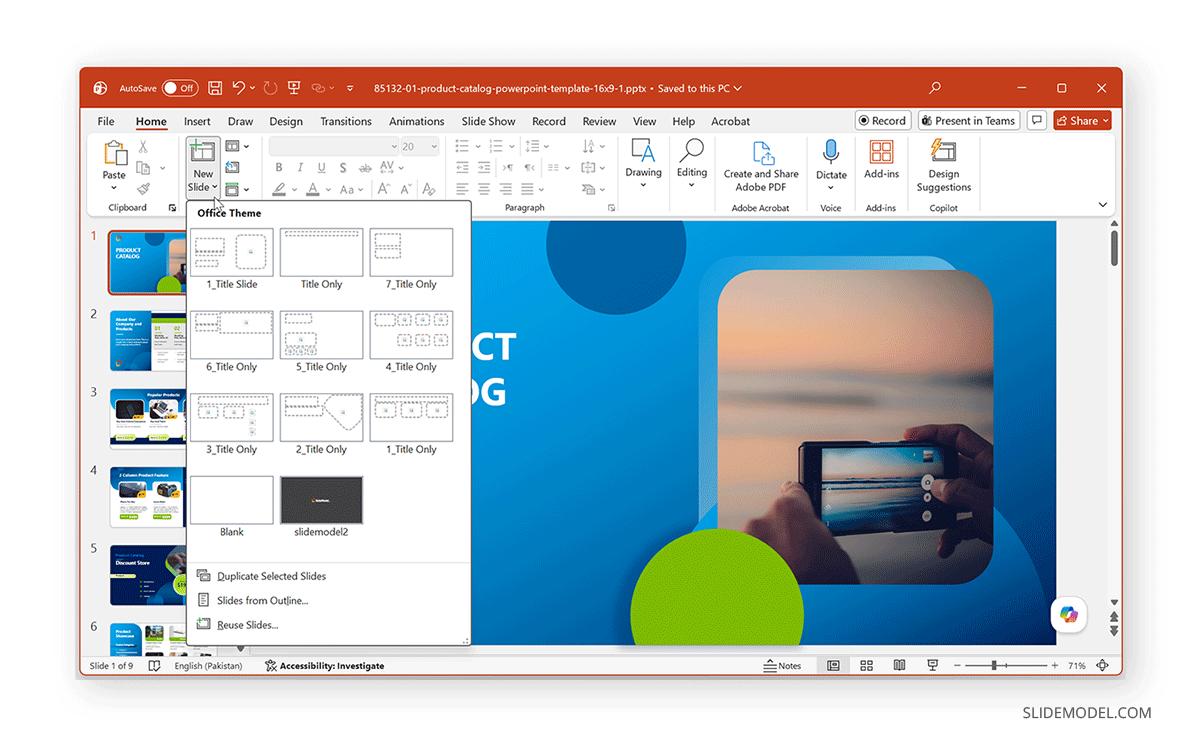
The most common way to insert a new slide in PowerPoint is by using the New Slide option. Begin by selecting the slide that should precede the new one. Then choose New Slide from the Home tab. PowerPoint inserts a new slide using the default layout associated with your presentation theme.
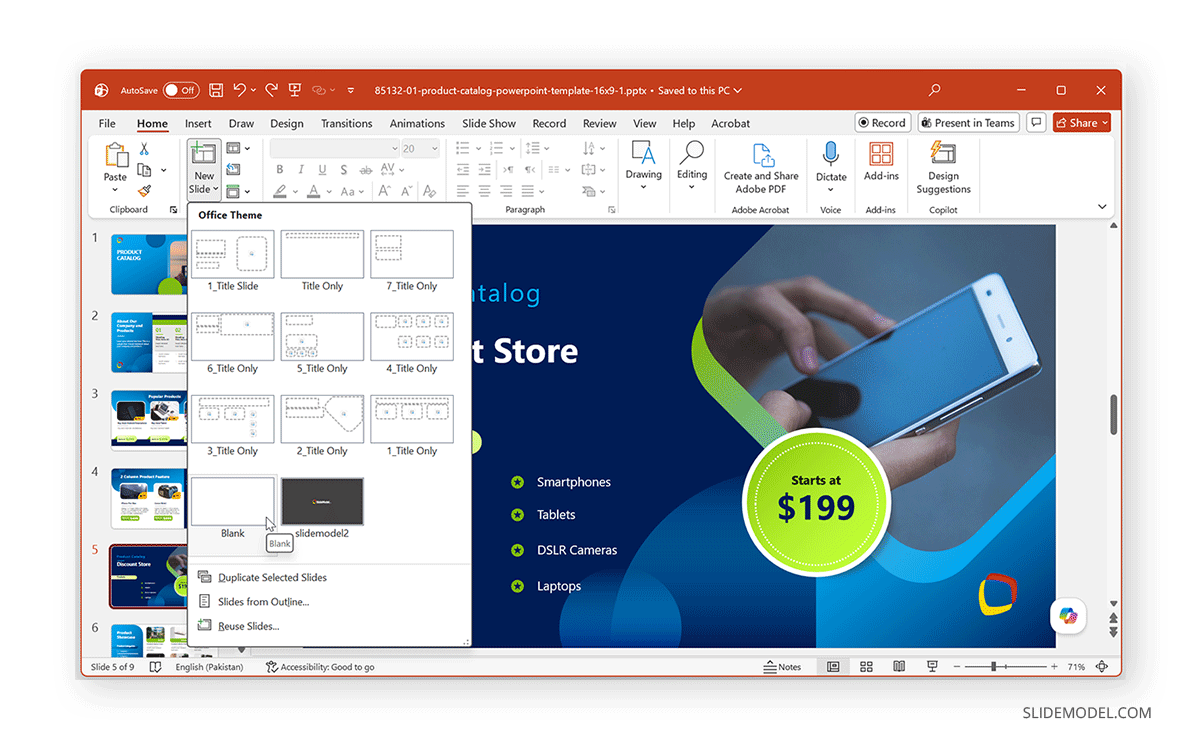
If you need a different layout, use the New Slide drop-down menu instead of clicking the main button. This displays the layouts available in your presentation, allowing you to choose the most appropriate one before inserting the slide. Selecting the layout at the time of insertion reduces later formatting adjustments and keeps the presentation consistent from the start.
Method 2: Right-Click in the Slide Pane
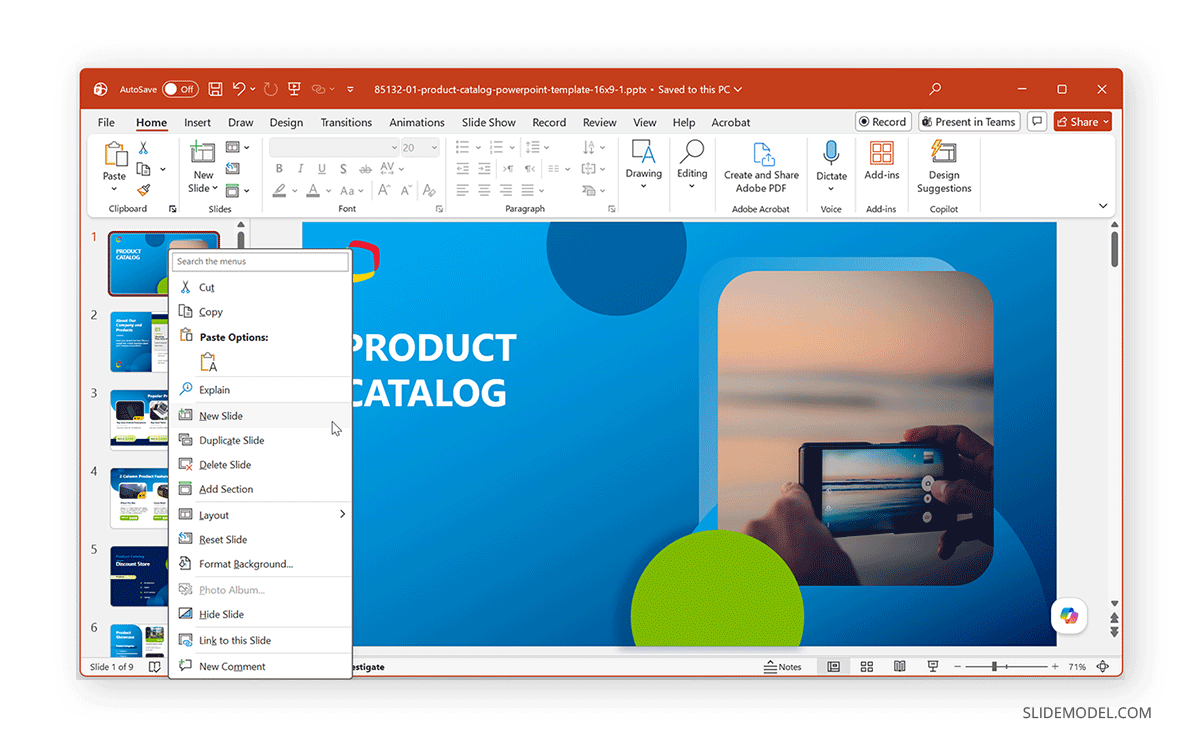
Another convenient way to add a slide is through the slide thumbnail pane. Select the slide after which you want the new slide to appear, then right-click its thumbnail and choose New Slide from the context menu.
This method is particularly useful when you’re already working within the slide pane to reorganize or review your presentation. It eliminates the need to move back to the Ribbon and provides a quick way to insert additional slides while maintaining your current workflow. Like the Home tab method, the new slide is inserted immediately after the selected slide.
Method 3: Using the Keyboard Shortcut
If you frequently create presentations, learning the PowerPoint new slide keyboard shortcut can significantly speed up your workflow.
Windows: On Windows, press CTRL+M to insert a new slide after the currently selected slide.
Mac: On Mac, you can create a new slide using the Command+Shift+N hotkey.
This PowerPoint add slide shortcut is especially useful when building presentations quickly, as it lets you keep working without interrupting your flow to navigate the Ribbon or context menus. Many experienced PowerPoint users rely on keyboard shortcuts for repetitive tasks because they reduce mouse movements and help streamline presentation creation.
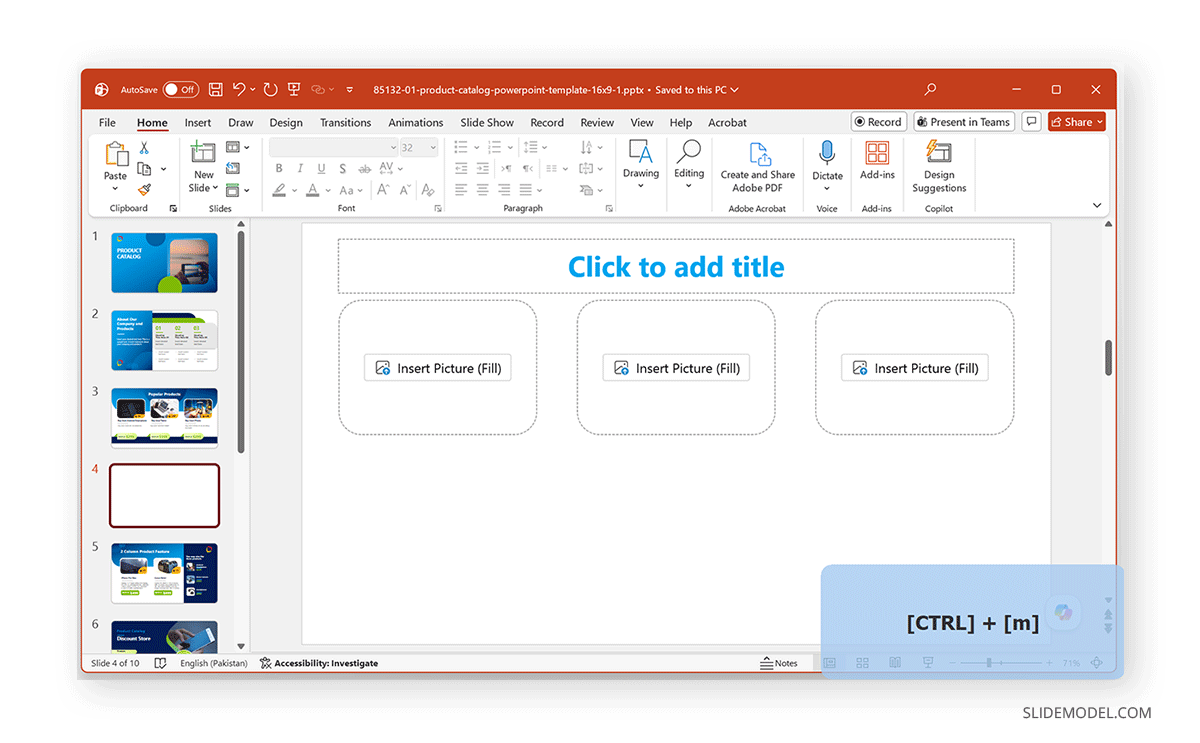
How to Insert Slide at Specific Position in PowerPoint
When working with larger presentations, you’ll often need to insert new slides between existing ones rather than simply adding them to the end of the deck. The easiest way to insert a slide at a specific position in PowerPoint is to first select the slide that should come immediately before the new one. PowerPoint inserts the new slide directly after your selection, letting you control its placement without extra adjustments. For example, if you want to insert a new agenda slide between slides 4 and 5, select slide 4 before adding the new slide. PowerPoint will place the new slide directly after it. If you accidentally insert a slide in the wrong place, you can drag its thumbnail to a different position in the presentation.
If you’re outlining a presentation, consider adding section-divider slides before filling in the detailed content. This approach creates a clear structure from the outset and makes it easier to expand each section as your presentation develops. If your presentation evolves during editing, remember that you can always rearrange slides by dragging their thumbnails to a new position in the slide pane.
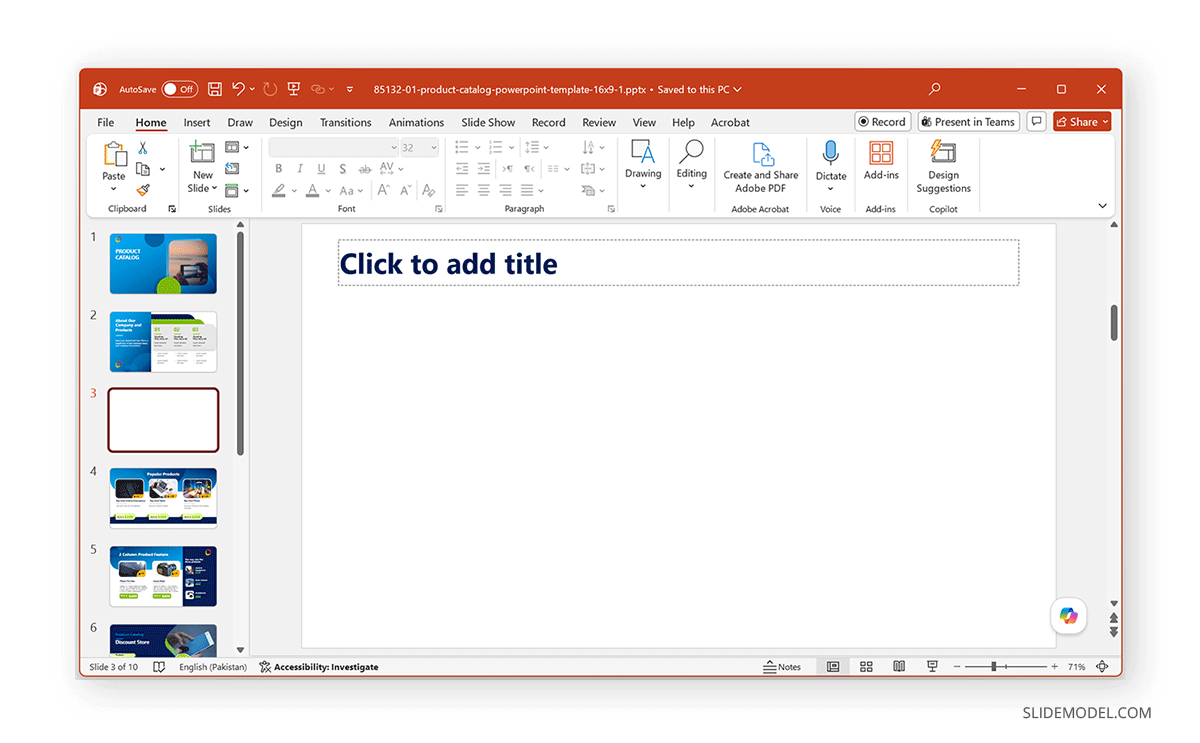
How to Add a Blank Slide in PowerPoint
Sometimes the standard PowerPoint layouts don’t provide the flexibility you need. For example, you might want to create a custom infographic, design a timeline, add a large image, or build a slide using only shapes and icons.
In these situations, a blank slide is often the best choice. To add a blank slide in PowerPoint, open the New Slide menu and select the Blank layout. PowerPoint inserts a slide without any placeholders, allowing you to position content wherever you like. While blank slides offer complete creative freedom, they also require more manual alignment than standard layouts. If your presentation follows corporate branding or accessibility guidelines, consider using built-in layouts whenever possible and reserve blank slides for designs that genuinely require a custom arrangement.
How to Duplicate a Slide in PowerPoint
Creating every slide from scratch isn’t always the most efficient approach. If several slides share the same structure, duplicating an existing slide can save time and preserve formatting.
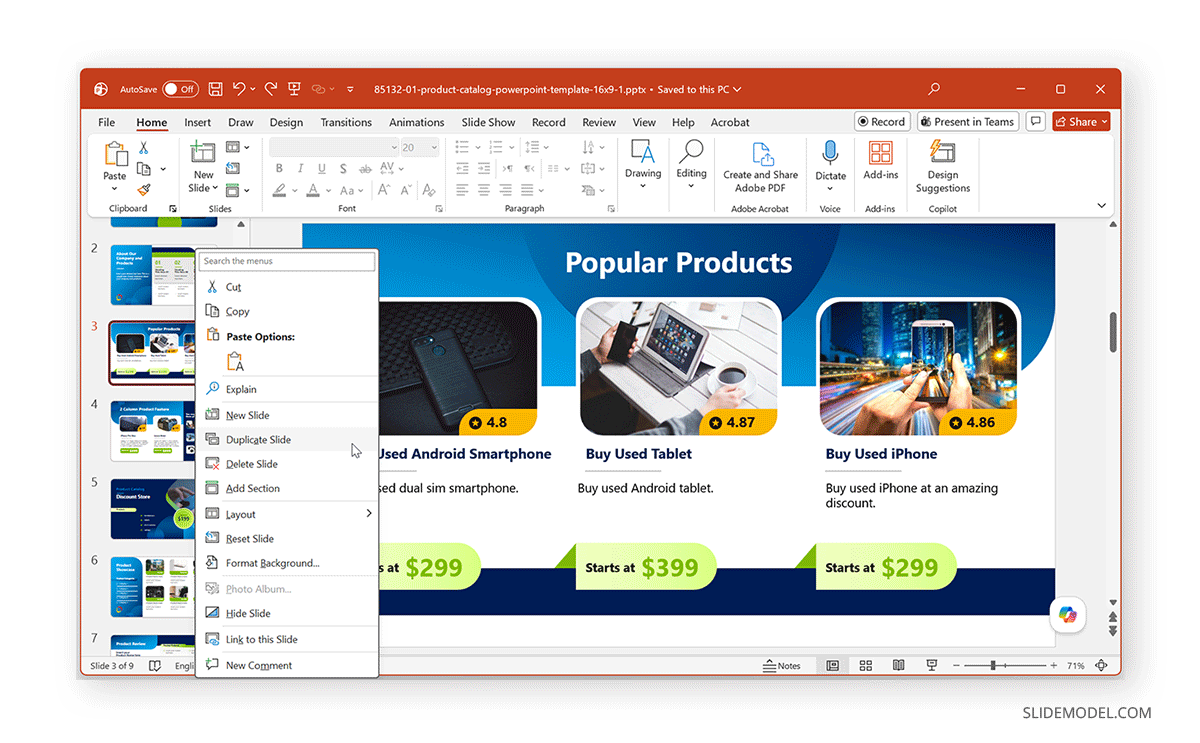
Method 1: To duplicate a slide in PowerPoint, select the slide thumbnail you want to copy, right-click it, and choose Duplicate Slide. PowerPoint creates an identical copy immediately after the original.
Method 2: To duplicate a slide using a hotkey, use the following combination:
- Windows: CTRL+D
- Mac: Command+D
Duplicating slides is particularly useful for product catalogs with similar product descriptions, quarterly reports with repeated charts, training presentations with consistent lesson formats, team profiles, case studies, or comparison slides. Instead of recreating text boxes, images, icons, and formatting, simply replace the existing content while keeping the overall design intact.
Insert Slides from Another PowerPoint Presentation
If you’ve already created content in another presentation, there’s no need to rebuild it manually. PowerPoint allows you to insert slides from another PowerPoint presentation, making it easy to reuse existing work. This feature is especially useful when combining presentations from multiple team members, reusing company introduction slides, updating recurring reports, creating standardized training materials, or building presentations from approved corporate templates.
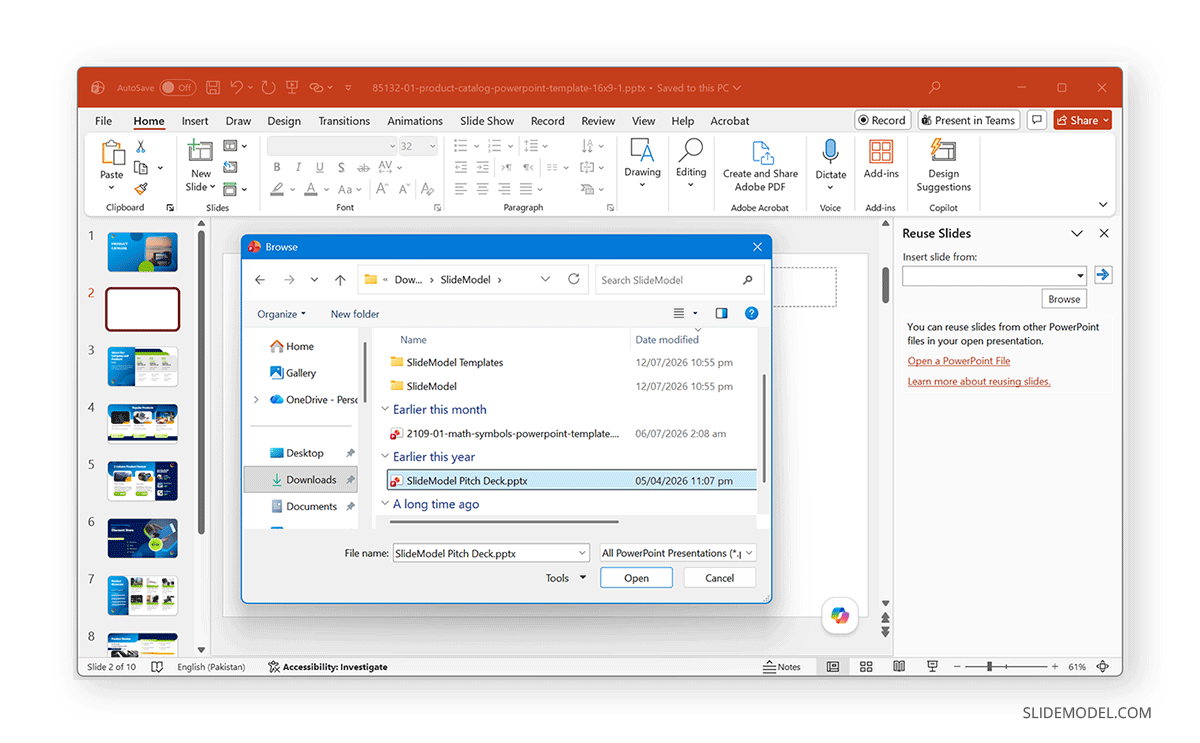
To reuse existing slides, open the presentation where you want to add the new content and access the Reuse Slides option via Home -> New Slide -> Reuse Slides. Browse to the source presentation, preview the available slides, and insert only those you need.
Depending on your workflow, PowerPoint also lets you preserve the original appearance of imported slides rather than automatically applying the destination presentation’s theme. This can be useful when incorporating externally designed presentations or preserving approved branding from another deck. Reusing slides is generally faster and more reliable than copying and pasting individual objects because it preserves slide layouts, animations, and other presentation elements.
Working with Slide Layouts and Slide Master
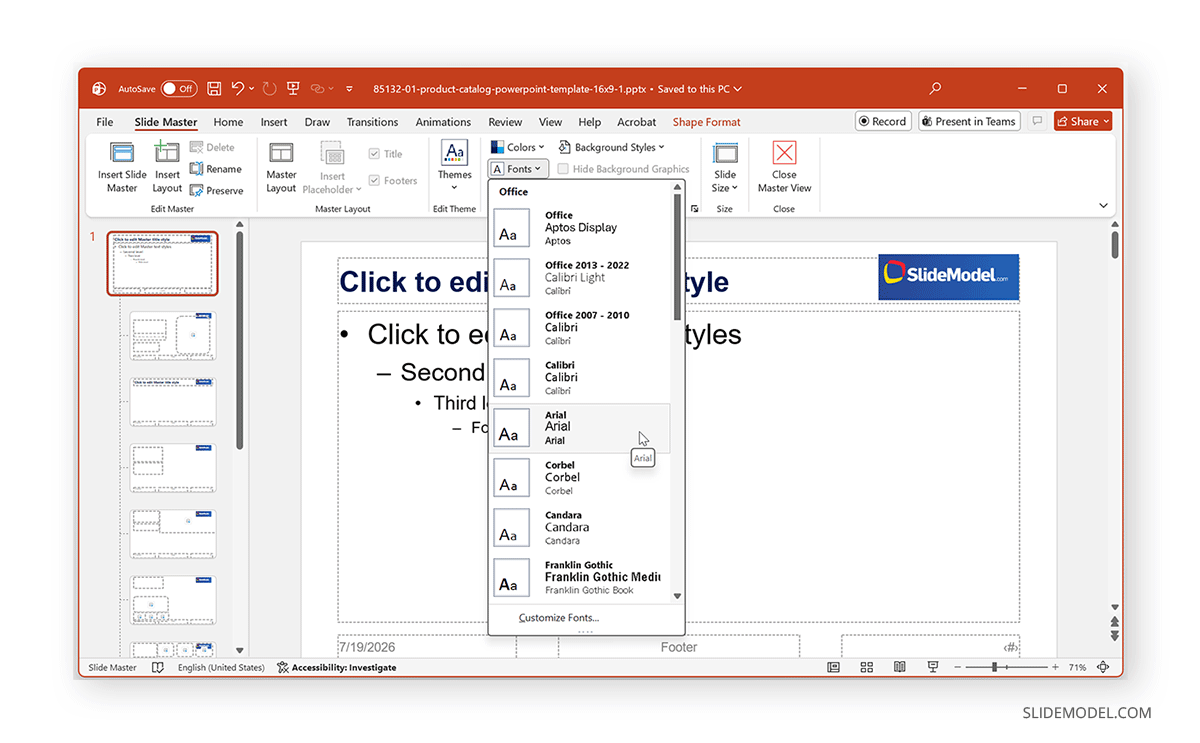
As presentations become larger, maintaining a consistent design becomes increasingly important. PowerPoint layouts are built on the Slide Master, which defines the default placement of placeholders, fonts, colors, backgrounds, and other design elements throughout the presentation. When you insert a new slide using one of the available layouts, PowerPoint automatically applies the formatting defined by the Slide Master. This helps ensure that titles, content placeholders, company logo, and other design elements remain consistent from one slide to the next.
For organizations that use branded presentation templates, the Slide Master plays an important role in maintaining a uniform appearance across presentations created by different team members. Rather than manually adjusting fonts, colors, or placeholder positions on every slide, update the Slide Master or use the layouts already provided in the presentation template. Organizations often configure Slide Masters so that branding elements such as logos, fonts, and placeholder positions remain consistent throughout the presentation. This is also helpful for less tech-savvy users, who can use a ready-made corporate template with predefined branding rather than following specific guidelines for accurate logo placement, using the designated font, or adding sidebars and other defined slide elements for different slide types.
Final Words
PowerPoint offers several ways to insert slides, including the New Slide menu option, the slide pane context menu, and keyboard shortcuts, so you can choose the workflow that best fits your needs. Understanding PowerPoint slide layouts, duplicating existing slides, and reusing slides from other presentations can also save considerable time while maintaining a professional, consistent design.
As presentations become larger and more complex, choosing the appropriate layout, inserting slides in the correct positions, and using Slide Master can help keep your presentation organized, consistent, and easier to maintain.