If you have ever opened a blank slide and felt the clock start ticking, a presentation template is the answer. It hands you a professional, ready-made structure so you spend your time on the message instead of the margins. This guide defines exactly what a presentation template is, breaks down what is inside one, clears up how it differs from a theme, and shows you how to use one across PowerPoint, Google Slides, Keynote, and Canva.
Key Takeaways
- A presentation template is a reusable set of pre-designed slides you customize to build a deck quickly.
- It combines a theme (colors, fonts, effects, layouts) with placeholders and starter content built for a purpose.
- A template is not the same as a theme: every template contains a theme, but a theme alone is not a template.
- Templates exist for PowerPoint (
.potx), Google Slides, Keynote (.kth), Canva and many other presentation tools. - The main payoffs are speed, brand consistency, and a professional look without designing from scratch.
What Is a Presentation Template?
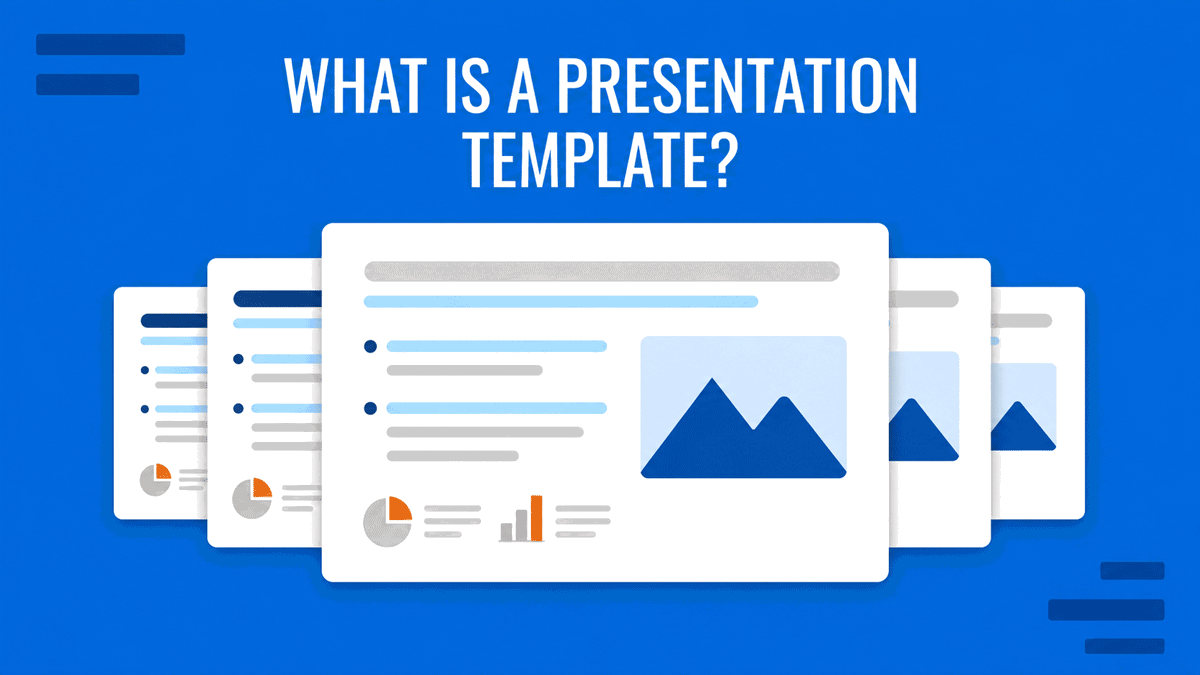
A presentation template is a reusable, pre-designed set of slides, combining a coordinated theme (colors, fonts, effects, and layouts) with placeholders and starter content. You can customize a presentation template to build a consistent, professional presentation quickly, without designing each slide from scratch.
Think of it as a blueprint. The design decisions are already made: the fonts pair well, the colors are on-brand, the layouts are balanced, and the placeholders tell you exactly where your title, text, and images belong. You bring the content, the template supplies the structure and the style.
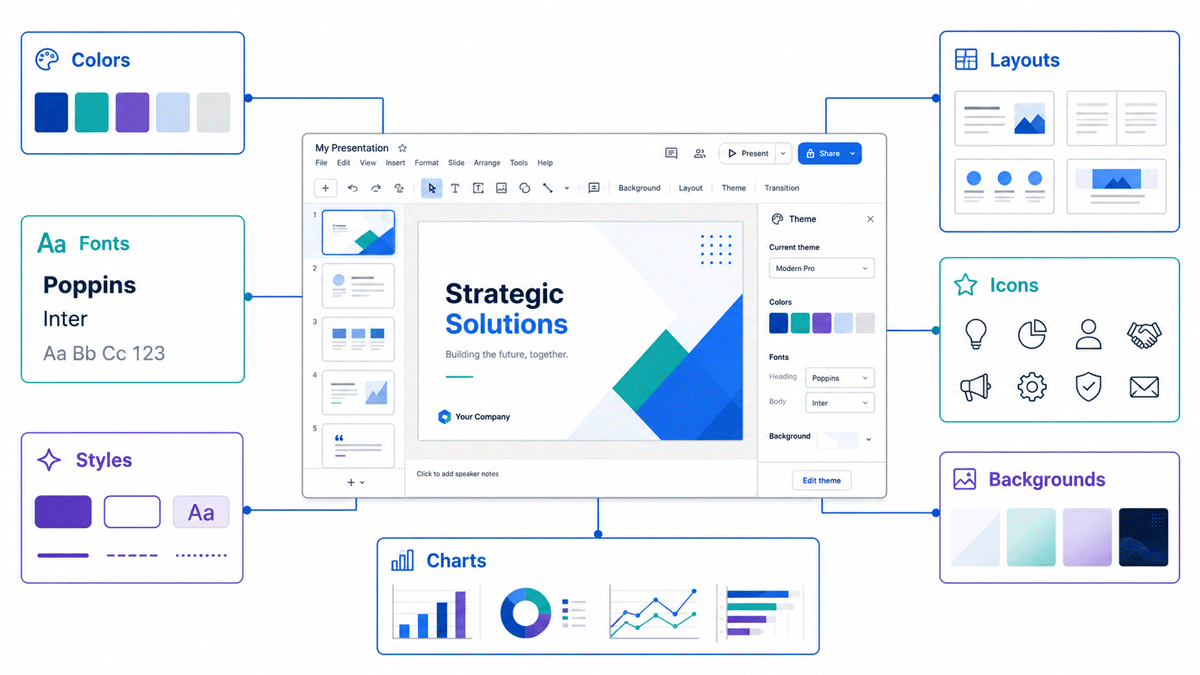
It helps to be clear about what a presentation template is not:
- It is not a finished presentation. A presentation template gives you reusable layouts and design elements, not the final message or content.
- It is not just a theme. A theme is only the design layer. A presentation template is a theme plus content structure for a specific purpose (more on this below).
- It is not a single background image. A real presentation template includes editable layouts, placeholders, and master settings (not one static picture you type over).
What’s Inside a Presentation Template?
A well-built presentation template is more than a set of pretty slides. Under the surface, several components work together so every slide stays consistent as you edit.
- Slide master: the top-level slide that controls the formatting inherited by every layout and slide beneath it. Change it once, and the change flows through the whole deck. In PowerPoint, this is managed via Slide Master view.
- Slide layouts: the individual arrangements (title slide, section header, two-column, comparison, chart slide) that you pick from as you build.
- Placeholders: the pre-positioned boxes where you type text or drop images, so alignment and sizing stay correct automatically.
- Theme colors and fonts: a coordinated palette and type pairing applied consistently across the deck.
- Background styles and effects: shape styles, shadows, and fills that give the deck a unified finish.
- Icon, chart, and diagram libraries: ready-made visual assets you can reuse instead of building from zero.
- Sample or starter slides: example content that shows how to adapt each layout to your own material.
That combination (a design system plus reusable content structure) is what separates a genuine presentation template from a plain slide with a nice background.
Presentation Template vs. Theme vs. Slide Master vs. Layout vs. Slide Deck
These terms Presentation Template, Themes, Slide Master, Layout, Slide Decks, are typically used interchangeably all over the web, but they mean different things. Getting them straight makes it much easier to choose the right resource and edit it with confidence.
| Term | What it is | What it contains | When you use it | File artifact |
|---|---|---|---|---|
| Presentation template | A reusable set of slides for a purpose | A theme + placeholders + starter content | To start a new deck quickly | .potx (PowerPoint), .kth (Keynote), cloud copy (Google Slides, Canva) |
| Theme | The design layer only | Colors, fonts, effects, layouts | To apply a consistent look | .thmx (PowerPoint) |
| Slide master | The controlling parent slide | Inherited formatting for all layouts | To change formatting globally | Part of the file |
| Layout | One arrangement within the master | Placeholders for a specific slide type | To build an individual slide | Part of the file |
| Slide deck | The finished, filled-in presentation | Your final content and visuals | To present to an audience | .pptx, .key, cloud file |
In short: a theme is the look, a template is the look plus a reusable structure for a purpose, the slide master and layouts are the engine that keeps it consistent, and the slide deck is the finished result you present.
What is a PowerPoint template (.potx)?
A PowerPoint template is a presentation template saved as a .potx file. It combines theme colors and fonts with slide layouts, placeholders, formatting, and sometimes starter content, so every new presentation you create from it opens with a consistent, professional design. It is the PowerPoint-specific form of the broader idea described in this article. The finished presentation you save afterward is a .pptx — a slide deck, not a template.
Presentation Templates Across Platforms
Presentation templates are not a PowerPoint-only concept. The same idea applies across the major tools, with small differences in how each one handles the file:
- PowerPoint: templates are saved as
.potxfiles (themes as.thmx) and appear when you start a new presentation. - Google Slides: templates live in the cloud; you use one by making a copy, then editing it in your Drive.
- Keynote: templates are saved as
.kthfiles and selected from the template chooser. - Canva: templates are cloud-based designs you open and customize directly in the browser.
Because professional teams rarely work in a single tool, many high-quality templates — including SlideModel’s — are built to work across PowerPoint and Google Slides, so the same design travels with you regardless of where you finish the deck.
Benefits of Using a Presentation Template
The reason templates are everywhere is simple: they solve real problems for people who need results fast.
- Speed: you skip the blank-slide problem and start from a structure that is ready to fill.
- Consistency: every slide shares the same fonts, colors, and spacing, so the deck looks intentional rather than assembled.
- Professional design: the visual decisions are made by designers, so your slides look polished even if design is not your job.
- Accessibility: well-built templates use readable font sizes and strong color contrast by default.
- Easier collaboration: when a team works from the same template, everyone’s slides fit together without cleanup.
Limitations to Watch For
Presentation templates are powerful, but they are not magic. It is worth knowing the trade-offs so you can avoid them.
- A generic look: a free presentation template used by thousands of people can feel familiar to your audience, similarly as the popular presentation tools and AI makers that produce the same kind of content layouts, reusing same fonts, same styles and same layouts, all them look the same.
- Over-reliance: leaning on a presentation template without adapting it can flatten your message into someone else’s structure.
- Uneven quality: not every presentation template is built well; some are little more than a background with text on top.
The fix is not to avoid presentation templates, it is to start from a strong one and make it yours. A large, professionally designed library, like the templates from SlideModel, gives you distinctive options rather than the same three decks everyone has seen, and fully editable templates let you apply your own brand, swap layouts, and adjust visuals until the deck feels original. Used that way, slides templates accelerates your work without making it look templated.
How to Use a Presentation Template
Putting a presentation template to work takes four steps:
- Choose the right slide template. Match it to your purpose and audience (a pitch, a report, a company profile) so the built-in structure fits your content.
- Replace the placeholder content. Swap in your own text, data, and images, using the layouts as a guide, or prepare a prompt for Copilot to instruct the tool what content you want to use.
- Apply your brand. Adjust the theme colors, fonts, and logo so the deck reflects your identity. To build a reusable brand design of your own, see creating custom themes.
- Keep it consistent. Reuse the provided layouts instead of adding one-off slides, so the deck stays cohesive from start to finish.
For the bigger picture of planning and delivering the presentation itself, see our full guide on how to make a presentation.
Free vs. Premium Presentation Templates
Both free and premium presentation templates have their place; the difference shows up in depth and originality. When you evaluate any template (free or paid) judge it on a few signals:
- Editability: can you change every element, or are parts locked or flattened into images?
- Layout depth: does it include enough slide types for a real presentation, or just a handful?
- Distinctiveness: how many other people have already used this exact design?
- Support and licensing: is usage clearly licensed, and is help available if something breaks?
By definition, the template may be used by others or in more than one presentation. But when judging distinctiveness you may also understand if applying some edits to the template you can make it unique.
Free templates can be perfectly adequate for simple, one-off needs. Premium templates generally win on layout depth, full editability, and a more distinctive look, which matters when the deck represents you or your company. Premium presentation templates combined with truly human support, like that offered by SlideModel, can provide the best of both worlds: professional, ready-to-edit designs together with real assistance when you need guidance, troubleshooting, or help finding the right solution. That extra layer of support can become an advantage in your favor when time, presentation quality, and reliability matter.
Frequently Asked Questions
What is a presentation template?
A presentation template is a reusable set of pre-designed slides that combines a coordinated theme (colors, fonts, effects, and layouts) with placeholders and starter content. You customize it with your own text and data to build a consistent, professional presentation quickly, instead of designing every slide from scratch.
Is a presentation template the same as a theme?
No. A theme is only the design layer (colors, fonts, effects, and layouts). A template is a theme plus placeholders and starter content built for a specific purpose, such as a pitch deck or a company profile. Every template contains a theme, but a theme alone is not a template. If you want to build your own design layer from scratch, see our guide to creating custom themes, and browse ready-made options in our roundup of PowerPoint themes.
What’s inside a presentation template?
A presentation template typically includes a slide master, multiple slide layouts, placeholders for text and images, a theme (colors, fonts, and effects), background styles, and often icon, chart, and diagram libraries plus sample slides you can adapt.
Is a presentation template the same as a theme?
No. A theme is only the design layer — colors, fonts, effects, and layouts. A template is a theme plus placeholders and starter content built for a specific purpose, such as a pitch deck or company profile. Every template contains a theme, but a theme alone is not a template.
What is a PowerPoint template?
A PowerPoint template is a presentation template saved as a .potx file. It combines theme colors and fonts with slide layouts, placeholders, formatting, and sometimes starter content, so every new presentation you create from it starts with a consistent, professional design.
What file format is a presentation template?
In PowerPoint, templates are saved as .potx (themes as .thmx). Keynote uses .kth. Google Slides and Canva templates live in the cloud and are used by making a copy rather than downloading a template file.
Are free presentation templates good enough?
Free templates can work for simple needs, but they often offer fewer layouts, limited editability, and designs many people have already used. Premium templates typically provide deeper layout sets, full editability, and a more distinctive, on-brand look.
Which platforms support presentation templates?
Presentation templates are available for PowerPoint, Google Slides, Keynote, and Canva. Many professional templates, including SlideModel’s, are built to work across PowerPoint and Google Slides so you can use the same design in either tool.
Final Words
A presentation template is, at its core, a reusable blueprint: a theme plus a content structure that lets you build a professional deck without starting from a blank slide. Once you can tell a template from a theme, recognize the components inside it, and pick a well-built one for the job, you get the speed and consistency of a template without the generic feel. When you are ready to start, browse our library of presentation templates for PowerPoint and Google Slides, or generate a first draft automatically with the AI Presentation Maker.