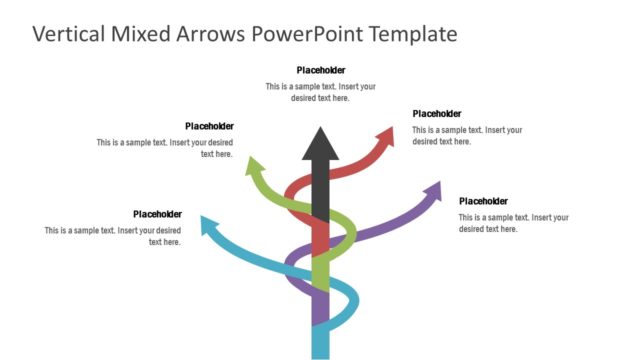
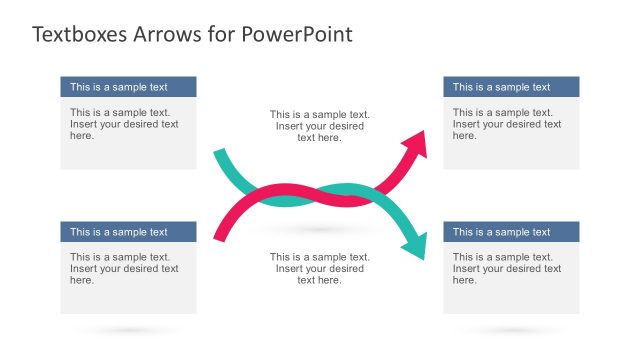
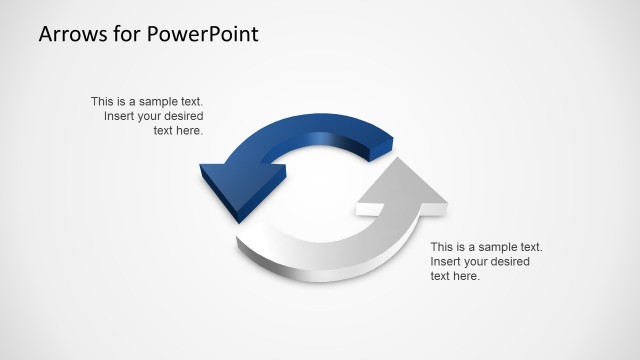
Multipurpose Arrow Toolkit for PowerPoint is a presentation arrows kit for PowerPoint created with shapes that you can copy and paste into your own PowerPoint slides to make creative slides.
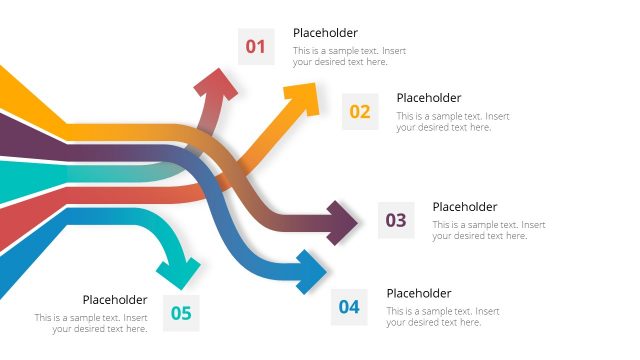
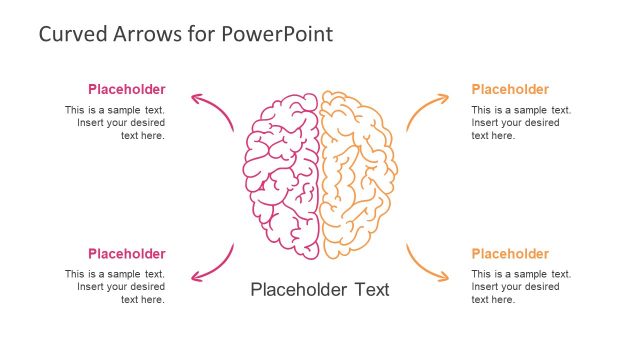
This editable arrows kit for PowerPoint contains several arrow designs created with PowerPoint shapes that you can use in your own presentations, including circular arrows, process arrow shapes, cycle shapes with arrow head, zig-zag arrow styles and more.
What’s inside this template
Example presentation scenarios
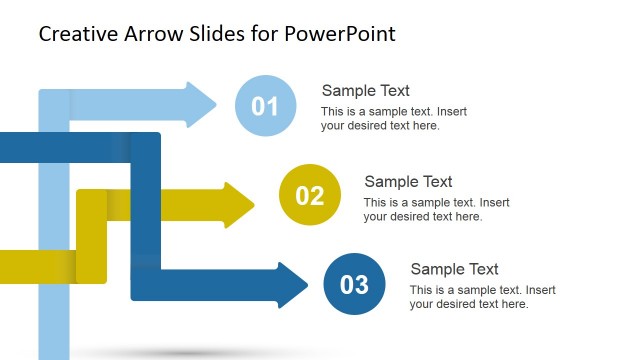
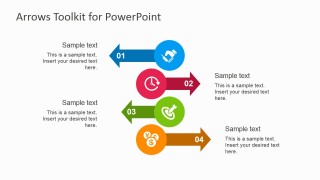
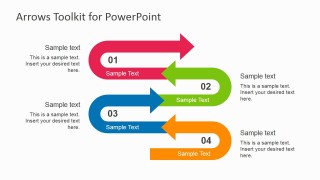
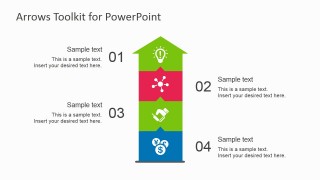
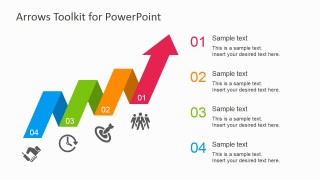
- A project manager can present a four-phase implementation plan by using the layered arrow stack, serpentine process arrows, or ascending zigzag progression to show order and movement.
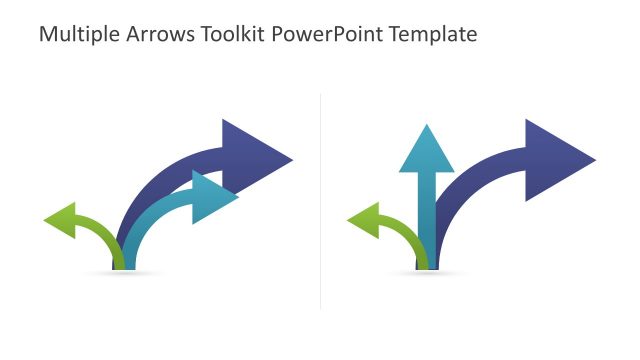
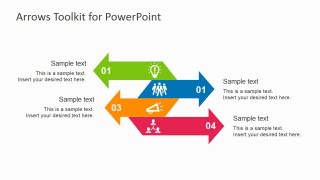
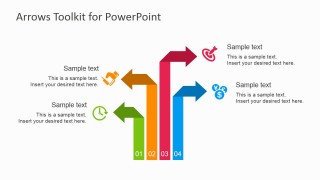
- A consultant can explain competing strategic choices by using the opposite-direction arrows and vertical branching arrows to make contrast and priority visible to executives.
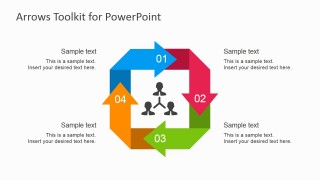
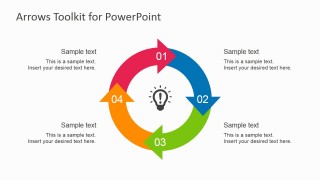
- An operations leader can map a continuous improvement loop with the square cycle or circular cycle diagram, placing responsibilities or checkpoints around the repeated process.
- A sales or marketing presenter can adapt the icon-supported arrow callouts to show campaign stages, pipeline movement, customer touchpoints, or goal progression.
Features
- 100% editable presentation template
- Compatible with Microsoft PowerPoint and Google Slides
- 16:9 aspect ratio slides
- Scalable vector shapes, icons and illustrations
- AI-Ready for Microsoft Copilot and Claude
- Instant access and download
Frequently asked questions
Q: How should a presenter turn these arrow slides into a clear process explanation?
A: Choose the arrow direction that matches the message before adding content. Use the horizontal and serpentine arrows for step-by-step movement, the ascending zigzag for progress, and the circular cycle for repeatable workflows. Keep each numbered arrow to one action phrase, then use the surrounding callouts for evidence, owners, or timing.
Q: Who is this arrow toolkit best suited for?
A: This template is best for business presenters who need to explain movement rather than show detailed data. Project managers, consultants, operations teams, and marketing leaders can use the four-step arrow stacks, vertical growth arrow, and cycle diagrams to make initiatives, decisions, handoffs, and improvement loops easier to discuss.
Q: Why do the arrow and cycle metaphors help the audience understand the message?
A: Arrows create an immediate reading path, so the audience knows where to look first and what comes next. The toolkit separates linear motion, upward growth, opposing paths, and repeatable cycles into different layouts. That visual distinction helps presenters avoid forcing every idea into one process shape.
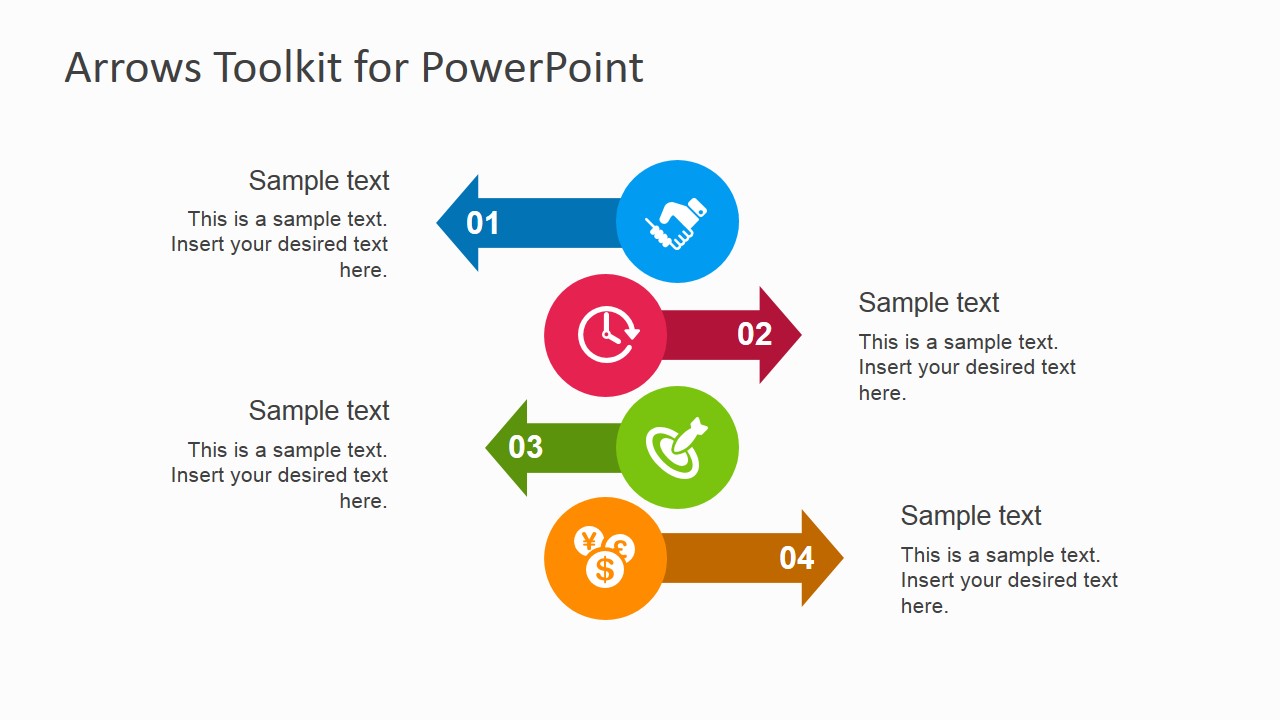




Multipurpose Arrow Toolkit for PowerPoint
10-slide presentation template with editable arrow processes, circular cycles, and icon callouts
The Multipurpose Arrow Toolkit for PowerPoint is a 10-slide arrow diagram presentation template for Microsoft PowerPoint and Google Slides. It includes layered arrow steps, opposing arrow paths, vertical growth arrows, circular cycle arrows, and an icon library for presenters who need to explain processes, priorities, comparisons, or progressions.
- Category
- Shapes
- Rating


 Loading...
- Aspect ratio
- 16:9
- Item ID
- 6868-01
- Colors
 Microsoft PowerPoint
  Microsoft Copilot
  Claude for PowerPoint
 Other formats supported
Subscribe today and get immediate
access to download our PowerPoint templates.