List of Tools PowerPoint Templates is an interactive business presentation template. This PowerPoint template allows marketers to make a better sales and marketing presentation. Why do need this PowerPoint presentation template?
Most marketers are looking to grow, but often they can get stuck making incremental improvements. In modern days, sales and marketing can be a daunting task. Things after things need to be done in a small amount of time. It is just impossible to do all of the reporting and presentations. Meanwhile, you don’t need to do these nitty gritty tasks alone. These Best Marketing and Sales Tools, which are available online, will surely help your business without lifting a finger. Convey your message well in a precise and comprehensive manner.
To help you get unstuck from incrementalism, this PowerPoint template is outlined in the following sections:
- Cover Slide
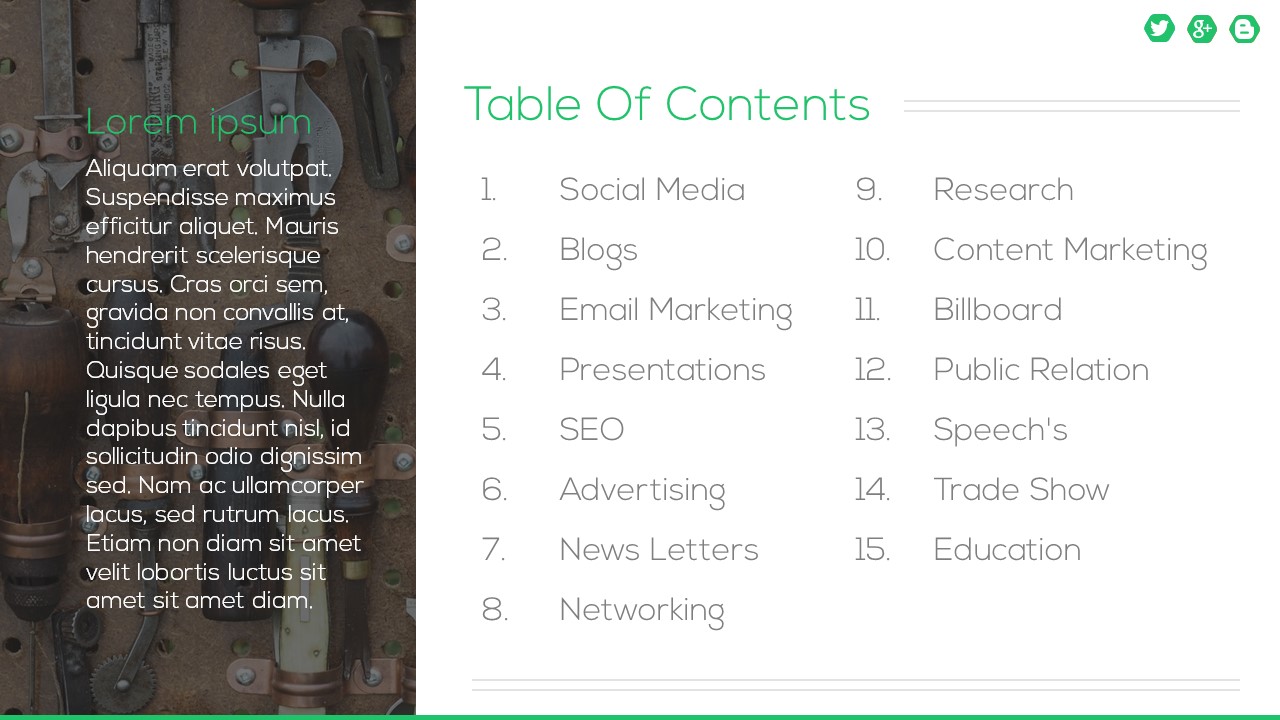
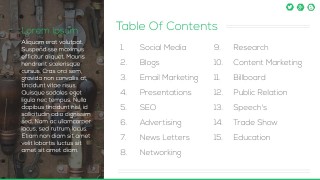
- Table Of Contents
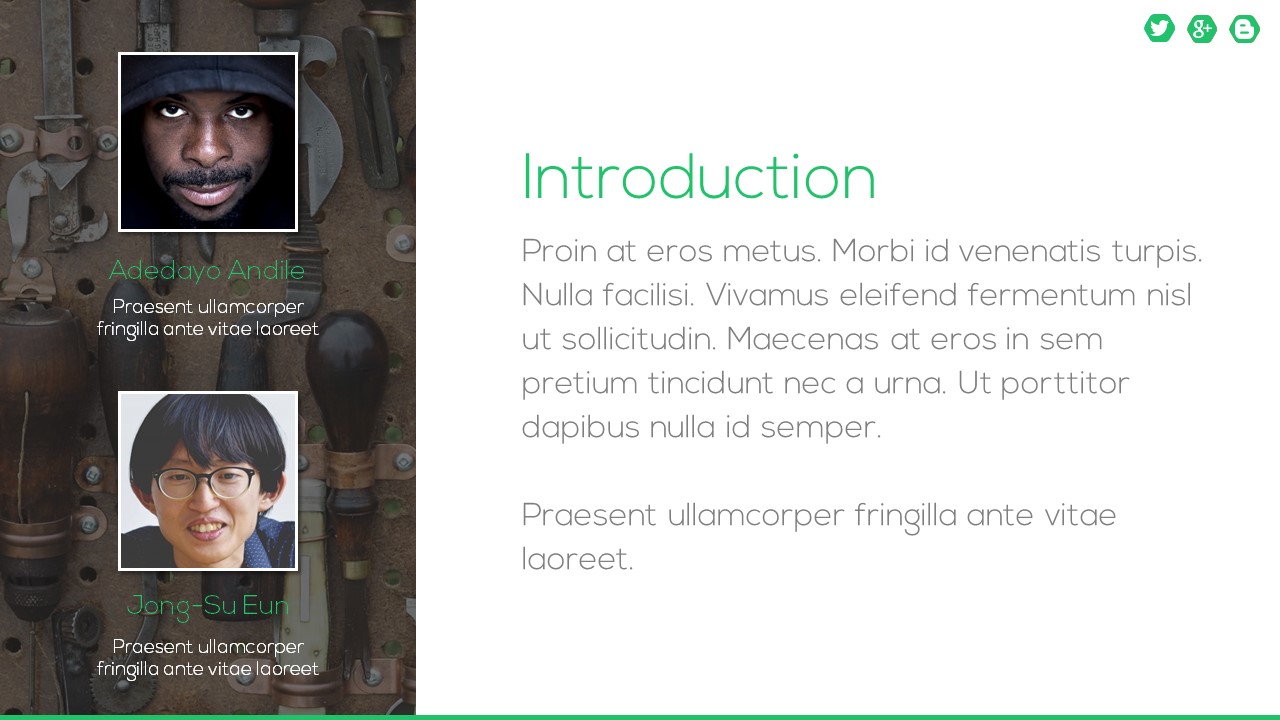
- Introduction
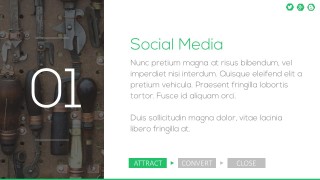
- Social Media
- Content Marketing
- Education
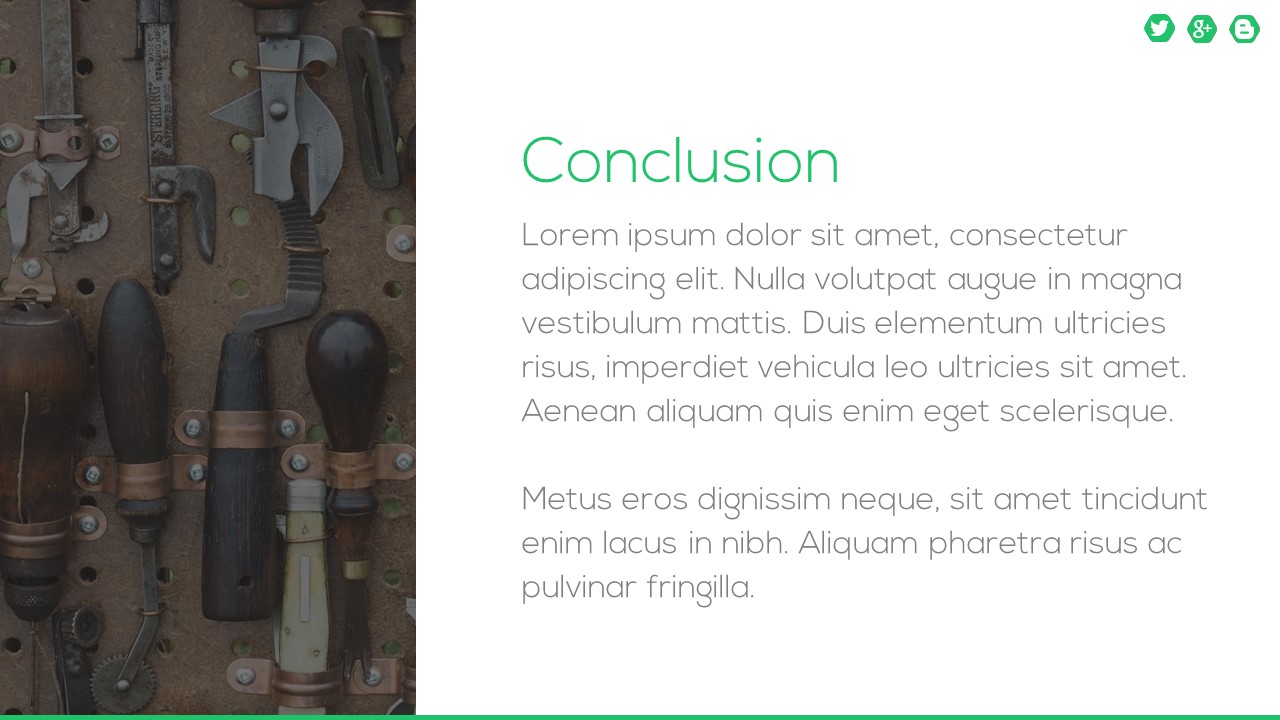
- Conclusion
Additionally, this Professional PowerPoint template is 100% editable, full text based on a clean and simple layout. No Doubt, this List of Tools PowerPoint Templates will allow you to tell a story, set SMART goals and objectives, discuss key benefits and make a strong point on your product and services.
The template can also be used to list other software or tools beyond digital marketing, like favorite tools or most productive tools used in a business. Or, it can be edited to make an employee handbook based in a PowerPoint presentation.
What’s inside this template
Example presentation scenarios
- A marketing manager can use the table of contents and section divider slides to introduce an approved stack of social media, content marketing, and education tools to a team.
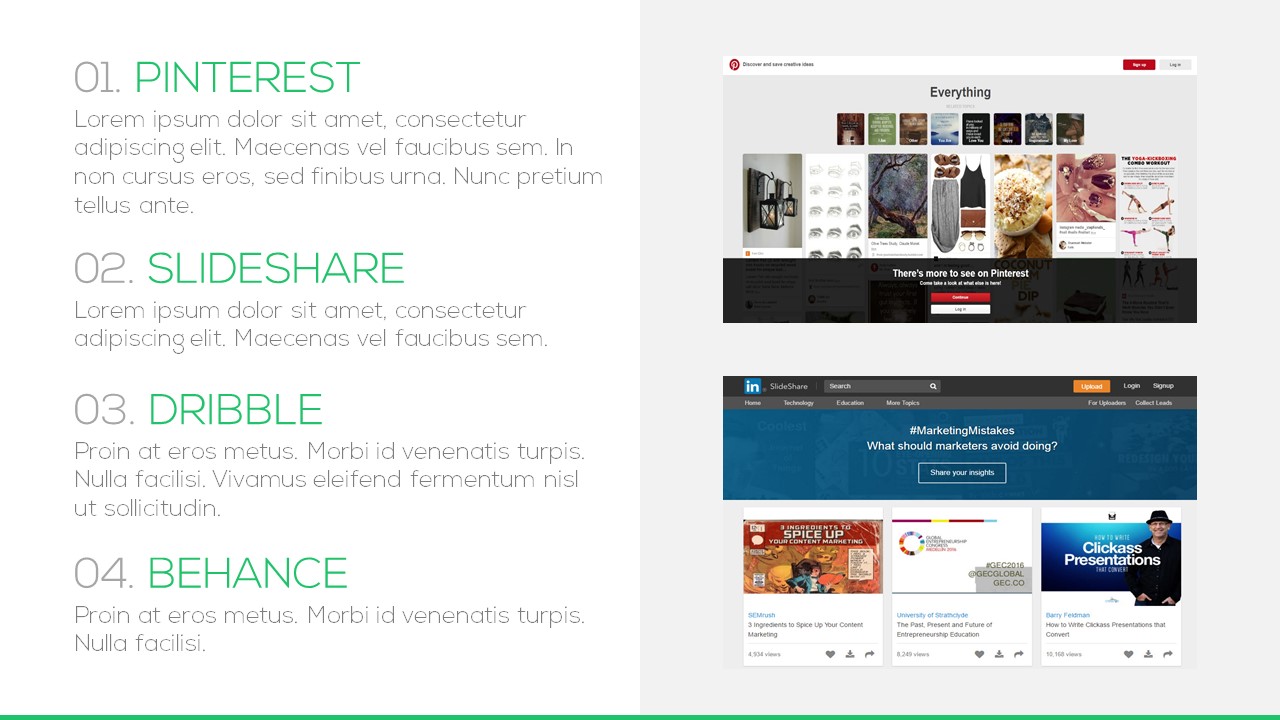
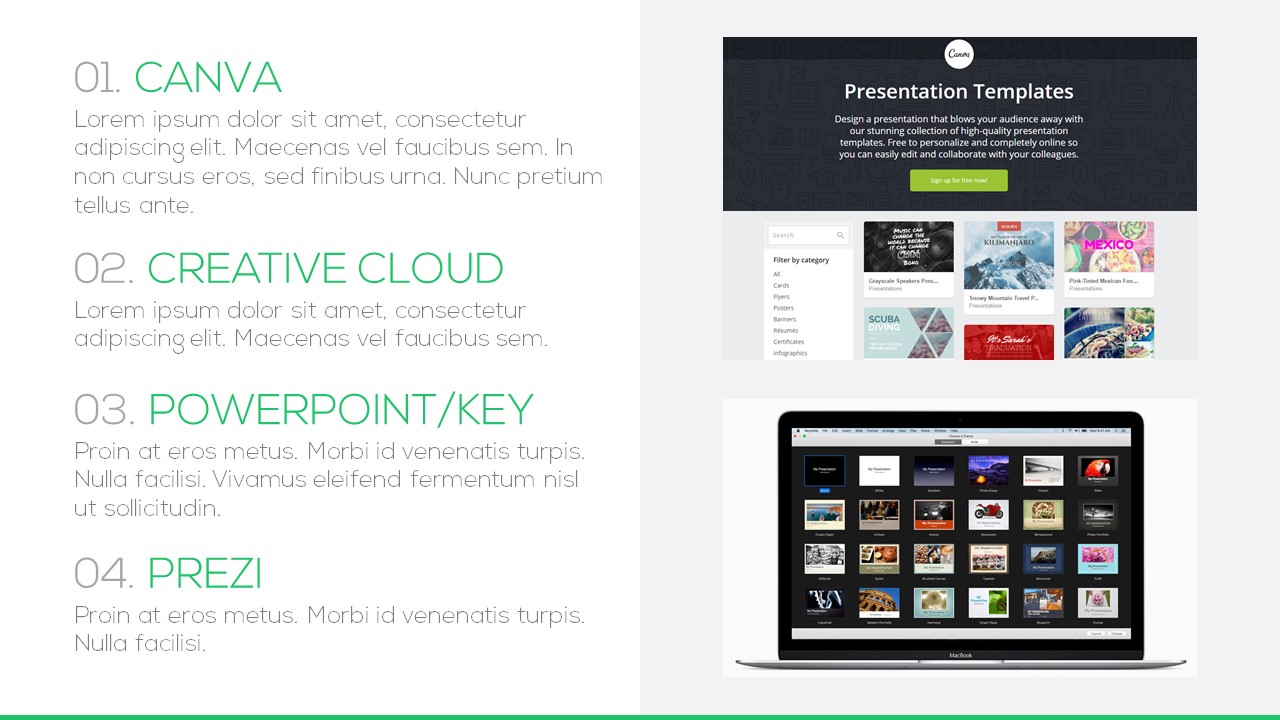
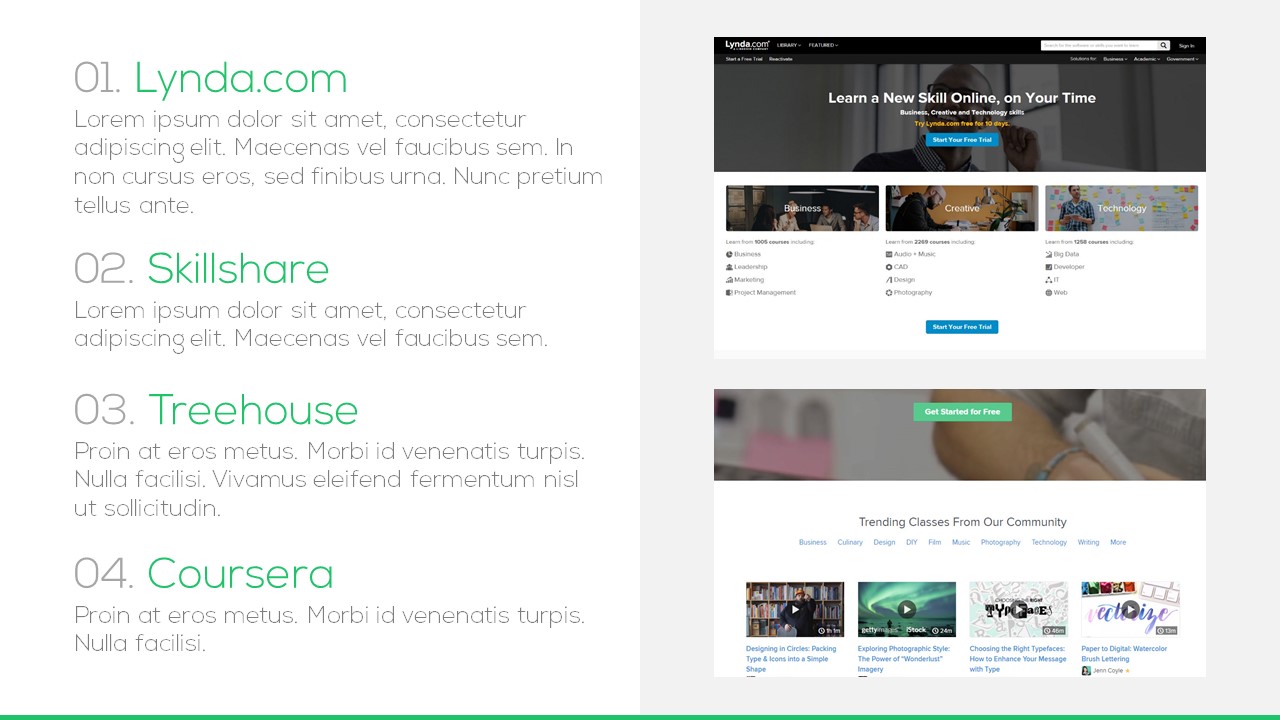
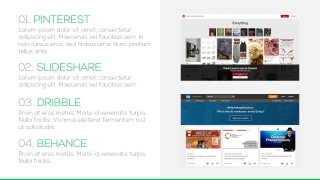
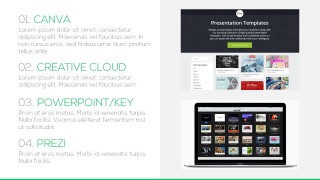
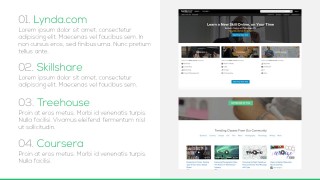
- A sales enablement presenter can use the tool list pages with screenshot placeholders to compare resources that support prospecting, content creation, and learning.
- A digital marketing consultant can use the introduction, categorized lists, and conclusion slide to brief a client on a recommended set of online platforms.
- A training facilitator can adapt the numbered tool pages and progress bar sections to teach employees which tools support each stage of a marketing workflow.
Features
- 100% editable presentation template
- Compatible with Microsoft PowerPoint and Google Slides
- 16:9 aspect ratio slides
- Scalable vector shapes, icons and illustrations
- AI-Ready for Microsoft Copilot and Claude
- Instant access and download
Frequently asked questions
Q: How should a presenter communicate the tool recommendations without turning the deck into a directory?
A: Start with the table of contents to frame the categories, then use each divider slide to explain why that group matters. On the tool list slides, do not read every description. Give each tool a short role, point to the screenshot area as evidence, and close with the next action the audience should take.
Q: Who is this template best suited for in a business presentation?
A: This template fits marketers, sales enablement leads, consultants, and trainers who need to recommend or explain a set of tools. It works best when the goal is orientation rather than deep evaluation. The section dividers and list pages help audiences understand where each tool fits in a marketing workflow.
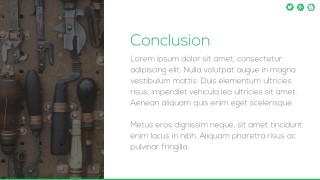
Q: Why does the workbench background fit a marketing and sales tools presentation?
A: The background acts as a visual metaphor for a practical toolkit. It supports the message that each listed platform has a job to do, while the white content panels keep the text readable. The green numbered sections and progress bars give the deck a clear path from discovery to closing recommendations.






List of Tools PowerPoint Templates
10-slide presentation template for marketing tool lists, table of contents, and section divider slides
List of Tools PowerPoint Templates is a 10-slide business presentation for organizing marketing and sales tool recommendations. It includes a cover, table of contents, introduction, section divider slides, tool list pages with screenshots, and a conclusion. It is built for marketers, sales teams, and trainers using Microsoft PowerPoint or Google Slides.
- Category
- Template Backgrounds
- Rating


 Loading...
- Aspect ratio
- 16:9, 4:3
- Item ID
- 0052-02
- Colors
 Microsoft PowerPoint
  Microsoft Copilot
  Claude for PowerPoint
 Other formats supported
Subscribe today and get immediate
access to download our PowerPoint templates.