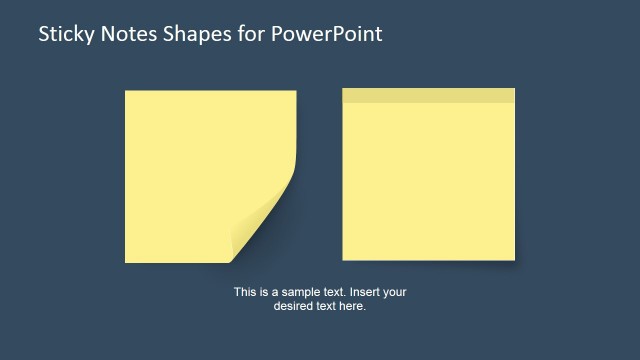
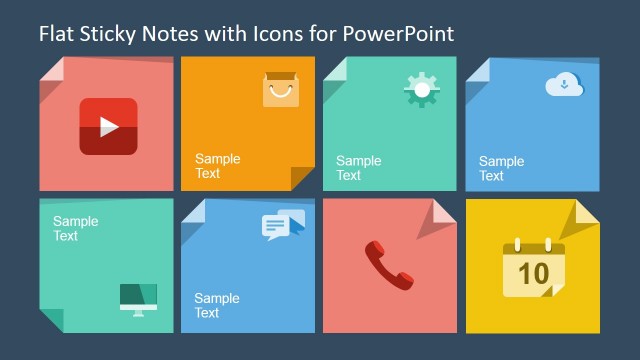
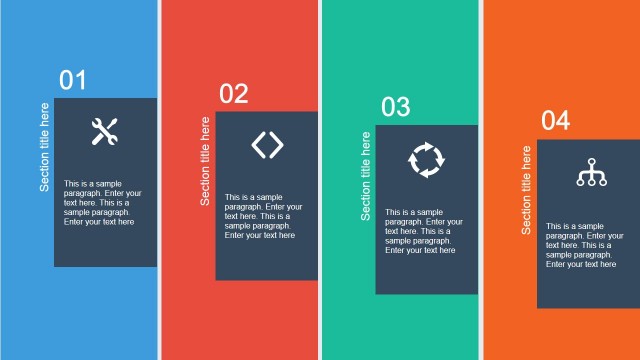
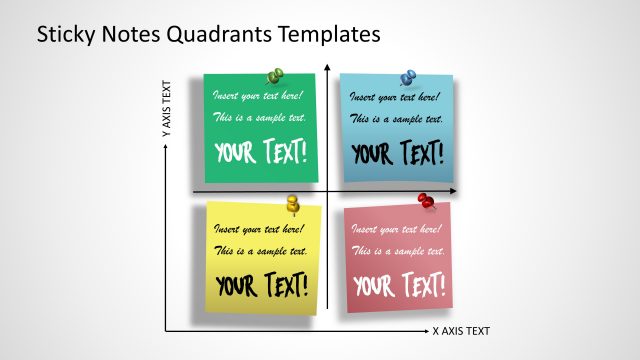
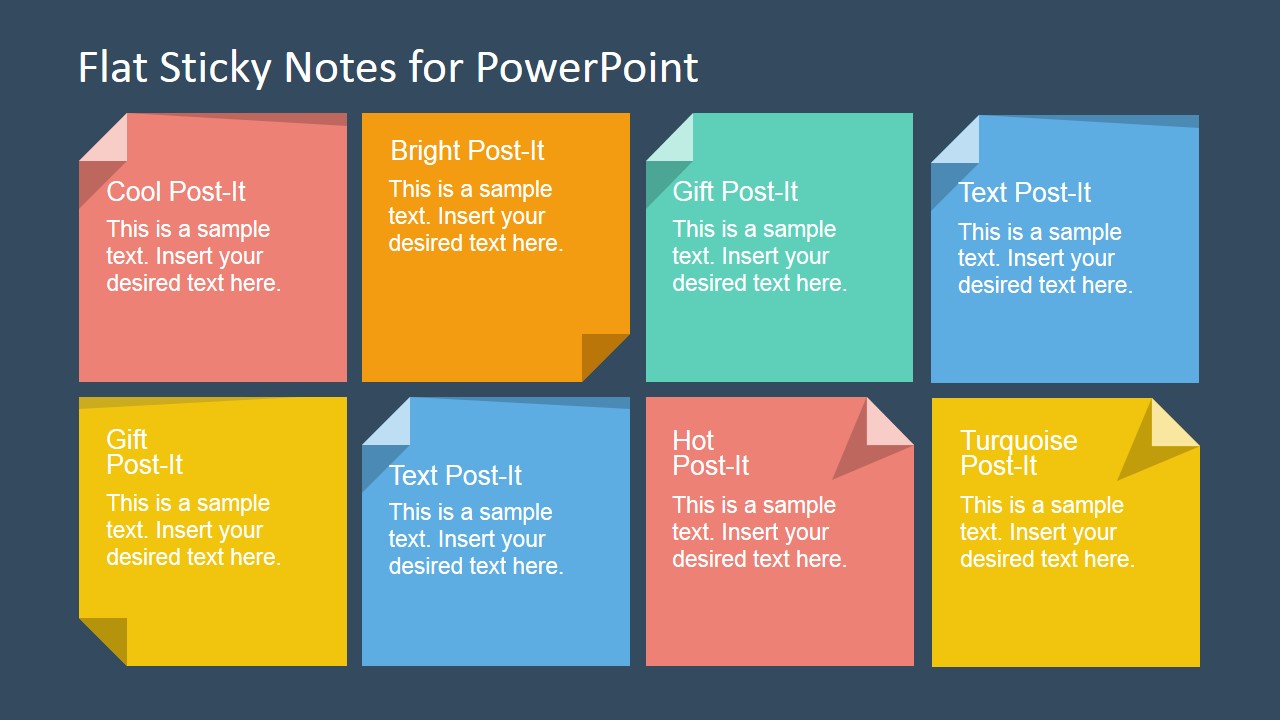
Flat Sticky Note Shapes for PowerPoint is a creative presentation design containing post-it or sticky post shapes that you can copy and use in your own PowerPoint presentations. The flat Post-it graphics with colorful backgrounds can be used to describe an important concept or adding notes to your PowerPoint slides.
What’s inside this template
Example presentation scenarios
- A workshop facilitator can use the seven-note grid to capture brainstormed ideas, assign each color to a theme, and keep participant contributions visible on one slide.
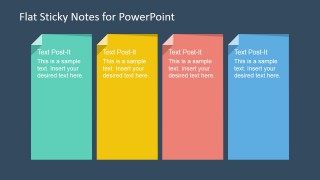
- A project manager can use the four-column sticky note layout to present priorities, blockers, owners, and next actions during a team checkpoint.
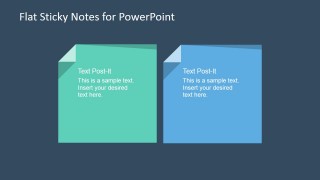
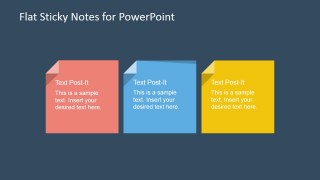
- A trainer can use the two-note or three-note layouts to separate key takeaways, practice prompts, and follow-up reminders at the end of a lesson.
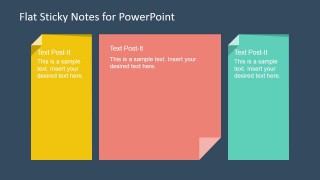
- A consultant can place the oversized sticky note with side tags in a client meeting to show the main recommendation while keeping risks, inputs, or assumptions nearby.
Features
- 100% editable presentation template
- Compatible with Microsoft PowerPoint and Google Slides
- 16:9 aspect ratio slides
- Scalable vector shapes, icons and illustrations
- AI-Ready for Microsoft Copilot and Claude
- Instant access and download
Frequently asked questions
Q: How should a presenter organize content with these sticky note layouts?
A: Use each sticky note as one distinct message, not as a paragraph container. Start with the largest note for the main idea, then use smaller notes for supporting points, risks, questions, or next actions. The grid and four-column layouts work best when every note has a short heading and one concise explanation.
Q: Who gets the most value from this sticky note template?
A: This template is best for presenters who need to make ideas feel collected, sorted, or discussed in a working session. Facilitators, trainers, consultants, and project leads can use the colored notes to turn brainstorming outputs, lesson reminders, client observations, or meeting actions into visual groups the audience can scan quickly.
Q: Why use a sticky note visual metaphor instead of regular text boxes?
A: Sticky notes signal temporary thinking, collaboration, and prioritization, which makes them useful for workshops and feedback sessions. The folded corners and color blocks separate ideas more clearly than plain text boxes. Large notes create emphasis, while small stacked notes suggest supporting comments, side inputs, or items that can be moved, grouped, and discussed.
You may also like:


Flat Sticky Note Shapes for PowerPoint
7-slide presentation template with flat sticky note shapes for notes, ideas, and callouts
Flat Sticky Note Shapes for PowerPoint is a 7-slide presentation template of flat Post-it style note graphics. It includes a grid of small notes, an oversized note with side tags, three-note and four-column comparison layouts, and two-note callouts for consultants, educators, and teams working in Microsoft PowerPoint or Google Slides.
- Category
- Shapes
- Rating


 Loading...
- Aspect ratio
- 16:9
- Item ID
- 6772-02
- Colors
 Microsoft PowerPoint
  Microsoft Copilot
  Claude for PowerPoint
 Other formats supported
Subscribe today and get immediate
access to download our PowerPoint templates.