Greek letters are widely used in presentations, especially in fields like mathematics, physics, engineering, and finance. When working with formulas, scientific notation, or symbolic representations, knowing how to insert Greek letters in PowerPoint can make your slides easier to present. In this tutorial, we will show you multiple methods to add Greek symbols in PowerPoint, including using the basic insert option, keyboard shortcuts, and font-based solutions.
Why Use Greek Letters in PowerPoint
Using proper symbols instead of plain text improves readability and makes your slides look more self-explanatory, especially in technical or academic presentations. Greek characters are commonly used to represent variables, constants, and concepts. Some examples include:
- Alpha: Angles and coefficients
- Beta: Regression values and risk metrics
- Delta: Change or difference
- Pi: Mathematical constant
- Sigma: Summation
How to Type Greek Alphabet in PowerPoint
You can use several methods to add Greek symbols in PowerPoint slides. Some of the methods mentioned below work only on Windows, whereas others work on numerous devices, including Macs and the PowerPoint mobile app.
Method 1: Insert Greek Symbols Using the Symbol Menu
This is the most common way to insert Greek symbols in PPT from the Symbol menu via the Insert tab in PowerPoint. You can use this method when you only need a few symbols, want a visual picker, or don’t remember or know keyboard shortcuts.
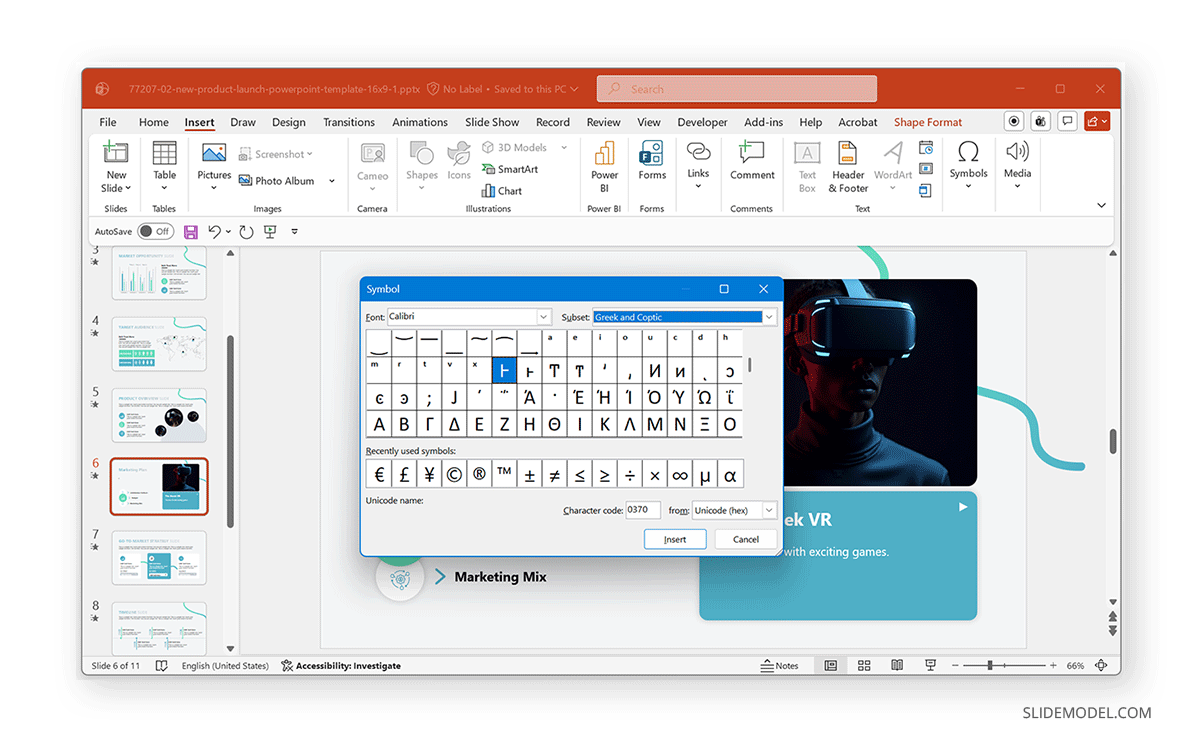
Step 1: Go to Insert -> Symbols -> Symbol.
Step 2: In the dialog box, choose a font like Calibri or Arial.
Step 3: Scroll to find Greek letters or select Subset -> Greek and Coptic.
Step 4: Click the symbol and select Insert.
Method 2: Use Equation Editor for Greek Letters
If you’re working with formulas, this is one of the best options for clean math and science formatting.
Step 1: Go to Insert -> Symbols -> Equation.
Step 2: In the equation box, type equations to convert them to Greek Letters.
Example:
- \alpha
- \beta
- \gamma
- \Delta
Step 3: Press space, and PowerPoint will convert it automatically to Greek Letters.

Method 3: Type Greek Letters Using Unicode (Windows)
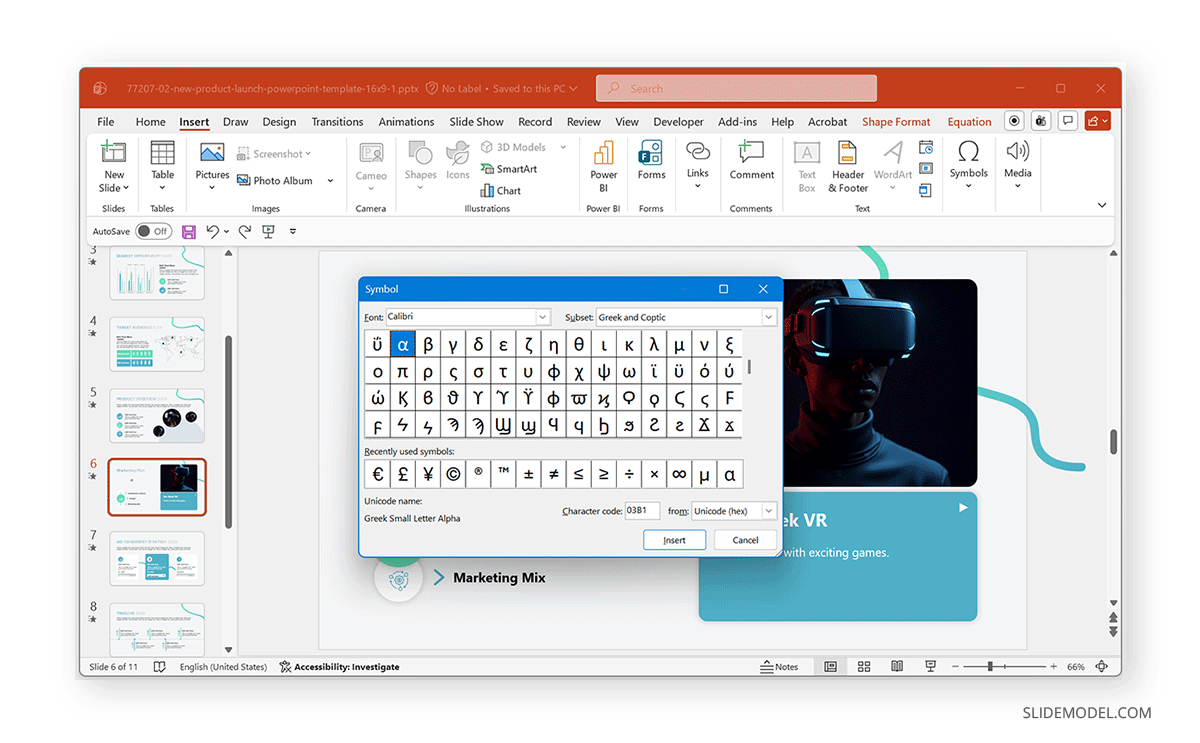
You can also insert Greek symbols using Unicode values. This might be a useful method when you know the Unicode code points or need to insert them quickly without menus. This also answers the common question many presenters look for, which is how to type Greek alphabets in Windows.
Example: Type 03B1 and press Alt+X for alpha
Alternative Method: If the above method does not work for you, go to Insert -> Symbol and select Greek and Coptic from Subset, enter the code, and click Insert.
Method 4: Use Keyboard Shortcuts (Windows Alt Codes)
Another way to type Greek alphabets in Windows is by using Alt codes. This method works best with a numeric keypad and may vary depending on system settings.
Example: Type 224 using the numeric keypad (Num Lock must be enabled) for alpha.

Method 5: Use Greek Font PowerPoint
You can also use a Greek font in PowerPoint to type symbols directly. This method gives you a quick way to convert common letters of the English alphabet to their Greek equivalents.
Step 1: Change font to Symbol or another Greek-compatible font.
Step 2: Type regular letters, e.g., a or b, to convert them to their Greek equivalents.

Method 6: Copy and Paste Greek Symbols
This is the simplest method if you only need a few symbols. You can use this method for quick edits and to avoid formatting tools.
Step 1: Copy symbols via CTRL/Command+C, right-click menu, or Ribbon menu from Home -> Clipboard -> Copy.
Step 2: Paste them directly into PowerPoint via CTRL/Command+V, right-click menu, or Home -> Clipboard -> Paste.
Note: You can also find relevant symbols using PowerPoint templates and copy them to reuse them across slides. One such example is this Greek Alphabet PowerPoint Template.

Tips for Using Greek Symbols in PowerPoint
Using Greek symbols can enhance clarity in technical and academic presentations, but a few simple practices can make a big difference in how your slides look and feel.
Keep formatting consistent
Use the same font style and size for Greek symbols across all slides. Mixing fonts can make your presentation look uneven and less professional.
Avoid Overusing Symbols
While Greek letters are useful, too many symbols on a single slide can make content harder to follow. Use them only where they add value or improve the audience’s understanding.
Use the Equation Editor for Formulas
When working with equations or scientific expressions, the Equation Editor provides better alignment and spacing. This helps maintain a clean and readable layout.
Choose Compatible Fonts
Not all fonts display Greek characters consistently across devices. Stick to widely supported fonts like Calibri or Arial to ensure your symbols appear correctly across different systems.
Final Words
Inserting Greek letters in PowerPoint for technical, academic, or data-driven presentations can give more clarity to your slides. If you frequently work with Greek symbols in PPT, combining methods, like using equations for formulas and symbols for quick inserts, can help you work faster and keep your slides clean. With a bit of practice, adding Greek letters becomes easier and can significantly improve the clarity and professionalism of your presentations.