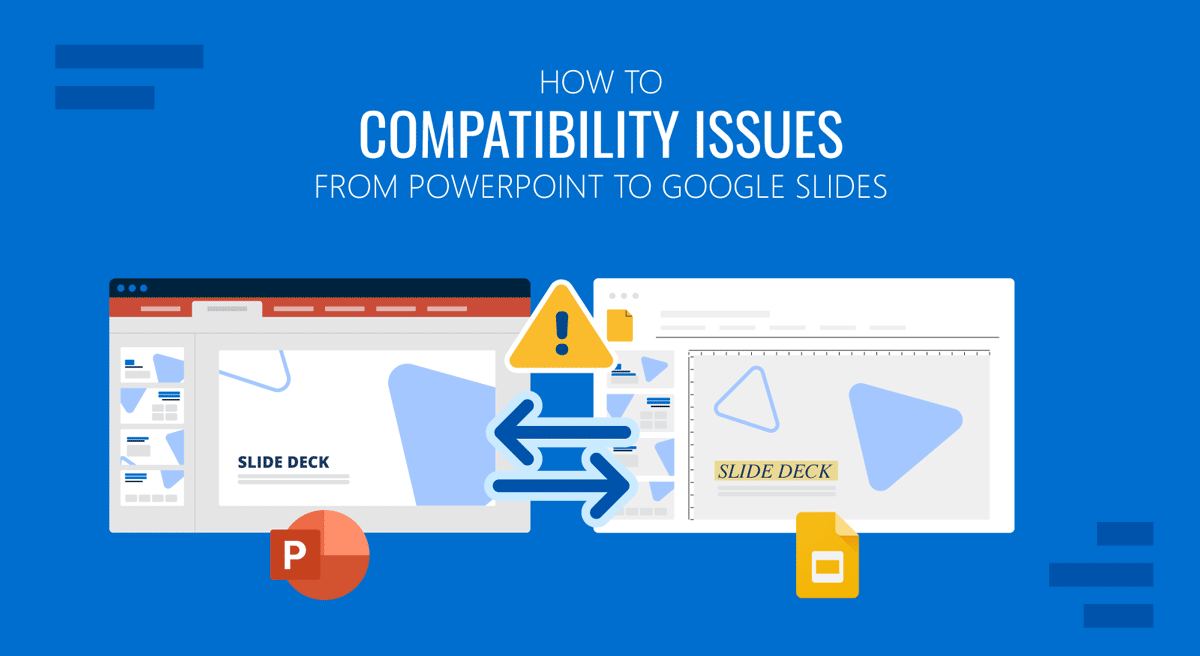
Most PowerPoint presentations can be easily opened and edited in Google Slides; however, there are times when you need to fix PowerPoint compatibility in Google Slides. Incompatible animations, font shifts, vanishing embedded videos, and carefully built layouts falling apart are some of the most common issues faced by end users. In this guide, we will explain the most common PowerPoint to Google Slides compatibility issues, with practical steps and workarounds to fix them.
1. Animations and Transitions
Common Issues
Complex custom animations (e.g., motion paths and emphasis sequences) and PowerPoint-only transitions (e.g., Morph or 3D rotation) can often cause compatibility issues in Google Slides. If you are facing problems with slides or the entire presentation that contains complex animations, the most common solution is to rebuild or replace the animations and transitions.
Fixes and Workarounds
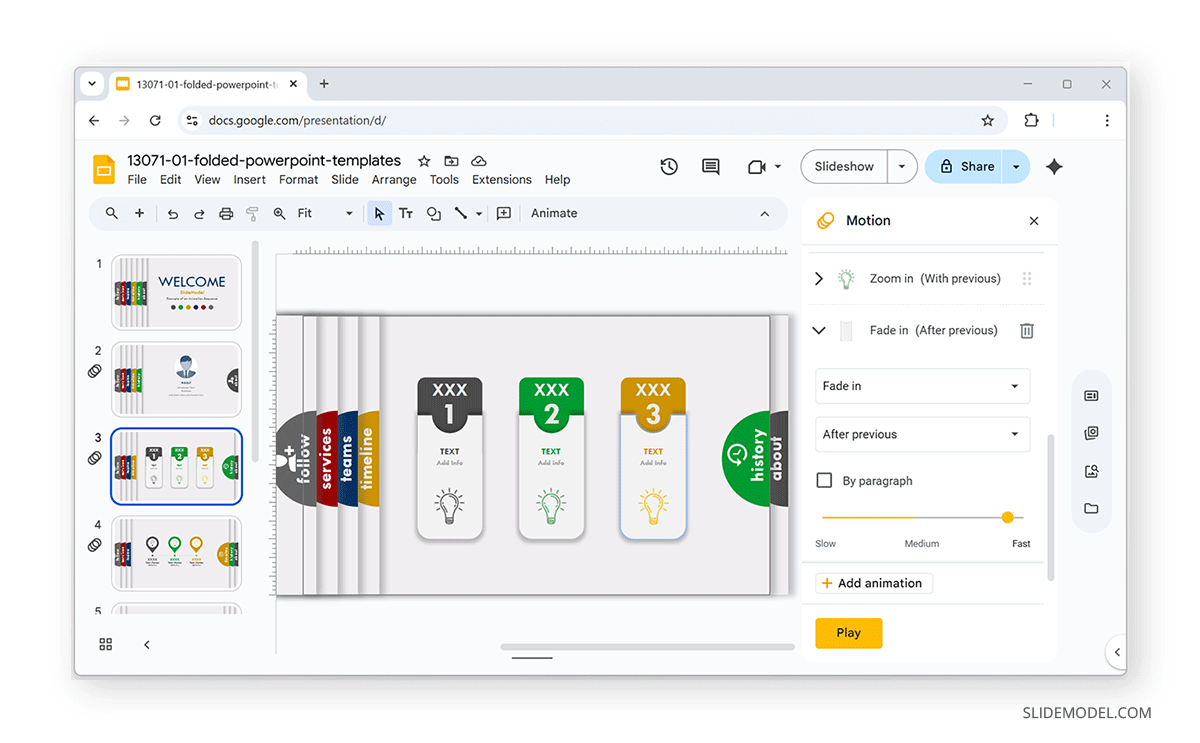
Rebuild Slides with Google Slides Animations: A standard solution to fix incompatible animations and transitions is to recreate simple ones, such as the Appear and Fade animations. This can be done by selecting the required object and adding the animation via Insert -> Animation.
Replace Animations and Transitions: By converting a Morph effect to an animated video or GIF via File -> Export -> Create a Video or Create an Animated GIF, you can import it into Google Slides as a video or GIF animation. This can help resolve issues with native PowerPoint animations, such as Motion Paths or the Morph Transition, in Google Slides. If you need precise control, this method can be quite helpful, allowing you to export the slide as a short video for use in Google Slides. For interactive presentations, include both a static slide and a video slide for visual effect.
Consider Using Simple Animations: A practical way to avoid compatibility issues is to build your slides in PowerPoint using simple animations that are likely to work correctly in Google Slides. You can also add animations later, after the slide deck is exported to Google Slides.
2. Fonts and Text Formatting
Common Issues
A common issue many users face when exporting PowerPoint files is that Google Slides uses web fonts (Google Fonts). If your PPT uses a desktop-only font, Slides may substitute a different font, causing spacing, line breaks, and layout shifts.
Fixes and Workarounds
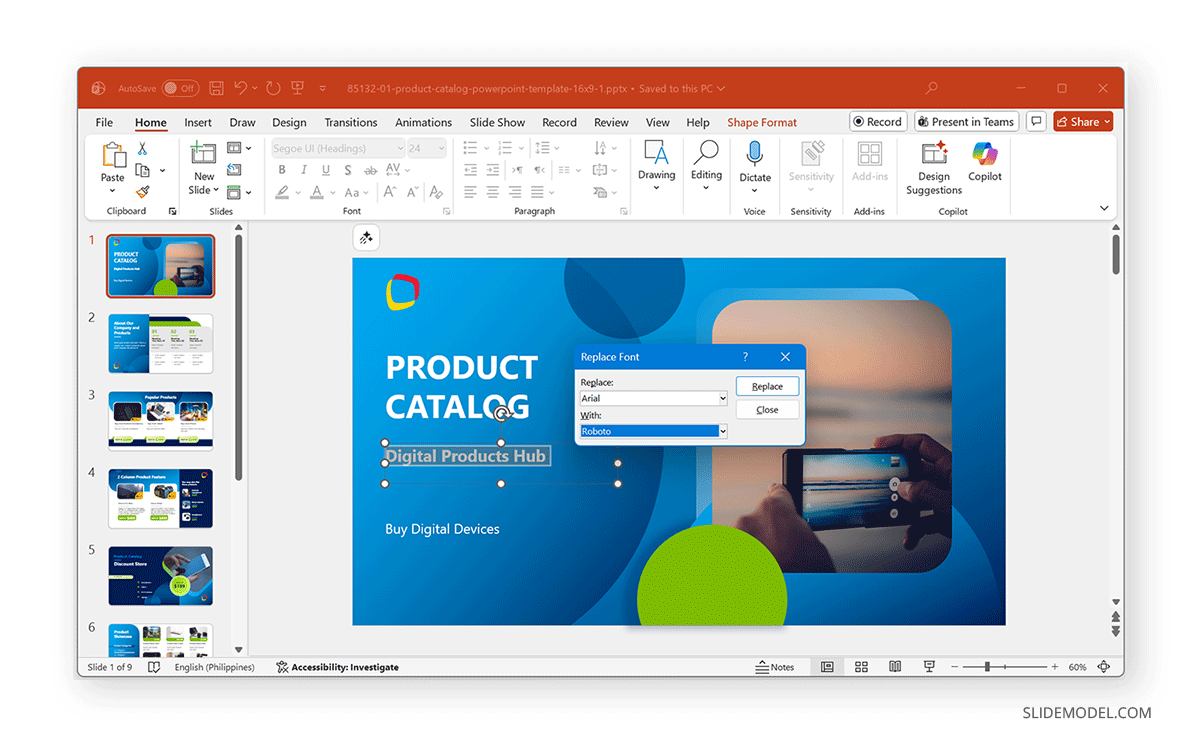
Use Google Fonts: When possible, start with web-safe fonts or Google Fonts available in both apps (e.g., Roboto and Open Sans). You can download and install these fonts on your device and start using them to create presentations.
Replace Fonts: In PowerPoint, you can replace proprietary fonts with free Google alternatives. To do this, go to Home -> Replace Fonts from the Editing menu.
Convert Critical Text to Vector Graphics or Images: For logo text or headline treatments that must remain exact, export the slides as SVG vector files or PNG image files (via File -> Save as) from PowerPoint, then insert the image in Google Slides. This gives it a text-like look, but it can no longer be edited. This can also help you resolve the problem of kerning, text effects, or WordArt-related compatibility problems in Google Slides.
3. Multimedia (Audio and Video)
Common Issues
Embedded audio or video files in PowerPoint often do not transfer. Slides may strip them or require them to be hosted online.
Fixes and Workarounds
Host media on Drive or YouTube: To avoid multimedia issues in Google Slides, you can upload video files to Google Drive or YouTube and insert them in Slides with Insert -> Video -> Google Drive or YouTube. This preserves playback across devices.
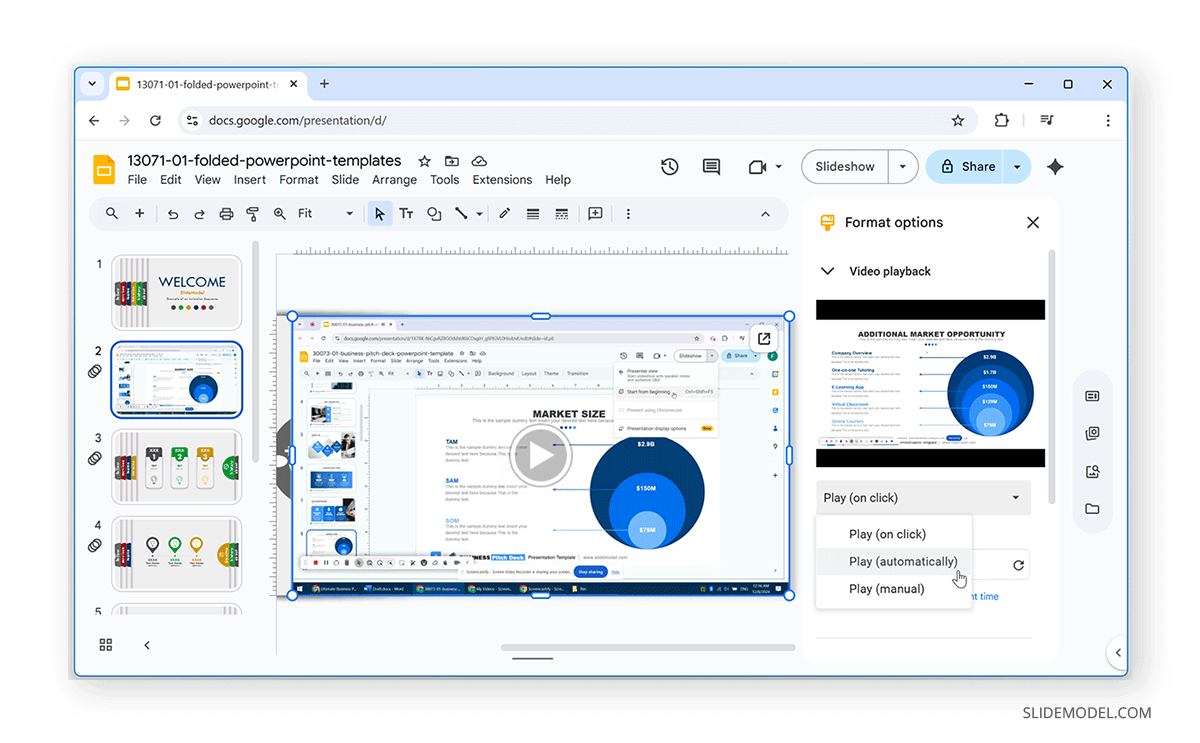
Recreate Playback Settings: When slides’ autoplay and trigger options are limited for exported slide decks, you can manually set Format options -> Play (Automatically) for Google Drive videos or use click-to-play for better control and smooth video playback.
Audio Fallback: For narrations, export the narration as an MP3 and either host it on Google Drive or embed the audio on a supporting slide with clear instructions for playback to help avoid audio playback issues when exporting PowerPoint files to Google Slides.
4. SmartArt and Complex Shapes
Common Issues
SmartArt typically becomes static shapes or flattened images and loses its editable structure when exported to Google Slides.
Fixes and Workarounds
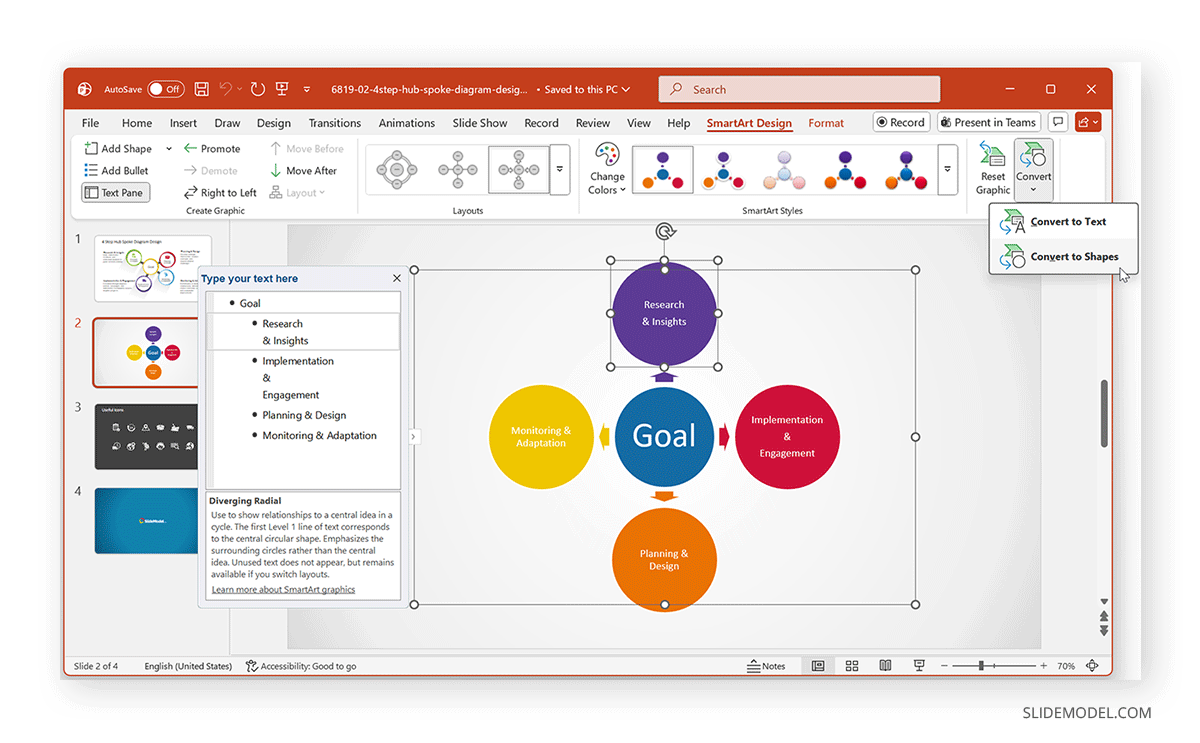
Convert SmartArt to Shapes: Before you upload your PowerPoint to Google Slides, converting SmartArt to Shapes can help avoid SmartArt compatibility issues. To do this, select the graphic, go to the SmartArt Design tab, and select Convert -> Convert to Shapes. Once done, Ungroup via Shape Format -> Group -> Ungroup or by using the Command/Ctrl+Shift+G hotkey until individual shapes are editable. However, it is worth noting that grouping and formatting may still change after import.
Use High-resolution Images for Fidelity: If editing is not needed, export SmartArt slides as PNGs at high resolution and insert the images into Google Slides to preserve the appearance of effects like bevels, gradients, and shadows.
Recreate using Google Slides Shapes: For diagrams you’ll update often, consider rebuilding them in Google Slides using native shapes so they remain editable.
5. Charts, Graphs, and Tables
Common Issues
If you have ever exported a PowerPoint with charts and graphs, you have had a difficult time working with the exported format: Excel-linked charts and graphs. And tables in PowerPoint can be converted to static images, breaking data links and limiting edits when exported to Google Slides.
Fixes and Workarounds
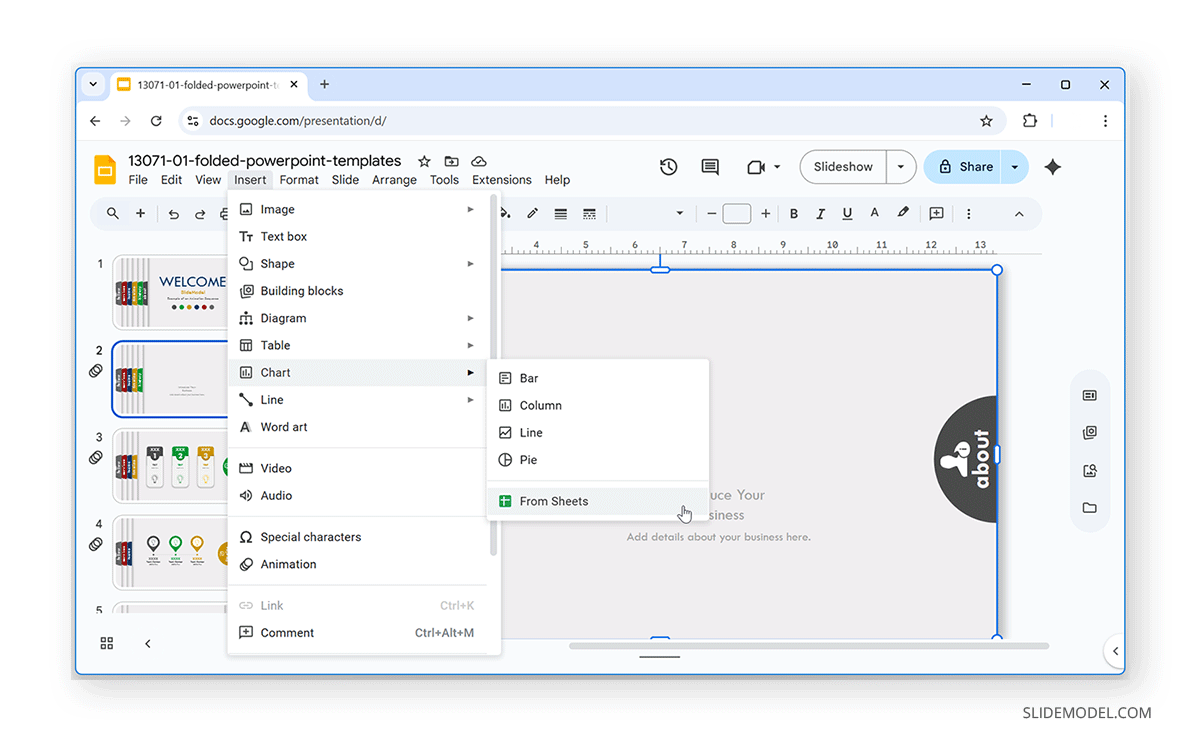
Recreate Charts from Google Sheets: To ensure your exported data remains reliable, export the underlying data (CSV), import it into Google Sheets, create the chart, and then insert it into Slides via Insert -> Chart -> From Sheets. This keeps charts dynamic and editable.
Export as Image: If you don’t need live edits, export the chart as a PNG from PowerPoint at high resolution and use it in Slides. This will also ensure that your custom axis settings and gradient fills match PowerPoint.
6. Slide Master and Themes
Common Issues
PowerPoint-exported files with custom Slide Masters and complex theme elements, such as placeholders and layouts, may be lost or changed, causing layout shifts in Google Slides. This is a common problem faced by users working with custom Slide Masters and complex themes that can cause compatibility issues in Google Slides.
Fixes and workarounds
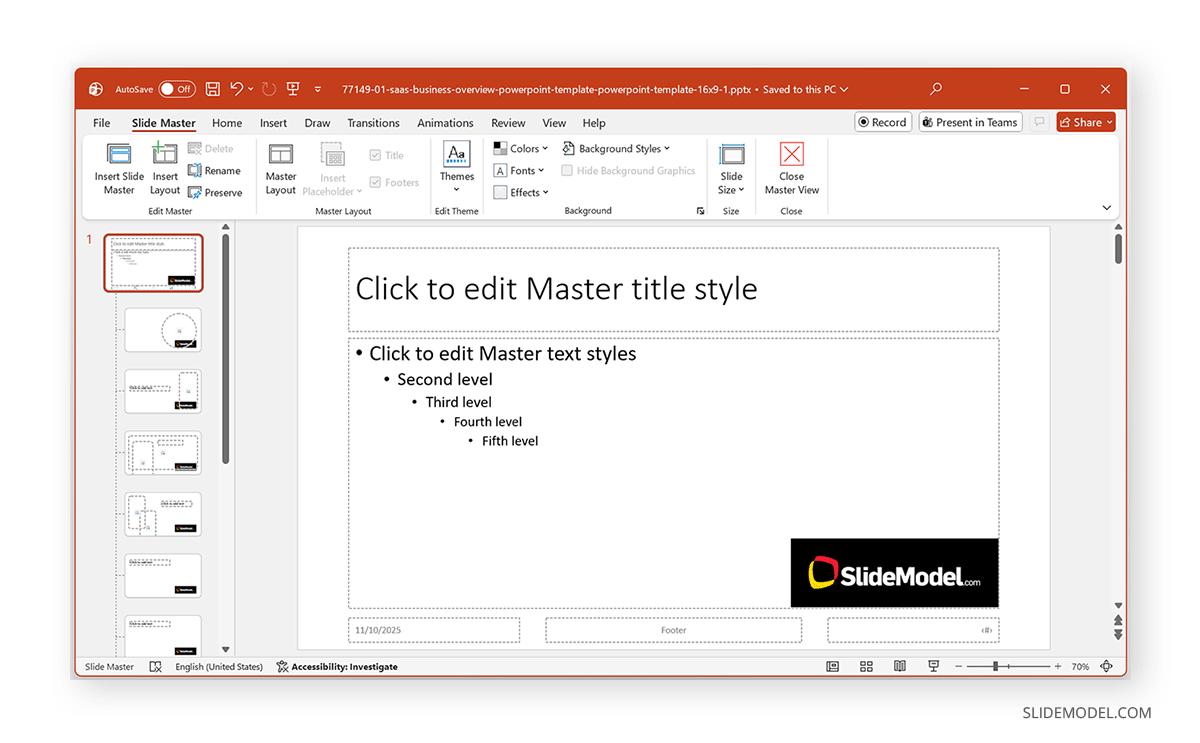
Simplify Master Slides Before Upload: PPT error in Google Slides caused by custom Slide Masters can often be resolved by removing complex numbered placeholders and excessive custom layouts. By using a clean Slide Master with consistent title and body placeholders, you can avoid compatibility issues in Google Slides.
Recreate the Master in Slides: After import, open Slide -> Edit Master in Google Slides to restore brand colors, fonts (where possible), and placeholder positioning. This workaround can help you recreate master slides to suit your needs and fix issues caused by PowerPoint files exported to Google Slides with custom Master slides.
Use Templates that Map Well: Many third-party presentation templates are compatible with both Google Slides and PowerPoint. SlideModel provides a range of presentation templates with cross-platform compatibility. You can find many such Google Slides templates at SlideModel to ease your workflow. These templates can fix PPT compatibility and Google Slides issues by providing optimized layouts that work well with both presentation platforms.
7. Objects and Embedded Files
Common Issues
Among the various compatibility issues with PowerPoint files exported to Google Slides, one major problem concerns embedded Word and Excel objects, OLE objects, and macros. These often don’t work in Google Slides as intended, leading to data loss in exported files or functionality loss.
Fixes and Workarounds
Extract and Reinsert Content: Open embedded Excel and Word objects in their native apps, export the required content (e.g., tables and charts) as images, or recreate them in Google Sheets and Google Docs.
Replace Macros with Manual Actions: If you relied on macros, rebuild flow logic using Slides’ features or convert to interactive web pages and link out from Google Slides.
Document Limitations for Stakeholders: If certain functionality can’t be replicated, explain the limitations and provide a PPTX download for users who need full functionality.
8. Hyperlinks and interactivity
Common Issues
Most links survive, but triggers and macro-based buttons don’t work in Google Slides. This common issue causes interactive triggers to become redundant when exported, so animations don’t start on hover or click.
Fixes and Workarounds
Test all links: After import, click every link to verify the target. Replace relative links with absolute URLs where needed and fix broken links.
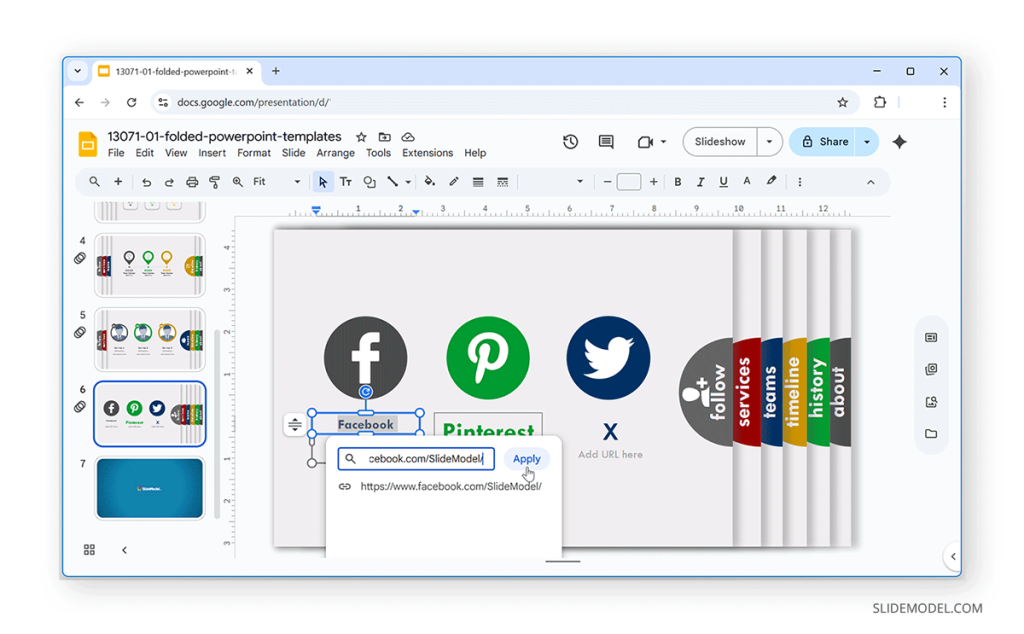
Recreate Navigation via Hyperlinks: Use Insert -> Link in Google Slides to create back-to-menu and section links inside exported slides.
Use Slides-native Interactivity: Use linked buttons and action links in Google Slides rather than PowerPoint’s trigger animations to avoid issues with incompatible trigger actions.
9. Design Elements: Gradients, Transparency, and Layers
Common Issues
Gradients, advanced shape effects, transparency, image compression, and layer order can often shift when exporting from Google Slides to PowerPoint.
Fixes and Workarounds
Flatten Complicated Effects to Images: To fix issues with design elements, consider exporting sections with complex effects as PNG images with transparency to preserve appearance.
Keep Layers Simple: Avoid heavy layering and complex groupings that Google Slides may reorder. Ungroup and simplify groups before import, where possible.
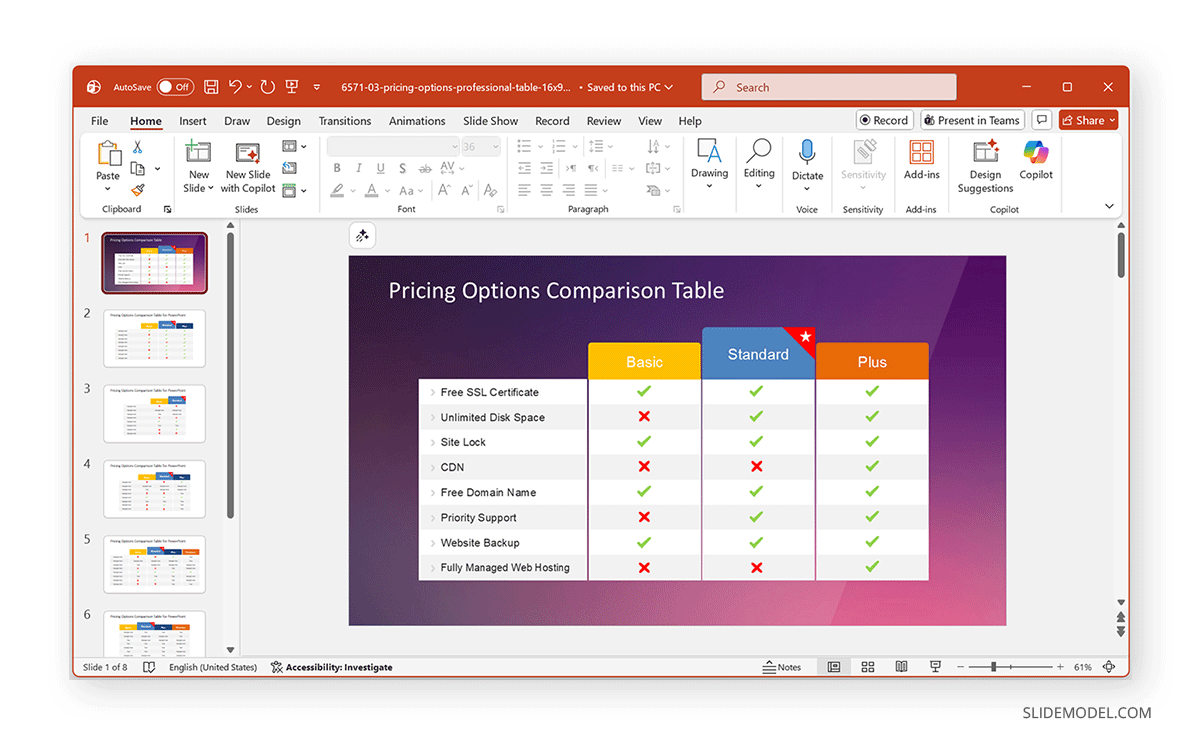
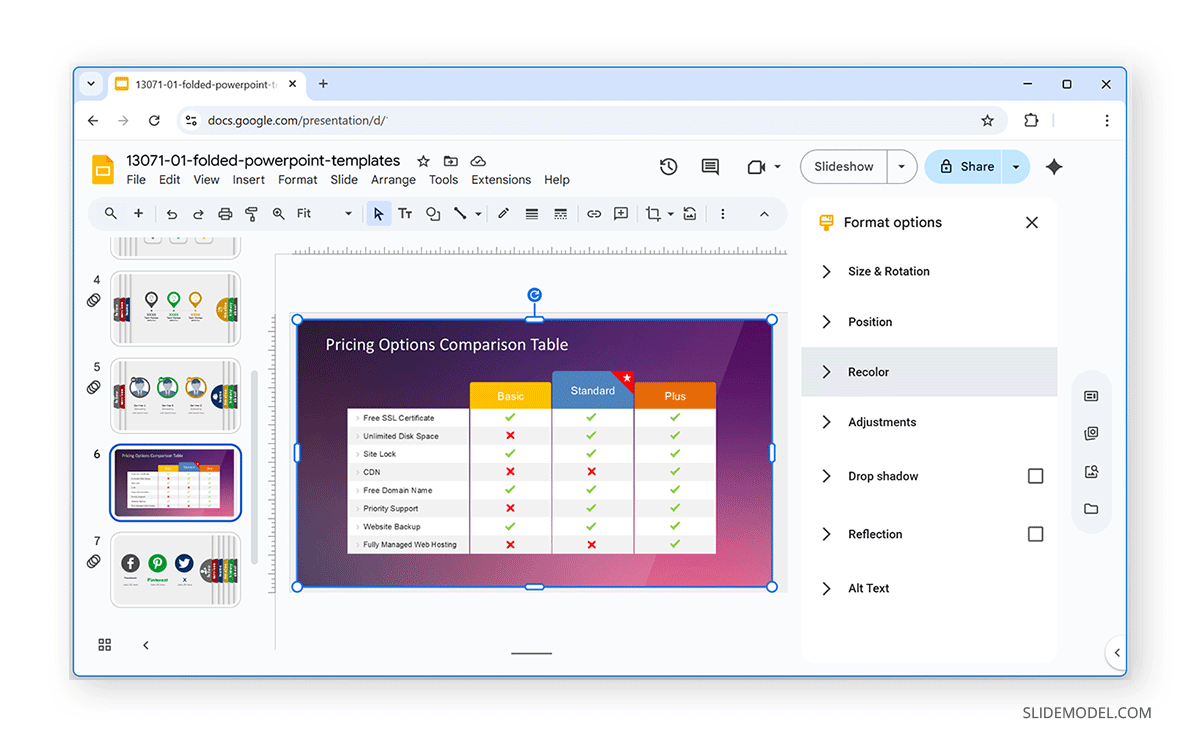
Check Image quality: Upload high-resolution images and, if necessary, use Format options -> Adjustments to tweak brightness/contrast rather than relying on effects that might not carry over. In the example below, we created a catalog slide using the Pricing Options Comparison Table for PowerPoint, exported it as a PNG image slide, and used it with Google Slides.
Checklist for PowerPoint Files Before Upload to Google Slides
If fixing compatibility issues between PowerPoint and Google Slides is taking too much of your time, consider checking in PowerPoint before uploading the file to Google Drive or opening it in Google Slides. Here’s a practical workflow checklist to help you prepare your presentation for export:
1. Save a Working Copy: Go to File -> Save As and create a duplicate version of your presentation. Use this copy to make compatibility adjustments without editing the original file.
2. Review Slide: Scan your slide deck and make notes where complex elements appear, such as animations, embedded videos, SmartArt graphics, charts, tables, or linked files.
3. Create Fallback Slides: For slides with heavy animation or multimedia, make a simple version using static images and brief text. This ensures nothing essential is lost in conversion.
4. Collect Original Media: Keep all audio and video files in a single folder so you can easily re-upload them to Google Drive if Google Slides strips them during import.
5. Audit Design Elements: Check for non-standard fonts, embedded objects, and SmartArt. Replace unsupported fonts with web-friendly options (preferably Google Fonts) or convert important text to images to preserve styling.
6. Manage Animations: Export unsupported or complex animations as short MP4 or GIF files to maintain their appearance.
7. Rebuild Editable Charts: If your PowerPoint contains linked Excel charts, recreate them in Google Sheets before inserting them into Google Slides to retain editability.
8. Upload and Link Media Properly: Host videos on Google Drive or YouTube, then reinsert them via Insert -> Video in Google Slides.
9. Test Across Platforms: Review your finished presentation on different devices (e.g., Windows, Mac, and Chromebook) and browsers to confirm fonts, spacing, and media playback work as intended.
10. Save Alternate Formats: If interactivity isn’t required, export a final PDF version for reliable sharing and printing.
Final Words
To ensure your PowerPoint file works properly in Google Slides, consider using cross-platform-compatible presentation templates. Plan for platform differences from the start, knowing Slides will be the target, and choose simple layouts for maximum portability. Keep a media folder and a CSV data backup for quick recreation in Google Sheets. Similarly, document any known feature losses for your audience.
Fixing PowerPoint compatibility in Google Slides is essentially a process of identifying the unsupported features and choosing the right compromise: rebuild in Slides for native editability, export as media for fidelity, or supply the original file for those who need full PowerPoint features. With a short compatibility checklist, you can spend less time resolving formatting issues and focus on your presentation, and avoid problems when delivering it, exported from PowerPoint to Google Slides.