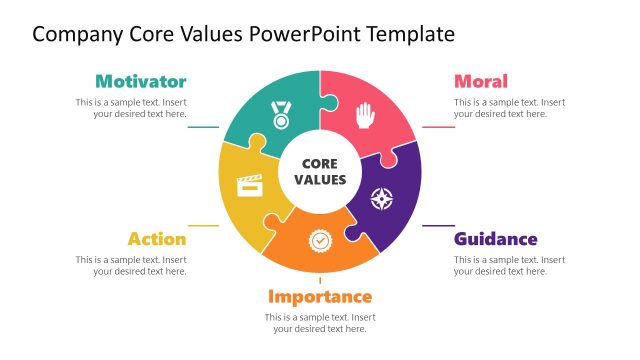
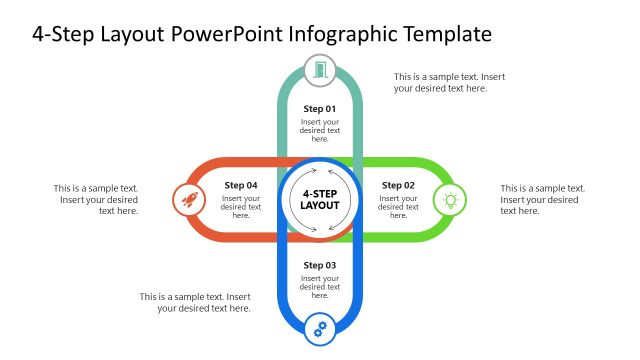
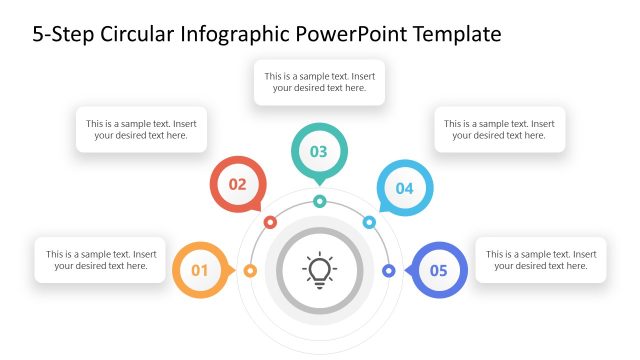
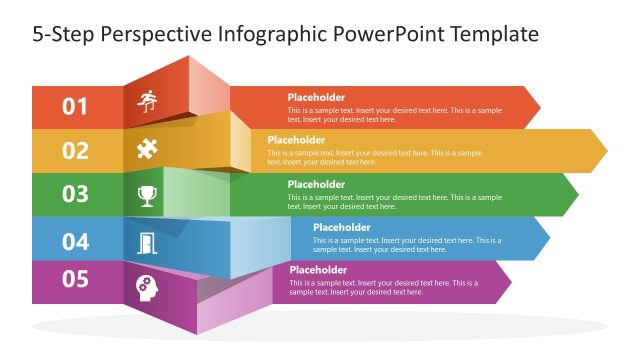
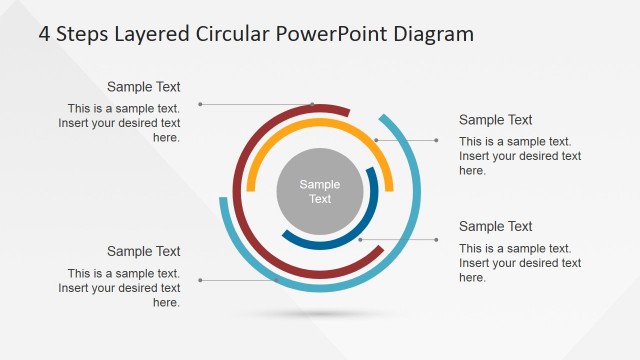
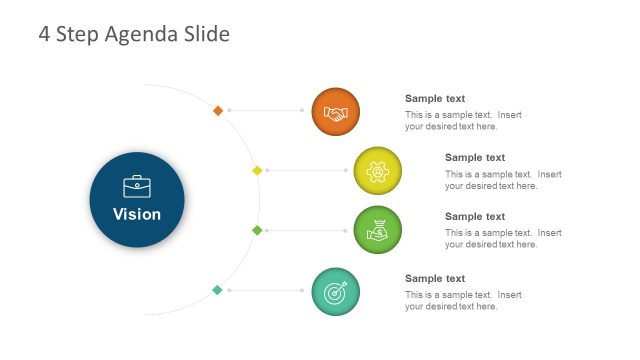
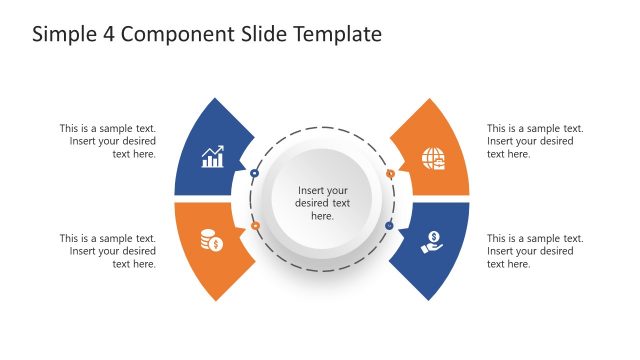
The Guiding Principles Slide Template for PowerPoint is a creative template having variable design layouts for presenting guiding principles. Guiding principles of an organization, team or institute define a code of conduct for its workers irrespective of their goals, duties, or situations. Generally, companies operate on the guidelines provided by ITIL (a systemized model to enhance operations and business value). Using the circular diagrams and other infographics, presenters can represent their guiding principles before employees or executives.
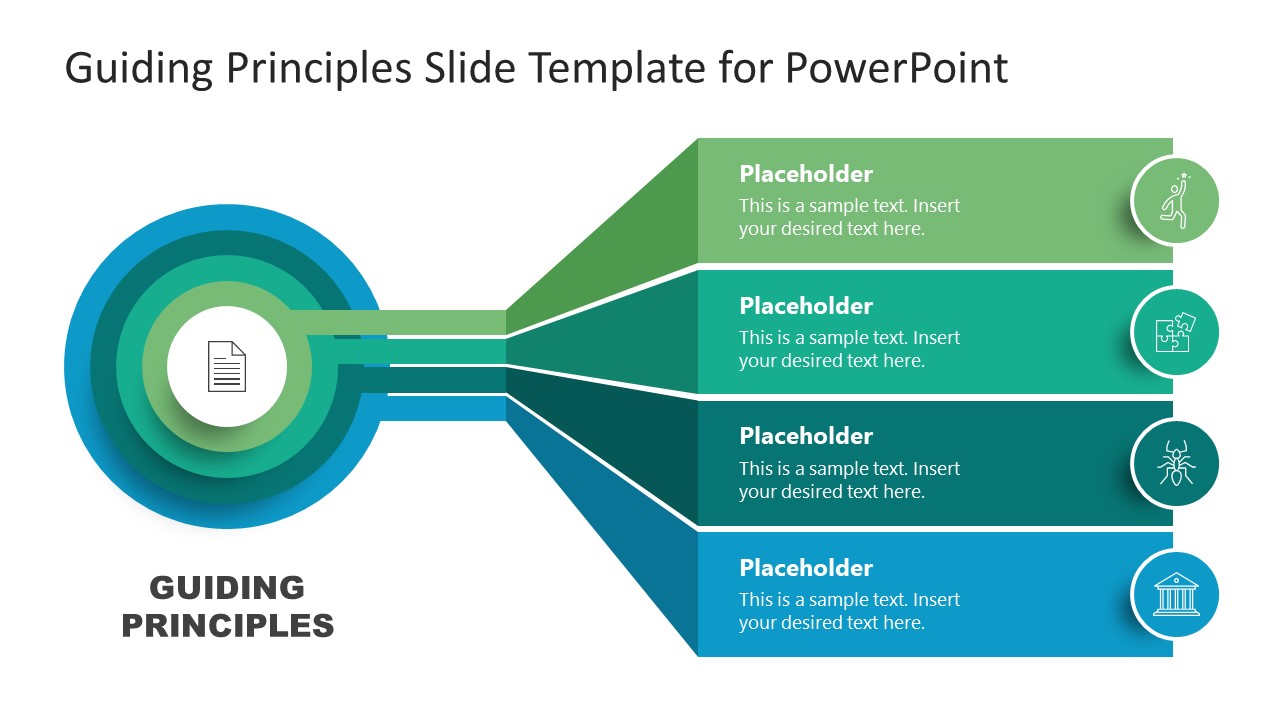
This PowerPoint template has three different layouts, each available in two color combinations. The first one is an onion diagram with concentric circles, where each of the layers represents individual guiding principles. The chart is made attractive by giving a distinct color for every layer. Four bars emerge from the concentric circles that have replaceable graphic icons and description boxes. The core component of this diagram has a notepad icon that visually denotes the guidelines.
The following slides have a circular shape in the center to mention the title. 3D style colored layers originate from the core element to mention the guiding principles. Users can add relevant details and graphic icons for each of the mentioned points. The next slides are the color variants of the previous designs. Our Guiding Principles Slide Template for PowerPoint is 100% editable. Thus, users can easily customize the slides for their professional presentations.
Hence, we can support your business or company presentations through this engaging PowerPoint template to brief your own set of guiding principles. Professionals from any domain can choose these slides to incorporate into their presentations. The customization of this slide template will require minimum steps. Further, it is compatible with editing with all major versions of PowerPoint, Google Slides, and Keynote.
What’s inside this template
Example presentation scenarios
- An HR leader can use the concentric circle diagram to introduce company values during onboarding and connect each value to a short behavioral expectation.
- A department manager can use the 4-step or 5-step principle list to explain team norms, decision rules, or operating standards in a staff meeting.
- A consultant can use the 6-step balanced diagram to compare principle groups across two sides, such as governance responsibilities and execution behaviors.
- A training facilitator can use the 8-step radial map to walk participants through a code of conduct, with each icon representing a topic for discussion.
Features
- 100% editable presentation template
- Compatible with Microsoft PowerPoint and Google Slides
- 16:9 aspect ratio slides
- Scalable vector shapes, icons and illustrations
- AI-Ready for Microsoft Copilot and Claude
- Instant access and download
Frequently asked questions
Q: How should a presenter make guiding principles clear instead of turning the slide into a list?
A: Start with the central circle as the source of authority, such as a policy, mission, or shared code. Then explain each principle as a short label plus one practical behavior. The 4-step, 6-step, and 8-step diagrams work best when each text block is concise and the speaker adds examples verbally.
Q: Who is this template best suited for, and in what type of presentation?
A: This template fits internal communication, onboarding, leadership briefings, and consulting workshops where the presenter must align people around rules or values. HR leaders can introduce conduct standards, managers can define team norms, and consultants can organize operating principles before discussing implementation details.
Q: Why do the circle and branching layouts help explain principles?
A: The central document icon and concentric rings create a visual metaphor for a core rule set that guides surrounding actions. Branching panels separate each principle without losing the connection to the center. This helps the audience see the principles as related parts of one framework rather than independent bullet points.


Guiding Principles Slide Template for PowerPoint
6-slide presentation template with concentric circles and principle diagrams for guidelines and team values.
This 6-slide presentation template explains guiding principles with editable diagram layouts, including a concentric circle onion diagram, a 4-step principle list, a 6-step balanced diagram, and an 8-step radial principle map. It is suited for managers, HR teams, trainers, and consultants presenting values, conduct rules, or operating guidelines in PowerPoint or Google Slides.
- Category
- Diagrams
- Rating

 Loading...
- Aspect ratio
- 16:9
- Item ID
- 21440-01
- Colors
 Microsoft PowerPoint
 Microsoft Copilot
 Claude for PowerPoint
Other formats supported
Subscribe today and get immediate
access to download our PowerPoint templates.