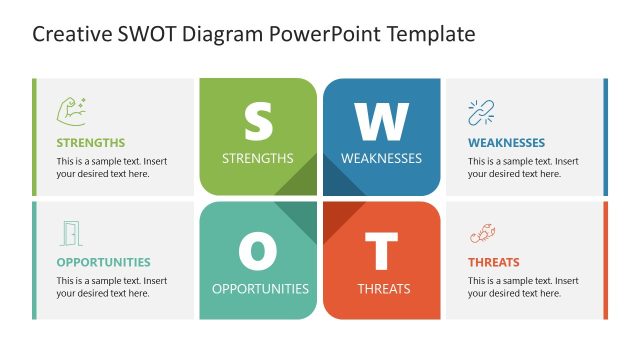
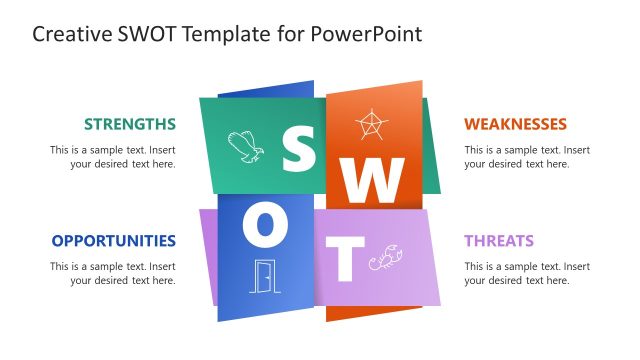
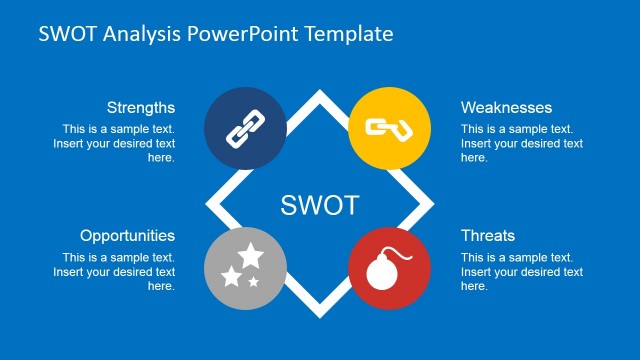
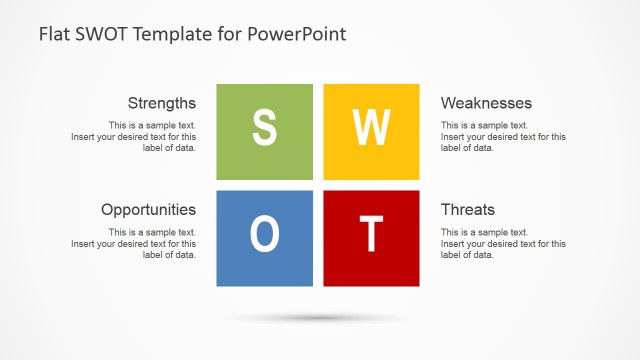
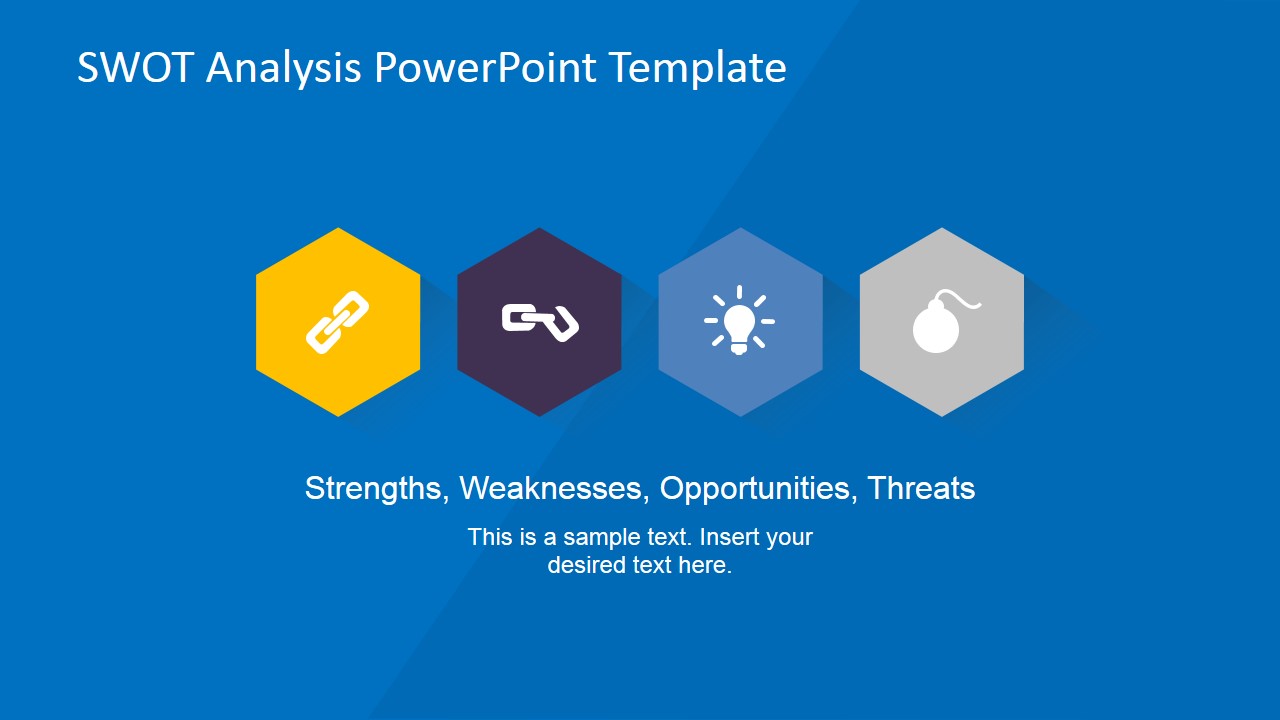
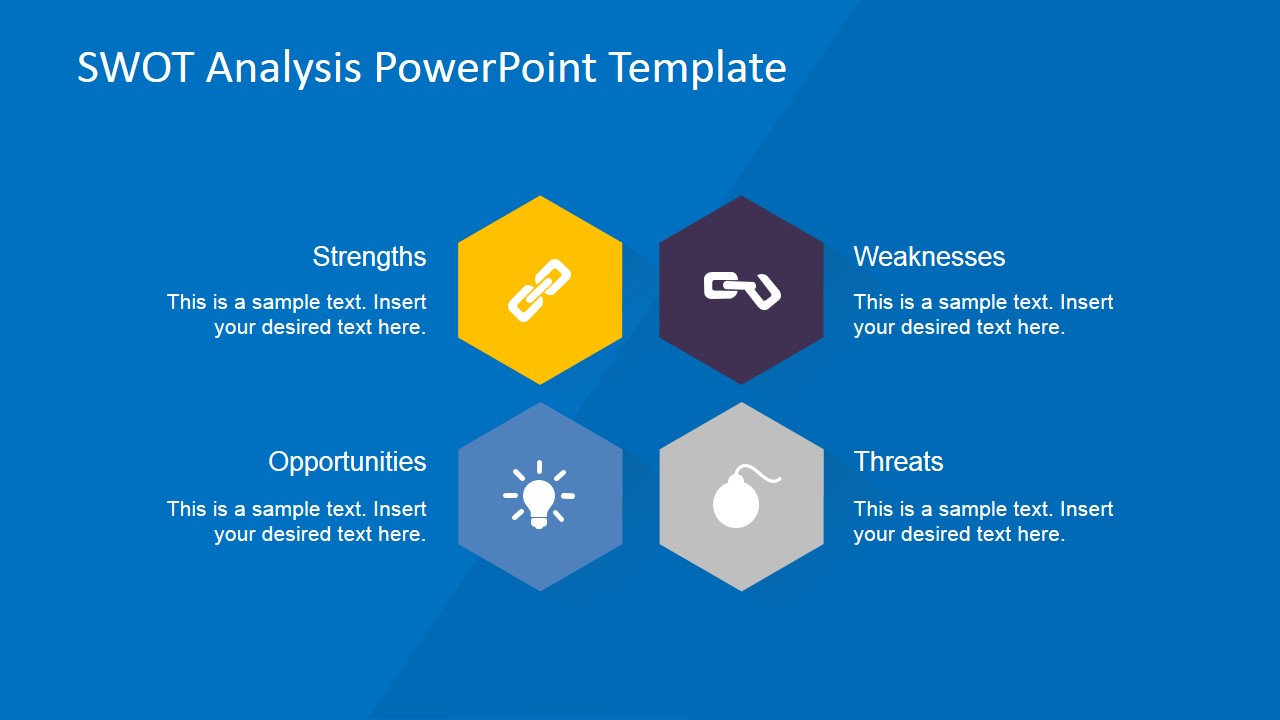
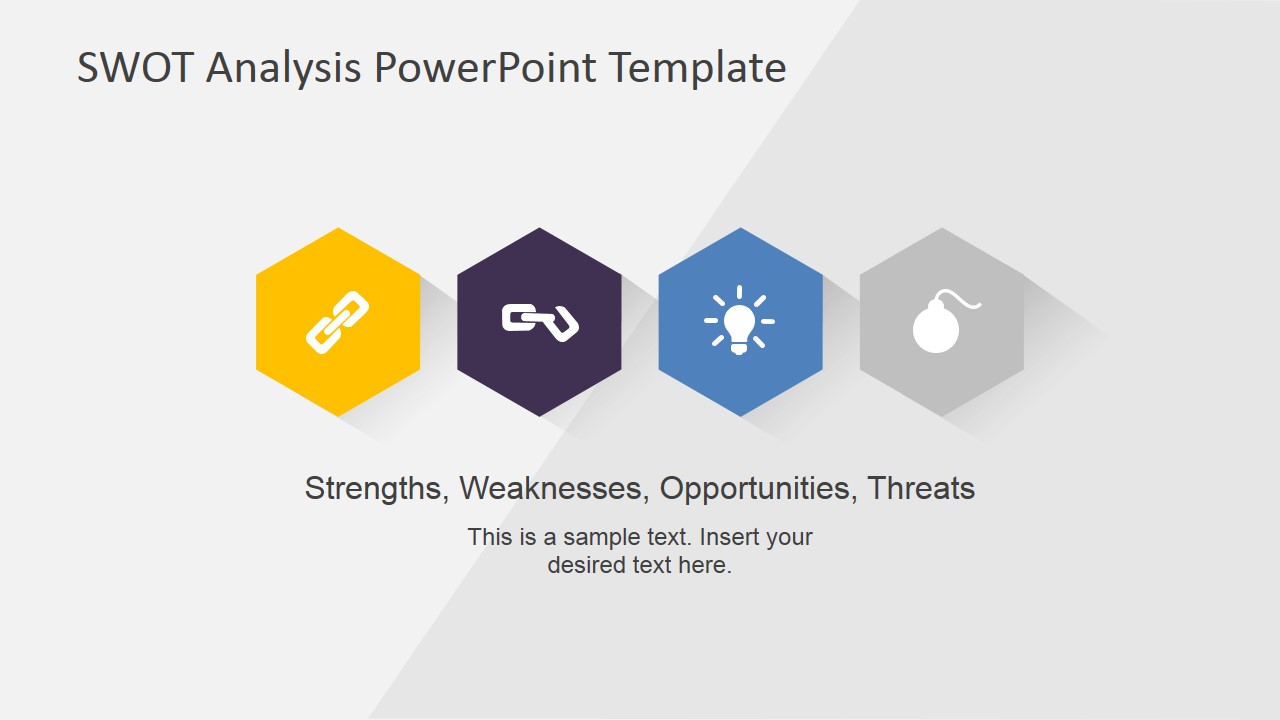
Creative SWOT Flat Design Diagram for PowerPoint – This creative SWOT Flat Design Diagram for PowerPoint is a professionally designed template that assists a presenter in conveying a SWOT presentation perfect for audiences in a business setting. The SWOT analysis template contains the basic principles of the SWOT analysis. Its principles are mainly based on identifying a business or non-business entity’s Strengths, Weaknesses, Opportunities and Threats. This design allows the presenter to formulate several different approaches in presenting a SWOT analysis for its company, investors, project or teams. The presenter can use readily available icons to represents the aspects that compose a SWOT analysis. Each part of the presentation can be elaborated in separate slides using their corresponding icons or using photos that exclusively represent the company.
SWOT analysis is widely used as a decision making tool in establishing relevant actions to improve a business entity’s current status. This type of analysis is divided into two main considerations: internal and external influences. The internal influences are those that the business entity can control – those that are within the organization. This internal influence is then sub-categorized into two. The sub-categories are the company’s Strengths and Weaknesses. Examples of these are its assets and liabilities; employee skills or competencies and their areas of improvement; customer satisfaction and dissatisfaction rates; profit and loss. On the other hand, SWOT analysis also determines the company’s external factors or those that are not directly controlled by the company. They are the Opportunities and Threats. These factors are found outside of the organization but highly affect the company’s status. Examples of these are the company’s market share versus its competitor’s; prevailing rate versus the company’s current liabilities; industry’s peak season and the company’s production rate. Once these factors are identified using the SWOT analysis, the managers can decide which one these factors is of highest priority. The team will then make a line-up of activities to take advantage of the data derived from the analysis.
What’s inside this template
Example presentation scenarios
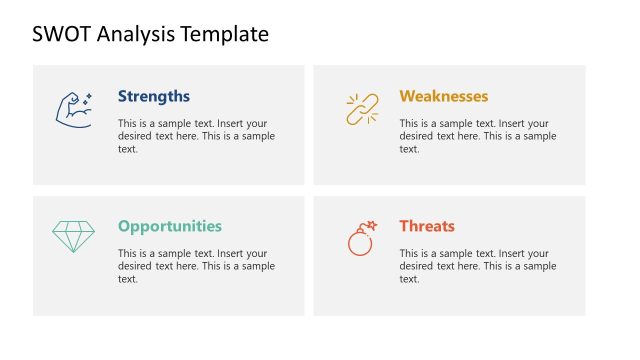
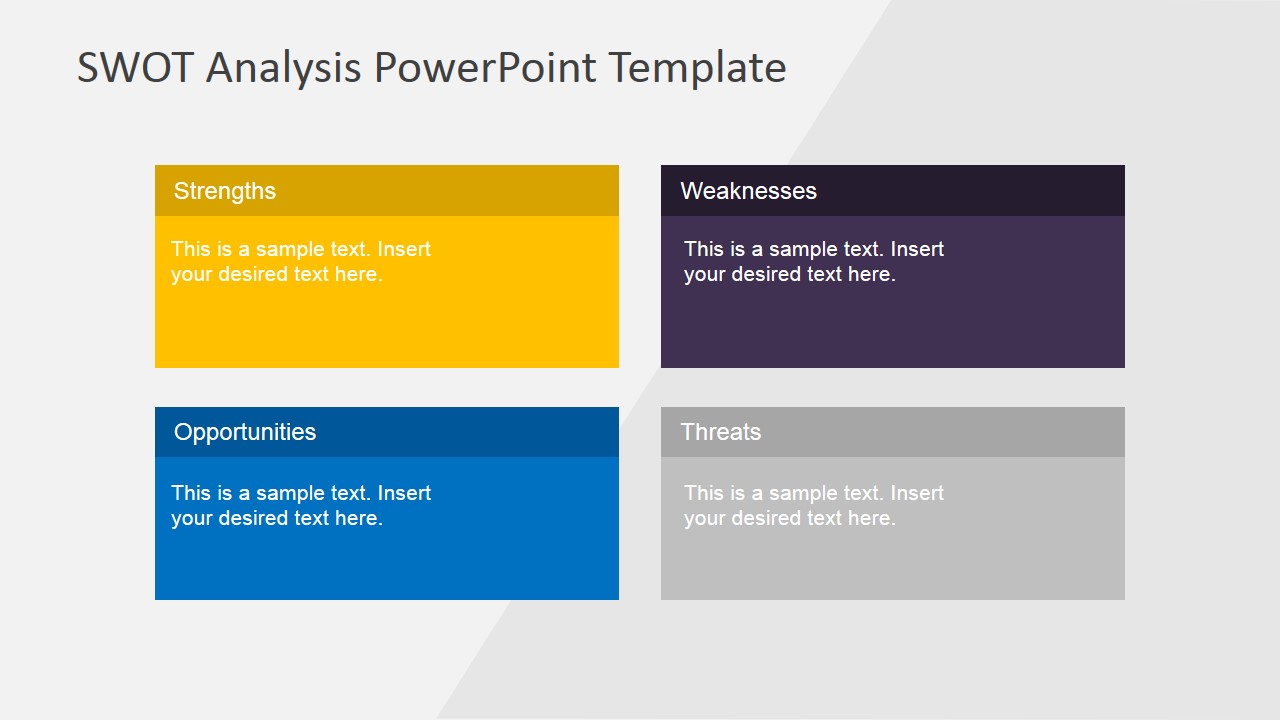
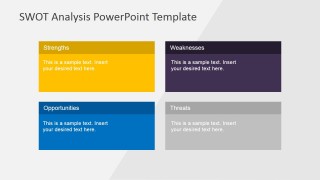
- A strategy consultant can use the four-part text matrix to summarize a client's strengths, weaknesses, opportunities, and threats before recommending next steps.
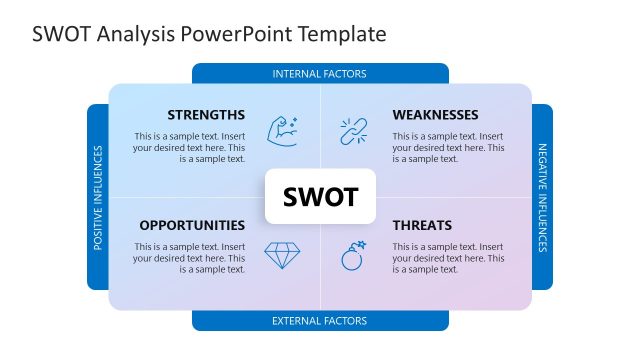
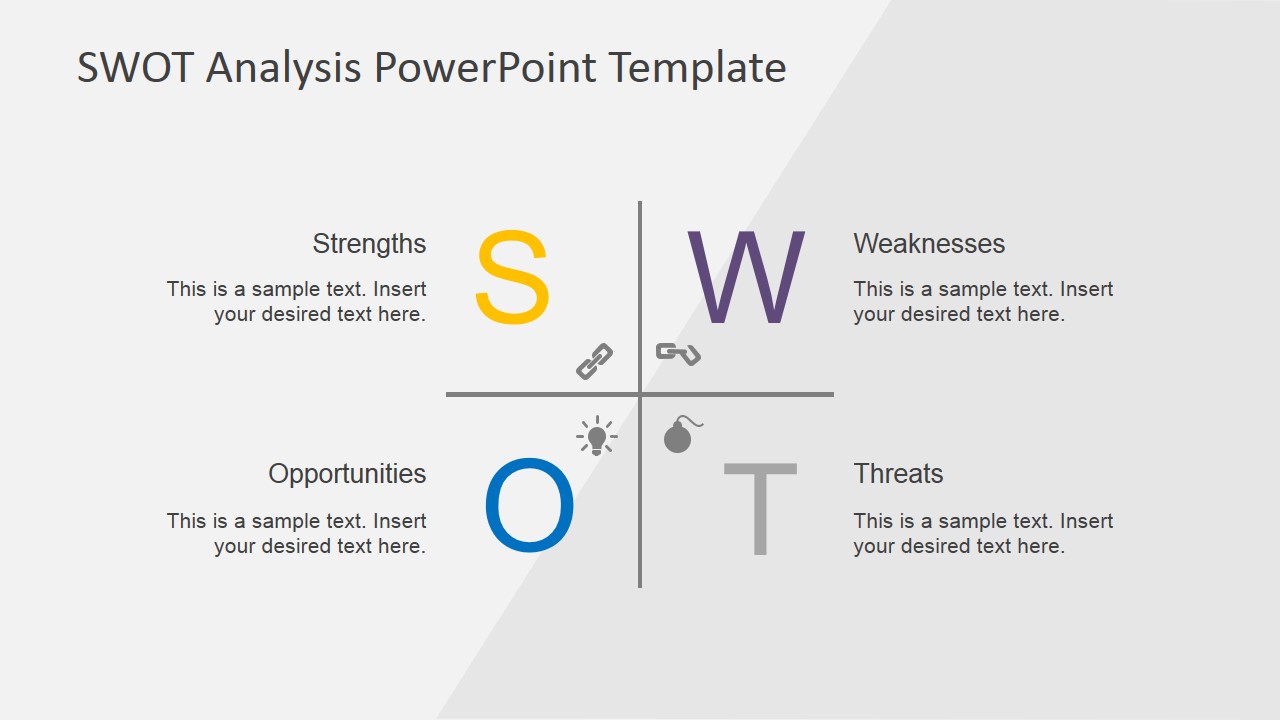
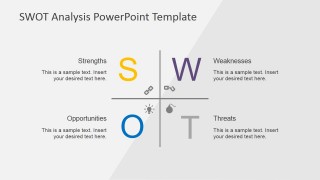
- A product manager can use the quadrant SWOT diagram to compare internal capabilities with external market risks during a roadmap planning meeting.
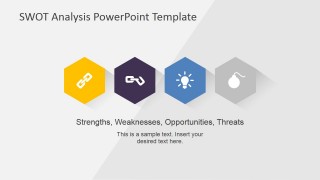
- A startup founder can use the icon-based overview slide to present a clear SWOT snapshot to investors before discussing business priorities.
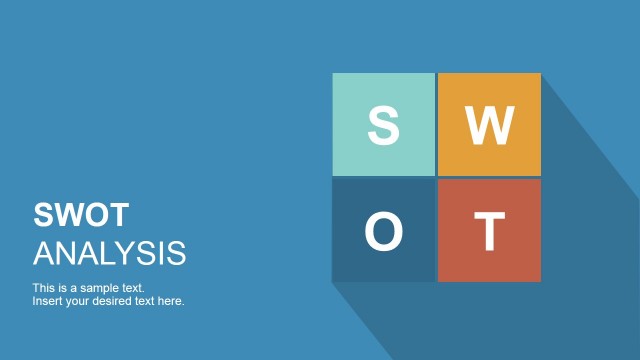
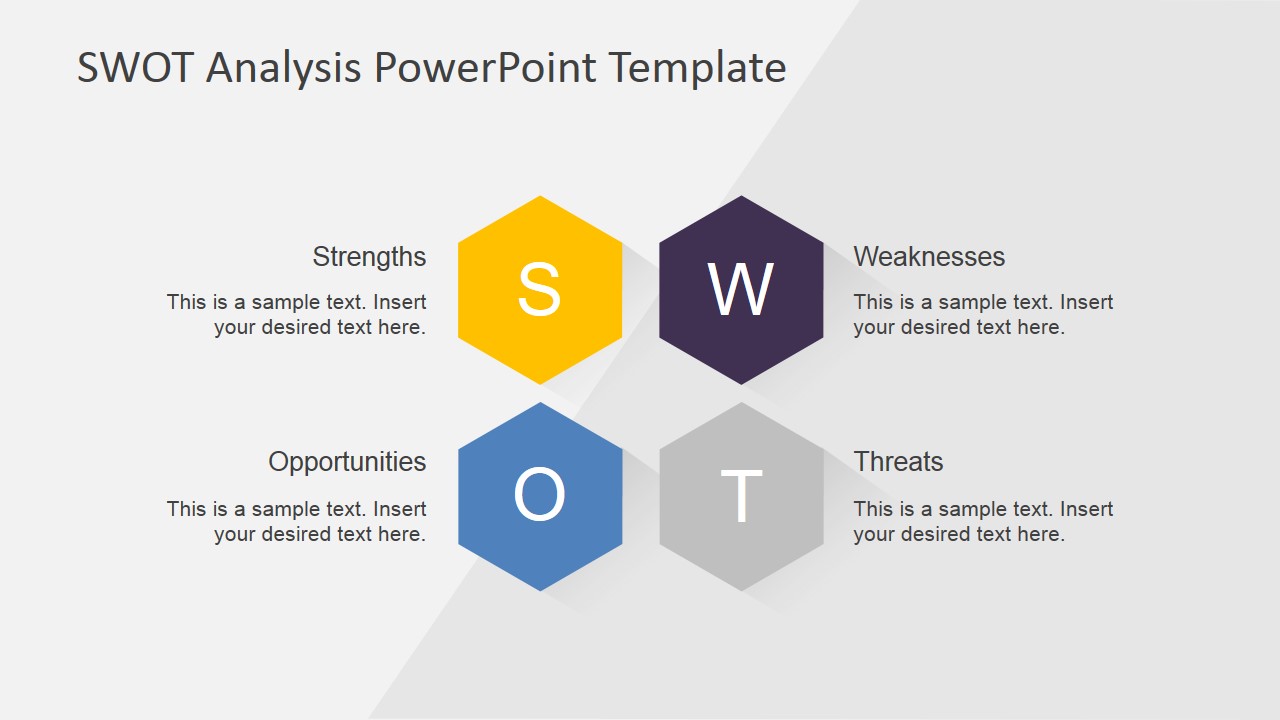
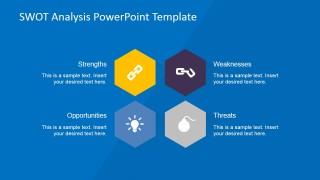
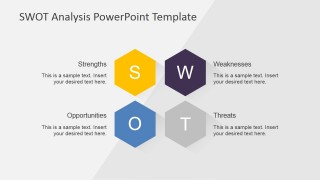
- A team lead can use the hexagon letter-tile layout to guide a workshop where participants contribute points under each SWOT category.
Features
- 100% editable presentation template
- Compatible with Microsoft PowerPoint and Google Slides
- 16:9 aspect ratio slides
- Scalable vector shapes, icons and illustrations
- AI-Ready for Microsoft Copilot and Claude
- Instant access and download
Frequently asked questions
Q: How should a presenter structure the SWOT message with this template?
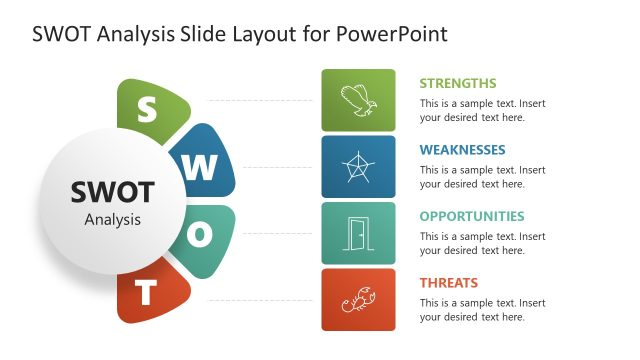
A: Start with an overview slide to define the four SWOT categories, then move to either the hexagon callout slide or the four-part text matrix for substance. Keep each category to a few clear points. End with the quadrant layout when the audience needs to compare internal factors against external conditions before discussing actions.
Q: Who is this SWOT diagram template best suited for?
A: This template is best for managers, consultants, founders, and team leads who need to explain a strategic situation without building a full business plan deck. It works well in planning sessions, stakeholder updates, project reviews, and investor conversations where the audience needs a quick but organized view of strengths, weaknesses, opportunities, and threats.
Q: Why does the template use hexagons, icons, and quadrants for SWOT analysis?
A: The hexagon icons make the four categories feel related while still separating each idea. The rectangular matrix supports longer notes, and the quadrant design helps audiences compare categories in a familiar structure. This mix lets the presenter choose the right level of detail for the moment instead of forcing every SWOT point into one visual format.
Creative SWOT Flat Design Diagram for PowerPoint
6-slide SWOT presentation template with flat icons, hexagon diagrams, and strategy analysis layouts
Creative SWOT Flat Design Diagram for PowerPoint is a six-slide diagram template for presenting strengths, weaknesses, opportunities, and threats. It includes icon-based SWOT overviews, a four-part text matrix, hexagon letter tiles, and quadrant diagrams. Business presenters can use it for strategy reviews, team planning, investor updates, and decision discussions in Microsoft PowerPoint and Google Slides.
- Category
- Strategy
- Rating


 Loading...
- Aspect ratio
- 16:9, 4:3
- Item ID
- 6643-02
- Colors
 Microsoft PowerPoint
  Microsoft Copilot
  Claude for PowerPoint
 Other formats supported
Subscribe today and get immediate
access to download our PowerPoint templates.