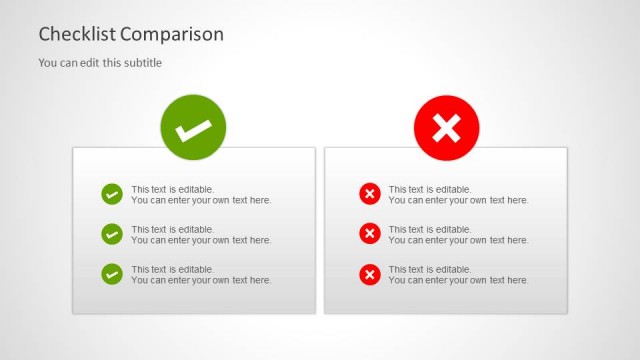
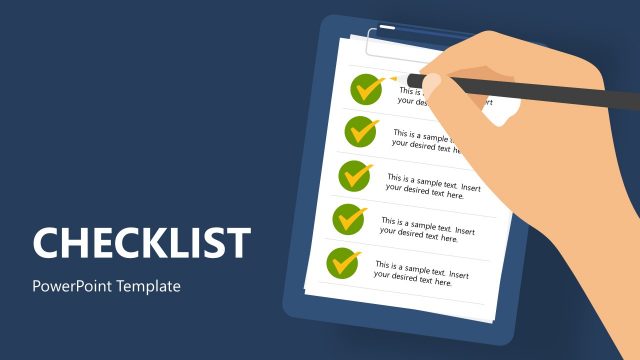
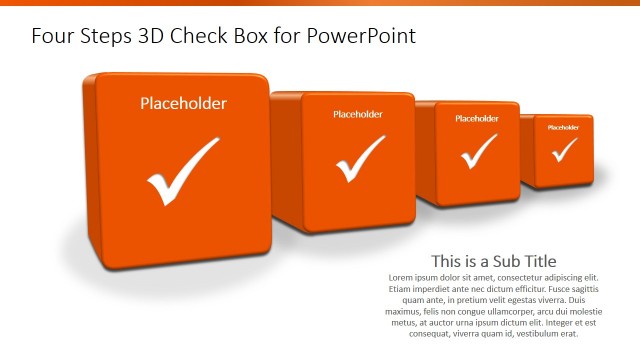
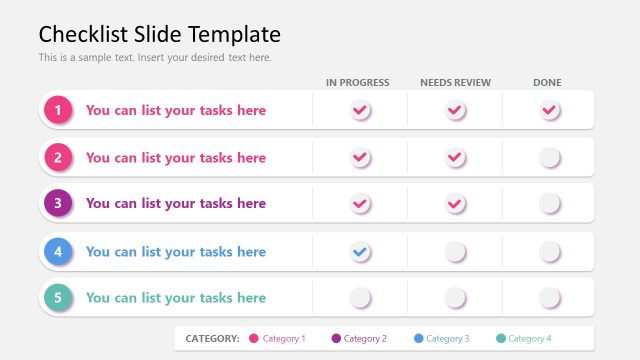
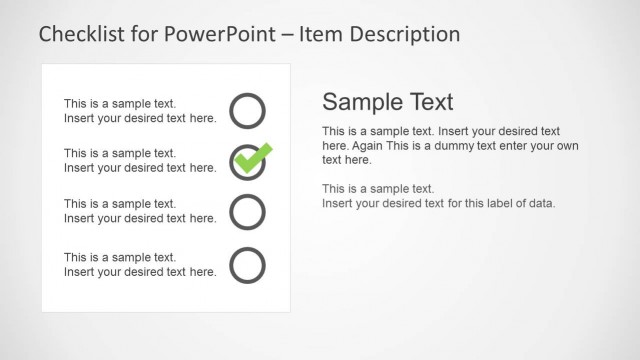
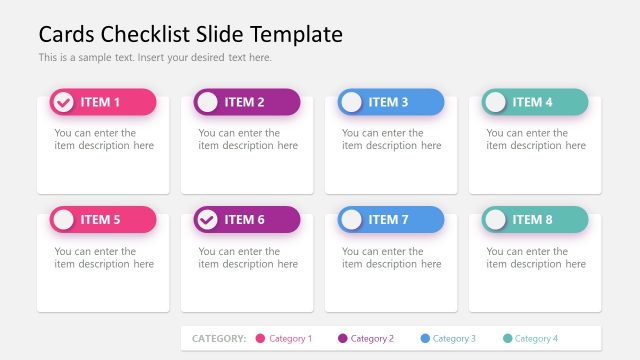
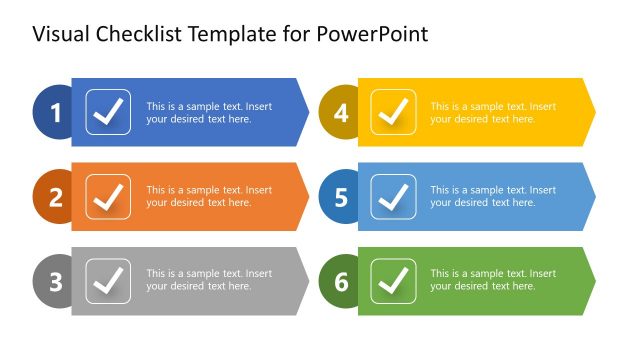
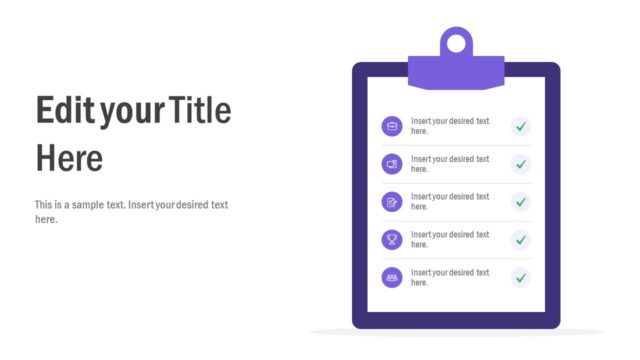
Check boxes Template for PowerPoint– a selection of beautiful check box PowerPoint shapes that can surely impress professional audiences. Decorate project management and task management presentations with this PowerPoint template. The colorful boxes are catchy to the eyes and can stimulate a lively mood during a discussion.
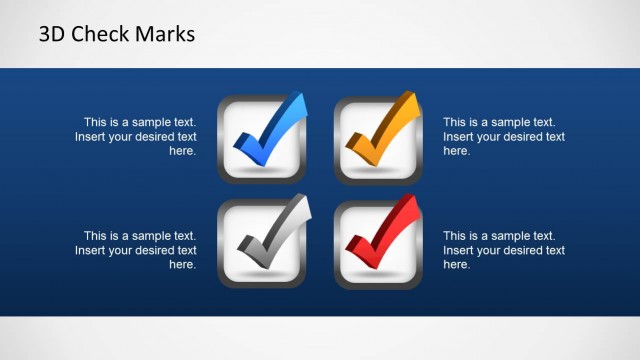
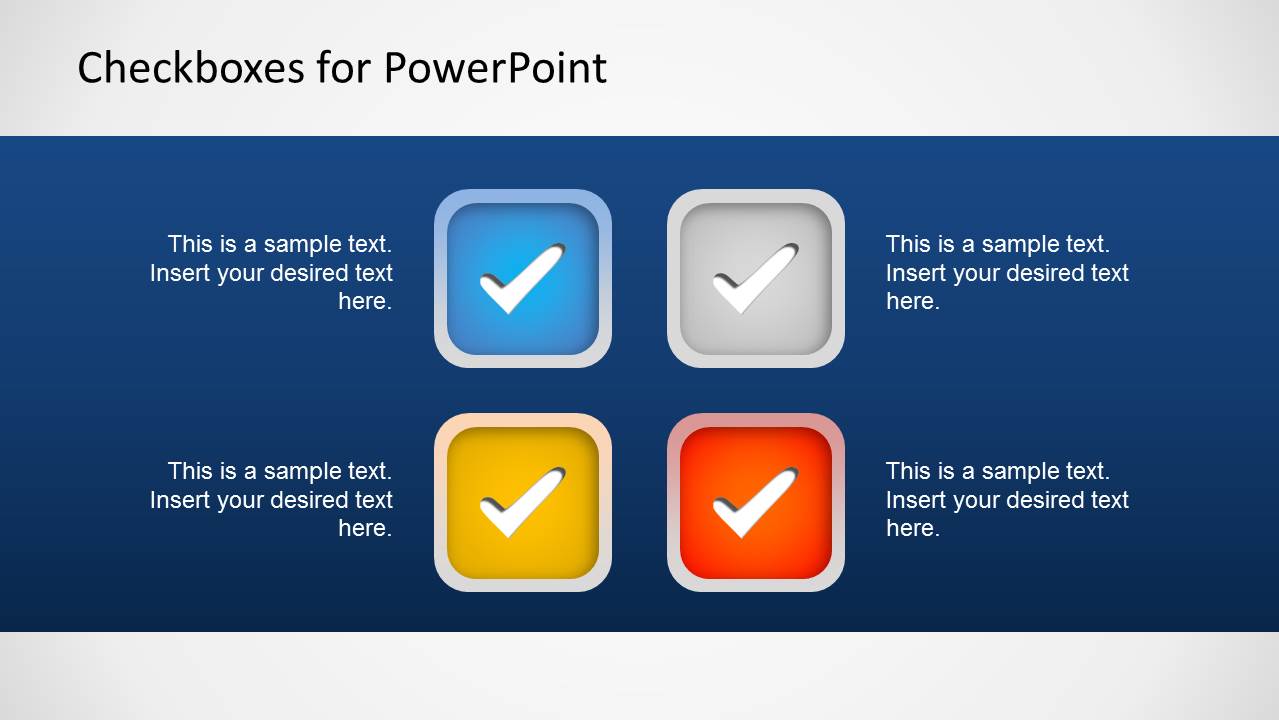
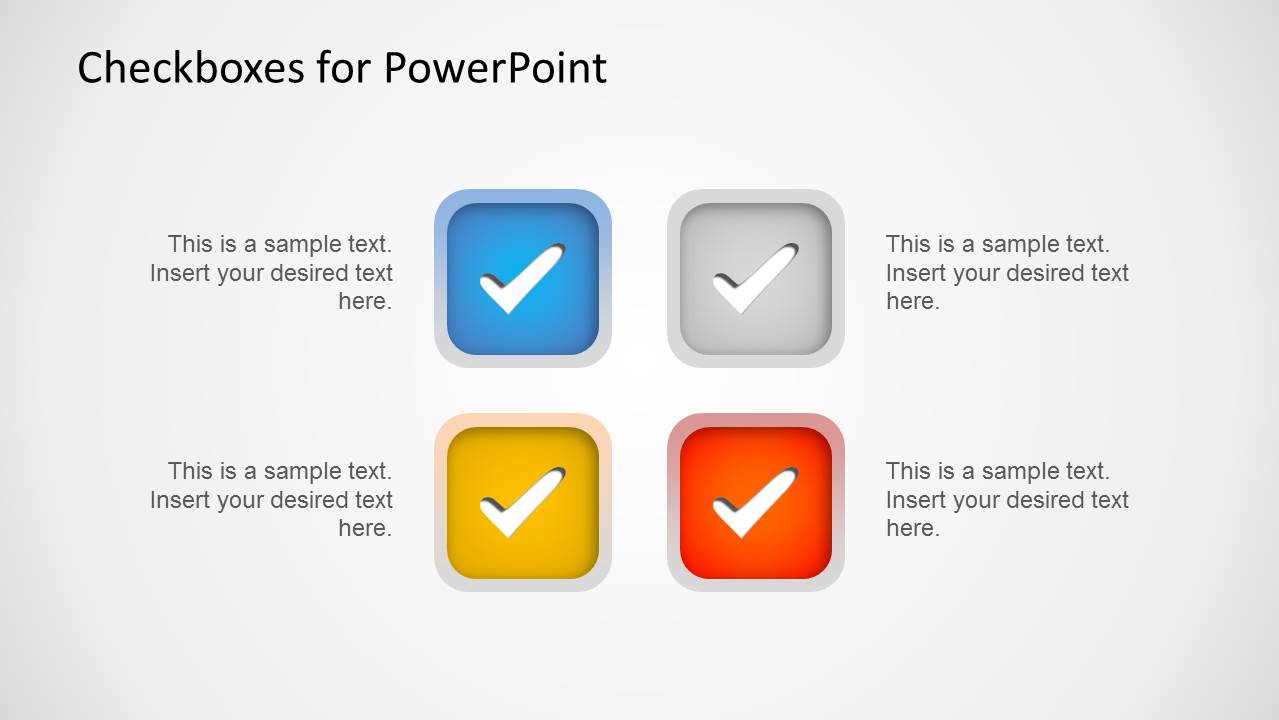
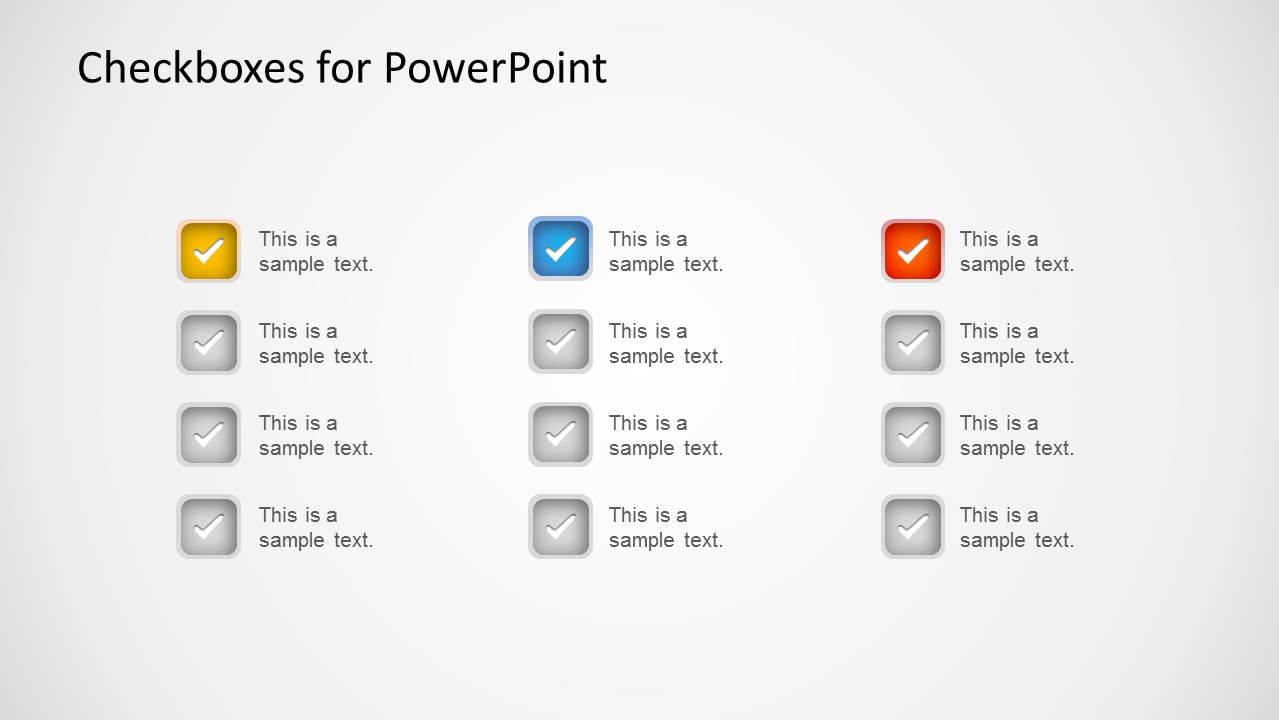
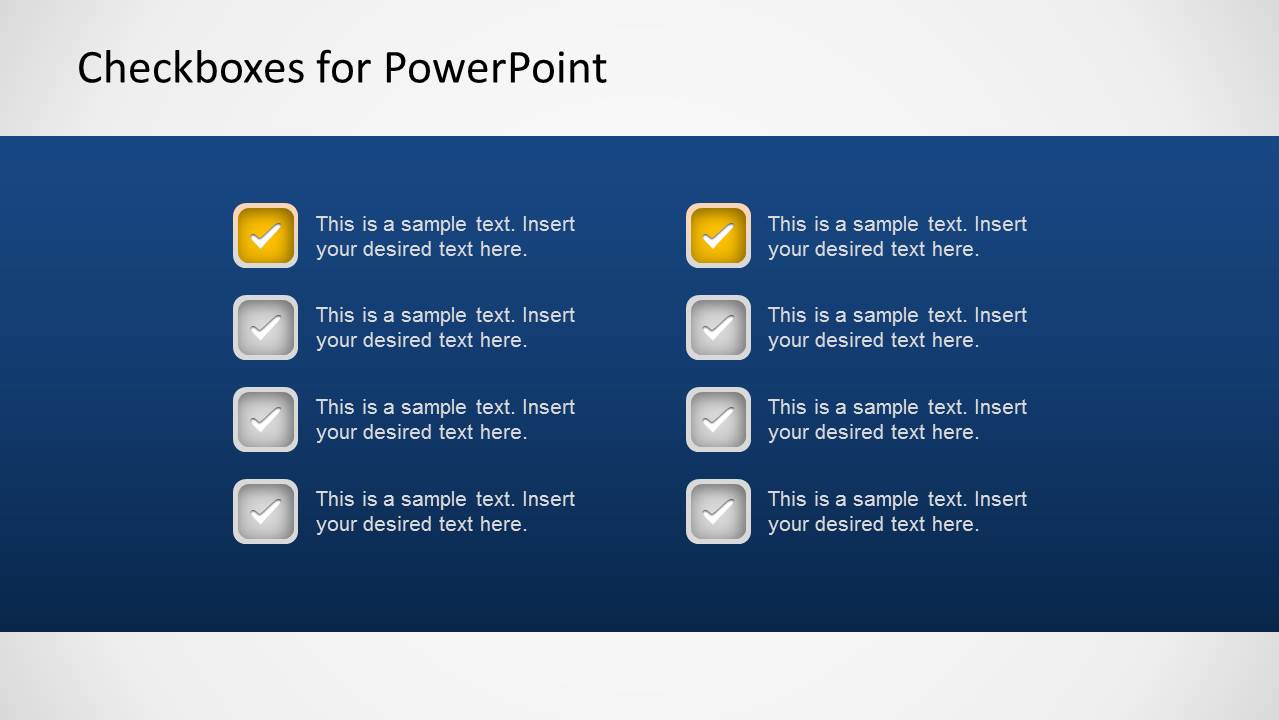
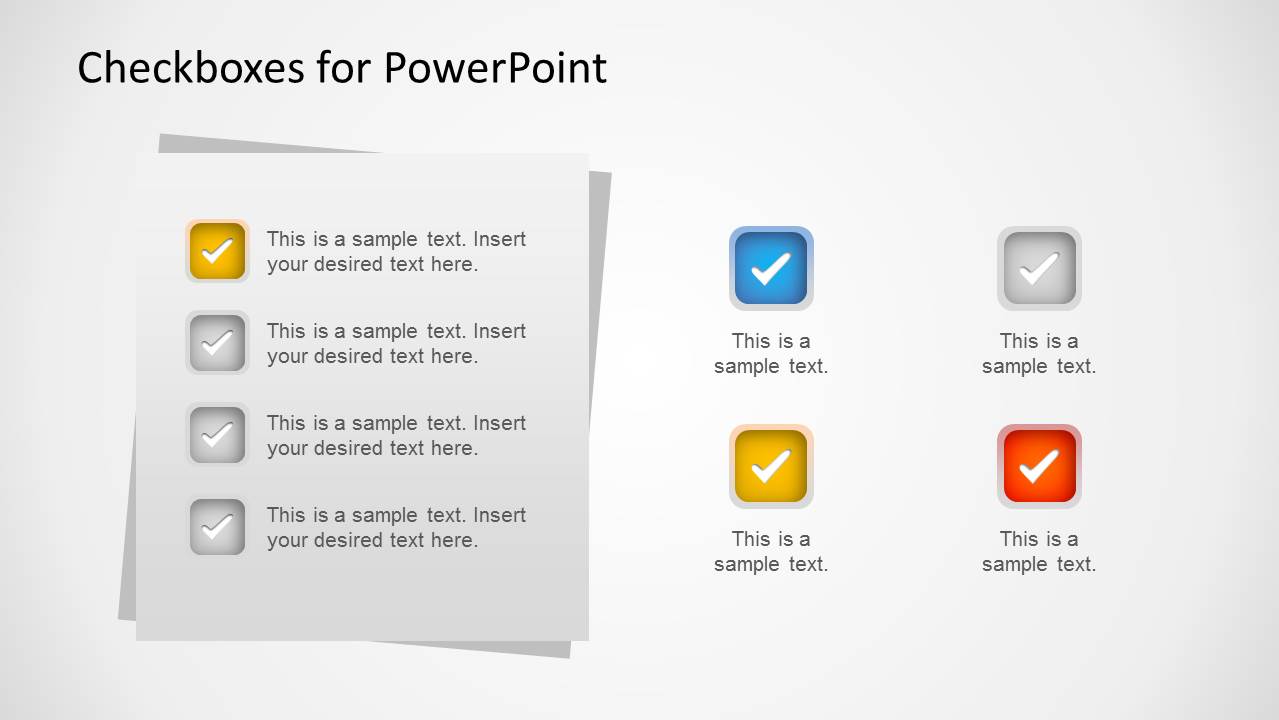
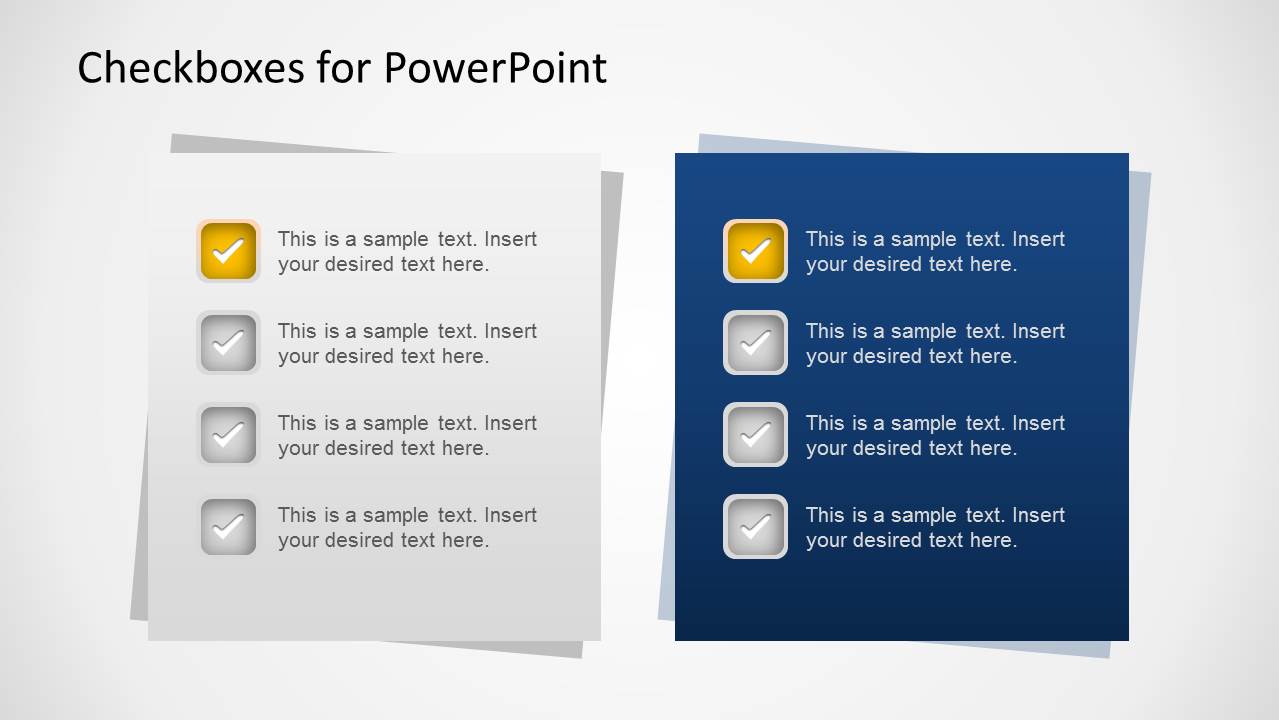
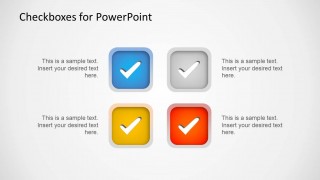
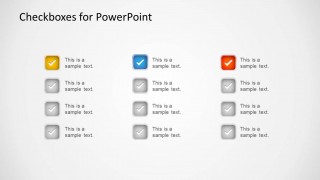
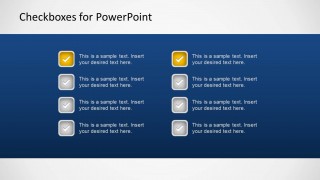
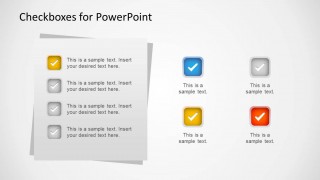
There are six slide designs in this Office template. In the first slide, the user can find a blue background with white horizontal borders. There are 4 colored check boxes in the center. Text placeholders are beside the PowerPoint objects where keywords or ideas can be written. The second slide includes the same features only with full white background. The third slide incorporates 3 columns and 4 rows of check boxes. The user can now list down a handful of things. There are 8 boxes in the fourth slide. A shadow effect from the text placeholders in the remaining slides depicts overlapping papers. This gives a touch of reality to the flat shapes.
The PowerPoint template is ideal for checklist presentations or slides. This can illustrate task management, as mentioned, where the user can keep track of all activities. The needs or requirements of a project can also be traced by the slide designs. This can decorate reports from a personal level to a business level. An individual can create a to-do list using the PowerPoint shapes. A company can utilize the design on illustrating check lists of daily goals in an orientation.
A check box is a square shape where one can tick in a check mark (?). This can symbolize “done”, “yes”, “paid”, etc., that means the task or item has been completed. In some cases like questionnaires, the check boxes are referred to as options where a person can opt to choose more than one answer.
Level up with excellent visuals from Check boxes Template for PowerPoint. Checklist Layout Design for PowerPoint can be downloaded at the SlideModel gallery.
What’s inside this template
Example presentation scenarios
- A project manager can present task completion in a weekly status meeting using the 8-item checklist and the 12-item grid to separate finished work from remaining actions.
- A team lead can introduce onboarding goals to new employees using the four-item checkbox group for priorities and the dark blue checklist slide for daily responsibilities.
- A business analyst can review project requirements with stakeholders using the paper-style checklist panel to confirm must-have items and the side callouts to flag open decisions.
- A trainer can run a classroom or workshop activity using the checkbox layouts as selection prompts, allowing participants to compare options or mark completed steps.
Features
- 100% editable presentation template
- Compatible with Microsoft PowerPoint and Google Slides
- Scalable vector shapes, icons and illustrations
- AI-Ready for Microsoft Copilot and Claude
- Instant access and download
Frequently asked questions
Q: How should a presenter structure a checklist message with this template?
A: Start with the four large checkbox icons to frame the main categories, then move to the 12-item grid or 8-item list when the audience needs detail. Keep each checkbox label action-oriented, such as approve, test, deliver, or review. Use the paper-style slides for summary decisions because they read like signed-off notes.
Q: Who benefits most from using a checkbox-based slide deck?
A: This template is best for project managers, team leads, trainers, and operations presenters who need to confirm work status or clarify required actions. It works well when the audience must quickly understand what is done, what remains open, and what choices are being selected without reading long paragraphs.
Q: Why do the checkbox icons and paper panels help the message land?
A: Checkboxes are a familiar completion metaphor, so the audience instantly reads each item as done, selected, or pending. The paper-style panels on slides 5 and 6 add a document-like cue that supports approvals, requirements, and action lists. The repeated icon rhythm also makes longer lists easier to scan.
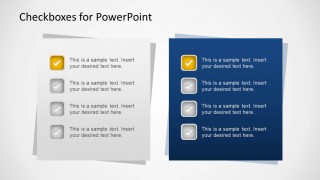
Checkboxes Template for PowerPoint
6-slide PowerPoint checklist presentation template with checkbox lists, task tracking, and status selection layouts
Checkboxes Template for PowerPoint is a 6-slide checklist template for task tracking, requirements lists, and status selection. Visible layouts include four-item checkbox groups, a 12-item checklist grid, an 8-item checklist, and paper-style list panels. It is built with editable PowerPoint shapes and vector checkbox icons.


 Loading...
 Microsoft PowerPoint
  Microsoft Copilot
  Claude for PowerPoint
 Other formats supported
Subscribe today and get immediate
access to download our PowerPoint templates.