If you’re not proficient in graphic design applications but need to create a product catalog for customers, the easiest option is PowerPoint. Creating a product catalog in PowerPoint is one of the most efficient ways to showcase a company’s offerings in a visual, professional, and easily shareable format. PowerPoint offers the option to create and export the catalog in multiple formats, including PNG, JPG, GIF, and PDF, as well as online in the form of a static or interactive slide deck.
In this guide, we’ll walk you through how to create a product catalog in PowerPoint, explain layout and design best practices, share expert tips, and provide useful PowerPoint catalog templates to help you ease your design tasks.
Why Use PowerPoint for Product Catalog Design
Before exploring the design process, it’s important to understand what makes PowerPoint such a valuable tool for catalog creation.
- Familiar and Accessible: Most business users already know how to use PowerPoint, so there’s no learning curve or need for specialized design software.
- Flexible Layouts: PowerPoint offers easy drag-and-drop customization, allowing you to adjust grids, text boxes, and images without complex formatting. For companies managing dynamic product lines, such as retail, software, or manufacturing, PowerPoint provides a quick and cost-effective catalog solution.
- Interactive Presentation Capabilities: You can embed links, animations, and transitions, turning your catalog into a clickable, digital showroom.
- Easy to Update: Product prices, specs, and photos can be changed quickly without re-designing the entire catalog.
- Export Options: PowerPoint catalogs can be exported as PDFs, videos, GIF animations, or static image files such as JPG or PNG. You can also share PowerPoint catalogs online as static or interactive slideshows.
How to Create a Product Catalog in PowerPoint
Step 1: Plan the Structure of Your Catalog
A successful catalog starts with planning and organization. Before opening PowerPoint, define the following:
- Purpose: Decide whether your catalog is meant for client presentations, internal product training, or trade shows, etc.
- Audience: Tailor tone and design for your viewers. A luxury fashion catalog will look different from a technical equipment brochure.
- Product Categories: Group similar products into sections for easier navigation.
- Information Hierarchy: Determine what information each product entry will include, typically including the product name, description, SKU, specifications, and price.
Tip: Create a rough outline before designing. This will help you determine how many slides you need per section and what type of layouts match your products.
Step 2: Choose a PowerPoint Product Catalog Design
Designing from scratch can be time-consuming. Instead, you can start with a professionally built PowerPoint template. SlideModel offers a wide selection of Product Catalog PowerPoint Templates that are fully editable, ready to customize, and aligned with modern design standards. Below is a selection of suggested templates and design ideas to help you create your catalog using various layouts. This includes not only suggested templates but also ideas that you can utilize even if you’re starting from scratch.
Classic Product Catalog Design
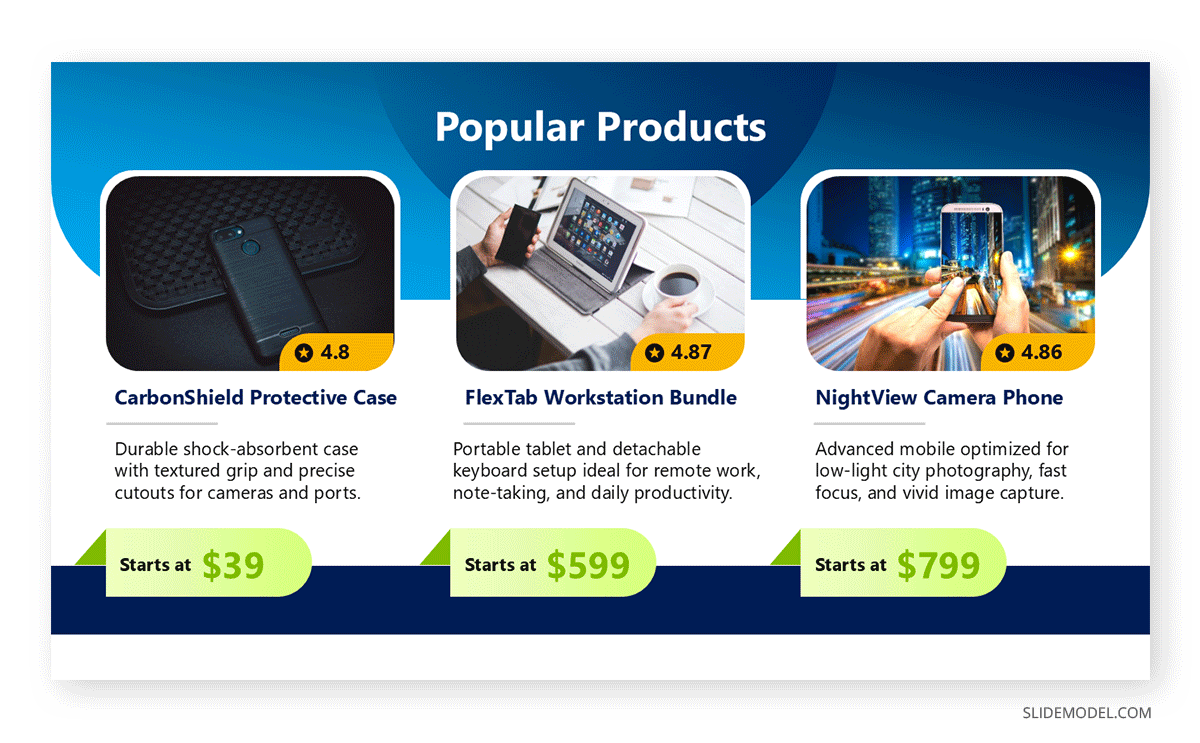
If you’re looking to create a classic catalog design with pricing and product images, the Product Catalog PowerPoint Template gives a good example of how to make such a design. With the help of this template, you can easily create a product catalog with images for one or more products. A classic design, such as this one, is meant to showcase the product’s price and image, featuring a few key elements to attract customers with eye-catching photos, prominent price tags, and discount offers.
Discount and Bundle Offers Design
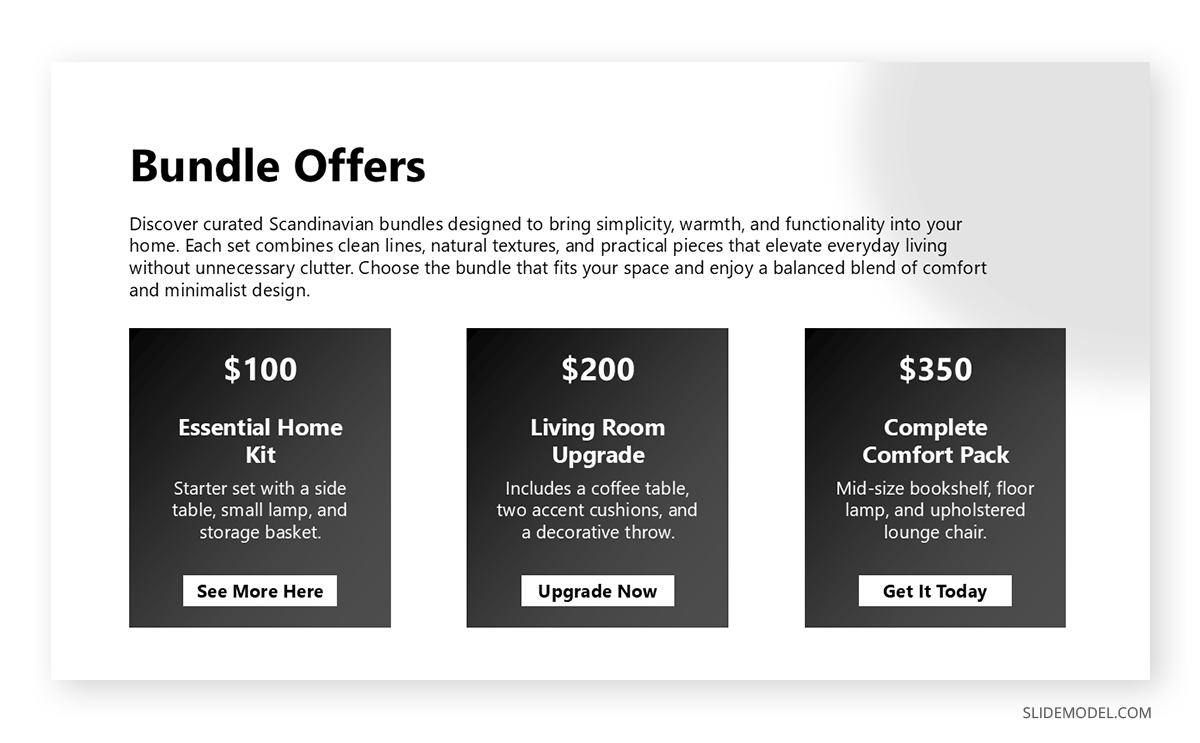
Many customers are looking for discounts and bundle offers. To showcase a catalog like this, you can use designs like the one included with the Product Catalog Template for PowerPoint. It not only showcases the product’s main features but also provides space for creating detailed discount offers, as well as easy-to-scan bundle offers.
New Product Launch Design
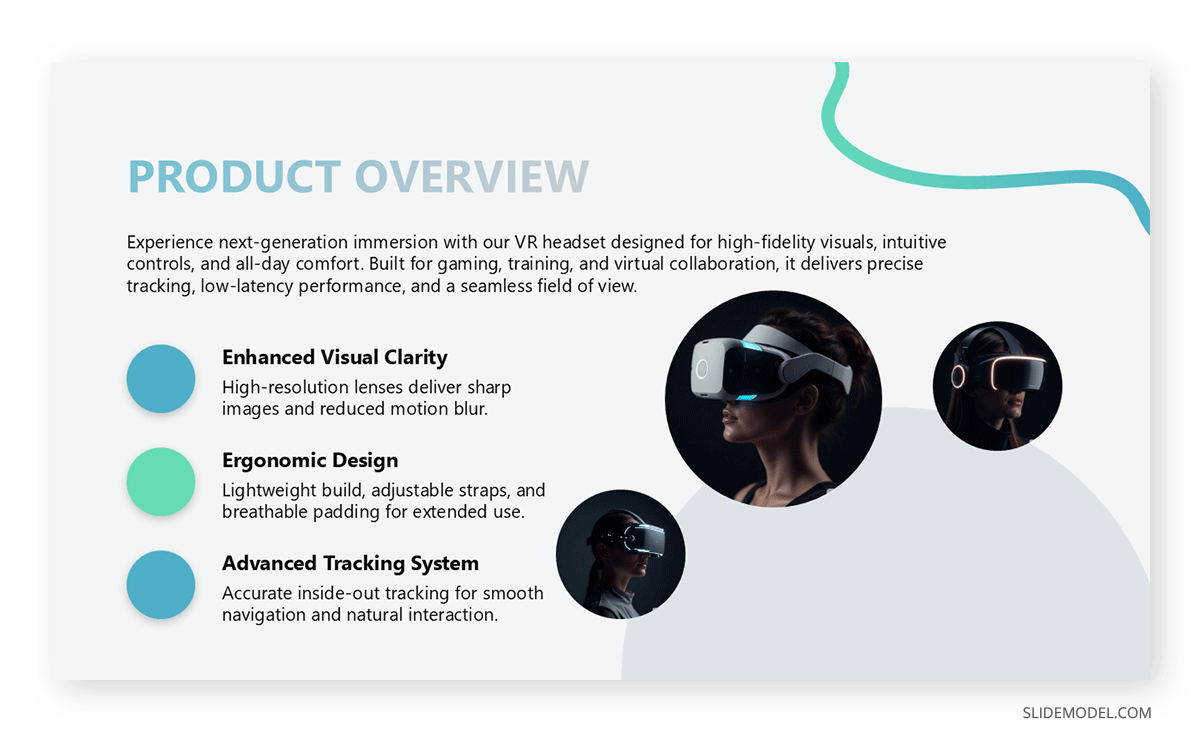
A new product launch design for a catalog should focus on the main product, its variations, and pricing options. The New Product Launch Presentation Template for PowerPoint is a good example of how to create such a PowerPoint product catalog design using a title slide that highlights the main product, followed by a product introduction, key metrics, audience, timeline, and call-to-action. Such a template can be adapted to create a catalog for customers, investors, or a pre-launch product catalog presentation for interdepartmental coordination.
Comparison Table Design Catalog
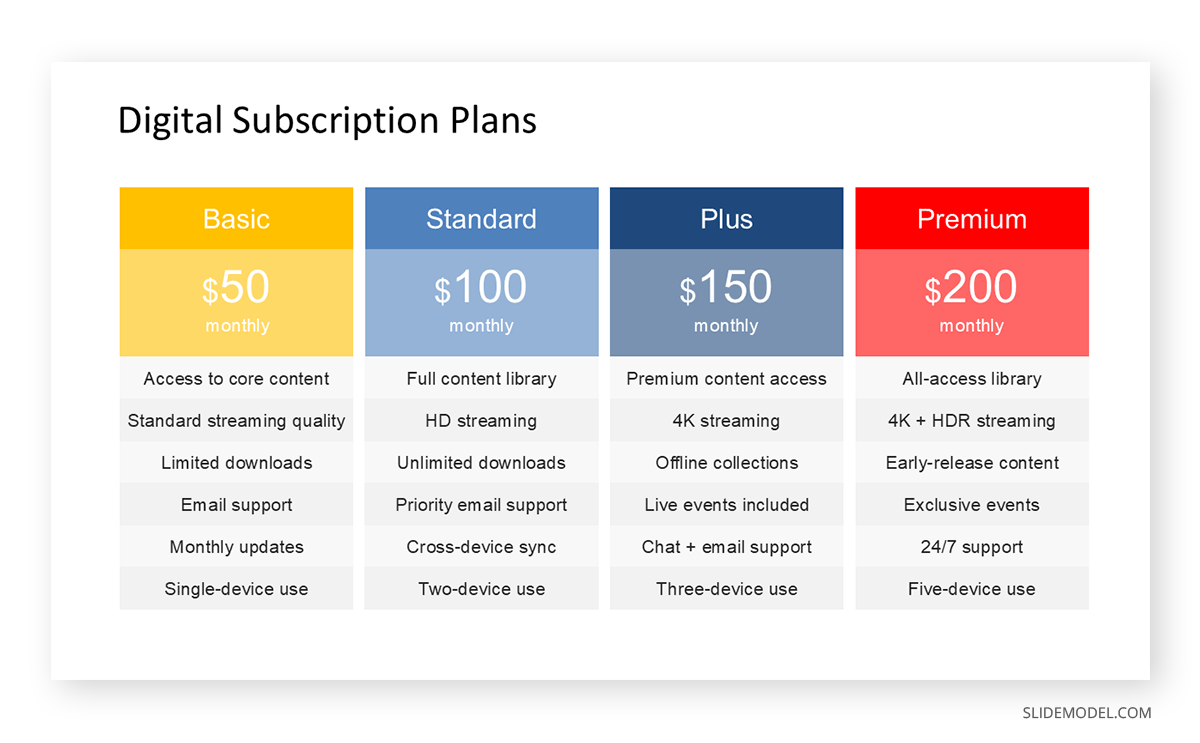
While not as visually appealing as image-based catalogs, a simple table can sometimes be more effective than confusing catalogs that may not provide a clear feature and price breakdown. For creating catalogs that can showcase detailed features and price comparisons, you can use a simple table, such as the layouts in this Pricing Options Comparison PowerPoint Template.
Step 3: Set Up Consistent Branding and Layouts with Slide Master
Now that you know how to design a catalog in PowerPoint, it’s time to maintain consistency across your catalog. Using the Slide Master feature allows for the creation of consistent branding and catalog designs that can be reused as needed. You can edit slides using this feature via View -> Slide Master. From here, you can customize fonts, colors, and logo placement so that these settings automatically apply to all slides.
Tip: This ensures every page looks unified, which is crucial for brand professionalism. If your brand uses specific typography and color codes, apply them consistently throughout this document.
Step 4: Structure the Product Pages
This is the core of your PowerPoint catalog. Each product or product group should be presented clearly, with visual balance between images and text. Following is a sequence for product pages that you can use for most catalogs:
- High-quality product image (dominant on the slide).
- Product name/model number.
- Short description (1-2 lines).
- Key specifications or features in a concise bullet list.
- Price or contact with a call-to-action.
Step 5: Review, Export, and Share
Review Guidelines
Before sharing your product catalog, perform a design and accuracy review:
- Check for spelling errors and price inconsistencies.
- Ensure all images are high-resolution and aligned.
- Test all hyperlinks and interactive buttons.
- View your catalog in Slide Show mode to confirm that transitions and navigations work smoothly.
Exporting and Sharing Your Catalog
Finally, export your catalog for distribution. You can use the following export options according to need:
- PDF: Ideal for email or printing.
- PPTX: You can use PPTX files for Live or shareable online presentations.
- MP4: This format is ideal for embedding on a website or for trade show loops and retail visual displays.
- JPG and PNG: For making printable catalogs or using the images on websites.
- GIF: Suitable for making a clickable website animation leading to a product page.
How to Create a Digital Catalog with Categories and Navigation
A good catalog is easy to navigate. In PowerPoint, you can add interactive navigation that allows viewers to jump between product categories with a single click. You can create a table of contents, add hyperlinks, and add back-to-menu buttons. This simple structure enables your catalog to behave like a website, making it perfect for digital presentations or touchscreen kiosks at trade events.
- Hyperlinks: Using hyperlinks, you can connect slides to your e-commerce site, contact form, or pricing page. You can also link slides with placeholders to create an interactive presentation catalog that helps customers navigate the various features.
- Buttons: By using icons or shapes with links to specific slides, it is easier to view content compared to plain hyperlinked text.
- Videos: Embedding short video clips showing the product in action. It is easier for customers to see a short video instead of sifting through product features written as plain text. Such videos attract customers, allowing them to explore the product and catalog further based on their product needs and price preferences.
- Animations: Apply subtle fade or zoom transitions to focus attention; however, avoid overusing effects that can distract the audience.
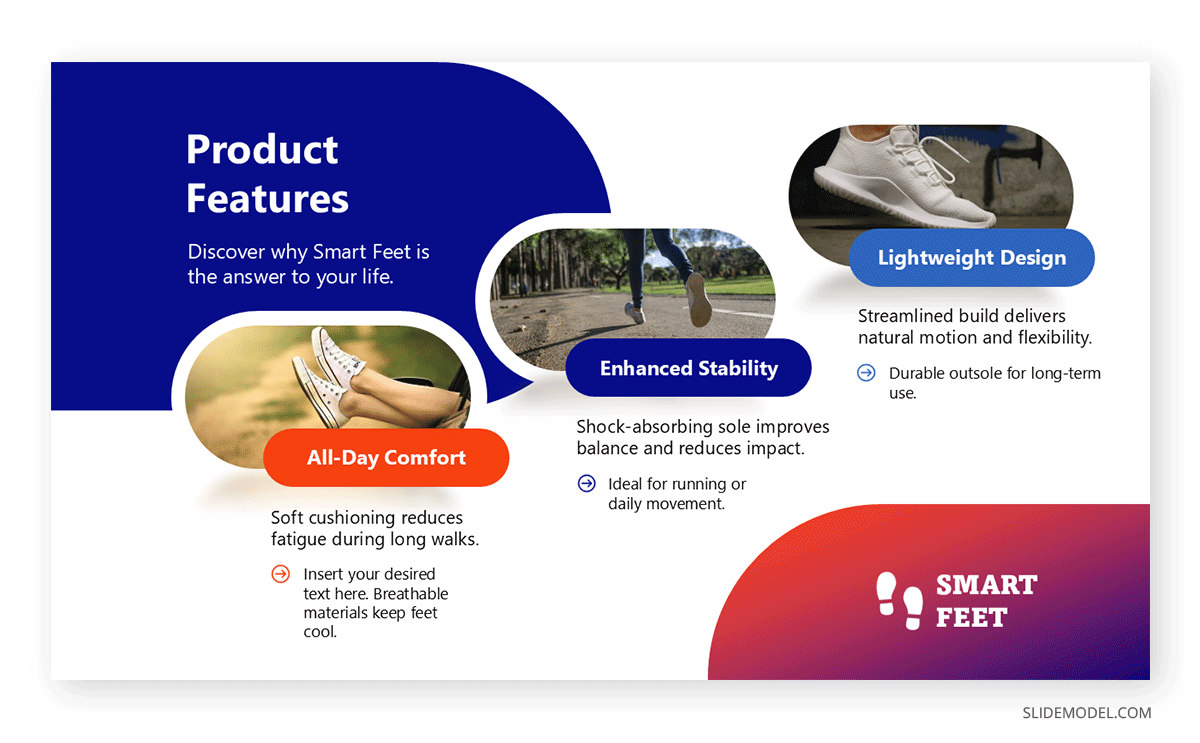
An example of a suitable layout for making an interactive catalog is the Retail Product PowerPoint Template, which can be adapted with hyperlinks to turn the given catalogs and slides into navigation menus. The template begins with a title slide featuring the product image and tagline, followed by slides that include an introduction, product features, product benefits, audience, pricing, and a call-to-action. These slides can be adjusted and duplicated to create a slide deck that best suits your requirements. You can connect multiple slides by connecting the product feature and name placeholders in the slides to create a digital catalog.
Final Words
A well-designed PowerPoint product catalog gives businesses a practical and versatile way to showcase their offerings. It combines the familiarity of PowerPoint with the visual impact of a professionally designed brochure.With a bit of planning, consistent branding, and thoughtful layout, PowerPoint can become more than just a presentation tool; it can serve as a marketing asset that rivals traditional print catalogs. Instead of building every slide from scratch, professionals can save time and maintain design quality by using ready-made templates, such as SlideModel’s Product Catalog PowerPoint Templates. These templates make it easy to create a polished, brand-aligned catalog in minutes, helping your team focus on showcasing the product with attention-grabbing layouts.