A multilevel list in PowerPoint is used to organize information hierarchically, helping the audience understand the relationships between main points and supporting details at a glance. They are commonly used in business presentations, training materials, and strategy decks. This article explains how to create and format a multi-tier list in PowerPoint, when to use one, and outlines mistakes to avoid to make a clean-looking multilevel list.
What Is a Multilevel List in PowerPoint
A multilevel list (sometimes called a multi-tier list) is a list with two or more levels of hierarchy. Each level represents a different degree of importance or detail. This type of list is especially effective when explaining content that naturally follows a hierarchy, such as outlining business processes, organizing meeting agendas, breaking down strategic initiatives, or simplifying complex topics into manageable parts.
Example:
- A top-level item might represent a key topic or category.
- A second level adds explanation or components.
- A third level introduces supporting details or examples.
When to Use a Multilevel List
Before creating a multilevel list, it’s essential to confirm that hierarchy actually adds value. You can use multilevel lists when you need to show parent-child relationships between ideas, the content naturally breaks into categories and subcategories, or when presenting logical steps, frameworks, or structured arguments. It is best to avoid multilevel lists when all points are equally important, or when excessive hierarchy makes slides harder to scan.
How to Create a Multilevel List in PowerPoint
PowerPoint offers built-in tools to create multilevel lists directly inside text placeholders. The process is straightforward and works across most versions of PowerPoint.
Step 1: Start with a slide layout that includes a content box. Click inside the text area and type your main list items. You can also insert a new text box to create such a list, such as by going to Insert -> Text Box.
Step 2: To create a second or third level, place the cursor at the beginning of a line, use Tab to indent, and create a lower-level item. You can also use Shift+Tab to move the item back to a higher level. Each indent represents a new tier in your multilevel list PPT structure. You can also find options to add indent via the Home tab from the Paragraph menu.
Step 3: Change bullet styles or numbering using the Home tab. Change the font style, color, and other formatting options as needed. You can also stylize your text using the Shape Format tab, such as via the Shape Styles menu. This helps visually distinguish between levels and improves readability.
Note: For a detailed explanation of sub-bullets and indentation behavior, see our dedicated guide on how to add sub bullets in PPT.

How to Make Creative Multilevel List Designs with PowerPoint Templates
A simple way to create multilevel lists in PowerPoint is to use Multilevel List PowerPoint Templates. These templates can help create professional-looking designs with simple to complex diagrammatic layouts. Below are a few examples of templates you can use to design multilevel lists creatively. These templates typically include professionally spaced list layouts, a built-in visual hierarchy, color-coded levels for clarity, and editable text placeholders.
Multi-Layered Light Bulb Template for PowerPoint
To add a touch of creativity to your bullet lists, you can use the Multi-Layered Light Bulb Template for PowerPoint. By creating lists using the light bulb concept, you can make your lists stand out and memorable with colorful bulb designs and sequential slides seamlessly integrated into explanatory layouts that present each section of the list in greater detail.

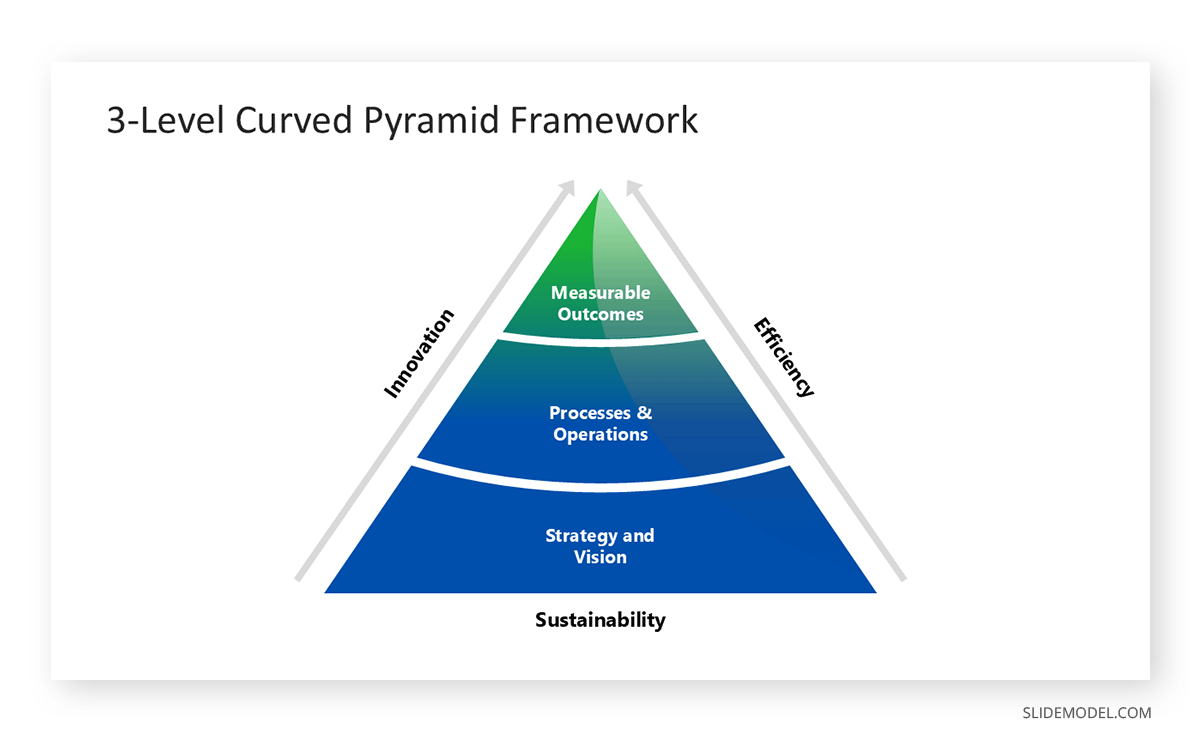
3-Level Curved Pyramid PowerPoint Template
This simple three-level pyramid PowerPoint template is ideal for creating multilevel lists. Such a template can be used for a variety of purposes, including discussing project milestones, SaaS product development, and creating hierarchical diagrams. The 3-Level Curved Pyramid PowerPoint Template is one of many SlideModel templates that offer multilevel list layouts beyond simple bullets on a slide.
Interlocking Pyramids PowerPoint Template
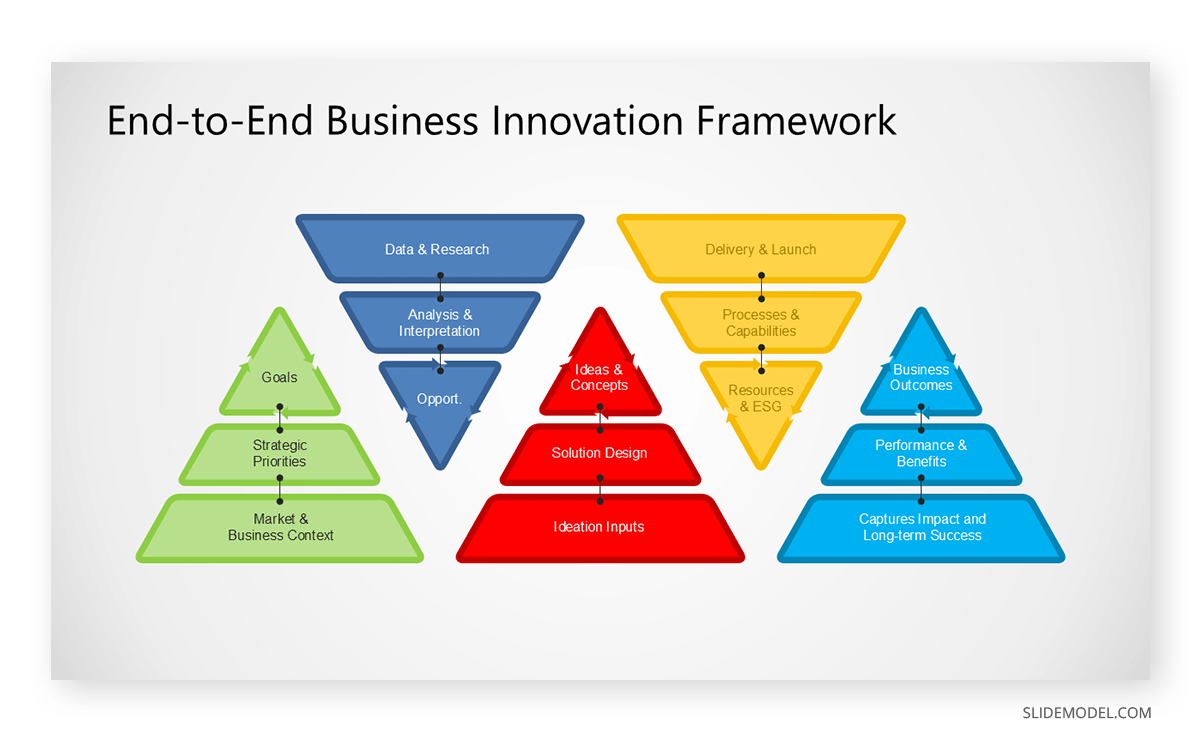
Not all multilevel lists can be converted to bullet lists. This is why professionally designed templates like the Interlocking Pyramids PowerPoint Template can be used to showcase hierarchies with multiple multilevel lists on a single slide. This can help demonstrate complex ideas in an easy-to-scan layout.
Common Mistakes to Avoid
While basic text indentation works, effective multilevel lists rely on a clear visual hierarchy. When working with multilevel lists, avoid the following mistakes:
Avoid Too Many Levels: Refrain from overloading slides with excessive bullet levels. In most cases, two to four levels are enough. A fifth level can work for complex explanations, but anything beyond that typically risks overwhelming the slide. For multi-level lists, you could split the list across multiple slides or use an interlocking slide design (as shown above).
Properly Format Lists: Using identical formatting for all levels. Avoid inconsistent mixing of numbering and bullet styles. Increase spacing between top-level items and reduce spacing between sub-items. This reinforces grouping without adding extra visual elements.
Keep Text Concise: Multilevel lists work best when each line is short and focused. Long sentences reduce clarity and compete with the hierarchy you’re trying to establish.
Simplify Content: A multilevel list should make content easier to follow, not harder. Regardless of the layout type used, it should be easy for the audience to understand. In such a case, you should use layouts suited to the audience’s level of knowledge and understanding of the topic.
Final Words
Creating a multilevel list in PowerPoint can add structure and clarity to complex information. By using indentation thoughtfully, applying consistent formatting, and limiting hierarchy to what’s necessary, you can make your slides more straightforward to read and more persuasive. For advanced formatting, visual enhancement, or faster workflows, consider using professionally designed multilevel list PowerPoint templates.