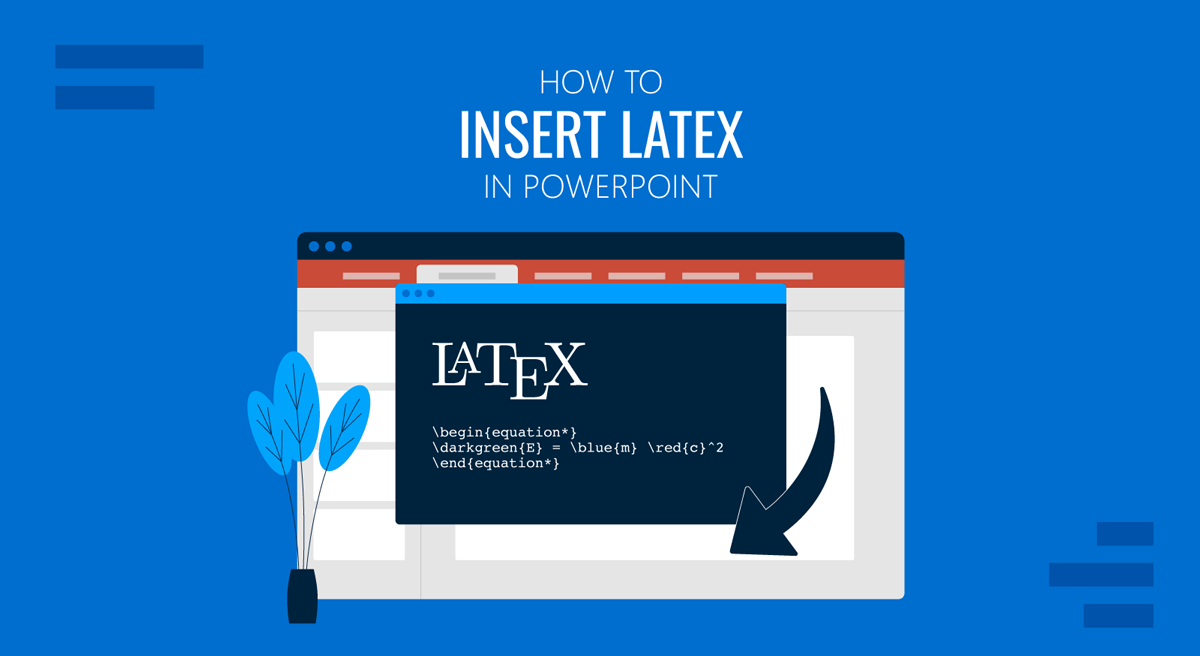
For scientists, engineers, researchers, and academic writers, presenting equations clearly is often just as important as the data itself. While PowerPoint includes a built-in equation editor, many professionals prefer LaTeX for its precision, flexibility, and familiarity, especially when working with complex mathematical notations.
In previous tutorials, we showed you how to insert an equation in PowerPoint and the process to insert an equation in Google Slides. In this article, we will explain how to insert LaTeX in PowerPoint.
Why Use LaTeX in PowerPoint?
LaTeX is the standard for typesetting mathematical and scientific content in academia. Compared to manual equation formatting, it offers numerous benefits. With LaTeX in PowerPoint, you can have precise control over symbols and spacing, enjoy consistent formatting across equations, support for advanced math, physics, and engineering notation, and get faster equation writing for experienced users. For professionals who already write papers or reports in LaTeX, reusing that syntax inside PowerPoint helps maintain accuracy and saves time.
How to Use LaTeX in PowerPoint
Below are a few simple methods to use LaTeX in PowerPoint, including the use of PowerPoint’s built-in equation editor, third-party tools, and PowerPoint add-ins.
Method 1: Use PowerPoint’s Built-In Equation Editor with LaTeX Syntax
Recent versions of PowerPoint support LaTeX-style input directly inside the equation editor. However, PowerPoint does not natively support full LaTeX. It’s built-in equation editor accepts only a limited set of TeX-style commands, which may work for simple expressions but are not suitable for complex LaTeX equations.
Step 1: Go to Insert -> Symbols -> Equation -> Insert New Equation, and a placeholder equation box will appear.
Step 2: Type a LaTeX-style command (see the example below).
Example:
\frac{a}{b}, \int_0^1 x^2 dx, \alpha + \beta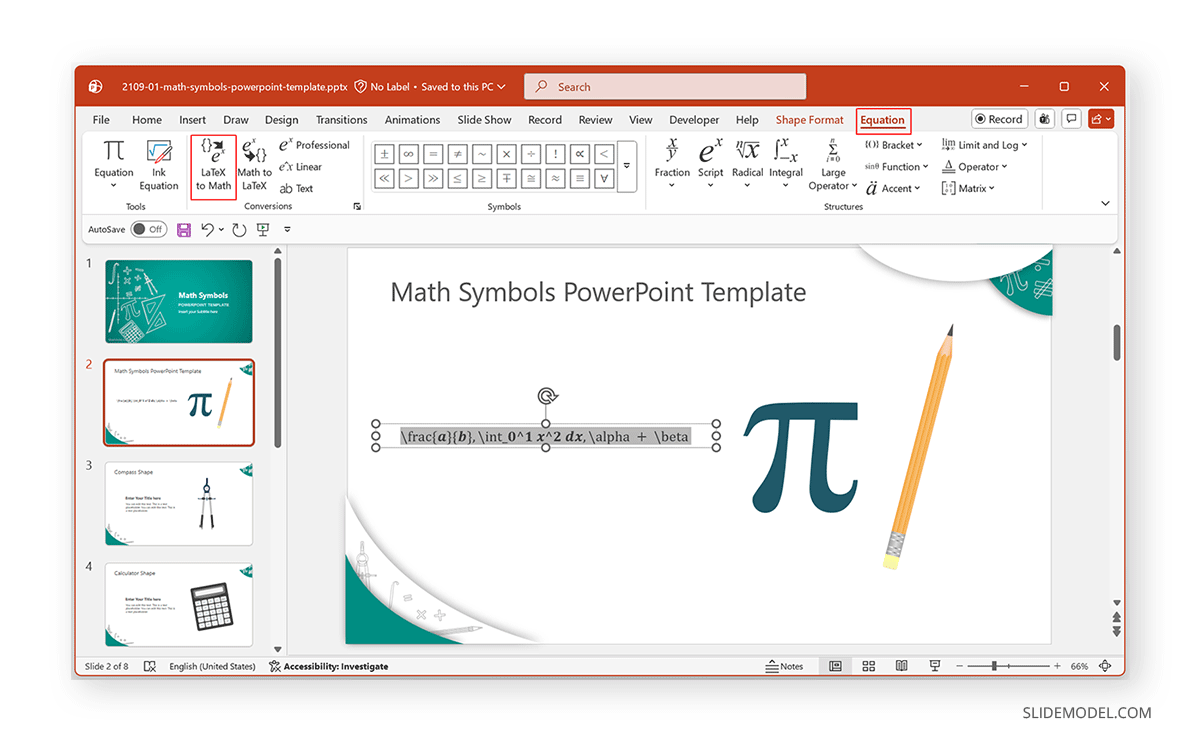
Step 3: Select LaTeX to Math from the Equation tab to convert it into formatted notation.
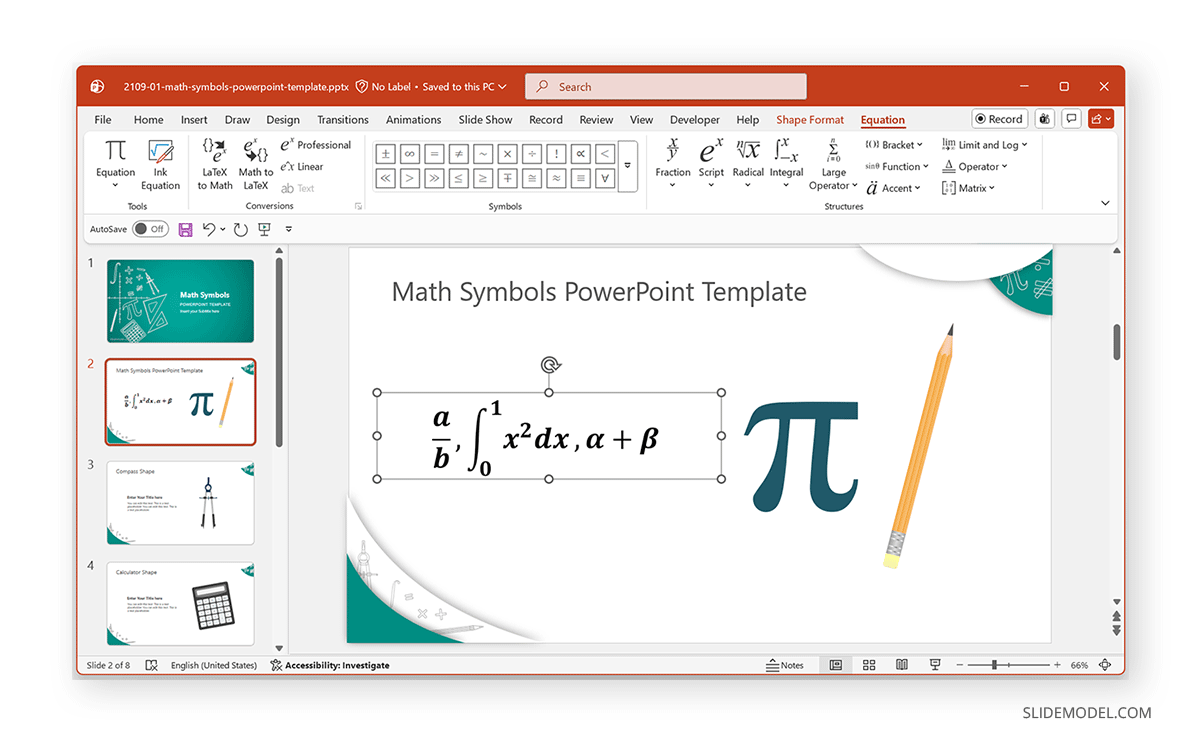
Method 2: Use Online LaTeX Equation Generators to Create Equation Images
Several web-based tools allow you to type LaTeX and export equations as images without a full LaTeX environment.
Step 1: Enter LaTeX code into an online equation editor (e.g., CodeCogs Equation Editor, Overleaf, QuickLaTeX, etc).
Step 2: Preview the rendered equation.
Step 3: Download the equation as a PNG or SVG file. Alternatively, download it as a PDF and convert it to an image format.
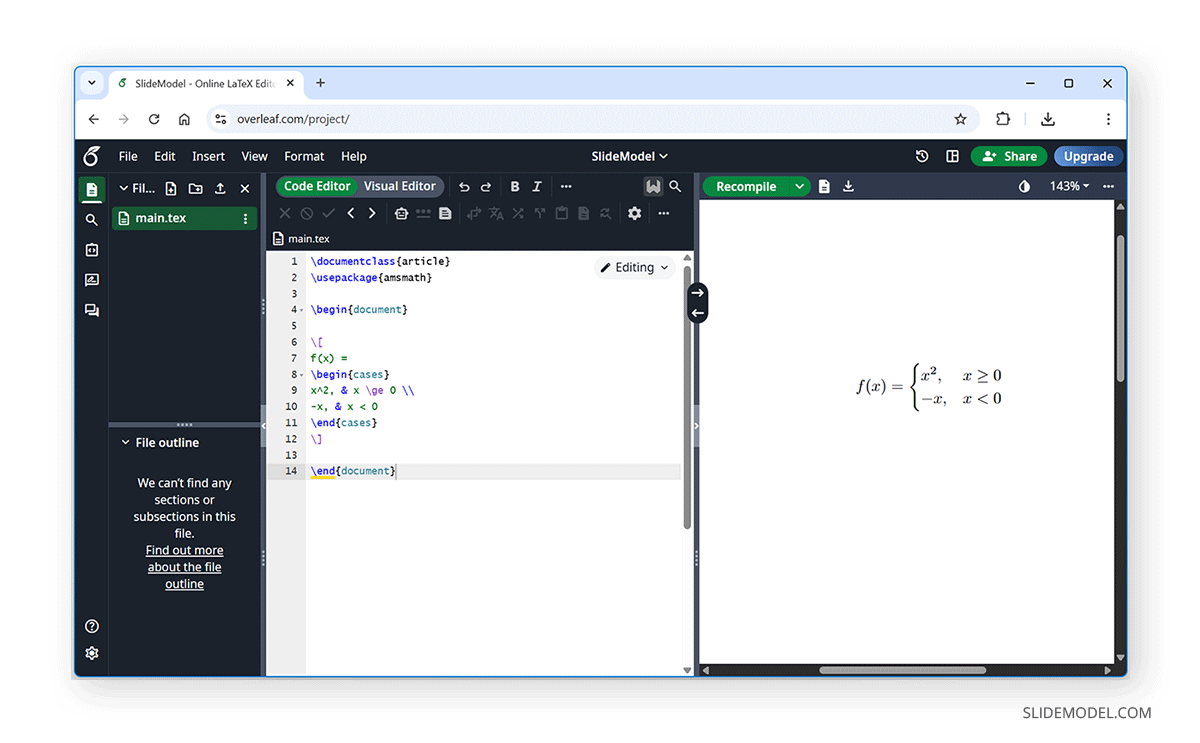
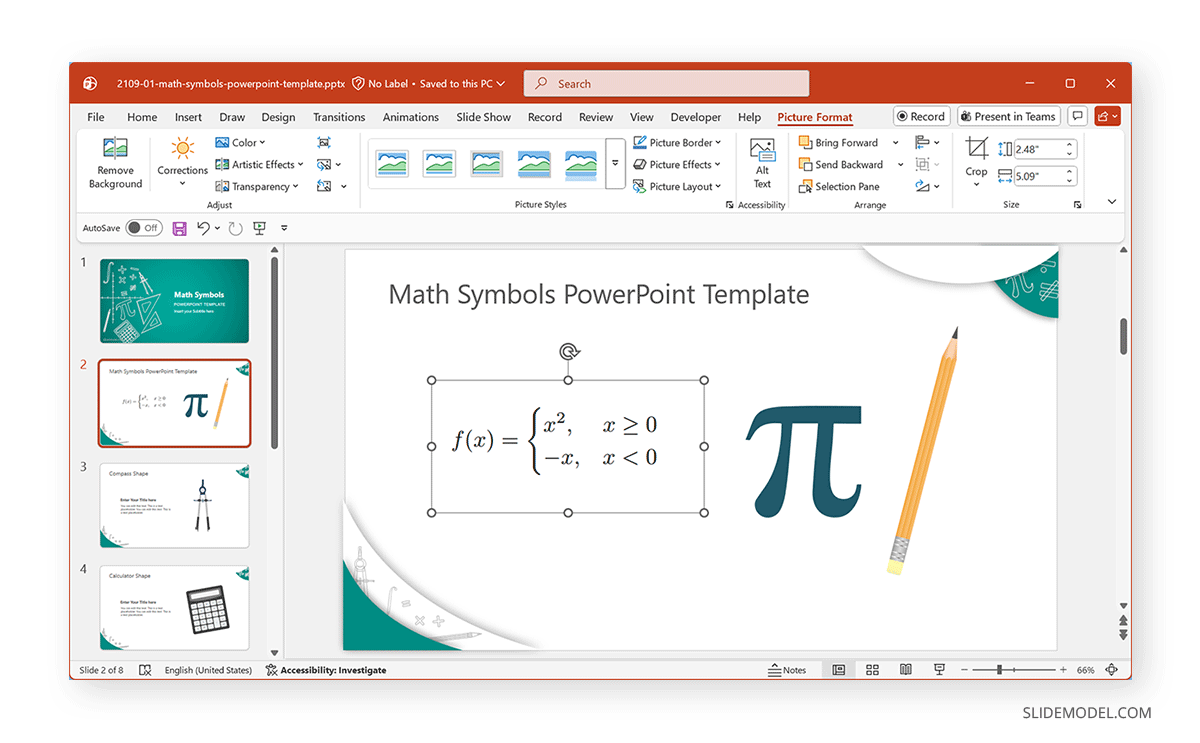
Step 4: Insert the image into PowerPoint by selecting Insert -> Pictures. This will add the equation as an image in PowerPoint, which can be further customized with effects, borders, and alignment using the Picture Format tab.
Method 3: Use a LaTeX Add-In for PowerPoint
Some users prefer a dedicated LaTeX add-in for PowerPoint that integrates equation rendering directly into the slide workflow. These add-ins include LaTeX input panels in PowerPoint, one-click equation rendering, and automatic resizing and alignment.
Features of Commonly Used LaTeX add-ins for PowerPoint
Below is a list of some of the most commonly used LaTeX add-ins, with details on supported operating systems, to help you pick the right LaTeX add-in for PowerPoint.
MathType: MathType integrates with PowerPoint (Windows, Mac, and iOS) and supports LaTeX input alongside a graphical equation editor. While not a pure LaTeX add-in, it allows users to write equations using LaTeX-style commands and convert them into formatted math objects.
TexPoint: TexPoint is a PowerPoint add-in (Windows and Mac) that lets users insert LaTeX equations by compiling them externally and importing the resulting equations into slides. It is often used by researchers who already maintain LaTeX workflows and want consistent equation rendering.
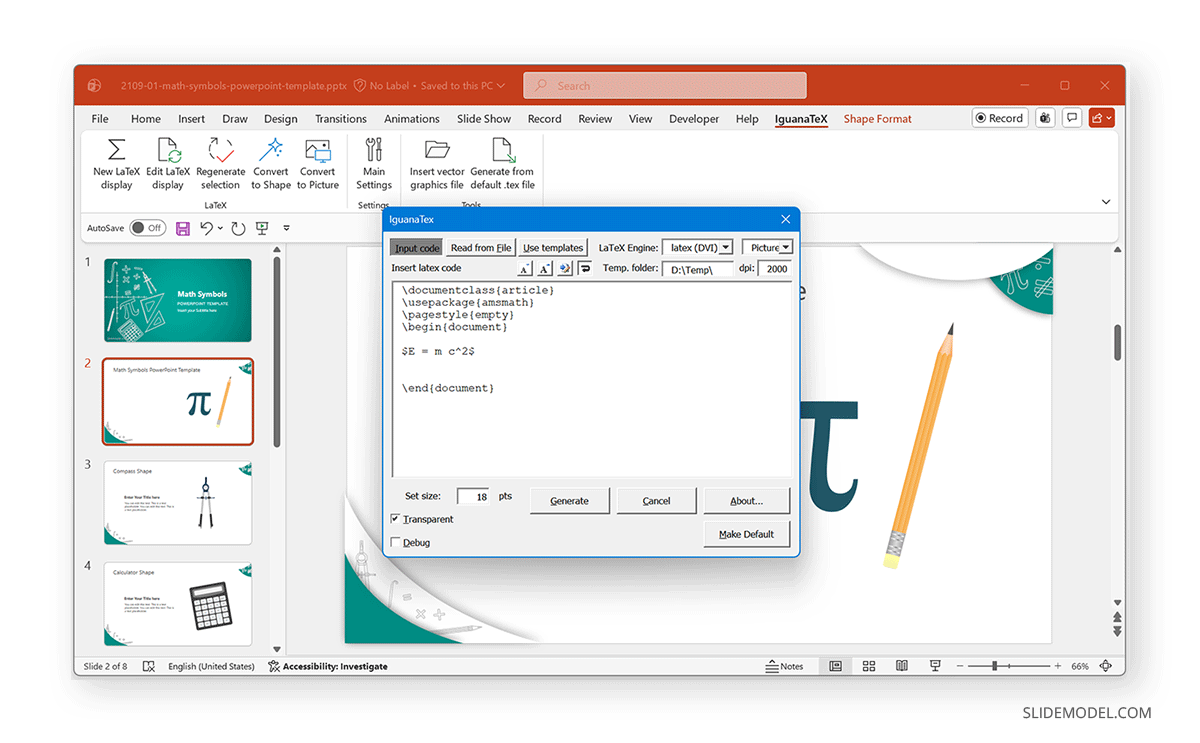
IguanaTeX: One of the best-known LaTeX add-ins for PowerPoint (Windows and Mac), it lets users type LaTeX code directly in PowerPoint and render equations as vector graphics. IguanaTeX is widely used in academic settings to create high-quality math slides. The image below shows the Iguana TeX add-in in PowerPoint used with the Math Symbols PowerPoint Template.
Choosing the Right Method to Insert LaTeX in PowerPoint
While you can use the built-in equation editor, images, or add-ins, you might want to consider which method best suits your needs. Below is a breakdown of the suitability of different methods for using LaTeX in PowerPoint.
Simple Equations: If your presentation only includes simple equations, such as fractions, exponents, or basic symbols, PowerPoint’s built-in equation editor is usually sufficient. This approach keeps equations editable directly on the slide and works well when you need to make last-minute changes during slide preparation. It’s also the fastest option for straightforward mathematical expressions.
Complex Mathematical Notations: For complex mathematical notations, especially equations that rely on advanced LaTeX syntax or specialized formatting, exporting LaTeX equations as images is the most reliable solution. This method ensures that every symbol and alignment appear exactly as intended, regardless of PowerPoint version or platform. While the equations won’t be editable inside PowerPoint, you can preserve visual accuracy with this method.
Frequent Equation Reuse: When you need to reuse equations or make ongoing edits, using the equation editor or a dedicated LaTeX add-in can be more efficient. Editable equations allow you to update variables, adjust notation, or reuse formulas across multiple slides without re-exporting images each time. This approach works best for iterative work, such as lectures or teaching materials.
Cross-platform Sharing: For presentations opened on different operating systems or shared with collaborators, image-based equations or the built-in equation editor offer the most consistency, as images or the built-in equation editor eliminate compatibility issues. This ensures that the equations look the same across versions of PowerPoint on Windows, Mac, PowerPoint for the web, iOS, and Android devices.
Poster Presentations: For a presentation poster, where layout consistency and high-resolution output are critical, image-based insertion is often preferred. Exporting equations as PNG or SVG files lets you scale them without loss of quality and position them precisely within poster layouts. This is especially useful for academic conferences and research displays.
Common Mistakes to Avoid
When adding LaTeX equations to PowerPoint, small missteps can significantly reduce clarity and professionalism. Avoiding these common issues will help ensure your equations support your message rather than distract from it.
Relying on Screenshots Instead of Exported Equations
Screenshots often result in uneven resolution, poor scaling, and inconsistent font rendering. When equations are resized or projected on large screens, screenshots can appear blurry or pixelated. Exporting equations properly as PNG or SVG files preserves sharpness and ensures a consistent appearance across devices.
Mixing Multiple Equation Styles in a Single Deck
Combining editable PowerPoint equations with image-based LaTeX equations can make slides feel inconsistent. Differences in font weight, spacing, or symbol design become noticeable, especially in academic presentations. Sticking to a single equation style throughout the deck creates a more cohesive, professional look.
Using Low-Resolution Images for Equations
Low-resolution equation images may look acceptable on your screen, but degrade quickly when projected or printed. This is particularly problematic for posters or conference presentations. Whenever possible, use high-resolution PNGs or scalable formats like SVG to maintain clarity at any size.
Overloading Slides with Dense Mathematical Content
Cramming multiple complex equations onto a single slide can overwhelm the audience and reduce comprehension. Breaking equations across slides or focusing on key expressions helps maintain audience attention. Therefore, it is recommended to avoid overloading slides with dense math equations.
Final Words
LaTeX remains one of the most powerful tools for turning complex math into clear, presentation-ready slides. By learning how to write LaTeX in PowerPoint, presenters can employ a reliable way to communicate complex ideas with precision. Whether you use PowerPoint’s built-in equation editor, external LaTeX tools, or dedicated LaTeX add-ins for PowerPoint, the key is choosing the method that best suits your presentation needs and workflow. You can stick to one or more methods according to the types of equations to be used, platform compatibility for devices used by you and external collaborators, and ease of producing the required visuals.