Using out-of-the-box visuals can make presentations more memorable and enjoyable. With PowerPoint Shapes and ready-made templates, you can create slide elements, such as sticky notes, to organize your ideas. Such visuals can also help reduce paper-based waste by creating virtual sticky notes during presentations, workshops, trainings, and brainstorming sessions.
If you want to learn how to make slides with PowerPoint post-it notes, aka sticky notes, follow the simple methods listed in this post.
What Are Sticky Notes in PowerPoint
PowerPoint sticky notes are slide elements that resemble traditional Post-it Notes. They are not built-in features but rather design techniques that use shapes, colors, shadows, and text. Stick notes in PowerPoint are commonly used for brainstorming and ideation slides, workshop and training materials, agile or kanban-style workflows, tips, reminders, or callouts, as well as for adding informal context to corporate slides.
Sticky Notes vs. Speaker Notes in PowerPoint
Sticky notes differ from the built-in speaker notes feature in PowerPoint. Unlike stick notes that are visible to the audience, speaker notes are meant for the presenter as helpful notes that are not visible to the audience. Both can often be confused when looking for guides on how to add notes to PowerPoint. However, both note types have very different functions.
If your goal is to remind yourself what to say, learning how to add notes to PowerPoint using speaker notes is more appropriate. However, if the audience needs to see the information, sticky notes are a better choice.
Why Use Sticky Notes in PowerPoint Presentations
Using sticky notes can offer several benefits for both the presenter and the audience.
1. Improve Slide Hierarchy: Sticky notes naturally stand out due to their shape and color. This makes them ideal for emphasizing key ideas without changing the entire slide layout. The notes help give a hierarchy, organize ideas, and make information easy to read for the audience.
2. Simplify Complex Information: Instead of lengthy paragraphs, a sticky note can summarize a takeaway, next step, or action item in just a few words.
3. Encourage Collaboration: For many people, sticky notes are familiar from brainstorming sessions, where they are commonly used. Hence, they can help slides feel interactive, even in a virtual environment.
4. Kanban and Agile Methodologies: Sticky notes are deeply connected to Kanban and Agile methodologies, where ideas, tasks, and workflows are often represented as movable notes. Replicating this visual system with sticky notes in PowerPoint makes it easier to communicate Agile concepts in meetings, workshops, and executive presentations.
5. Make Presentations Memorable: When designed correctly, sticky notes add novelty and provide ease in scanning information. Both these factors can help make presentations memorable for the audience or teams involved in a brainstorming session.
Creating Reusable Sticky Notes from PowerPoint Templates
If you plan to use sticky notes frequently, you can create reusable assets from PowerPoint sticky notes templates. SlideModel’s PowerPoint templates include realistic-looking stick notes. This is a very convenient method for making sticky notes, and you can use these templates as described below. While creating sticky notes manually works well, templates can save time, especially for large presentations. A Sticky Notes PPT template offers professionally designed shapes, consistent colors and typography, pre-aligned layouts, and faster slide creation. For teams that frequently use brainstorming or workshop decks, templates can help ensure quick slide creation and the organization of ideas.
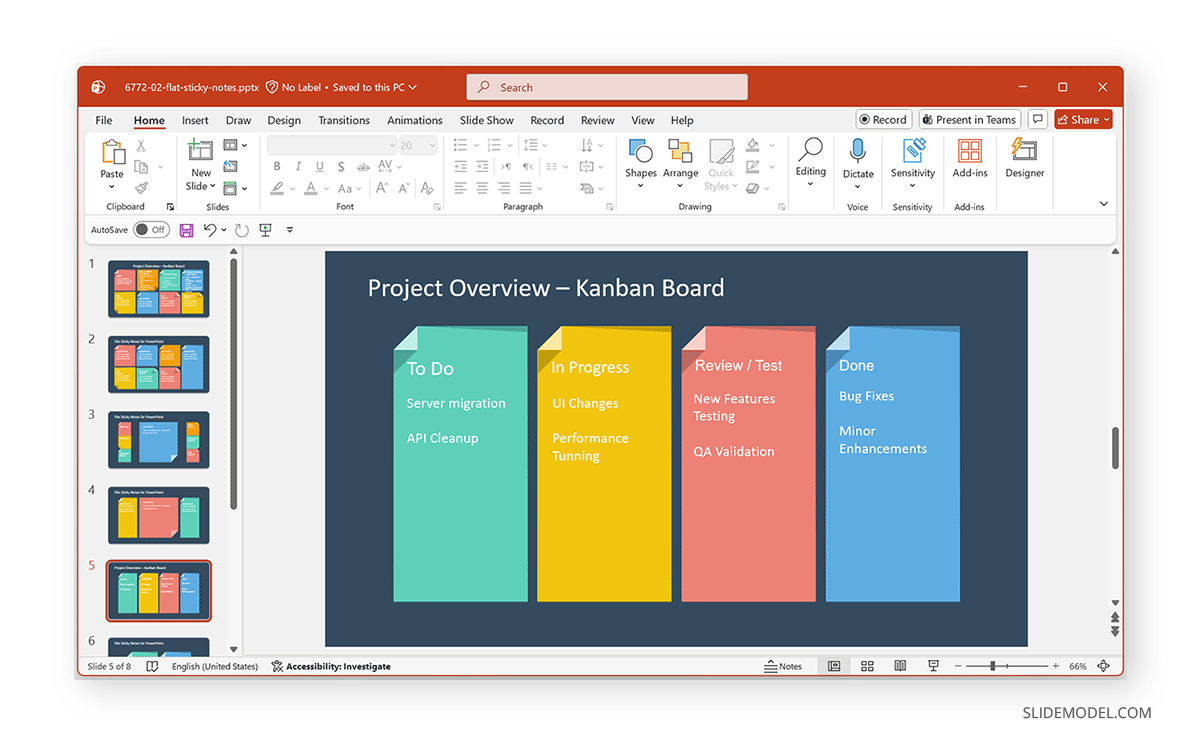
For this post, we will be using the Sticky Notes PowerPoint Template to demonstrate how to use reusable sticky notes from PowerPoint Templates.
Copy Sticky Notes: Right-click menu and Copy or use CTRL/CMD+C to copy and CTRL/CMD+V to paste the notes to replace them.
Arrange Sticky Notes: You can use drag-and-drop to arrange the ready-made sticky notes as needed.
Add Text to Sticky Notes: Double-click on the sticky notes element and add text. You can also add text boxes further to customize the text blocks via Insert -> Text Box.
Group the Elements: Hold the Shift key and select the shape, text, and any additional effects, right-click, and select Group -> Group. This makes it easy to move or duplicate the sticky note.
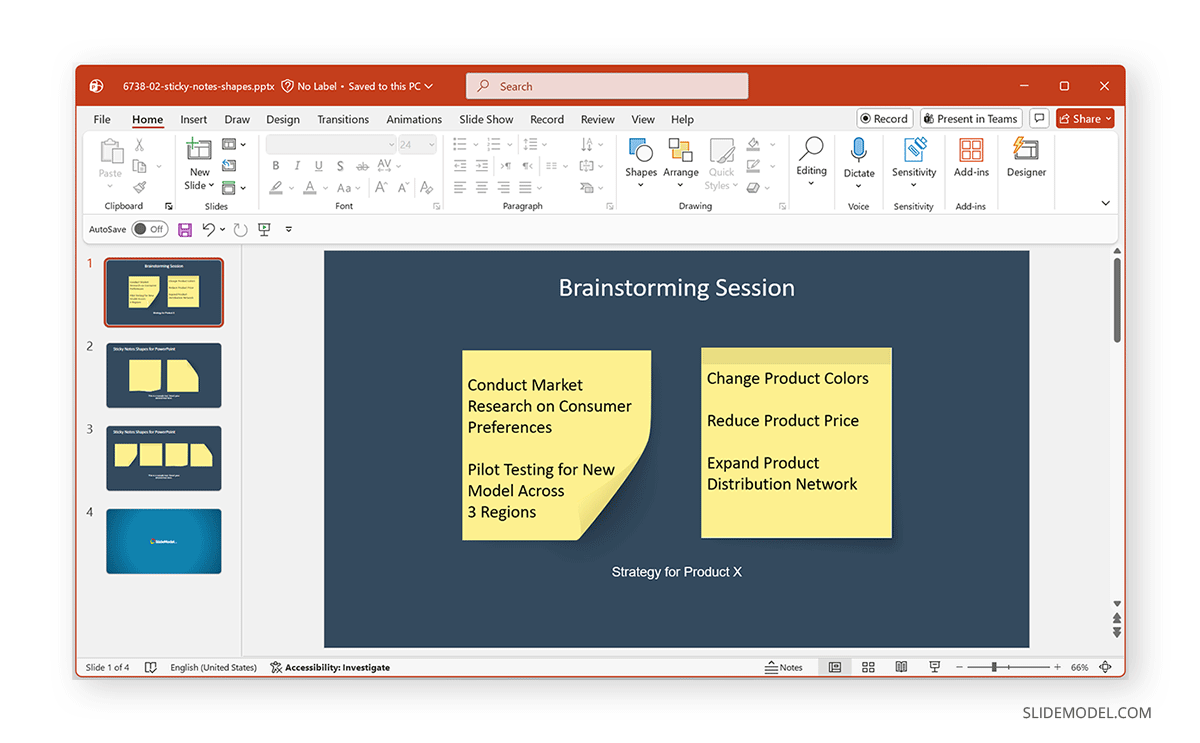
In addition to the template mentioned above, you can also use the Flat Sticky Note Shapes for PowerPoint with realistic sticky notes and placeholders. This PowerPoint template provides colorful sticky note slide layouts and reusable elements to help create everything from bare brainstorming boards to complex Kanban boards.
How to Create Sticky Notes in PowerPoint from Scratch
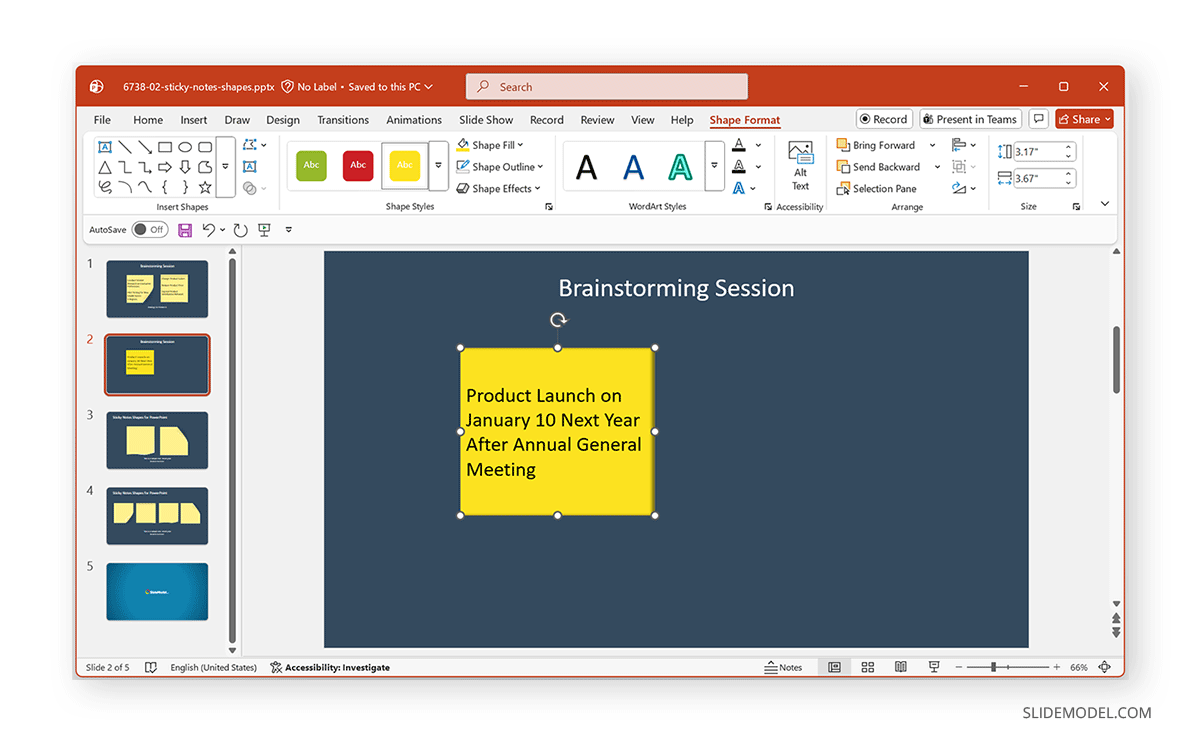
Creating a sticky note in PowerPoint is simple and does not require any external tools or add-ins. One of the easiest methods to create sticky notes in PowerPoint is to use PowerPoint Shapes. If you would like to try your hand at making sticky note PowerPoint slides yourself, instead of using ready-made templates, here is a simple method to create them from scratch.
Step 1: Open PowerPoint and go to the slide where you want the sticky note. Select Insert -> Shapes -> Rectangle.
Step 2: Drag to draw the rectangular shape. This rectangle will serve as the base for your sticky note.
Step 3: Traditional sticky notes use soft, bright colors. Popular options include light yellow, pastel pink, light blue, and soft green. To apply a color, select the rectangle, go to Shape Format -> Shape Fill, and choose a solid color (avoid gradients to make the stick notes look realistic).
Step 4: With the shape selected, go to Shape Format -> Shape Outline, and choose No Outline or use a slightly darker shade of the fill color. Hard black outlines usually make sticky notes look less natural. Therefore, removing outlines will give your notes a more realistic look.
Step 5: Double-click on the shape and type your text. You can use a sans-serif font (Calibri, Arial, or Segoe UI) for better legibility, keep the font size large and readable, align text to the top-left for authenticity, and avoid full justification. This is because left-aligned text looks more naturally aligned, especially when not entirely justified.
Step 6: Shadows help the sticky note appear “lifted” off the slide. Select the shape, go to Shape Format -> Shape Effects -> Shadow, and choose a soft outer shadow. Avoid heavy or dramatic shadows.
Best Practices for Sticky Notes in PowerPoint
When used thoughtfully, sticky notes in PowerPoint enhance clarity and structure rather than cluttering the slide. Following best practices ensures that these visual elements support your message and align with professional presentation standards.
1. Limit Text for Sticky Notes
Sticky notes are meant to capture ideas at a glance. Restricting text forces clarity and helps the audience quickly absorb the message. Use concise phrases, keywords, or short action items instead of full sentences or explanations.
2. Maintain Consistent Colors
Color consistency helps reinforce structure and meaning. Assign specific colors to categories such as ideas, risks, tasks, or priorities and use them consistently across slides. This improves visual cohesion and helps viewers recognize patterns instantly.
3. Avoid Overcrowding Slides with Sticky Notes
Too many notes competing for attention can overwhelm the audience. If a slide feels busy, split the content across multiple slides or group related notes into sections. White space is just as important as content in effective slide design.
4. Align Sticky Notes
While a slight rotation can add realism, alignment still matters in professional presentations. Use PowerPoint’s alignment and distribution tools to keep sticky notes evenly spaced and visually balanced.
5. Test Readability on Screen or Projector
Sticky notes should remain legible in conference rooms, training sessions, and virtual meetings. Use sufficient font sizes and contrast, and preview slides in presentation mode to ensure text is readable from a distance. Ultimately, sticky notes should reinforce your narrative and guide audience attention.
Common Mistakes to Avoid When Using Sticky Notes in PowerPoint
Despite their simplicity, sticky notes can quickly detract from a presentation if misused. Avoiding common design and content mistakes can help maintain clarity.
1. Using Neon or Saturated Colors
Bright, fluorescent colors may grab attention but often appear unprofessional in corporate settings. They can also cause eye strain on large screens. Softer, muted tones create a more polished and readable presentation.
2. Adding Long Paragraphs
Sticky notes are not designed for detailed explanations. Overloading them with text defeats their purpose and makes slides harder to scan. If more context is needed, use supporting text outside the note or break the content into multiple slides.
3. Overusing Rotation or Exaggerated Shadow Effects
While slight rotation and subtle shadows add realism, excessive effects make slides look cluttered or informal. Keep visual enhancements minimal to avoid distracting from the message itself.
4. Mixing Too Many Fonts or Styles
Using multiple fonts across sticky notes creates visual inconsistency. Stick to one or two complementary fonts and maintain consistent sizing and weight. Uniform typography reinforces structure and professionalism.
5. Treating Sticky Notes as Decorative Elements Only
Sticky notes for PowerPoint should always serve a purpose, highlighting ideas, organizing thoughts, or emphasizing key points. When used purely for decoration, they dilute the message and weaken the slide’s effectiveness.
A restrained, intentional approach ensures sticky notes remain a functional design element rather than a visual distraction. When every note has a clear role, the presentation feels focused, credible, and well-designed.
Final Words
Creating sticky notes in PowerPoint is an easy and effective way to add clarity, emphasis, and visual interest to your slides. Whether you’re brainstorming ideas, highlighting key takeaways, or organizing information, sticky notes offer clarity with little text.
By using basic shapes, colors, shadows, and text formatting, you can replicate realistic Post-it PowerPoint designs that look natural and familiar to real sticky notes. For frequent use, templates provide a scalable solution, while manual creation can transform ordinary slides into engaging, idea-driven presentations.