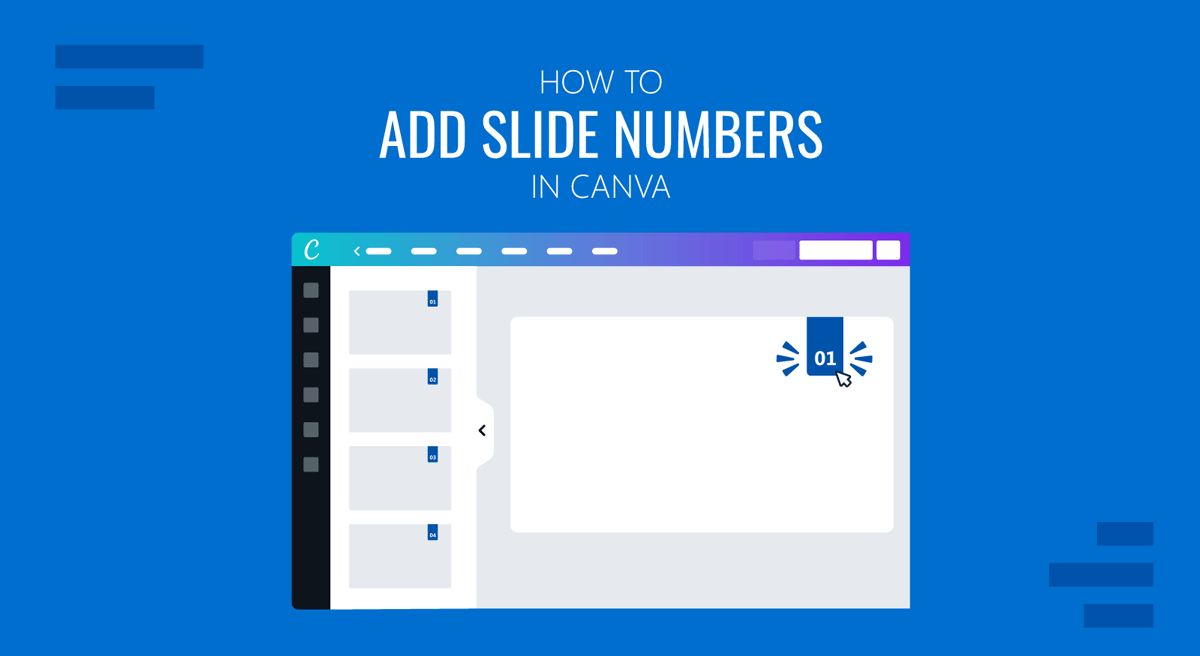
Slide numbers are a small but important detail in presentations. They help your audience follow along, make navigation easier, and give your slides a more structured look. If you’re wondering how to add slide numbers in Canva, the process is slightly different compared to tools like PowerPoint. This is because Canva does not currently include a built-in automatic slide numbering feature. However, there are simple workarounds you can use to add and maintain slide numbers in your presentation.
In this post, we will walk you through methods for adding Canva slide numbers and tips to keep them consistent across slides.
Why Slide Numbers Matter in Canva Presentations
Before diving into the steps, it’s helpful to understand why slide numbers are useful for Canva presentations. Slide numbers can help presenters refer to specific slides during discussions and make it easier for the audience to follow along. These numbers might also help improve navigation in longer presentations and add a professional touch to your design. Additionally, presenters can keep track of their content, remaining time, and subtopics by quickly identifying slide numbers.
How to Add Canva Slide Numbers
You can add slide numbers in Canva using text boxes, by duplicating slide elements, as well as by exporting your slides to another format.
Method 1: Add Slide Numbers Manually in Canva
Since Canva does not automatically generate slide numbers, the most common method is to add them manually using text boxes. This method works well for shorter presentations or when you need full control over formatting.
Step 1: Open your Canva presentation design and click Text from the left panel to insert a text box to your slide.
Step 2: Enter the slide number by typing it in the text box (e.g., 1, 2, 3, etc.).
Step 3: Place the number in a consistent location, such as the bottom-right, bottom-center, or top-right corner.
Step 4: Adjust the font, size, and color to match your presentation design.
Step 5: Copy and paste the text box onto other slides and update the numbers accordingly.

Method 2: Apply Slide Number Text to All Pages
To save time and maintain consistency, you can duplicate slide numbers across multiple slides. While Canva does not auto-increment numbers, this approach ensures consistent placement and styling across your presentation.
Step 1: Insert and format the slide number as described in Method 1 above.
Step 2: Duplicate the slide element by copying the text box and pasting it across multiple slides.
Step 3: Edit each number to match the correct slide order.

Method 3: Use Standard Templates
If you’re working with reusable templates, you can simulate slide numbering using layout consistency. This approach is useful when creating branded templates for teams or recurring presentations. For this purpose, you can create and save a template with consistent numbering.
Step 1: Create a slide layout with a placeholder for numbers or use a readymade PowerPoint template.
Step 2: Position the number in a fixed location.
Step 3: Duplicate the layout across slides.
Step 4: Update numbers as needed.
Step 5: Once created, you can publish the slide deck as a branded template, generate a template link, or save it as a private file for reuse.

Method 4: Add Slide Numbers After Exporting Slide Deck
In some cases, you can add slide numbers outside Canva after exporting your presentation. This method is useful when you need numbered distribution slides but don’t want to edit each slide in Canva manually.
Step 1: Export your Canva presentation as a PDF or PowerPoint file via the Share button.
Step 2: Use a PDF editor to add page numbers, such as Adobe Acrobat, iLovePDF, SmallPDF, etc. Alternatively, you can download the file in PPTX format and use PowerPoint to add slide numbers via Insert -> Header & Footer -> Slide Number. You can also learn more about adding numbers to slides from our tutorial about how to add slide numbers in PowerPoint and Google Slides.
Step 3: Reuse or share the numbered version as needed.

Placement & Styling Tips for Slide Numbers in Canva
Placing slide numbers in Canva requires careful consideration to ensure the numbering suits the presentation’s design layout. Below are some tips regarding placement and styling for slide numbers in Canva.
Choosing the Right Position
The placement of slide numbers should feel natural and not compete with your content. The bottom-right corner is the most widely used option because it stays out of the way while remaining easy to spot. If your design is quite minimal, the bottom center can create a balanced, symmetrical look. In cases where the bottom area is already occupied, such as with captions or graphics, the top-right corner becomes a practical alternative. No matter which position you choose, the key is to keep it consistent and ensure it doesn’t overlap with important elements.
Designing Slide Numbers That Blend In
Use smaller font sizes and stick to neutral or muted colors so they don’t pull attention away from your main message. Consistency is equally important; every slide should have numbers in the exact same position, style, and alignment. To improve readability, ensure there’s sufficient contrast between the number and the background, but avoid overly bold styling. You can also slightly reduce opacity to help the numbers blend seamlessly into the design.
Avoiding Mistakes That Can Ruin the Slides
If you’re numbering manually, forgetting to update numbers can lead to confusion. Using large or heavy fonts is another mistake, as it draws unnecessary attention. Also, avoid placing numbers over key visuals or text, as this can interfere with readability and overall design clarity.
When Slide Numbers Actually Matter
Slide numbers are especially helpful in structured presentations, where navigation and reference are important. This includes business presentations, training sessions, academic lectures, reports, and detailed proposals. For shorter or more casual presentations, they may not be essential, but for longer decks, they significantly improve flow and usability.
Final Words
While Canva does not offer automatic slide numbering, you can still add Canva slide numbers manually using text boxes, consistent layouts, or external tools. Since Canva offers a variety of export options, the slides can be exported as PDF or PowerPoint files to add slide numbers. You can also design your own templates in Canva to share and publish with slide numbers or save them as private files for reuse.