You may have used PowerPoint add-ins that automate tasks or enhance productivity, such as tools for formatting slides, managing layouts, or streamlining repetitive actions. Many of these add-ins are built using macros. By working directly with macros in PowerPoint, you can achieve similar benefits by automating repetitive tasks, enforcing consistency across large slide decks, and extending PowerPoint’s functionality beyond its standard interface.
In this guide, we’ll explain what macros are, how to add macros in PowerPoint, explore real-world use cases, and highlight significant limitations to consider before using them.
What Are Macros in PowerPoint
Macros in PowerPoint are small programs written in VBA (Visual Basic for Applications). They let you control PowerPoint with code, automating actions that would otherwise require manual, repetitive work. Macros are stored within the presentation file itself and typically require saving the file as a macro-enabled presentation, with a .pptm file extension. Macros also work with other PowerPoint file formats, such as .potm for templates and .ppsm for slide shows that open directly when the file is executed.
A few common examples of how a macro can be used include selecting objects across slides, applying formatting rules consistently, modifying text dynamically, and creating custom navigation or interactions.
Why Use Macros in PowerPoint
Macros are especially valuable when working with large or complex presentations, where manual editing can become inefficient or error-prone.
Key Advantages of Working with Macros
- Automate repetitive tasks: Macros can apply formatting, resizing, or positioning to dozens or hundreds of slides without manual effort.
- Enforce brand and layout consistency: You can ensure fonts, colors, spacing, and alignment follow brand guidelines across multiple decks by using macros.
- Extend PowerPoint functionality: If you want to build custom navigation buttons, slide generators, or advanced logic that isn’t possible with native features alone, macros can be very helpful.
- Save time and reduce errors: Automating repetitive processes minimizes mistakes that commonly occur with manual editing. This is why macros can help save time and reduce the margin for error, especially when making repetitive slides.
How to Add Macros (PowerPoint Windows)
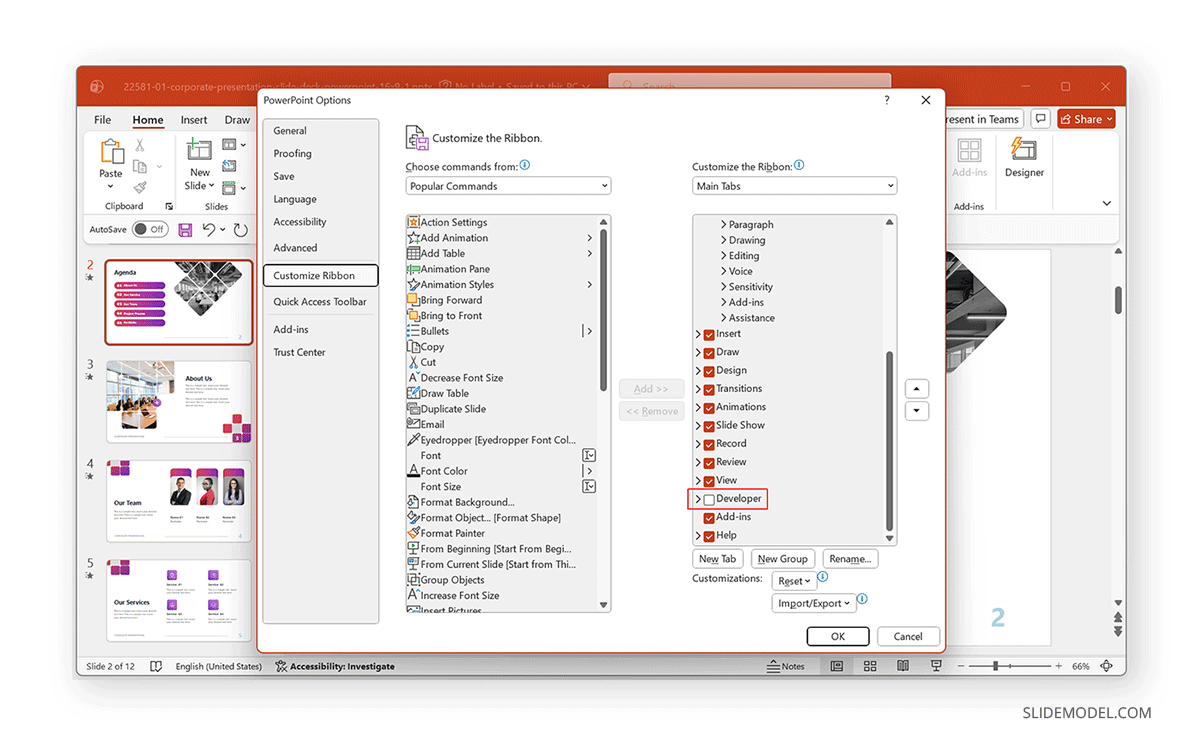
Step 1: Before you can add or edit macros, you need to enable the Developer tab (if it’s not already done). To do this, go to File -> Options -> Customize Ribbon, check Developer, and close the dialog box by hitting OK. The Developer tab now appears in the Ribbon and gives you access to the VBA editor and macro tools.
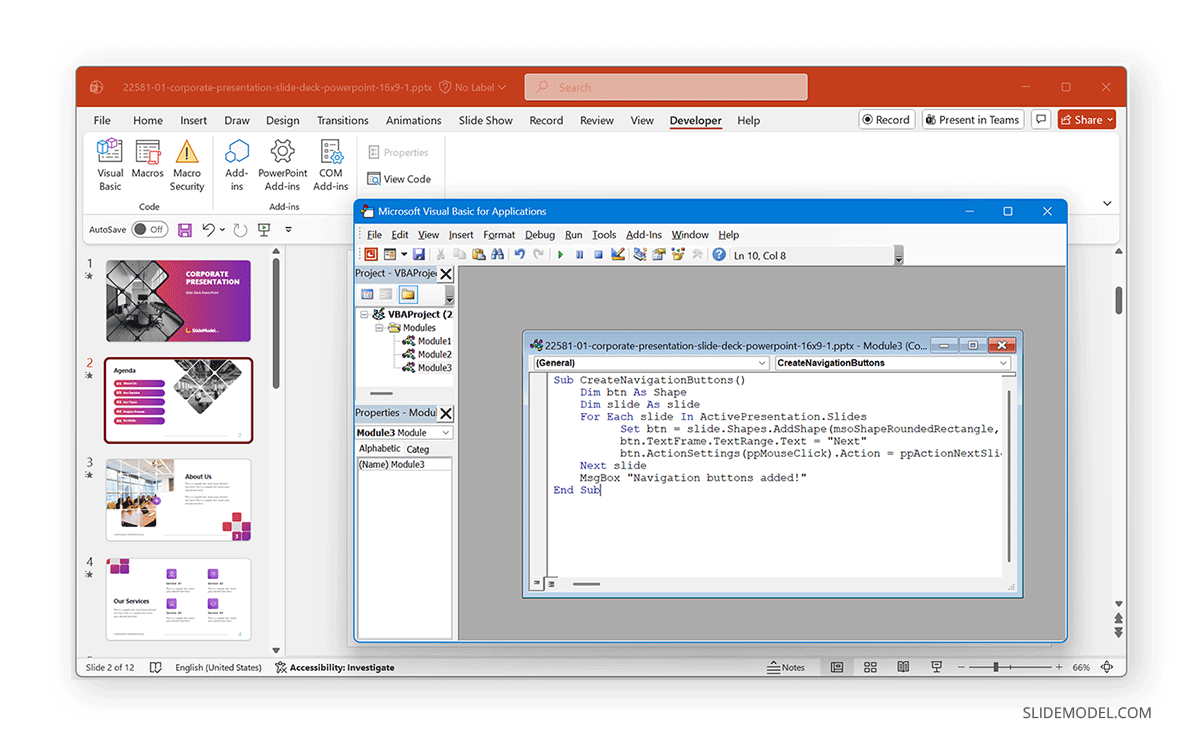
Step 2: Open the VBA Editor by selecting Developer -> Visual Basic, or press the Alt+F11 hotkey. This opens the VBA editor, where macro code is written and managed.
Step 3: In the VBA editor, right-click on your presentation in the Project panel and select Insert -> Module. This creates a new code module where you can add your macro.
Step 4: Inside the module window, you can write your macro. For example, a simple macro might loop through all slides, align shapes consistently, or create navigation buttons.
Note: Make sure you save your file as a PowerPoint Macro-Enabled Presentation (.pptm). If you’re new to VBA, see this in-depth tutorial on how to use VBA in PowerPoint.
How to Add Macros (PowerPoint Mac)
Adding Macros to PowerPoint for Mac is similar to adding Macros in Windows. Here is a quick method for adding macros in PowerPoint on Mac that users can easily follow.
Step 1: Before you can add or edit macros, you need access to the Developer tab (if it’s not already enabled). Go to File -> Options -> Customize Ribbon, check Developer, then click OK. The Developer tab now appears in the Ribbon and provides access to macro and VBA tools.
Step 2: Go to Developer -> Visual Basic, or press Alt+F11 hotkey from your keyboard. This will open the VBA editor, where macro code is written and managed.
Step 3: In the VBA editor, right-click your presentation in the Project panel and select Insert -> Module. This creates a new code module where you can add your macro.
Step 4: Inside the module window, write or paste your VBA code.
Note: Similar to Windows, ensure you save your presentation as a PowerPoint Macro-Enabled Presentation (.pptm) file. Macros created on Windows may not always run correctly on Mac due to differences in the PowerPoint object model. Always test macros on the target platform to ensure proper execution.
How to Run a Macro in PowerPoint
Now that you know how to insert macros, let’s take a look at how to run them. You can run macros in several ways, including the methods mentioned below.
Method 1. Select to Run a Macro
You can select and run macros directly on both Windows and Mac via the following:
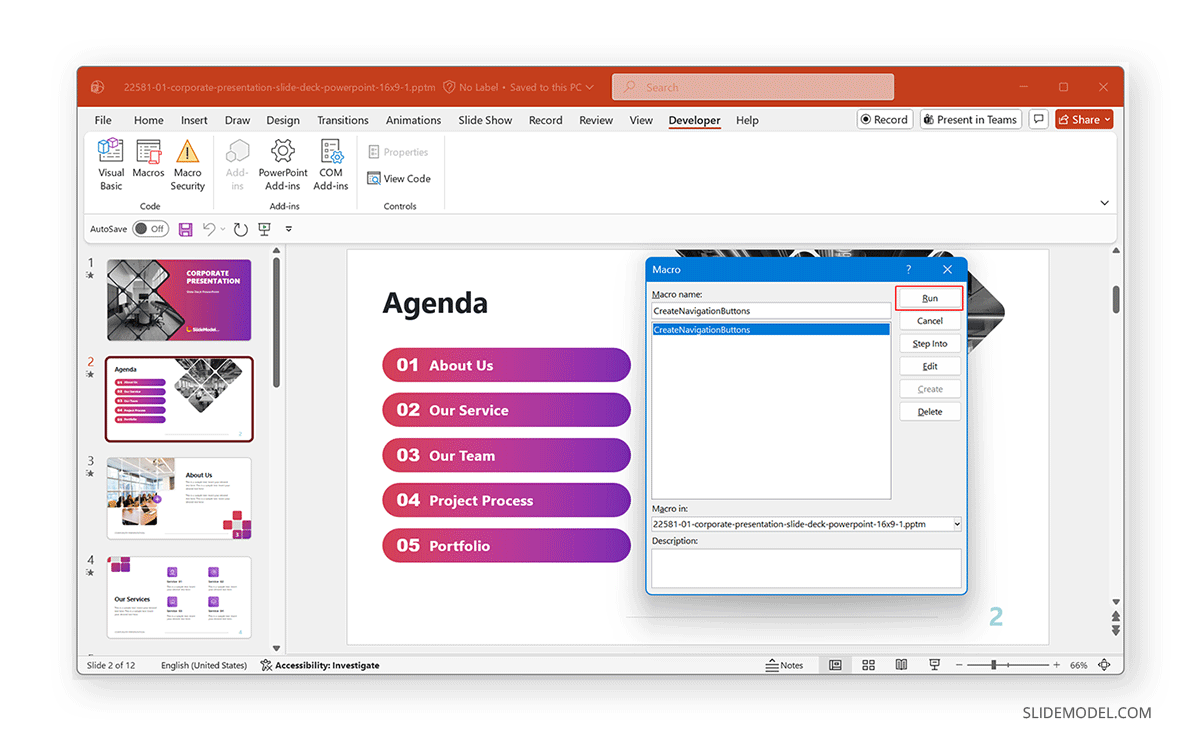
- Windows: Go to Developer -> Macros, select the macro, and execute it by clicking Run.
- Mac: Go to Tools -> Macro -> Macros, select the macro, and execute it by selecting Run.
Method 2: Assign Macros to a Slide Element
You can attach a macro to a slide element, such as a shape, so it runs when the element is clicked. This approach is widely used when creating interactive or navigation-driven presentations, such as menus, dashboards, or kiosk-style decks. To do this, insert or select a shape (button, icon, text box), open Action settings via the Insert tab, and assign the macro to run on mouse-click.
Method 3: Trigger a Macro During Slide Show Mode
Macros can also run during Slide Show mode when triggered by a user action. To do this, assign the macro to a shape using Action settings in the Insert tab. During the slide show, the macro runs when the audience or presenter clicks the assigned object. This allows macros to control navigation, reveal content, or reset slides dynamically during presentations.
Use Cases for PowerPoint Macros
PowerPoint macros are widely used where teams manage large, complex, or frequently updated presentations. Below are common scenarios in which companies worldwide use macros.
1. Batch Formatting and Brand Consistency
Macros are frequently used to enforce branding standards across large slide decks by looping through all slides and automatically applying formatting rules. Typical macro-driven tasks include applying corporate fonts and approved color palettes, standardizing title and body text sizes, margins, spacing, and alignment.
Example: Large consulting firms and enterprise marketing teams often receive slide contributions from multiple authors. In environments such as management consulting, investment banking, or corporate communications, macros are commonly used to remove third-party branding and reinforce corporate branding in decks before client delivery, ensuring visual consistency without manually reviewing every slide.
2. Automating Slide Layout and Object Positioning
Macros can programmatically position and resize objects across an entire presentation, removing the need for repetitive manual alignment. Typical uses include centering logos or footers on every slide, aligning icons and shapes to a consistent grid, and resizing images to uniform dimensions.
Example: Product teams and internal strategy groups at large organizations often maintain recurring slide templates for quarterly business reviews or executive updates. Macros help ensure every slide adheres to layout standards, especially when decks are reused or adapted across departments.
3. Creating Interactive Navigation and Menus
Macros enable custom navigation logic that goes beyond PowerPoint’s default hyperlinking. They are often used to create interactive menus and dashboards, buttons that jump to different sections based on user choice, and actions for non-linear presentations.
Example: Training departments and event teams commonly use macro-driven navigation for self-paced learning modules, sales enablement tools, and kiosk-style presentations. For example, internal onboarding decks or trade-show displays often rely on button-based navigation rather than linear slide progression.
4. Data-Driven or Dynamic Content Insertion
Although PowerPoint is not as data-focused as Excel, macros can still automate content generation by dynamically inserting or updating information. In this case, macros can be used to pull text values from external data sources or files, generate slides based on predefined rules, and update labels, placeholders, or chart titles programmatically.
Example: Organizational reporting teams and sales operations groups often use macros to refresh recurring presentations, such as monthly performance updates or territory reviews. This can be done without rebuilding slides from scratch. While Excel typically handles raw data, PowerPoint macros help translate that data into presentation-ready content.
5. Bulk Cleanup and Modernization of Legacy Slide Decks
Macros are especially valuable when dealing with older or inherited presentations that lack consistent formatting. Typical cleanup tasks include removing unused or empty placeholders, deleting hidden or overlapping text boxes, and standardizing layouts across legacy slides.
Example: Organizations with long presentation histories, such as enterprises with years of archived training or sales materials, often rely on macros to modernize older decks. This is common during rebranding initiatives, platform migrations, or content audits, where hundreds of slides must be updated quickly.
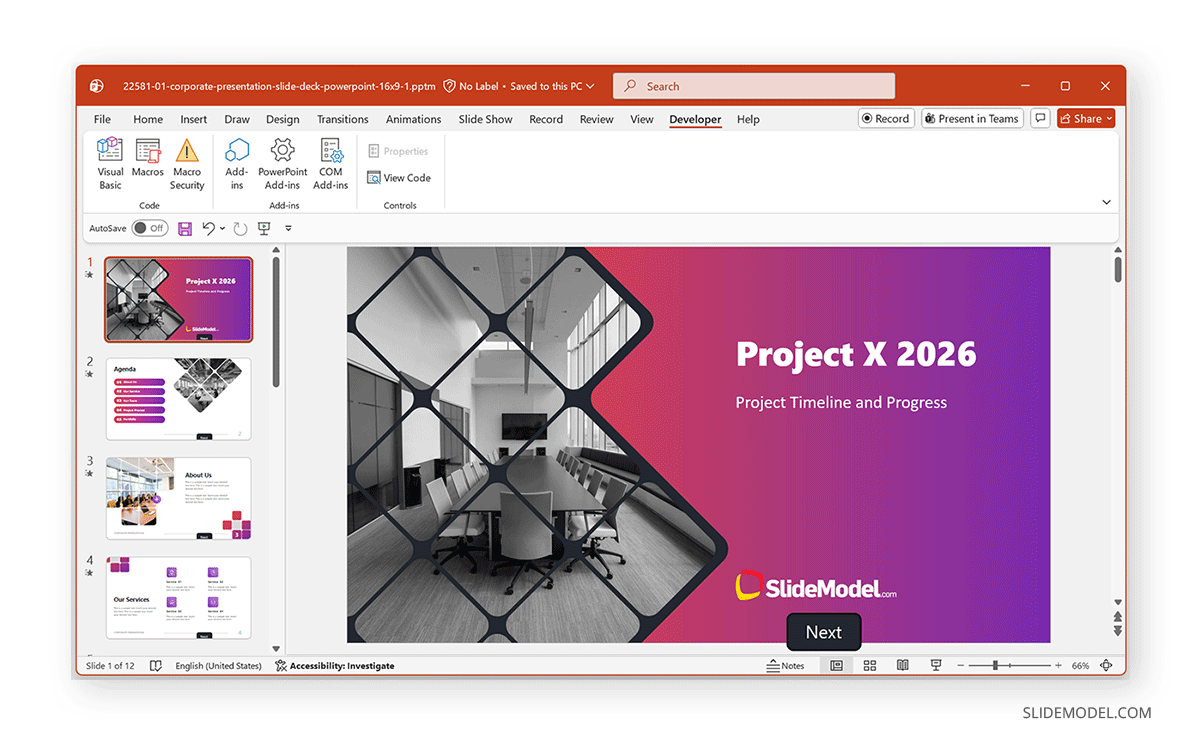
Note: The example shows a navigation button added to slides in the Corporate Presentation Slide Deck PowerPoint Template using a macro.
Considerations & Limitations
Working with macros also comes with trade-offs. There are many advantages of using macros, as there are risks to consider.
1. Security Risks: Macros can pose security risks, which is why many organizations restrict them. In this case, PowerPoint may block macros by default, users must explicitly enable macros when opening a file, or the IT policies may disable macros entirely. It is recommended that you use only macros from trusted sources. You can also consider digitally signing macros, if permitted by your company’s policy. Furthermore, avoid distributing macro-enabled files externally unless necessary. In regulated environments, macros should be documented and reviewed.
2. Limited Recording Capabilities: Unlike Excel, PowerPoint does not offer a fully functional macro recorder that captures user actions step by step. In Excel, you can record a sequence of actions, such as formatting cells or applying formulas, and automatically generate VBA code. PowerPoint, however, either lacks this feature entirely or provides only minimal recording support, depending on the version.
As a result, most PowerPoint automation requires manually writing VBA code rather than recording actions. This means users need at least basic familiarity with VBA syntax and PowerPoint’s object model to create effective macros.
3. Maintenance: If you distribute macro-enabled files, they must be tested after Office updates. Bugs may appear across different PowerPoint versions, causing workflow issues and requiring fixes. If files are widely distributed across a company, there might be a need to update the templates and inform users frequently. Reusing old presentations may not be feasible, especially if there is a significant bug to address.
4. Undo / Redo Behavior: When you make changes manually in PowerPoint, you can usually reverse them using Undo (Ctrl/Command+Z). However, many macros do not fully integrate with PowerPoint’s undo system. This means that once a macro runs, its changes, such as moving objects, deleting elements, or reformatting slides, may not be undoable in a single step, or at all. Due to this limitation, running a macro can permanently alter your presentation in ways that are difficult to reverse. For this reason, working on a duplicate version ensures that if something goes wrong, you can easily revert to the original without losing content or formatting.
5. Complexity: Simple tasks are easy to automate, but advanced logic requires understanding VBA syntax and familiarity with PowerPoint’s object model. For complex macros, basic programming skills are essential. This means many PowerPoint users find it harder to work with macros.
Final Words
Using macros in PowerPoint can improve efficiency, consistency, and control, enabling you to manage large or complex presentations. From batch formatting and cleanup to custom navigation and dynamic content, macros unlock capabilities that go far beyond PowerPoint’s standard interface. That said, macros also require careful handling. Security, compatibility (especially between Windows and Mac), and long-term maintenance should always be considered before widely adopting them.