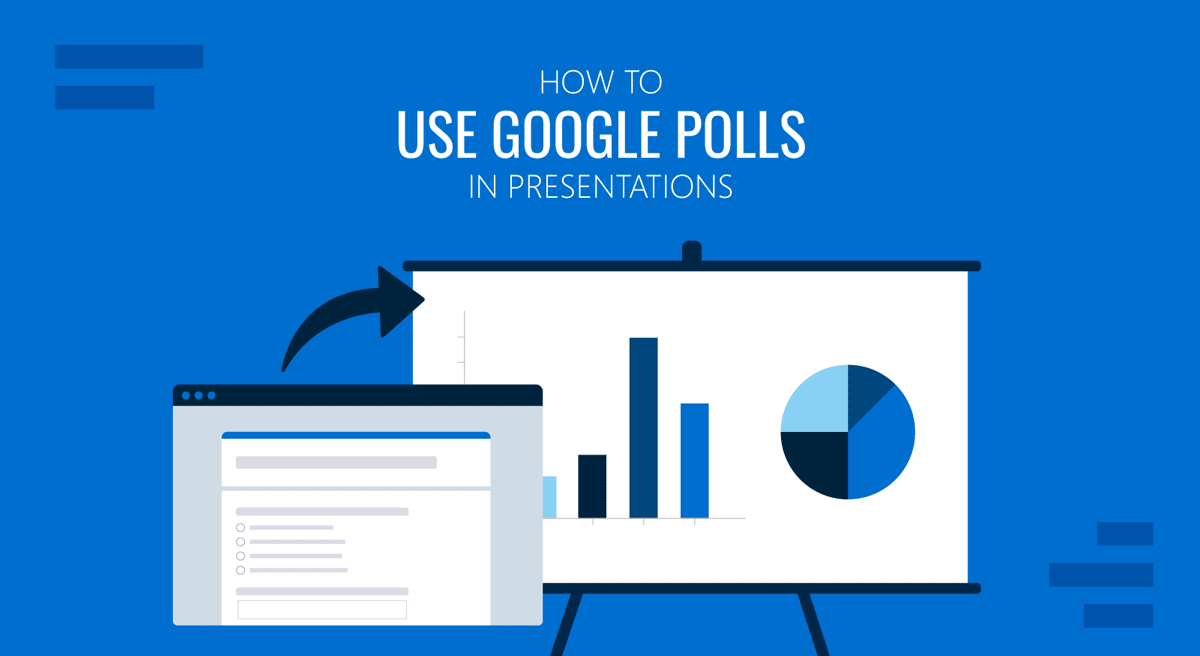
During a presentation, one of the most effective ways to gather instant audience feedback and engagement is to use polls. While using expensive hardware, such as giving the audience a clicker, isn’t always feasible, integrating polling platforms like Google Forms can achieve the same effect. There are several ways to share and integrate Google Polls into Google Slides and PowerPoint for audience engagement. This can be done using the different sharing methods provided by Google Forms.
Why Use Polls in Presentations?
Engaging your audience during a presentation is crucial, whether you’re addressing a boardroom, classroom, webinar, or presenting a pitch deck. Polls can help you engage your audience, get instant feedback, and gauge audience opinion by providing instant results with a poll creator like Google Forms. Below are a few benefits of using polls during presentations.
1. Encourage real-time audience interaction: Polls break the monotony of one-way communication and give your audience a role in shaping the conversation. This can be especially effective in physical, hybrid, or virtual settings.
2. Act as icebreakers: A poll at the start of a session can serve as a low-stakes way to warm up the room. This can help overcome the challenge of starting a conversation with the audience. Using polls as an icebreaker can instantly engage the audience and encourage two-way communication.
3. Gather live feedback: When validating a concept, measuring understanding, or taking a quick sentiment check, live polls give you instant insights. The collected data can inform follow-up discussions, decision-making, and even future presentations. Sometimes, a mid-presentation poll can help you learn whether the audience is not satisfied with your argument and whether you need to refine your approach during the session.
4. Improve audience attention: Active participation has been linked to better memory retention and audience participation. By prompting the audience to think, choose, and respond, polls transform passive viewers into active learners or collaborators. This also helps reset attention spans, especially during longer presentations.
5. Knowledge checks: Throughout the presentation, polls can be used to recap key points or test comprehension more interactively. By using polls, you can be sure to check the level of message retention for an audience. This can be useful not only for business professionals but also for teachers looking to perform quick knowledge checks for students.
What is a Google Poll?
A Google poll is a survey created via Google Forms. Google Polls allow you to create, distribute, and display polls in real-time. Though Google Forms is typically known for creating longer surveys, its short-form applications, such as yes/no and multiple-choice questions, can be used as polls. Google Forms makes it easy to customize questions, share polls via a short link or QR code, and view live poll results in Google Sheets or within the form dashboard.
How to Make a Google Poll
To use Google Forms as an online poll maker, follow the steps given below:
Step 1: Go to forms.google.com, click Blank or choose a template to start creating a form.
Step 2: Add a title and description, click the Untitled Question area, and type your poll question.
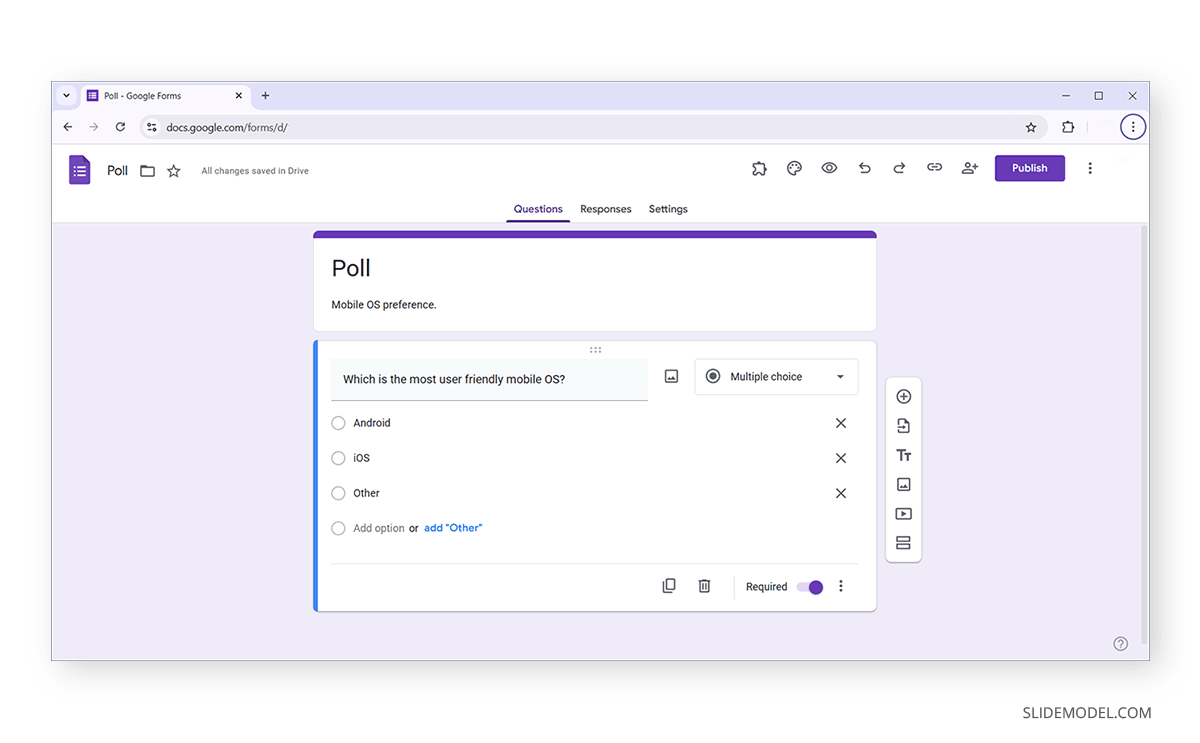
Step 3: Choose the question type (e.g., multiple-choice) and add answer options.
Step 4: Toggle on Required to ensure participation.
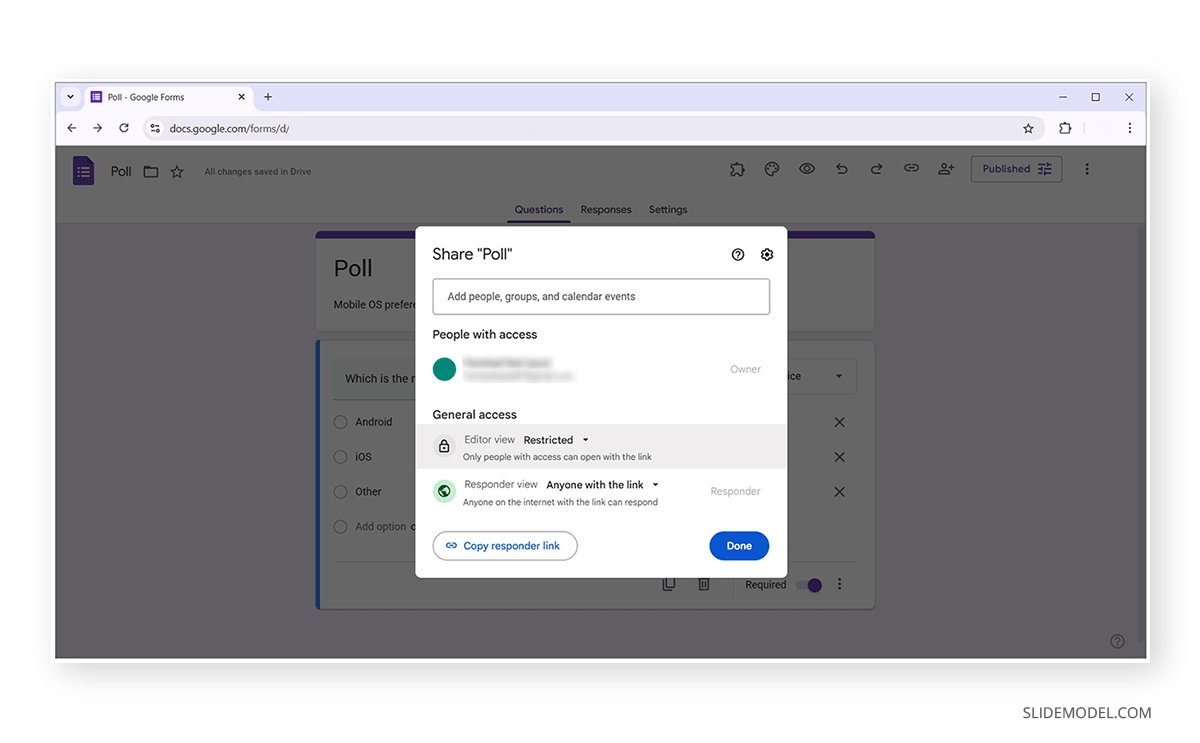
Step 5: Share your poll using a direct link, embed code, or email. You can also use third-party tools to generate QR codes using Google Forms sharing links.
Advanced Poll Options
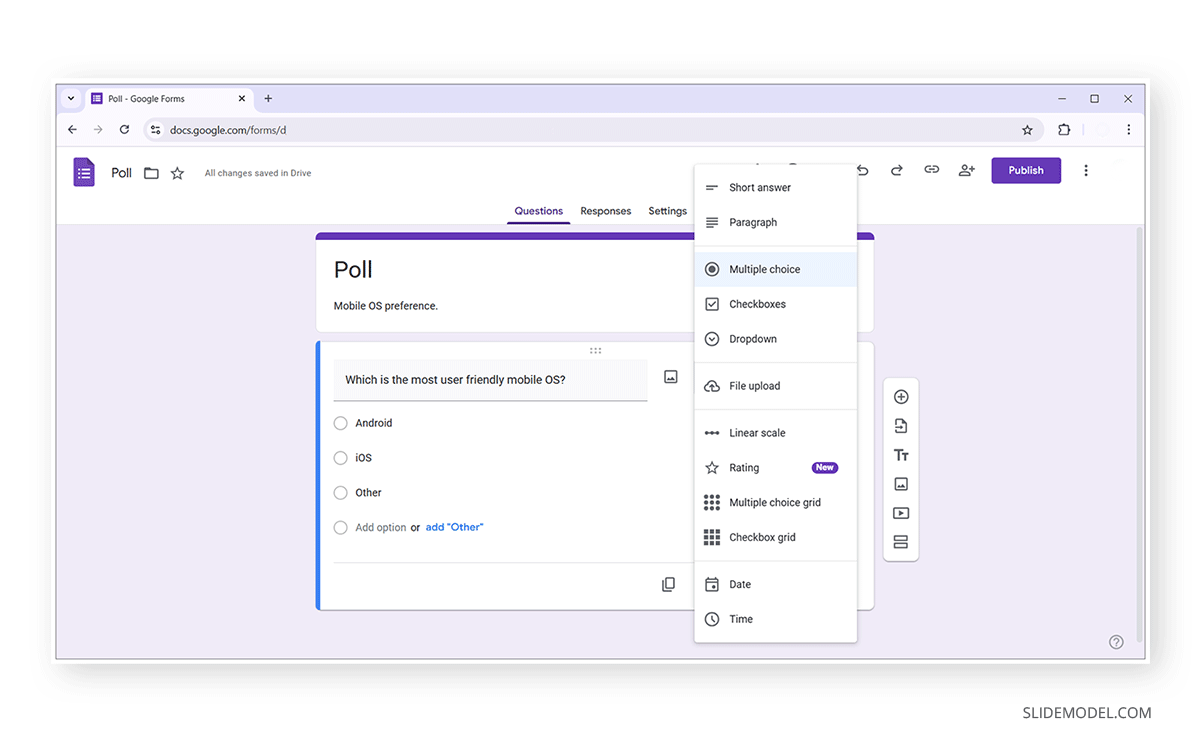
For more advanced poll options, use the Linear scale for rating questions, checkboxes for multiple-select possibilities, and enable “Limit to 1 response” if polling a specific group.
Customizing Your Google Poll
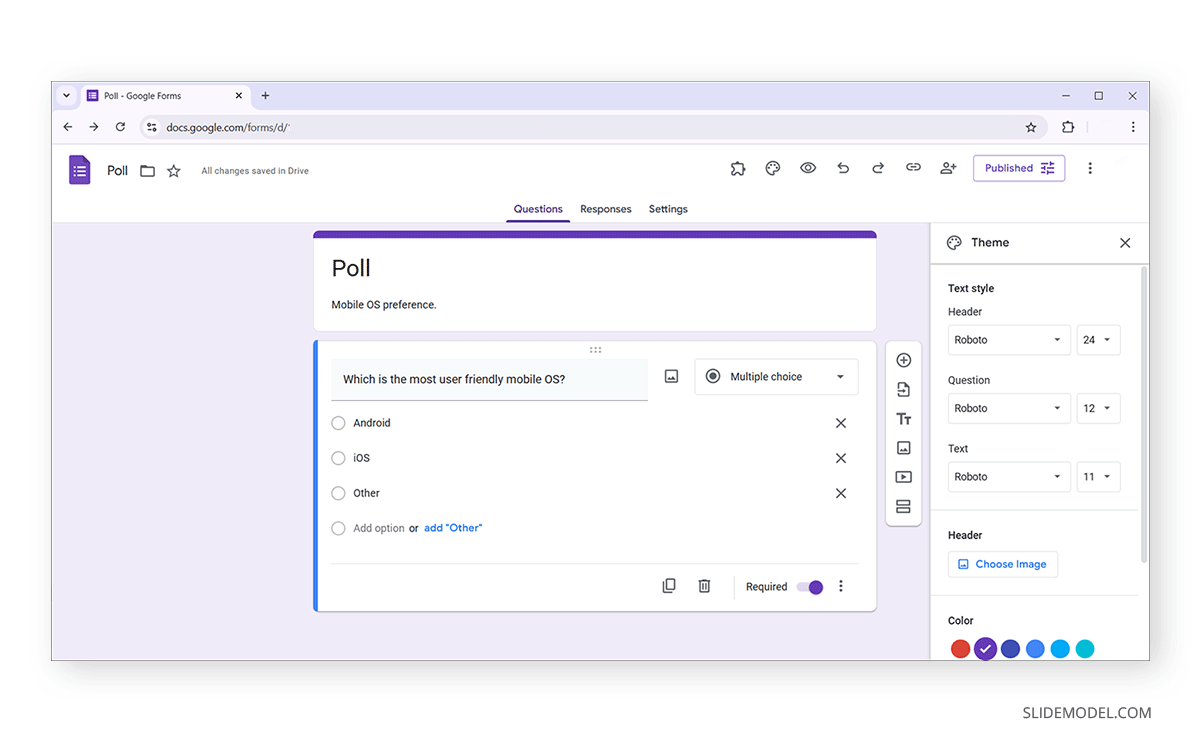
While you can create a Google Forms poll using the method mentioned earlier, to align it with your presentation’s style, click the Palette icon to change the theme, add a header image for branding, and use custom fonts for a professional feel. You can also collect participant emails, shuffle question order, or restrict responses by domain, which is helpful for internal organizational polls.
Viewing Google Poll Results
You can track poll responses in two ways:
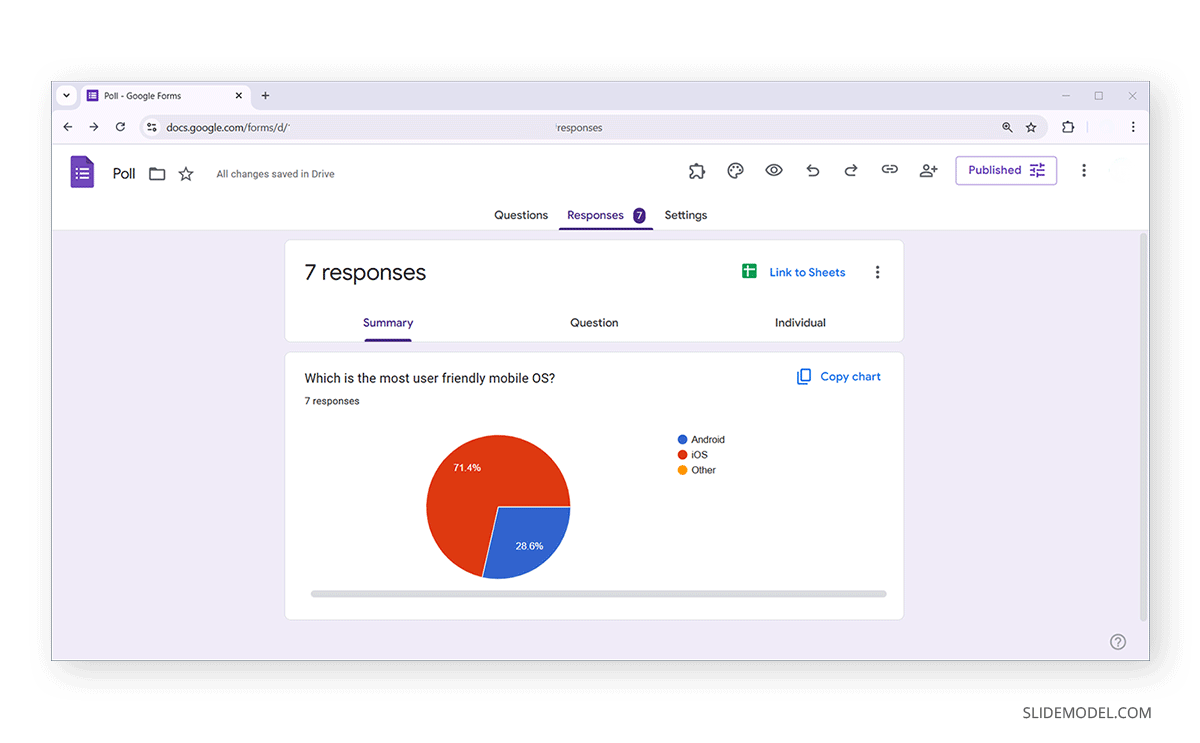
- In Google Forms: Go to the Responses tab to view summary charts.
- In Google Sheets: Click the green Sheets icon to export results for deeper analysis.
Note: Poll results in Google are updated in real time, so you can monitor participation as it happens.
How to Insert Google Polls in Presentations
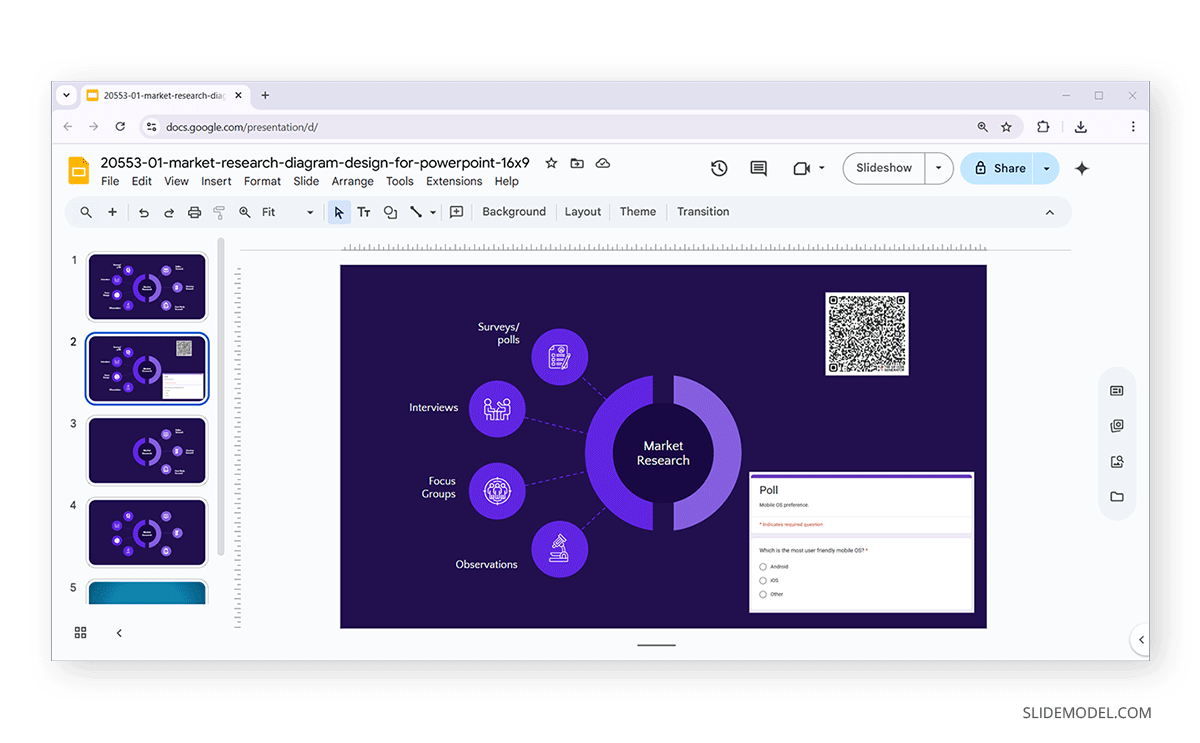
There are several ways to make your Google Slides and PowerPoint presentations interactive using a Google poll. To demonstrate the use of Google Polls in Google Slides, we will use the Market Research Diagram Template.
How to Embed Google Polls into Google Slides
There are different methods for embedding Google Polls in Google Slides, such as linking slide elements or generating a QR code.
Method 1: Shareable Link with Shape, Text, or Button
Create a shape, text box, or a button created with a shape with overlay text. Select the slide element and go to Insert -> Link and link the copied link from Google Forms to the slide element.
Method 2: QR Code Integration
While Google Forms doesn’t provide a QR Code, you can copy the shareable link and generate a QR code using a third-party QR code generator. Once created, download and insert the QR code image into the slide in Google Slides.
Method 3: Embed Poll Preview with Screenshot
Take a screenshot of your poll’s first question, insert it as a static image, and link it to the live form via Insert -> Link.
How to Use Google Polls in PowerPoint
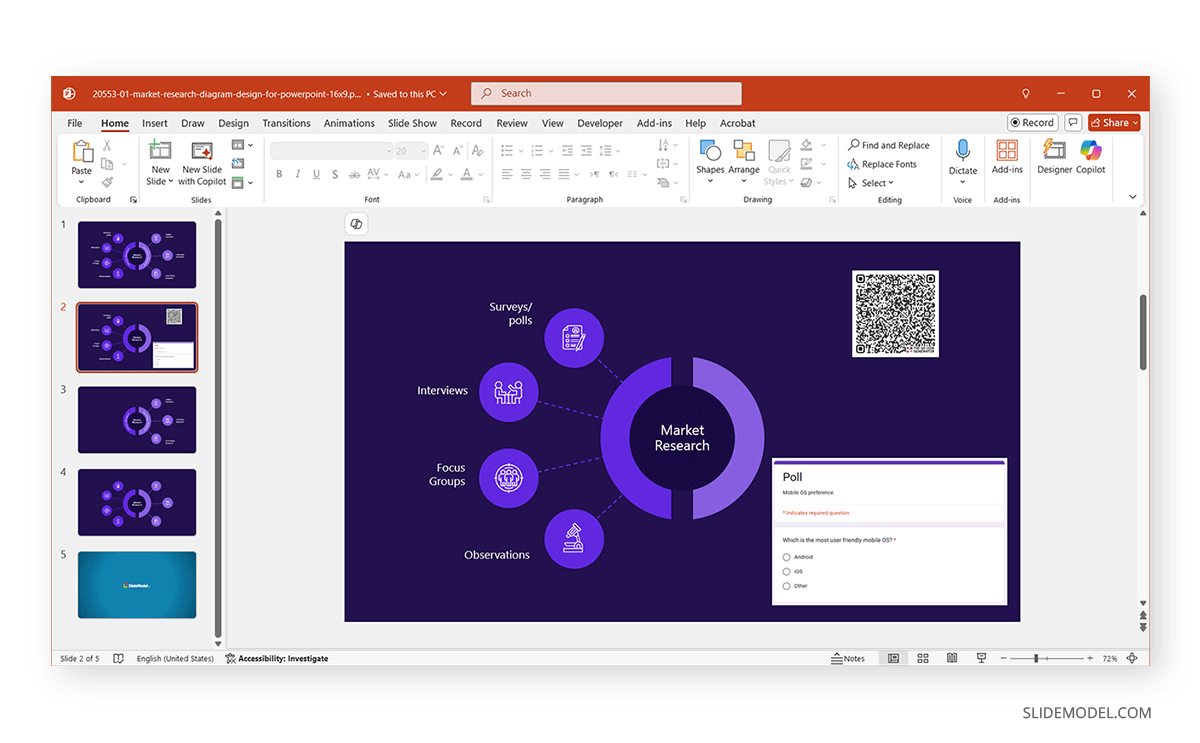
Even though Google Forms and Microsoft PowerPoint belong to different ecosystems (Office 365 and G Suite), integrating them is easy. You can use methods similar to the ones mentioned above to link Google Forms to a PowerPoint slide.
Method 1: Connect a Slide Element with the Poll Link
By adding text, shape, or a button, you can link polls to a slide element via Insert -> Links -> Link to open in a new window once the hyperlinked element is clicked in SlideShow mode.
Method 2: Insert a Google Polls QR Code in a Slide
You can use a third-party service to generate a Google Polls QR code and insert it as an image via Insert -> Pictures.
Method 3: Embed a Web Page
While this is not a native feature, you can use third-party web page embedding add-ins in PowerPoint, such as DataPoint and LiveWeb, to embed a Google Poll directly to a slide. The latter is compatible with older versions of PowerPoint.
Best Practices for Using Polls During Presentations
1. Keep It Short and Relevant: You should aim for concise, purposeful questions. Poll fatigue sets in quickly, especially in long sessions. A short poll focused on a key topic will always have a greater impact than one filled with unnecessary questions.
2. Set Expectations Early: Let your audience know upfront that polls will be part of the session. Explain how they’ll participate, how long it will take, and whether results will be shared. This reduces hesitation and boosts response rates.
3. Display Results Transparently: Showing the real-time responses not only builds trust but also encourages honest input. When participants see their opinions valued in real time, it creates a sense of inclusion and relevance.
4. Use Polls with Purpose: Don’t just add a poll for the sake of interactivity. Use it to transition between sections, prompt discussion, challenge assumptions, or steer your narrative. Thoughtful placement makes polling feel like a natural extension of your presentation, not something pushed to force audience engagement.
5. Optimize for Mobile Participation: Always assume a portion of your audience is on a phone. Keep text clear, avoid small clickable areas, and test the experience beforehand. A poorly formatted mobile poll can derail participation. Furthermore, ensure that the venue has internet access or is not subject to mobile signal disruptions. This is because some places, such as basement halls, can suffer from poor signal quality, making mobile access virtually impossible.
6. Time the Polls Strategically: Place polls at moments where energy tends to drop, such as after a technical explanation or right before a Q&A. This helps reset attention and gather momentum for the next part of your talk.
7. Tailor Tone and Language: Use language that matches your audience. For example, casual for workshops, professional for business meetings, and a mix of both for educational lectures. The phrasing of your questions often determines how seriously they’re taken. How you tailor your tone and language will depend on the type of audience you are addressing and the topic you are presenting.
8. Consider Cultural Sensitivities: What might be deemed as light-hearted in one culture might be considered offensive in another. The words, tone, and way a topic is discussed can be tied to various cultural sensitivities. Even when addressing a diverse audience, striking a balance to respect the audience’s sensitivities is essential. If you’re unsure about how to do this, it is always safe to keep the tone formal to avoid pitfalls.
Final Words
Creating a Google poll and integrating it into your presentation is a simple yet effective method to engage your audience, get feedback, and make your key messages more memorable. With Google Forms, you can easily achieve this, as well as use third-party tools to further leverage how you embed polls and display them in your slideshows.
A thoughtfully placed, well-executed Google poll can help you achieve specific goals, persuading the audience to see your perspective and make your call to action memorable.