While most users are familiar with creating and presenting standard slide decks, not everyone takes advantage of one of its most powerful features: Custom Slide Show in PowerPoint. This option lets you tailor the same presentation to different audiences by creating multiple variations from a single PowerPoint file. Instead of maintaining several separate files, you can design audience-specific presentations that remain consistent and easy to update.
In this guide, we’ll explore the uses of a custom slide show and how to create one. We’ll also share practical use cases, tips, and scenarios that illustrate how this feature can enable professional presenters to maximize the effectiveness of a single slide deck.
What is a Custom Slide Show in PowerPoint
A custom slideshow is a feature that lets you select a subset of slides from a larger presentation and run them in a custom order. Think of it as making a list of custom slides to present in a sequence of your choice, and save it under a custom name. Instead of duplicating your presentation and deleting slides you don’t need, you can build different slide shows inside a single file. This method lets you create multiple versions of a presentation within a single file, so you can select the one you need for each audience.
Why Use a Custom Slide Show
There can be many benefits to using a slideshow that presents only a portion of your slide deck based on your selected slides. This custom slide deck within a presentation provides the flexibility to show only what you need, tailored to your audience, directly from a PowerPoint presentation.
1. Efficiency
One of the significant benefits of a custom slide show is efficiency. You only need to maintain one deck. Update it once, and all your custom shows benefit, reducing the risk of mismatched information across versions.
2. Audience Targeting
Different stakeholders care about different things. Custom shows let you focus on the material that matters. For example, you might create a slideshow for executives with strategy, KPIs, and financials, a slideshow for clients with product details, benefits, case studies, and testimonials, or team-based slide shows with workflows, responsibilities, timelines, RACI matrices, etc.
3. Flexibility
If a meeting changes course, you can quickly pivot by launching a different custom show without searching for another file. This can also save time and enable you to run your presentation smoothly without breaking momentum.
4. Consistency
Corporate identity, colors, and design elements remain uniform with custom slideshows because everything is based on the same master presentation.
5. Presentation Flow
Instead of breaking the presentation flow by going back and forth between different slides for a specific audience, you can maintain your momentum by simply switching to a different slide show from within the same presentation file.
How to Create a Custom Slide Show in PowerPoint
To create a custom slide show that you can use anytime to present only selected slides, follow the simple steps mentioned below.
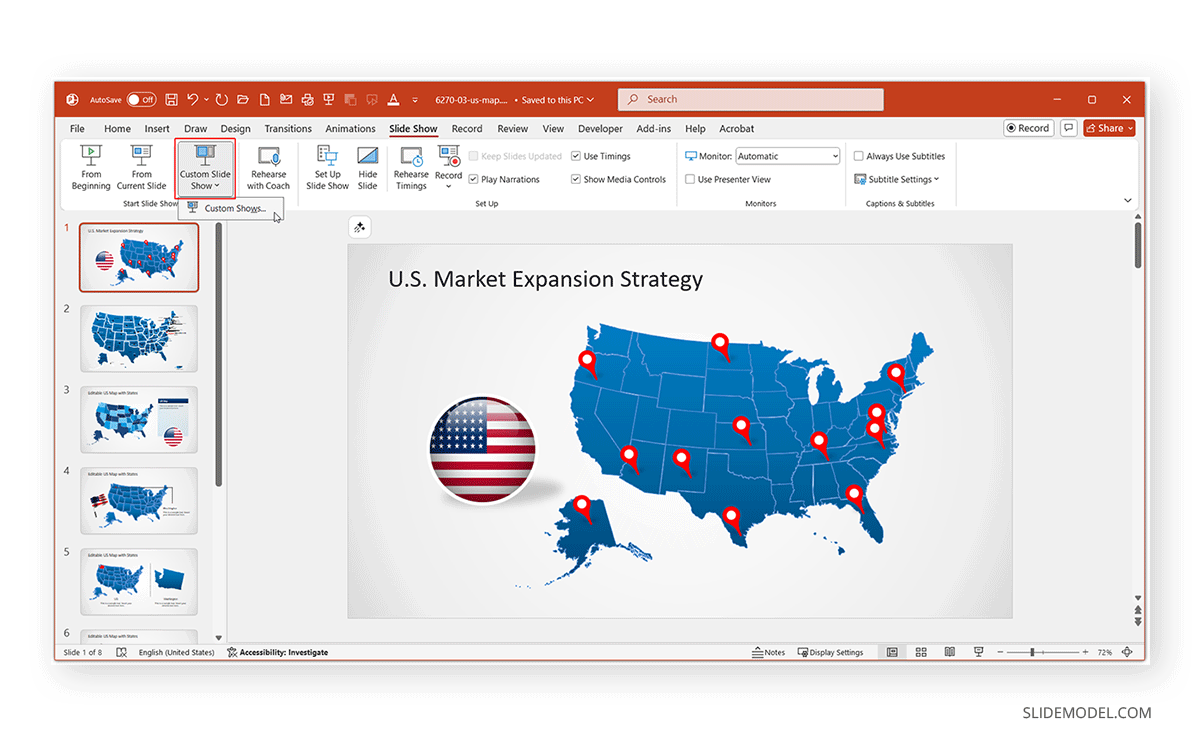
Step 1: To create a custom slide show in PowerPoint, go to the Slide Show tab from the ribbon menu and select Custom Slide Show -> Custom Shows. From here, you can create, edit, and run different shows.
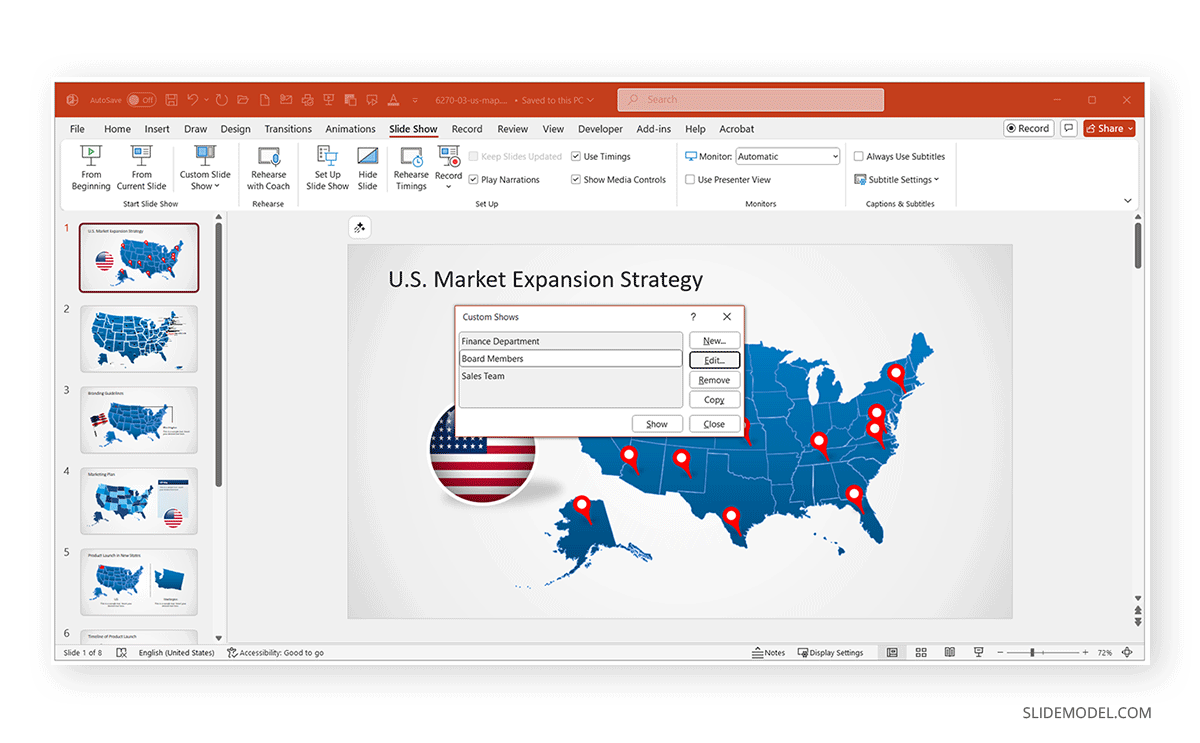
Step 2: To create a custom show, click New from the dialog box that appears.
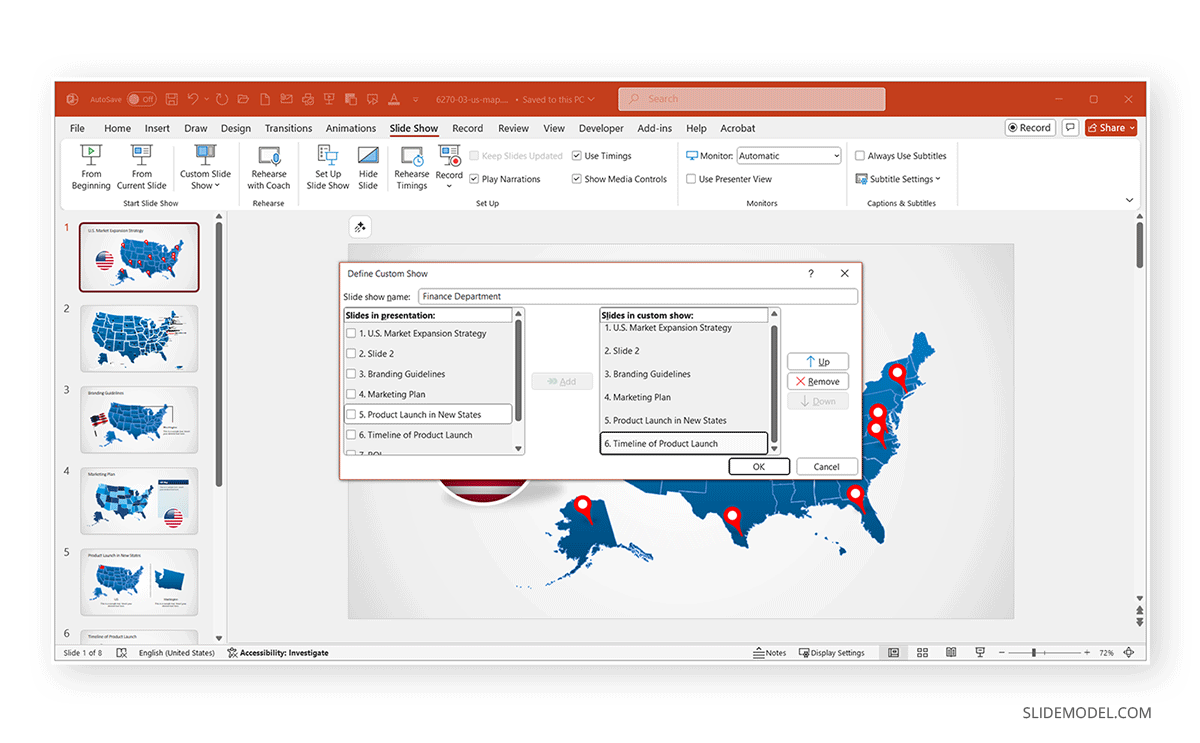
Step 3: In the pop-up menu, give your custom slideshow a name and select the slides to include. Then, select Add.
Step 4: Reorder slides (if needed) using the Up/Down buttons to customize your slideshow.
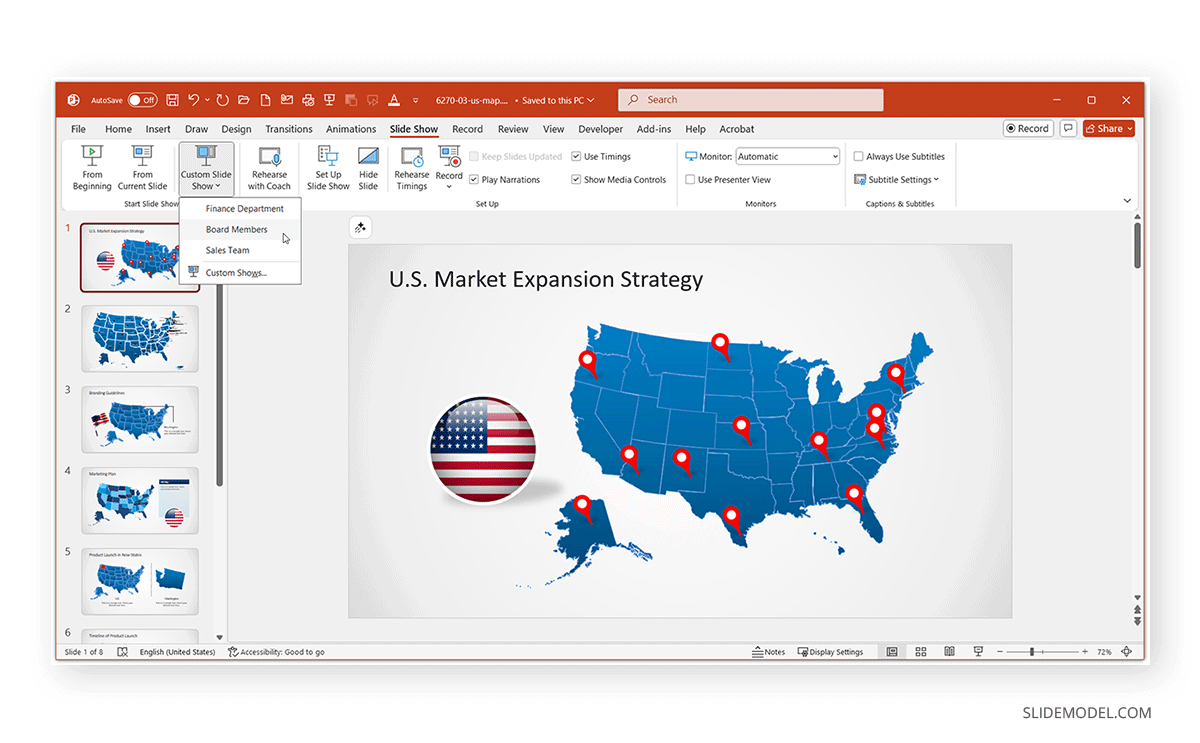
Step 5: Click Show to preview your custom slide show or view it any time via Slide Show -> Custom Slide Show and select the name of your slide show.
Note: You can edit or remove custom slide shows anytime via Slide Show -> Custom Slide Shows -> Custom Shows Edit/Remove.
Managing Multiple Custom Slide Shows
Custom shows are helpful when you create several within the same deck for your key audience. For example, imagine you’re a marketing manager preparing for a product launch in the United States using a U.S. Map PowerPoint template:
- Show 1: Executive Summary: 10 slides for the board or CEO.
- Show 2: Sales Team Briefing: 20 slides with detailed messaging.
- Show 3: Financial Information: 12 slides with information for the finance department.
You don’t need three decks, just one, with three different flows. During live presentations, you can even insert hyperlinks between custom shows, allowing you to jump seamlessly from one sequence to another. The benefit of custom shows is that they’re dynamic. If you add, remove, or reorder slides in the main deck, you can easily update your custom shows to reflect changes.
Use Case Example: Entrepreneur Pitching an Acquisition Strategy
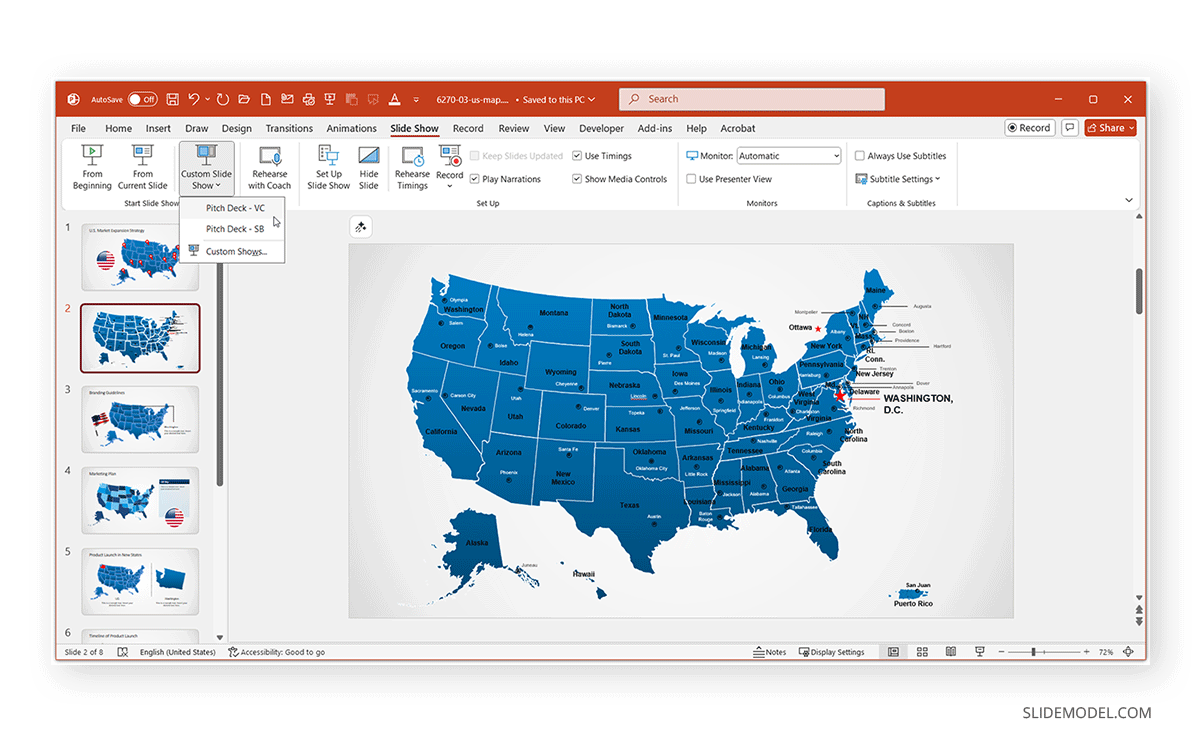
Imagine an entrepreneur preparing to pitch an acquisition strategy with two plans: Plan A and Plan B, tailored for different audiences.
Plan A: Presenting to Venture Capitalists
Plan A includes creating a custom slide show for venture capitalists. Since the VC audience cares about growth metrics, scalability, and return on investment, a custom show will help reflect their key interests. In this case, the entrepreneur can build a custom show that emphasizes financial forecasts, market expansion, and projected ROI.
Plan B: Presenting to Strategic Buyers
Strategic buyers are more interested in integration, cultural fit, and cost savings. Therefore, a second custom show can be created to highlight acquisition rationale, partnership analysis, and operational benefits.
With custom shows, the entrepreneur doesn’t need two decks. They simply run the appropriate custom flow depending on the audience. This saves time, avoids duplication, and ensures consistency.
Advanced Tips for Professionals
Once you’ve mastered the basics of creating custom slide shows, there are several advanced techniques to make your presentations more dynamic, adaptable, and engaging. These tips can elevate your workflow from simply “managing slides” to delivering strategically designed narratives.
1. Use Hyperlinks to Create Interactive Navigation
Custom shows can be linked together to form interactive presentations. You can insert a shape or text box by going to Insert -> Link -> Place in This Document -> Custom Shows.
Select the custom show you want to link to, check ‘Show’, and then return. This allows you to jump between different flows mid-presentation. For instance, during a Q&A, you could click on a ‘Financials’ button to show the investor slides, then return to your main deck. This interactivity makes your presentation feel more like a guided demo or live dashboard, perfect for pitches and training sessions.
2. Combine Custom Shows with Presenter View
Pairing custom shows with Presenter View gives you complete control. You can see your notes, upcoming slides, and timing, while your audience sees only what you want them to.
This is especially valuable when juggling multiple audiences in one session. You can run a short investor sequence, pause for questions, and then smoothly launch a client-focused segment, all without losing your place or showing irrelevant slides.
3. Test Transitions and Animations Separately
Each custom show may use different transitions or animation flows depending on its purpose. For instance, a fast-paced sales pitch may benefit from energetic transitions, while an executive briefing may require subtle fades. Always preview your transitions and animations for each custom show separately, as PowerPoint retains all effects from the master deck, but their pacing might differ between flows.
4. Sync Custom Shows with SlideMaster for Branding Control
When multiple custom shows share the same SlideMaster, any change to branding, logos, fonts, colors, or headers automatically updates across all variations. This is particularly valuable for large organizations or agencies where brand compliance is a non-negotiable requirement. It ensures every custom show, no matter how specific, still feels unified under the same visual identity.
5. Combine Custom Shows with Embedded Media
You can embed videos, charts, or animations tailored to a specific audience without cluttering other flows. For example, a training custom show could include tutorial videos, while the executive version might use simplified summaries. By grouping slides with media elements under different custom shows, you maintain a clean master file without duplicating heavy media content.
6. Integrate with Templates and Design Frameworks
When using professional templates, such as from SlideModel’s PowerPoint templates, custom shows can be aligned with pre-defined visual structures. For example, you might create:
- A Product Launch flow using timeline and roadmap slides.
- A Pitch Deck flow using comparison and SWOT analysis slides.
- A Timeline flow using customizable timeline slides.
Common Mistakes to Avoid
1. Poor Naming Conventions: Avoid generic names like ‘Slide Show 1’. Use meaningful labels tied to the audience you intend to present to to avoid mix-ups.
2. Too Many Variations: Creating dozens of custom shows can make your deck unmanageable. Stick to the essentials and create only a handful of variations per slide deck (e.g., 2-4).
3. Forgetting Updates: When slides change in the master deck, double-check that your custom shows still flow logically.
4. Too Many Slides Per Custom Slide Show: The whole point of using a custom show is to ensure you have a brief set of slides per audience from within a presentation deck. Avoid using too many slides per audience to create custom slide shows that don’t result in death by PowerPoint.
5. Not Replacing Outdated Custom Slide Shows: You might even need to recreate custom slide shows and delete old ones after comprehensively updating slides. This may be necessary to avoid confusion when numerous changes have been made to slides and new slides have been added to the deck, resulting in less cohesive sections.
Final Words
The Custom Slide Show in PowerPoint is a method that every professional should know. It enables you to tailor a single presentation to various audiences, ensuring efficiency, consistency, and impact. Instead of creating separate decks for every scenario, you prepare once and present flexibly.
The idea behind creating custom slideshows is to have brief slides tailored to each audience, derived from within a presentation. Creating custom slideshows with too many slides might defeat this purpose. Ensure that your custom slide shows are updated, brief, and tailored to each audience, with any unnecessary content removed for brevity.