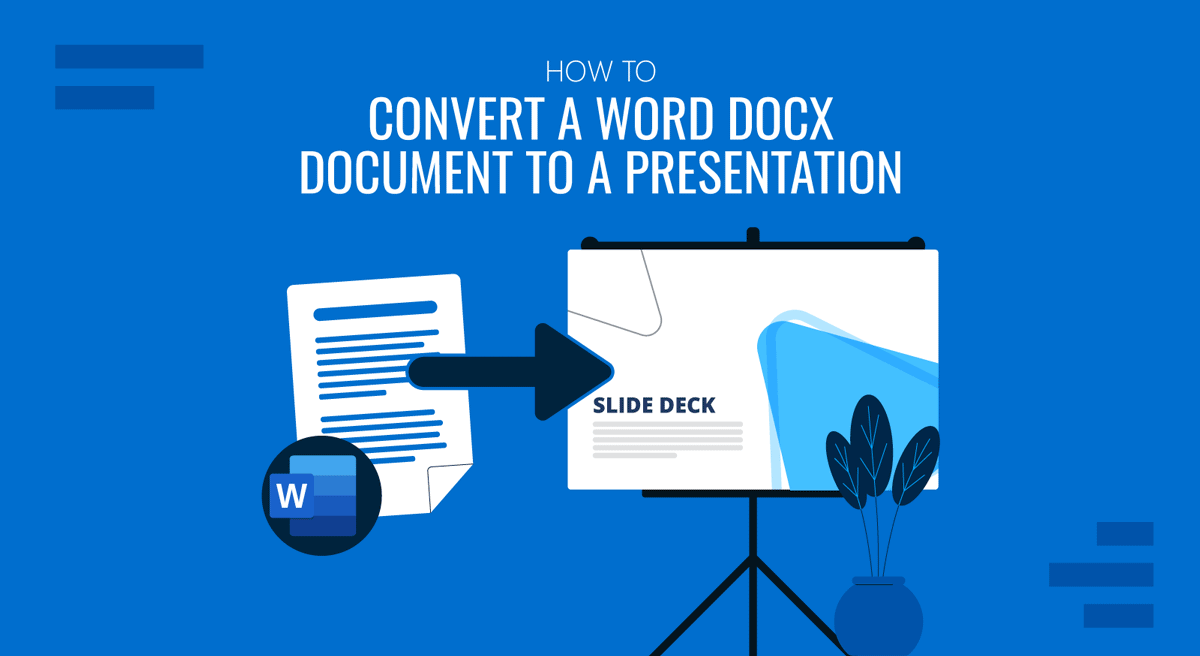
Microsoft Word is commonly used for drafting reports, proposals, or research documents. This means that much key information is often available as a Word document that needs to be converted to PowerPoint for presentations. If you’ve been asking yourself ‘How to convert a Docx to a presentation’ without spending hours re-typing, you’re not alone. Learning how to convert Word to PowerPoint can save time and effort, and there are three instrumental methods you can use to convert a Docx to a PowerPoint presentation.
Why Convert a Word Document into a Presentation?
Before jumping into the how-to steps, it’s worth asking why this conversion is so helpful and how it can help you better manage your workflow by converting Word to PowerPoint.
- Time Efficiency: Instead of rewriting your document, you can repurpose existing content. Furthermore, much useful information is often stored in Word documents and must be converted to slides to present the key points of a report, research, concept note, etc.
- Better Communication: Dense Microsoft Word paragraphs can be transformed into concise visuals for a more straightforward explanation.
- Audience Engagement: Presentations highlight key points, keeping your audience focused on the most critical areas rather than providing them with lengthy documents that can be difficult to read.
- Consistency: Using structured conversion methods ensures that the final slides accurately reflect your original document.
Method 1: Manually Convert Docx to PowerPoint Slide by Slide
The most straightforward way to convert your document into a presentation is to build it manually. This method provides full control over how content appears, but it can be time-consuming.
Step 1: Go through your Word file and identify key sections, headings, and subheadings, and decide which points deserve their own slide. It’s best to make an outline before copying text to a PowerPoint file.
Step 2: Select a blank presentation or a branded template that fits your audience. Using a template ensures design consistency, especially when incorporating corporate branding.
Step 3: Copy essential bullet points, phrases, or visuals from Word. Avoid pasting long paragraphs and focus on concise summaries.
Step 4: Replace text-heavy content with pictures, diagrams, charts, or SmartArt. For example, if your Word file includes survey data, insert a bar chart instead of copying raw numbers.
Step 5: Adjust fonts, spacing, and layouts. Furthermore, you can add transitions or animations if needed, but keep them subtle.
This approach is ideal when you require high-quality, carefully curated slides or when branding and messaging are crucial. You might opt for this method when the margin of error is minimal, such as when presenting to senior management or before a large audience during a significant event. You can also see tips regarding making a refined slide deck using this method from our guide about how to insert a Word document into PowerPoint.
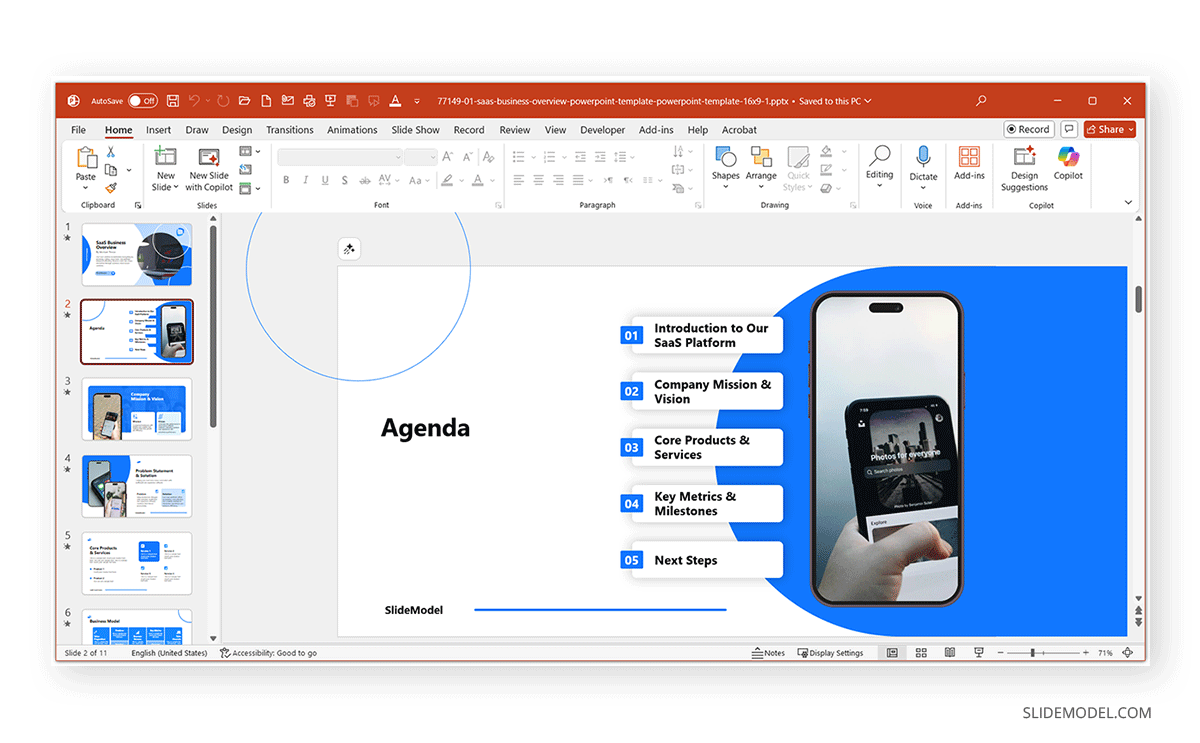
Method 2: Convert Docx to Presentation Using Microsoft Copilot
One of the most efficient ways to convert a Docx file to a presentation is to use Microsoft Copilot, an AI-powered assistant integrated into Microsoft 365. It can automatically generate a PowerPoint deck from your Word document, saving hours of manual work.
Step 1: Locate the Copilot icon from the Home tab on the PowerPoint Ribbon menu. You can also select the Create with Copilot option via the start screen or via File -> New to start Copilot from within PowerPoint.
Step 2: To convert Word to PowerPoint and add a OneDrive link to the Word document with a prompt. You can use a prompt, e.g. Create a 10-slide presentation summarizing this Word document’ and upload the Word file via the Create new presentation option. Copilot extracts headings, bullet points, and summaries from your file. It creates a deck with suggested layouts and speaker notes.
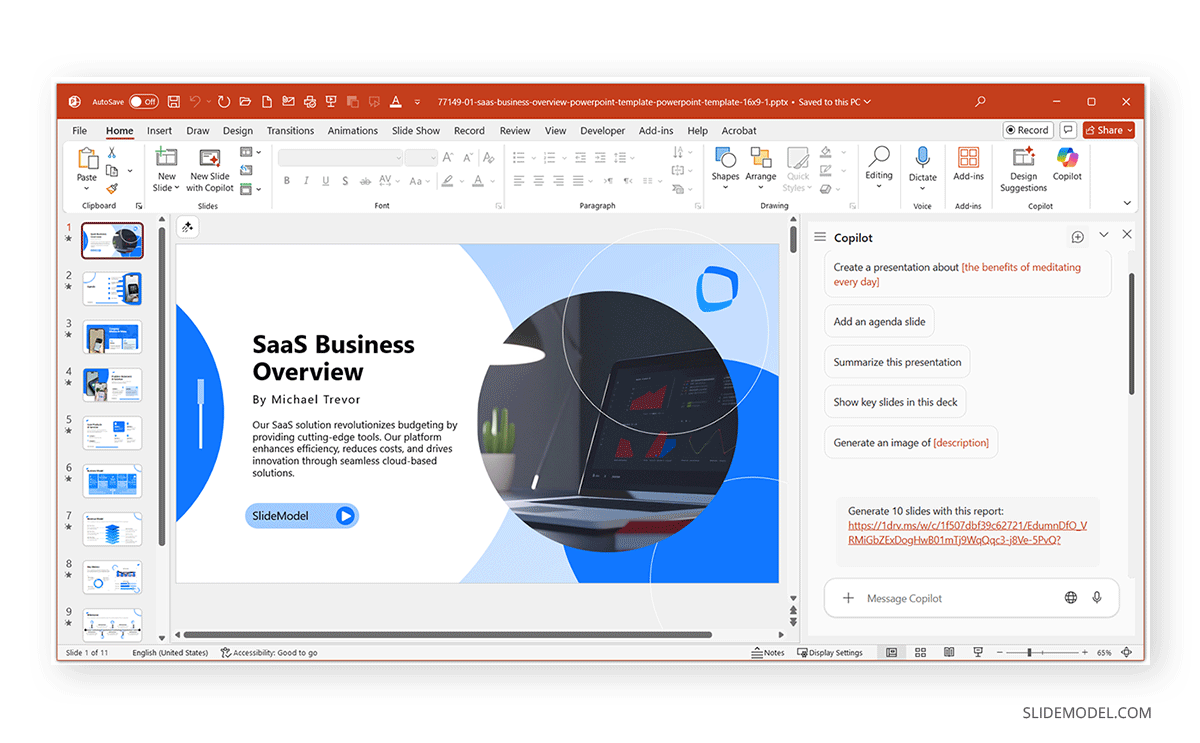
Step 3: Ask Copilot to adjust the tone, simplify the language, or expand on points.
Example prompts:
- Make this slide more persuasive.
- Rewrite this content for a non-technical audience.
- Include slides with information about the benefits of using a Venn diagram.
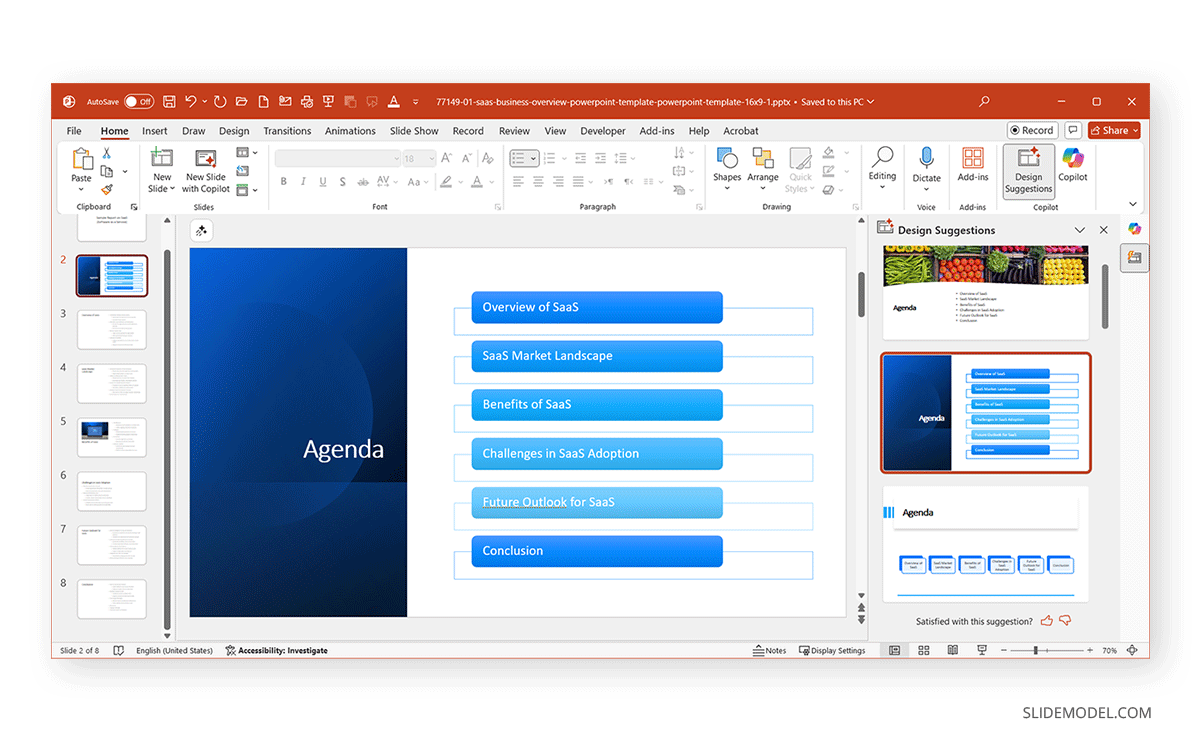
Step 4: Use Designer to refine the layouts. In some cases, your prompts might switch the screen to Designer to display slide design options, Microsoft’s AI-powered slide design tool.
Note: If you already have a presentation with many slides, Copilot may need to generate and replace slides, which could also result in removing the original template design. This may require reapplying the branding and design to the new slides. If the slides need to be replaced, Copilot will prompt you to confirm whether you wish to replace the existing slides.
Method 3: Convert Docx to Presentation with SlideModel AI
Another innovative approach is to use SlideModel AI to create presentations from a Word document. Unlike Copilot, which is integrated within Microsoft 365, SlideModel offers an AI-powered tool designed explicitly for presentation creation.
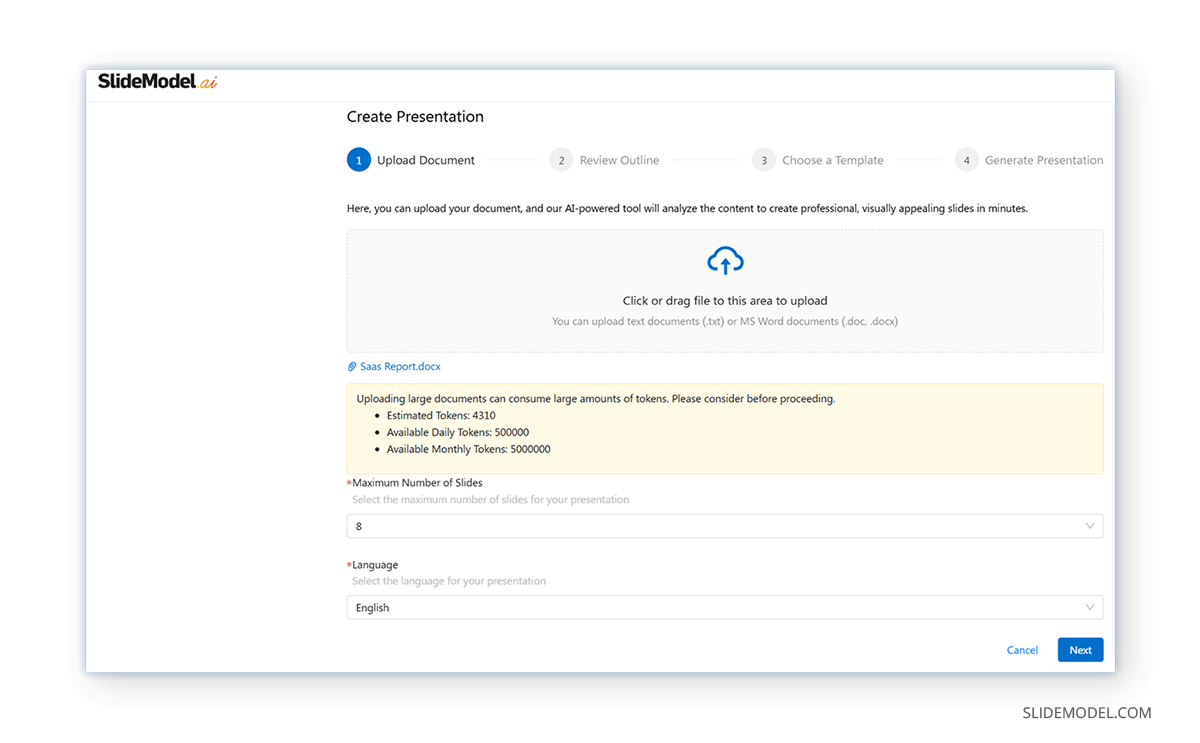
Step 1: Go to SlideModel.ai upload your Word document or paste content directly into the tool. SlideModel.ai offers various methods for creating a presentation that not only allows uploading TXT, DOC, or DOCX files but also uses prompts and generative AI.
Step 2: Select the number of slides and language when creating your presentation. SlideModel.ai currently supports making slides in English, Spanish, German, French, Italian, Portuguese, Dutch, and Russian.
Step 3: You will receive an outline. Review the outline and make any necessary adjustments. You can also use drag-and-drop to reorder the slide outline.
Step 4: Choose a template from SlideModel’s template library to give your slides a match to your needs.
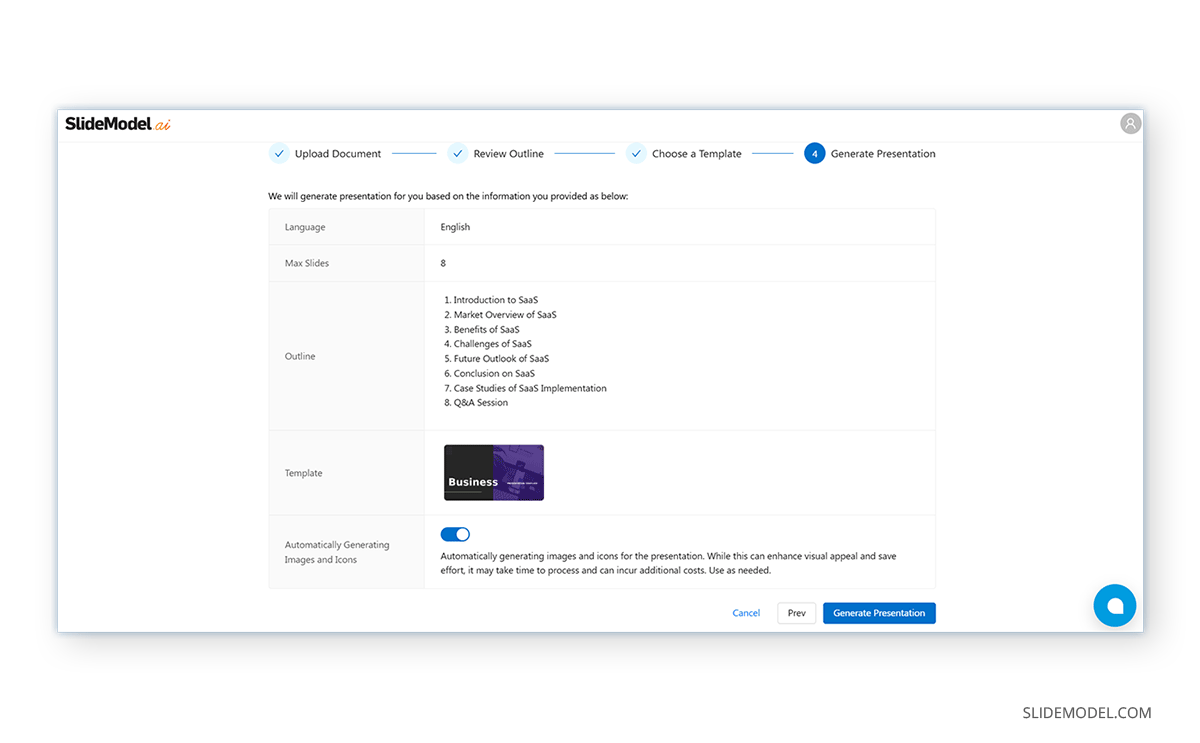
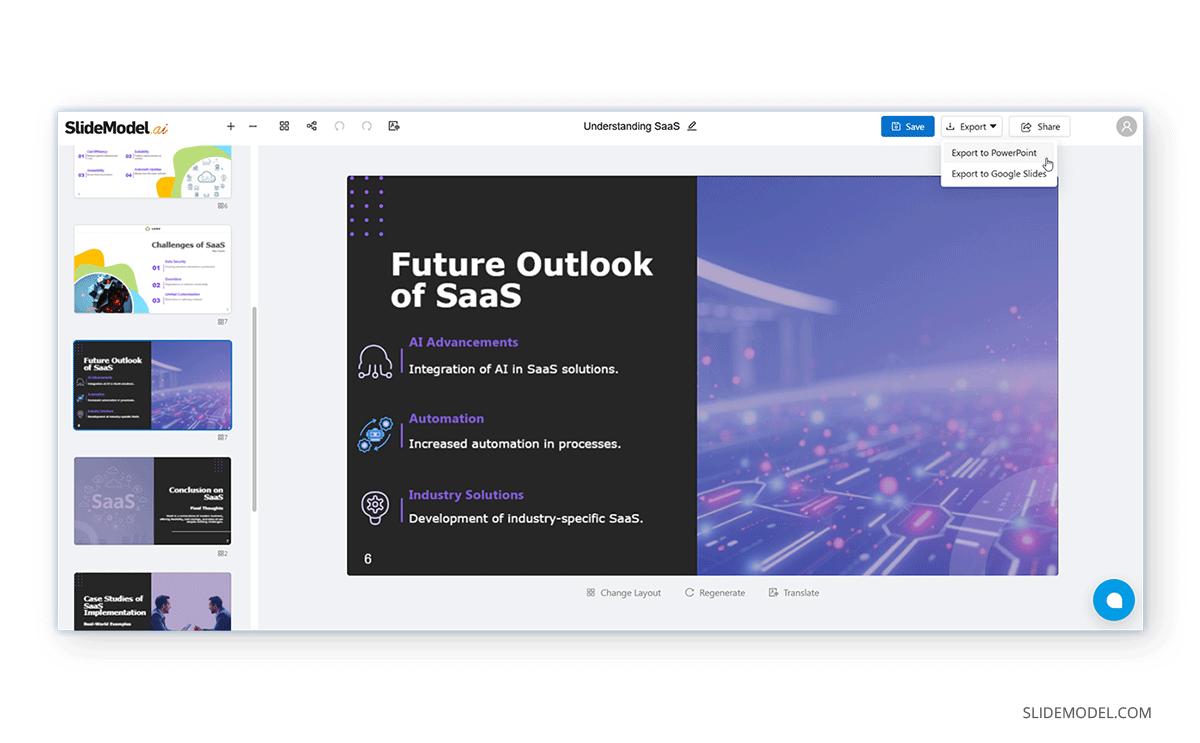
Step 5: Finalize the slides and generate your slides. You can also edit the slides once your deck is generated, and even use Generative AI to create and insert images into slides.
Once created, your presentation can be downloaded as a PowerPoint file or opened with Google Slides. To learn more about SlideModel.ai and other AI tools to generate slides, see our guide about how to convert a text Document into a presentation with AI.
Final Words
When it comes to converting a Word document into a presentation, you have multiple options depending on your priorities. If you value precision and want to control every detail, you can always manually convert Docx to PPT by breaking down your document into key points and designing slides one by one. But if time is short or design isn’t your strength, modern AI-powered tools like Microsoft Copilot and SlideModel AI can help save time in creating presentations.
The real advantage of AI-driven solutions isn’t just speed, it’s the ability to free up your focus for storytelling and delivery. Instead of spending hours formatting slides, you can concentrate on refining your message and engaging your audience. In other words, whether you prefer the traditional manual method or the efficiency of AI tools, converting Docx to presentation has never been easier.