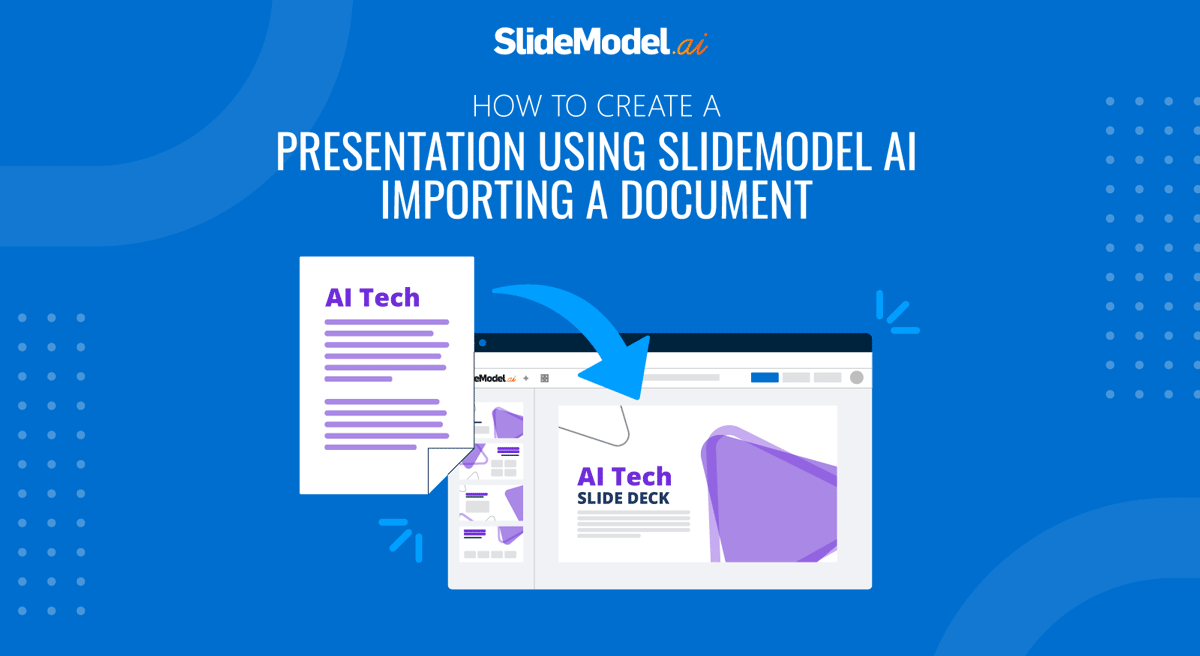
This workflow guides the user through creating a presentation using AI, based on a document that serves as the source of information.
Please notice that the imported document’s text information will be used as “context” for the presentation. This means that from this point onwards (creation and edition), the tool will use the document as context for every content generation prompt. This involves more token usage.
Starting Point: Main Workspace
- The user clicks the “Upload Document” card.
- The app navigates to the AI creation workflow screen.
Step 1: Upload a Document
- The user clicks the box labeled “Click or drag file to this area to upload.”
Note: Supported file types are doc, docx, and txt. - A file selector window opens so the user can upload a document from their device.
- The Tool uploads the document and provides an estimate of the tokens that will be consumed using the document as context.
- User Clicks “Next.”
Step 2: Review and Edit the Outline
- The AI generates a draft outline based on the document content, where each item corresponds to a potential slide title.
- The user can:
- Reorder the slide titles
- Add or remove items
- Regenerate the outline entirely if not satisfied
Step 3: Choose a Template
- The user browses a set of pre-built presentation templates.
- Hovering over each thumbnail shows the template’s layout types, color schemes, and style.
- The user selects one template to use.
Note: The selected template can be changed later after the presentation is generated.
Step 4: Review generation
- The user is presented with the final outline and template that have been selected.
- The user can enable/disable the Automatic Image Generation feature.
- If this flag is enabled, the Gen AI engine will replace all the image placeholders of the template with generated images based on the slide content. The same applies to the icons.
Note: The automatic image generation feature consumes several tokens for images and icons. - If this flag is disabled, the presentation will be generated using placeholder images and icons. The user will be able to replace those placeholders in the editor, generating images/icons with AI, one by one, or replace them with Stock Images/Icons provided by the tool.
- If this flag is enabled, the Gen AI engine will replace all the image placeholders of the template with generated images based on the slide content. The same applies to the icons.
Step 5: Generate the Presentation
- The app uses the topic, selected language, outline, and chosen template to generate the full presentation.
- The AI selects the most suitable layout for each slide based on its content.
Note: The user can later adjust layouts manually in the editor.
Step 6: Editing the Generated Presentation
- The tool presents an online editor, where the user can edit the presentation (text, images, icons, layouts) and remove or generate new slides using AI. The section “Editing Presentations in SlideModel AI” describes in detail the features provided by the Editor.