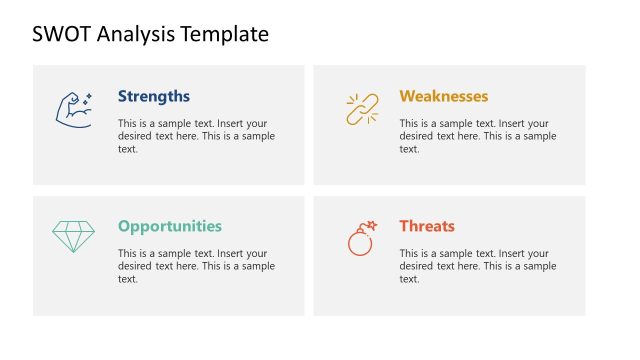
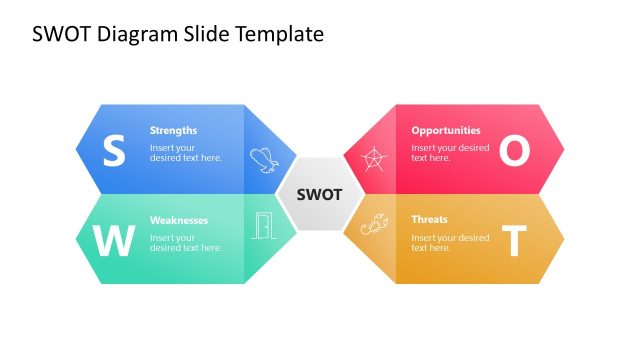
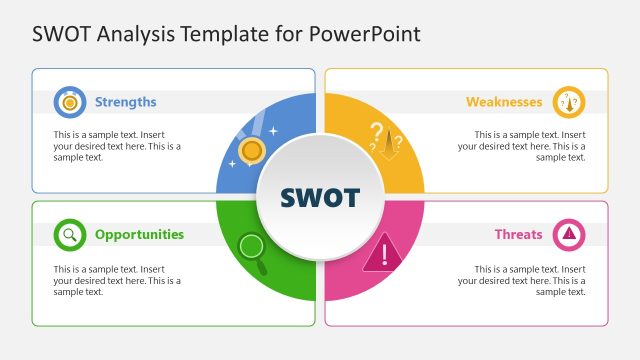
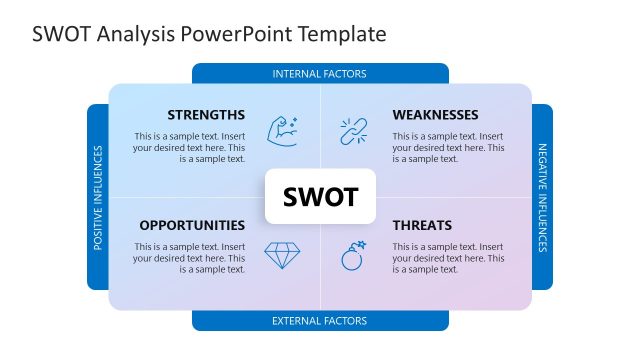
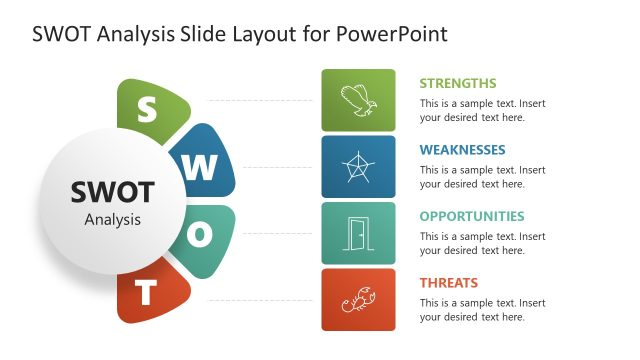
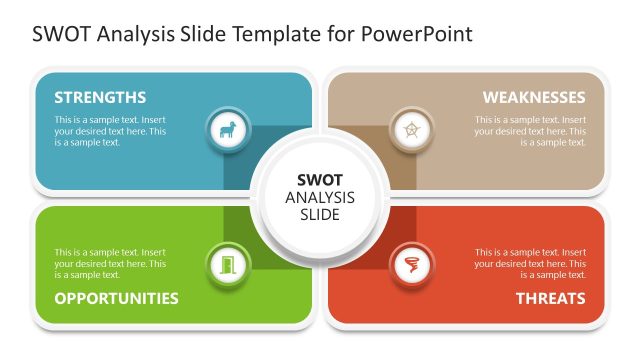
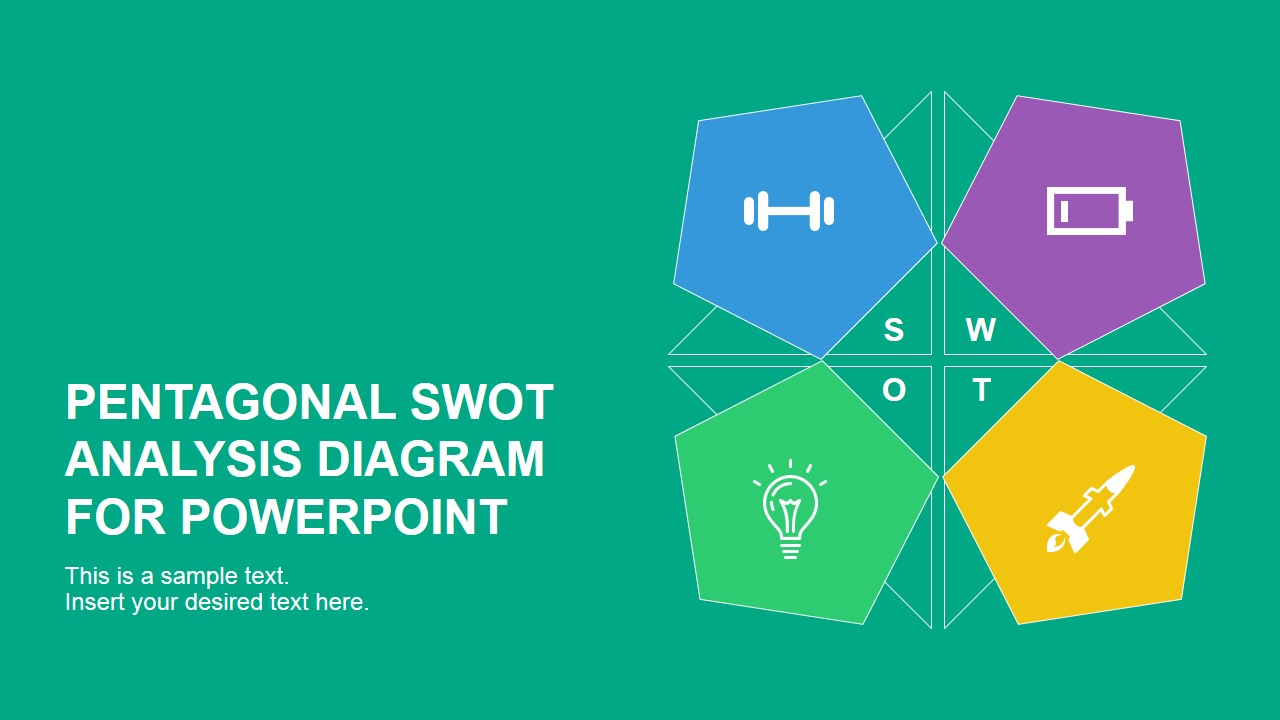
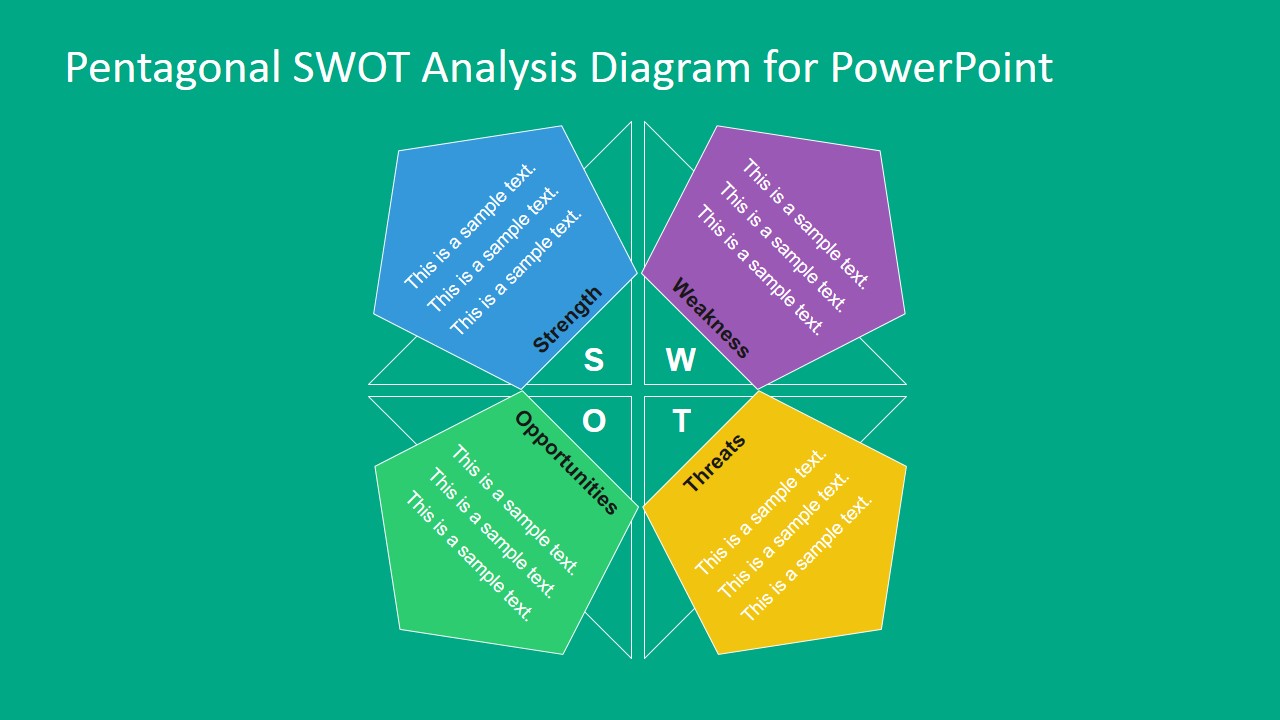
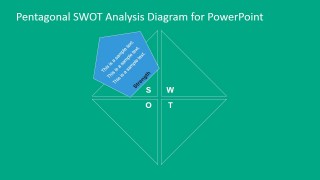
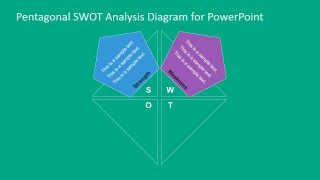
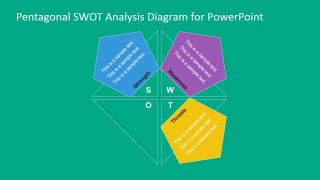
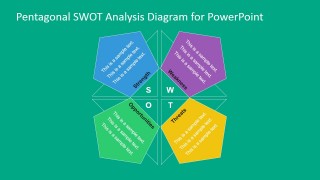
Pentagonal SWOT Analysis Diagram for PowerPoint – Create Professional and Modern SWOT Analysis presentations with this alternative design. The concept is built upon the idea of changing the traditional SWOT Quadrants for pentagonal shapes. The matrix is delimited with a thin design outline. Each Pentagon contains one of the SWOT Analysis concepts, and provides text placeholders to elaborate them. Each concept is mapped to a modern business PowerPoint Icon, in order to visually describe it, without the need to repeat the word on each slide.
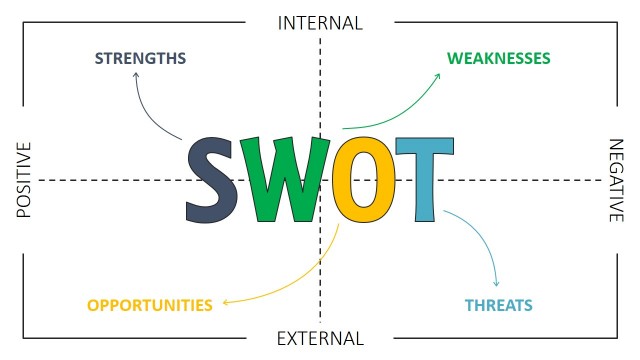
SWOT Analysis is a popular business tool, designed to analyze the internal and external environment of an organization. Recognizing and taking account of an Organization’s Strengths and Weaknesses, the tool provides the internal environment view, while analyzing Opportunities and Threats it shows the external environment view. The tool is a structured framework to look at both the internal organization culture and its external business environment.
Presenting TOWS Analysis results tends to be a complex process. The Analysis itself can be lengthy, but conclusions to be taken into account in the Strategic analysis needs to be concise and actionable. Presenters need to summarize fact on each concept; for this purpose the Pentagonal SWOT Analysis Diagram for PowerPoint provides suitable text placeholders, showing an ideal layout and display of text. In order to increase retention, SlideModel suggest to be scarce in the level of text applied; it is preferable to use PowerPoint Icons or Clipart that represent the Analysis concepts, rather than applying a list within the diagram.
The user can take a step further in their SWOT Analysis and apply the SOAR Analysis Template. The SOAR Analysis is an analysis framework that identifies Strengths, Opportunities, Aspirations and Results, with the implementation of positive thinking. Ideal for creative problem solving, it is based on the five “I” actions (initiate, inquire,imagine,innovate, implement). Application of SOAR helps strategists include key factors of motivation and engagement into the planning process.
Each of the shapes and text placeholders are 100% editable. The user can decorate the diagram with their findings, with icons, or even with Sticky notes, in order to give the idea of iterative findings.
What’s inside this template
Example presentation scenarios
- A strategy consultant can use the complete SWOT diagram to present internal and external findings during an executive planning session.
- A business analyst can use the staged Strength and Weakness slides to compare current capabilities before introducing market risks.
- A marketing manager can use the Opportunity and Threats areas to explain campaign context and competitive pressure in a planning review.
- A workshop facilitator can use the build-up slides to gather input factor by factor before showing the full SWOT summary.
Features
- 100% editable presentation template
- Compatible with Microsoft PowerPoint and Google Slides
- 16:9 aspect ratio slides
- Scalable vector shapes, icons and illustrations
- AI-Ready for Microsoft Copilot and Claude
- Instant access and download
Frequently asked questions
Q: How should a presenter explain findings without overcrowding the pentagons?
A: Use each pentagon for one short conclusion or a small set of keywords, not a full analysis write-up. The central SWOT letters keep the audience oriented, while the colored shapes act as anchors for discussion. Put supporting evidence in speaker notes or backup slides so the main diagram stays readable.
Q: Who is this template best suited for in a strategy meeting?
A: This template fits consultants, analysts, and managers who need to explain a SWOT assessment to decision makers. It is especially useful when the goal is to compare internal capabilities with external conditions and then guide a discussion, rather than present a dense research report.
Q: Why use pentagons instead of the standard SWOT quadrant box?
A: The pentagon shapes make each SWOT factor feel like a distinct strategic finding while still connecting to the central matrix. This visual metaphor helps the presenter discuss factors one by one, then bring them together as a single strategic picture. The build slides support that progression naturally.


Pentagonal SWOT Analysis Diagram for PowerPoint
7-slide presentation template for pentagonal SWOT analysis, SOAR planning, and strategy workshops.
This 7-slide strategy diagram template presents SWOT analysis with a pentagonal alternative to the standard quadrant. It includes a cover, full SWOT diagram, and staged Strength, Weakness, Opportunity, and Threat layouts for consultants, analysts, and planning teams using Microsoft PowerPoint or Google Slides.
- Category
- Strategy
- Rating


 Loading...
- Aspect ratio
- 16:9, 4:3
- Item ID
- 7071-01
- Colors
 Microsoft PowerPoint
  Microsoft Copilot
  Claude for PowerPoint
 Other formats supported
Subscribe today and get immediate
access to download our PowerPoint templates.