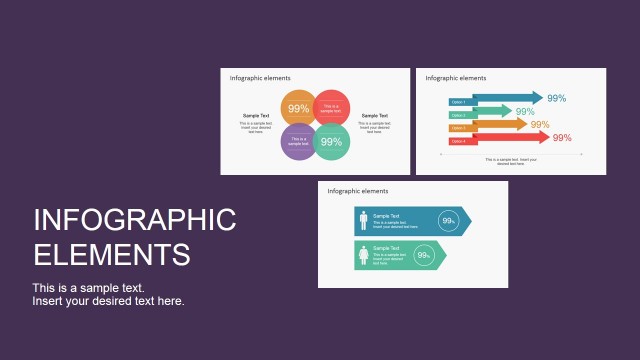
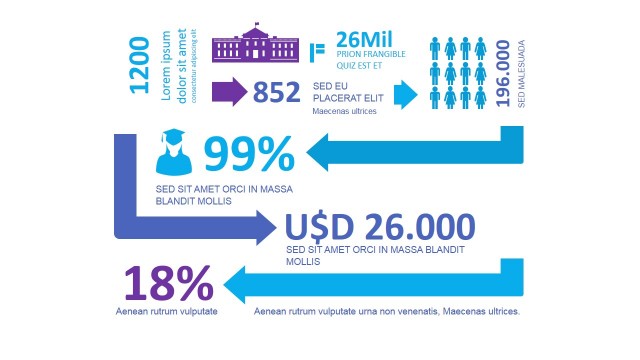
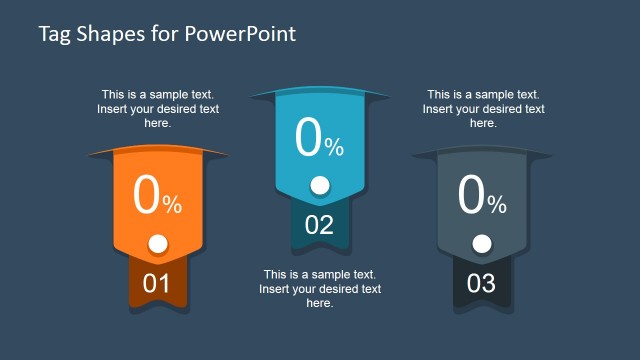
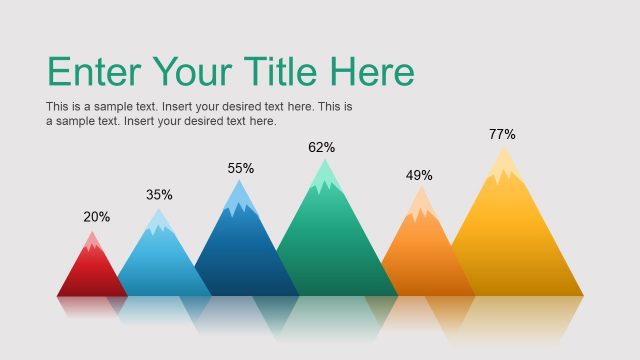
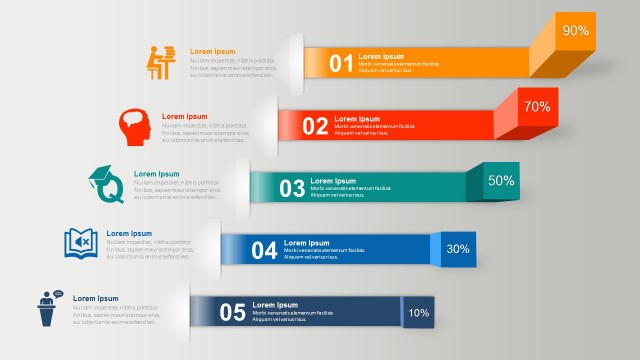
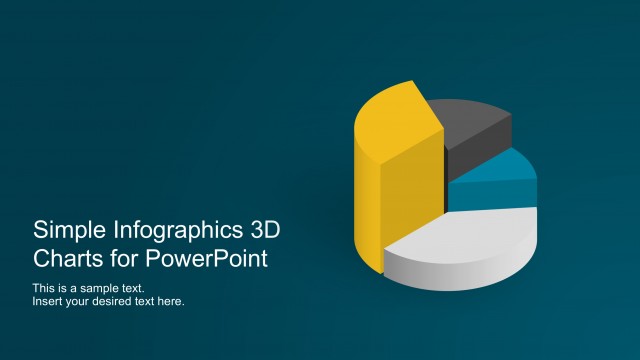
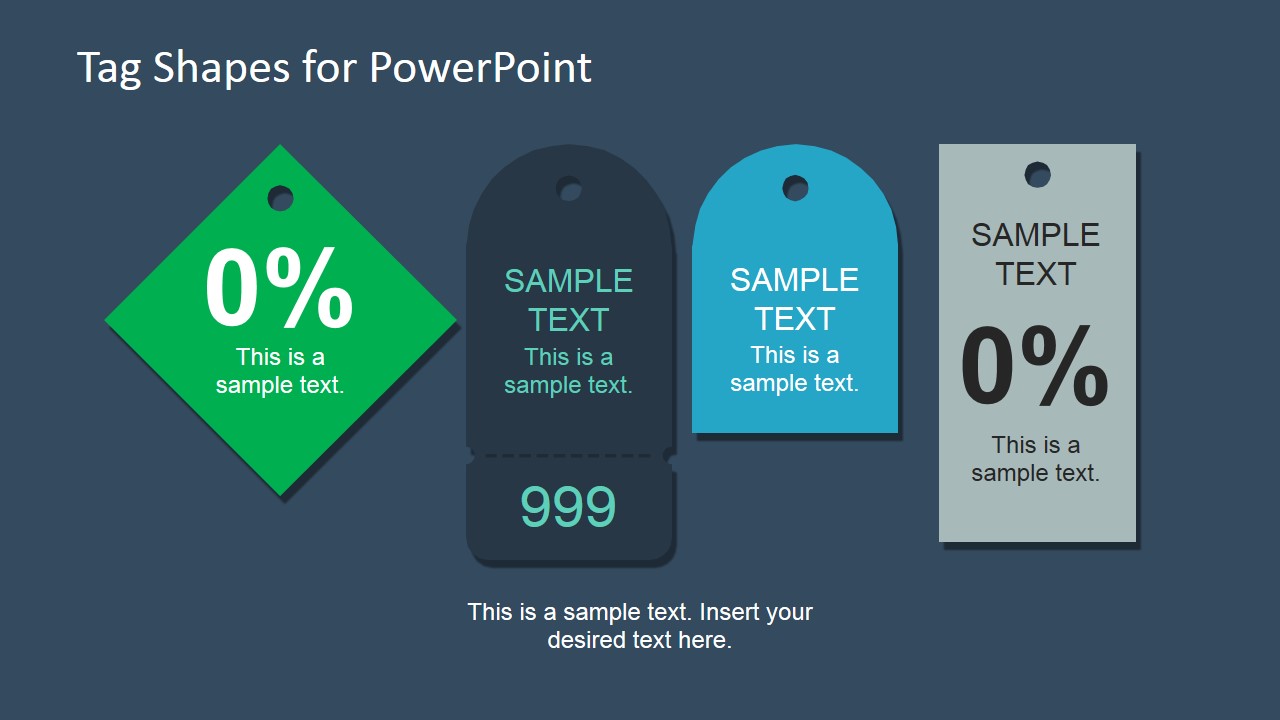
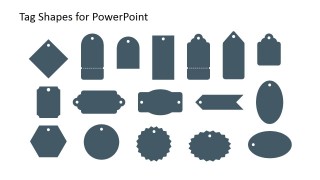
Infographic Tags Shapes for PowerPoint – Consistently making a unique and impressive presentation using the Infographic Tags Shapes for PowerPoint will surely make you a headline in your organization. This PowerPoint template has the best features to help you create amazing presentations every single time. The template is reusable and completely editable. All shapes in it are PowerPoint objects that are 100% customizable while maintaining its quality.
What is infographic? Infographics is a presentation or a form of literature that expresses an idea or process using a mix of images and words. It’s a combination of pictures, illustrations and associated texts. However, putting pictures and illustrations together doesn’t automatically make it an infographic. The images used in it have to interact with each other and correspond to the attached statements. The simplest infographic I could remember is the Water Cycle, found usually in third grade science books. As you could imagine, infographics are profusely available in children’s school books. Its purpose is to help children understand and remember processes. Evidently, infograhics is quite an effective way in sharing complicated ideas for both children and adults.
Infographics can condense a few pages of explanations and narration in one poster. True enough, a picture paints a thousand words. The combination of pictures and words associated together stimulates the mind and makes it easier to understand. Infographics are also more appealing to anyone. If one is required to understand and remember the Product Life Cycle and given the choice between text literature and infographics, I bet 90% or more will choose infographics.
How did infographis started. As far as available resources, this type of presentation started as early as 1626. It showed up in the book called “Rosa Ursina Sive Sol” written by Christoph Scheiner. It was also seen in the1790 book entitled “The Commercial and Political Atlas” by William Playfair. There were other pieces of literature that followed suit and it continuous to be seen more and more today.
What’s inside this template
Example presentation scenarios
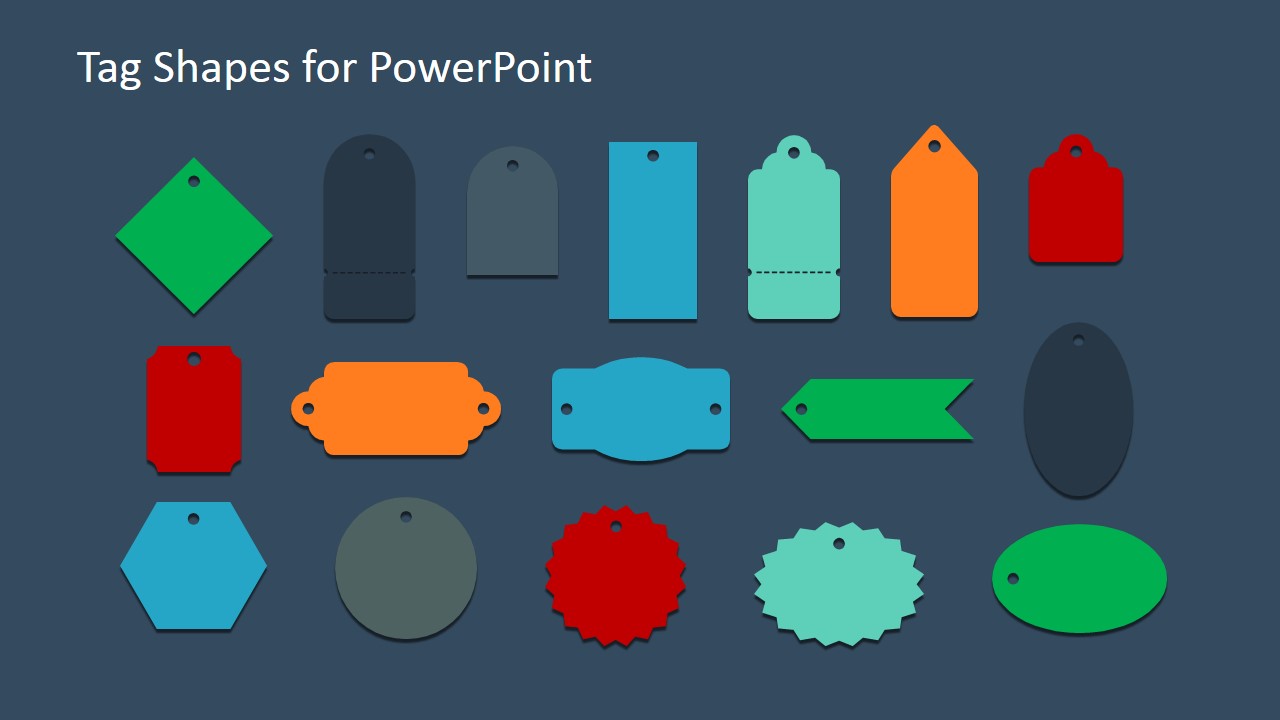
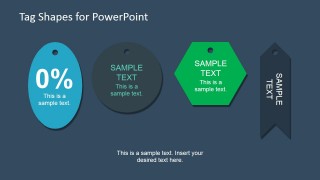
- A marketing presenter can use the percentage tag and price-tag shapes to call attention to campaign offers, audience segments, or promotional messages within an infographic slide.
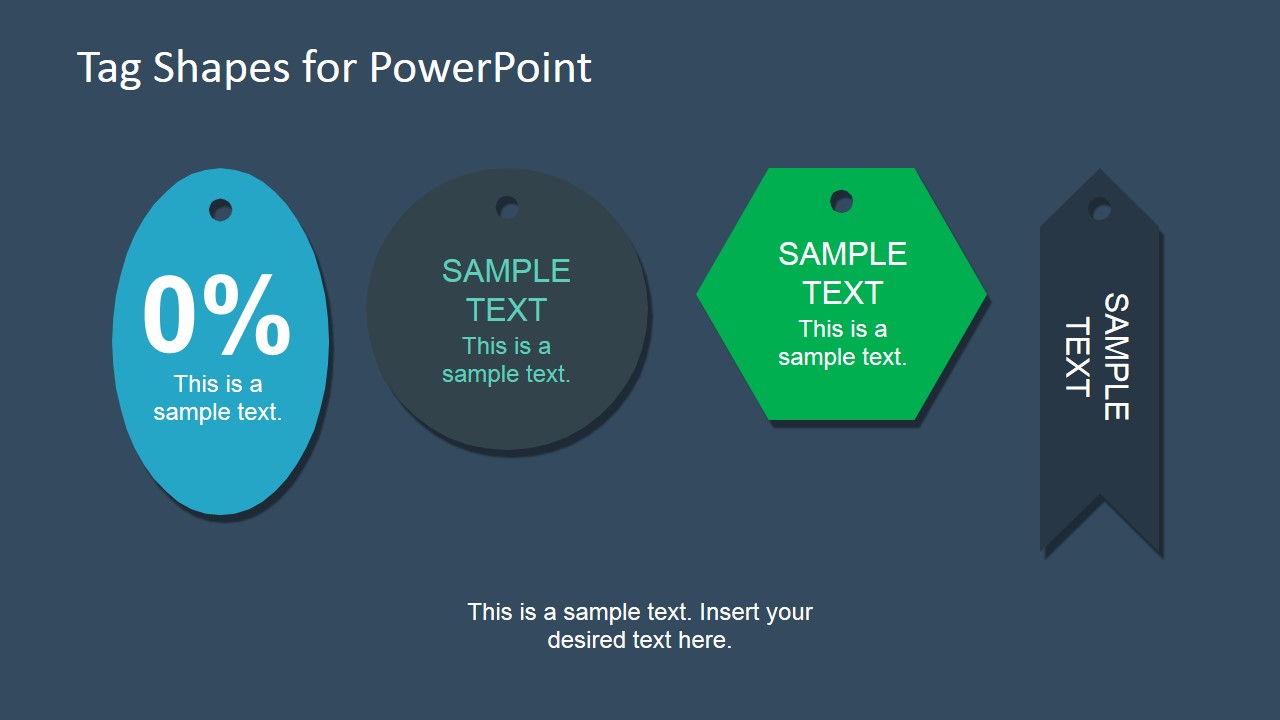
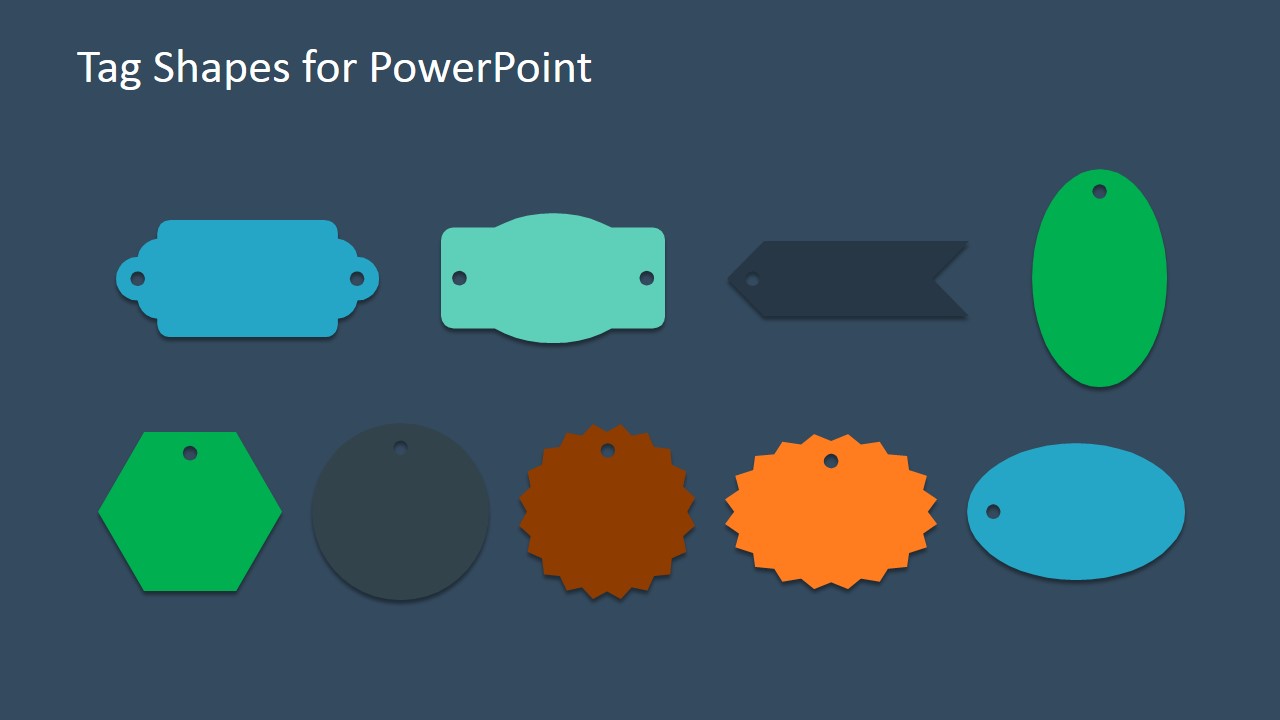
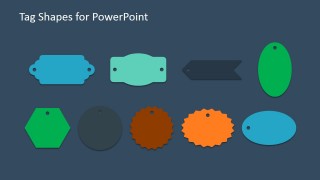
- A product manager can use the hexagon, oval, and horizontal label shapes to mark product features, release notes, or category groupings in a roadmap or feature overview.
- A consultant can use the ribbon bookmark and badge labels to annotate recommendations, priorities, or risk levels in a client-facing analysis deck.
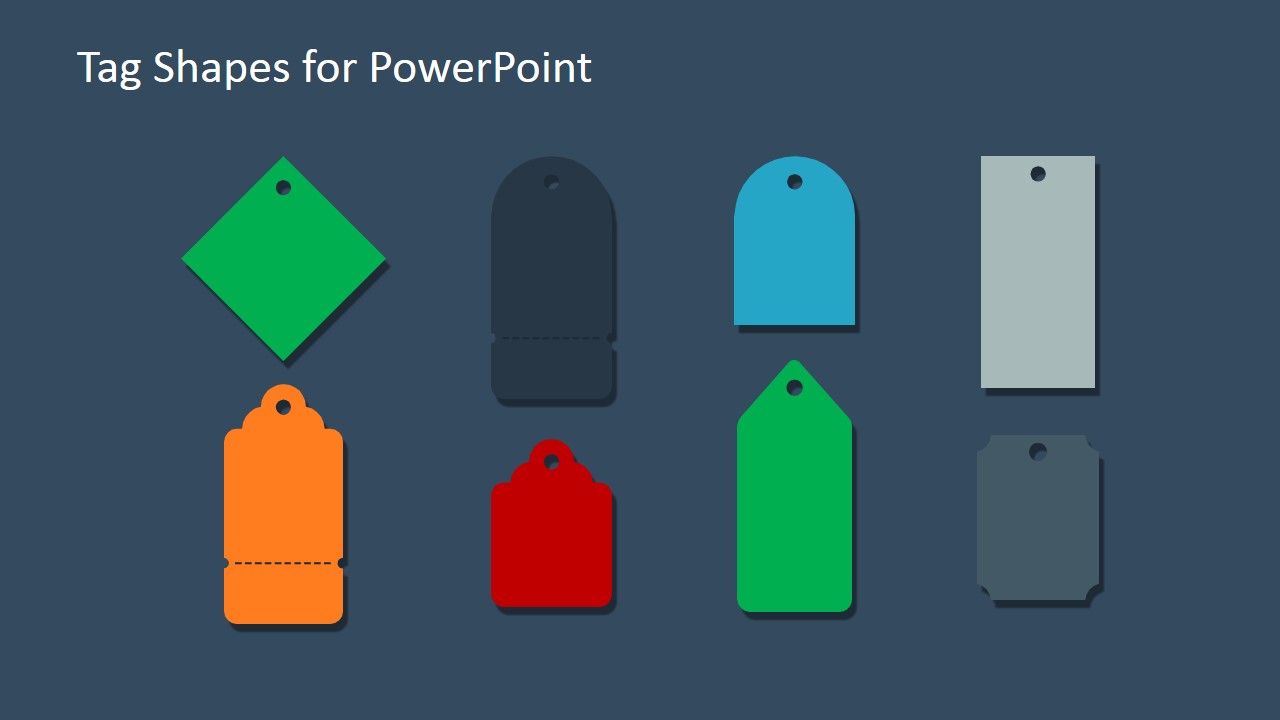
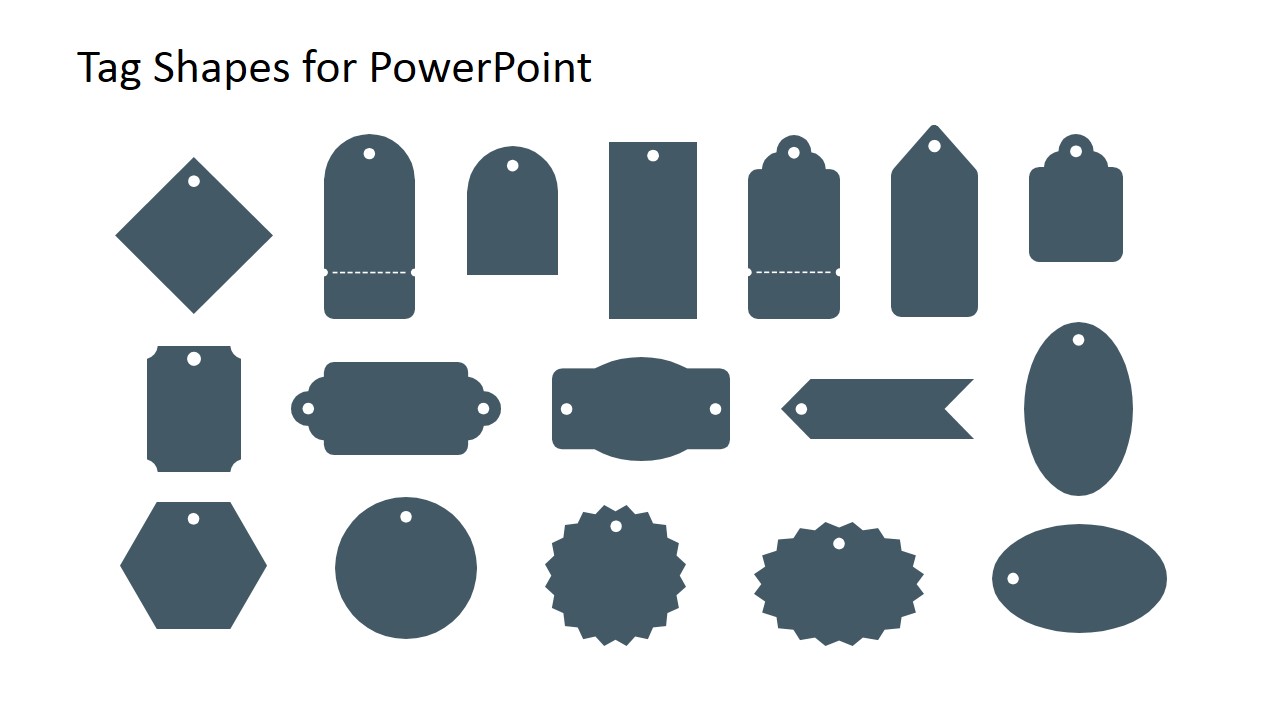
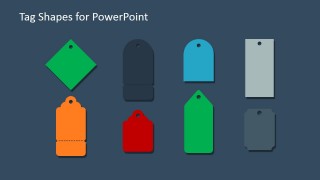
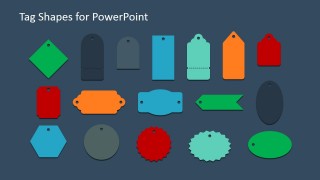
- A trainer can use the monochrome shape library to build consistent lesson labels, exercise markers, or step callouts across instructional slides.
Features
- 100% editable presentation template
- Compatible with Microsoft PowerPoint and Google Slides
- 16:9 aspect ratio slides
- Scalable vector shapes, icons and illustrations
- AI-Ready for Microsoft Copilot and Claude
- Instant access and download
Frequently asked questions
Q: How should a presenter communicate clearly with these tag shapes?
A: Use each tag as a short label, not as a paragraph container. Put the key number, keyword, or category name in the largest text area, then add one brief supporting line if needed. The percentage tags and badge shapes work best when they point to a single takeaway rather than carrying the whole explanation.
Q: Who is this template best suited for?
A: This template is best for presenters who already have slide content but need consistent visual callouts. Marketing teams can mark offers or campaign categories, product teams can label features, and consultants can identify priorities or recommendations. It is less suited to presenters who need a complete story deck with agenda and conclusion.
Q: Why use tag and label metaphors instead of plain text boxes?
A: Tags suggest classification, pricing, priority, or annotation, so the audience quickly understands that the marked item is important. The mix of diamond, ribbon, badge, and hanging tag shapes creates visual variety while keeping the same labeling metaphor. This helps separate callouts from body content without adding heavy decoration.
Infographic Tags Shapes for PowerPoint
6-slide presentation template with editable tag labels, badge shapes, and infographic placeholders
Infographic Tags Shapes for PowerPoint is a 6-slide presentation template of editable tag and label graphics for Microsoft PowerPoint and Google Slides. It includes percentage tags, ribbon bookmark labels, hexagon and oval badges, horizontal callout labels, and a monochrome shape library for presenters building infographics, product labels, process notes, or visual callouts.
- Category
- Shapes
- Rating


 Loading...
- Aspect ratio
- 16:9, 4:3
- Item ID
- 6779-02
- Colors
 Microsoft PowerPoint
  Microsoft Copilot
  Claude for PowerPoint
 Other formats supported
Subscribe today and get immediate
access to download our PowerPoint templates.