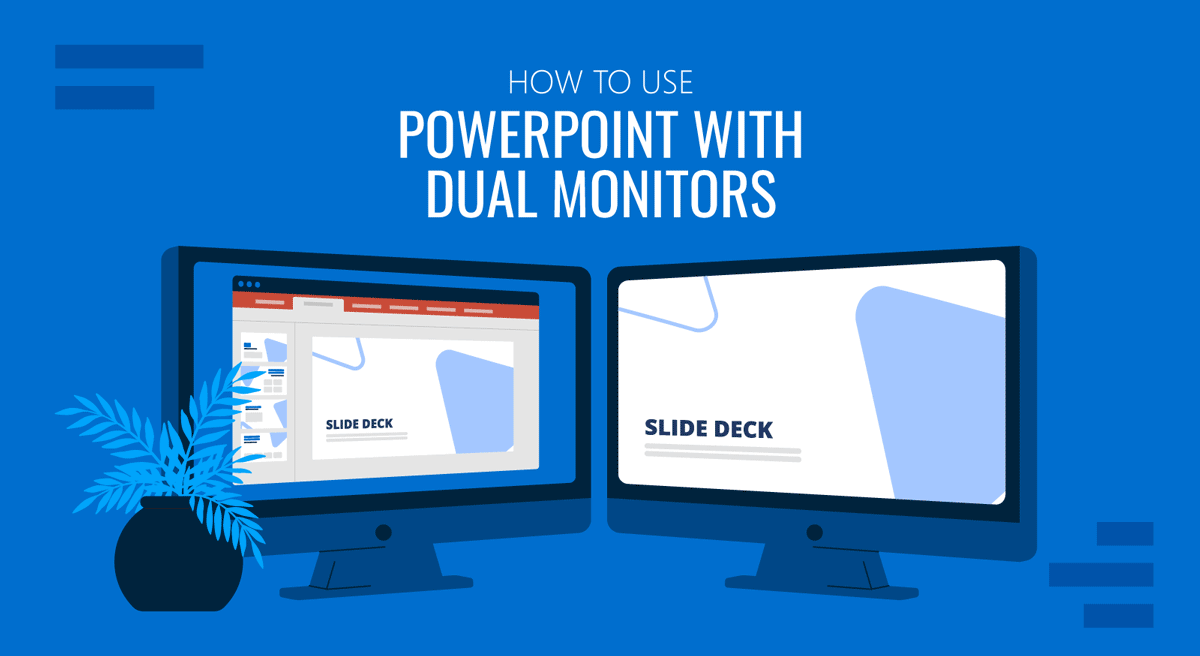
When you’re juggling complex data, switching between visuals, or keeping an eye on time and notes, a dual-monitor setup can make your presentation run more smoothly. Microsoft PowerPoint has a built-in feature called Presenter View that’s precisely for this. This feature lets you use two monitors to manage what you see and what your audience sees. With this setup, one screen displays your notes, slide previews, and a timer, while the other shows the clean presentation your audience expects.
This article explains how to use PowerPoint presenter view with dual monitors, explores the advantages and drawbacks, and provides a complete setup guide for Windows and Mac users.
What Does it Mean to Use Dual Monitors in PowerPoint
When PowerPoint detects two screens (for example, your laptop and an external display), it can automatically extend your presentation across them. Instead of mirroring both screens, PowerPoint splits the experience:
- Primary Screen (Presenter’s View): This shows your notes, upcoming slides, elapsed time, and navigation tools.
- Secondary Screen (Audience View): This displays only the presentation slides in full-screen mode.
This configuration is known as Presenter View. It’s beneficial for professionals who need to maintain eye contact, reference talking points discreetly, and manage timing without disrupting the audience’s focus.
Advantages and Disadvantages of Using Dual Monitors
Before we show you how to configure dual monitors in PowerPoint, let’s list down a few advantages and disadvantages of using dual monitors.
Advantages of Using PowerPoint with Dual Monitors
Dual-monitor mode is more than a convenience, as it can significantly enhance productivity and provide greater control over the presentation.
1. Professional Control: With Presenter View, you see what’s next while your audience only sees the slide in progress. This enables you to be confident in your presentation delivery, without having to glance at paper notes or another device. For example, if someone asks a question that relates to a later slide, you can quickly navigate to it without exposing your slide sorter or desktop.
2. Private Speaker Notes: Your private notes are visible only on your monitor, allowing you to recall important points or data without cluttering the public slides.
3. Time Management: The built-in clock and timer help you stay within your allocated slot, making it easier to finish presentations on time.
4. Smooth Navigation: You can jump to any slide, preview upcoming transitions, or even skip sections discreetly.
5. Audience Focus: Your viewers see a clean, distraction-free presentation. At the same time, you manage everything behind the scenes with speaker notes and key features at your disposal, without needing to use hotkeys.
Disadvantages of Using PowerPoint with Dual Monitors
While Presenter View is a powerful tool, it comes with minor challenges.
1. Setup Confusion: It can take time to learn display settings, especially in shared environments. Common mistakes among beginners include incorrectly swapping screens or confusion when navigating slides.
2. Hardware Dependency: This setup requires an extra monitor or projector connection and comes with a hardware dependency. If the second screen is not detected at any point, the feature can abruptly stop working.
3. Compatibility Issues: Older projectors may not support extended display modes. Even with newer models, launching a presentation in Presenter View can fail without any apparent reason.
4. Distraction Risk: Relying too heavily on notes can make delivery sound scripted, and the dual monitor view can be distracting for presenters.
5. Performance Issues: Presenter View can cause lags and freeze the screen abruptly. This is common with legacy computers, which can struggle to provide the necessary hardware to run a presentation with dual monitors.
PowerPoint Presenter View Setup
To learn more about how to set up dual monitors, you can see our post about how to work with Presenter View in PowerPoint, or see the following quick methods for Windows and Mac users. To demonstrate the method, we will use the Animated Isometric Roadmap PowerPoint Timeline Template.
How to Set Up Dual Monitors in PowerPoint (Windows)
A Windows computer automatically supports multiple monitors when configured correctly. You can follow the steps to enable Presenter View with two screens.
Step 1: Use HDMI, DisplayPort, or a wireless adapter to connect your projector or external display. Once connected, press Windows+P and choose Extend. This ensures your computer recognizes both screens as separate displays (not mirrored).
Step 2: Open your PowerPoint presentation, go to the Slide Show tab, and from the Monitors group, check Use Presenter View.
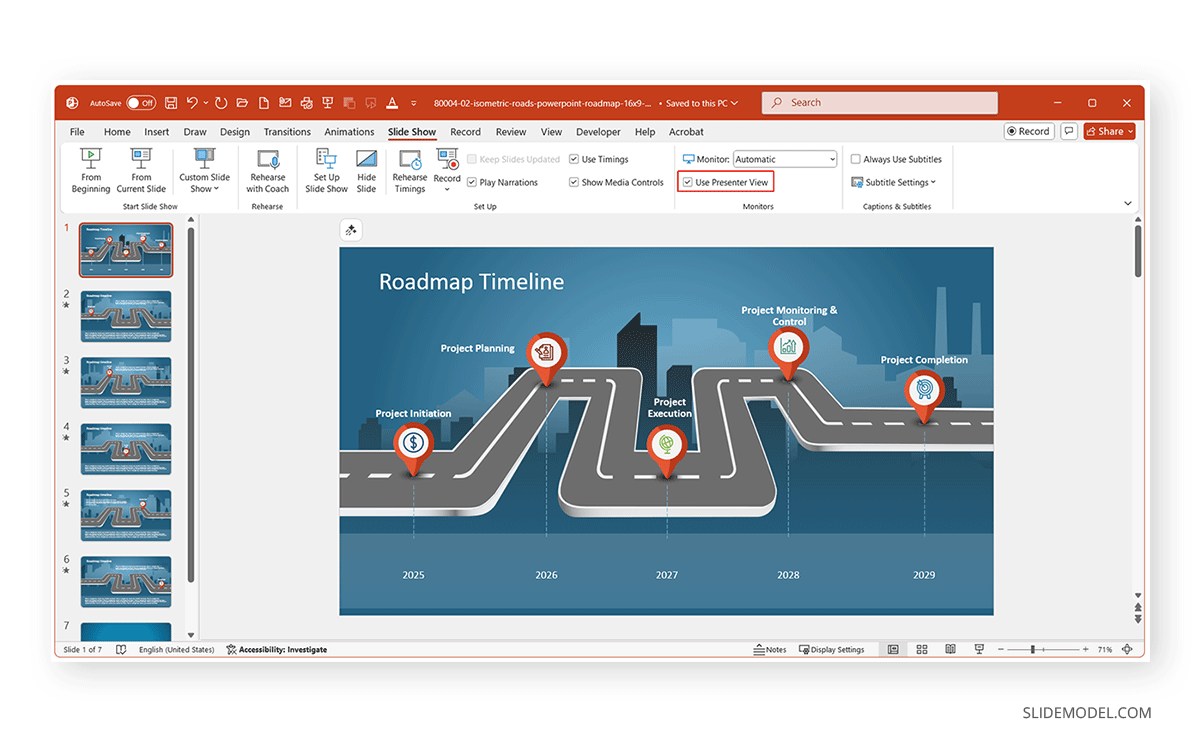
Step 3: Under the Monitor dropdown, select which screen should show the slide show (Automatic or Primary Monitor).
Step 4: Click From Beginning or From Current Slide to begin the slideshow, select the Slide Show button from the bottom, or press F5 to start the slideshow. Your audience will see the full-screen presentation, while you’ll see the Presenter View interface on your laptop.
Note: If Presenter View appears on the wrong monitor, click Swap Displays.
How to Set Up Dual Monitors in PowerPoint (Mac)
The steps on Mac are slightly different, but equally simple, for setting up dual monitors with PowerPoint.
Step 1: Use HDMI, USB-C, or AirPlay to connect your second screen.
Step 2: Open System Settings -> Displays -> Arrangement and uncheck Mirror Displays to extend your desktop.
Step 3: Open your presentation, go to the Slide Show tab, and check Presenter View.
Step 4: Under Monitor Settings, select the display that should show your presentation.
Step 5: Start the slide show, and you will see Presenter View on your Mac screen and the full slides on the projector or external display.
Note: As with PC users, if something doesn’t look right, you can use Swap Displays in Presenter View to adjust the screen.
Understanding PowerPoint Presenter View Layout
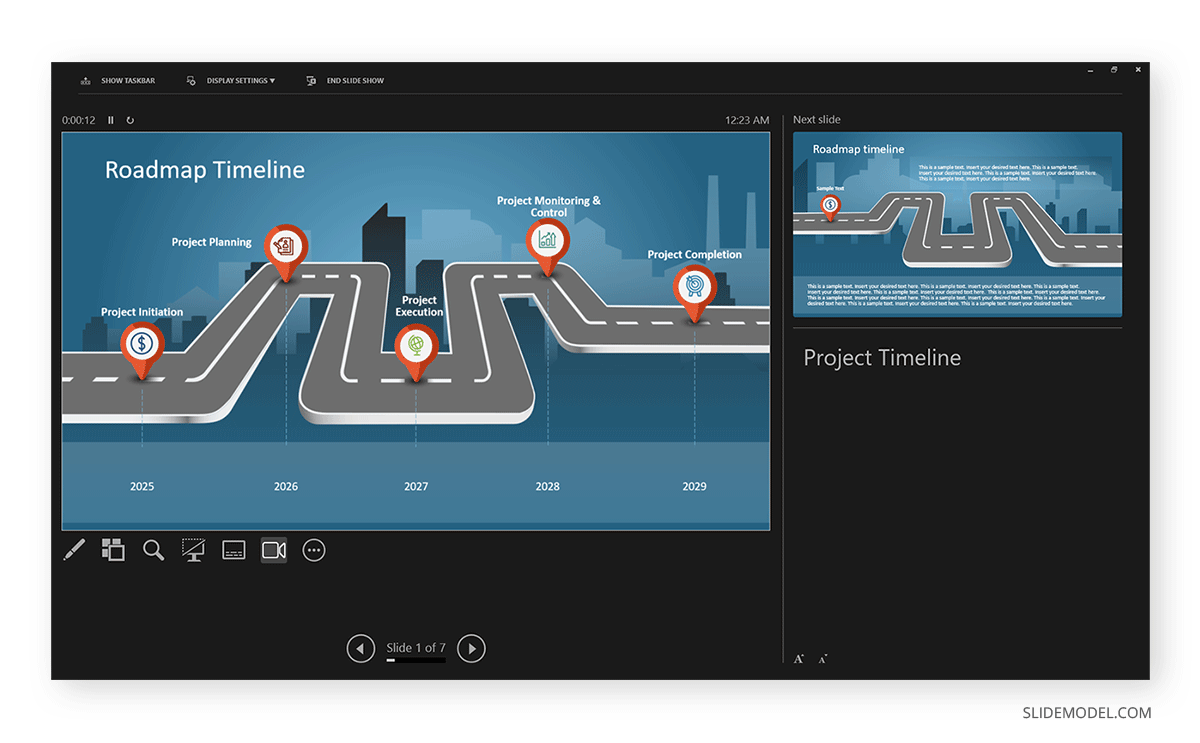
While the instructions above seem simple enough, it is best to understand the Presenter View layout for smooth slide navigation with dual monitors in PowerPoint. Since this view is designed to keep presenters confident and audiences engaged without clutter, you will see various options that are available only to you. In Presenter View, your screen layout will look like the following:
- Main Slide Display: The slide currently being presented.
- Next Slide Preview: A small window showing what comes next.
- Speaker Notes: Visible only to you for reference, you can see your onscreen notes.
- Timer and Clock: Helps track presentation time and can be paused or restarted using the buttons next to the timer.
- Navigation Controls: Buttons to move forward or backward, and a slide grid to jump to any slide.
- See All Slides: The option lets you instantly view thumbnails of all slides and select and switch to any slide from the menu.
- Zoom into Slide: This option lets you select a portion of the slide and instantly zoom into it, showing a magnified view to the audience.
- Black or Unblack Slide Show: This turns the screen black for the audience and can be toggled off by clicking the option again.
- Toggle Camera: This button turns the camera on or off.
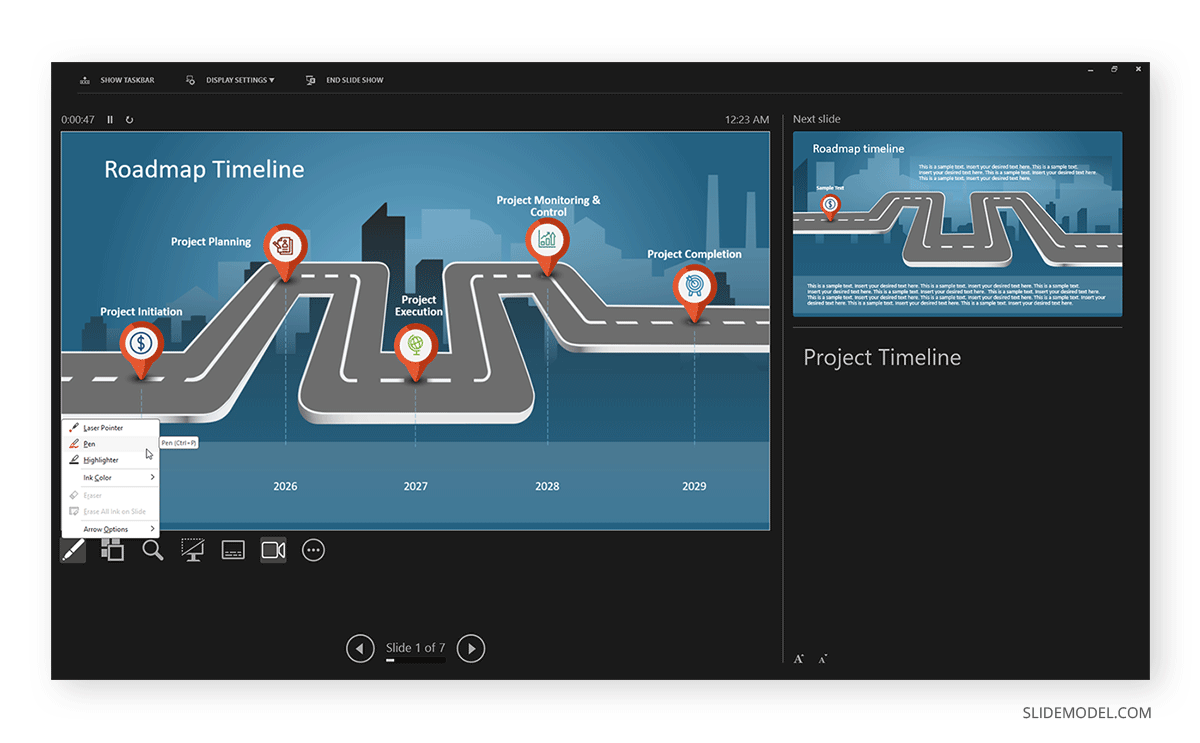
- Annotation Tools: Pointer, pen, and highlighter for live emphasis.
- Show Taskbar: Located above the timer at the top, this option toggles the taskbar view on or off.
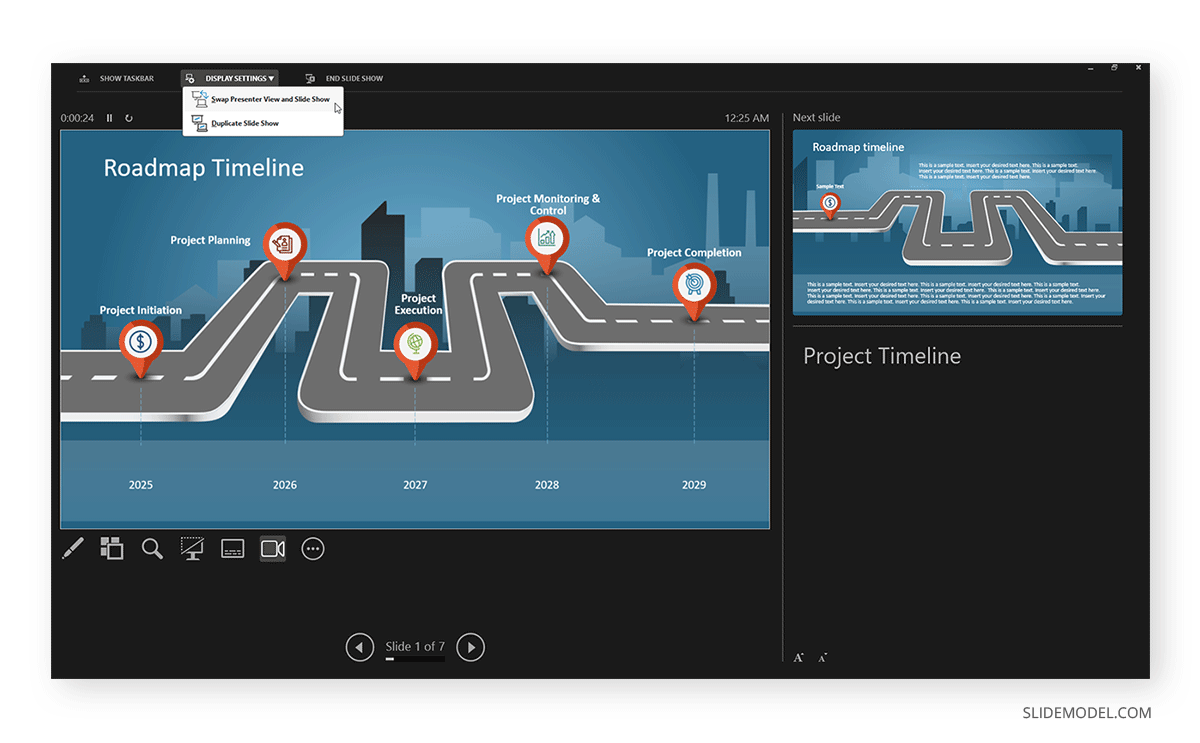
- Display Settings: You can instantly open the display settings menu to switch to presenter view or duplicate view.
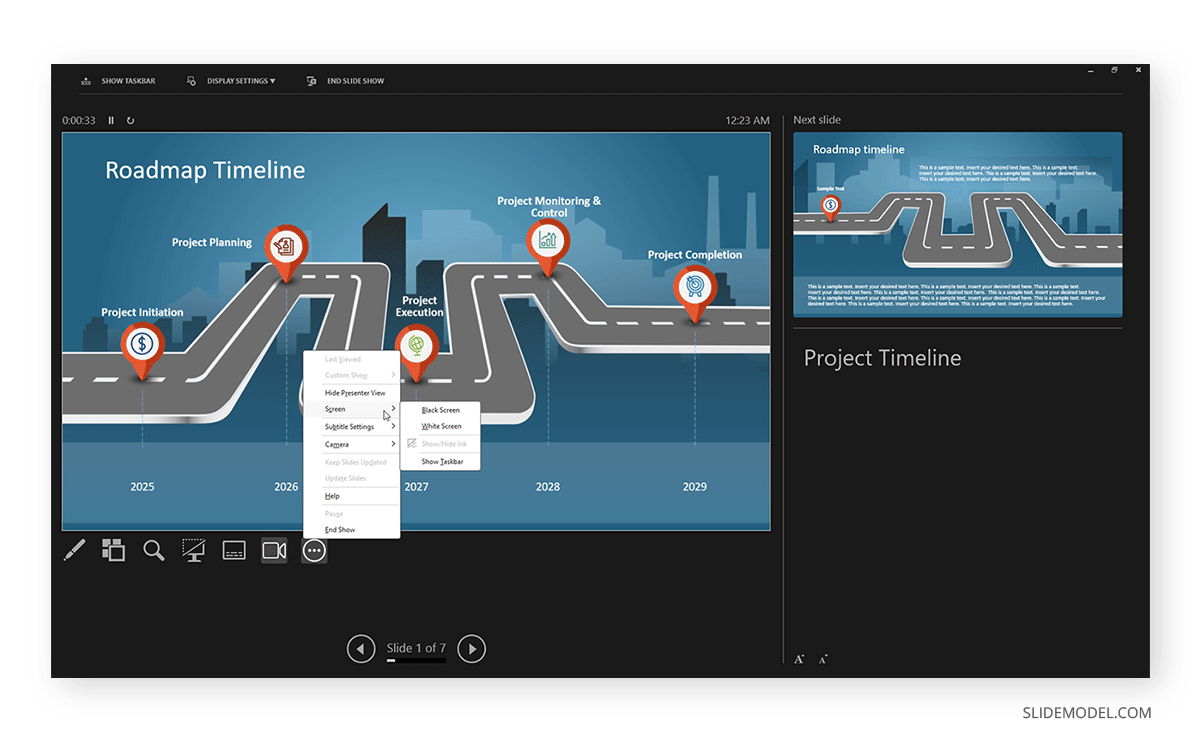
- More Slide Show Options: The three dots open additional options. These include an option to hide the presenter view, adjust subtitle settings, select camera, open ‘Help’ menu, view or hide the taskbar, turn screen black or white, select the last viewed slide, open Custom Shows, or end the slide show.
- End Slide Show: This button ends the slide show. You can also use the Esc key for this purpose.
Troubleshooting Common Issues
When using Presenter View, you may encounter several issues. This is more likely if you are new to the feature and lack knowledge of the different ways dual-monitor displays work.
- Presenter View Doesn’t Appear: If Presenter View doesn’t appear on screen, make sure Use Presenter View is checked in the Slide Show tab. Also, confirm that the display mode is set to Extend, not Duplicate.
- Slides Appear on the Wrong Screen: If the slides appear on the wrong screen, use the Swap Displays button from Presenter View to switch screens.
- Lag or Performance Issues: Sometimes, your system can lag or cause issues during a presentation. The most likely causes for this are the following:
- Animations: Since a heavy presentation can lag, especially if hardware resources aren’t adequate to run it, disable any unnecessary animations to optimize the presentation.
- Background Apps: Close heavy background apps, since they can consume too many system resources at times, leaving little for PowerPoint to run efficiently.
- Disable Hardware Acceleration: You can avoid consuming too many system resources by going to File -> Options -> Advanced and disabling it. This can be particularly useful if your GPU struggles with hardware acceleration used with apps.
- Screen Resolution Mismatch: If the projector resolution differs from your laptop, adjust each display’s resolution manually in Windows Display Settings to ensure text and visuals look sharp.
- Disable Background Scan: Last but not least, malware scans can often hang devices, leading to a lag or frozen screen mid-presentation. If a scheduled malware scan begins running mid-presentation, you will likely experience lag or a frozen screen. You can check and disable any scheduled scans before the presentation to avoid such issues.
Tips for Using PowerPoint with Dual Monitors
When using PowerPoint with two monitors, consider a few basic tips to avoid any inconvenience or display issues. We have compiled a few tips to help you account for potential problems and make your slideshow easier to present with dual monitors.
Test Before You Present
Always run a quick test to confirm which display shows Presenter View. It’s best to test it with the hardware you will be using, since your PC or Mac might experience compatibility issues if the projector, display screen, or other hardware components aren’t compatible. Not to mention, there can be several software-related glitches that can make it hard to connect your device.
Keep Notes Concise
Presenter notes should be short reminders and not lengthy paragraphs. This helps you stay conversational and natural. Don’t stuff your notes with too much text to avoid getting lost in translation.
Close Background Applications
Turn off notifications, messaging apps, and pop-ups before presenting. The last thing you need is a private message popping up on screen as you connect your device to present slides. Some information can be confidential or personal, leading to a situation any presenter would like to avoid.
Use the Virtual Laser Pointer
In Presenter View, hover over the slide preview and hold Ctrl/Command+Left Click to activate the laser pointer. If you don’t have a physical laser pointer or the screen isn’t suitable for one, using a virtual laser pointer can help direct the audience to specific key areas of your slide.
Rehearse Your Presentation
Use a timer to pace yourself and rehearse sections in advance, and practice your slides. You can also use the Rehearse with Coach feature via the Slide Show tab to rehearse your slides, speech, and performance as a presenter.
Final Words
Learning how to use PowerPoint with dual monitors can help you gain more control as a presenter to present and manage slides. With Presenter View, you can deliver confidently, see your notes, preview slides, and manage time, while your audience experiences a smooth, polished presentation. While using Presenter View can appear intimidating at first, once you’ve experienced the control and clarity it offers, it might become hard to imagine presenting without it.