As a presenter, there are a few technical glitches that are more frustrating than any other problem you might encounter. Such as clicking “Play” and staring at a blank screen, or media that repeatedly attempts to load with no progress. If you’re dealing with a video not playing in PowerPoint issue, you’re not alone. This is one of the most common technical issues presenters face. In such a case, the video might not start, display an error message, or work on one device but not on another.
Below is a structured guide to help you resolve a video that won’t play in PowerPoint. This guide covers videos inserted offline and embedded online from sources such as YouTube.
How to Fix Video Playback in PowerPoint
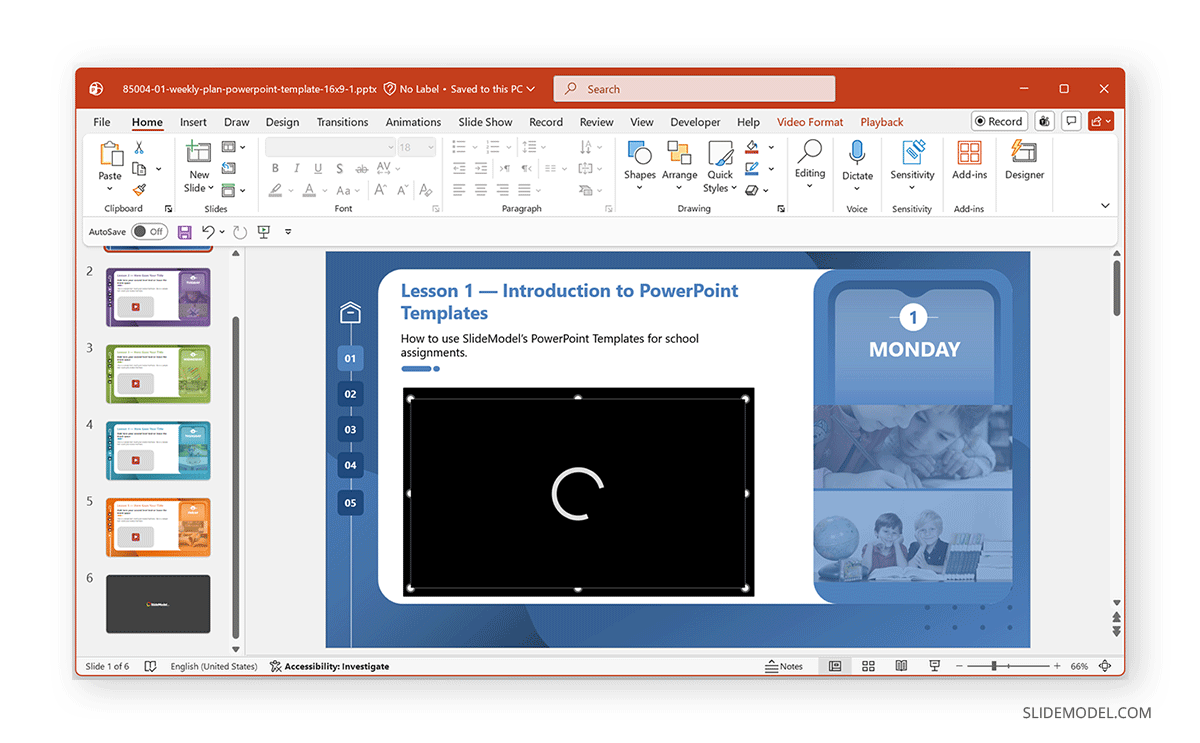
A few of the most common issues you might encounter when online or offline videos fail to load include an error message, an infinitely scrolling bar without the video actually loading, and a blank screen where nothing seems to work. Below is a list of fixes you can use to load problematic videos and improve video playback in PowerPoint. For this post, we will use the School Weekly Plan PowerPoint Template, which includes placeholders for embedding video lessons.
Check the Video File Format for Compatibility
One of the most common causes of video playback issues is file compatibility when playing videos added from an offline source, such as a PC or Mac. PowerPoint works best with MP4 files that use H.264 video codec and AAC audio. The video file formats supported by the latest version of PowerPoint include MP4, MP4V, MOV, WMV, and AVI (which may require additional codecs). However, if your video is in formats such as MOV, AVI, or WMV, playback may fail depending on your PowerPoint version and installed codecs.
How to Fix Video Compatibility Issues
Convert Video to MP4 Format
Step 1: Convert the video to MP4 using a trusted video converter (e.g., CloudConvert, Adobe Express, Zamzar) or a video editing app (e.g., Adobe Premiere Pro, Camtasia Studio, Clipchamp).
Step 2: After conversion, delete the old video from your slide and reinsert the newly converted MP4 file.
Step 3: Test playback again to confirm the video is now working.
The most likely way to resolve a video file compatibility issue is to use MP4 with H.264 encoding. Many common video converters and video editing tools can help you convert and export your video file to the standard MP4 format without requiring complex settings or troubleshooting.
Check and Install Missing Codecs (Windows Users)
If you see an error message such as “Cannot play media,” your system may be missing required codecs. Installing a reputable codec pack or converting the file to MP4 (H.264) usually resolves this problem. Avoid installing unknown codec software from unverified sources.
Check If the Video Works Outside PowerPoint
Before assuming it’s a PowerPoint issue, verify that the video itself plays correctly.
Step 1: Open the file in your system’s default media player.
Step 2: If it doesn’t play, the file may be corrupted.
Step 3: Download the video again or re-export the video if necessary.
If it plays outside PowerPoint but not inside, the issue is likely format-related.
Ensure the Video is Embedded and Not Linked
Sometimes videos are linked rather than fully embedded in the presentation. If the original video file is moved, renamed, or stored on another computer, PowerPoint won’t be able to locate it.
How to Check if Fix Video Embedding
Step 1: Select the video on the slide.
Step 2: Go to File -> Info and look for file path details under media information. If the video is linked, PowerPoint needs access to the original file location.
Step 3: Keep the video file missing, keep it in the same folder as your PowerPoint file, and use Insert -> Video -> This Device to properly embed the video.
Note: Avoid inserting videos directly from external drives or temporary folders.
Check Your Internet Connection for Online Videos
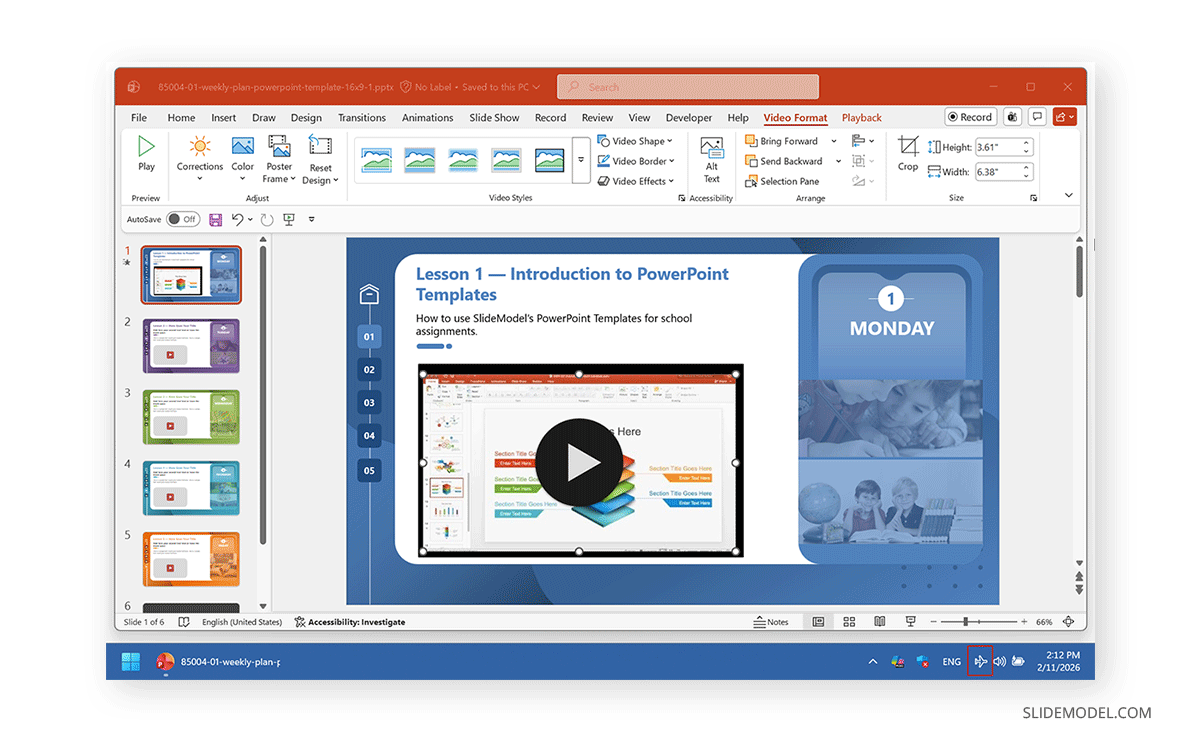
While this might be obvious, people sometimes end up taking more complicated steps when the primary issue is a dysfunctional Wi-Fi connection, a loose LAN cable, or the system being switched to Airplane mode.
How to Troubleshoot Internet Connection Issues
Check Wi-Fi Connection or LAN Cable
There may be a problem with your internet connection due to a loose cable, an unplugged router, or your system might simply need to reset the network adapter (select Diagnose network problems on a PC by right-clicking the Wi-Fi). Sometimes, the network might appear as functional, but the ISP might be suffering from a technical glitch, so if nothing works, you might want to switch to an alternative connection, such as a 4G or 5G mobile hotspot, to see if the issue is linked to the internet connection.
Check Airplane Mode Key
Needless to say, many computers use the F5 key for Airplane mode; in PowerPoint, it also toggles SlideShow mode, with slight variations depending on the Fn key. On some PCs, you might forget to press Fn+F5 and press F5 directly, switching to Airplane mode and losing the internet connection.
Compress Media in PowerPoint
Large or high-resolution videos may struggle to play smoothly. To compress media:
Step 1: Go to File -> Info.
Step 2: Select Compress Media and choose an appropriate quality level (e.g., Full HD 1080p, HD 720p, or Standard 480p).
Step 3: Save the presentation.
Following these steps will reduce file size and improve cross-device compatibility.
Update PowerPoint
Outdated software can cause video playback errors, especially after operating system updates.
How to Update PowerPoint
Step 1: Go to File -> Account and select Update Options -> Update Now.
Step 2: Restart PowerPoint after updating. Updating ensures you have the latest compatibility fixes and media handling improvements.
Step 3: Replay the video to test if it’s working.
Verify Slide Show Settings
Sometimes the video isn’t set to play automatically. Incorrect playback settings can make the video appear unplayable.
Step 1: Select the video and go to the Playback tab.
Step 2: Check Start settings (On Click or Automatically).
Step 3: Ensure the video is not set to “Hide While Not Playing.”
Test Hardware Acceleration Settings
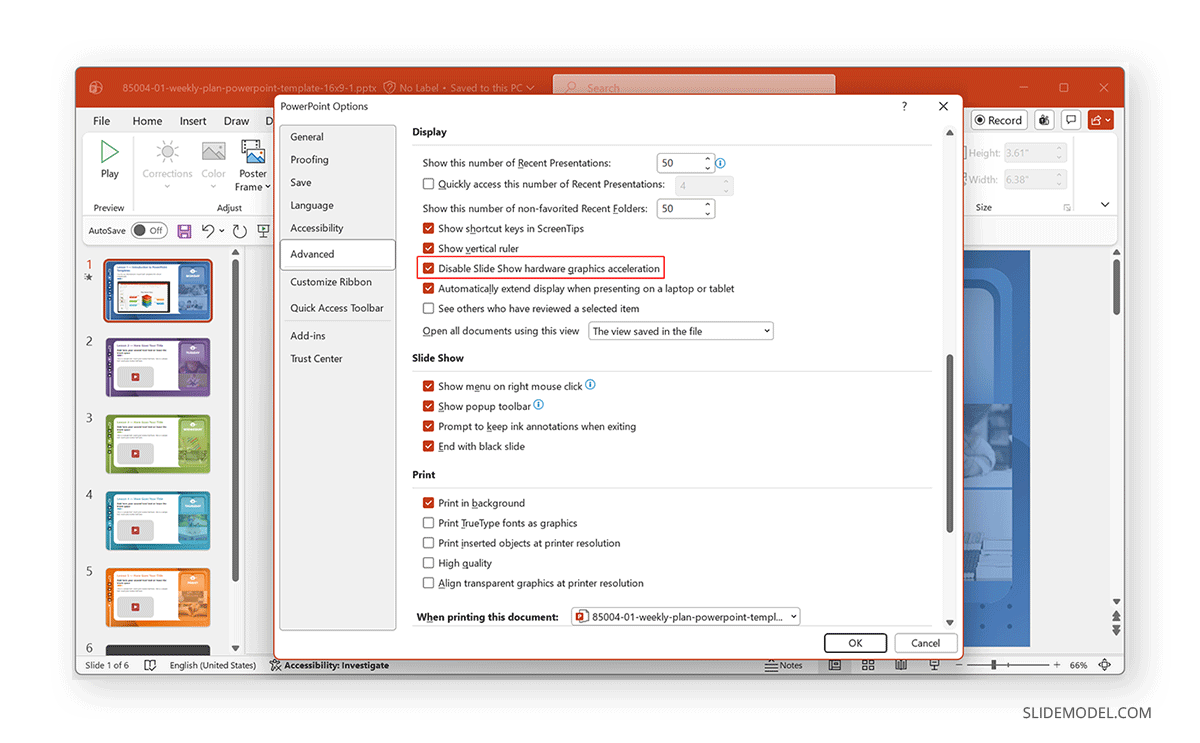
Graphics hardware acceleration can sometimes interfere with video playback, especially on older machines. To Disable Hardware Acceleration, follow these steps:
Step 1: Go to File -> Options -> Advanced.
Step 2: Scroll to the Display section and select disable hardware graphics acceleration.
Step 3: Restart PowerPoint. After restarting, test the video again.
Final Words
When dealing with playback problems in PowerPoint, the issue typically stems from file format, embedding issues, outdated software, or compatibility. Converting videos to MP4 (H.264), properly embedding files, updating PowerPoint, and testing playback in advance will prevent most problems. You can also compress media to make the content lightweight and easy to play on PowerPoint.
To effectively fix video playback in PowerPoint, focus on compatibility and preparation. Since cross-platform compatibility issues can be a major problem, it is recommended to test the presentation on the designated hardware at the venue beforehand. It is also recommended to save your PowerPoint file in multiple formats (e.g., PPTX and PPT) in case you need to work with legacy hardware or older versions of PowerPoint at the venue.
As a last resort, you can always play the video separately in a media player and switch back to the slideshow in case you don’t have the time to troubleshoot the video playback issue. This is a last resort and often saves time while keeping the presentation running smoothly without too many delays.