Many users rely on Canva to design slides, especially when they want a simpler alternative to traditional tools like PowerPoint or Photoshop. However, once the design is complete, one might still need to export the slides to PowerPoint. This is because, despite being a viable PowerPoint alternative, many people still prefer using PowerPoint’s Slide Show mode over Canva. Furthermore, PowerPoint provides more flexibility offline, with additional benefits such as advanced animations and transitions.
If you’re wondering how to export Canva to PowerPoint, in this walkthrough, we will show you how to export a Canva presentation to PowerPoint, explain common pitfalls, and show how to maintain design quality using SlideModel templates.
How to Export Canva Presentation to PowerPoint
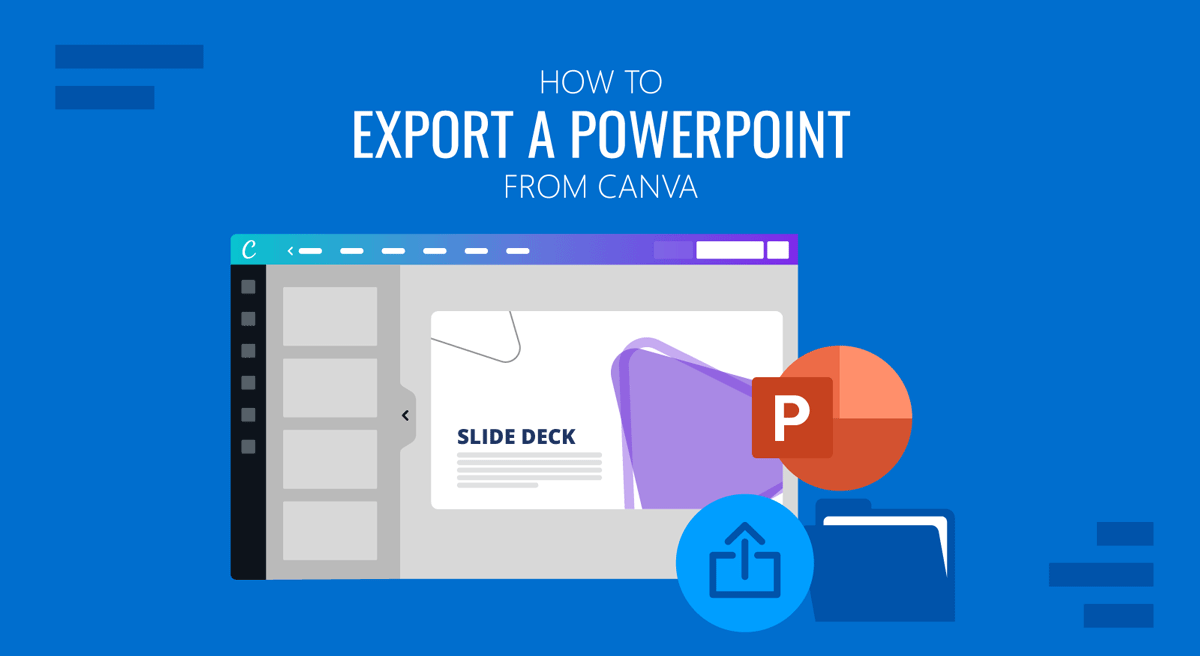
To export Canva slides to PowerPoint, you can use the default export options. This option exports slides in the newer PPTX format, not the legacy PPT format.
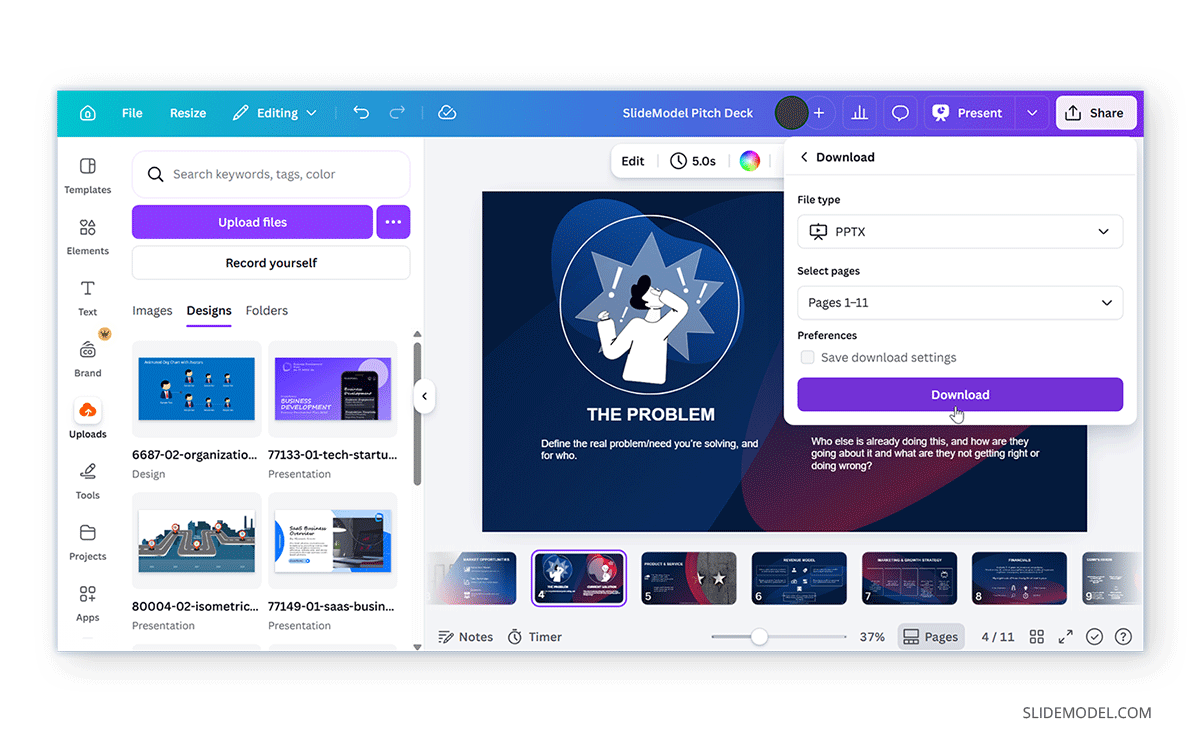
Step 1: Make sure your design is finalized, and all slides are in order. Once complete, go to the top-right corner and click the File button.
Step 2: From the dropdown menu, click Download.
Step 3: Choose Microsoft PowerPoint (.pptx) under file type
Step 4 (Optional): Select pages to download. You can export all slides or the selected ones as needed.
Step 5: Click Download, and Canva will generate your file and download it to your device.
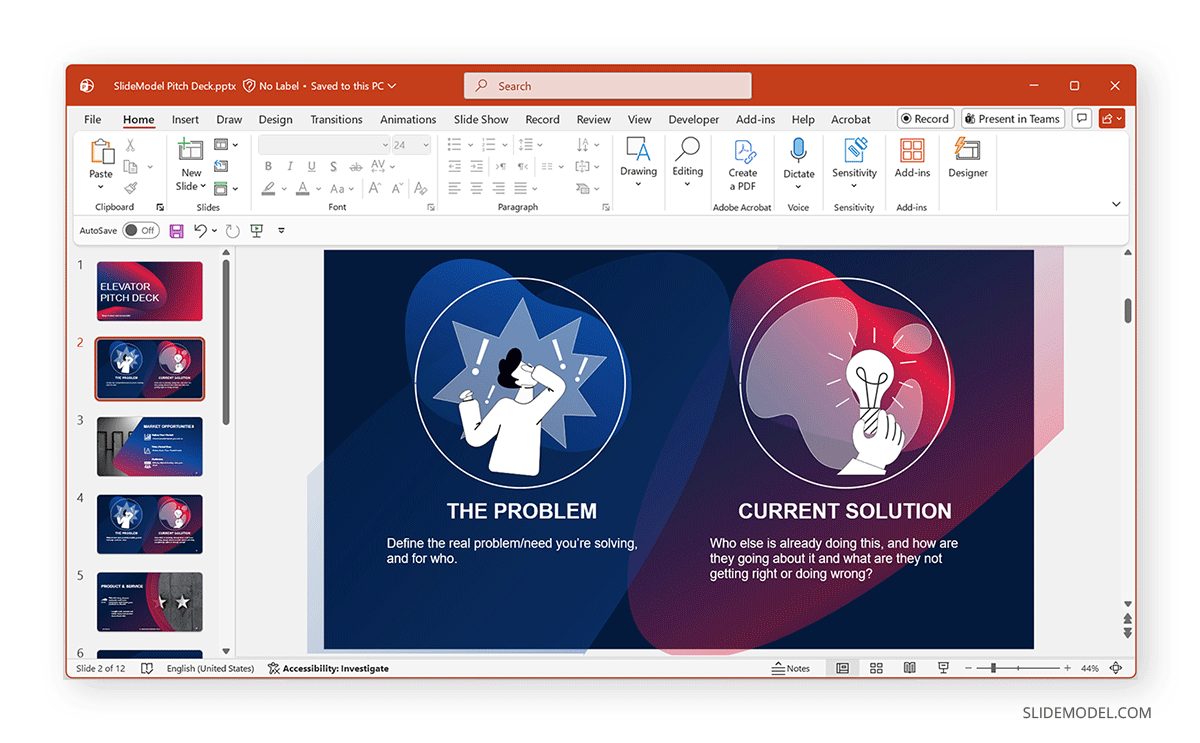
Once downloaded, the file remains editable, and you can open it in PowerPoint to review the formatting and make adjustments if needed. And now that the method showing how to export from Canva to PowerPoint has been explained, below is an example of what your output would look like after export.
What Happens During Export from Canva to PowerPoint
When you export from Canva to PowerPoint, Canva converts your design into editable slides. However, not everything transfers perfectly. While some elements usually transfer well during the process, others may not show up as intended. Now that you know how to export Canva file as PowerPoint, let’s take a look at what transfers properly and what elements and features might not export from Canva to PowerPoint.
What Transfers Properly
Certain elements that usually transfer well include text boxes, basic shapes, images, and slide structures. This also means that using simple slide layouts can help you easily convert Canva slide decks to PowerPoint presentations without losing formatting or features.
Elements That May Change
Certain elements might change, such as fonts (if not installed in PowerPoint), animations, complex layout, spacing, and alignment. Since Canva and PowerPoint differ in how animations and complex layouts are used, there can be various issues when using these features.
Common Issues and Fixes
The most common issues you are likely to face when converting Canva files to PowerPoint slides include font-related issues, misaligned elements, limited animation support, image quality problems, and broken elements.
1. Font Substitution Problem: If a font isn’t available in PowerPoint, it gets replaced automatically. This can make the text appear out of place due to a sudden change in font.
Fix: Replace fonts manually in PowerPoint or download and install the missing font on your device.
2. Misaligned Elements: Layouts may shift slightly and might become misaligned. This is particularly the case when slides have complex layouts.
Fix: Use PowerPoint alignment tools and snap elements into place to correct misaligned elements.
3. Missing Animations: Canva animations don’t transfer to PowerPoint. This is because Canva and PowerPoint render animations differently.
Fix: Reapply animations in PowerPoint using native Animations. Preview the animated slides to ensure they work properly.
4. Image Quality Issues: Some images may appear lower in quality or slightly different after exporting from Canva to PowerPoint. This is more noticeable when using low-resolution images or heavily scaled visuals.
Fix: Use high-resolution images whenever possible and avoid excessive resizing. If needed, replace the image in PowerPoint with a higher-quality version to maintain clarity.
5. Broken Slide Elements: In some cases, slide elements might break during export from Canva to PowerPoint.
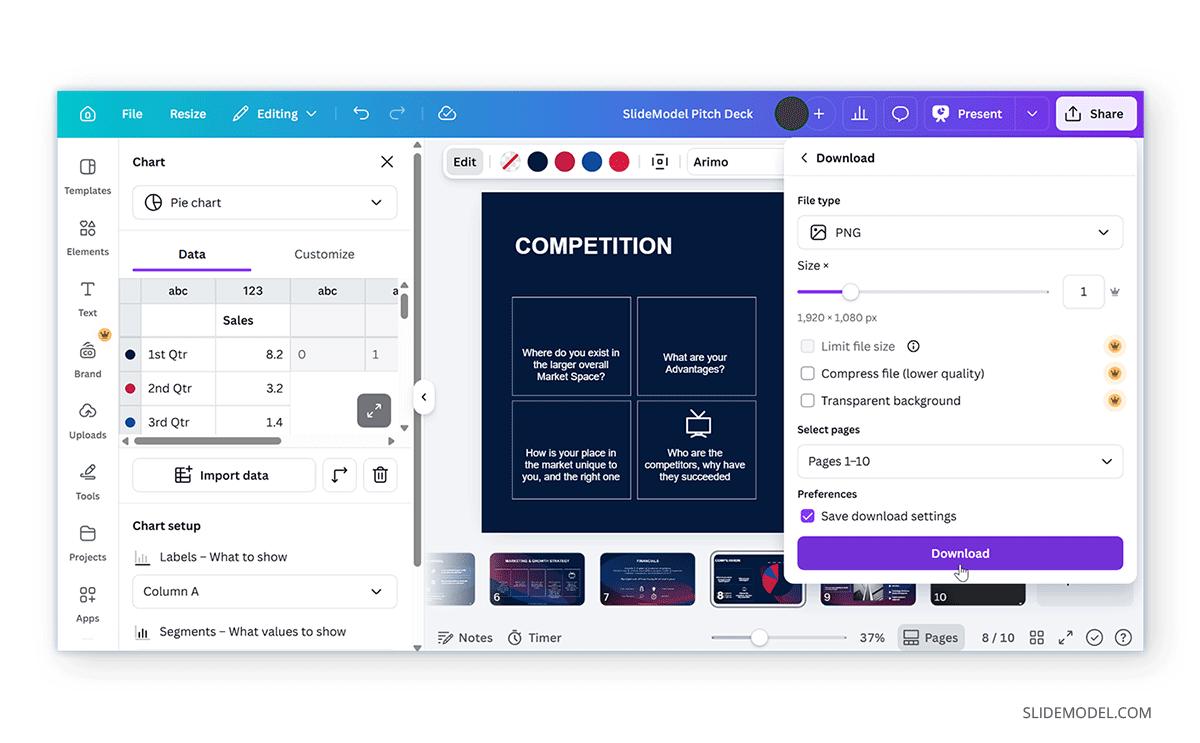
Fix: Realign slide elements to address the elements that seem broken. If this does not work, export the individual slide as an image and insert it in PowerPoint.
How to Export Canva to PowerPoint Without Losing Formatting
This is one of the most common concerns. While perfect conversion isn’t always possible, you can minimize issues by following these best practices.
Use Standard Fonts
Custom Canva fonts may not appear correctly in PowerPoint. Fonts like Arial, Calibri, and Open Sans can help convert slides properly when exported from Canva to PowerPoint.
Keep Layouts Simple
Complex designs are more likely to break. Avoid overlapping elements. Furthermore, you should try to limit heavy layering and keep alignment clean.
Use High-Quality Images
Always try to use high-resolution images to avoid loss of quality. Furthermore, avoid stretching or compressing images excessively to prevent quality issues.
Avoid Canva-Specific Features
Some features don’t translate well, such as advanced animations, media embedding, or stickers. You can try adding these later, after exporting from Canva to PowerPoint, to avoid losing features during export.
Use SlideModel Templates Inside Canva
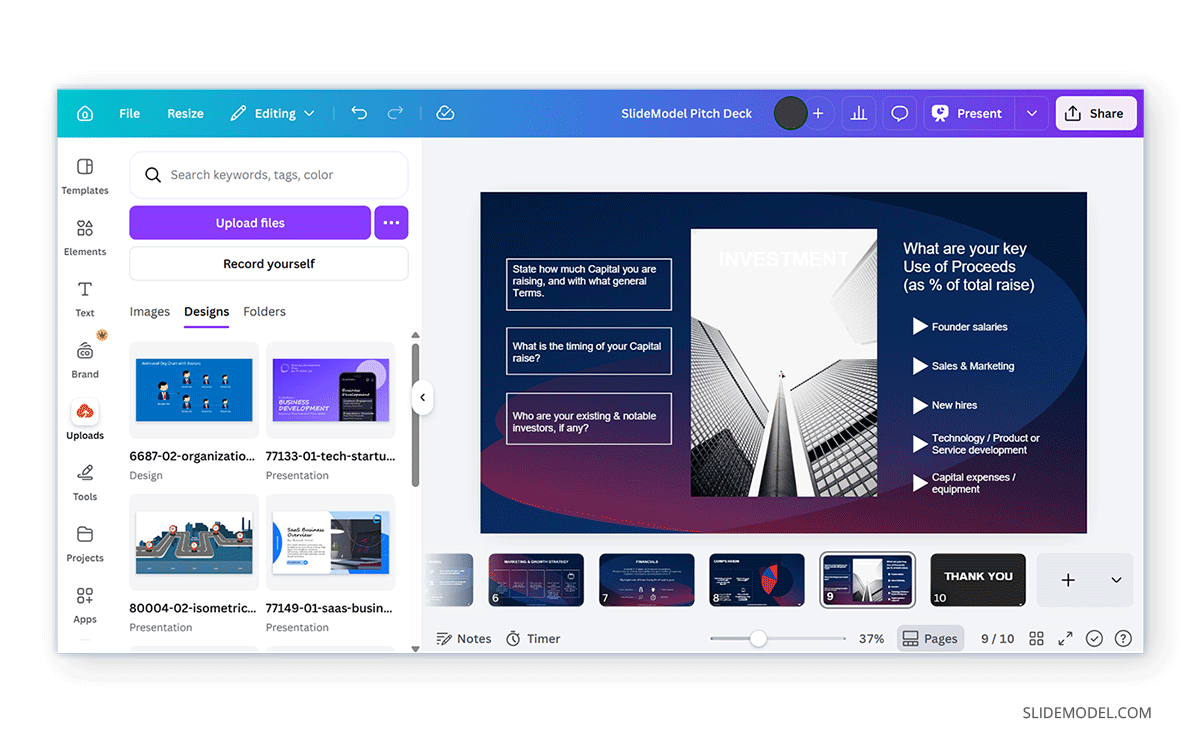
If you want better consistency and branding, SlideModel templates can help you create more PowerPoint-compatible slides in Canva. This approach is especially useful when your end goal is to deliver a PowerPoint file. By designing slides with this structure in mind, you can avoid common export issues, such as misaligned elements, broken layouts, or inconsistent formatting. Think of Canva as your design tool and PowerPoint as your delivery tool. By using this method, you can make the transition between the two formats much smoother. Fixing problems after exporting, you can prevent them from happening in the first place.
Final Words
Once you learn how to export from Canva to PowerPoint, you gain the flexibility to move between design and presentation tools without starting from scratch. The key is to keep your layouts clean, use compatible elements, and review your slides after conversion.
Using ready-made decks, such as SlideModel templates, can help you create presentations that are balanced, optimized for platforms like Canva, and consistent when exported to PowerPoint.