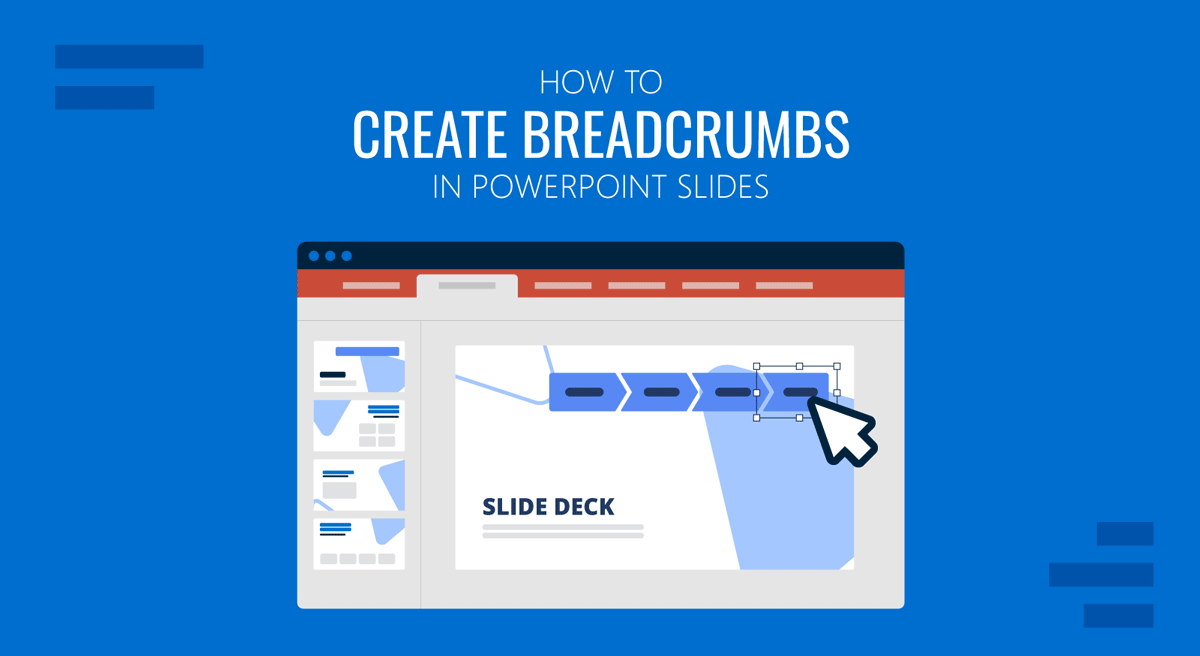
Navigating a lengthy presentation can be confusing for both the presenter and the audience. That’s where breadcrumbs in PowerPoint come in. Just like on websites, breadcrumbs provide a visual trail that indicates your current location within the content structure. Breadcrumbs in PowerPoint can help you reinforce the agenda flow, increase clarity, and give a proper lead-in to your call to action.
What Are Breadcrumbs in PowerPoint?
Breadcrumbs in PowerPoint are small navigation elements typically located at the top or bottom of a slide. They indicate the current position within a presentation’s structure. Acting like a guide for the viewer. Breadcrumbs can include sections, sub-sections, or titles of previous slides. For example, a breadcrumb might read as: Home -> Marketing -> Q2 Results. Such detail can help the audience understand where the topic fits within the presentation flow.
Why Use Breadcrumbs in a Presentation?
Breadcrumbs serve multiple purposes in a presentation context. They help the presenter stay oriented, especially during long or nonlinear presentations. This reduces the risk of skipping content or backtracking unnecessarily.
- Map for the Audience: Breadcrumbs provide a clear visual cue of the audience’s location within the presentation, helping them understand what has been covered and what’s coming next.
- Reinforce Structure: Breadcrumbs in PowerPoint presentations reinforce structure and professionalism by visually segmenting the presentation into logical parts.
- Enhancement of Interactive Slide Content: The usability of interactive or linked slide content can be enhanced by using breadcrumbs, such as in training modules or investor pitches, where users can easily jump between sections.
- Q&A Assistance: Breadcrumbs help in Q&A sessions or impromptu discussions where the presenter needs to return to earlier sections without losing their place.
- Audience Engagement: You can build audience trust and engagement by demonstrating thoughtful design and a well-planned flow, effectively utilizing breadcrumbs.
- Ease of Review: To make slides easier to review after a presentation, especially when shared digitally or as PDFs, breadcrumbs can be a good option to facilitate the review process.
How to Add Breadcrumbs in PowerPoint
Here’s a step-by-step guide to manually creating breadcrumbs in PowerPoint using two simple methods, including the use of shapes and text boxes and the use of SmartArt Graphics.
Method 1: Create Breadcrumbs with Shapes and Text Boxes
Step 1: Identify the structure of your presentation and divide it into sections, such as Introduction, Strategy, Data, and Conclusion.
Step 2: Design your breadcrumb layout: Decide if breadcrumbs will appear at the top, bottom, or in a consistent placeholder. Use text boxes or shapes to create breadcrumbs.
Example: Insert a horizontal row of small text boxes or rectangles for each section. Use arrows or lines to visually separate sections.
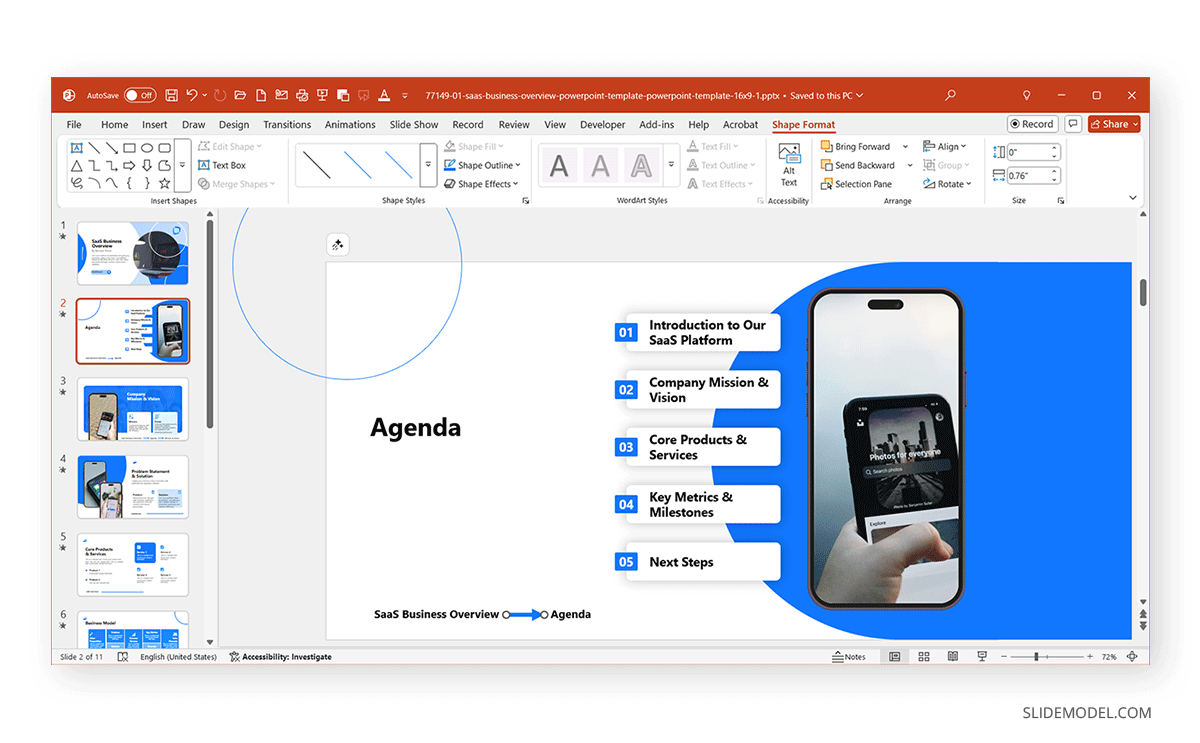
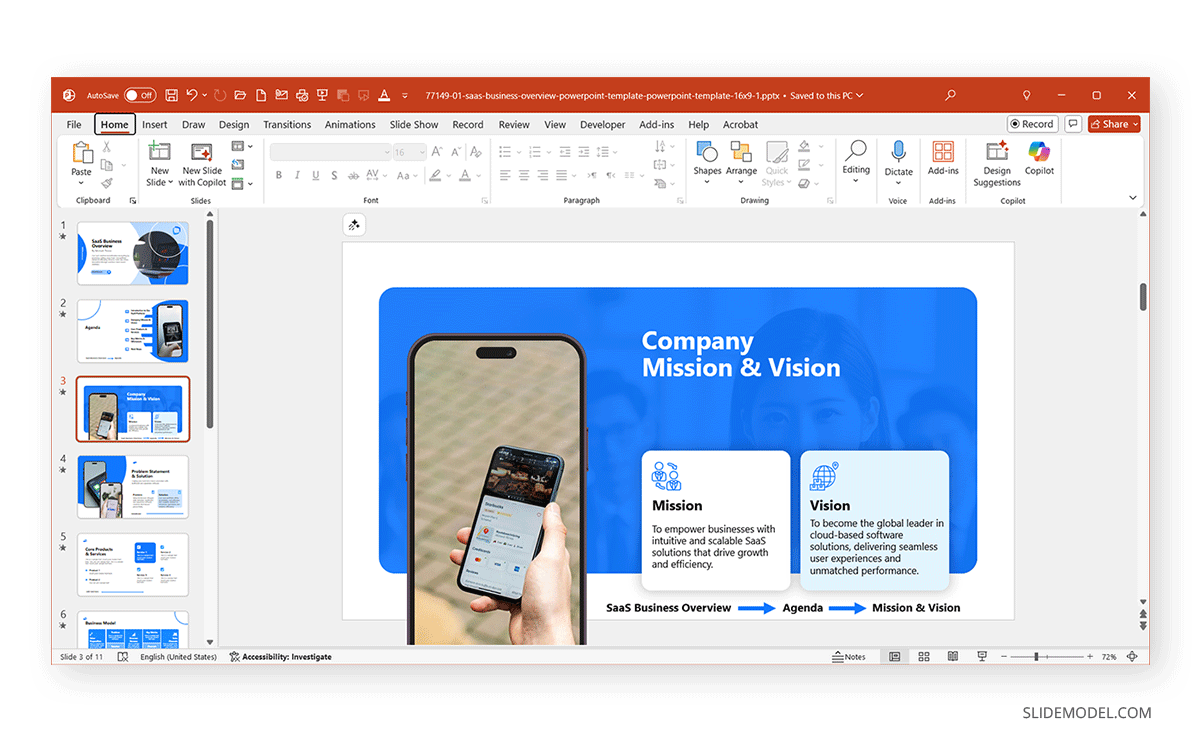
Step 3: You can either highlight the current slide’s section or create breadcrumbs that show information up to the current trail. For example, for a team introduction slide, you can use a pattern like: Introduction > Agenda > Our Team.
Step 4: Once you’re happy with the design, group the breadcrumb shapes and copy them to other slides. Adjust highlighting accordingly.
The example below shows how we added breadcrumbs to the SaaS Business Overview PowerPoint Template using text boxes and arrow shapes.
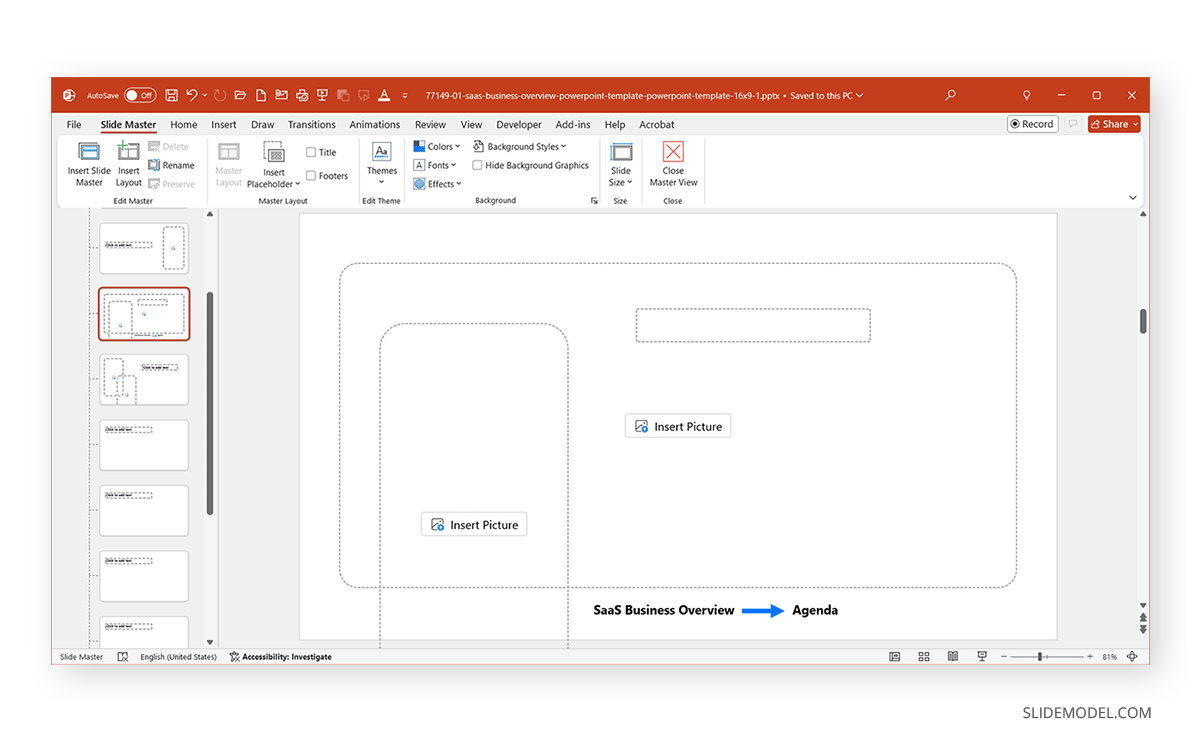
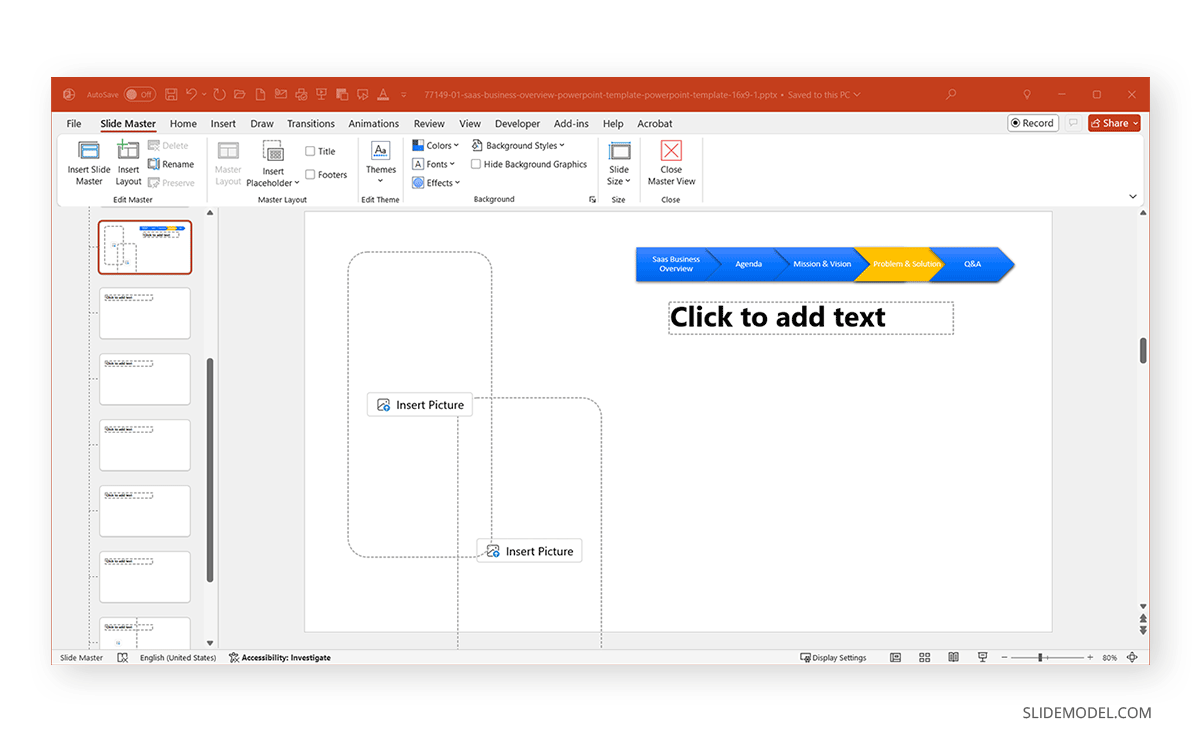
Step 5 (Optional): For larger presentations, use the Slide Master to apply a consistent breadcrumb layout across multiple slides.
Example: Using breadcrumbs in the Slide Master can help ensure consistent alignment. If you have a consistent pattern for presenting key information and want your breadcrumbs populated automatically (e.g., Introduction > Q1 > Q2 > Q3 > Q4 > Way Forward > Q&A), this approach can be beneficial. In this example, you can design a PowerPoint presentation where you will discuss all four quarters, including data on quarters that have concluded and forecasts for coming quarters. If it’s a presentation for the end of the year, the format will remain relevant, as you will be presenting the performance for all four quarters.
Method 2: Create Breadcrumbs in PowerPoint using SmartArt
Step 1: Determine the breadcrumb pattern for your presentation before working on the design, e.g., Introduction, Agenda, Mission, and Vision, etc.
Step 2: Go to Insert -> SmartArt and select a style to create breadcrumbs. In this example, we will use the Closed Chevron Process to make our design.
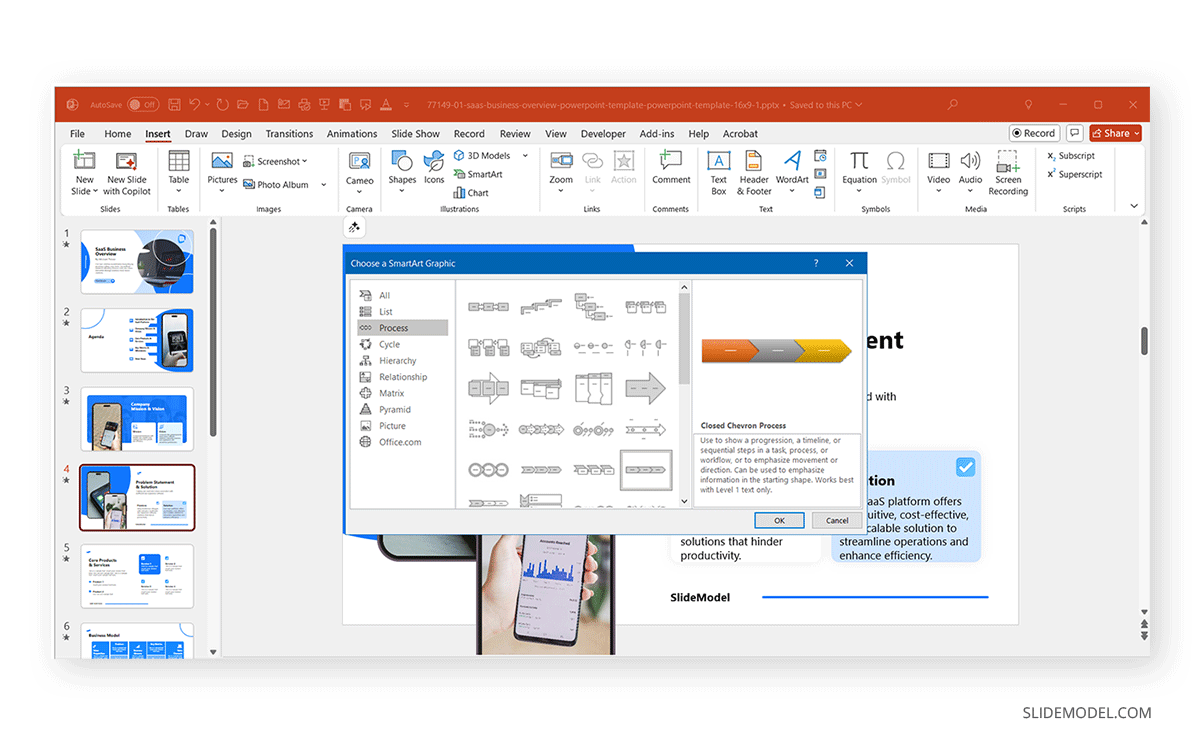
Step 3: Enter text to populate the breadcrumbs and add the SmartArt diagram on every page. Add or reduce the levels as needed.
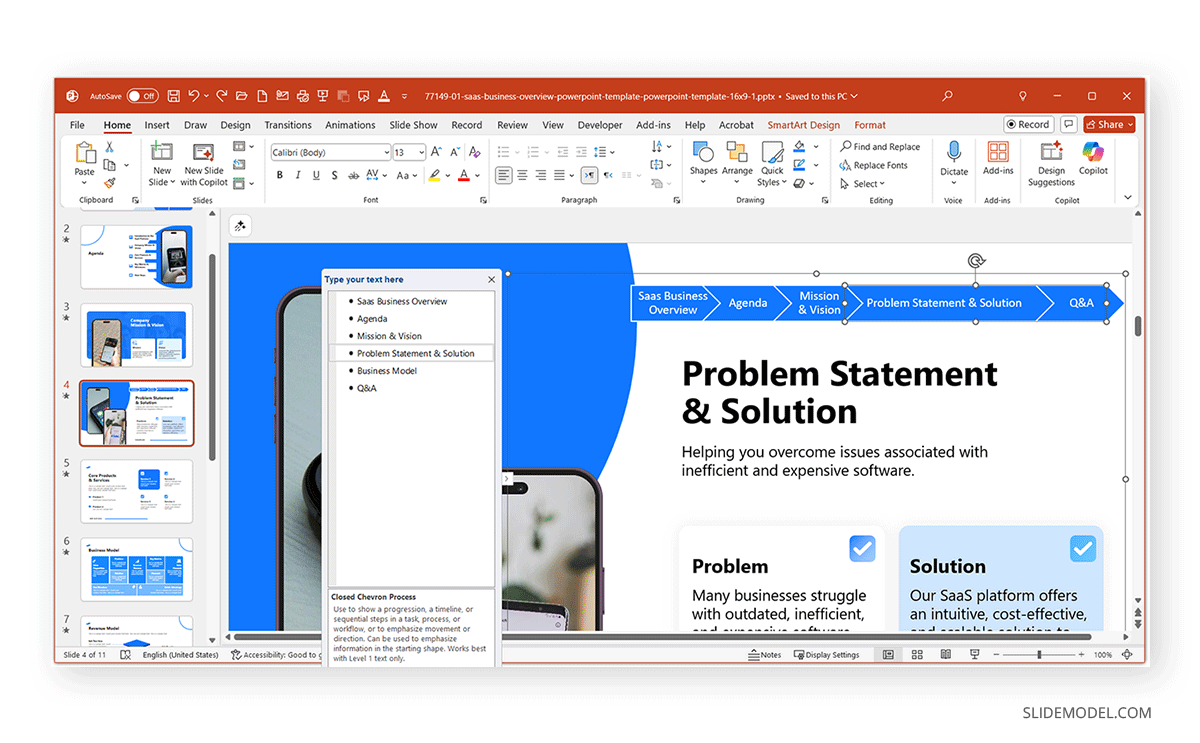
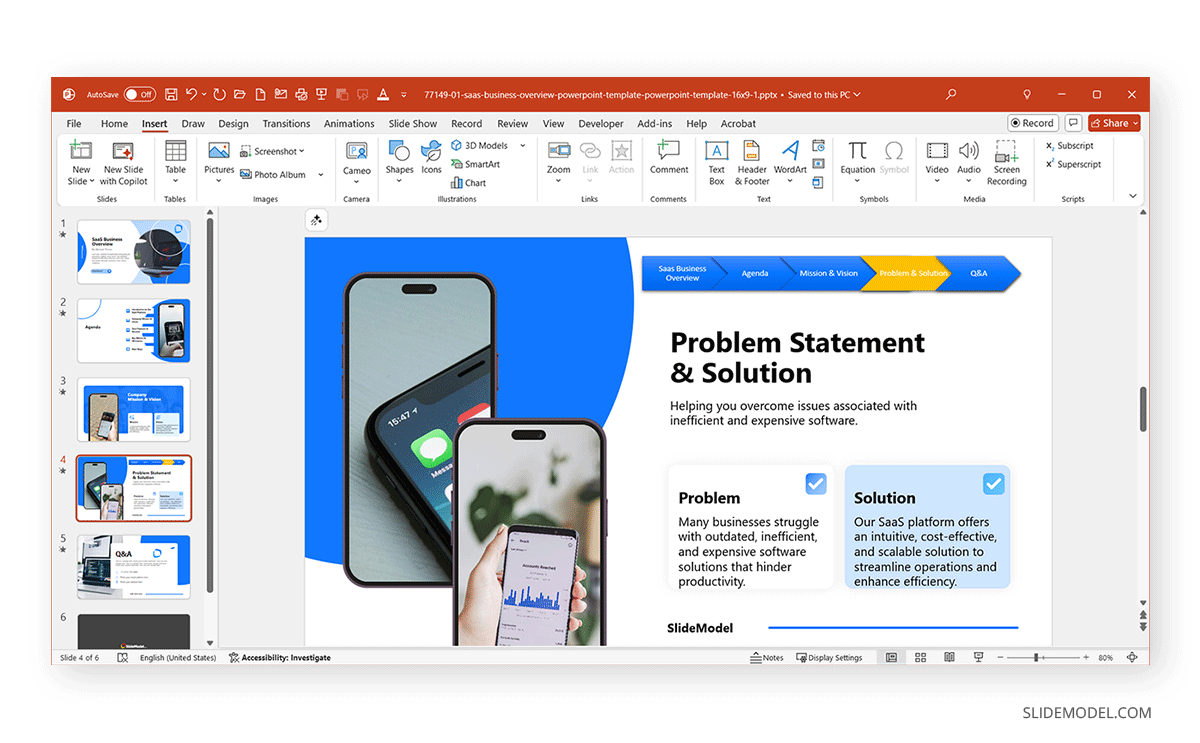
Step 4: Stylize the breadcrumbs to visually align them with your presentation template using SmartArt Design and formatting tools. You can either show the complete trail with the current slide highlighted, or show only the trail up to the current slide. We demonstrated this in the previous example. This example shows the complete trail, with the current slide highlighted in yellow.
Step 5 (Optional): Just like method one, you can optionally use the Slide Master to create a consistent breadcrumb pattern.
Design Tips for Effective Breadcrumbs
When using breadcrumbs, it’s easy to get carried away with the design. Here are a few design tips to help you create effective breadcrumbs:
- Keep Breadcrumbs Small and Unobtrusive: Don’t let them compete with your main content. Avoid overloading breadcrumbs. Stick to 3-5 segments per slide (as needed). Place breadcrumbs consistently at the top (for hierarchy) or at the bottom (for unobtrusiveness) throughout your presentation. Leave enough padding between elements to prevent visual clutter.
- Use a Consistent Style Across Slides: Maintain a consistent font family, font size, spacing, and alignment throughout. You can use SmartArt Graphics or shape groups to create visual breadcrumbs with arrows or chevrons, making them easier for the audience to read.
- Work with Subtle Colors: Choose subtle colors that fit within your brand palette, but use a contrasting color or bolding to highlight the active section. The colors can be adjusted to match the primary colors of your presentation deck. Consider a design where your breadcrumbs are highlighted enough for the audience to see them easily, but not so much that they distract from the main content. You can also reduce transparency and use gradients to achieve this.
- Incorporate Icons & Shapes: Add icons (such as a home, magnifying glass, or arrow) to represent navigation points for quick recognition visually.
- Use Slide Master: Use the Slide Master to ensure breadcrumbs are embedded in the layout and won’t shift when slides are duplicated or moved.
Real?World Use Cases of Breadcrumbs in PPT
The breadcrumbs slide PPT is widely used at conferences, product launches, and corporate presentations, and many renowned organizations include it in their slide decks.
Conference and Keynote Slides by Apple (WWDC)
Apple’s developer presentations, particularly at the Worldwide Developers Conference (WWDC), subtly reflect breadcrumb-style navigation (such as “iOS > Security > VisionOS) in section dividers. These presentations often feature vertically aligned section dividers. This structure helps the audience see where they are in the session flow without distraction.
TED-style Talks with Structured Transitions
TED Talk presenters like Hans Rosling like to use clearly labeled stages such as: Problem > Data Visualizations > Solutions. This explicit flow creates breadcrumb-style clarity even in minimalist slides. Presenters often use these structured transitions to make information easier for the audience to follow.
Consulting Firm Slide Decks (McKinsey, BCG, & Deloitte)
In client deliverables at top strategy firms, slide headers or footers often include visible markers like Executive Summary > Problem Definition > Analysis > Recommendations, mirroring breadcrumb designs to reinforce structure and storytelling. Many have recreated presentations in public forums (e.g., SlideShare or consulting prep sites like Preplounge) showing a similar top-bar navigation or “breadcrumb-like” flow. This method, used by consulting firms like McKinsey, BCG, and Deloitte emphasizes structured storytelling, often visualized with the help of progress bars or section headers.
Product Demos & Sales Pitches
In product presentations (especially in tech and SaaS), the breadcrumb trail, like Overview > Features > Pricing > Case Studies, helps keep both the presenter and the audience aligned, especially during Q&A or nonlinear navigation. Many product demos shared online include breadcrumbs in the videos. YouTube videos of Google’s I/O Developer Keynotes come with chapters divided in the form of breadcrumbs. These are like video presentations, available for easy online navigation via breadcrumbs.
Long-Form Corporate Presentations and Board Reviews
Many long-form corporate presentations for quarterly board meetings are structured as: Financials > Risk Assessment > ESG Compliance. In this case, breadcrumb bars visually guide board members through each segment transparently.
Academic Conferences and Multi?Speaker Events
Platforms like TEDx or academic symposia may use slide headers or footers to show progress, such as Session > Subtopic > Next Speaker, helping viewers track transitions between presenters or themes.
Interactive Training and E?Learning Modules
Online learning portals like Coursera / edX Slides consistently display the current module and lesson on each slide in a breadcrumb-style fashion to aid learning. Instructors like Prof. Barbara Oakley often embed breadcrumb?style slide titles, displayed consistently across slides, to anchor learners in the curriculum.
These examples demonstrate how breadcrumbs, whether explicit bars or implied structured flow, enhance clarity, continuity, and audience orientation across high?stakes presentations.
Final Words
Breadcrumbs aren’t just limited to PowerPoint presentations and are commonly used in interactive e-learning courses, video presentations, Google Slides, Keynote presentations, etc. Furthermore, many reports, web interfaces, and apps use them by default. Since breadcrumbs are frequently used in web interfaces and reports, their utility has caught up with presenters. Breadcrumbs in PowerPoint can help engage the audience and aid in content navigation. Incorporating them into your presentation template enhances clarity, supports the presenter, and can also be a valuable way to make your information more memorable.
The Breadcrumbs PPT can also be designed conveniently by creating a template that assigns key elements to a Master Slide. This can be particularly useful if you want them populated by default for presentations that consistently use a set format and to ensure consistent breadcrumb alignment.